audio NISSAN KICKS 2020 Owner´s Manual
[x] Cancel search | Manufacturer: NISSAN, Model Year: 2020, Model line: KICKS, Model: NISSAN KICKS 2020Pages: 500, PDF Size: 3.43 MB
Page 268 of 500
Received message screen
Touching the “Read” key on the incoming
message notification screen or selecting a
message from the message list will show
the details of the received message on the
display.
Available actions:
•Prev.Touch this key to read the previous mes-
sage. •Next
Touch this key to read the next message.
• Play/Stop Touch the “Play ” key to have the hands-
free phone system read out the received
message. Touch the “Stop” key to stop
reading.
• Call If the sender of the message is registered
in the phonebook, touch the “Call” key to
make a call to the sender.
• Reply A reply message can be selected from
the predefined list. Sending a text message (if so equipped)
This function may not be supported de-
pending on the cellular phone.
1. Press the
button on the control
panel.
2. Touch the “Text Message” key on the screen.
3. Touch the “Create Message” key on the screen.
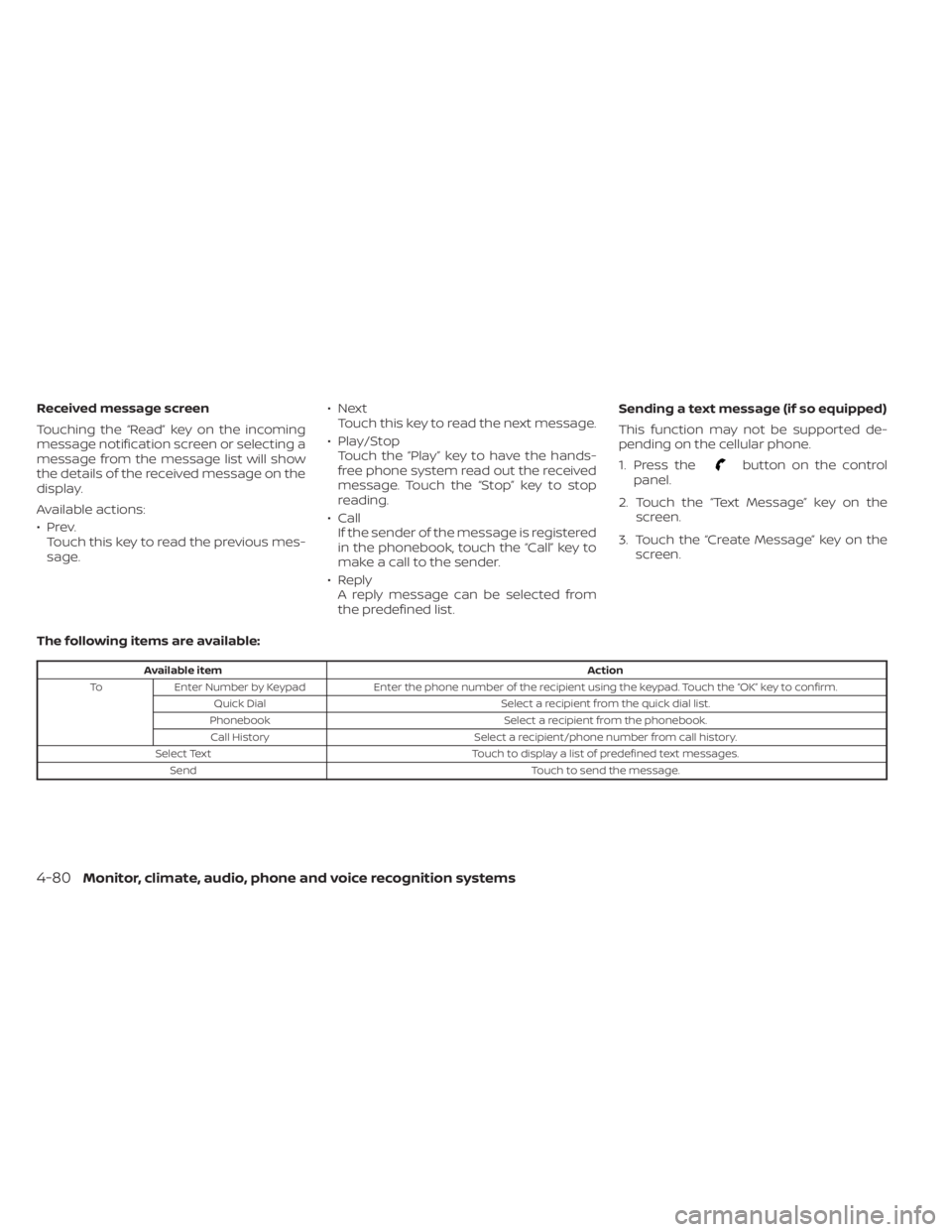
The following items are available:
Available item Action
To Enter Number by Keypad Enter the phone number of the recipient using the keypad. Touch the “OK” key to confirm.
Quick Dial Select a recipient from the quick dial list.
Phonebook Select a recipient from the phonebook.
Call History Select a recipient/phone number from call history.
Select Text Touch to display a list of predefined text messages.
Send Touch to send the message.
4-80Monitor, climate, audio, phone and voice recognition systems
Page 269 of 500
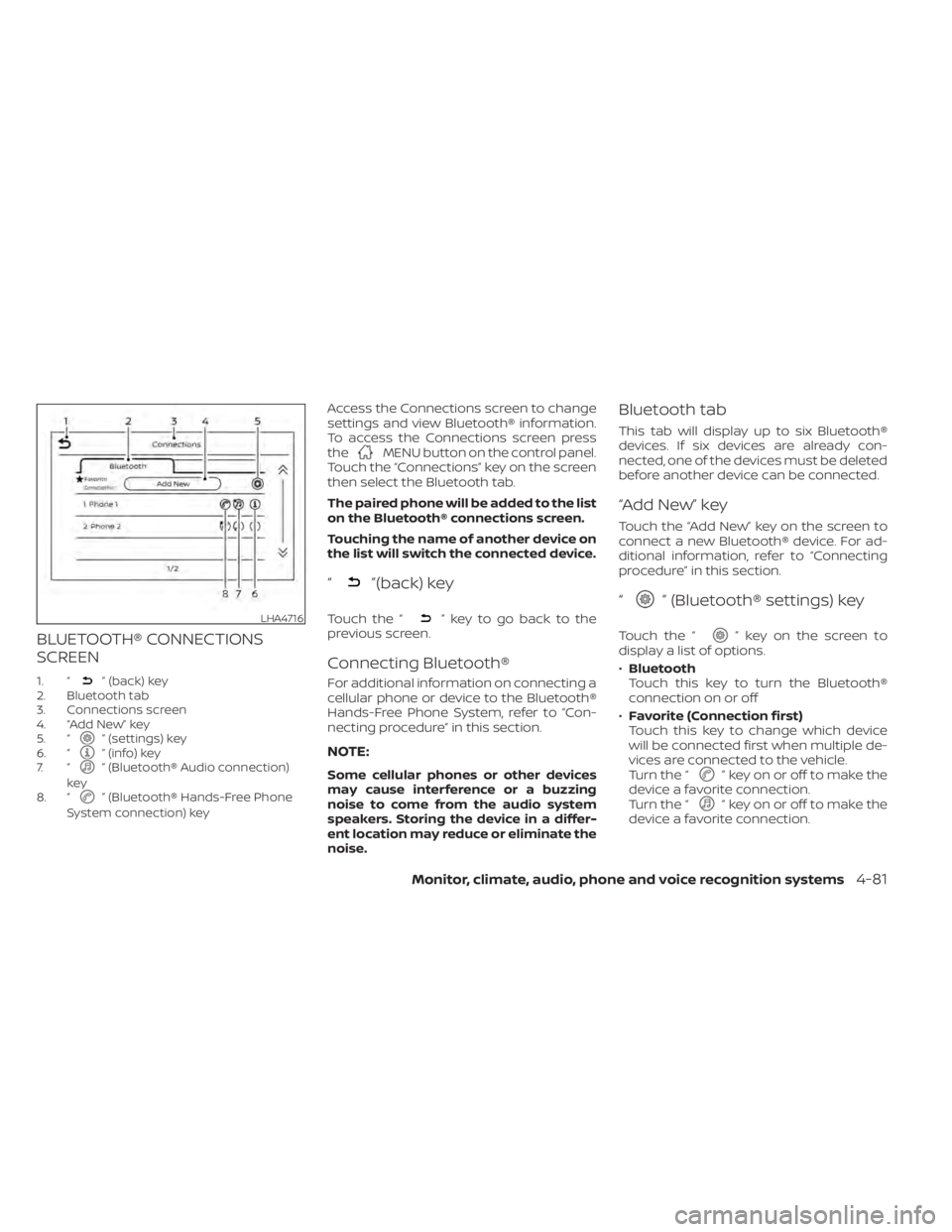
BLUETOOTH® CONNECTIONS
SCREEN
1. “” (back) key
2. Bluetooth tab
3. Connections screen
4. “Add New” key
5. “
” (settings) key
6. “” (info) key
7. “” (Bluetooth® Audio connection)
key
8. “
” (Bluetooth® Hands-Free Phone
System connection) key
Access the Connections screen to change
settings and view Bluetooth® information.
To access the Connections screen press
the
MENU button on the control panel.
Touch the “Connections” key on the screen
then select the Bluetooth tab.
The paired phone will be added to the list
on the Bluetooth® connections screen.
Touching the name of another device on
the list will switch the connected device.
“”(back) key
Touch the “” key to go back to the
previous screen.
Connecting Bluetooth®
For additional information on connecting a
cellular phone or device to the Bluetooth®
Hands-Free Phone System, refer to “Con-
necting procedure” in this section.
NOTE:
Some cellular phones or other devices
may cause interference or a buzzing
noise to come from the audio system
speakers. Storing the device in a differ-
ent location may reduce or eliminate the
noise.
Bluetooth tab
This tab will display up to six Bluetooth®
devices. If six devices are already con-
nected, one of the devices must be deleted
before another device can be connected.
“Add New” key
Touch the “Add New” key on the screen to
connect a new Bluetooth® device. For ad-
ditional information, refer to “Connecting
procedure” in this section.
“” (Bluetooth® settings) key
Touch the “” key on the screen to
display a list of options.
• Bluetooth
Touch this key to turn the Bluetooth®
connection on or off
• Favorite (Connection first)
Touch this key to change which device
will be connected first when multiple de-
vices are connected to the vehicle.
Turn the “
” key on or off to make the
device a favorite connection.
Turn the “
” key on or off to make the
device a favorite connection.
LHA4716
Monitor, climate, audio, phone and voice recognition systems4-81
Page 270 of 500
•Pin
Touch this key to customize the PIN code.
Input a four digit number then touch the
“OK” key. The new PIN will be set.
“” (info) key
Touch the “” key on the screen to
display the information of the cellular
phone or to delete the device.
Touch the “Delete” key to remove a paired
device then select “Yes” when a message
appears.
“” (Bluetooth® Hands-Free
Phone System connection) key
A list of connected devices will be displayed
on the screen. Touch the “” key next to
the name to connect a device to the
Hands-Free Phone System. If the phone is
listed as a favorite, a star will appear on the
icon. Touch the key again to disconnect the
device. The device will not be removed
from the list. For additional information on
removing a device, refer to “
” (info) key
in this section.
“” (Bluetooth® Audio
connection) key
A list of connected devices will be displayed
on the screen. Touch the “” key next to
the name to connect a device to
Bluetooth® Audio. If the device is listed as a
favorite, a star will appear on the icon.
Touch the key again to disconnect the de-
vice. The device will not be removed from
the list. For additional information on re-
moving a device, refer to “
” (info) key in
this section.
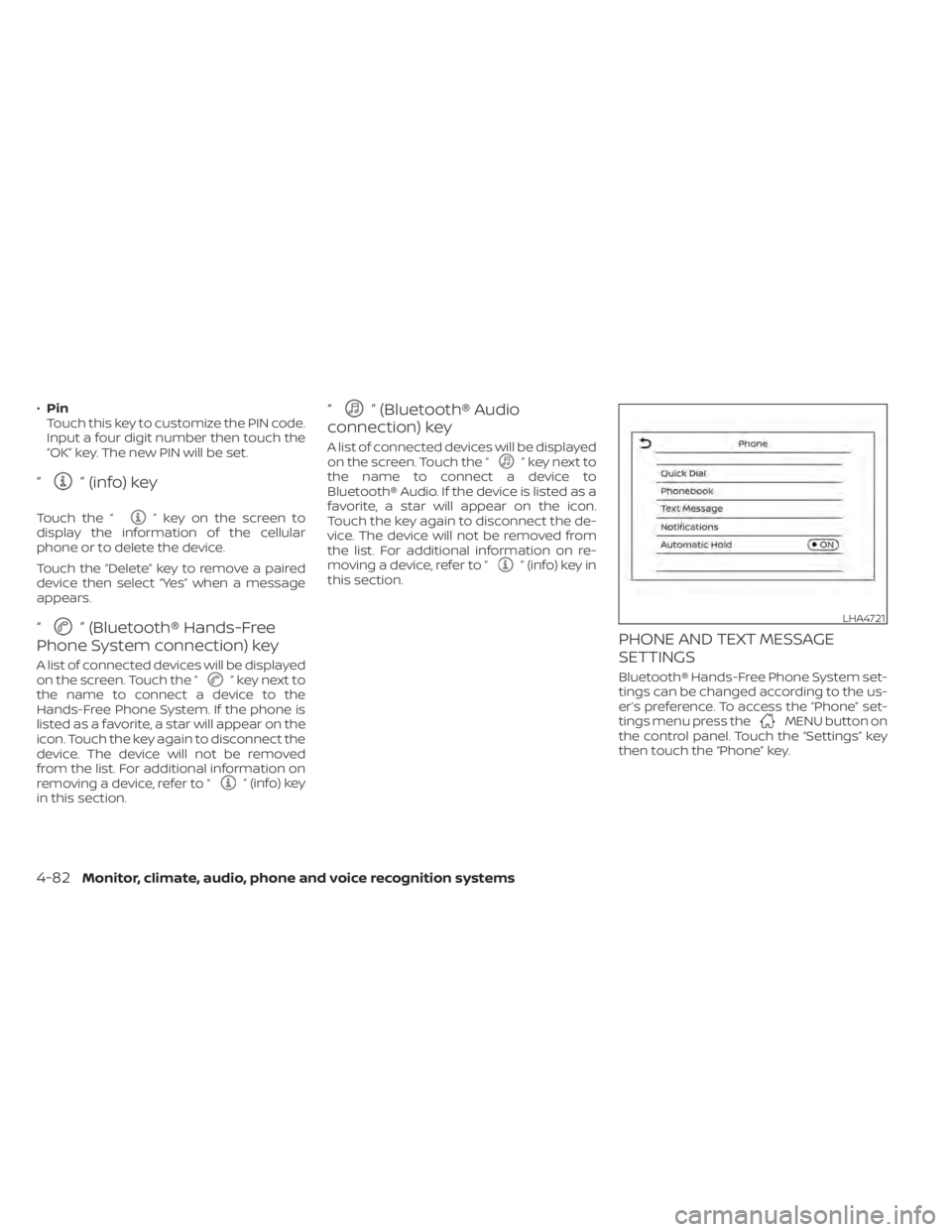
PHONE AND TEXT MESSAGE
SETTINGS
Bluetooth® Hands-Free Phone System set-
tings can be changed according to the us-
er’s preference. To access the “Phone” set-
tings menu press the
MENU button on
the control panel. Touch the “Settings” key
then touch the “Phone” key.
LHA4721
4-82Monitor, climate, audio, phone and voice recognition systems
Page 271 of 500
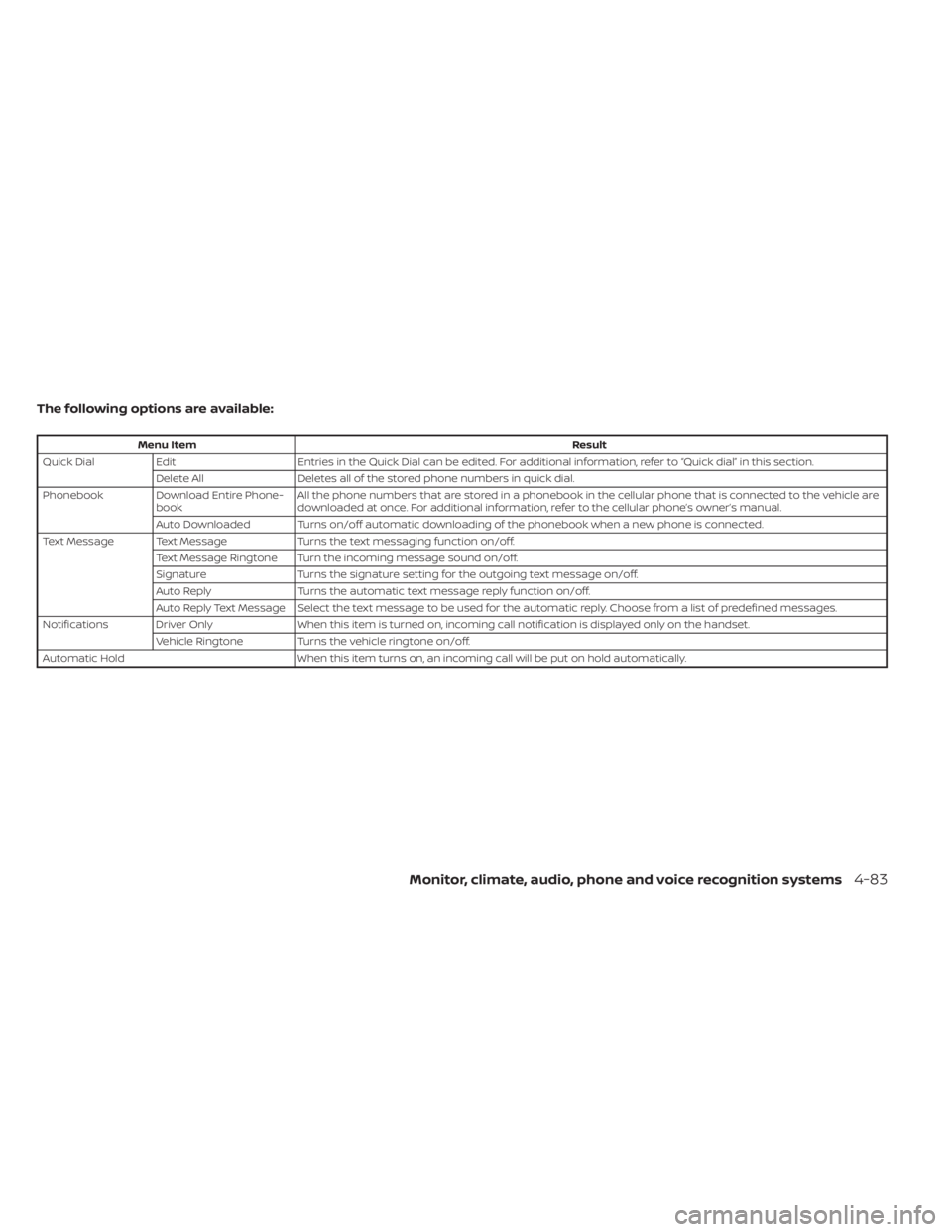
The following options are available:
Menu ItemResult
Quick Dial Edit Entries in the Quick Dial can be edited. For additional information, refer to “Quick dial” in this section.
Delete All Deletes all of the stored phone numbers in quick dial.
Phonebook Download Entire Phone- book All the phone numbers that are stored in a phonebook in the cellular phone that is connected to the vehicle are
downloaded at once. For additional information, refer to the cellular phone’s owner’s manual.
Auto Downloaded Turns on/off automatic downloading of the phonebook when a new phone is connected.
Text Message Text Message Turns the text messaging function on/off.
Text Message Ringtone Turn the incoming message sound on/off.
Signature Turns the signature setting for the outgoing text message on/off.
Auto Reply Turns the automatic text message reply function on/off.
Auto Reply Text Message Select the text message to be used for the automatic reply. Choose from a list of predefined messages.
Notifications Driver Only When this item is turned on, incoming call notification is displayed only on the handset.
Vehicle Ringtone Turns the vehicle ringtone on/off.
Automatic Hold When this item turns on, an incoming call will be put on hold automatically.
Monitor, climate, audio, phone and voice recognition systems4-83
Page 272 of 500
Volume & beeps
There are several methods to customize
the volume settings.
Volume & Beeps
The Volume & Beeps screen can be found
by pressing the
MENU button on the
control panel, touching the “Settings” key
on the screen and selecting “Volume &
Beeps”. To adjust the volume of the follow-
ing options, touch the “-” and “+” keys on the
screen.
The available settings are:
• Ringtone Adjust the volume level of the ringtone of
incoming calls.
• Outgoing Call Adjust the volume level of the outgoing
calls.
• Voice Prompt Vol. Adjust the volume level of the system
voice.
• Text-to-speech Vol. Adjust the volume of the replay voice for
text messaging.
• Button Beeps Turns on/off the button beep sounds and
alarm for prohibited operations. Volume Settings
The Volume settings screen can be found
by pressing the
button on the control
panel then touching the “Volume” key on
the screen. To adjust the volume of the
following options, touch the “-” and “+” keys
on the screen.
The available settings are:
• Ringtone Adjust the volume level of the ringtone of
incoming calls.
• Outgoing Call Adjust the volume level of the outgoing
calls. “Made for iPod”, “Made for iPhone” and
“Made for iPad” mean that an electronic
accessory has been designed to connect
specifically to iPod, iPhone or iPad, respec-
tively, and has been certified by the devel-
oper to meet Apple performance stan-
dards. Apple is not responsible for the
operation of this device or its compliance
with safety and regulatory standards.
Please note that the use of this accessory
with iPod, iPhone or iPad may affect wire-
less performance.
iPad, iPhone, iPod classic, iPod Nano, iPod
shuffle and iPod touch are trademarks of
Apple Inc., registered in the U.S. and other
countries. Lightning is a trademark of
Apple Inc.
iPod®/IPHONE®
4-84Monitor, climate, audio, phone and voice recognition systems
Page 285 of 500
ON (Normal operating position)
This position turns on the ignition system
and electrical accessories.
ON has a battery saver feature that will
place the ignition switch in the OFF posi-
tion, if the vehicle is not running, af ter some
time under the following conditions:
• The shif t lever is in P (Park).
• The hazard lamps are off.
• The turn signals are off.
The battery saver feature will be canceled if
any of the following occur:
• The shif t lever is moved out of the P (Park)position.
• The ignition switch changes position.
• The hazard lamps are turned on.
• The turn signals are turned on.
CAUTION
Do not leave the vehicle with the igni-
tion switch in the ON or AUTO ACC posi-
tion when the engine is not running for
an extended period. This can discharge
the battery. OFF
The ignition switch is in the OFF position
when the engine is turned off using the
ignition switch.
AUTO ACC:
With the vehicle in the P (Park) position, the
Intelligent Key with you, and the ignition
switch placed from the ON to the OFF po-
sition, the radio can still be used for a period
of time, or until the driver’s door is opened.
Af ter a period of time, functions such as
radio, navigation, and Bluetooth® Hands-
Free Phone System may be restarted by
pressing the “POWER button/VOLUME con-
trol knob” or the key fob unlock button. For
additional information, refer to “Monitor, cli-
mate, audio, phone and voice recognition
systems” in this manual.EMERGENCY ENGINE SHUT OFF
To shut off the engine in an emergency
situation while driving, perform the follow-
ing procedure:
• Rapidly push the ignition switch three
consecutive times in less than 1.5 sec-
onds, or
• Push and hold the ignition switch for more than 2 seconds.
NISSAN INTELLIGENT KEY®
BATTERY DISCHARGE
If the battery of the NISSAN Intelligent Key®
is discharged or environmental conditions
interfere with the Intelligent Key operation,
start the engine according to the following
procedure:
1. Place the shif t lever in the P (Park) position.
2. Firmly apply the foot brake.
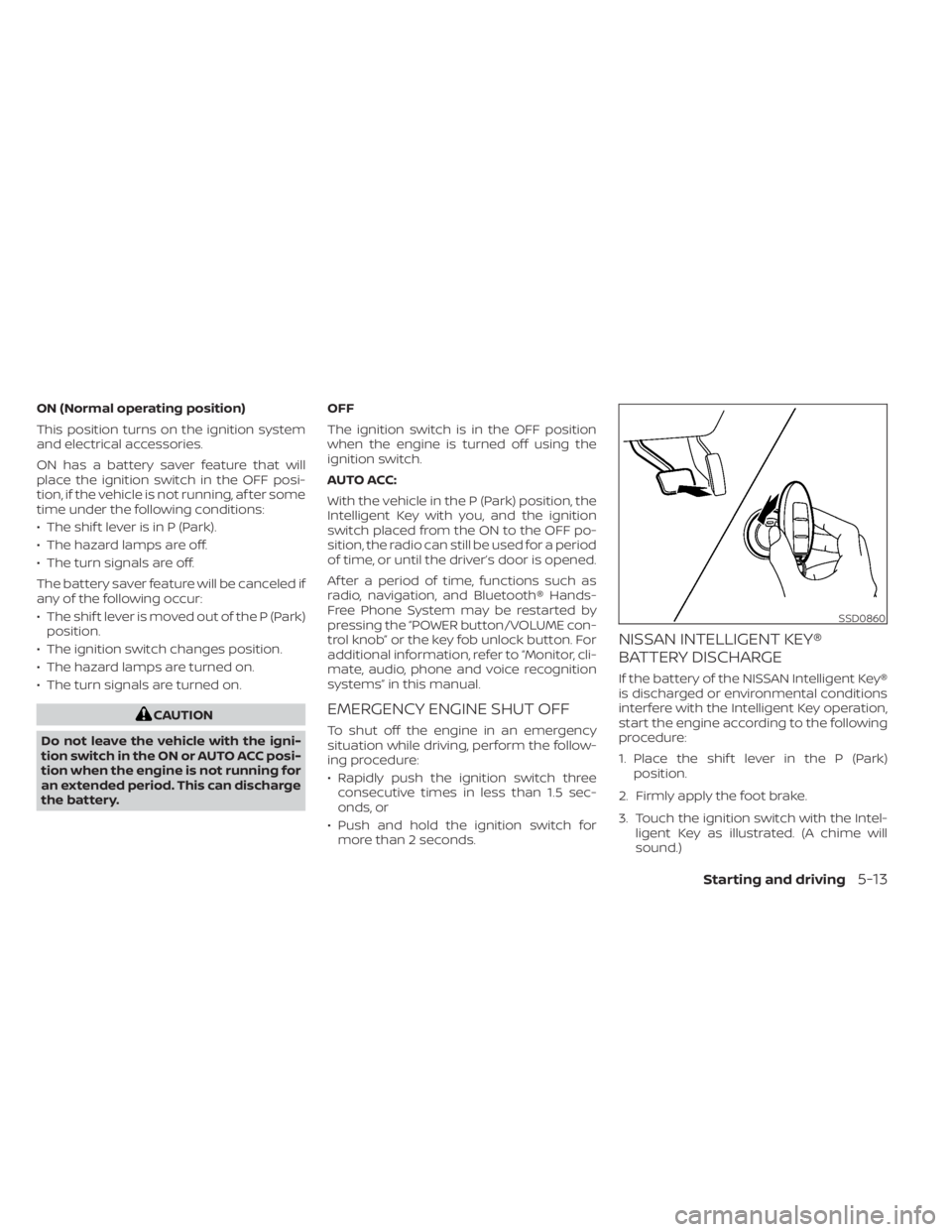
3. Touch the ignition switch with the Intel- ligent Key as illustrated. (A chime will
sound.)
SSD0860
Starting and driving5-13
Page 308 of 500
–Vehicles remaining in the detec-
tion zone when you accelerate
from a stop.
– A vehicle merging into an adjacent
lane at a speed approximately the
same as your vehicle.
– A vehicle approaching rapidly
from behind.
– A vehicle which your vehicle over-
takes rapidly.
– A vehicle that passes through the
detection zone quickly.
– When overtaking several vehicles
in a row, the vehicles af ter the first
vehicle may not be detected if
they are traveling close together.
• The radar sensors’ detection zone is
designed based on a standard lane
width. When driving in a wider lane,
the radar sensors may not detect ve-
hicles in an adjacent lane. When driv-
ing in a narrow lane, the radar sen-
sors may detect vehicles driving two
lanes away. •
The radar sensors are designed to ig-
nore most stationary objects, how-
ever objects such as guardrails, walls,
foliage and parked vehicles may oc-
casionally be detected. This is a nor-
mal operation condition.
• The following conditions may reduce
the ability of the radar to detect other
vehicles:
– Severe weather
– Road spray
– Ice/frost/snow/dirt build-up on
the vehicle
• Do not attach stickers (including
transparent material), install acces-
sories or apply additional paint near
the radar sensors. These conditions
may reduce the ability of the radar to
detect other vehicles.
• Excessive noise (for example, audio
system volume, open vehicle win-
dow) will interfere with the chime
sound, and it may not be heard.
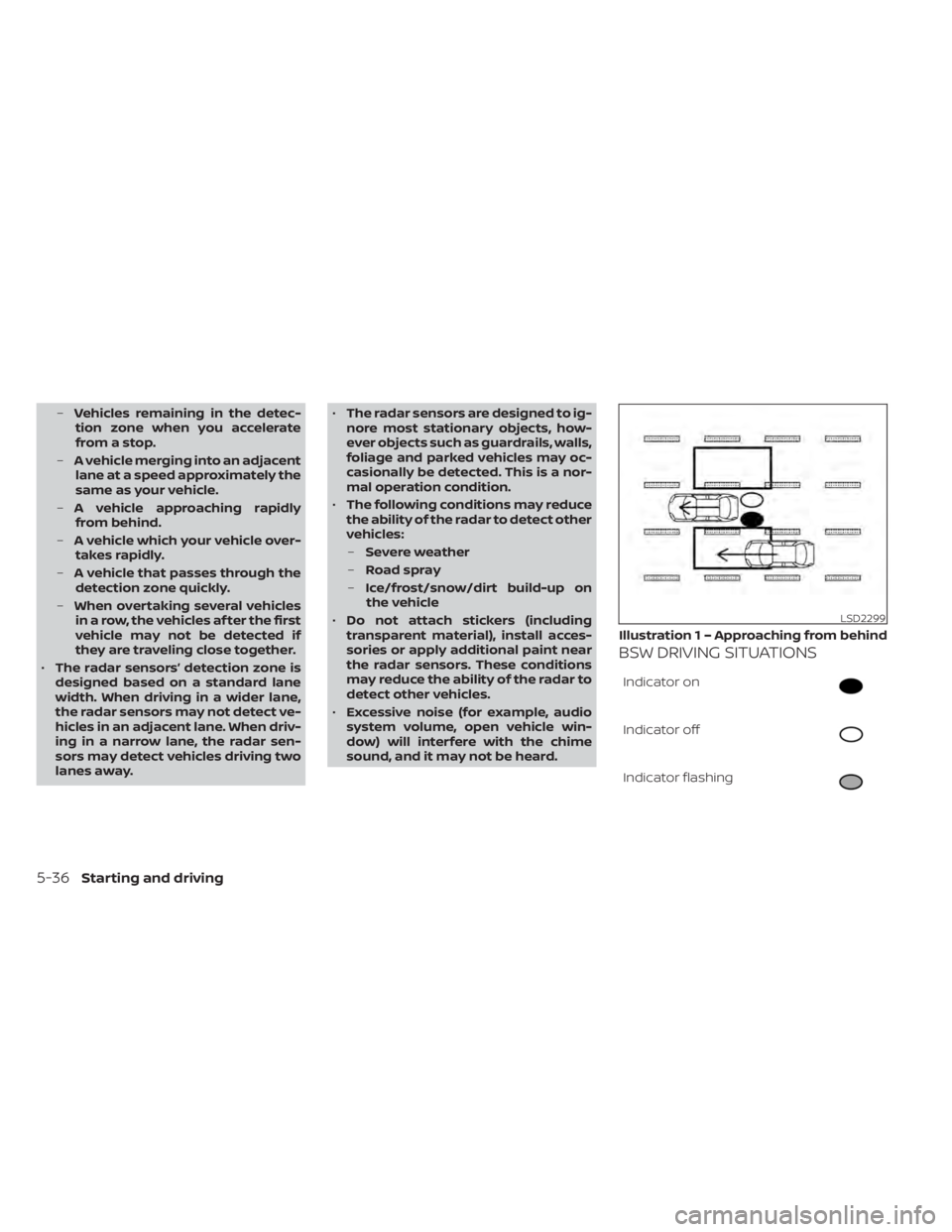
BSW DRIVING SITUATIONS
Indicator on
Indicator off
Indicator flashing
LSD2299
Illustration 1 – Approaching from behind
5-36Starting and driving
Page 321 of 500
–IllustrationOE: When the angle
formed by your vehicle and ap-
proaching vehicle is small.
• The following conditions may reduce
the ability of the radar to detect other
vehicles:
– Severe weather
– Road spray
– Ice/frost/snow/dirt build-up on
the vehicle
• Do not attach stickers (including
transparent material), install acces-
sories or apply additional paint near
the radar sensors. These conditions
may reduce the ability of the radar to
detect other vehicles.
• Excessive noise (e.g., audio system
volume, open vehicle window) will in-
terfere with the chime sound, and it
may not be heard.
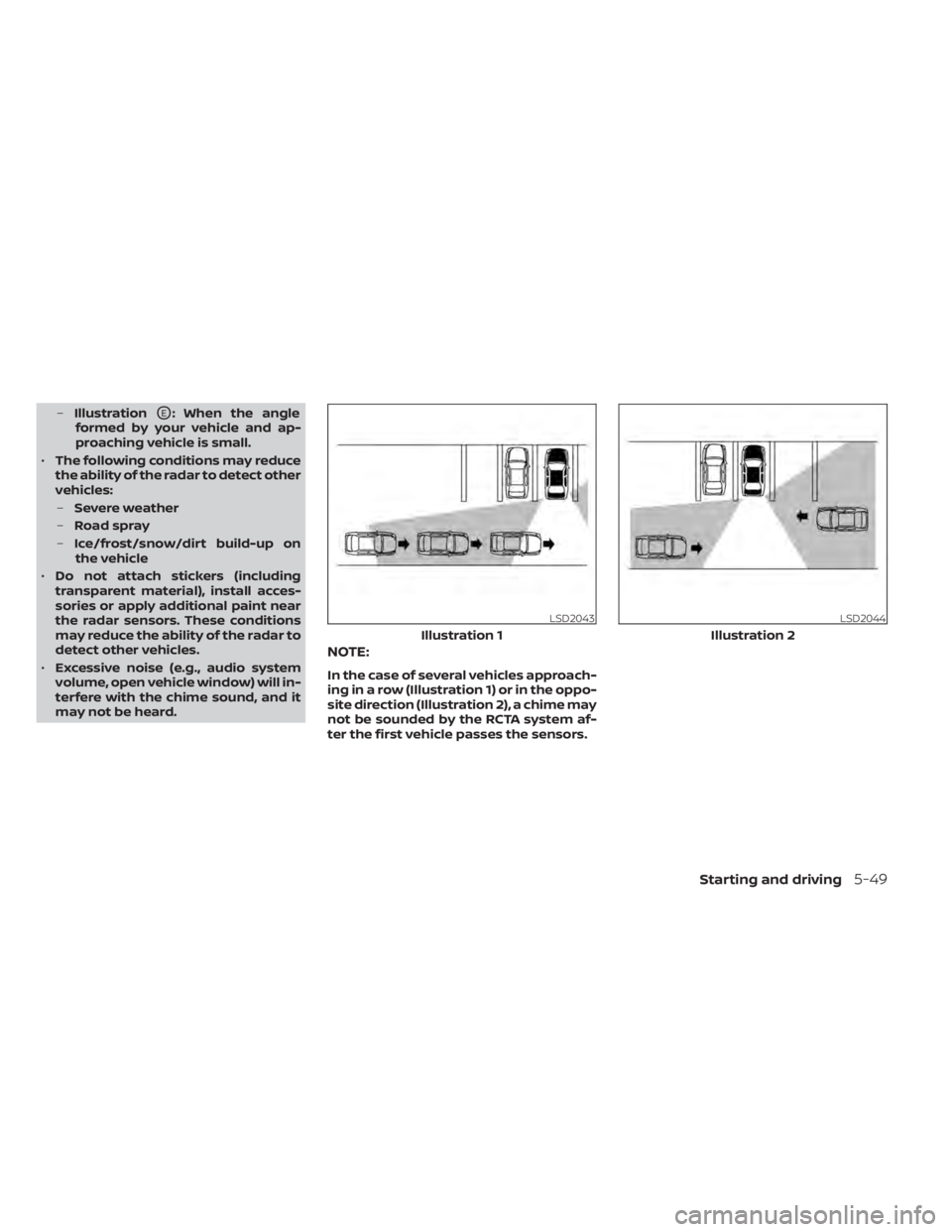
NOTE:
In the case of several vehicles approach-
ing in a row (Illustration 1) or in the oppo-
site direction (Illustration 2), a chime may
not be sounded by the RCTA system af-
ter the first vehicle passes the sensors.
LSD2043
Illustration 1
LSD2044
Illustration 2
Starting and driving5-49
Page 331 of 500
–The braking force becomes poor
due to wet brakes af ter driving
through a puddle or washing the
vehicle.
• Turn the RAB system off in the follow-
ing conditions to prevent the occur-
rence of an unexpected accident re-
sulting from sudden system
operation:
– The vehicle is towed.
– The vehicle is carried on a flatbed
truck.
– The vehicle is on the chassis
dynamometer.
– The vehicle drives on an uneven
road surface.
– Suspension parts other than
those designated as Genuine
NISSAN parts are used. (If the ve-
hicle height or the vehicle body in-
clination is changed, the system
may not detect an obstacle
correctly.)
• Excessive noise (e.g., audio system
volume, an open vehicle window) will
interfere with the chime sound, and it
may not be heard.SYSTEM MALFUNCTION
If the RAB system malfunctions, it will be
turned off automatically, and the RAB sys-
tem warning light will illuminate in the ve-
hicle information display.
Action to take
If the warning light illuminates, park the ve-
hicle in a safe location, turn the engine off,
and restart the engine. If the warning light
continues to illuminate, have the RAB sys-
tem checked. It is recommended that you
visit a NISSAN dealer for this service.
NOTE:
If the RAB system cannot be operated
temporarily, the RAB system warning
light blinks.SYSTEM MAINTENANCE
Observe the following items to ensure
proper operation of the system:
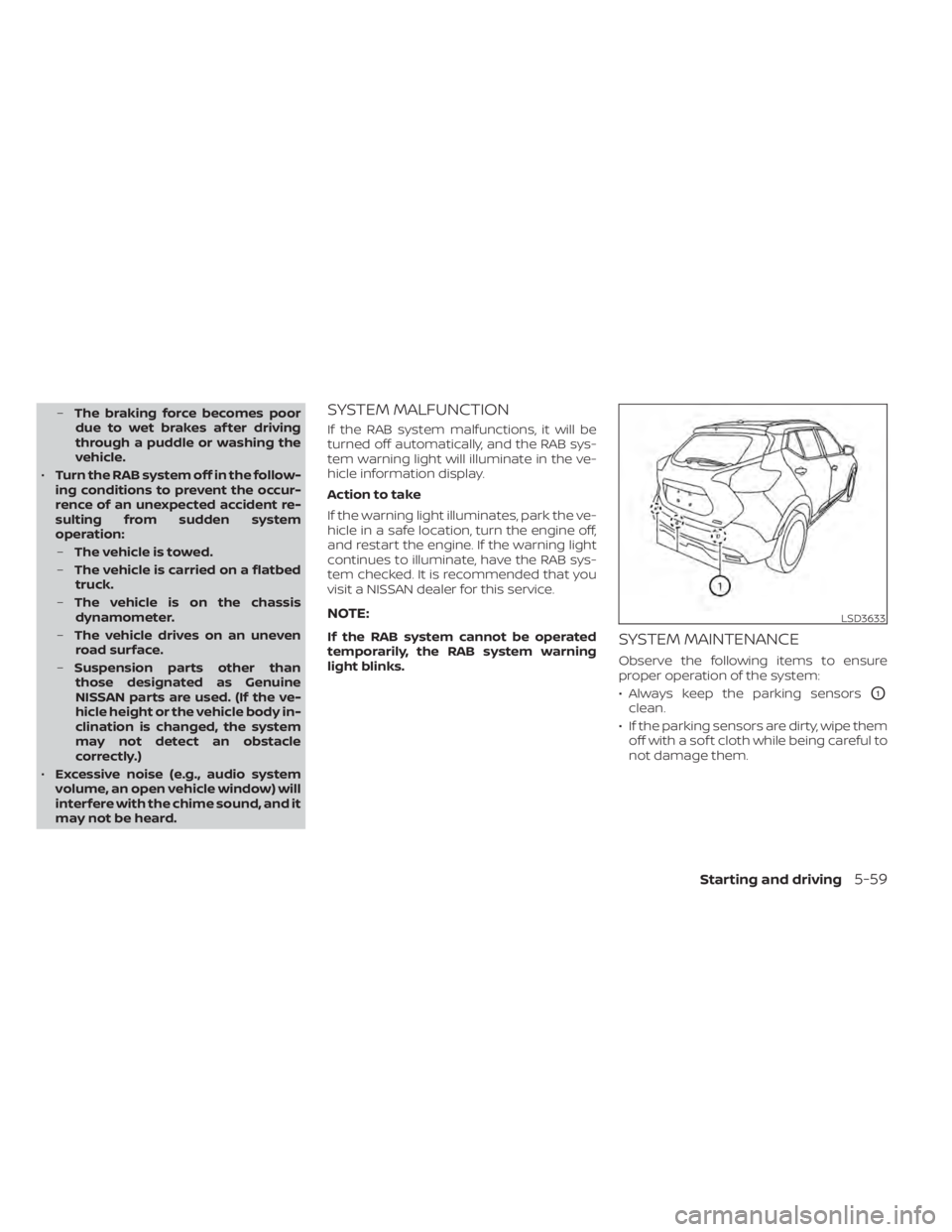
• Always keep the parking sensors
O1
clean.
• If the parking sensors are dirty, wipe them off with a sof t cloth while being careful to
not damage them.
LSD3633
Starting and driving5-59
Page 378 of 500
•The system is not designed to pre-
vent contact with small or moving
objects. Always move slowly. The
system will not detect small objects
below the bumper, and may not de-
tect objects close to the bumper or
on the ground.
• The system may not detect the fol-
lowing objects: fluff y objects such as
snow, cloth, cotton, glass, wool, etc.;
thin objects such as rope, wire and
chain, etc.; or wedge-shaped objects.
If your vehicle sustains damage to the
bumper fascia, leaving it misaligned or
bent, the sensing zone may be altered
causing inaccurate measurement of ob-
stacles or false alarms.
CAUTION
• Excessive noise (such as audio sys-
tem volume or an open vehicle win-
dow) will interfere with the tone and
it may not be heard. •
Keep the sonar sensors (located on
the bumper fascia) free from snow,
ice and large accumulations of dirt.
Do not clean the sensors with sharp
objects. If the sensors are covered,
the accuracy of the sonar function
will be diminished.
SYSTEM OPERATION
The system informs with a visual and au-
dible alert of rear obstacles when the shif t
lever is in the R (Reverse) position.
Sonar Operation Table
RR Sensor
Range Sound Display Roo
o – Display/Beep when detect
† – Display on camera view
x – No Display and Beep
The system is deactivated at speeds above
6 mph (10 km/h). It is reactivated at lower
speeds. The intermittent tone will stop af ter 3 sec-
onds when an obstacle is detected by only
the corner sensor and the distance does
not change. The tone will stop when the
obstacle gets away from the vehicle.
When the object is detected, the indicator
(green) appears and blinks and the tone
sounds intermittently. When the vehicle
moves closer to the object, the color of the
indicator turns yellow and the rate of the
blinking increases. When the vehicle is very
close to the object, the indicator stops
blinking and turns red, and the tone
sounds continuously.
5-106Starting and driving