wheel NISSAN KICKS 2023 Service Manual
[x] Cancel search | Manufacturer: NISSAN, Model Year: 2023, Model line: KICKS, Model: NISSAN KICKS 2023Pages: 558, PDF Size: 6.25 MB
Page 258 of 558
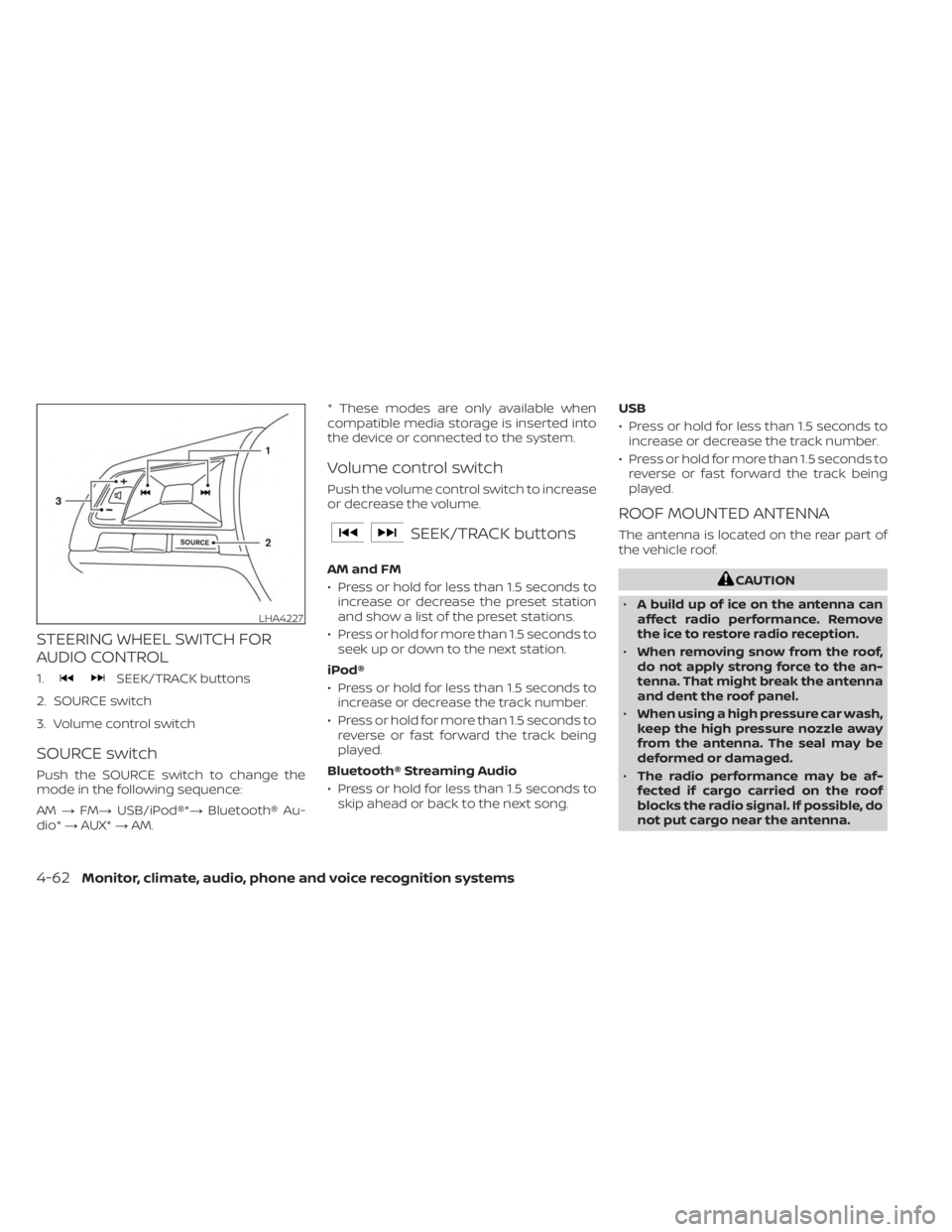
STEERING WHEEL SWITCH FOR
AUDIO CONTROL
1.SEEK/TRACK buttons
2. SOURCE switch
3. Volume control switch
SOURCE switch
Push the SOURCE switch to change the
mode in the following sequence:
AM →FM→ USB/iPod®*→ Bluetooth® Au-
dio* →AUX* →AM. * These modes are only available when
compatible media storage is inserted into
the device or connected to the system.
Volume control switch
Push the volume control switch to increase
or decrease the volume.
SEEK/TRACK buttons
AM and FM
• Press or hold for less than 1.5 seconds to
increase or decrease the preset station
and show a list of the preset stations.
• Press or hold for more than 1.5 seconds to seek up or down to the next station.
iPod®
• Press or hold for less than 1.5 seconds to increase or decrease the track number.
• Press or hold for more than 1.5 seconds to reverse or fast forward the track being
played.
Bluetooth® Streaming Audio
• Press or hold for less than 1.5 seconds to skip ahead or back to the next song. USB
• Press or hold for less than 1.5 seconds to
increase or decrease the track number.
• Press or hold for more than 1.5 seconds to reverse or fast forward the track being
played.
ROOF MOUNTED ANTENNA
The antenna is located on the rear part of
the vehicle roof.
CAUTION
• A build up of ice on the antenna can
affect radio performance. Remove
the ice to restore radio reception.
• When removing snow from the roof,
do not apply strong force to the an-
tenna. That might break the antenna
and dent the roof panel.
• When using a high pressure car wash,
keep the high pressure nozzle away
from the antenna. The seal may be
deformed or damaged.
• The radio performance may be af-
fected if cargo carried on the roof
blocks the radio signal. If possible, do
not put cargo near the antenna.
LHA4227
4-62Monitor, climate, audio, phone and voice recognition systems
Page 259 of 558
Apple Siri® Eyes Free personal assistant
can be accessed from the vehicle. Siri Eyes
Free can be accessed in Siri Eyes Free
mode to reduce user distraction. In this
mode, Siri Eyes Free is available for interac-
tion by voice control. Af ter connecting a
compatible Apple device by using
Bluetooth®, Siri Eyes Free can be activated
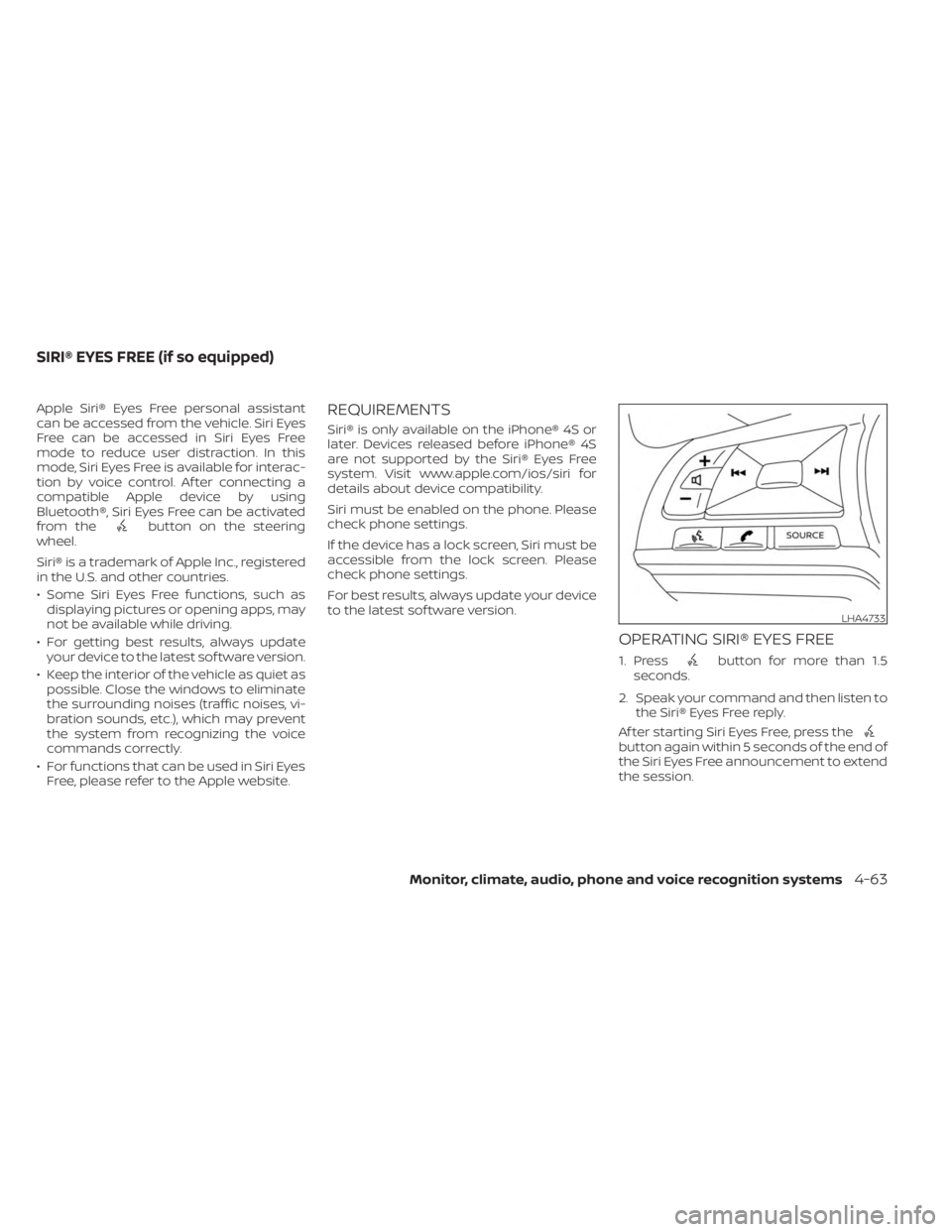
from the
button on the steering
wheel.
Siri® is a trademark of Apple Inc., registered
in the U.S. and other countries.
• Some Siri Eyes Free functions, such as displaying pictures or opening apps, may
not be available while driving.
• For getting best results, always update your device to the latest sof tware version.
• Keep the interior of the vehicle as quiet as possible. Close the windows to eliminate
the surrounding noises (traffic noises, vi-
bration sounds, etc.), which may prevent
the system from recognizing the voice
commands correctly.
• For functions that can be used in Siri Eyes Free, please refer to the Apple website.
REQUIREMENTS
Siri® is only available on the iPhone® 4S or
later. Devices released before iPhone® 4S
are not supported by the Siri® Eyes Free
system. Visit www.apple.com/ios/siri for
details about device compatibility.
Siri must be enabled on the phone. Please
check phone settings.
If the device has a lock screen, Siri must be
accessible from the lock screen. Please
check phone settings.
For best results, always update your device
to the latest sof tware version.
OPERATING SIRI® EYES FREE
1. Pressbutton for more than 1.5
seconds.
2. Speak your command and then listen to the Siri® Eyes Free reply.
Af ter starting Siri Eyes Free, press the
button again within 5 seconds of the end of
the Siri Eyes Free announcement to extend
the session.
LHA4733
SIRI® EYES FREE (if so equipped)
Monitor, climate, audio, phone and voice recognition systems4-63
Page 261 of 558
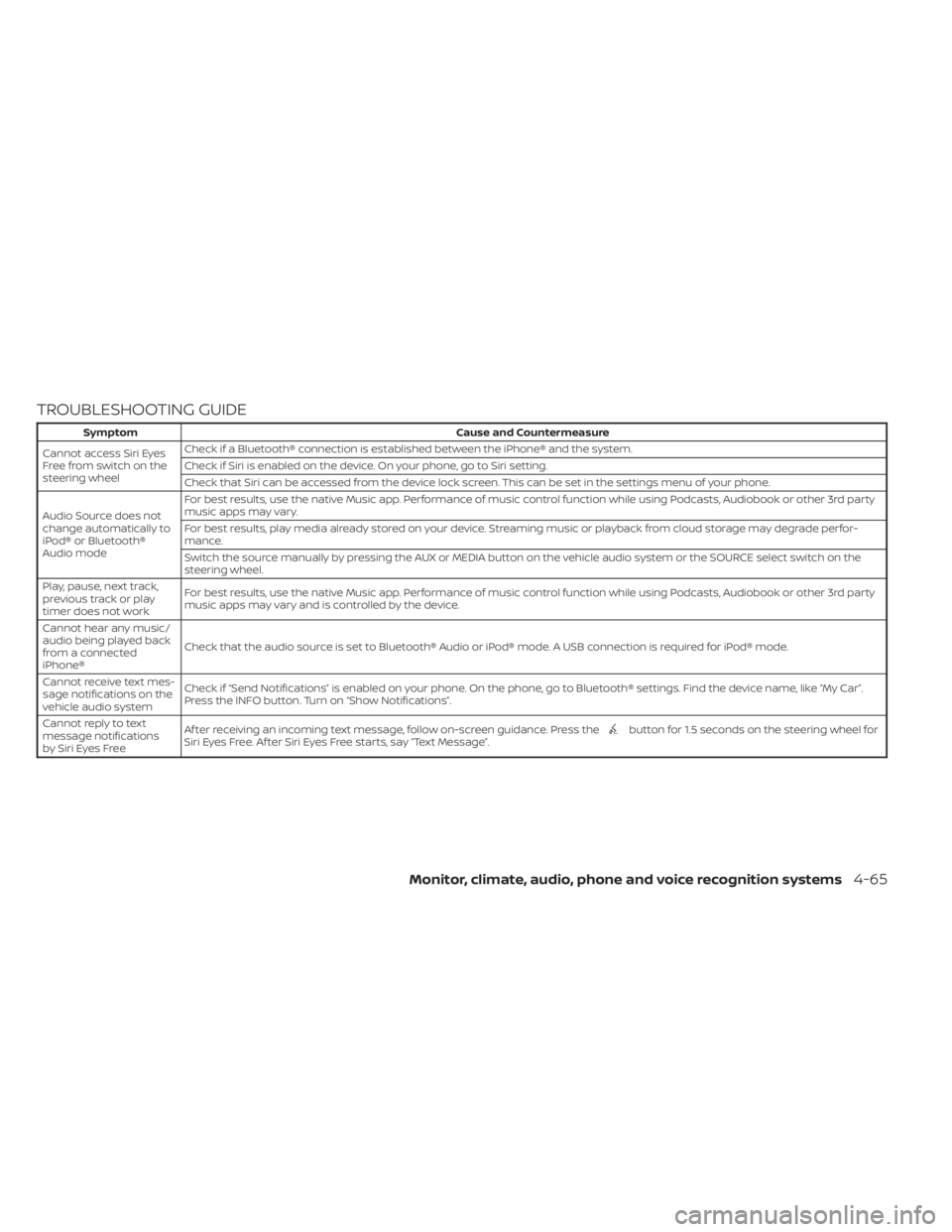
TROUBLESHOOTING GUIDE
SymptomCause and Countermeasure
Cannot access Siri Eyes
Freefromswitchonthe
steering wheel Check if a Bluetooth® connection is established between the iPhone® and the system.
Check if Siri is enabled on the device. On your phone, go to Siri setting.
Check that Siri can be accessed from the device lock screen. This can be set in the settings menu of your phone.
Audio Source does not
change automatically to
iPod® or Bluetooth®
Audio mode For best results, use the native Music app. Performance of music control function while using Podcasts, Audiobook or other 3rd party
music apps may vary.
For best results, play media already stored on your device. Streaming music or playback from cloud storage may degrade perfor-
mance.
Switch the source manually by pressing the AUX or MEDIA button on the vehicle audio system or the SOURCE select switch on the
steering wheel.
Play, pause, next track,
previous track or play
timer does not work For best results, use the native Music app. Performance of music control function while using Podcasts, Audiobook or other 3rd party
music apps may vary and is controlled by the device.
Cannot hear any music/
audio being played back
from a connected
iPhone® Check that the audio source is set to Bluetooth® Audio or iPod® mode. A USB connection is required for iPod® mode.
Cannot receive text mes-
sage notifications on the
vehicle audio system Check if “Send Notifications” is enabled on your phone. On the phone, go to Bluetooth® settings. Find the device name, like “My Car”.
Press the INFO button. Turn on “Show Notifications”.
Cannot reply to text
message notifications
by Siri Eyes Free Af ter receiving an incoming text message, follow on-screen guidance. Press the
button for 1.5 seconds on the steering wheel for
Siri Eyes Free. Af ter Siri Eyes Free starts, say “Text Message”.
Monitor, climate, audio, phone and voice recognition systems4-65
Page 265 of 558

completes, the system will announce
“There is no phone connected” and will not
react to voice commands.
Operating tips
To get the best performance out of the
NISSAN Voice Recognition System, observe
the following:
• Keep the interior of the vehicle as quiet aspossible. Keep all vents pointed away
from the microphone and close the win-
dows to eliminate surrounding noises
(traffic noises, vibration sounds, etc.),
which may prevent the system from rec-
ognizing voice commands correctly.
• Wait until the tone sounds before speak- ing a command. Otherwise, the com-
mand will not be received properly.
• Start speaking a command within 5 sec- onds af ter the tone sounds.
• Speak in a natural voice without pausing between words.
• For calling contacts by name, please say both the first and last name of the con-
tact for better recognition.
Giving voice commands
To operate NISSAN Voice Recognition,
press thebutton located on the steer-
ing wheel for less than 1.5 seconds. Af ter
the tone sounds, speak a command.
The command given is picked up by the
microphone, and voice feedback is given
when the command is accepted.
• If a command is not recognized, the sys- tem announces, “Please say or select a
command from the displayed list.” Make
sure the command is said exactly as
prompted by the system and repeat the
command in a clear voice.
• If you want to go back to the previous command, you can say “Go back” or “Cor-
rection” any time the system is waiting for
a response.
• You can cancel a command when the system is waiting for a response by say-
ing, “Cancel” or “Quit.” The system an-
nounces “Exit” and ends the Voice Recog-
nition session. You can also press and
hold the
button on the steering
wheel for 1.5 seconds at any time to end
the Voice Recognition session. Whenever
the Voice Recognition session is can-
celed, a double beep is played to indicate
you have exited the system. •
If you want to adjust the volume of the voice
feedback, push the (+ or -) volume control
switches on the steering wheel while being
provided with feedback. You can also use
the radio volume control knob.
Voice Prompt Interrupt
In most cases you can interrupt the voice
feedback to speak the next command by
pressing the
button on the steering
wheel. Af ter interrupting the system, wait
for a beep before speaking your command.
One Shot Call (if so equipped)
To use the system faster, you may speak
the second level commands with the main
menu command on the main menu. For
example, press the
button and af ter
the tone say, “Call Redial”.
Monitor, climate, audio, phone and voice recognition systems4-69
Page 266 of 558
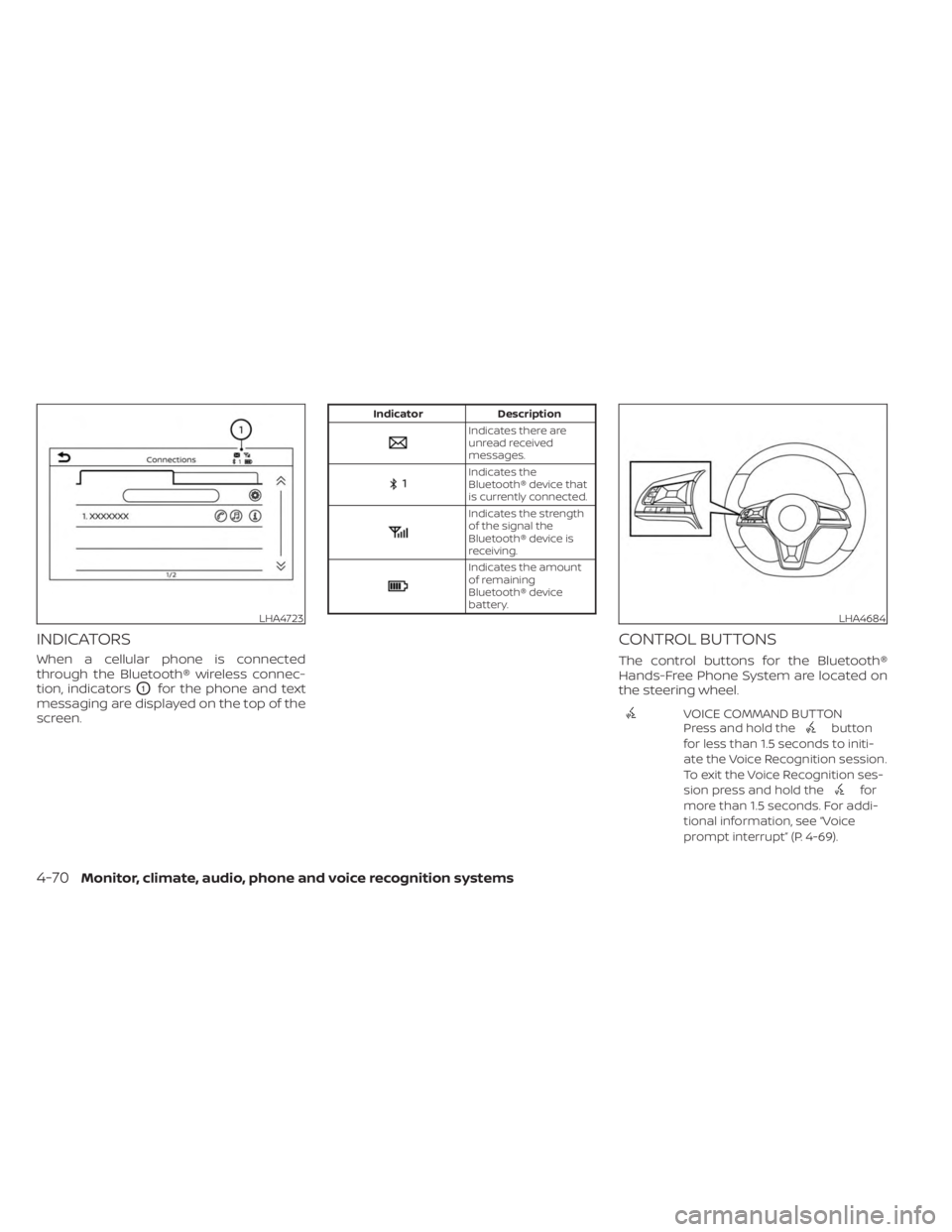
INDICATORS
When a cellular phone is connected
through the Bluetooth® wireless connec-
tion, indicators
O1for the phone and text
messaging are displayed on the top of the
screen.
Indicator Description
Indicates there are
unread received
messages.
Indicates the
Bluetooth® device that
is currently connected.
Indicates the strength
of the signal the
Bluetooth® device is
receiving.
Indicates the amount
of remaining
Bluetooth® device
battery.
CONTROL BUTTONS
The control buttons for the Bluetooth®
Hands-Free Phone System are located on
the steering wheel.
VOICE COMMAND BUTTON
Press and hold thebutton
for less than 1.5 seconds to initi-
ate the Voice Recognition session.
To exit the Voice Recognition ses-
sion press and hold the
for
more than 1.5 seconds. For addi-
tional information, see “Voice
prompt interrupt” (P. 4-69).
LHA4723LHA4684
4-70Monitor, climate, audio, phone and voice recognition systems
Page 268 of 558
NOTE:
Some cellular phones may require you to
accept certain permissions in order to
enable features on your Bluetooth® sys-
tem. During the Bluetooth® pairing pro-
cess, please check your cellular phone’s
display for a pop-up with the request to
grant phonebook access.
Granting phonebook access permission
will allow your contacts to be down-
loaded to the vehicle’s Bluetooth® sys-
tem. A pop-up may display on your cellu-
lar phone stating that the Bluetooth®
system would like to access your con-
tacts and call history. Please select “Al-
low” or Yes” to grant this permission.
Automatic Connecting Procedure
If no phone is connected to the system,
press and hold thebutton on the steer-
ing wheel for less than 1.5 seconds. Af ter the
prompt, speak “Add Phone”, the system will
announce “transferring to the add phone
settings menu”. The system will start the
pairing procedure. When a compatible
phone is found, a message with a PIN ap-
pears on the screen. Operate the Bluetooth®
phone to complete the connection process.
For additional information, see “Bluetooth®
connections screen” (P. 4-79).
VOICE COMMANDS
Voice commands can be used to operate
the Bluetooth® Hands-Free Phone System.
Press and hold the
button for less
than 1.5 seconds to bring up the phone
command menu. The commands avail-
able are:
• Call
• Dial
• Recent Calls
• Read/Send Text (if so equipped)
• Siri® (if so equipped)
• Voice Assistant (if so equipped)
• Phonebook
• Quick Dial
• Redial
• Select Phone
• Add Phone
• Call
• Call
• Call
• Call
• Call
• Settings
“Call
Speak this command to make a call to a
contact that is stored in the phonebook.
Say “Call” followed by a phonebook name to
initiate a call. If the system does not recog-
nize the name it will display a list of similar
names. Af ter the prompt, speak or touch
an item number from the displayed list to
place the call.
“Dial
Speak this command to make a call with a
spoken phone number. Af ter the prompt,
say “Dial” followed b ya7to10digit phone
number. The system will repeat the num-
ber back. Say “Dial” to initiate the call or
“Correction” to re-enter the phone number.
4-72Monitor, climate, audio, phone and voice recognition systems
Page 271 of 558
• Call HistoryDisplays the Call History screen. For addi-
tional information, see “Making a call”
(P. 4-74).
• Dial Number Displays the Dial Number screen. For ad-
ditional information, see “Making a call”
(P. 4-74).
• Text Message Displays the received message screen.
For additional information, see “Text mes-
saging” (P. 4-76).
• Connections Displays the Connections screen. For ad-
ditional information, see “Bluetooth® con-
nections screen” (P. 4-79).
• Volume Displays the volume adjustment screen.
For additional information, see “Volume &
beeps” (P. 4-82).
MAKING A CALL
To make a call press thebutton on the
control panel. Touch an option from menu
screen: • Phonebook
Select a person and the phone number
you wish to call from the phonebook.
Depending on the device, the phonebook
will be downloaded from the cellular
phone automatically when it is con-
nected. If the automatic download does
not take place, the phone number must
be transferred to the hands-free phone
system from the cellular phone prior to
using this method. For additional infor-
mation, see “Phone and text message
settings” (P. 4-80).
• Call History Select a phonebook name or phone
number from the recent incoming, out-
going or missed calls tabs. Touch a
phonebook name or phone number
listed to initiate the call.
• Dial Number Enter the phone number manually using
the keypad displayed on the screen.
Touch the “OK” key on the screen to initi-
ate the call.
For additional options to make a call, see
“Voice commands” (P. 4-72).
RECEIVING A CALL
When a call is received by the phone con-
nected to the vehicle’s Bluetooth® Hands-
Free Phone System, the call information is
displayed on the control panel display.
Press the
button on the steering
wheel or touch the “Answer” key on
the screen to accept the call. To reject the
call touch the “
Decline” key on the
screen.
If the user is not able to answer the call
right away, touch the “Hold Call” key dis-
played on the screen. A message will be
played for the caller: “I’m not able to take a
call right now.” The user may then accept
the call when available or reject the call.
To reject a call, press and hold the
button on the steering wheel.
DURING A CALL
While a call is active the following options
will appear on the control panel display:
• Mute Touch this key to mute or unmute the
system.
• Dial Number Touch this key to dial digits during the
phone call.
Monitor, climate, audio, phone and voice recognition systems4-75
Page 272 of 558
• Use HandsetTouch this key to transfer the call to the
handset. To transfer the call back from
the handset to the Bluetooth® Hands-
Free Phone System, press the
but-
ton on the control panel then select the
“Transfer Hands-free” key on the screen.
• Switch Call
This option will only be available when a
second call is active. If supported by the phone, the
Bluetooth® Hands-Free Phone System
allows for call waiting functionality. If a
call is received while another call is al-
ready active, a message will be displayed
on the screen. Press the
button on
the steering wheel or touch the “
Answer” key on screen to accept the in-
coming call. Touch the “Decline” key
on the screen to reject the second call.
While a call is active, press thebutton on
the steering wheel to access additional op-
tions. Speak one of the following commands:
• “Send Digits” Speak this command followed by the dig-
its to enter digits during the phone call.
• “Switch call” Speak this command to hold the second
call and switch back to the original call.
ENDING A CALL
To end an active call, press thebutton
on the steering wheel or touch the “
Hang up” key on the screen.
TEXT MESSAGING (if so equipped)
WARNING
• Laws in some jurisdictions may re-
strict the use of “Text-to-Speech”.
Check local regulations before using
this feature.
• Laws in some jurisdictions may re-
strict the use of some of the applica-
tions and features, such as social
networking and texting. Check local
regulations for any requirements.
• Use the text messaging feature af ter
stopping your vehicle in a safe loca-
tion. If you have to use the feature
while driving, exercise extreme
caution at all times so full attention
may be given to vehicle operation.
• If you are unable to devote full atten-
tion to vehicle operation while using
the text messaging feature, pull off
the road to a safe location and stop
your vehicle.
NOTE:
This feature is automatically disabled if
the connected device does not support
the Message Access Profile (MAP). For
additional information, refer to the
phone’s owner’s manual for details and
instructions.
NOTE:
Many phones may require special per-
mission to enable text messaging.
Check the phone’s screen during
Bluetooth® pairing. For some phones,
you may need to enable ‘Notifications’
in the phone’s Bluetooth® menu for text
messages to appear on the headunit.
For additional information, refer to your
phone’s owner’s manual. Text message
integration requires that the phone
support MAP (Message Access Profile)
for both receiving and sending text
messages. Some phones may not sup-
port all text messaging features. Please
refer to www.nissanusa.com/bluetooth
or www.nissan.ca/bluetooth for com-
patibility information, as well as your
device’s owner’s manual.
The system allows for the sending and re-
ceiving of text messages through the ve-
hicle interface.
4-76Monitor, climate, audio, phone and voice recognition systems
Page 273 of 558
The availability of the text message func-
tion may vary depending on the cellular
phone.
When the cellular phone connected to the
vehicle receives a text message, a notifica-
tion will appear on the control panel dis-
play. To check the message, touch the
“Read” key. Touch the “Ignore” key to save
the message to be checked later.
Access text messaging through the ve-
hicles Bluetooth® Hands-Free Phone or
through the vehicles control panel.
Text messaging using Bluetooth®
Hands-Free Phone System (if so
equipped)
Sending a text message (if so equipped)
1. Press and hold the
button on the
steering wheel for less than 1.5 seconds.
2. Say “Send Text” af ter the tone.
3. The system will provide a list of available commands in order to determine the
recipient of the text message. Choose
from the following:
• Phonebook
• Quick Dial
• Incoming Calls • Outgoing Calls
• Missed Calls
• Dial
4. Once a recipient is chosen, the system
prompts for which message to send.
Nine predefined messages are avail-
able. To choose one of the predefined
messages, speak one of the following
af ter the tone:
• “Driving, can't text”
• “Call me”
• “On my way ”
• “Running late”
• “Okay ”
• “Yes”
• “No”
• “Where are you?”
• “When?”
Reading a received text message
1. Press and hold the
button on the
steering wheel for less than 1.5 seconds.
2. Say “Read Text” af ter the tone.
The display will show a list of 20 messages
with the sender and delivery time. Touch
the “Next” key on the screen to view all mes-
sages. To view a text message press the
button on the steering wheel and
speak the number item list on the screen.
The following options will be available:
• Play Speak this command to have the system
say the message.
• Reply Speak this command to send a text mes-
sage response to the sender of the text
message.
• Call Speak this command to call the sender.
• Previous Speak this command to move to the pre-
vious text message (if available).
•Next Speak this command to move to the next
text message (if available).
Siri® Eyes Free (if so equipped)
If a connected phone is equipped with Siri®,
it can also be used to create custom mes-
sages that are sent through the phone. For
additional information, see “Siri® Eyes Free
(if so equipped)” (P. 4-63).
NOTE:
Text messages are only displayed if the
vehicle speed is less than 5 mph (8 km/h).
Monitor, climate, audio, phone and voice recognition systems4-77
Page 283 of 558
WARNING
• The exhaust gas and the exhaust
system are very hot. Keep people,
animals or flammable materials
away from the exhaust system
components.
• Do not stop or park the vehicle over
flammable materials such as dry
grass, waste paper or rags. They may
ignite and cause a fire.
CAUTION
• Do not use leaded gasoline. Deposits
from leaded gasoline will seriously
reduce the three-way catalyst's abil-
ity to help reduce exhaust pollutants.
• Keep your engine tuned up. Malfunc-
tions in the ignition, fuel injection, or
electrical systems can cause overrich
fuel flow into the three-way catalyst,
causing it to overheat. Do not keep
driving if the engine misfires, or if no-
ticeable loss of performance or other
unusual operating conditions are de-
tected. Have the vehicle inspected
promptly. It is recommended that
you visit a NISSAN dealer for this
service. •
Avoid driving with an extremely low
fuel level. Running out of fuel could
cause the engine to misfire, damag-
ing the three-way catalyst.
• Do not race the engine while warm-
ing it up.
• Do not push or tow your vehicle to
start the engine.
TIRE PRESSURE MONITORING
SYSTEM (TPMS)
Each tire, including the spare (if provided),
should be checked monthly when cold and
inflated to the inflation pressure recom-
mended by the vehicle manufacturer on
the vehicle placard or tire inflation pressure
label. (If your vehicle has tires of a different
size than the size indicated on the vehicle
placard or tire inflation pressure label, you
should determine the proper tire inflation
pressure for those tires.)
As an added safety feature, your vehicle
has been equipped with a Tire Pressure
Monitoring System (TPMS) that illuminates
a low tire pressure telltale when one or
more of your tires is significantly under-
inflated. Accordingly, when the low tire
pressure telltale illuminates, you should
stop and check all your tires as soon as
possible, and inflate them to the proper pressure. Driving on a significantly under-
inflated tire causes the tire to overheat and
can lead to tire failure. Under-inflation also
reduces fuel efficiency and tire tread life,
and may affect the vehicle’s handling and
stopping ability.
Please note that the TPMS is not a substi-
tute for proper tire maintenance, and it is
the driver’s responsibility to maintain cor-
rect tire pressure, even if under-inflation
has not reached the level to trigger illumi-
nation of the TPMS low tire pressure telltale.
Your vehicle has also been equipped with a
TPMS malfunction indicator to indicate
when the system is not operating properly.
The TPMS malfunction indicator is com-
bined with the low tire pressure telltale.
When the system detects a malfunction,
the telltale will flash for approximately one
minute and then remain continuously illu-
minated. This sequence will continue upon
subsequent vehicle start-ups as long as
the malfunction exists. When the malfunc-
tion indicator is illuminated, the system
may not be able to detect or signal low tire
pressure as intended. TPMS malfunctions
may occur for a variety of reasons, includ-
ing the installation of replacement or alter-
nate tires or wheels on the vehicle that
Starting and driving5-5