phone NISSAN LEAF 2017 1.G Navigation Manual
[x] Cancel search | Manufacturer: NISSAN, Model Year: 2017, Model line: LEAF, Model: NISSAN LEAF 2017 1.GPages: 268, PDF Size: 1.41 MB
Page 197 of 268

3. Speak “Dial
4. The phone number recognized by the systemis displayed on the screen. If the number is
correct, say “Dial”.
5. The system will make a phone call to the spoken phone number.
Example 2 Setting home as a destination:
1. Push <
>located on the steering wheel.
2. Wait for the indicator change to
. Speak
“Navigation”.
3. Speak “Go Home”. The navigation system will set home as a destination.
INFO:
. Location of home must be registered to the
Address Book prior to using this command.
. The step of speaking “Navigation” can be
omitted.
Example 3 Displaying folders in the USB
device:
1. Push <
>located on the steering wheel.
2. Wait for the indicator change to
. Speak
“Audio”.
3. Speak “USB Show Folders”. The folders in the connected USB device will appear on
the touch screen display.
8-5
8. Voice recognition
Page 198 of 268
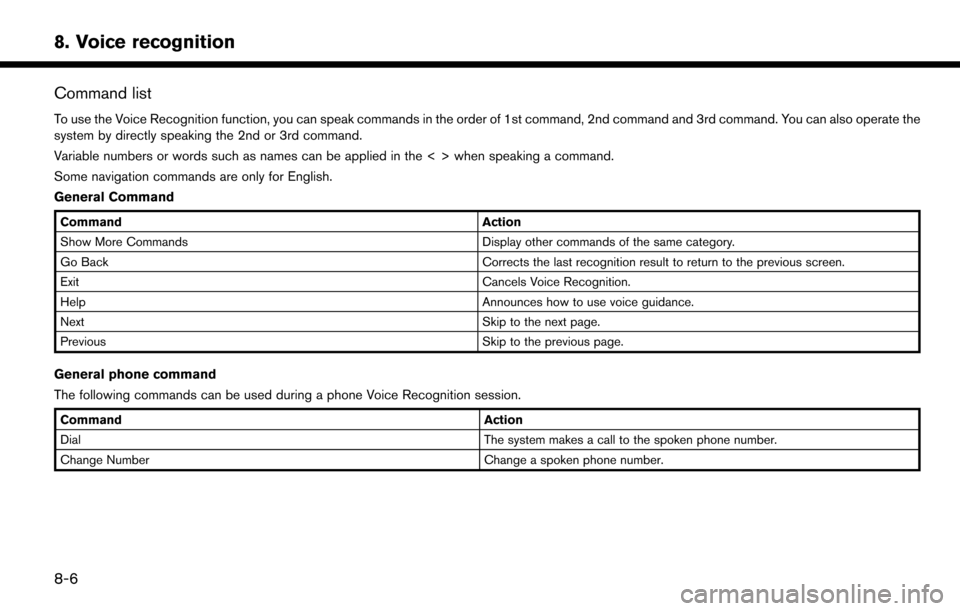
Command list
To use the Voice Recognition function, you can speak commands in the order of 1st command, 2nd command and 3rd command. You can also operate the
system by directly speaking the 2nd or 3rd command.
Variable numbers or words such as names can be applied in the < > when speaking a command.
Some navigation commands are only for English.
General Command
CommandAction
Show More Commands Display other commands of the same category.
Go Back Corrects the last recognition result to return to the previous screen.
Exit Cancels Voice Recognition.
Help Announces how to use voice guidance.
Next Skip to the next page.
Previous Skip to the previous page.
General phone command
The following commands can be used during a phone Voice Recognition session.
Command Action
Dial The system makes a call to the spoken phone number.
Change Number Change a spoken phone number.
8-6
8. Voice recognition
Page 199 of 268
![NISSAN LEAF 2017 1.G Navigation Manual Phone Command
1st Command 2nd Command 3rd Command 4th Command Action
PhonePhonebook <phonebook name>
Makes a call to a contact that is stored in the mobile phone. You can select the type
from [Mobile]](/img/5/531/w960_531-198.png "NISSAN LEAF 2017 1.G Navigation Manual Phone Command
1st Command 2nd Command 3rd Command 4th Command Action
PhonePhonebook <phonebook name>
Makes a call to a contact that is stored in the mobile phone. You can select the type
from [Mobile]")
Phone Command
1st Command 2nd Command 3rd Command 4th Command Action
PhonePhonebook
Makes a call to a contact that is stored in the mobile phone. You can select the type
from [Mobile], [Home], [Office], [Main] or [Other].
Call History Incoming Calls Displays an Incoming Call list.
Outgoing Calls Displays an Outgoing Call list.
Missed Calls Displays a Missed Call list.
Dial <#> Dial Makes a call to a spoken phone number.
Change Number Change a spoken phone number.
International Call
You may need to include the international call prefixes and country codes.
Redial Makes a call to the last outgoing phone number.
Add Phone Use this command to connect a compatible Bluetooth
Šdevice to system. Follow the
on-screen instructions to complete the pairing process from your handset.
Select Phone <1 - 5> Use this command to select a phone from a list of the registered devices.
Quick Dial
<1 - 5>
Call
Call
Send Text
8-7
8. Voice recognition
Page 200 of 268
![NISSAN LEAF 2017 1.G Navigation Manual 1st Command 2nd Command 3rd Command 4th Command Action<phonebook name> <type> You can select a text message from a list and send it a contact name. You canselect a type from [Mobile], [Home], [Office]](/img/5/531/w960_531-199.png "NISSAN LEAF 2017 1.G Navigation Manual 1st Command 2nd Command 3rd Command 4th Command Action<phonebook name> <type> You can select a text message from a list and send it a contact name. You canselect a type from [Mobile], [Home], [Office]")
1st Command 2nd Command 3rd Command 4th Command Action
Incoming Calls A list of spoken call history is displayed. Select a contact to whom you wish to send
the text message.
Outgoing Calls
Missed Calls
Enter Number Enter a phone number to which you wish to send the text message. Say “Pick
Message” to confirm the phone number and select a text message.
Read Text <1 - 5> Play You can listen to recent text messages received. Reads out a text message. Select
from the list of current received messages.
Reply Reply to a received message.
Call Call the sender of the message.
Operating tips for phone command operation:
. After the command “Call”, a name registered in the phonebook can be spoken for recognition, while a phone number can be spoken after the command
“Dial”. Names from the phonebook cannot be spoken after the command “Dial”.
. Names in the phonebook can be recognized when only a first name is spoken or when spoken in the order of first name and then the last name. The
system does not recognize the commands when only a last name is spoken or if the phonebook name was pronounced with last name first and then the
first name.
. The system has the function to read the text messages out loud, but misreading may occur in some cases.
. Even if nicknames such as “Mom” or “Dad” are registered in the cellular phone, the voice recognition system recognizes only names. To have the system
recognize the nicknames, register the entries in the [Quick Dial] from the Phone menu.
“Quick Dial” (page 7-11)
8-8
8. Voice recognition
Page 213 of 268

*In a canyon
INFO:
The GPS antenna is located on the instrument
panel inside the vehicle. Do not place any
objects, especially cellular phones or transcei-
vers, on the instrument panel. Because the
strength of the GPS signal is approximately one
billionth of that of TV waves, phones and
transceivers will affect or may totally disrupt the
signal.
INCORRECT DISPLAY OF VEHICLE
POSITION
The following cases may affect the display
accuracy of the vehicle’s position or traveling
direction. The accuracy will return to normal if the
driving conditions return to normal.
*When there is a similar road nearby.
*When the vehicle is traveling in an area with
a grid pattern road system.
*When the vehicle is passing through a large
Y-shaped intersection/junction.
9-3
9. General system information
Page 221 of 268

sion from Canadian authorities, including*CHer
Majesty, *CQueen’s Printer for Ontario, *C
Canada Post, GeoBaseŠ,*CDepartment of
Natural Resources Canada. All rights reserved.
HERE holds a non-exclusive license from the
United States Postal Service
Što publish and sell
ZIP+4Šinformation.
*
CUnited States Postal ServiceŠ2012. Prices
are not established, controlled or approved by
the United States Postal Service
Š. The following
trademarks and registrations are owned by the
USPS: United States Postal Service, USPS, and
ZIP+4.
Terms and conditions
Personal Use Only. You agree to use this Data
together with Nissan Automotive Products for
the solely personal, non-commercial purposes
for which you were licensed, and not for service
bureau, time-sharing or other similar purposes.
Accordingly, but subject to the restrictions set
forth in the following paragraphs, you agree not
to otherwise reproduce, copy, modify, decom-
pile, disassemble or reverse engineer any portion
of this Data, and may not transfer or distribute it
in any form, for any purpose, except to the extent
permitted by mandatory laws. Multi-disc sets
may only be transferred or sold as a complete set
as provided by CLARION and not as a subset
thereof.
Restrictions.Except where you have been
specifically licensed to do so by CLARION, and
without limiting the preceding paragraph, you
may not (a) use this Data with any products,
systems, or applications installed or otherwise
connected to or in communication with vehicles,
capable of vehicle navigation, positioning, dis-
patch, real time route guidance, fleet manage-
ment or similar applications; or (b) with or in
communication with any positioning devices or
any mobile or wireless-connected electronic or
computer devices, including without limitation
cellular phones, palmtop and handheld compu- ters, pagers, and personal digital assistants or
PDAs.
Warning.The Data may contain inaccurate or
incomplete information due to the passage of
time, changing circumstances, sources used and
the nature of collecting comprehensive geo-
graphic data, any of which may lead to incorrect
results.
No Warranty.This Data is provided to you “as
is,” and you agree to use it at your own risk.
CLARION and its licensors (and their licensors
and suppliers) make no guarantees, representa-
tions or warranties of any kind, express or
implied, arising by law or otherwise, including
but not limited to, content, quality, accuracy,
completeness, effectiveness, reliability, fitness
for a particular purpose, usefulness, use or
results to be obtained from this Data, or that
the Data or server will be uninterrupted or error-
free.
Disclaimer of Warranty:
CLARION AND ITS
LICENSORS (INCLUDING THEIR LICENSORS
AND SUPPLIERS) DISCLAIM ANY WARRAN-
TIES, EXPRESS OR IMPLIED, OF QUALITY,
PERFORMANCE, MERCHANTABILITY, FIT-
NESS FOR A PARTICULAR PURPOSE OR
NON-INFRINGEMENT. Some States, Territories
and Countries do not allow certain warranty
exclusions, so to that extent the above exclusion
9-11
9. General system information
Page 227 of 268

10 Troubleshooting guide
Customer assistance ............................................................. 10-2
System unit ........................................................................\
...... 10-3Liquid crystal display ....................................................... 10-3
Unique EV functions .............................................................. 10-5 Driving range ..................................................................... 10-5
Charging stations ............................................................. 10-6
Energy information display ............................................. 10-7
Timer function .................................................................... 10-8
Audio system ........................................................................\
10-10 HD Radio technology (for U.S.) ................................. 10-10
Compact Disc (CD) player ......................................... 10-12
iPod
Šplayer .................................................................... 10-14 USB memory device ................................................... 10-16
Bluetooth
Šstreaming audio ..................................... 10-17
BluetoothŠHands-Free Phone System ........................ 10-19
NissanConnectSMEV ........................................................ 10-22
Navigation ........................................................................\
..... 10-23 Basic operations .......................................................... 10-23
Vehicle icon .................................................................. 10-24
Route calculation and visual guidance .................. 10-26
Voice guidance ............................................................ 10-28
Traffic information ........................................................ 10-29
Voice recognition ................................................................ 10-30
Page 232 of 268
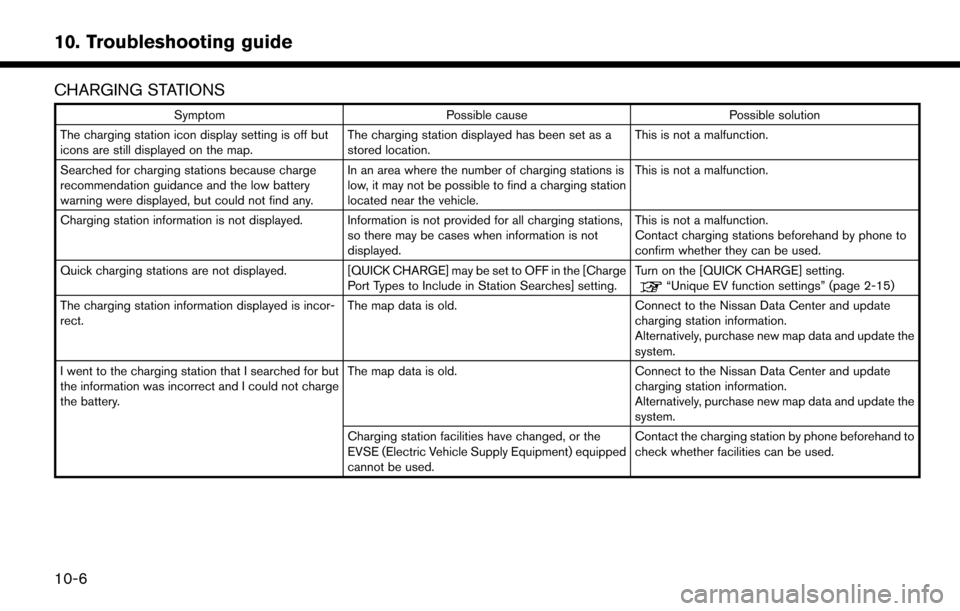
CHARGING STATIONS
SymptomPossible cause Possible solution
The charging station icon display setting is off but
icons are still displayed on the map. The charging station displayed has been set as a
stored location.This is not a malfunction.
Searched for charging stations because charge
recommendation guidance and the low battery
warning were displayed, but could not find any. In an area where the number of charging stations is
low, it may not be possible to find a charging station
located near the vehicle.This is not a malfunction.
Charging station information is not displayed. Information is not provided for all charging stations, so there may be cases when information is not
displayed.This is not a malfunction.
Contact charging stations beforehand by phone to
confirm whether they can be used.
Quick charging stations are not displayed. [QUICK CHARGE] may be set to OFF in the [Charge Port Types to Include in Station Searches] setting.Turn on the [QUICK CHARGE] setting.
“Unique EV function settings” (page 2-15)
The charging station information displayed is incor-
rect. The map data is old.
Connect to the Nissan Data Center and update
charging station information.
Alternatively, purchase new map data and update the
system.
I went to the charging station that I searched for but
the information was incorrect and I could not charge
the battery. The map data is old.
Connect to the Nissan Data Center and update
charging station information.
Alternatively, purchase new map data and update the
system.
Charging station facilities have changed, or the
EVSE (Electric Vehicle Supply Equipment) equipped
cannot be used. Contact the charging station by phone beforehand to
check whether facilities can be used.
10-6
10. Troubleshooting guide
Page 245 of 268

BLUETOOTHŠHANDS-FREE PHONE SYSTEM
SymptomPossible cause Possible solution
A cellular phone cannot be registered. The cellular phone is not compatible with the in- vehicle hands-free phone system. Use a cellular phone compatible with the system. Visit
www.nissanusa.com/bluetooth/ to check compatibility.
Registration of the cellular phone has been per-
formed incorrectly. Check the registration procedure, and then register the
cellular phone again.
A cellular phone cannot be connected or is
disconnected after the registration is com-
pleted. The Bluetooth
Šsetting of the in-vehicle hands-free
phone system is turned off.Turn on the BluetoothŠsetting of the system.
The BluetoothŠsetting of the cellular phone is turned
off.Turn on the BluetoothŠsetting of the cellular phone.
The remaining battery level of the cellular phone is
low. Charge the battery of the cellular phone.
The wireless Bluetooth
Šconnection may be disrupted
depending on the location of the cellular phone.Do not place the cellular phone in an area surrounded by
metal or far away from the in-vehicle hands-free phone
system. Do not place the cellular phone close to the seats
or your body.
Registration of the cellular phone is not completed. Perform registration of the cellular phone.
A call to a particular phone number fails. If the system tries to make a call several times to the same phone number (for example: the party does not
respond to the call, the party is out of the service
area, or the call is abandoned before the party
responds) , the system may reject a request to make a
call to the phone number. Turn off the cellular phone and turn it on again to reset the
connection.
10-19
10. Troubleshooting guide
Page 246 of 268
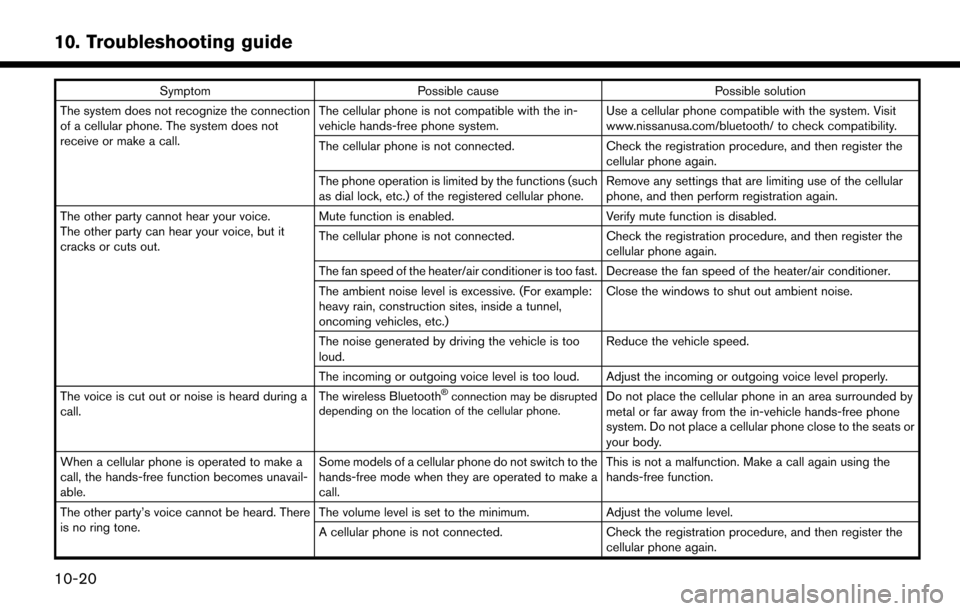
SymptomPossible cause Possible solution
The system does not recognize the connection
of a cellular phone. The system does not
receive or make a call. The cellular phone is not compatible with the in-
vehicle hands-free phone system.
Use a cellular phone compatible with the system. Visit
www.nissanusa.com/bluetooth/ to check compatibility.
The cellular phone is not connected. Check the registration procedure, and then register the
cellular phone again.
The phone operation is limited by the functions (such
as dial lock, etc.) of the registered cellular phone. Remove any settings that are limiting use of the cellular
phone, and then perform registration again.
The other party cannot hear your voice.
The other party can hear your voice, but it
cracks or cuts out. Mute function is enabled.
Verify mute function is disabled.
The cellular phone is not connected. Check the registration procedure, and then register the
cellular phone again.
The fan speed of the heater/air conditioner is too fast. Decrease the fan speed of the heater/air conditioner.
The ambient noise level is excessive. (For example:
heavy rain, construction sites, inside a tunnel,
oncoming vehicles, etc.) Close the windows to shut out ambient noise.
The noise generated by driving the vehicle is too
loud. Reduce the vehicle speed.
The incoming or outgoing voice level is too loud. Adjust the incoming or outgoing voice level properly.
The voice is cut out or noise is heard during a
call. The wireless Bluetooth
Šconnection may be disrupted
depending on the location of the cellular phone.Do not place the cellular phone in an area surrounded by
metal or far away from the in-vehicle hands-free phone
system. Do not place a cellular phone close to the seats or
your body.
When a cellular phone is operated to make a
call, the hands-free function becomes unavail-
able. Some models of a cellular phone do not switch to the
hands-free mode when they are operated to make a
call. This is not a malfunction. Make a call again using the
hands-free function.
The other party’s voice cannot be heard. There
is no ring tone. The volume level is set to the minimum.
Adjust the volume level.
A cellular phone is not connected. Check the registration procedure, and then register the
cellular phone again.
10-20
10. Troubleshooting guide