phone NISSAN MAXIMA 2010 Owner´s Manual
[x] Cancel search | Manufacturer: NISSAN, Model Year: 2010, Model line: MAXIMA, Model: NISSAN MAXIMA 2010Pages: 457, PDF Size: 4.66 MB
Page 290 of 457
ccall eight oh five four one
ccorrection
cconnect phone
cdial seven four oh one eight
cprevious entry
cdelete
cdial nine seven two six six
ccall seven six three oh one
cgo back
ccall five six two eight zero
cdial six six four three seven
MANUAL CONTROL (if so equipped)
While using the voice recognition system, it is
possible to select menu options by using the
steering wheel controls instead of speaking voice
commands. The manual control mode does not
allow dialing a phone number by digits. The user
may select an entry from the Phonebook or Re-
cent Calls lists. To re-activate voice recognition,
exit the manual control mode by pressing and
holding the PHONE/END (
) button. At that
time, pressing the PHONE/SEND (
) button
will start the Hands Free Phone System.
Operating tips
cTo enter manual control mode, start the
voice recognition system and tilt the tuning
(
) switch up or down. The system will
speak9Showing Manual Options9when
manual controls are initially activated.
cTo browse the menu options, tilt the tuning
(
) switch up or down. The system will
always speak the current menu option. De-
pending on the audio display, it will also
show the current menu option.
cTo select the current menu option, press the
PHONE/SEND (
) button.
cTo go back to the previous menu, press the
PHONE/END (
) button. If the current
menu is the Main Menu, pressing the
PHONE/END (
) button will exit the
Phone system.
cTo exit the manual control mode, press and
hold the PHONE/END (
) button for 5
seconds.
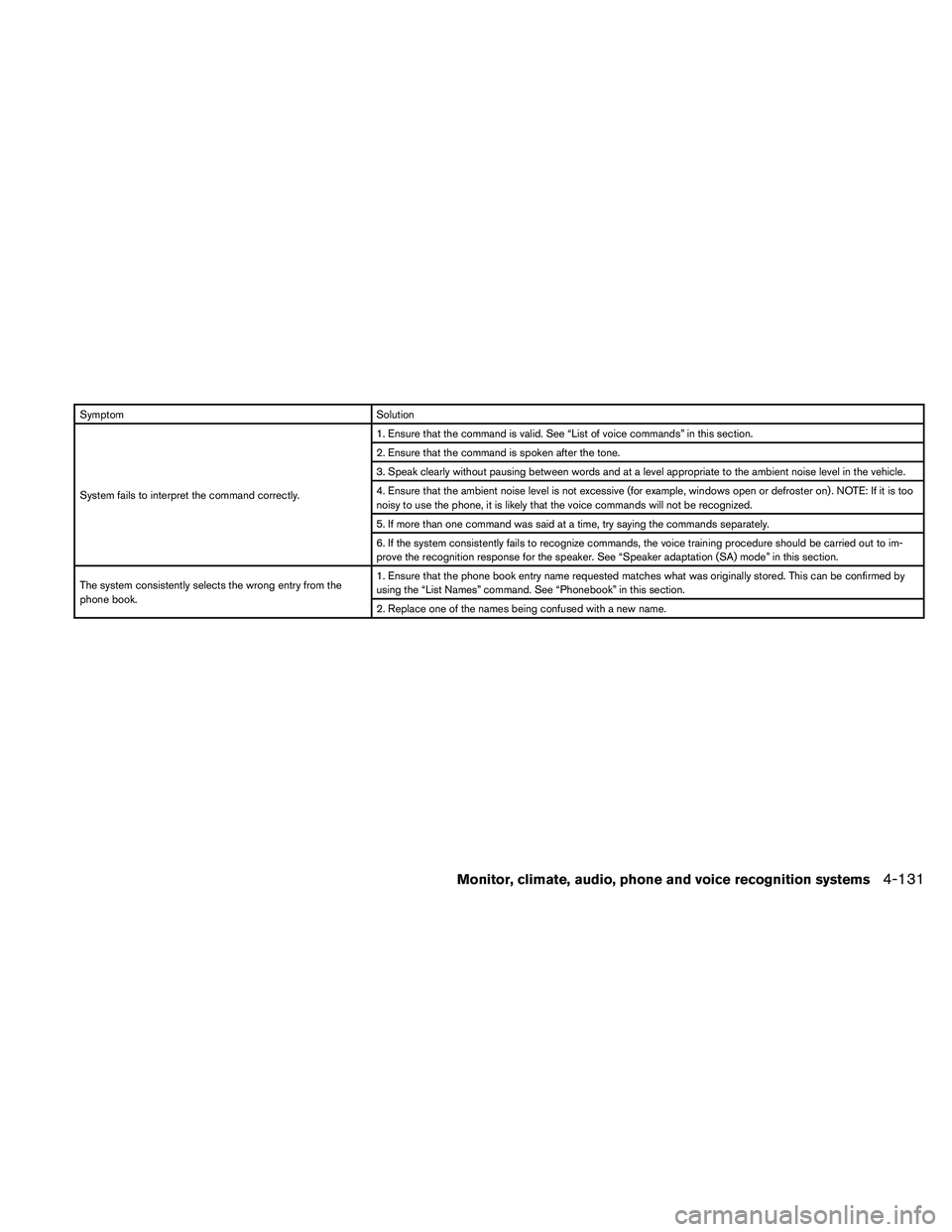
TROUBLESHOOTING GUIDE
The system should respond correctly to all voice
commands without difficulty. If problems are en-
countered, try the following solutions.
Where the solutions are listed by number, try
each solution in turn, starting with number 1, until
the problem is resolved.
4-130Monitor, climate, audio, phone and voice recognition systems
Page 291 of 457
Symptom Solution
System fails to interpret the command correctly.1. Ensure that the command is valid. See “List of voice commands” in this section.
2. Ensure that the command is spoken after the tone.
3. Speak clearly without pausing between words and at a level appropriate to the ambient noise level in the vehicle.
4. Ensure that the ambient noise level is not excessive (for example, windows open or defroster on) . NOTE: If it is too
noisy to use the phone, it is likely that the voice commands will not be recognized.
5. If more than one command was said at a time, try saying the commands separately.
6. If the system consistently fails to recognize commands, the voice training procedure should be carried out to im-
prove the recognition response for the speaker. See “Speaker adaptation (SA) mode” in this section.
The system consistently selects the wrong entry from the
phone book.1. Ensure that the phone book entry name requested matches what was originally stored. This can be confirmed by
using the “List Names” command. See “Phonebook” in this section.
2. Replace one of the names being confused with a new name.
Monitor, climate, audio, phone and voice recognition systems4-131
Page 292 of 457
WARNING
cUse a phone after stopping your vehicle
in a safe location. If you have to use a
phone while driving, exercise extreme
caution at all times so full attention may
be given to vehicle operation.
cIf you are unable to devote full attention
to vehicle operation while talking on
the phone, pull off the road to a safe
location and stop your vehicle.
CAUTION
To avoid discharging the vehicle battery,
use a phone after starting the engine.
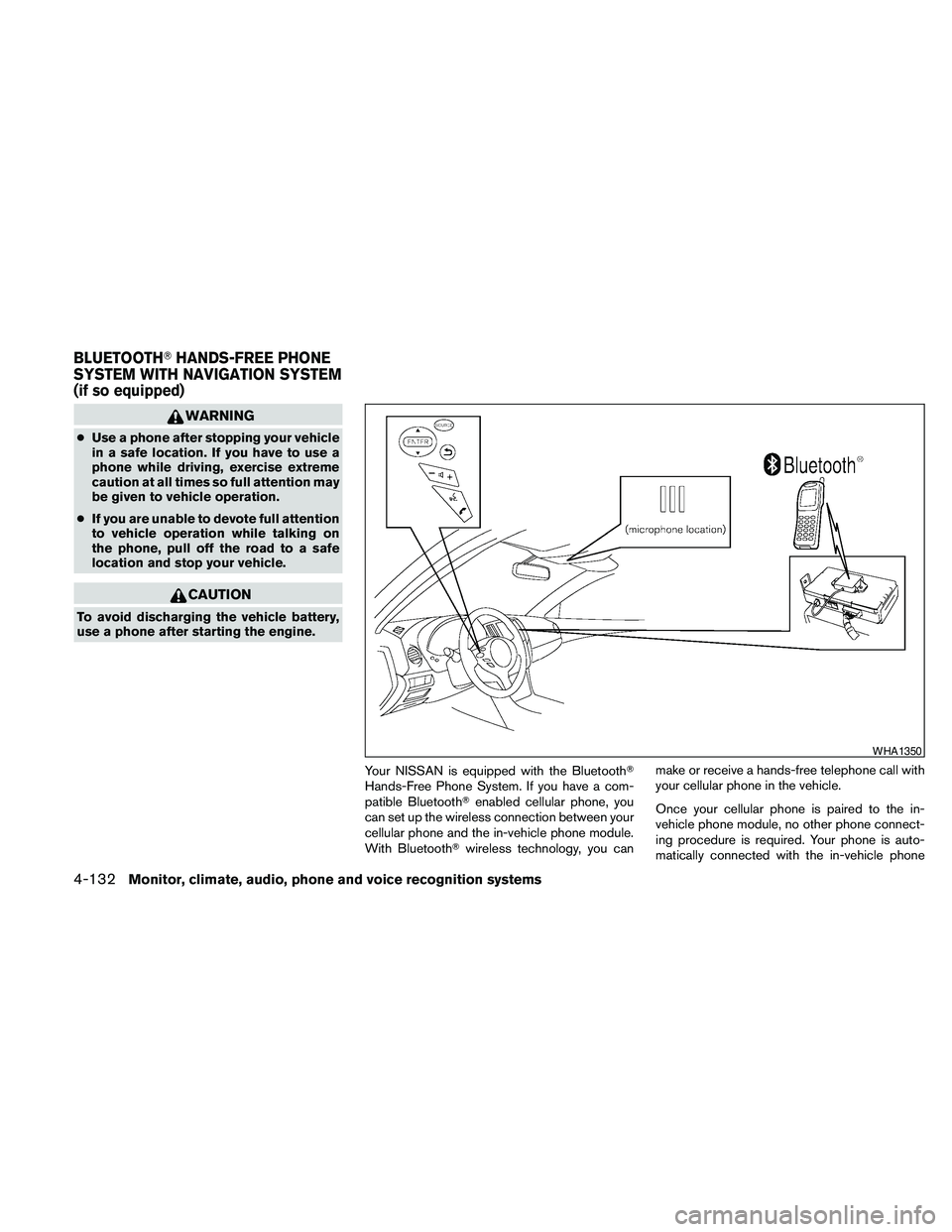
Your NISSAN is equipped with the BluetoothT
Hands-Free Phone System. If you have a com-
patible BluetoothTenabled cellular phone, you
can set up the wireless connection between your
cellular phone and the in-vehicle phone module.
With BluetoothTwireless technology, you canmake or receive a hands-free telephone call with
your cellular phone in the vehicle.
Once your cellular phone is paired to the in-
vehicle phone module, no other phone connect-
ing procedure is required. Your phone is auto-
matically connected with the in-vehicle phone
WHA1350
BLUETOOTHTHANDS-FREE PHONE
SYSTEM WITH NAVIGATION SYSTEM
(if so equipped)
4-132Monitor, climate, audio, phone and voice recognition systems
Page 293 of 457
module when the ignition switch is placed in the
ON position with the paired cellular phone turned
on and carried in the vehicle.
You can register up to 5 different BluetoothT
cellular phones to the in-vehicle phone module.
However, you can talk on only one cellular phone
at a time.
NISSAN Voice Recognition system supports the
phone commands, so dialing a phone number
using your voice is possible. For more details, see
“NISSAN Voice Recognition System” in this sec-
tion.
Before using the BluetoothTHands-Free Phone
System, refer to the following notes.
cSet up the wireless connection between a
cellular phone and the in-vehicle phone
module before using the hands-free phone
system.
cSome BluetoothTenabled cellular phones
may not be recognized by the in-vehicle
phone module. Please visit
www.nissanusa.com/bluetooth for a recom-
mended phone list and pairing.
cYou will not be able to use a hands-free
phone under the following conditions:
– Your vehicle is outside of the cellular ser-
vice area.– Your vehicle is in an area where it is
difficult to receive cellular signal; such as
in a tunnel, in an underground parking
garage, near a tall building or in a moun-
tainous area.
– Your cellular phone is locked to prevent it
from being dialed.
cWhen the radio wave condition is not ideal
or ambient sound is too loud, it may be
difficult to hear the other person’s voice dur-
ing a call.
cImmediately after the ignition switch is
placed in the ON position, it may be impos-
sible to receive a call for a short period of
time.
cDo not place the cellular phone in an area
surrounded by metal or far away from the
in-vehicle phone module to prevent tone
quality degradation and wireless connection
disruption.
cWhile a cellular phone is connected through
the BluetoothTwireless connection, the bat-
tery power of the cellular phone may dis-
charge quicker than usual. The BluetoothT
Hands-Free Phone System cannot charge
cellular phones.cIf the hands-free phone system seems to be
malfunctioning, see “Troubleshooting guide”
in this section. You can also visit
www.nissanusa.com/bluetooth for trouble-
shooting help.
cSome cellular phones or other devices may
cause interference or a buzzing noise to
come from the audio system speakers. Stor-
ing the device in a different location may
reduce or eliminate the noise.
cRefer to the cellular phone owner’s manual
regarding the telephone charges, cellular
phone antenna and body, etc.
cThe signal strength display on the monitor
will not coincide with the signal strength
display of some cellular phones.
cIf reception between callers is unclear, ad-
justing the incoming or outgoing call volume
may improve the clarity. See “Call volume” in
this section.
Monitor, climate, audio, phone and voice recognition systems4-133
Page 294 of 457
REGULATORY INFORMATION
FCC Regulatory information
– CAUTION: To maintain compliance with
FCC’s RF exposure guidelines, use only the
supplied antenna. Unauthorized antenna,
modification, or attachments could damage
the transmitter and may violate FCC regula-
tions.
– Operation is subject to the following two con-
ditions:
1. This device may not cause interference and
2. this device must accept any interference,
including interference that may cause un-
desired operation of the device.
IC Regulatory information
– Operation is subject to the following two con-
ditions: (1) this device may not cause interfer-
ence, and (2) this device must accept any
interference, including interference that may
cause undesired operation of the device.
– This Class B digital apparatus meets all re-
quirements of the Canadian Interference-
Causing Equipment Regulations.
BLUETOOTHtis a
trademark owned by
Bluetooth SIG, Inc.,
U.S.A. and licensed to
Xanavi Informatics
Corporation.
VOICE COMMANDS
You can use voice commands to operate various
BluetoothTHands-Free Phone System features
using the NISSAN Voice Recognition system. For
more details, see “NISSAN Voice Recognition
System” in this section.
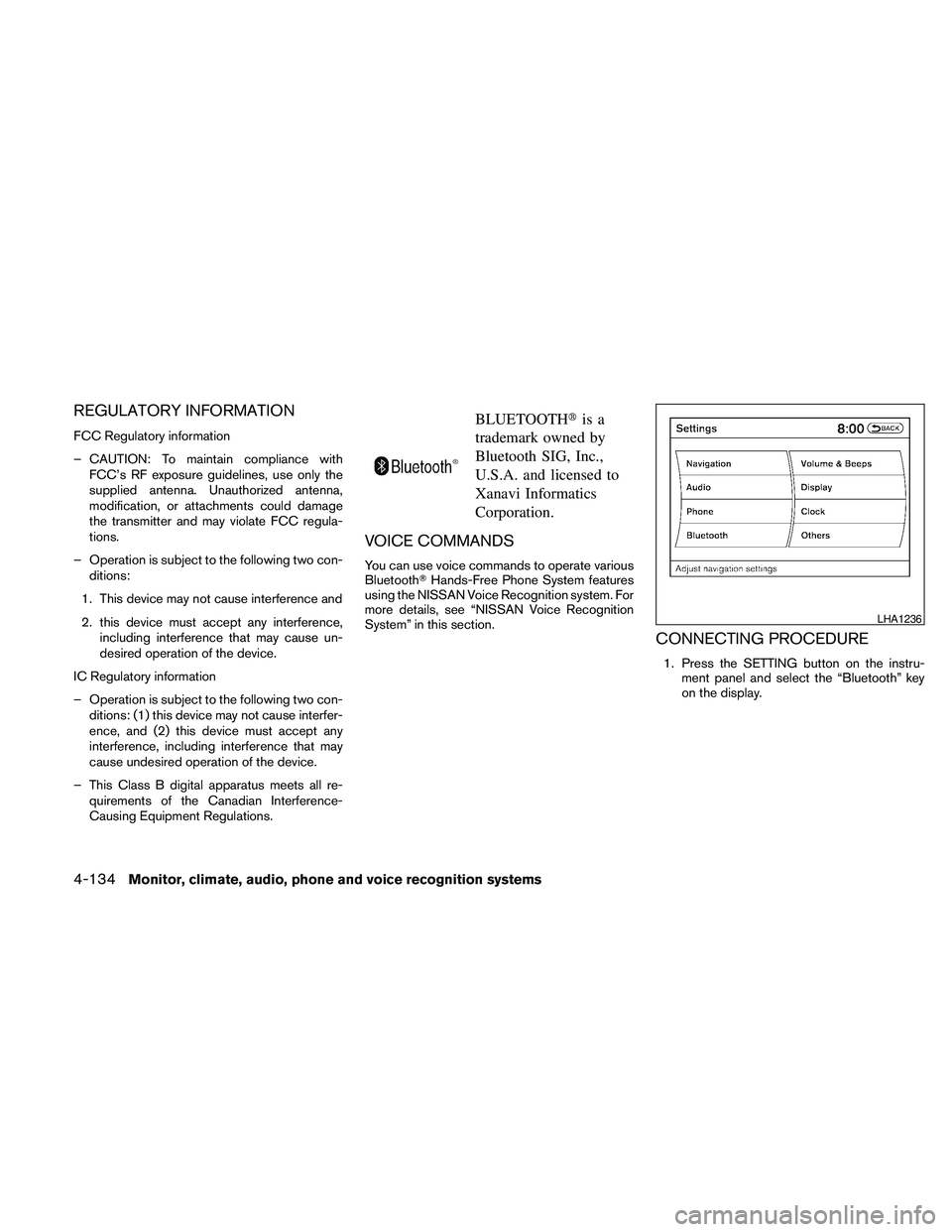
CONNECTING PROCEDURE
1. Press the SETTING button on the instru-
ment panel and select the “Bluetooth” key
on the display.
LHA1236
4-134Monitor, climate, audio, phone and voice recognition systems
Page 295 of 457
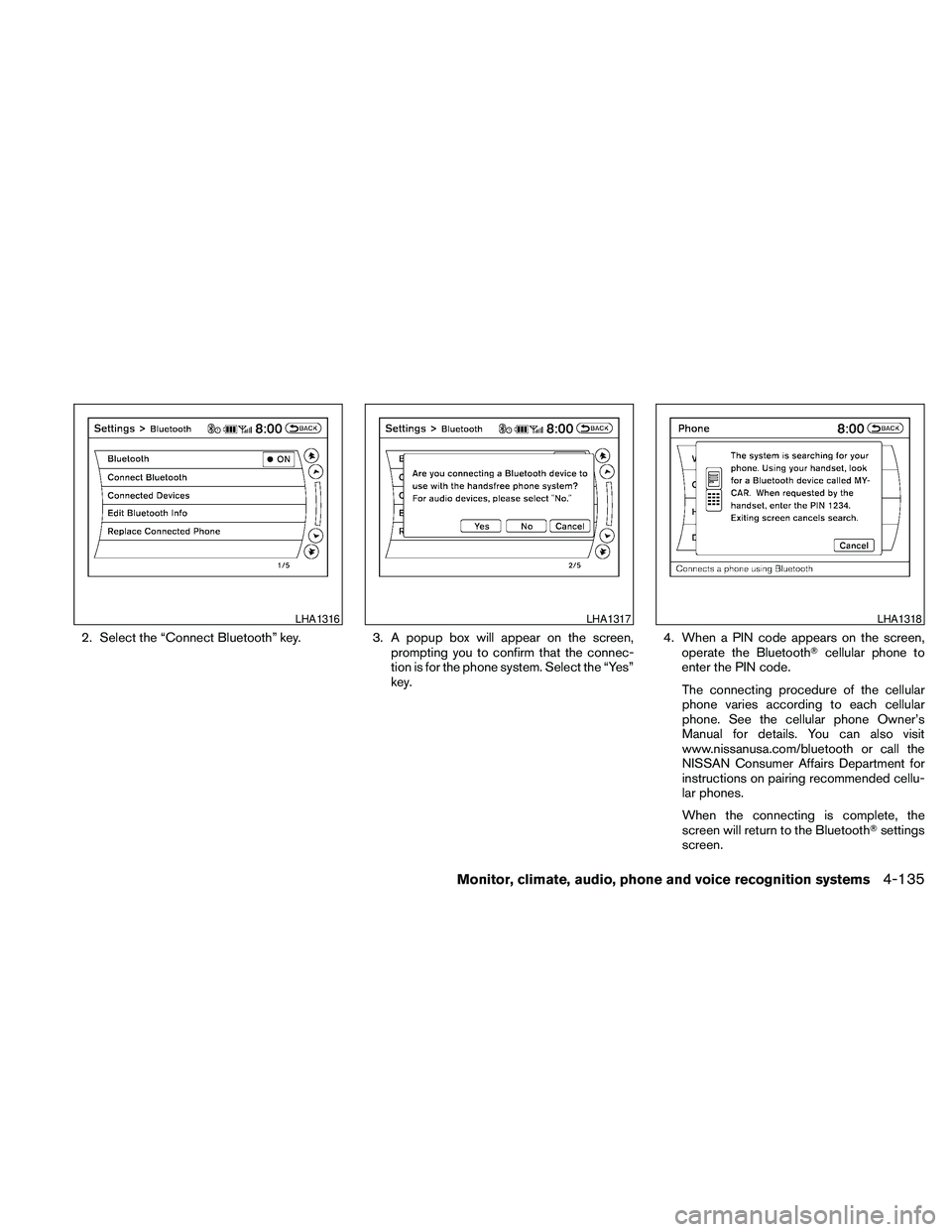
2. Select the “Connect Bluetooth” key. 3. A popup box will appear on the screen,
prompting you to confirm that the connec-
tion is for the phone system. Select the “Yes”
key.4. When a PIN code appears on the screen,
operate the BluetoothTcellular phone to
enter the PIN code.
The connecting procedure of the cellular
phone varies according to each cellular
phone. See the cellular phone Owner’s
Manual for details. You can also visit
www.nissanusa.com/bluetooth or call the
NISSAN Consumer Affairs Department for
instructions on pairing recommended cellu-
lar phones.
When the connecting is complete, the
screen will return to the BluetoothTsettings
screen.
LHA1316LHA1317LHA1318
Monitor, climate, audio, phone and voice recognition systems4-135
Page 296 of 457
VEHICLE PHONEBOOK
This vehicle has two phonebooks available for
your use. Depending on your phone, the system
may automatically download your entire cell
phone’s phonebook into the “Handset Phone-
book”. For the details on downloading your
phonebook, see “Handset phonebook” in this
section. If your phonebook does not automati-
cally download, you may set up the vehicle
phonebook for up to 40 entries. This phonebook
allows you to record a name to speak while using
voice recognition.
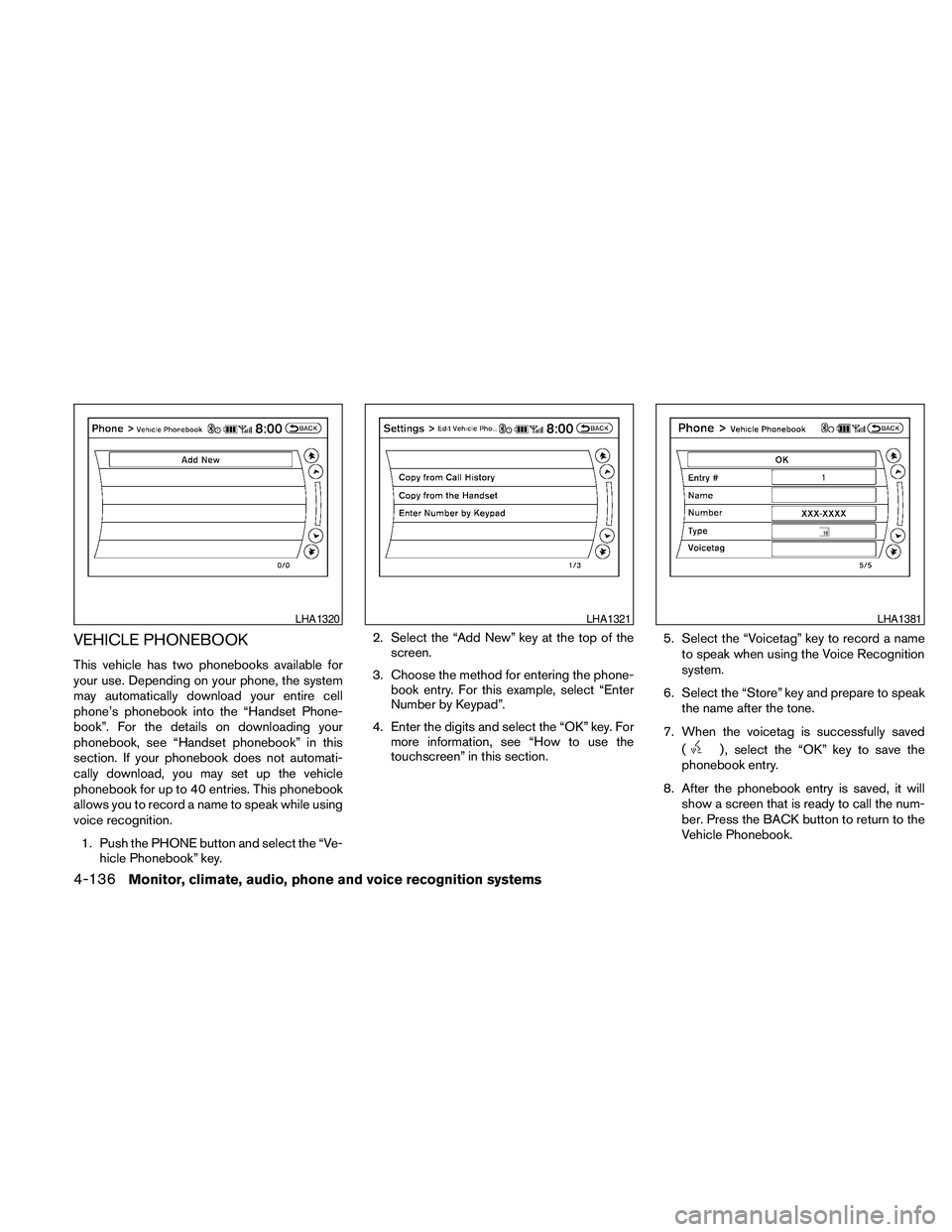
1. Push the PHONE button and select the “Ve-
hicle Phonebook” key.2. Select the “Add New” key at the top of the
screen.
3. Choose the method for entering the phone-
book entry. For this example, select “Enter
Number by Keypad”.
4. Enter the digits and select the “OK” key. For
more information, see “How to use the
touchscreen” in this section.5. Select the “Voicetag” key to record a name
to speak when using the Voice Recognition
system.
6. Select the “Store” key and prepare to speak
the name after the tone.
7. When the voicetag is successfully saved
(
) , select the “OK” key to save the
phonebook entry.
8. After the phonebook entry is saved, it will
show a screen that is ready to call the num-
ber. Press the BACK button to return to the
Vehicle Phonebook.
LHA1320LHA1321LHA1381
4-136Monitor, climate, audio, phone and voice recognition systems
Page 297 of 457
cCopy from Call History
The system will show a list of your incoming,
outgoing or missed calls that were down-
loaded from your cell phone (depending on
your phone’s compatibility) . You may select
one of these entries to save in the vehicle
phonebook.
cCopy from the Handset
The system will show your cell phone’s
phonebook that was downloaded (depend-
ing on your phone’s compatibility) . You may
select one of these entries to save in the
vehicle phonebook.
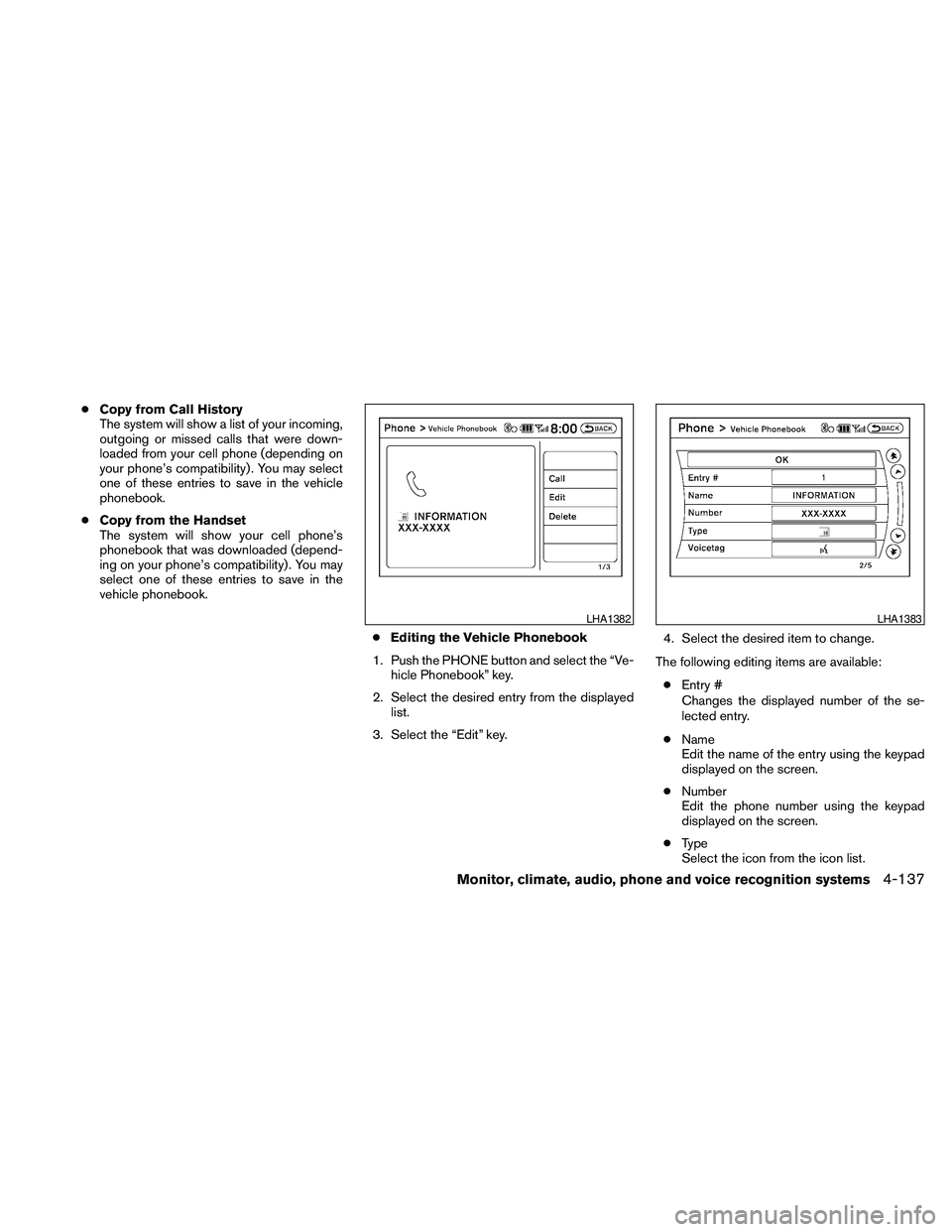
cEditing the Vehicle Phonebook
1. Push the PHONE button and select the “Ve-
hicle Phonebook” key.
2. Select the desired entry from the displayed
list.
3. Select the “Edit” key.4. Select the desired item to change.
The following editing items are available:
cEntry #
Changes the displayed number of the se-
lected entry.
cName
Edit the name of the entry using the keypad
displayed on the screen.
cNumber
Edit the phone number using the keypad
displayed on the screen.
cType
Select the icon from the icon list.
LHA1382LHA1383
Monitor, climate, audio, phone and voice recognition systems4-137
Page 298 of 457
cVoicetag
Confirm and store the voicetag. Voicetags
allow easy dialing using the NISSAN Voice
Recognition system. For more information,
see “Nissan Voice Recognition System” in
this section.
To delete an entry, select the “Delete” key at step
3.
HANDSET PHONEBOOK
Many phones will support an automatic down-
load of the cellular phone’s phonebook. Since
this method allows for up to 1000 numbers to be
stored and entries are automatically assigned
voice tags by the system, this is a useful function
for easy dialing supported by the Voice Recogni-
tion system.
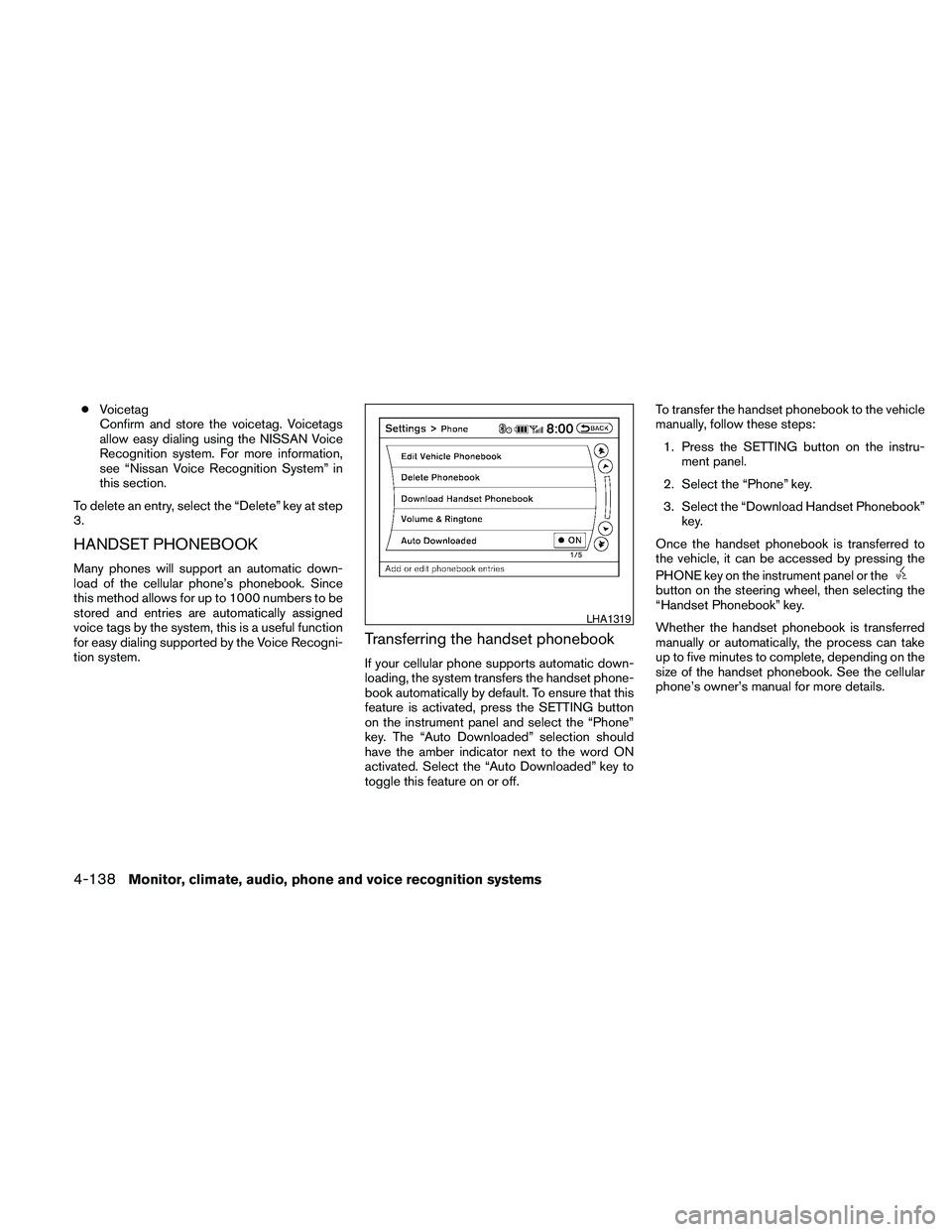
Transferring the handset phonebook
If your cellular phone supports automatic down-
loading, the system transfers the handset phone-
book automatically by default. To ensure that this
feature is activated, press the SETTING button
on the instrument panel and select the “Phone”
key. The “Auto Downloaded” selection should
have the amber indicator next to the word ON
activated. Select the “Auto Downloaded” key to
toggle this feature on or off.To transfer the handset phonebook to the vehicle
manually, follow these steps:
1. Press the SETTING button on the instru-
ment panel.
2. Select the “Phone” key.
3. Select the “Download Handset Phonebook”
key.
Once the handset phonebook is transferred to
the vehicle, it can be accessed by pressing the
PHONE key on the instrument panel or the
button on the steering wheel, then selecting the
“Handset Phonebook” key.
Whether the handset phonebook is transferred
manually or automatically, the process can take
up to five minutes to complete, depending on the
size of the handset phonebook. See the cellular
phone’s owner’s manual for more details.
LHA1319
4-138Monitor, climate, audio, phone and voice recognition systems
Page 299 of 457
MAKING A CALL
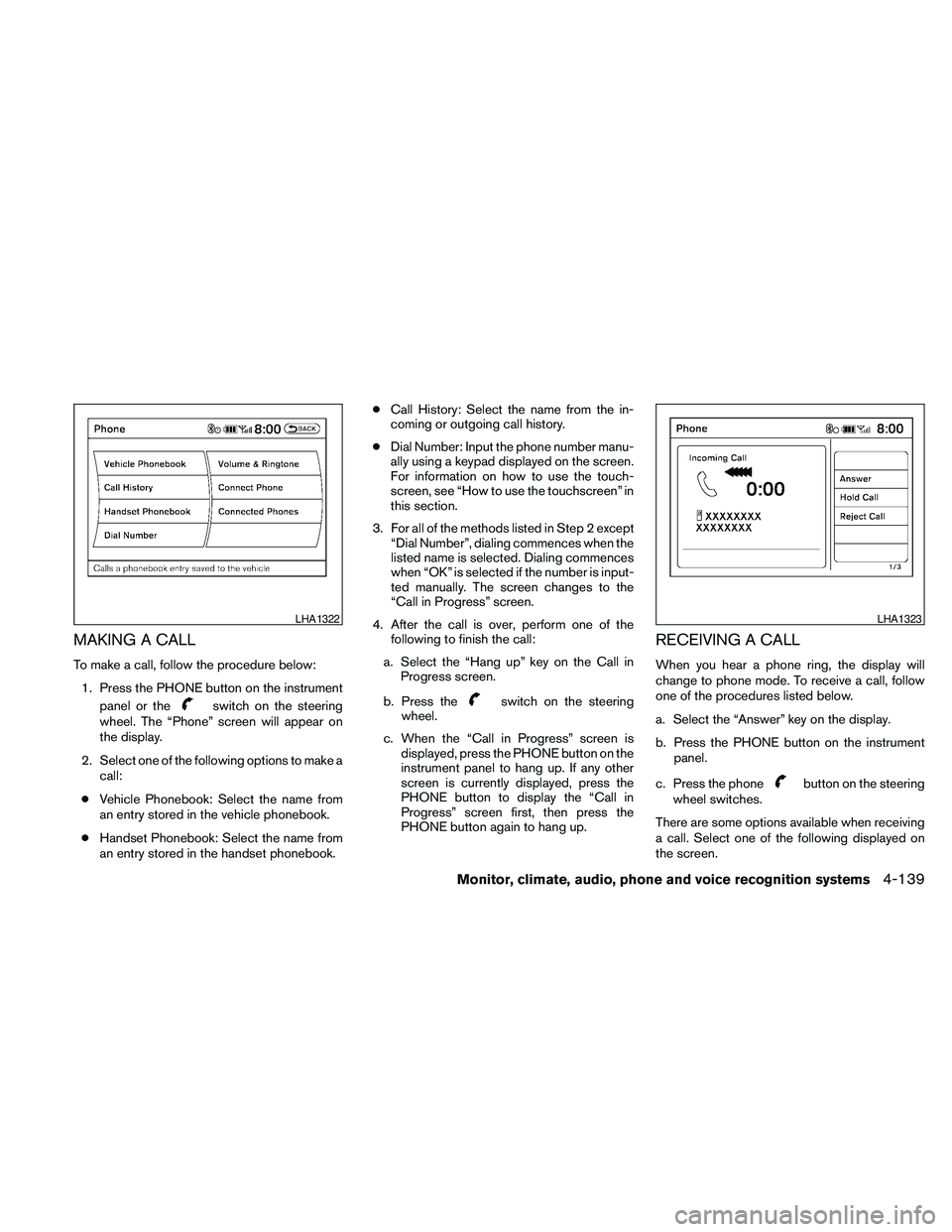
To make a call, follow the procedure below:
1. Press the PHONE button on the instrument
panel or the
switch on the steering
wheel. The “Phone” screen will appear on
the display.
2. Select one of the following options to make a
call:
cVehicle Phonebook: Select the name from
an entry stored in the vehicle phonebook.
cHandset Phonebook: Select the name from
an entry stored in the handset phonebook.cCall History: Select the name from the in-
coming or outgoing call history.
cDial Number: Input the phone number manu-
ally using a keypad displayed on the screen.
For information on how to use the touch-
screen, see “How to use the touchscreen” in
this section.
3. For all of the methods listed in Step 2 except
“Dial Number”, dialing commences when the
listed name is selected. Dialing commences
when “OK” is selected if the number is input-
ted manually. The screen changes to the
“Call in Progress” screen.
4. After the call is over, perform one of the
following to finish the call:
a. Select the “Hang up” key on the Call in
Progress screen.
b. Press theswitch on the steering
wheel.
c. When the “Call in Progress” screen is
displayed, press the PHONE button on the
instrument panel to hang up. If any other
screen is currently displayed, press the
PHONE button to display the “Call in
Progress” screen first, then press the
PHONE button again to hang up.
RECEIVING A CALL
When you hear a phone ring, the display will
change to phone mode. To receive a call, follow
one of the procedures listed below.
a. Select the “Answer” key on the display.
b. Press the PHONE button on the instrument
panel.
c. Press the phone
button on the steering
wheel switches.
There are some options available when receiving
a call. Select one of the following displayed on
the screen.
LHA1322LHA1323
Monitor, climate, audio, phone and voice recognition systems4-139