ECO mode NISSAN MAXIMA 2010 Owner´s Manual
[x] Cancel search | Manufacturer: NISSAN, Model Year: 2010, Model line: MAXIMA, Model: NISSAN MAXIMA 2010Pages: 457, PDF Size: 4.66 MB
Page 171 of 457
To turn the screen on:
cPress the SETTING button, select the “Dis-
play” key and then select the “Display ON”
key. Then set the screen to on by pressing
the ENTER button, or
cHold the
OFF button for approxi-
mately 2 seconds and the message “resum-
ing display” will appear and the “Display ON”
key will be automatically turned on (no am-
ber indicator) .
Background color:
Select the “Background Color” key; the display
color changes between day and night.
The new settings are automatically saved when
you exit the setting screen by pressing the BACK
button or any other mode button.
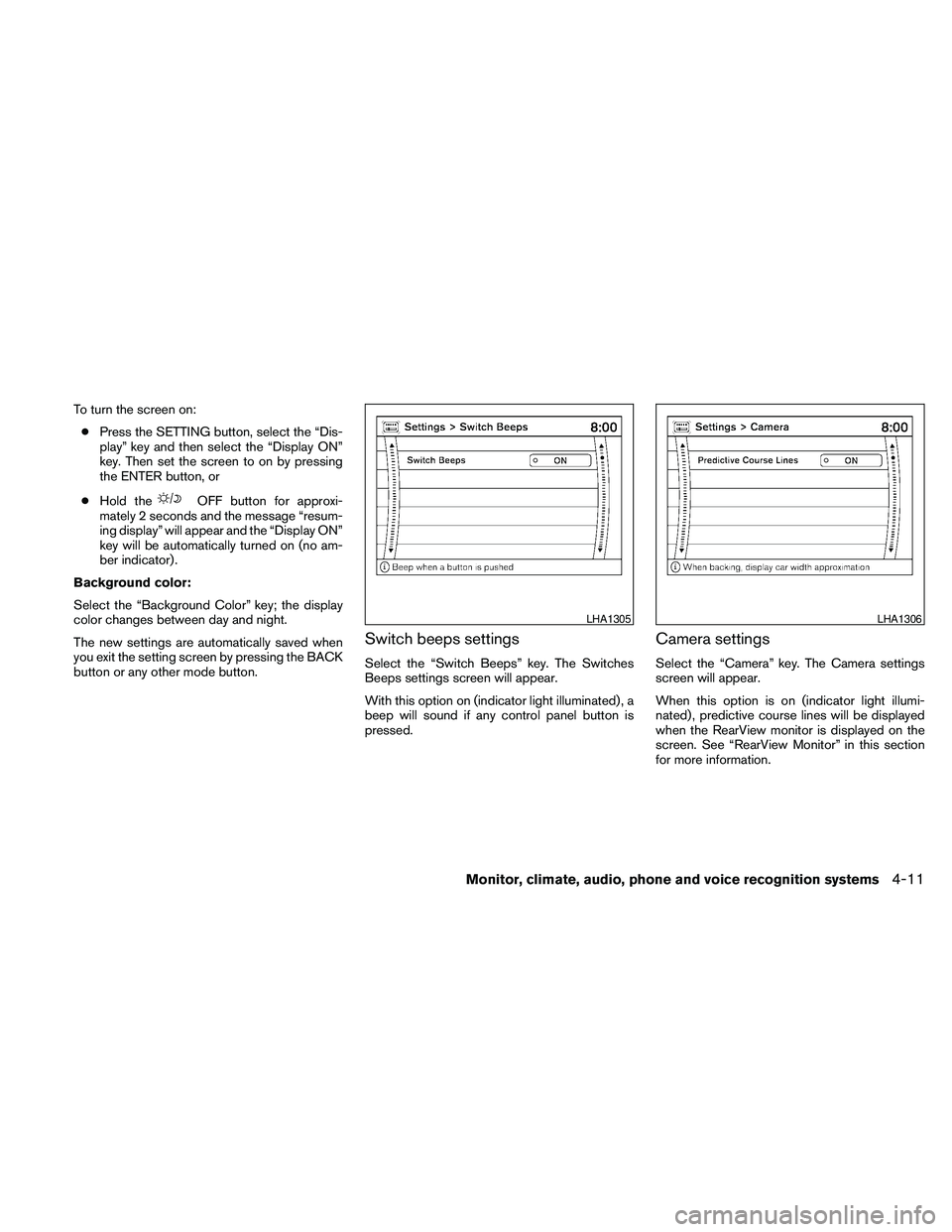
Switch beeps settings
Select the “Switch Beeps” key. The Switches
Beeps settings screen will appear.
With this option on (indicator light illuminated) , a
beep will sound if any control panel button is
pressed.
Camera settings
Select the “Camera” key. The Camera settings
screen will appear.
When this option is on (indicator light illumi-
nated) , predictive course lines will be displayed
when the RearView monitor is displayed on the
screen. See “RearView Monitor” in this section
for more information.
LHA1305LHA1306
Monitor, climate, audio, phone and voice recognition systems4-11
Page 181 of 457
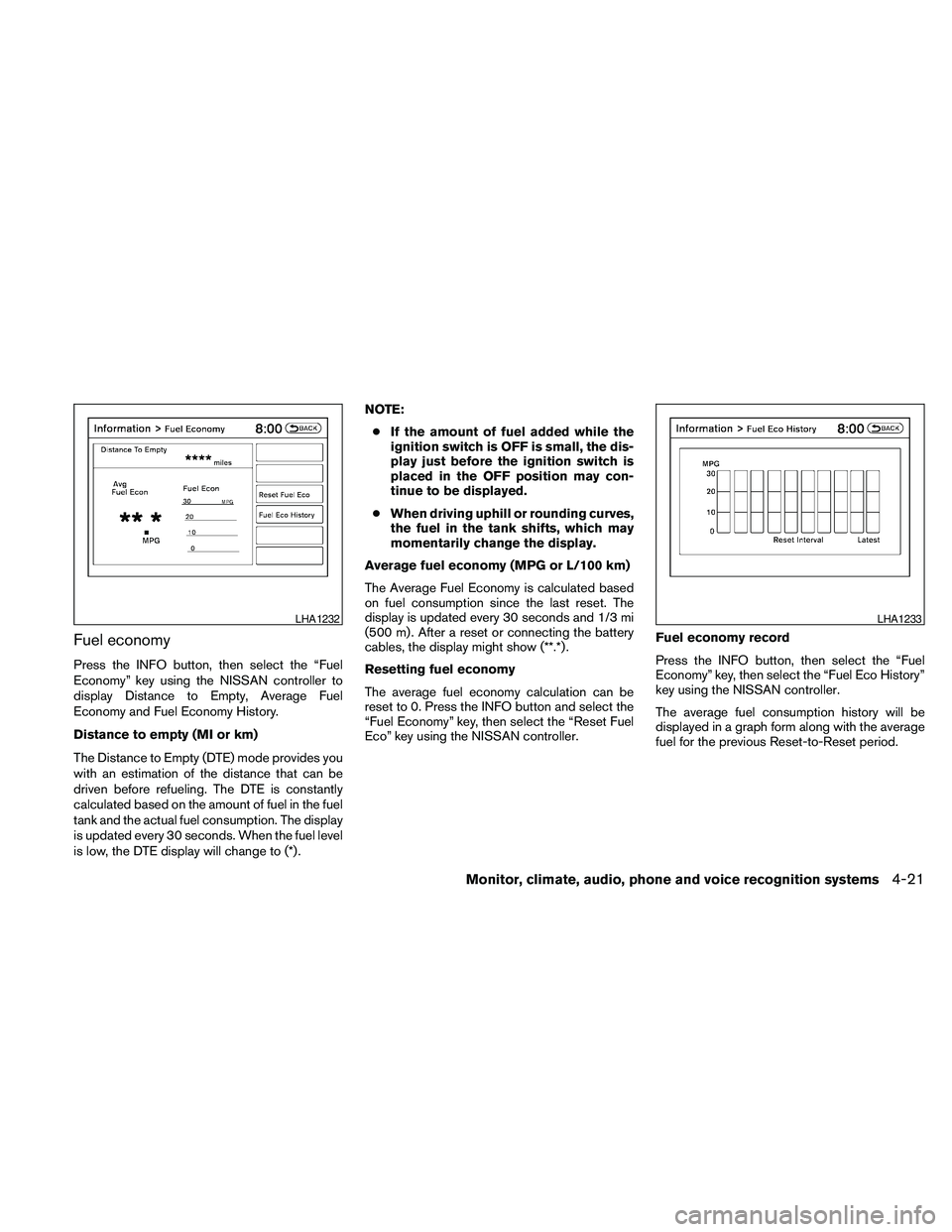
Fuel economy
Press the INFO button, then select the “Fuel
Economy” key using the NISSAN controller to
display Distance to Empty, Average Fuel
Economy and Fuel Economy History.
Distance to empty (MI or km)
The Distance to Empty (DTE) mode provides you
with an estimation of the distance that can be
driven before refueling. The DTE is constantly
calculated based on the amount of fuel in the fuel
tank and the actual fuel consumption. The display
is updated every 30 seconds. When the fuel level
is low, the DTE display will change to (*) .NOTE:
cIf the amount of fuel added while the
ignition switch is OFF is small, the dis-
play just before the ignition switch is
placed in the OFF position may con-
tinue to be displayed.
cWhen driving uphill or rounding curves,
the fuel in the tank shifts, which may
momentarily change the display.
Average fuel economy (MPG or L/100 km)
The Average Fuel Economy is calculated based
on fuel consumption since the last reset. The
display is updated every 30 seconds and 1/3 mi
(500 m) . After a reset or connecting the battery
cables, the display might show (**.*) .
Resetting fuel economy
The average fuel economy calculation can be
reset to 0. Press the INFO button and select the
“Fuel Economy” key, then select the “Reset Fuel
Eco” key using the NISSAN controller.Fuel economy record
Press the INFO button, then select the “Fuel
Economy” key, then select the “Fuel Eco History”
key using the NISSAN controller.
The average fuel consumption history will be
displayed in a graph form along with the average
fuel for the previous Reset-to-Reset period.
LHA1232LHA1233
Monitor, climate, audio, phone and voice recognition systems4-21
Page 184 of 457
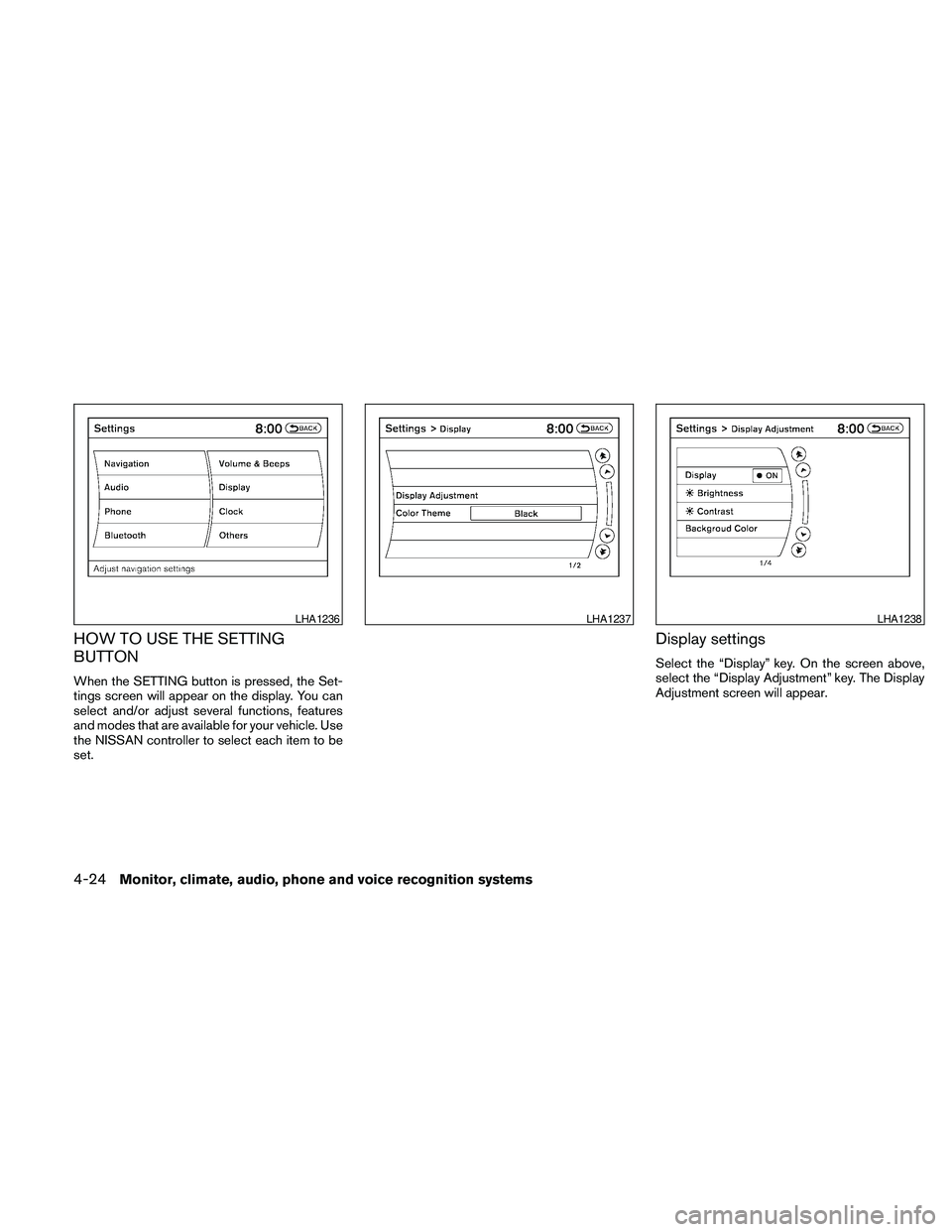
HOW TO USE THE SETTING
BUTTON
When the SETTING button is pressed, the Set-
tings screen will appear on the display. You can
select and/or adjust several functions, features
and modes that are available for your vehicle. Use
the NISSAN controller to select each item to be
set.
Display settings
Select the “Display” key. On the screen above,
select the “Display Adjustment” key. The Display
Adjustment screen will appear.
LHA1236LHA1237LHA1238
4-24Monitor, climate, audio, phone and voice recognition systems
Page 185 of 457
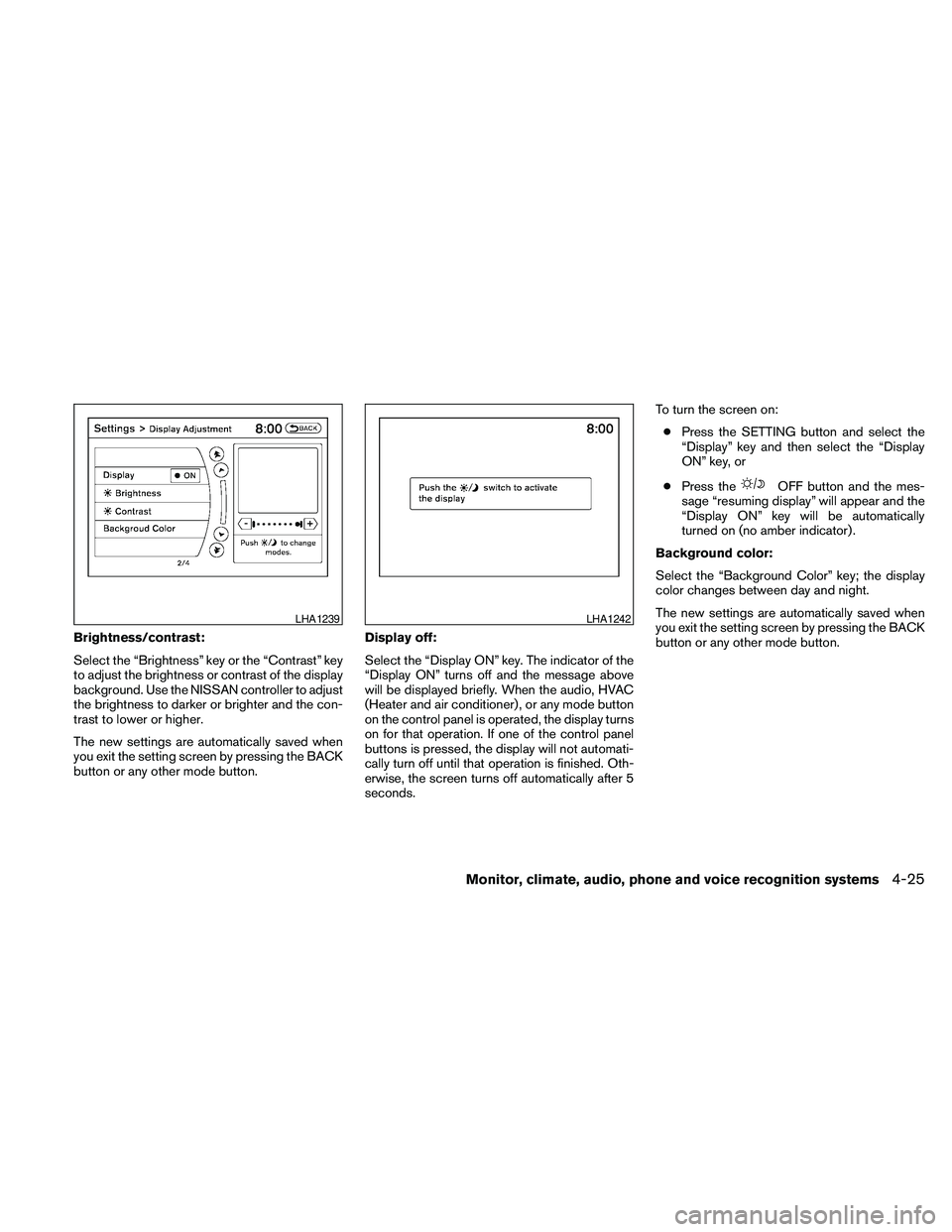
Brightness/contrast:
Select the “Brightness” key or the “Contrast” key
to adjust the brightness or contrast of the display
background. Use the NISSAN controller to adjust
the brightness to darker or brighter and the con-
trast to lower or higher.
The new settings are automatically saved when
you exit the setting screen by pressing the BACK
button or any other mode button.Display off:
Select the “Display ON” key. The indicator of the
“Display ON” turns off and the message above
will be displayed briefly. When the audio, HVAC
(Heater and air conditioner) , or any mode button
on the control panel is operated, the display turns
on for that operation. If one of the control panel
buttons is pressed, the display will not automati-
cally turn off until that operation is finished. Oth-
erwise, the screen turns off automatically after 5
seconds.To turn the screen on:
cPress the SETTING button and select the
“Display” key and then select the “Display
ON” key, or
cPress the
OFF button and the mes-
sage “resuming display” will appear and the
“Display ON” key will be automatically
turned on (no amber indicator) .
Background color:
Select the “Background Color” key; the display
color changes between day and night.
The new settings are automatically saved when
you exit the setting screen by pressing the BACK
button or any other mode button.
LHA1239LHA1242
Monitor, climate, audio, phone and voice recognition systems4-25
Page 187 of 457
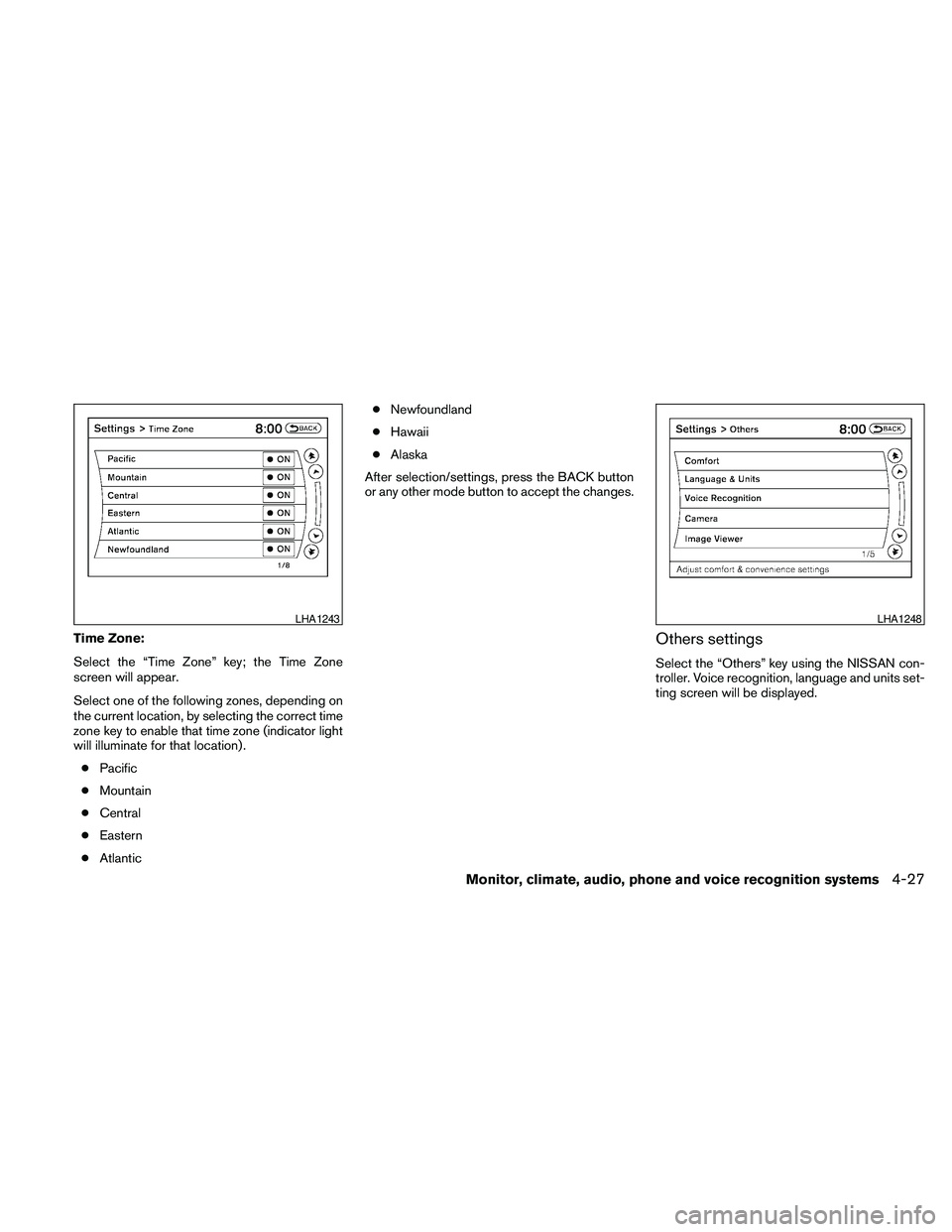
Time Zone:
Select the “Time Zone” key; the Time Zone
screen will appear.
Select one of the following zones, depending on
the current location, by selecting the correct time
zone key to enable that time zone (indicator light
will illuminate for that location) .
cPacific
cMountain
cCentral
cEastern
cAtlanticcNewfoundland
cHawaii
cAlaska
After selection/settings, press the BACK button
or any other mode button to accept the changes.Others settings
Select the “Others” key using the NISSAN con-
troller. Voice recognition, language and units set-
ting screen will be displayed.
LHA1243LHA1248
Monitor, climate, audio, phone and voice recognition systems4-27
Page 192 of 457
Viewing images
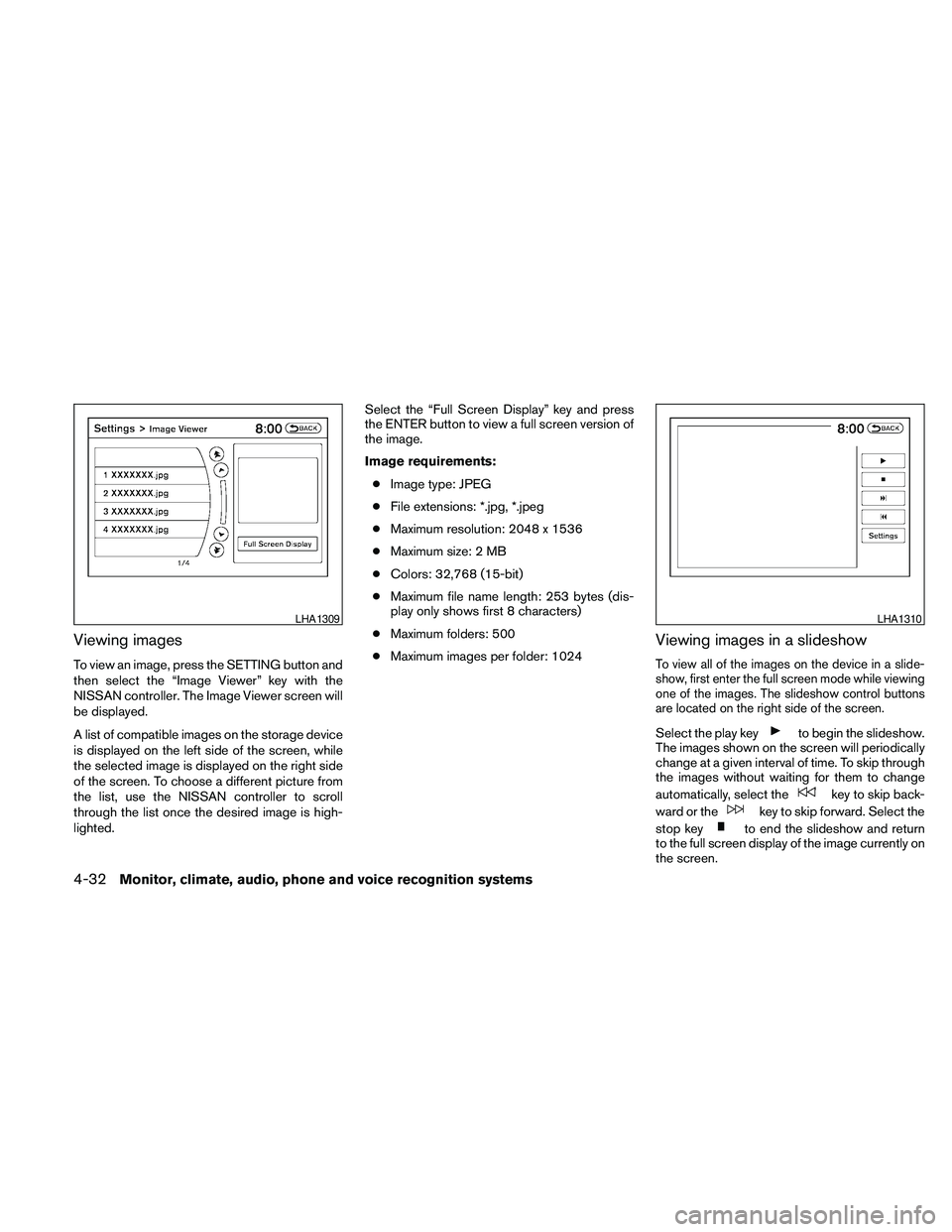
To view an image, press the SETTING button and
then select the “Image Viewer” key with the
NISSAN controller. The Image Viewer screen will
be displayed.
A list of compatible images on the storage device
is displayed on the left side of the screen, while
the selected image is displayed on the right side
of the screen. To choose a different picture from
the list, use the NISSAN controller to scroll
through the list once the desired image is high-
lighted.Select the “Full Screen Display” key and press
the ENTER button to view a full screen version of
the image.
Image requirements:
cImage type: JPEG
cFile extensions: *.jpg, *.jpeg
cMaximum resolution: 2048 x 1536
cMaximum size: 2 MB
cColors: 32,768 (15-bit)
cMaximum file name length: 253 bytes (dis-
play only shows first 8 characters)
cMaximum folders: 500
cMaximum images per folder: 1024
Viewing images in a slideshow
To view all of the images on the device in a slide-
show, first enter the full screen mode while viewing
one of the images. The slideshow control buttons
are located on the right side of the screen.
Select the play keyto begin the slideshow.
The images shown on the screen will periodically
change at a given interval of time. To skip through
the images without waiting for them to change
automatically, select the
key to skip back-
ward or the
key to skip forward. Select the
stop key
to end the slideshow and return
to the full screen display of the image currently on
the screen.
LHA1309LHA1310
4-32Monitor, climate, audio, phone and voice recognition systems
Page 193 of 457
Slideshow settings
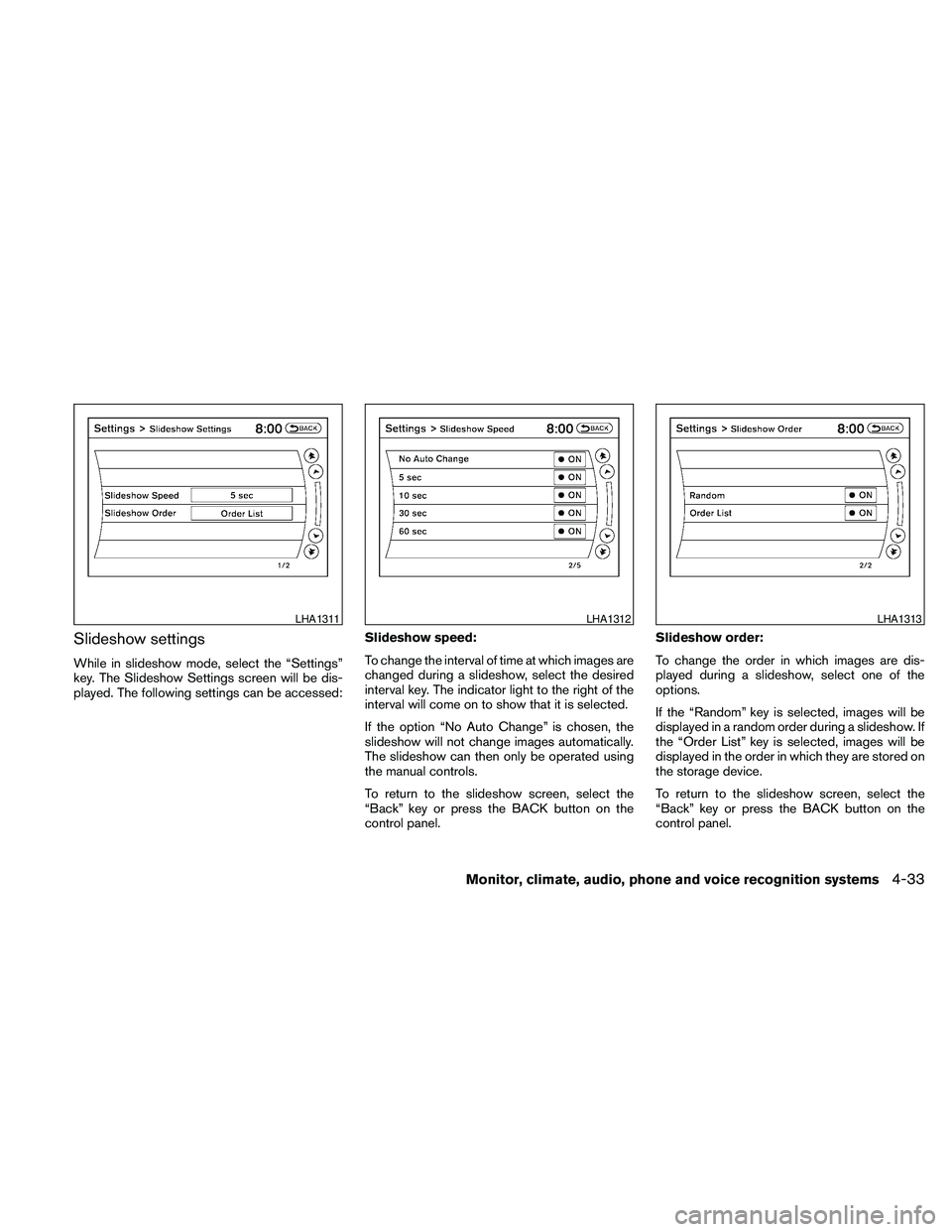
While in slideshow mode, select the “Settings”
key. The Slideshow Settings screen will be dis-
played. The following settings can be accessed:Slideshow speed:
To change the interval of time at which images are
changed during a slideshow, select the desired
interval key. The indicator light to the right of the
interval will come on to show that it is selected.
If the option “No Auto Change” is chosen, the
slideshow will not change images automatically.
The slideshow can then only be operated using
the manual controls.
To return to the slideshow screen, select the
“Back” key or press the BACK button on the
control panel.Slideshow order:
To change the order in which images are dis-
played during a slideshow, select one of the
options.
If the “Random” key is selected, images will be
displayed in a random order during a slideshow. If
the “Order List” key is selected, images will be
displayed in the order in which they are stored on
the storage device.
To return to the slideshow screen, select the
“Back” key or press the BACK button on the
control panel.
LHA1311LHA1312LHA1313
Monitor, climate, audio, phone and voice recognition systems4-33
Page 199 of 457
the positionsAif the object projects over the
actual backing up course.
HOW TO ADJUST THE SCREEN
To adjust the Display ON/OFF, Brightness, Tint,
Color, Contrast and Black Level of the RearView
Monitor, push the SETTING button with the
RearView Monitor on and select the “Display”
key. Select one of the items and change the value
by touching the “+” or “-” key or by turning the
NISSAN controller.
Do not adjust the Brightness, Tint, Color, Con-
trast and Black Level of the RearView Monitor
while the vehicle is moving. Make sure the park-
ing brake is firmly applied and the engine is not
running.
OPERATING TIPS
cWhen the shift selector is shifted to the R
(Reverse) position, the display screen auto-
matically changes to the RearView Monitor
mode. However, the radio can be heard.cIt may take some time until the RearView
Monitor or the normal screen is displayed
after the shift selector has been shifted to R
(Reverse) from another position or to an-
other position from R (Reverse) . Objects
may be distorted momentarily until the Rear-
View Monitor screen is displayed com-
pletely.
cWhen the temperature is extremely high or
low, the screen may not clearly display ob-
jects. This is not a malfunction.
cWhen strong light directly enters the cam-
era, objects may not be displayed clearly.
This is not a malfunction.
cVertical lines may be seen in objects on the
screen. This is due to strong reflected light
from the bumper. This is not a malfunction.
cThe screen may flicker under fluorescent
light. This is not a malfunction.
cThe colors of objects on the RearView Moni-
tor may differ somewhat from those of the
actual object.
cObjects on the monitor may not be clear in a
dark place or at night. This is not a malfunc-
tion.cIf dirt, rain or snow attaches to the camera,
the RearView Monitor may not clearly display
objects. Clean the camera.
cDo not use alcohol, benzine or thinner to
clean the camera. This will cause discolora-
tion. To clean the camera, wipe with a cloth
dampened with diluted mild cleaning agent
and then wipe with a dry cloth.
cDo not damage the camera as the monitor
screen may be adversely affected.
cDo not use wax on the camera window.
Wipe off any wax with a clean cloth damp-
ened with mild detergent diluted with water.
Monitor, climate, audio, phone and voice recognition systems4-39
Page 201 of 457
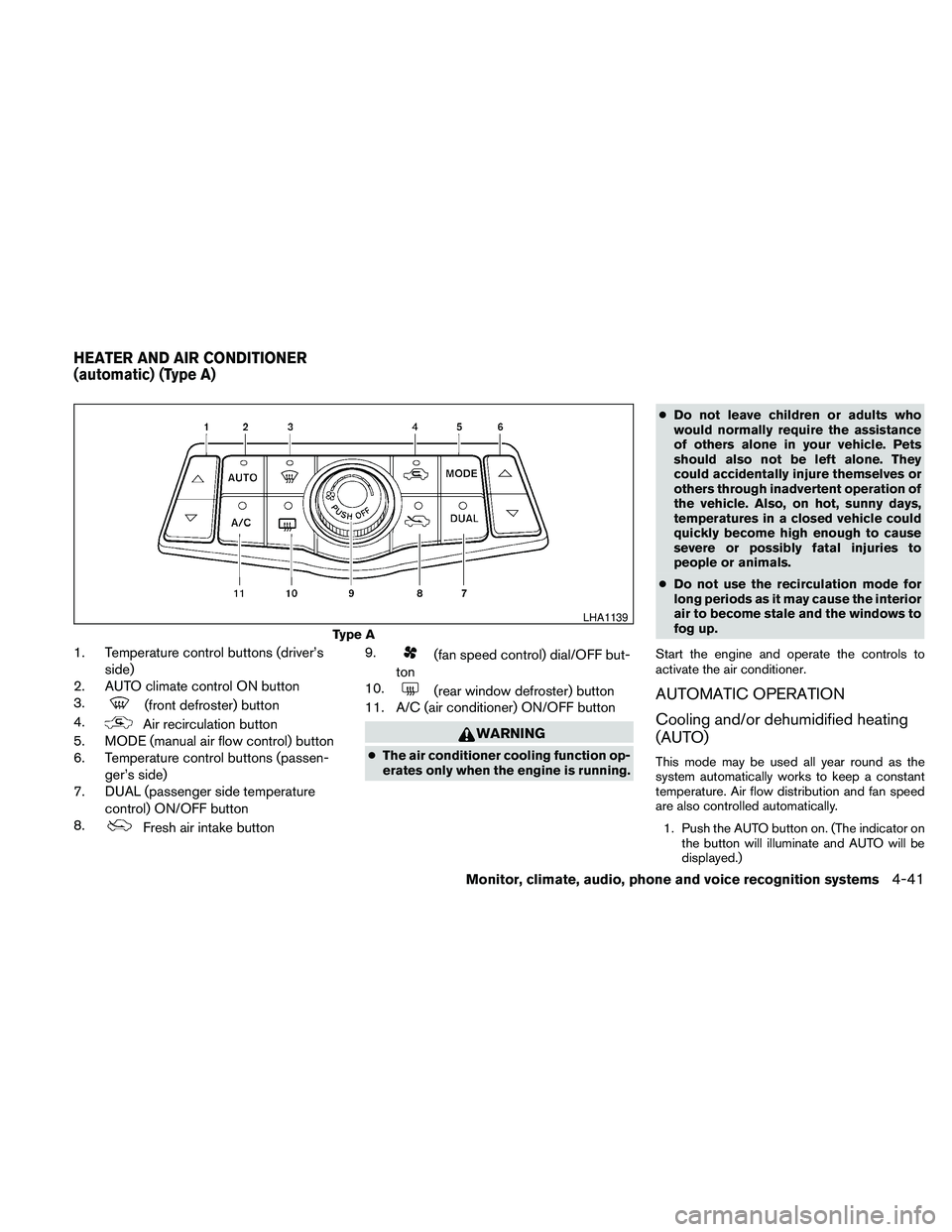
1. Temperature control buttons (driver’s
side)
2. AUTO climate control ON button
3.
(front defroster) button
4.
Air recirculation button
5. MODE (manual air flow control) button
6. Temperature control buttons (passen-
ger’s side)
7. DUAL (passenger side temperature
control) ON/OFF button
8.
Fresh air intake button9.
(fan speed control) dial/OFF but-
ton
10.
(rear window defroster) button
11. A/C (air conditioner) ON/OFF button
WARNING
cThe air conditioner cooling function op-
erates only when the engine is running.cDo not leave children or adults who
would normally require the assistance
of others alone in your vehicle. Pets
should also not be left alone. They
could accidentally injure themselves or
others through inadvertent operation of
the vehicle. Also, on hot, sunny days,
temperatures in a closed vehicle could
quickly become high enough to cause
severe or possibly fatal injuries to
people or animals.
cDo not use the recirculation mode for
long periods as it may cause the interior
air to become stale and the windows to
fog up.
Start the engine and operate the controls to
activate the air conditioner.
AUTOMATIC OPERATION
Cooling and/or dehumidified heating
(AUTO)
This mode may be used all year round as the
system automatically works to keep a constant
temperature. Air flow distribution and fan speed
are also controlled automatically.
1. Push the AUTO button on. (The indicator on
the button will illuminate and AUTO will be
displayed.)
Type A
LHA1139
HEATER AND AIR CONDITIONER
(automatic) (Type A)
Monitor, climate, audio, phone and voice recognition systems4-41
Page 202 of 457
2. Operate the driver’s side temperature con-
trol buttons.
cAdjust the temperature display to about
75°F (24°C) for normal operation.
cThe temperature of the passenger compart-
ment will be maintained automatically. Air
flow distribution and fan speed are also con-
trolled automatically.
cA visible mist may be seen coming from the
ventilators in hot, humid conditions as the air
is cooled rapidly. This does not indicate a
malfunction.
3. You can individually set driver’s and front
passenger’s side temperature using each
temperature control button. When the DUAL
button or passenger’s side temperature but-
ton is pressed, the DUAL indicator will come
on. To turn off the passenger’s side tempera-
ture control, push the DUAL button.
Heating (A/C OFF)
The air conditioner does not activate. When you
need to heat only, use this mode.
1. Push the A/C button. (A/C OFF will be dis-
played and A/C indicator will turn off.)
2. Operate the temperature control buttons to
set the desired temperature.cThe temperature of the passenger compart-
ment will be maintained automatically. Air
flow distribution and fan speed are also con-
trolled automatically.
cDo not set the temperature lower than the
outside air temperature. Otherwise the sys-
tem may not work properly.
cNot recommended if windows fog up.
Dehumidified defrosting or defogging
1. Push thefront defroster button on.
(The indicator light on the button will come
on.)
2. Operate the temperature control buttons to
set the desired temperature.
cTo quickly remove ice from the outside of the
windows, use the fan speed control dial to
set the fan speed to maximum.
cAs soon as possible after the windshield is
clean, push the AUTO button to return to the
automatic mode.cWhen the
front defroster button is
pushed, the air conditioner will automatically
be turned on at outside temperatures above
36°F (2°C) . The air recirculate mode auto-
matically turns off, allowing outside air to be
drawn into the passenger compartment to
further improve the defogging performance.
MANUAL OPERATION
Fan speed control
Turn thefan speed control dial to manually
control the fan speed.
Push the AUTO button to return to automatic
control of the fan speed.
Air recirculation
Push theair recirculation button to recir-
culate interior air inside the vehicle. The
indicator light on the button will come on.
The air recirculation cannot be activated when
the air conditioner is in the
front defrosting
mode or the
front defrosting and foot out-
let mode.
4-42Monitor, climate, audio, phone and voice recognition systems