battery NISSAN MAXIMA 2010 Owner´s Manual
[x] Cancel search | Manufacturer: NISSAN, Model Year: 2010, Model line: MAXIMA, Model: NISSAN MAXIMA 2010Pages: 457, PDF Size: 4.66 MB
Page 141 of 457
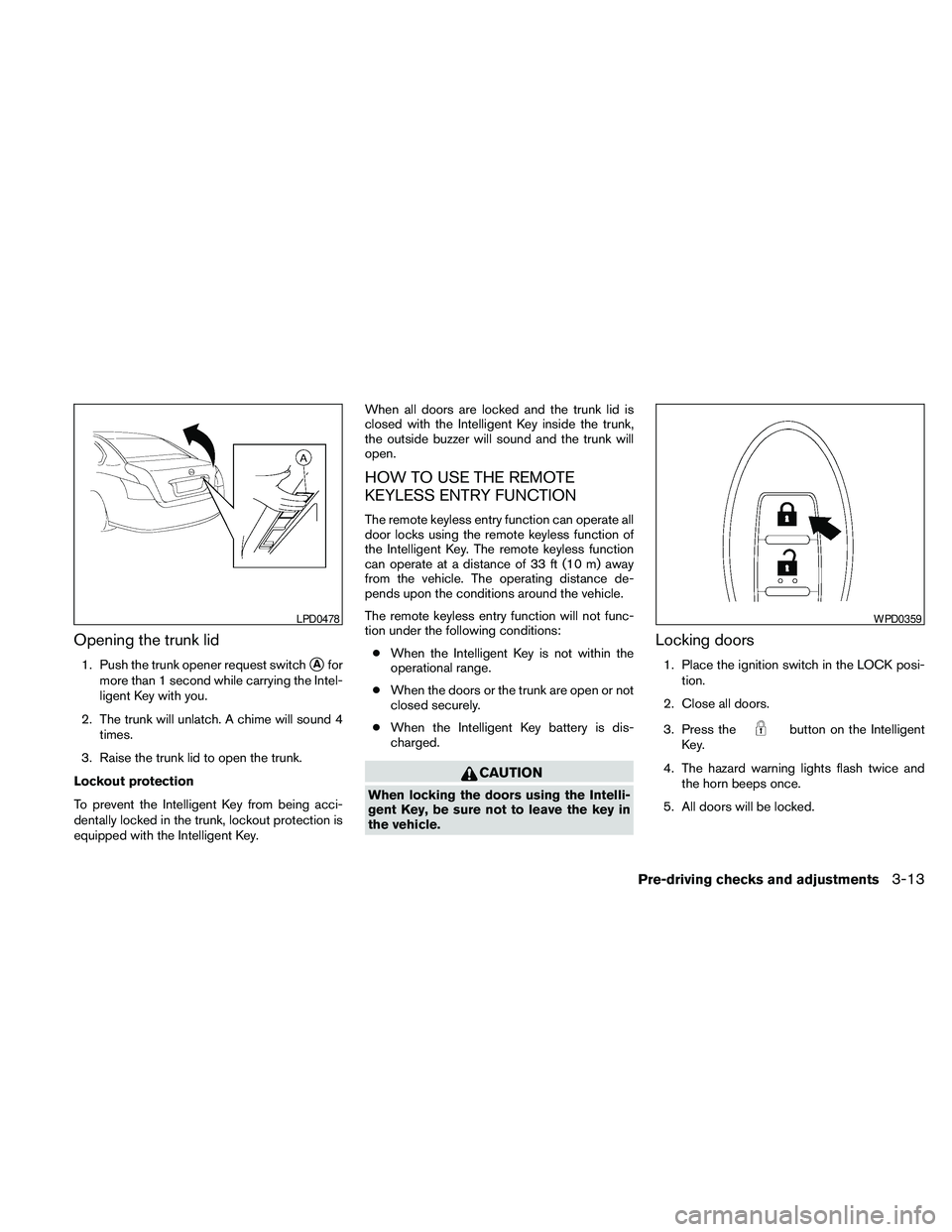
Opening the trunk lid
1. Push the trunk opener request switchsAfor
more than 1 second while carrying the Intel-
ligent Key with you.
2. The trunk will unlatch. A chime will sound 4
times.
3. Raise the trunk lid to open the trunk.
Lockout protection
To prevent the Intelligent Key from being acci-
dentally locked in the trunk, lockout protection is
equipped with the Intelligent Key.When all doors are locked and the trunk lid is
closed with the Intelligent Key inside the trunk,
the outside buzzer will sound and the trunk will
open.
HOW TO USE THE REMOTE
KEYLESS ENTRY FUNCTION
The remote keyless entry function can operate all
door locks using the remote keyless function of
the Intelligent Key. The remote keyless function
can operate at a distance of 33 ft (10 m) away
from the vehicle. The operating distance de-
pends upon the conditions around the vehicle.
The remote keyless entry function will not func-
tion under the following conditions:
cWhen the Intelligent Key is not within the
operational range.
cWhen the doors or the trunk are open or not
closed securely.
cWhen the Intelligent Key battery is dis-
charged.
CAUTION
When locking the doors using the Intelli-
gent Key, be sure not to leave the key in
the vehicle.
Locking doors
1. Place the ignition switch in the LOCK posi-
tion.
2. Close all doors.
3. Press the
button on the Intelligent
Key.
4. The hazard warning lights flash twice and
the horn beeps once.
5. All doors will be locked.
LPD0478WPD0359
Pre-driving checks and adjustments3-13
Page 158 of 457
3. Adjust the driver’s seat, steering column,
and outside mirrors to the desired positions
by manually operating each adjusting
switch. For additional information, see
“Seats” in the “Safety—Seats, seat belts and
supplemental restraint system” section and
“Outside mirrors” in this section.
During this step, do not place the ignition
switch in any position other than ON.
4. Push the SET switch and, within 5 seconds,
push the memory switch (1 or 2) .
The indicator light for the pushed memory
switch will come on and stay on for approxi-
mately 5 seconds after pushing the switch.
After the indicator light goes off, the se-
lected positions are stored in the selected
memory (1 or 2) .
If a new memory is stored in the same memory
switch, the previous memory will be deleted.
Linking a keyfob to a stored memory
position
Each keyfob can be linked to a stored memory
position (memory switch 1 or 2) with the follow-
ing procedure.
1. Follow the steps for storing a memory posi-
tion.2. While the indicator light for the memory
switch being set is illuminated for 5 sec-
onds, press the
button on the keyfob.
The indicator light will blink. After the indica-
tor light goes off, the keyfob is linked to that
memory setting.
With the ignition switch placed in the OFF posi-
tion, press the
button on the keyfob. The
driver’s seat and outside mirrors will move to the
memorized position.
NOTE:
If a new memory position is saved to the
memory switch, the keyfob automatically
re-links.
Confirming memory storage
cPlace the ignition switch in the ON position
and push the SET switch. If the main memory
has not been stored, the indicator light will
come on for approximately 0.5 seconds.
When the memory has stored the position,
the indicator light will stay on for approxi-
mately 5 seconds.cIf the battery cable is disconnected, or if the
fuse opens, the memory storage function will
be canceled and must be restarted before a
stored memory position can be set again.
Drive the vehicle over 25 MPH (40 km/h) to
restart the memory storage function. You
can also restart the memory storage function
using the following procedure.
1. Connect the battery cable or replace the
fuse.
2. Open and close the driver’s door more than
2 times with the ignition switch in the LOCK
position.
Once the memory storage function has been
restarted, you can store a memory position.
See “Memory storage function” in this sec-
tion.Selecting the memorized position
Set the shift selector to the P (Park) position,
then:
cWithin 45 seconds of opening the driver’s
door, push the memory switch (1 or 2) or
cPlace the ignition switch in the ON position
and push the memory switch (1 or 2) .
3-30Pre-driving checks and adjustments
Page 159 of 457
The driver’s seat, steering column, and outside
mirrors will move to the memorized position with
the indicator light blinking, and then the light will
stay on for approximately 5 seconds.
ENTRY/EXIT FUNCTION
This system is designed so that the driver’s seat
and automatic operation steering column will au-
tomatically move when the shift selector is in the
P (Park) position. This allows the driver to get into
and out of the driver’s seat more easily.
The driver’s seat will slide backward and the
steering wheel will move up when the driver’s
door is opened and the ignition switch is in the
LOCK position.
The driver’s seat and steering wheel will return to
the previous position when the driver’s door is
closed and the ignition switch is pushed.
The entry/exit function can be adjusted or can-
celed. See “Comfort & Convenience settings” in
the “Monitor, climate, audio, phone and voice
recognition systems” section of this manual.
Restarting the entry/exit function
If the battery cable is disconnected or if the fuse
opens, the entry/exit function will be disabled.
Drive the vehicle over 25 MPH (40 km/h) to
restart the entry/exit function. You can also restart
the entry/exit function using the following proce-
dure.
1. Connect the battery cable or replace the
fuse.
2. Open and close the driver’s door more than
2 times with the ignition switch in the LOCK
position.
The entry/exit function should now work properly.
SYSTEM OPERATION
The automatic drive positioner system will not
work or will stop operating under the following
conditions:
cWhen the vehicle speed is above 4 MPH (7
km/h) .
cWhen any of the memory switches are
pushed while the automatic drive positioner
is operating.cWhen the adjusting switch for the driver’s
seat is turned on while the automatic drive
positioner is operating.
cWhen the seat has been already moved to
the memorized position.
cWhen no seat position is stored in the
memory switch.
cWhen the shift selector is moved from P
(Park) to any other position.
cWhen the driver’s door remains open more
than 45 seconds and the ignition switch is
not in the ON position.
The automatic drive positioner system can be
adjusted and canceled for vehicles with naviga-
tion system. See “Comfort & Convenience set-
tings” in the “Monitor, climate, audio, phone and
voice recognition systems” section of this
manual.
Pre-driving checks and adjustments3-31
Page 165 of 457
CAUTION
cThe glass screen on the liquid crystal
display may break if it is hit with a hard
or sharp object. If the glass breaks, do
not touch the liquid crystalline material,
which contains a small amount of mer-
cury. In case of contact with skin, wash
immediately with soap and water.
cTo clean the display, never use a rough
cloth, alcohol, benzine, thinner or any
kind of solvent or paper towel with a
chemical cleaning agent. They will
scratch or deteriorate the panel.
cDo not splash any liquid such as water
or car fragrance on the display. Contact
with liquid will cause the system to
malfunction.
When you use this system, make sure the engine
is running.
If you use the system with the engine not
running (ignition ON or ACC) for a long
time, it will discharge the battery, and the
engine will not start.Reference symbols:
ENTER button — This is a button on the control
panel.
“Example” — Words marked in quotes refer to a
key shown on the display. These keys can only be
selected using the NISSAN controller.
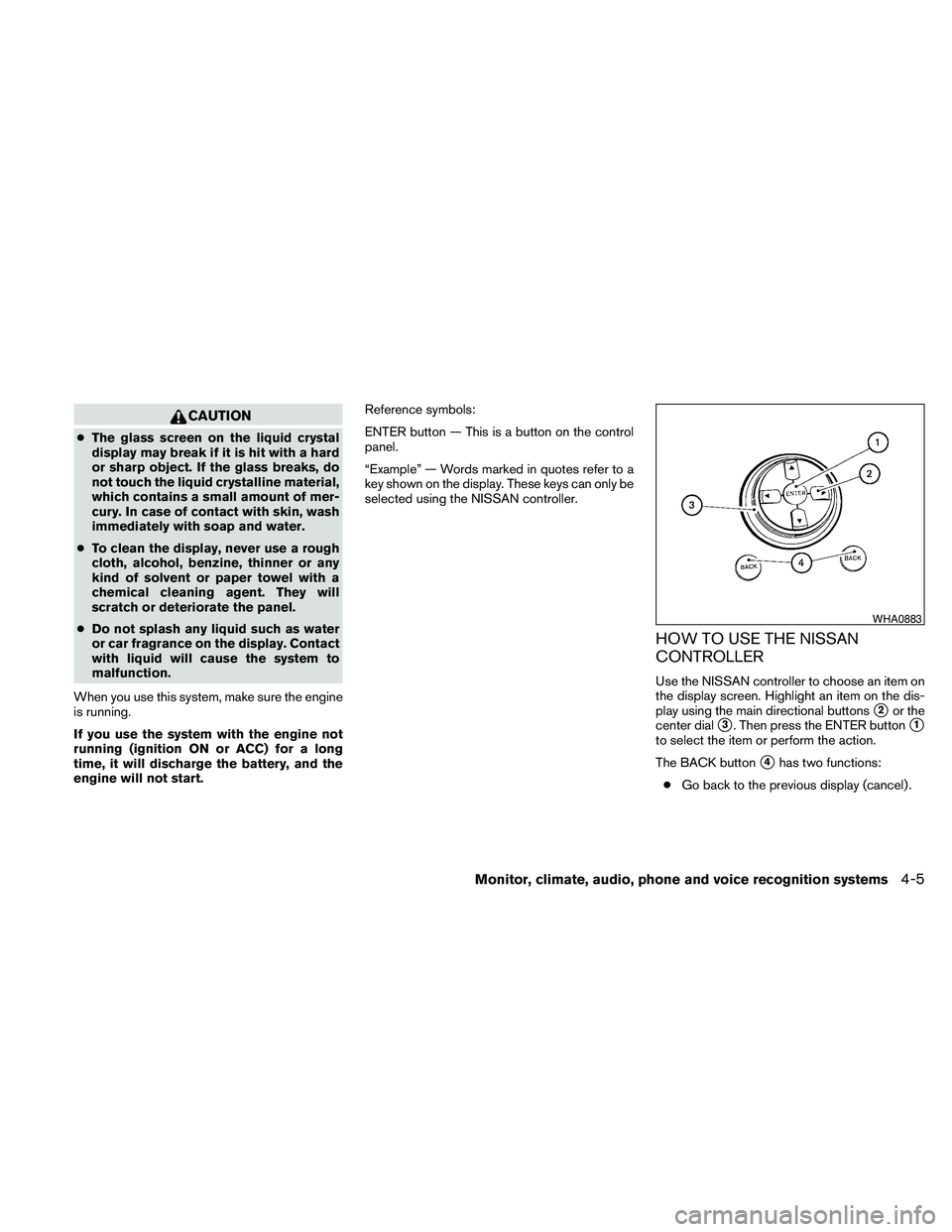
HOW TO USE THE NISSAN
CONTROLLER
Use the NISSAN controller to choose an item on
the display screen. Highlight an item on the dis-
play using the main directional buttons
s2or the
center dial
s3. Then press the ENTER buttons1
to select the item or perform the action.
The BACK button
s4has two functions:
cGo back to the previous display (cancel) .
WHA0883
Monitor, climate, audio, phone and voice recognition systems4-5
Page 167 of 457
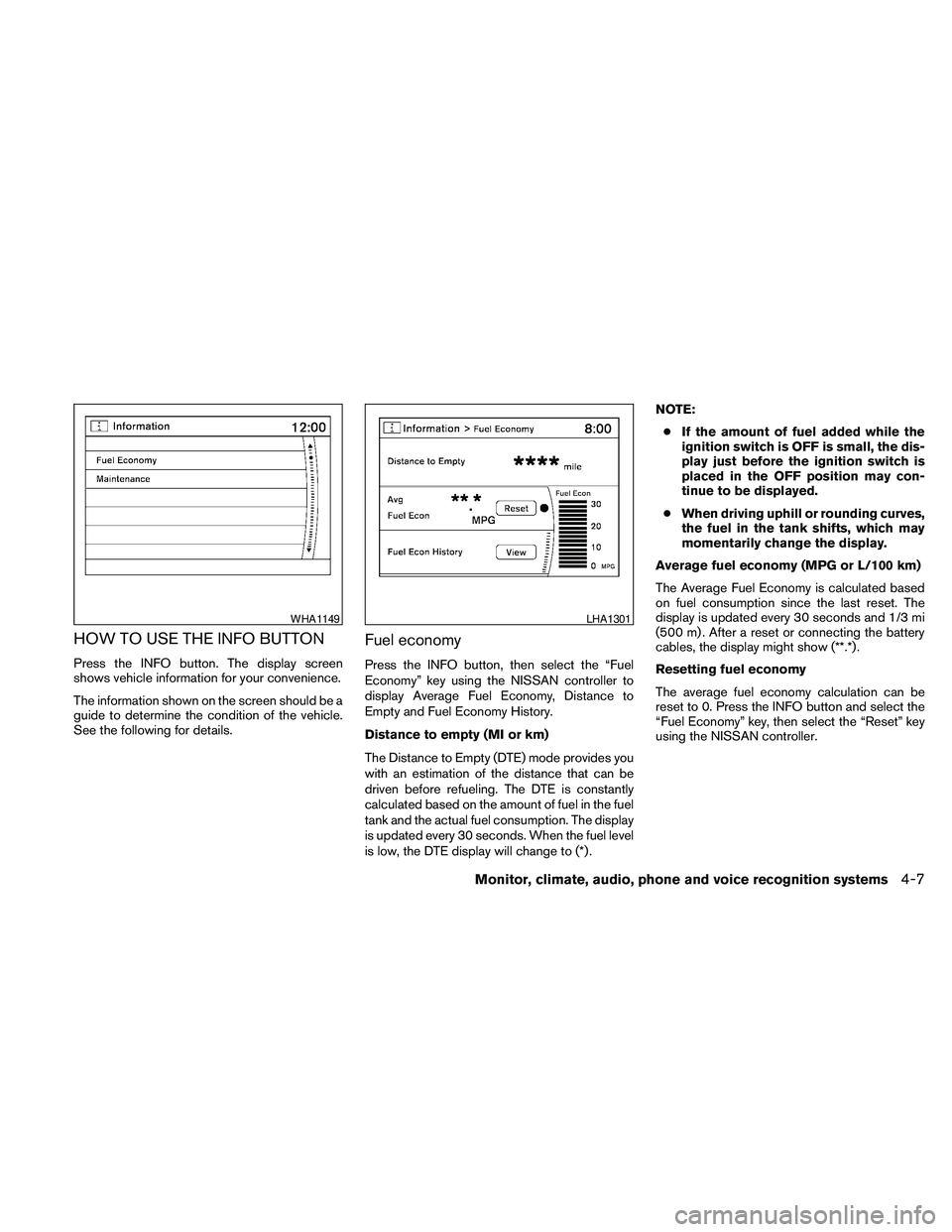
HOW TO USE THE INFO BUTTON
Press the INFO button. The display screen
shows vehicle information for your convenience.
The information shown on the screen should be a
guide to determine the condition of the vehicle.
See the following for details.
Fuel economy
Press the INFO button, then select the “Fuel
Economy” key using the NISSAN controller to
display Average Fuel Economy, Distance to
Empty and Fuel Economy History.
Distance to empty (MI or km)
The Distance to Empty (DTE) mode provides you
with an estimation of the distance that can be
driven before refueling. The DTE is constantly
calculated based on the amount of fuel in the fuel
tank and the actual fuel consumption. The display
is updated every 30 seconds. When the fuel level
is low, the DTE display will change to (*) .NOTE:
cIf the amount of fuel added while the
ignition switch is OFF is small, the dis-
play just before the ignition switch is
placed in the OFF position may con-
tinue to be displayed.
cWhen driving uphill or rounding curves,
the fuel in the tank shifts, which may
momentarily change the display.
Average fuel economy (MPG or L/100 km)
The Average Fuel Economy is calculated based
on fuel consumption since the last reset. The
display is updated every 30 seconds and 1/3 mi
(500 m) . After a reset or connecting the battery
cables, the display might show (**.*) .
Resetting fuel economy
The average fuel economy calculation can be
reset to 0. Press the INFO button and select the
“Fuel Economy” key, then select the “Reset” key
using the NISSAN controller.
WHA1149LHA1301
Monitor, climate, audio, phone and voice recognition systems4-7
Page 177 of 457
9.OFF brightness control button
(P. 4-31)
10. - (brightness control) button
11. VOICE button*
12. SETTING button (P. 4-24)
13. MAP button*
14.
BACK (previous) button (P. 4-17)
15. ZOOM IN button*
*For Navigation system control buttons, refer to
the separate Navigation System Owner’s
Manual.
**For information on the PHONE button, see
“BluetoothTHands-Free Phone System with
Navigation System” in this section.
When you use this system, make sure the engine
is running.
If you use the system with the engine not
running (ignition ON or ACC) for a long
time, it will discharge the battery, and the
engine will not start.Reference symbols:
ENTER button — This is a button on the control
panel.
“Example” — Words marked in quotes refer to a
key shown only on the display. These keys can be
selected by touching the screen or using the
NISSAN controller.
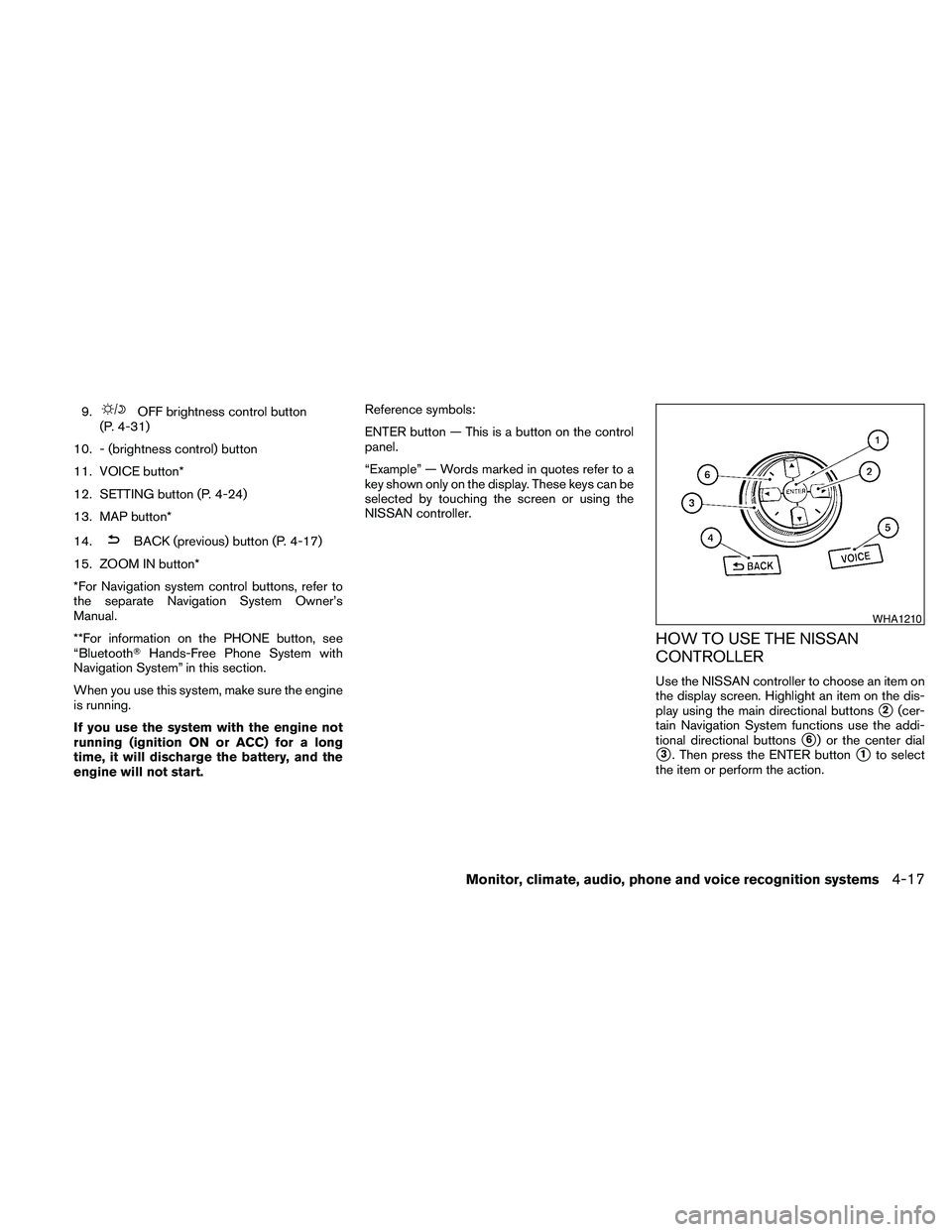
HOW TO USE THE NISSAN
CONTROLLER
Use the NISSAN controller to choose an item on
the display screen. Highlight an item on the dis-
play using the main directional buttons
s2(cer-
tain Navigation System functions use the addi-
tional directional buttons
s6) or the center dial
s3. Then press the ENTER buttons1to select
the item or perform the action.
WHA1210
Monitor, climate, audio, phone and voice recognition systems4-17
Page 181 of 457
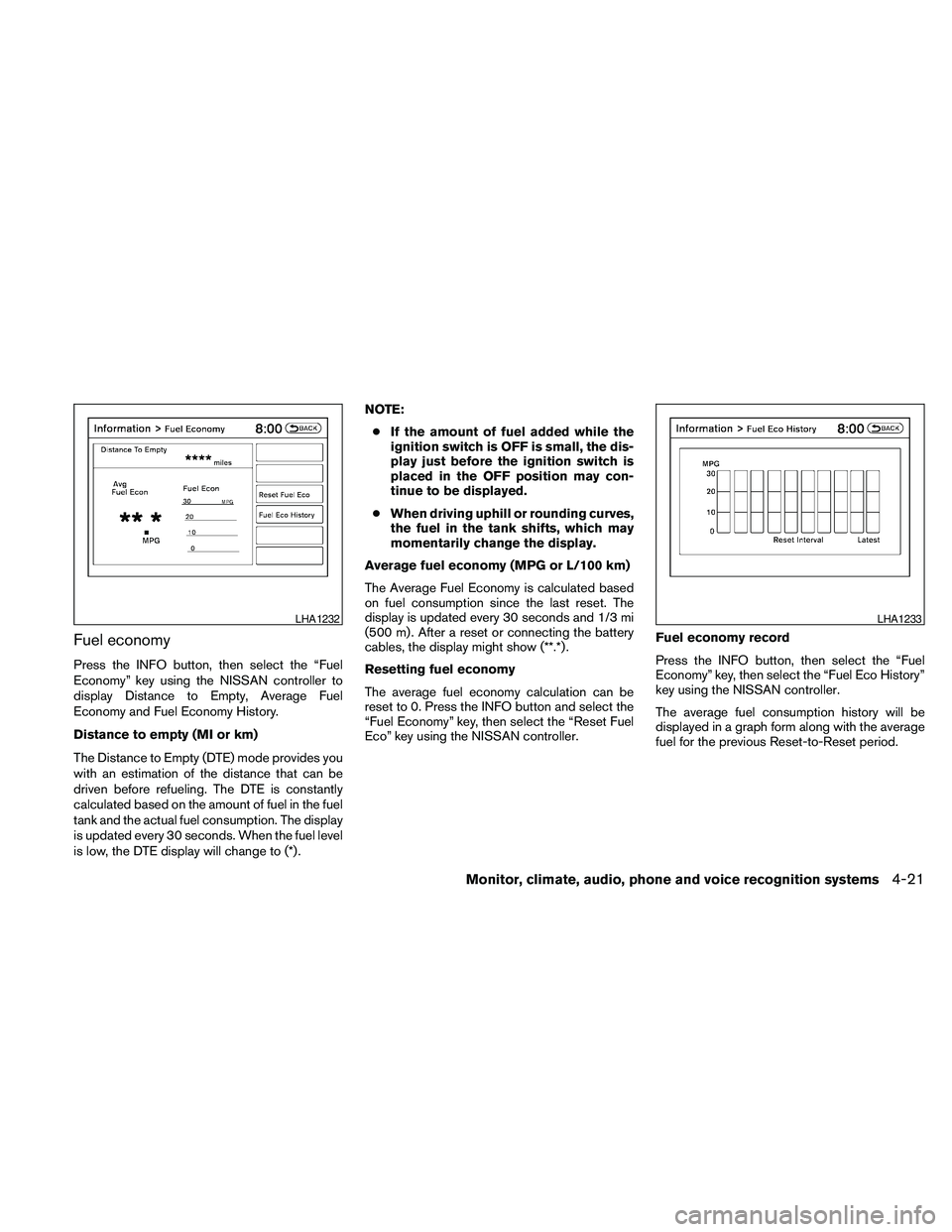
Fuel economy
Press the INFO button, then select the “Fuel
Economy” key using the NISSAN controller to
display Distance to Empty, Average Fuel
Economy and Fuel Economy History.
Distance to empty (MI or km)
The Distance to Empty (DTE) mode provides you
with an estimation of the distance that can be
driven before refueling. The DTE is constantly
calculated based on the amount of fuel in the fuel
tank and the actual fuel consumption. The display
is updated every 30 seconds. When the fuel level
is low, the DTE display will change to (*) .NOTE:
cIf the amount of fuel added while the
ignition switch is OFF is small, the dis-
play just before the ignition switch is
placed in the OFF position may con-
tinue to be displayed.
cWhen driving uphill or rounding curves,
the fuel in the tank shifts, which may
momentarily change the display.
Average fuel economy (MPG or L/100 km)
The Average Fuel Economy is calculated based
on fuel consumption since the last reset. The
display is updated every 30 seconds and 1/3 mi
(500 m) . After a reset or connecting the battery
cables, the display might show (**.*) .
Resetting fuel economy
The average fuel economy calculation can be
reset to 0. Press the INFO button and select the
“Fuel Economy” key, then select the “Reset Fuel
Eco” key using the NISSAN controller.Fuel economy record
Press the INFO button, then select the “Fuel
Economy” key, then select the “Fuel Eco History”
key using the NISSAN controller.
The average fuel consumption history will be
displayed in a graph form along with the average
fuel for the previous Reset-to-Reset period.
LHA1232LHA1233
Monitor, climate, audio, phone and voice recognition systems4-21
Page 195 of 457
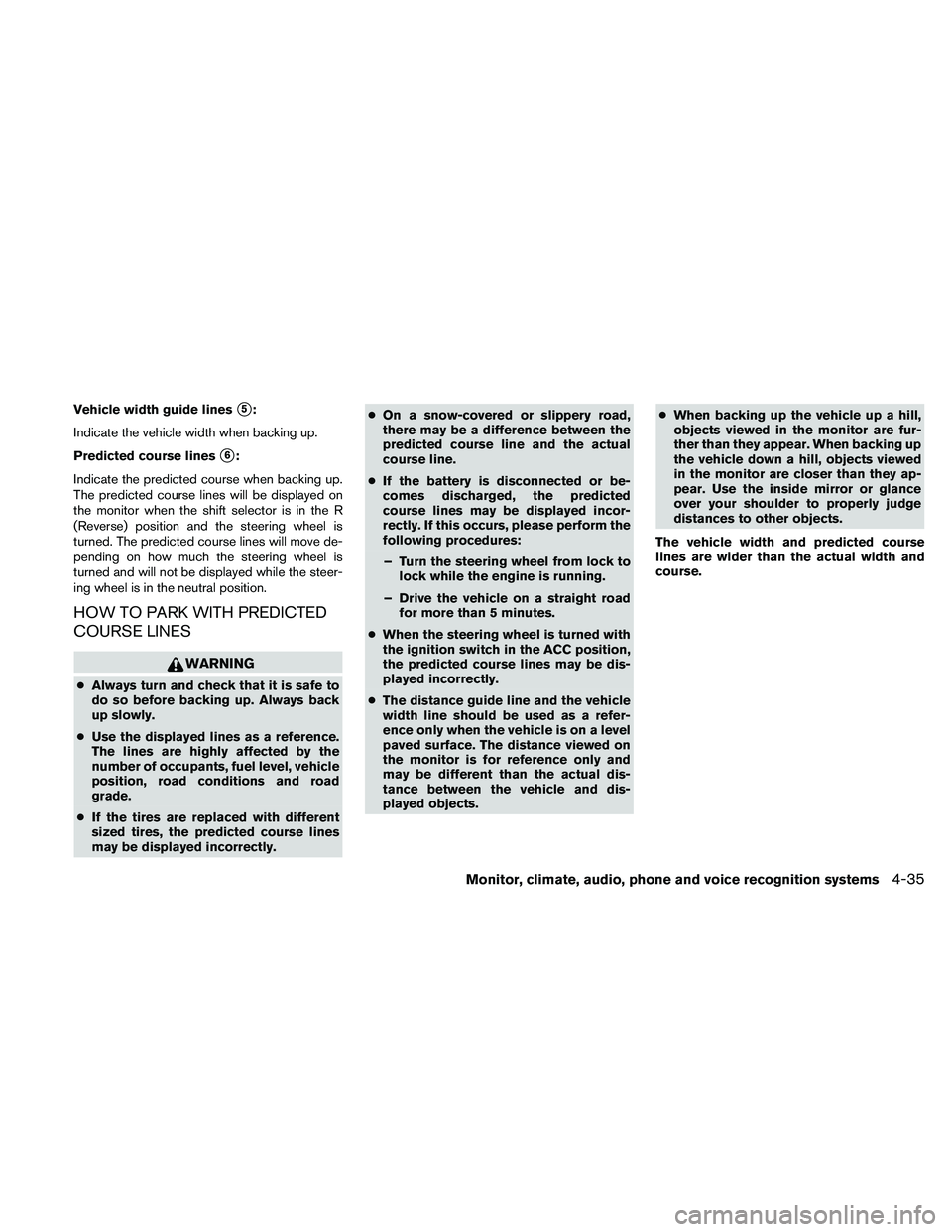
Vehicle width guide liness5:
Indicate the vehicle width when backing up.
Predicted course lines
s6:
Indicate the predicted course when backing up.
The predicted course lines will be displayed on
the monitor when the shift selector is in the R
(Reverse) position and the steering wheel is
turned. The predicted course lines will move de-
pending on how much the steering wheel is
turned and will not be displayed while the steer-
ing wheel is in the neutral position.
HOW TO PARK WITH PREDICTED
COURSE LINES
WARNING
cAlways turn and check that it is safe to
do so before backing up. Always back
up slowly.
cUse the displayed lines as a reference.
The lines are highly affected by the
number of occupants, fuel level, vehicle
position, road conditions and road
grade.
cIf the tires are replaced with different
sized tires, the predicted course lines
may be displayed incorrectly.cOn a snow-covered or slippery road,
there may be a difference between the
predicted course line and the actual
course line.
cIf the battery is disconnected or be-
comes discharged, the predicted
course lines may be displayed incor-
rectly. If this occurs, please perform the
following procedures:
– Turn the steering wheel from lock to
lock while the engine is running.
– Drive the vehicle on a straight road
for more than 5 minutes.
cWhen the steering wheel is turned with
the ignition switch in the ACC position,
the predicted course lines may be dis-
played incorrectly.
cThe distance guide line and the vehicle
width line should be used as a refer-
ence only when the vehicle is on a level
paved surface. The distance viewed on
the monitor is for reference only and
may be different than the actual dis-
tance between the vehicle and dis-
played objects.cWhen backing up the vehicle up a hill,
objects viewed in the monitor are fur-
ther than they appear. When backing up
the vehicle down a hill, objects viewed
in the monitor are closer than they ap-
pear. Use the inside mirror or glance
over your shoulder to properly judge
distances to other objects.
The vehicle width and predicted course
lines are wider than the actual width and
course.
Monitor, climate, audio, phone and voice recognition systems4-35
Page 209 of 457
Static and flutter: During signal interference from
buildings, large hills or due to antenna position
(usually in conjunction with increased distance
from the station transmitter) , static or flutter can
be heard. This can be reduced by adjusting the
treble control to reduce treble response.
Multipath reception: Because of the reflective
characteristics of FM signals, direct and reflected
signals reach the receiver at the same time. The
signals may cancel each other, resulting in mo-
mentary flutter or loss of sound.
AM RADIO RECEPTION
AM signals, because of their low frequency, can
bend around objects and skip along the ground.
In addition, the signals can be bounced off the
ionosphere and bent back to earth. Because of
these characteristics, AM signals are also sub-
ject to interference as they travel from transmitter
to receiver.
Fading: Occurs while the vehicle is passing
through freeway underpasses or in areas with
many tall buildings. It can also occur for several
seconds during ionospheric turbulence even in
areas where no obstacles exist.
Static: Caused by thunderstorms, electrical
power lines, electric signs and even traffic lights.
SATELLITE RADIO RECEPTION (if so
equipped)
When the satellite radio is used for the first time
or the battery has been replaced, the satellite
radio may not work properly. This is not a mal-
function. Wait more than 10 minutes with satellite
radio ON and the vehicle outside of any metal or
large building for satellite radio to receive all of
the necessary data.
The satellite radio mode will be skipped unless an
optional satellite receiver and antenna are in-
stalled and an XMT* satellite radio service sub-
scription is active. Satellite radio is not available
in Alaska, Hawaii and Guam.
Satellite radio performance may be affected if
cargo carried on the roof blocks the satellite radio
signal.
If possible, do not put cargo over the satellite
antenna.
A build up of ice on the satellite radio antenna can
affect satellite radio performance. Remove the
ice to restore satellite radio reception.
*XMTis a registered trademark of XM Satellite
Radio, Inc.
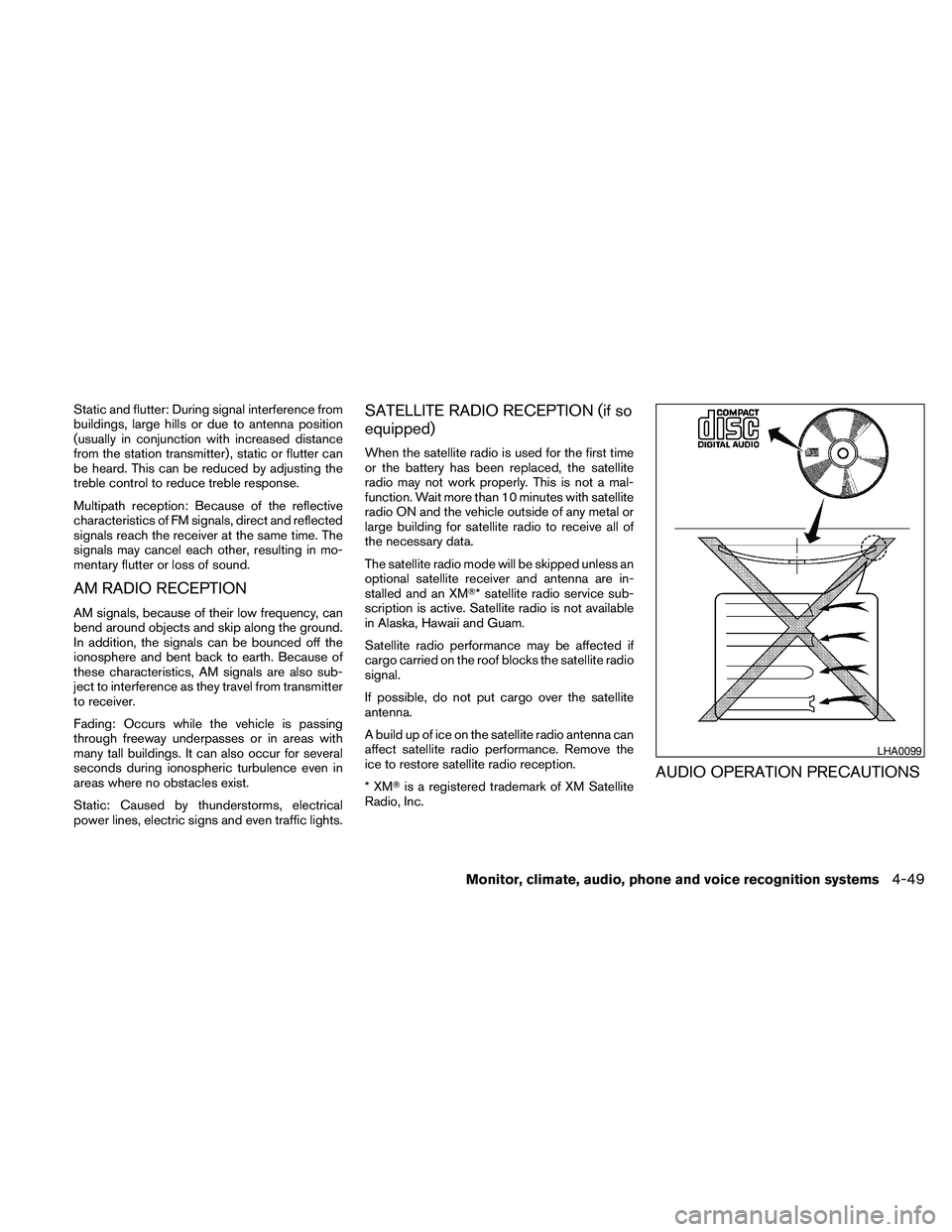
AUDIO OPERATION PRECAUTIONS
LHA0099
Monitor, climate, audio, phone and voice recognition systems4-49
Page 226 of 457
cArtist name displays the name of the artist of
the song playing.
cAlbum title displays the title of the album of
the song playing.
FM/AM radio operation
FM/AM band select:
Pressing the AM·FM button will change the band
as follows:
AM!FM1!FM2!AM
When the AM·FM button is pressed while the
ignition switch is in the ACC or ON position, the
radio will come on at the station last played.
The last station played will also come on when
the VOL/ON·OFF control knob is pressed ON.
If a compact disc is playing when the AM·FM
button is pressed, the compact disc will auto-
matically be turned off and the last radio station
played will come on.
The FM stereo indicator ST will illuminate during
FM stereo reception. When the stereo broadcast
signal is weak, the radio will automatically change
from stereo to monaural reception.
TUNE/FOLDER (Tuning) knob:
To manually tune the radio, turn the
TUNE/FOLDER knob to the right or left.
SEEK/CAT and TRACK
tuning buttons:
Press the SEEK/CAT
button or the
TRACK
button to tune from high to low or
low to high frequencies and stop at the next
broadcasting station.
SCAN tuning:
Press the SCAN button to stop at each broad-
casting station for 5 seconds. Pressing the
SCAN button again during this 5-second period
will stop scan tuning and the radio will remain
tuned to that station. If the SCAN button is not
pressed within 5 seconds, scan tuning moves to
the next station.
1 to 6 Station memory operations:
Twelve stations can be set for the FM band (6 for
FM1, 6 for FM2) and six stations can be set for
the AM band.
1. Choose the radio band AM, FM1 or FM2
using the AM·FM select button.
2. Tune to the desired station using manual,
SEEK or SCAN tuning. Press and hold any
of the desired station memory buttons (1 –
6) until a beep sound is heard.3. The channel indicator will then come on and
the sound will resume. Programming is now
complete.
4. Other buttons can be set in the same man-
ner.
If the battery cable is disconnected or if the fuse
opens, the radio memory will be canceled. In that
case, reset the desired stations.
Compact disc (CD) changer operation
Place the ignition switch in the ACC or ON
position and press the LOAD button, then press
one of the CD insert (1 – 6) slots. Insert the
compact disc into the slot with the label side
facing up. The compact disc will be guided auto-
matically into the slot and start playing.
If the radio is already operating, it will automati-
cally turn off and the compact disc will play.
If the system has been turned off while a compact
disc was playing, pressing the VOL/ON·OFF
control knob will start the compact disc.
LOAD button:
To insert a CD in the CD changer, press the
LOAD button for less than 1.5 seconds. Select
the loading slot by pressing the CD insert select
button (1 – 6) , then insert the CD.
4-66Monitor, climate, audio, phone and voice recognition systems