KEY NISSAN MURANO 2009 Owner´s Manual
[x] Cancel search | Manufacturer: NISSAN, Model Year: 2009, Model line: MURANO, Model: NISSAN MURANO 2009Pages: 443, PDF Size: 3.95 MB
Page 251 of 443
Black plate (249,1)
Model "Z51-D" EDITED: 2007/ 10/ 2
SAA1857
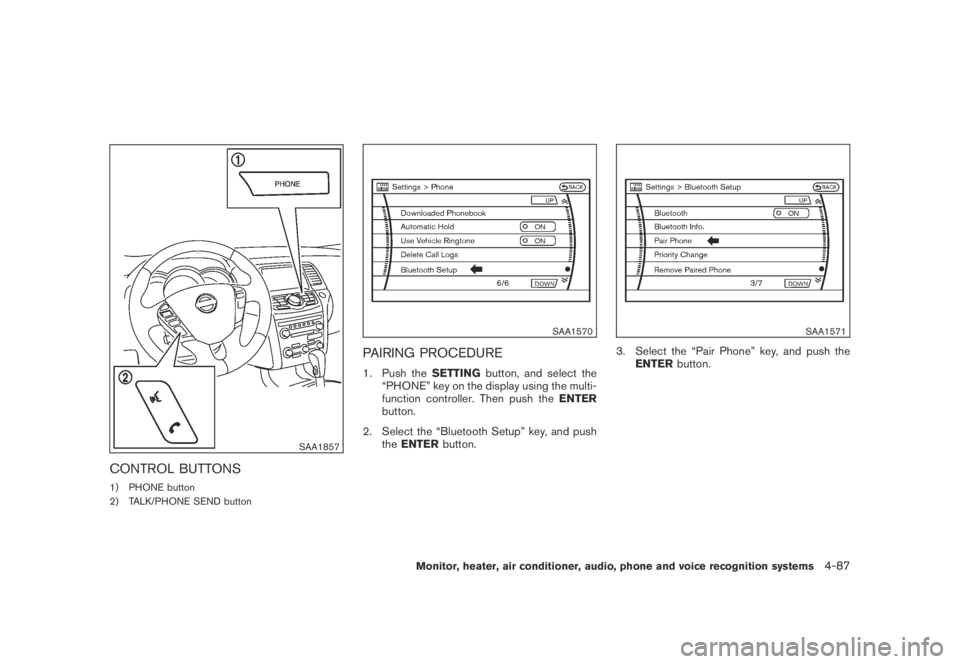
CONTROL BUTTONS
1) PHONE button
2) TALK/PHONE SEND button
SAA1570
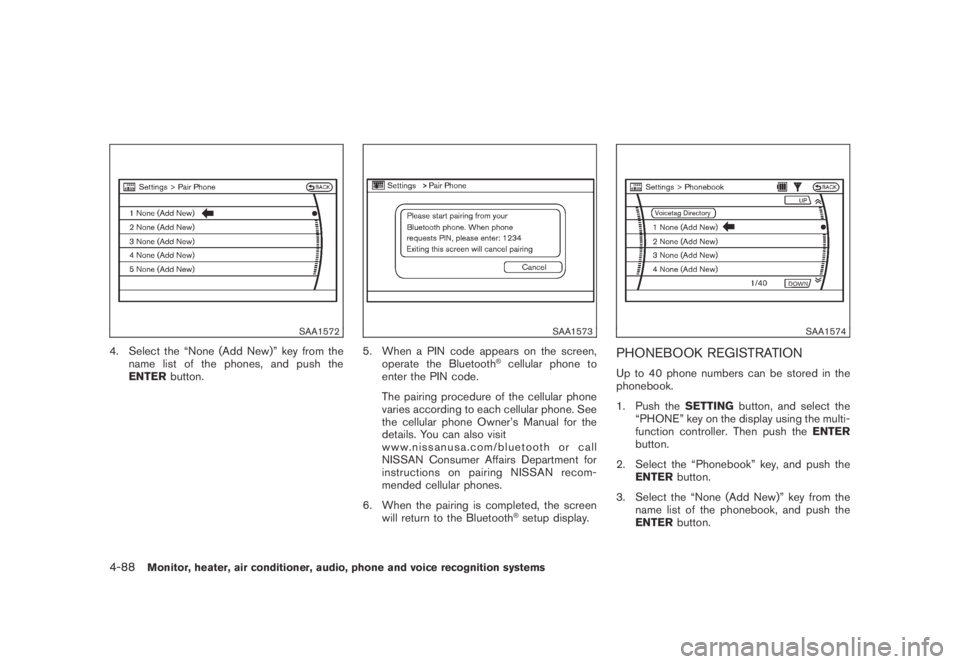
PAIRING PROCEDURE
1. Push theSETTINGbutton, and select the
“PHONE” key on the display using the multi-
function controller. Then push theENTER
button.
2. Select the “Bluetooth Setup” key, and push
theENTERbutton.
SAA1571
3. Select the “Pair Phone” key, and push the
ENTERbutton.
Monitor, heater, air conditioner, audio, phone and voice recognition systems4-87
Page 252 of 443
Black plate (250,1)
Model "Z51-D" EDITED: 2007/ 10/ 2
SAA1572
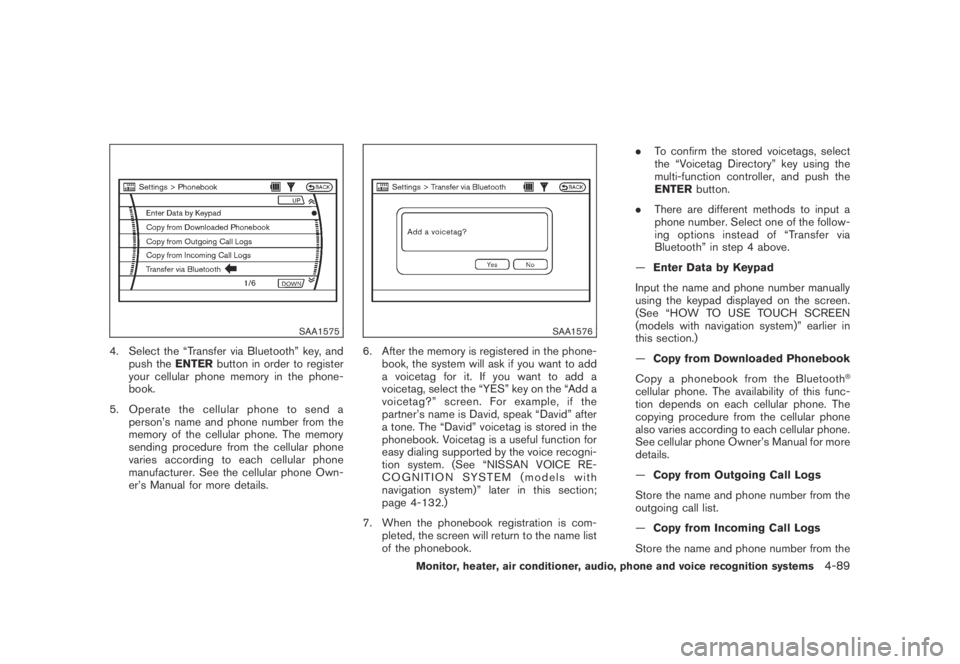
4. Select the “None (Add New)” key from the
name list of the phones, and push the
ENTERbutton.
SAA1573
5. When a PIN code appears on the screen,
operate the Bluetooth®cellular phone to
enter the PIN code.
The pairing procedure of the cellular phone
varies according to each cellular phone. See
the cellular phone Owner’s Manual for the
details. You can also visit
www.nissanusa.com/bluetooth or call
NISSAN Consumer Affairs Department for
instructions on pairing NISSAN recom-
mended cellular phones.
6. When the pairing is completed, the screen
will return to the Bluetooth
®setup display.
SAA1574
PHONEBOOK REGISTRATION
Up to 40 phone numbers can be stored in the
phonebook.
1. Push theSETTINGbutton, and select the
“PHONE” key on the display using the multi-
function controller. Then push theENTER
button.
2. Select the “Phonebook” key, and push the
ENTERbutton.
3. Select the “None (Add New)” key from the
name list of the phonebook, and push the
ENTERbutton.
4-88Monitor, heater, air conditioner, audio, phone and voice recognition systems
Page 253 of 443
Black plate (251,1)
Model "Z51-D" EDITED: 2007/ 10/ 2
SAA1575
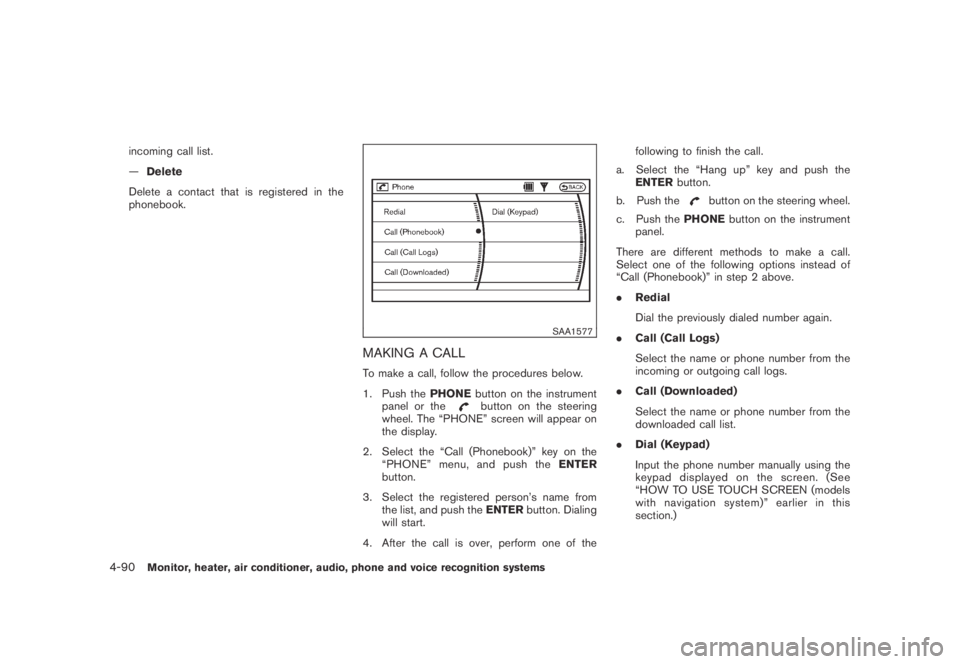
4. Select the “Transfer via Bluetooth” key, and
push theENTERbutton in order to register
your cellular phone memory in the phone-
book.
5. Operate the cellular phone to send a
person’s name and phone number from the
memory of the cellular phone. The memory
sending procedure from the cellular phone
varies according to each cellular phone
manufacturer. See the cellular phone Own-
er’s Manual for more details.
SAA1576
6. After the memory is registered in the phone-
book, the system will ask if you want to add
a voicetag for it. If you want to add a
voicetag, select the “YES” key on the “Add a
voicetag?” screen. For example, if the
partner’s name is David, speak “David” after
a tone. The “David” voicetag is stored in the
phonebook. Voicetag is a useful function for
easy dialing supported by the voice recogni-
tion system. (See “NISSAN VOICE RE-
COGNITION SYSTEM (models with
navigation system)” later in this section;
page 4-132.)
7. When the phonebook registration is com-
pleted, the screen will return to the name list
of the phonebook..To confirm the stored voicetags, select
the “Voicetag Directory” key using the
multi-function controller, and push the
ENTERbutton.
.There are different methods to input a
phone number. Select one of the follow-
ing options instead of “Transfer via
Bluetooth” in step 4 above.
—Enter Data by Keypad
Input the name and phone number manually
using the keypad displayed on the screen.
(See “HOW TO USE TOUCH SCREEN
(models with navigation system)” earlier in
this section.)
—Copy from Downloaded Phonebook
Copy a phonebook from the Bluetooth
®
cellular phone. The availability of this func-
tion depends on each cellular phone. The
copying procedure from the cellular phone
also varies according to each cellular phone.
See cellular phone Owner’s Manual for more
details.
—Copy from Outgoing Call Logs
Store the name and phone number from the
outgoing call list.
—Copy from Incoming Call Logs
Store the name and phone number from the
Monitor, heater, air conditioner, audio, phone and voice recognition systems4-89
Page 254 of 443
Black plate (252,1)
Model "Z51-D" EDITED: 2007/ 10/ 2
incoming call list.
—Delete
Delete a contact that is registered in the
phonebook.
SAA1577
MAKING A CALL
To make a call, follow the procedures below.
1. Push thePHONEbutton on the instrument
panel or the
button on the steering
wheel. The “PHONE” screen will appear on
the display.
2. Select the “Call (Phonebook)” key on the
“PHONE” menu, and push theENTER
button.
3. Select the registered person’s name from
the list, and push theENTERbutton. Dialing
will start.
4. After the call is over, perform one of thefollowing to finish the call.
a. Select the “Hang up” key and push the
ENTERbutton.
b. Push the
button on the steering wheel.
c. Push thePHONEbutton on the instrument
panel.
There are different methods to make a call.
Select one of the following options instead of
“Call (Phonebook)” in step 2 above.
.Redial
Dial the previously dialed number again.
.Call (Call Logs)
Select the name or phone number from the
incoming or outgoing call logs.
.Call (Downloaded)
Select the name or phone number from the
downloaded call list.
.Dial (Keypad)
Input the phone number manually using the
keypad displayed on the screen. (See
“HOW TO USE TOUCH SCREEN (models
with navigation system)” earlier in this
section.)
4-90Monitor, heater, air conditioner, audio, phone and voice recognition systems
Page 255 of 443
Black plate (253,1)
Model "Z51-D" EDITED: 2007/ 10/ 2
SAA1578
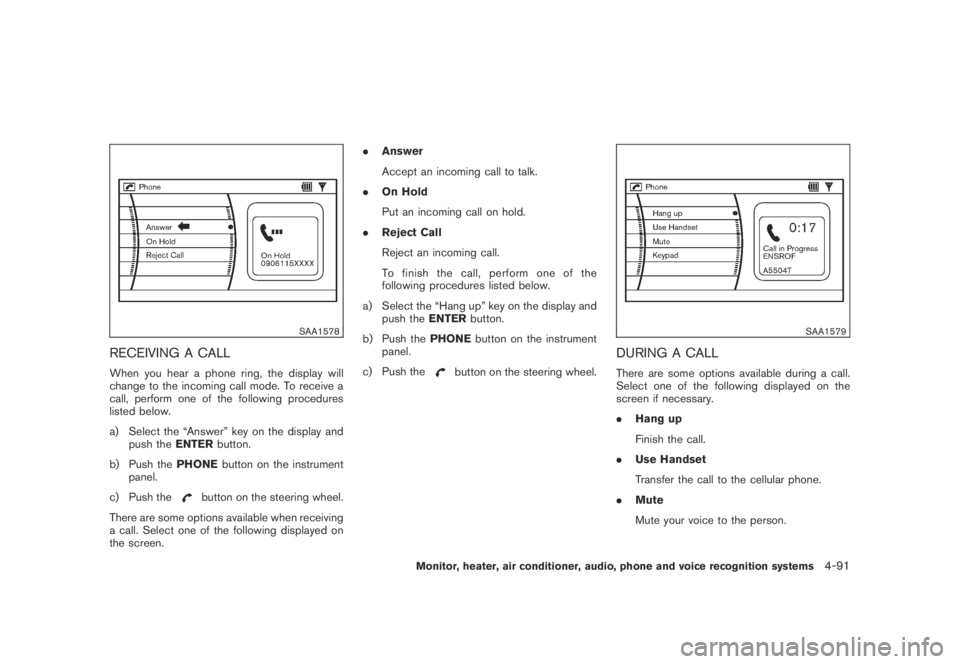
RECEIVING A CALL
When you hear a phone ring, the display will
change to the incoming call mode. To receive a
call, perform one of the following procedures
listed below.
a) Select the “Answer” key on the display and
push theENTERbutton.
b) Push thePHONEbutton on the instrument
panel.
c) Push the
button on the steering wheel.
There are some options available when receiving
a call. Select one of the following displayed on
the screen..Answer
Accept an incoming call to talk.
.On Hold
Put an incoming call on hold.
.Reject Call
Reject an incoming call.
To finish the call, perform one of the
following procedures listed below.
a) Select the “Hang up” key on the display and
push theENTERbutton.
b) Push thePHONEbutton on the instrument
panel.
c) Push the
button on the steering wheel.
SAA1579
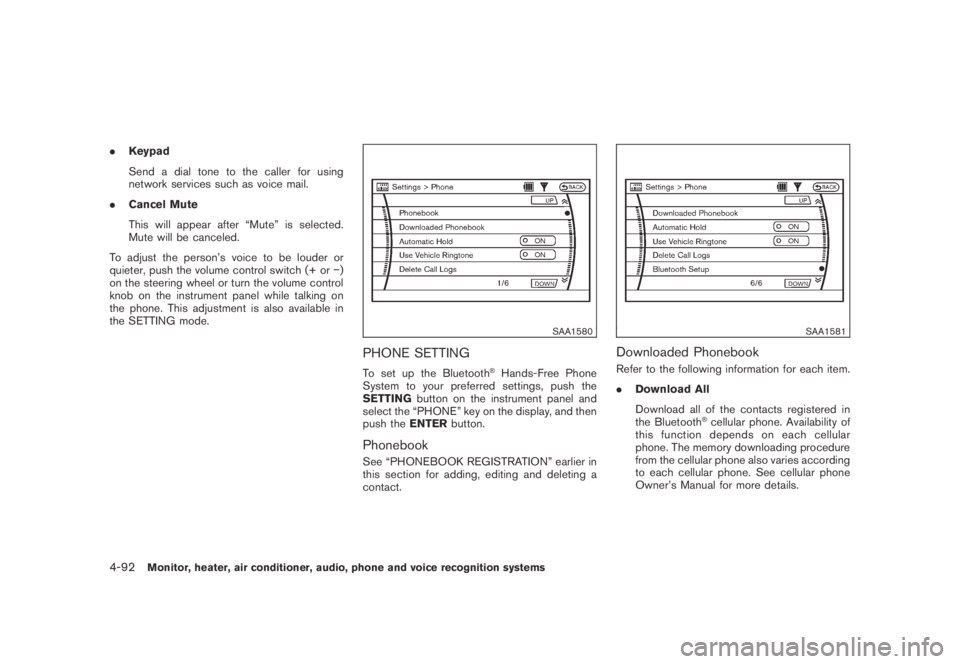
DURING A CALL
There are some options available during a call.
Select one of the following displayed on the
screen if necessary.
.Hang up
Finish the call.
.Use Handset
Transfer the call to the cellular phone.
.Mute
Mute your voice to the person.
Monitor, heater, air conditioner, audio, phone and voice recognition systems4-91
Page 256 of 443
Black plate (254,1)
Model "Z51-D" EDITED: 2007/ 10/ 2
.Keypad
Send a dial tone to the caller for using
network services such as voice mail.
.Cancel Mute
This will appear after “Mute” is selected.
Mute will be canceled.
To adjust the person’s voice to be louder or
quieter, push the volume control switch (+ or−)
on the steering wheel or turn the volume control
knob on the instrument panel while talking on
the phone. This adjustment is also available in
the SETTING mode.
SAA1580
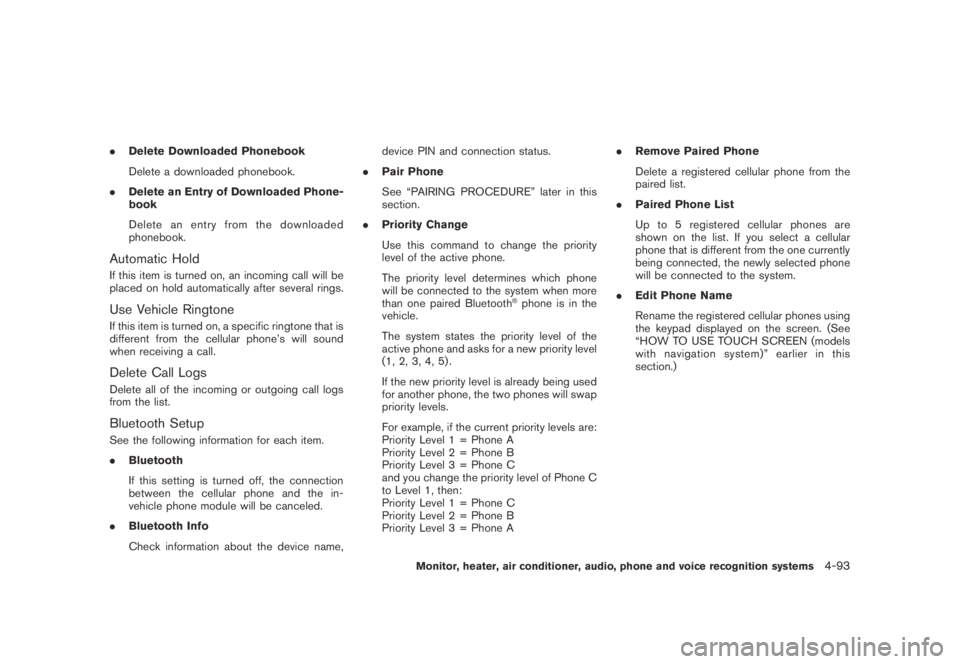
PHONE SETTING
To set up the Bluetooth®Hands-Free Phone
System to your preferred settings, push the
SETTINGbutton on the instrument panel and
select the “PHONE” key on the display, and then
push theENTERbutton.
Phonebook
See “PHONEBOOK REGISTRATION” earlier in
this section for adding, editing and deleting a
contact.
SAA1581
Downloaded Phonebook
Refer to the following information for each item.
.Download All
Download all of the contacts registered in
the Bluetooth
®cellular phone. Availability of
this function depends on each cellular
phone. The memory downloading procedure
from the cellular phone also varies according
to each cellular phone. See cellular phone
Owner’s Manual for more details.
4-92Monitor, heater, air conditioner, audio, phone and voice recognition systems
Page 257 of 443
Black plate (255,1)
Model "Z51-D" EDITED: 2007/ 10/ 2
.Delete Downloaded Phonebook
Delete a downloaded phonebook.
.Delete an Entry of Downloaded Phone-
book
Delete an entry from the downloaded
phonebook.
Automatic Hold
If this item is turned on, an incoming call will be
placed on hold automatically after several rings.
Use Vehicle Ringtone
If this item is turned on, a specific ringtone that is
different from the cellular phone’s will sound
when receiving a call.
Delete Call Logs
Delete all of the incoming or outgoing call logs
from the list.
Bluetooth Setup
See the following information for each item.
.Bluetooth
If this setting is turned off, the connection
between the cellular phone and the in-
vehicle phone module will be canceled.
.Bluetooth Info
Check information about the device name,device PIN and connection status.
.Pair Phone
See “PAIRING PROCEDURE” later in this
section.
.Priority Change
Use this command to change the priority
level of the active phone.
The priority level determines which phone
will be connected to the system when more
than one paired Bluetooth
®phone is in the
vehicle.
The system states the priority level of the
active phone and asks for a new priority level
(1, 2, 3, 4, 5) .
If the new priority level is already being used
for another phone, the two phones will swap
priority levels.
For example, if the current priority levels are:
Priority Level 1 = Phone A
Priority Level 2 = Phone B
Priority Level 3 = Phone C
and you change the priority level of Phone C
to Level 1, then:
Priority Level 1 = Phone C
Priority Level 2 = Phone B
Priority Level 3 = Phone A.Remove Paired Phone
Delete a registered cellular phone from the
paired list.
.Paired Phone List
Up to 5 registered cellular phones are
shown on the list. If you select a cellular
phone that is different from the one currently
being connected, the newly selected phone
will be connected to the system.
.Edit Phone Name
Rename the registered cellular phones using
the keypad displayed on the screen. (See
“HOW TO USE TOUCH SCREEN (models
with navigation system)” earlier in this
section.)
Monitor, heater, air conditioner, audio, phone and voice recognition systems4-93
Page 265 of 443
Black plate (263,1)
Model "Z51-D" EDITED: 2007/ 10/ 2
Onceyouhaveconfirmedthenameand
location, the system begins the call.
When prompted by the system, say the number
you wish to call. (See “How to say numbers”
earlier in this section and “MAKING A CALL BY
ENTERING A PHONE NUMBER” earlier in this
section for more details.)
“Redial”
Use the Redial command to call the last number
that was dialed within the vehicle.
NOTE:
The system will not redial the last number
dialed by the handset keypad.
The system acknowledges the command, re-
peats the number and begins dialing.
If a redial number does not exist, the system
announces, “There is no number to redial” and
ends the VR session.
“Callback”
Use the Call Back command to dial the number
of the last incoming call within the vehicle.
The system acknowledges the command, re-
peats the number and begins dialing. If a call
back number does not exist, the system
announces, “There is no number to call back”and ends the VR session.
International
When you would like to enter a phone number
other than in 3-3-4 digit format, say “interna-
tional”. When the system acknowledges this
command, the system will prompt you to speak
the number you wish to enter.
During a call
During a call there are several command options
available. Press the
button on the steering
wheel to mute the receiving voice and enter
commands.
.“Help” — The system announces the avail-
able commands.
.“Go back/Correction” — The system an-
nounces “Go back,” ends the VR session
and returns to the call.
.“Cancel/Quit” — The system announces
“Cancel,” ends the VR session and returns
to the call.
.“Send/Enter/Call/Dial” — Use the Send
command to enter numbers during a call.
For example, if you were directed to dial an
extension by an automated system:
Say: “Send one two three four.”
The system acknowledges the commandand sends the tones associated with the
numbers. The system then ends the VR
session and returns to the call.
.“Transfer Call” — Use the Transfer Call
command to transfer the call from the
Bluetooth
®Hands-Free Phone System to
the cellular phone when privacy is desired.
The system announces, “Transfer call. Call
transferred to privacy mode.” The system
then ends the VR session.
You can also issue the Transfer Call
command again to return to a hands-free
call through the vehicle.
.“Mute” — Use the Mute command to mute
your voice so the other party cannot hear it.
Use the mute command again to unmute
your voice.
NOTE:
If the other party ends the call or the
cellular phone network connection is lost
while the Mute feature is on, the Mute
feature may need to be reset to “off.”
Monitor, heater, air conditioner, audio, phone and voice recognition systems4-101
Page 273 of 443
Black plate (271,1)
Model "Z51-D" EDITED: 2007/ 10/ 2
NISSAN Voice Recognition allows hands-free
operation of the systems equipped on this
vehicle, such as phone and vehicle information
as a factory default setting (Standard Mode) .
Commands that are available are always shown
on the display and announced by the system.
You can complete your desired operation by
simply following the prompts given by the
system. In this mode, hands-free operation of
Audio, Climate Control and Display is not
available through NISSAN Voice Recognition.
For advanced operation, you can change to an
Alternate Command Mode that enables the
operation of the display, audio, and climate
control through NISSAN Voice Recognition.
When this mode is active, an expanded list of
commands can be spoken after pushing the
TALK
switch, and the voice command
menu prompts are turned off. Note that in this
mode the recognition success rate may be
affected as the number of available commands
and the ways of speaking each command are
increased. (See “NISSAN VOICE RECOGNI-
TION ALTERNATE COMMAND MODE” later in
this section for details about Alternate Com-
mand Mode.)
To improve the recognition success rate when
Alternate Command Mode is active, try using the
Speaker Adaptation Function available in that
mode. (See “SPEAKER ADAPTATION FUNC-
TION” later in this section.) Otherwise, it isrecommended that Alternate Command Mode
be turned off and Standard Mode be used for
the best recognition performance.
For the voice commands for the navigation
system, refer to the Navigation System Owner’s
Manual of your vehicle.
NISSAN VOICE RECOGNITION
STANDARD MODE
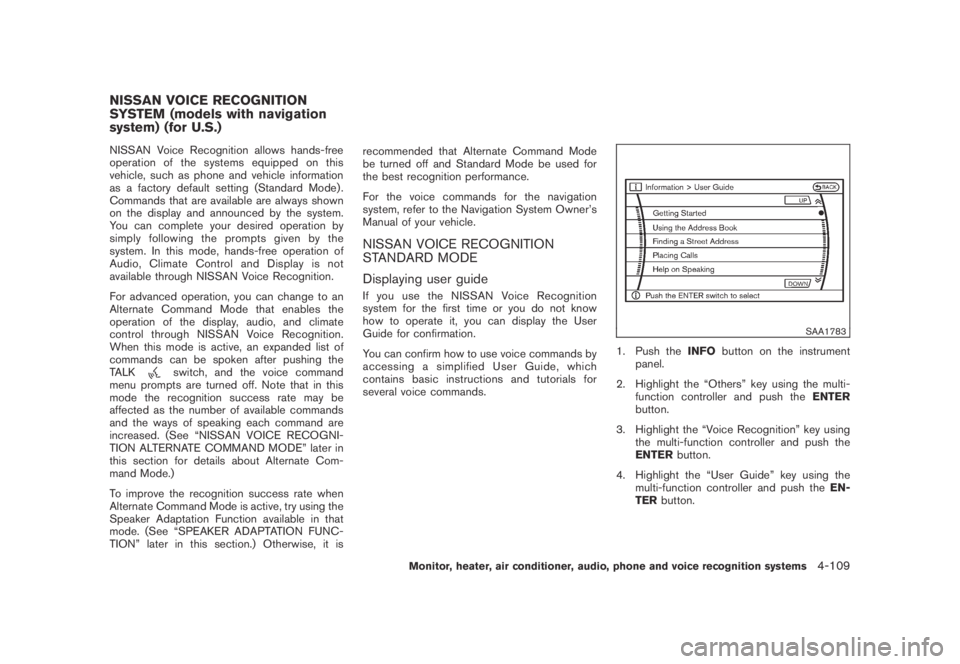
Displaying user guide
IfyouusetheNISSANVoiceRecognition
system for the first time or you do not know
how to operate it, you can display the User
Guide for confirmation.
You can confirm how to use voice commands by
accessing a simplified User Guide, which
contains basic instructions and tutorials for
several voice commands.
SAA1783
1. Push theINFObutton on the instrument
panel.
2. Highlight the “Others” key using the multi-
function controller and push theENTER
button.
3. Highlight the “Voice Recognition” key using
the multi-function controller and push the
ENTERbutton.
4. Highlight the “User Guide” key using the
multi-function controller and push theEN-
TERbutton.
NISSAN VOICE RECOGNITION
SYSTEM (models with navigation
system) (for U.S.)
Monitor, heater, air conditioner, audio, phone and voice recognition systems4-109
Page 284 of 443
Black plate (282,1)
Model "Z51-D" EDITED: 2007/ 10/ 2
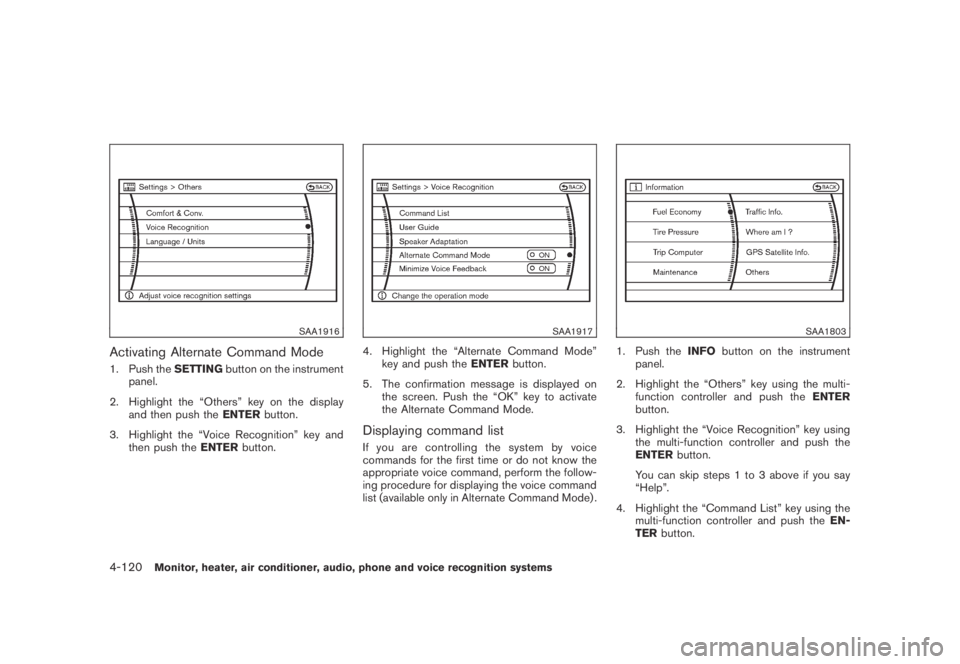
SAA1916
Activating Alternate Command Mode
1. Push theSETTINGbutton on the instrument
panel.
2. Highlight the “Others” key on the display
and then push theENTERbutton.
3. Highlight the “Voice Recognition” key and
then push theENTERbutton.
SAA1917
4. Highlight the “Alternate Command Mode”
key and push theENTERbutton.
5. The confirmation message is displayed on
the screen. Push the “OK” key to activate
the Alternate Command Mode.
Displaying command list
If you are controlling the system by voice
commands for the first time or do not know the
appropriate voice command, perform the follow-
ing procedure for displaying the voice command
list (available only in Alternate Command Mode) .
SAA1803
1. Push theINFObutton on the instrument
panel.
2. Highlight the “Others” key using the multi-
function controller and push theENTER
button.
3. Highlight the “Voice Recognition” key using
the multi-function controller and push the
ENTERbutton.
You can skip steps 1 to 3 above if you say
“Help”.
4. Highlight the “Command List” key using the
multi-function controller and push theEN-
TERbutton.
4-120Monitor, heater, air conditioner, audio, phone and voice recognition systems