KEY NISSAN MURANO 2009 Owner´s Manual
[x] Cancel search | Manufacturer: NISSAN, Model Year: 2009, Model line: MURANO, Model: NISSAN MURANO 2009Pages: 443, PDF Size: 3.95 MB
Page 211 of 443
Black plate (209,1)
Model "Z51-D" EDITED: 2007/ 10/ 2
OFF/VOL control knob will start the compact
disc.
CD LOAD (if so equipped):
To insert a CD in the CD changer, push the
LOAD button for less than 1.5 seconds. Select
the loading position by pushing the CD insert
select button
*1to*6, then insert the CD.
To insert 6 CDs to the CD changer in
succession, push the LOAD button for more
than 1.5 seconds.
The inserted slot numbers will illuminate on the
display.
orPLAY:
When the DISC (CD play) button is pushed with
the system off and the compact disc loaded, the
system will turn on and the compact disc will
start to play.
When the DISC button is pushed with the
compact disc loaded and the radio playing, the
radio will automatically be turned off and the
compact disc will start to play.
When the DISC button is pushed while a CD is
loaded and a medium is played using the
auxiliary input jacks, you can toggle back and
forth between CD and medium.Text:
When the “Text” key is selected in the screen
using the multi-function controller and then the
ENTER button is pushed while the CD is being
played, the music information below will be
displayed on the screen.
CD:
.Disc title
.Track title
CD with MP3 or WMA:
.Folder title
.File title
.Song title
.Album title
.Artist
FF (Fast Forward) , REW (Re-
wind)/APS (Automatic Pro-
gram Search) FF, APS REW:
When the
(fast forward) or(rewind)
button is pushed for more than 1.5 seconds
while the compact disc is being played, the
compact disc will play while fast forwarding or
rewinding. When the button is released, the
compact disc will return to normal play speed.When the
orbutton is pushed for less
than 1.5 seconds while the compact disc is
being played, the next track or the beginning of
the current track on the CD will be played.
The multi-function controller can also be used to
select tracks when a CD is being played.
CD PLAY selection (if so equipped) :
To change to another CD already loaded into the
player, push the CD play select buttons
*1to
*6or choose a disc displayed on the screen
using the multi-function controller.
REPEAT (RPT) , RANDOM (RDM):
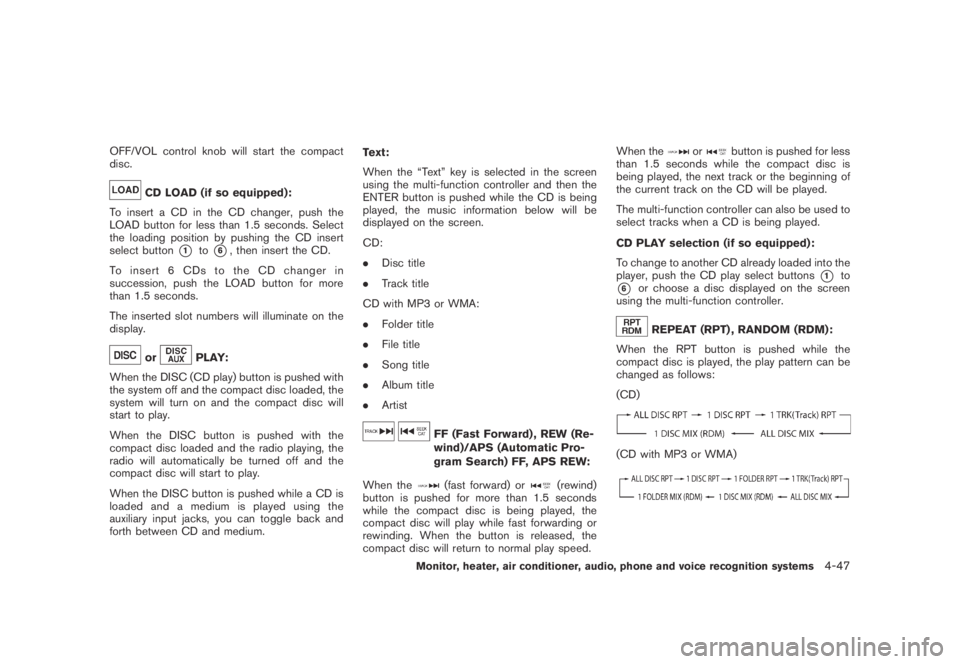
When the RPT button is pushed while the
compact disc is played, the play pattern can be
changed as follows:
(CD)
(CD with MP3 or WMA)
Monitor, heater, air conditioner, audio, phone and voice recognition systems4-47
Page 213 of 443
Black plate (211,1)
Model "Z51-D" EDITED: 2007/ 10/ 2
SAA1567
Display Mode:
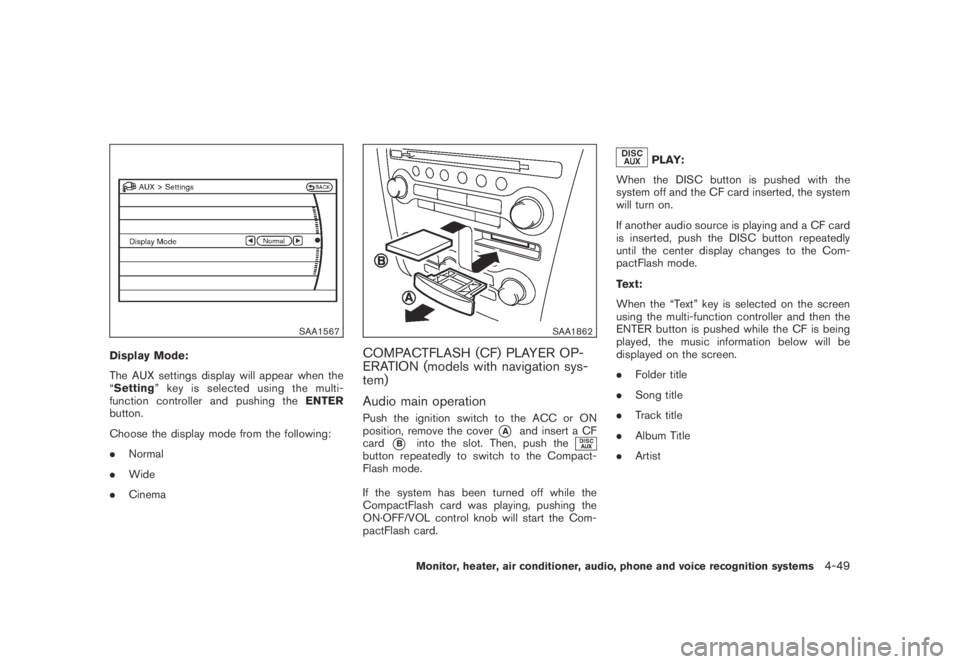
The AUX settings display will appear when the
“Setting” key is selected using the multi-
function controller and pushing theENTER
button.
Choose the display mode from the following:
.Normal
.Wide
.Cinema
SAA1862
COMPACTFLASH (CF) PLAYER OP-
ERATION (models with navigation sys-
tem)
Audio main operation
Push the ignition switch to the ACC or ON
position, remove the cover
*Aand insert a CF
card
*Binto the slot. Then, push thebutton repeatedly to switch to the Compact-
Flash mode.
If the system has been turned off while the
CompactFlash card was playing, pushing the
ON·OFF/VOL control knob will start the Com-
pactFlash card.
PLAY:
When the DISC button is pushed with the
system off and the CF card inserted, the system
will turn on.
If another audio source is playing and a CF card
is inserted, push the DISC button repeatedly
until the center display changes to the Com-
pactFlash mode.
Text:
When the “Text” key is selected on the screen
using the multi-function controller and then the
ENTER button is pushed while the CF is being
played, the music information below will be
displayed on the screen.
.Folder title
.Song title
.Track title
.Album Title
.Artist
Monitor, heater, air conditioner, audio, phone and voice recognition systems4-49
Page 216 of 443
Black plate (214,1)
Model "Z51-D" EDITED: 2007/ 10/ 2
FF (Fast Forward) , REW (Rewind)/APS
(Automatic Program Search) FF, APS REW:
When the
orbutton is pushed for
more than 1.5 seconds while the iPod®is
playing, the iPod®will play while fast forwarding
or rewinding. When the button is released, the
iPod
®will return to the normal play speed.
When the
orbutton is pushed for less
than 1.5 seconds while the iPod®is playing, the
next track or the beginning of the current track
on the iPod
®will be played.
The multi-function controller can also be used to
select tracks when the iPod
®is playing.
REPEAT (RPT) , RANDOM (RDM):
When the RPT button is pushed while a track is
being played, the play pattern can be changed
as follows:
MUSIC BOX HARD DRIVE (models with
navigation system)
The Music Box hard drive audio system can
store songs from CDs being played. The system
has a 9.3 gigabyte (GB) storage capacity and
can record up to 200 hours (approximately
2,900 songs) .
The following CDs can be recorded in the Music
Box hard drive audio system.
.CDs without MP3/WMA files
.Hybrid Compact Disc Digital Audio (Hybrid
CD-DA) specification in Super Audio CDs
.Compact Disc Digital Audio (CD-DA) spe-
cification in CD-Extras
.First session of multisession disc
Extreme temperature conditions [below
−48F(−208C) and above 1588F (708C)] could
affect the performance of the hard disk.
NOTE:
If the hard disk needs to be replaced due
to a malfunction, all stored music data will
be erased.
SAA1613
Recording songs
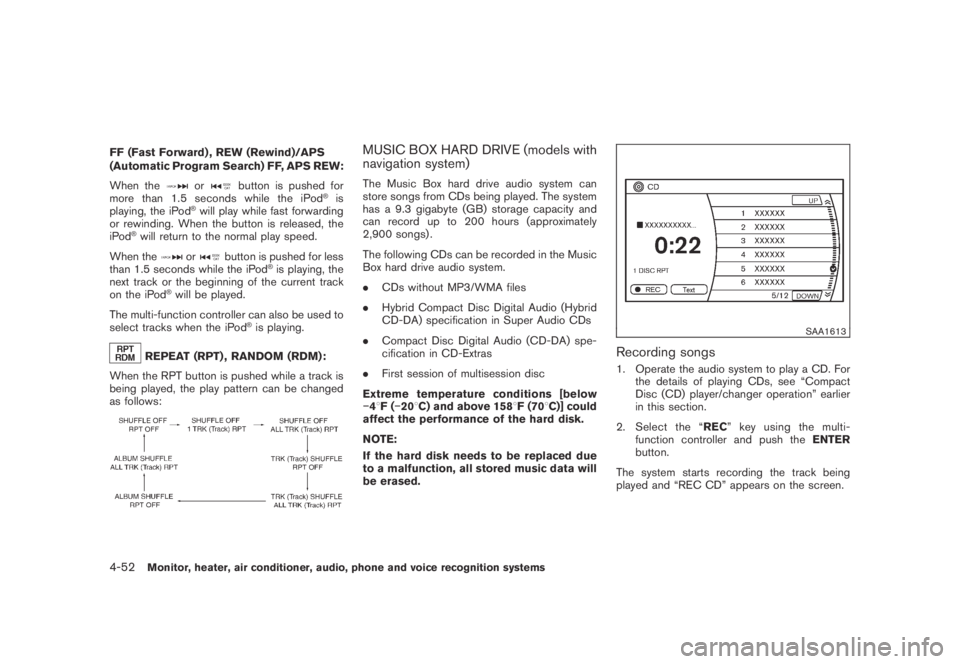
1. Operate the audio system to play a CD. For
the details of playing CDs, see “Compact
Disc (CD) player/changer operation” earlier
in this section.
2. Select the “REC” key using the multi-
function controller and push theENTER
button.
The system starts recording the track being
played and “REC CD” appears on the screen.
4-52Monitor, heater, air conditioner, audio, phone and voice recognition systems
Page 217 of 443
Black plate (215,1)
Model "Z51-D" EDITED: 2007/ 10/ 2
SAA1614
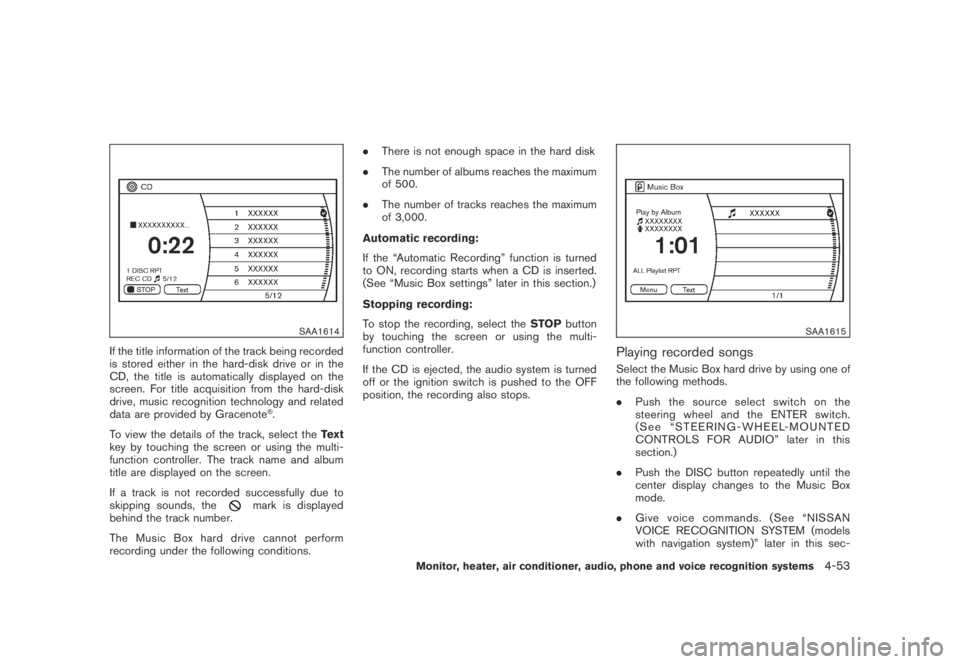
If the title information of the track being recorded
is stored either in the hard-disk drive or in the
CD, the title is automatically displayed on the
screen. For title acquisition from the hard-disk
drive, music recognition technology and related
data are provided by Gracenote
®.
To view the details of the track, select theText
key by touching the screen or using the multi-
function controller. The track name and album
title are displayed on the screen.
If a track is not recorded successfully due to
skipping sounds, the
mark is displayed
behind the track number.
The Music Box hard drive cannot perform
recording under the following conditions..There is not enough space in the hard disk
.The number of albums reaches the maximum
of 500.
.The number of tracks reaches the maximum
of 3,000.
Automatic recording:
If the “Automatic Recording” function is turned
to ON, recording starts when a CD is inserted.
(See “Music Box settings” later in this section.)
Stopping recording:
To stop the recording, select theSTOPbutton
by touching the screen or using the multi-
function controller.
If the CD is ejected, the audio system is turned
off or the ignition switch is pushed to the OFF
position, the recording also stops.
SAA1615
Playing recorded songs
Select the Music Box hard drive by using one of
the following methods.
.Push the source select switch on the
steering wheel and the ENTER switch.
(See “STEERING-WHEEL-MOUNTED
CONTROLS FOR AUDIO” later in this
section.)
.Push the DISC button repeatedly until the
center display changes to the Music Box
mode.
.Give voice commands. (See “NISSAN
VOICE RECOGNITION SYSTEM (models
with navigation system)” later in this sec-
Monitor, heater, air conditioner, audio, phone and voice recognition systems4-53
Page 219 of 443
Black plate (217,1)
Model "Z51-D" EDITED: 2007/ 10/ 2
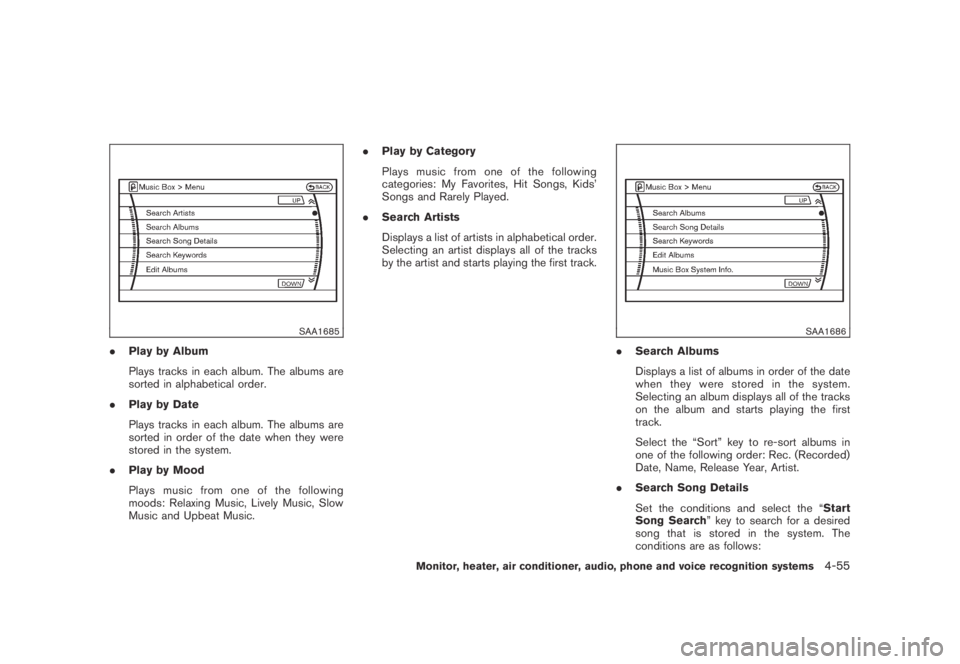
SAA1685
.Play by Album
Plays tracks in each album. The albums are
sorted in alphabetical order.
.Play by Date
Plays tracks in each album. The albums are
sorted in order of the date when they were
stored in the system.
.Play by Mood
Plays music from one of the following
moods: Relaxing Music, Lively Music, Slow
Music and Upbeat Music..Play by Category
Plays music from one of the following
categories: My Favorites, Hit Songs, Kids’
Songs and Rarely Played.
.Search Artists
Displays a list of artists in alphabetical order.
Selecting an artist displays all of the tracks
by the artist and starts playing the first track.
SAA1686
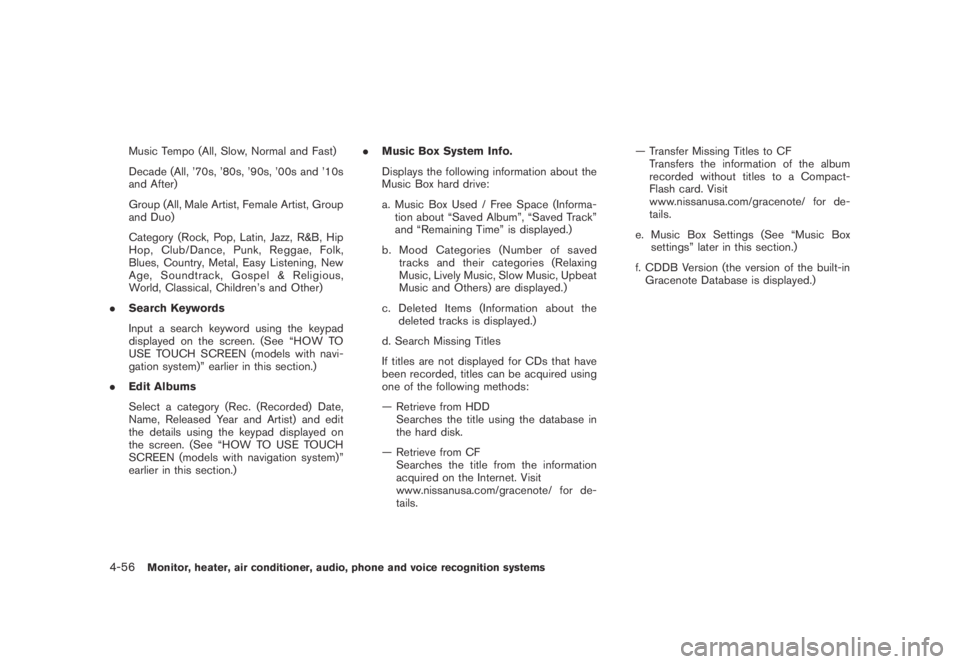
.Search Albums
Displays a list of albums in order of the date
when they were stored in the system.
Selecting an album displays all of the tracks
on the album and starts playing the first
track.
Select the “Sort” key to re-sort albums in
one of the following order: Rec. (Recorded)
Date, Name, Release Year, Artist.
.Search Song Details
Set the conditions and select the “Start
Song Search” key to search for a desired
song that is stored in the system. The
conditions are as follows:
Monitor, heater, air conditioner, audio, phone and voice recognition systems4-55
Page 220 of 443
Black plate (218,1)
Model "Z51-D" EDITED: 2007/ 10/ 2
Music Tempo (All, Slow, Normal and Fast)
Decade (All, ’70s, ’80s, ’90s, ’00s and ’10s
and After)
Group (All, Male Artist, Female Artist, Group
and Duo)
Category (Rock, Pop, Latin, Jazz, R&B, Hip
Hop, Club/Dance, Punk, Reggae, Folk,
Blues, Country, Metal, Easy Listening, New
Age, Soundtrack, Gospel & Religious,
World, Classical, Children’s and Other)
.Search Keywords
Input a search keyword using the keypad
displayed on the screen. (See “HOW TO
USE TOUCH SCREEN (models with navi-
gation system)” earlier in this section.)
.Edit Albums
Select a category (Rec. (Recorded) Date,
Name, Released Year and Artist) and edit
the details using the keypad displayed on
the screen. (See “HOW TO USE TOUCH
SCREEN (models with navigation system)”
earlier in this section.).Music Box System Info.
Displays the following information about the
Music Box hard drive:
a. Music Box Used / Free Space (Informa-
tion about “Saved Album”, “Saved Track”
and “Remaining Time” is displayed.)
b. Mood Categories (Number of saved
tracks and their categories (Relaxing
Music, Lively Music, Slow Music, Upbeat
Music and Others) are displayed.)
c. Deleted Items (Information about the
deleted tracks is displayed.)
d. Search Missing Titles
If titles are not displayed for CDs that have
been recorded, titles can be acquired using
one of the following methods:
— Retrieve from HDD
Searches the title using the database in
the hard disk.
— Retrieve from CF
Searches the title from the information
acquired on the Internet. Visit
www.nissanusa.com/gracenote/ for de-
tails.— Transfer Missing Titles to CF
Transfers the information of the album
recorded without titles to a Compact-
Flash card. Visit
www.nissanusa.com/gracenote/ for de-
tails.
e. Music Box Settings (See “Music Box
settings” later in this section.)
f. CDDB Version (the version of the built-in
Gracenote Database is displayed.)
4-56Monitor, heater, air conditioner, audio, phone and voice recognition systems
Page 221 of 443
Black plate (219,1)
Model "Z51-D" EDITED: 2007/ 10/ 2
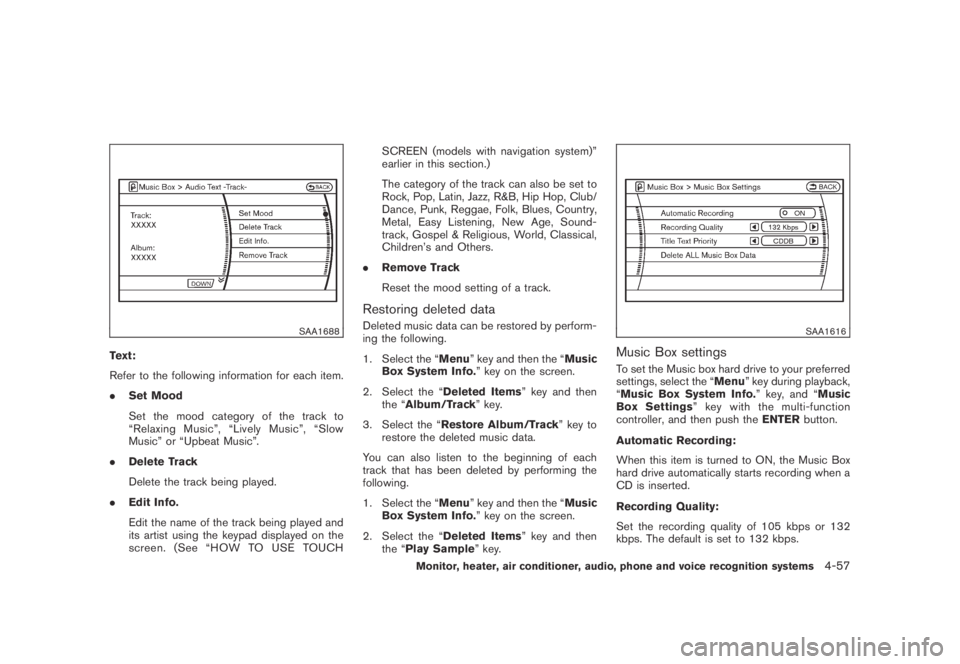
SAA1688
Text:
Refer to the following information for each item.
.Set Mood
Set the mood category of the track to
“Relaxing Music”, “Lively Music”, “Slow
Music” or “Upbeat Music”.
.Delete Track
Delete the track being played.
.Edit Info.
Edit the name of the track being played and
its artist using the keypad displayed on the
screen. (See “HOW TO USE TOUCHSCREEN (models with navigation system)”
earlier in this section.)
The category of the track can also be set to
Rock, Pop, Latin, Jazz, R&B, Hip Hop, Club/
Dance, Punk, Reggae, Folk, Blues, Country,
Metal, Easy Listening, New Age, Sound-
track, Gospel & Religious, World, Classical,
Children’s and Others.
.Remove Track
Reset the mood setting of a track.
Restoring deleted data
Deleted music data can be restored by perform-
ing the following.
1. Select the “Menu” key and then the “Music
Box System Info.” key on the screen.
2. Select the “Deleted Items” key and then
the “Album/Track” key.
3. Select the “Restore Album/Track” key to
restore the deleted music data.
You can also listen to the beginning of each
track that has been deleted by performing the
following.
1. Select the “Menu” key and then the “Music
Box System Info.” key on the screen.
2. Select the “Deleted Items” key and then
the “Play Sample” key.SAA1616
Music Box settings
To set the Music box hard drive to your preferred
settings, select the “Menu” key during playback,
“Music Box System Info.” key, and “Music
Box Settings” key with the multi-function
controller, and then push theENTERbutton.
Automatic Recording:
When this item is turned to ON, the Music Box
hard drive automatically starts recording when a
CD is inserted.
Recording Quality:
Set the recording quality of 105 kbps or 132
kbps. The default is set to 132 kbps.
Monitor, heater, air conditioner, audio, phone and voice recognition systems4-57
Page 231 of 443
Black plate (229,1)
Model "Z51-D" EDITED: 2007/ 10/ 2
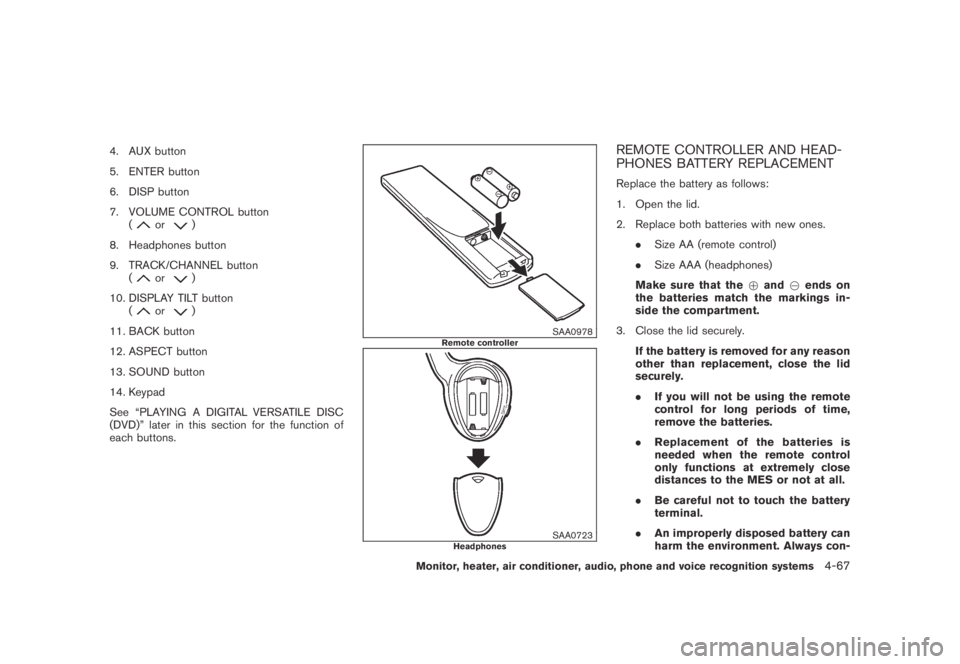
4. AUX button
5. ENTER button
6. DISP button
7. VOLUME CONTROL button
(
or)
8. Headphones button
9. TRACK/CHANNEL button
(
or)
10. DISPLAY TILT button
(
or)
11. BACK button
12. ASPECT button
13. SOUND button
14. Keypad
See “PLAYING A DIGITAL VERSATILE DISC
(DVD)” later in this section for the function of
each buttons.
SAA0978Remote controller
SAA0723Headphones
REMOTE CONTROLLER AND HEAD-
PHONES BATTERY REPLACEMENT
Replace the battery as follows:
1. Open the lid.
2. Replace both batteries with new ones.
.Size AA (remote control)
.Size AAA (headphones)
Make sure that the+and7ends on
the batteries match the markings in-
side the compartment.
3. Close the lid securely.
If the battery is removed for any reason
other than replacement, close the lid
securely.
.If you will not be using the remote
control for long periods of time,
remove the batteries.
.Replacement of the batteries is
needed when the remote control
only functions at extremely close
distances to the MES or not at all.
.Be careful not to touch the battery
terminal.
.An improperly disposed battery can
harm the environment. Always con-
Monitor, heater, air conditioner, audio, phone and voice recognition systems4-67
Page 233 of 443
Black plate (231,1)
Model "Z51-D" EDITED: 2007/ 10/ 2
installed DVD player cannot play DVDs with a
region code other than “1” or “ALL”.
Display settings
Front display:
To adjust the front display mode, press the
SETTING button while the DVD is being played,
select the “Display” key with the multi-function
controller, and then press the ENTER button.
To adjust the display ON/OFF, brightness, tint,
color, contrast and black level select each key
using the multi-function controller and press the
ENTER button.
Then you can adjust each item using the multi-
function controller. After changes have been
made press the BACK button to save the
settings.
Rear display:
To adjust the rear display mode, push the “DISP”
(Display) button on the remote controller.
To adjust the display brightness, tint, color and
contrast, select each key using the joystick on
the remote controller and tilt the joystick to right
or left.
Push the BACK button to apply the settings and
return to the previous display.
SAA1829
PLAYING A DIGITAL VERSATILE DISC
(DVD)
DISC button
Park the vehicle in a safe location for the
front seat occupants to operate the DVD
drive while watching the images.
Push the “DISC” button on the instrument panel
to turn the display to the DVD mode.
When a DVD is loaded, it will be replayed
automatically.
The operation screen will be turned on when the
“DISC” button located on the instrument panel
is pushed while a DVD is being played, and itwill turn off automatically after a period of time.
To turn it on again, push the “DISC” button once
more.
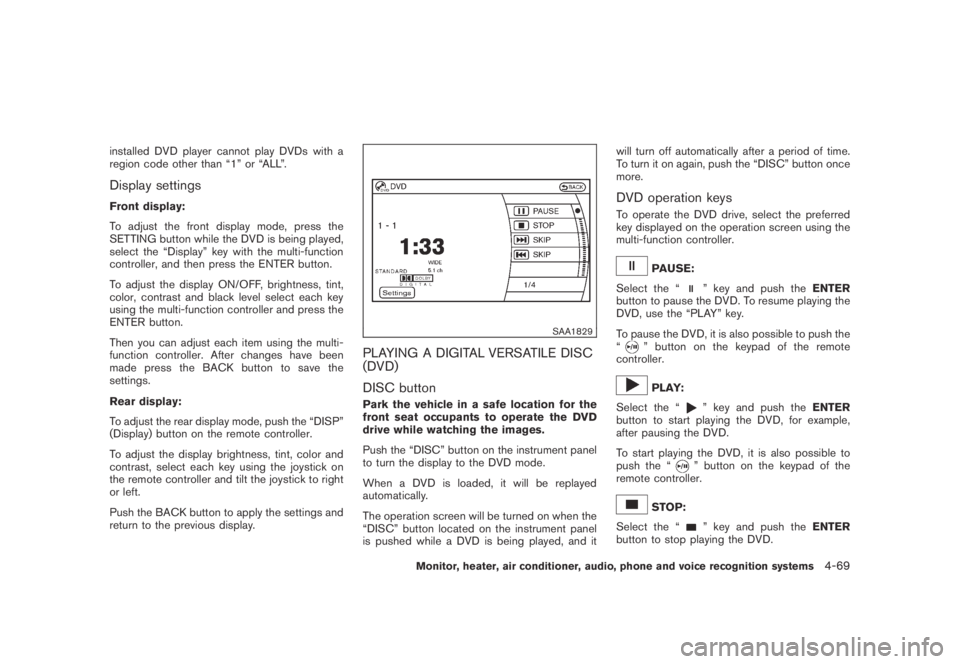
DVD operation keys
To operate the DVD drive, select the preferred
key displayed on the operation screen using the
multi-function controller.
PAUSE:
Select the “
” key and push theENTER
button to pause the DVD. To resume playing the
DVD, use the “PLAY” key.
To pause the DVD, it is also possible to push the
“
” button on the keypad of the remote
controller.
PLAY:
Select the “
” key and push theENTER
button to start playing the DVD, for example,
after pausing the DVD.
To start playing the DVD, it is also possible to
push the “
” button on the keypad of the
remote controller.
STOP:
Select the “
” key and push theENTER
button to stop playing the DVD.
Monitor, heater, air conditioner, audio, phone and voice recognition systems4-69
Page 234 of 443
Black plate (232,1)
Model "Z51-D" EDITED: 2007/ 10/ 2
To stop playing the DVD, it is also possible to
push the “” button on the keypad of the
remote controller.
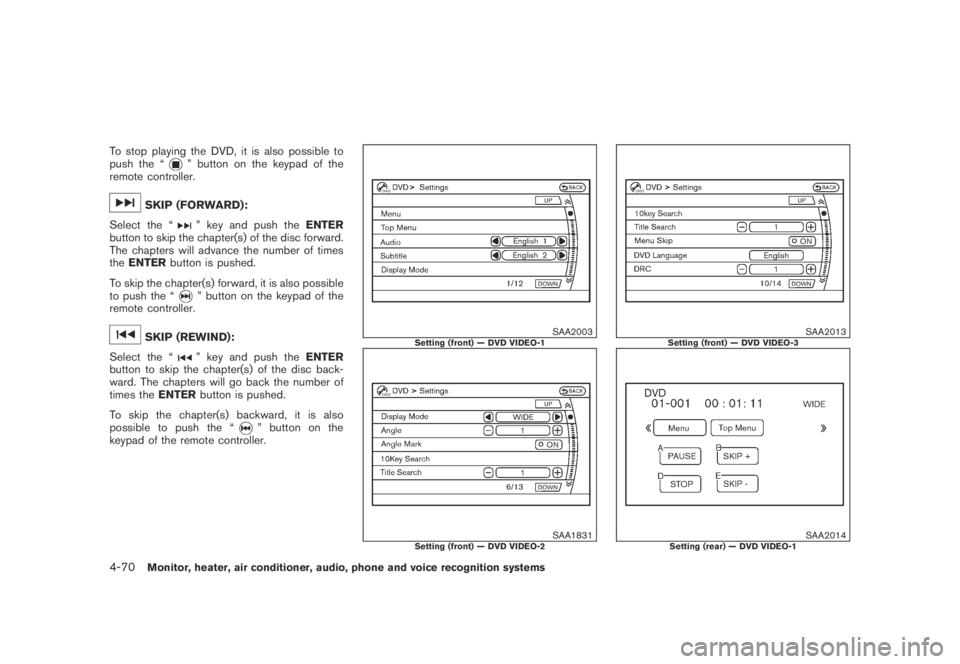
SKIP (FORWARD):
Select the “
” key and push theENTER
button to skip the chapter(s) of the disc forward.
The chapters will advance the number of times
theENTERbutton is pushed.
To skip the chapter(s) forward, it is also possible
to push the “
” button on the keypad of the
remote controller.
SKIP (REWIND):
Select the “
” key and push theENTER
button to skip the chapter(s) of the disc back-
ward. The chapters will go back the number of
times theENTERbutton is pushed.
To skip the chapter(s) backward, it is also
possible to push the “
” button on the
keypad of the remote controller.
SAA2003Setting (front) — DVD VIDEO-1
SAA1831Setting (front) — DVD VIDEO-2
SAA2013Setting (front) — DVD VIDEO-3
SAA2014Setting (rear) — DVD VIDEO-1
4-70Monitor, heater, air conditioner, audio, phone and voice recognition systems