CD player NISSAN MURANO 2009 Owner´s Manual
[x] Cancel search | Manufacturer: NISSAN, Model Year: 2009, Model line: MURANO, Model: NISSAN MURANO 2009Pages: 443, PDF Size: 3.95 MB
Page 10 of 443
Black plate (7,1)
Model "Z51-D" EDITED: 2007/ 10/ 2
SSI0375
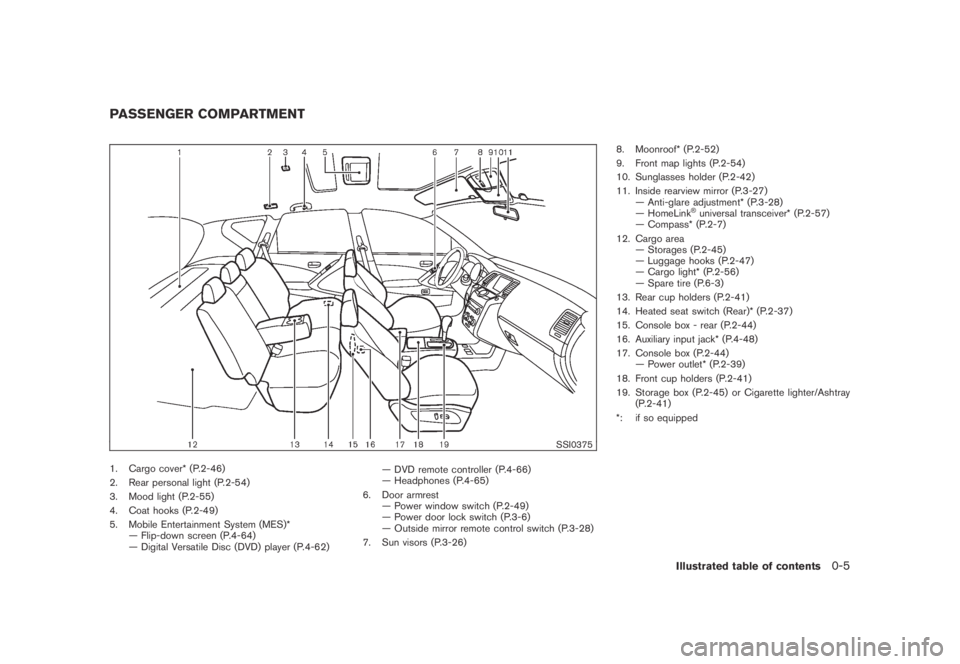
1. Cargo cover* (P.2-46)
2. Rear personal light (P.2-54)
3. Mood light (P.2-55)
4. Coat hooks (P.2-49)
5. Mobile Entertainment System (MES)*
— Flip-down screen (P.4-64)
— Digital Versatile Disc (DVD) player (P.4-62)— DVD remote controller (P.4-66)
— Headphones (P.4-65)
6. Door armrest
— Power window switch (P.2-49)
— Power door lock switch (P.3-6)
— Outside mirror remote control switch (P.3-28)
7. Sun visors (P.3-26)8. Moonroof* (P.2-52)
9. Front map lights (P.2-54)
10. Sunglasses holder (P.2-42)
11. Inside rearview mirror (P.3-27)
— Anti-glare adjustment* (P.3-28)
— HomeLink
®universal transceiver* (P.2-57)
— Compass* (P.2-7)
12. Cargo area
— Storages (P.2-45)
— Luggage hooks (P.2-47)
— Cargo light* (P.2-56)
— Spare tire (P.6-3)
13. Rear cup holders (P.2-41)
14. Heated seat switch (Rear)* (P.2-37)
15. Console box - rear (P.2-44)
16. Auxiliary input jack* (P.4-48)
17. Console box (P.2-44)
— Power outlet* (P.2-39)
18. Front cup holders (P.2-41)
19. Storage box (P.2-45) or Cigarette lighter/Ashtray
(P.2-41)
*: if so equipped
PASSENGER COMPARTMENT
Illustrated table of contents0-5
Page 163 of 443
Black plate (13,1)
4 Monitor, heater, air conditioner, audio,
phone and voice recognition systems
Model "Z51-D" EDITED: 2007/ 10/ 2
Safety note....................................................... 4-2
Center multi-function control panel
(models with color display screen)......................... 4-2
How to use multi-function controller................... 4-4
How to use touch screen
(models with navigation system)........................ 4-4
Start-up screen (models with navigation system) . . . 4-6
Start menu................................................... 4-6
How to select menus on the screen................... 4-7
Vehicle information and settings............................. 4-8
How to use STATUS button.............................. 4-8
How to use brightness control and display ON/
OFF button................................................... 4-8
How to use INFO button.................................. 4-8
How to use SETTING button..........................4-12
Rearview monitor (if so equipped)........................4-19
How to read the displayed lines.......................4-20
How to park with predicted course lines............4-20
Difference between predicted and actual
distances...................................................4-22
How to adjust the screen...............................4-24
Operating tips.............................................4-24
Ventilators......................................................4-25
Heater and air conditioner..................................4-26
Automatic operation......................................4-28
Manual operation.........................................4-29
To turn the system off...................................4-30Operating tips.............................................4-30
In-cabin microfilter........................................4-30
Servicing air conditioner................................4-30
Audio system..................................................4-31
Audio operation precautions...........................4-31
FM-AM radio with Compact Disc (CD)
changer.....................................................4-39
FM-AM-SAT radio with Compact Disc (CD)
changer.....................................................4-44
CompactFlash (CF) player operation
(models with navigation system)......................4-49
iPod
®player operation (if so equipped)..............4-51
Music box hard drive
(models with navigation system)......................4-52
CD/CF (CompactFlash) care and cleaning.........4-59
Steering-wheel-mounted controls for audio
(if so equipped)...........................................4-60
Antenna.....................................................4-61
NISSAN Mobile Entertainment System (MES)
(if so equipped)...............................................4-62
DVD player operation precautions....................4-63
Digital Versatile Disc (DVD) system
components...............................................4-64
Remote controller and headphones battery
replacement................................................4-67
Before operating the DVD entertainment
system.......................................................4-68
Page 196 of 443
Black plate (194,1)
Model "Z51-D" EDITED: 2007/ 10/ 2
Static and flutter: During signal interference from
buildings, large hills or due to antenna position,
usually in conjunction with increased distance
from the station transmitter, static or flutter can
be heard. This can be reduced by lowering the
treble setting to reduce the treble response.
Multipath reception: Because of the reflective
characteristics of FM signals, direct and re-
flected signals reach the receiver at the same
time. The signals may cancel each other,
resulting in momentary flutter or loss of sound.
AM radio reception:
AM signals, because of their low frequency, can
bend around objects and skip along the ground.
In addition, the signals can be bounced off the
ionosphere and bent back to earth. Because of
these characteristics. AM signals are also
subject to interference as they travel from
transmitter to receiver.
Fading: Occurs while the vehicle is passing
through freeway underpasses or in areas with
many tall buildings. It can also occur for several
seconds during ionospheric turbulence even in
areas where no obstacles exist.
Static: Caused by thunderstorms, electrical
power lines, electric signs and even traffic lights.Satellite radio reception:
When the satellite radio is first installed or the
battery has been replaced, the satellite radio
may not work properly. This is not a malfunction.
Wait more than 10 minutes with satellite radio
ON for satellite radio to receive all of the
necessary data.
The satellite radio mode requires an active XM
®
satellite radio service subscription. Satellite
radio is not available in Alaska, Hawaii and
Guam.
Satellite radio performance may be affected if
cargo carried on the roof blocks the satellite
radio signal.
If possible, do not put cargo near the satellite
antenna.
A build up of ice on the satellite radio antenna
can affect satellite radio performance. Remove
the ice to restore satellite radio reception.
SAA0480
Compact Disc (CD) player
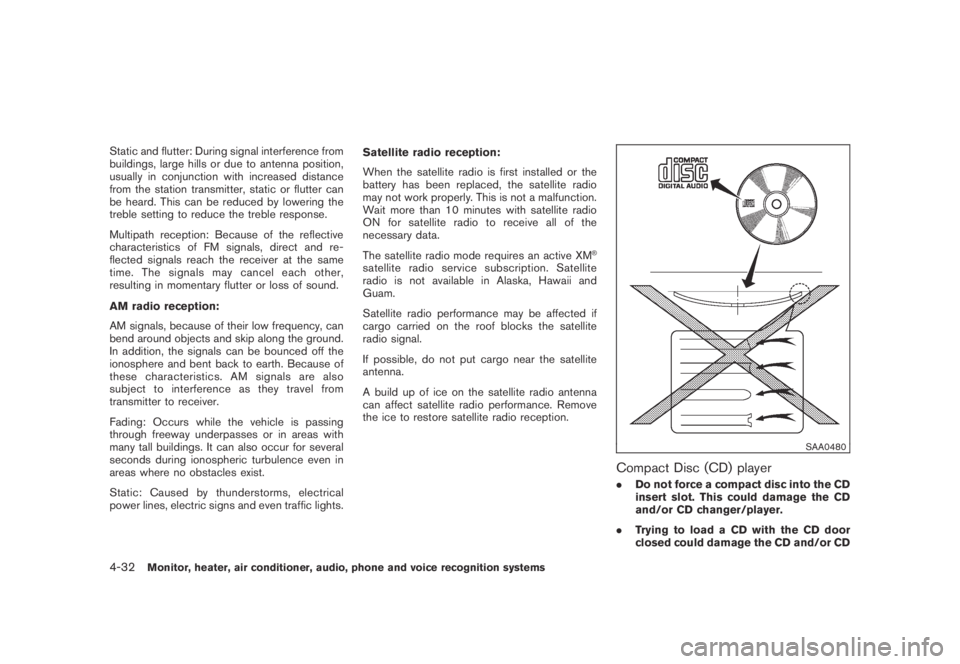
.Do not force a compact disc into the CD
insert slot. This could damage the CD
and/or CD changer/player.
.Trying to load a CD with the CD door
closed could damage the CD and/or CD
4-32Monitor, heater, air conditioner, audio, phone and voice recognition systems
Page 197 of 443
Black plate (195,1)
Model "Z51-D" EDITED: 2007/ 10/ 2
changer.
.During cold weather or rainy days, the
player may malfunction due to the
humidity. If this occurs, remove the CD
and dehumidify or ventilate the player
completely.
.The player may skip while driving on
rough roads.
.The CD player sometimes cannot func-
tion when the passenger compartment
temperature is extremely high. De-
crease the temperature before use.
.Only use high quality 4.7 in (12 cm)
round discs that have the “COMPACT
disc DIGITAL AUDIO” logo on the disc
or packaging.
.Do not expose the CD to direct sun-
light.
.CDs that are of poor quality, dirty,
scratched, covered with fingerprints,
or that have pin holes may not work
properly.
.The following CDs may not work prop-
erly:
—Copy control compact discs (CCCD)
—Recordable compact discs (CD-R)—Rewritable compact discs (CD-RW)
.Do not use the following CDs as they
may cause the CD player to malfunc-
tion.
—3.1 in (8 cm) discs
—CDs that are not round
—CDs with a paper label
—CDs that are warped, scratched, or
have abnormal edges
.This audio system can only play pre-
recorded CDs. It has no capabilities to
record or burn CDs.
.If the CD cannot be played, one of the
following messages will be displayed.
CHECK DISC:
—Confirm that the CD is inserted
correctly (the label side is facing up,
etc.) .
—Confirm that the CD is not bent or
warped and it is free of scratches.
PUSH EJECT:
This is an error due to the temperature
inside the player is too high. Remove
the CD by pushing the EJECT button,
and after a short time reinsert the CD.The CD can be played when the tem-
perature of the player returns to nor-
mal.
UNPLAYABLE:
The file is unplayable in this audio
system (only MP3 or WMA CD) .
CompactFlash (CF) player (if so
equipped)
.Do not force a CF card into the slot.
This could damage the CF card and/or
player.
.During cold weather or rainy days, the
player may malfunction due to the
humidity. If this occurs, remove the CF
card and dehumidify or ventilate the
player completely.
.The CF player sometimes cannot func-
tion when the passenger compartment
temperature is extremely high. De-
crease the temperature before use.
.Do not expose a CF card to direct
sunlight.
.Confirm that a CF card is inserted
correctly.
Monitor, heater, air conditioner, audio, phone and voice recognition systems4-33
Page 198 of 443
Black plate (196,1)
Model "Z51-D" EDITED: 2007/ 10/ 2
iPod®player (if so equipped)
.Some characters used in other lan-
guages (Chinese, Japanese, etc.) are
not displayed properly on the vehicle
center screen. We recommend using
English language characters with an
iPod
®.
.Large video podcast files cause slow
responses in the iPod
®. The vehicle
center display may momentarily black
out, but it will soon recover.
.If the iPod
®automatically selects large
video podcast files while in the shuffle
mode, the vehicle center display may
momentarily black out, but it will soon
recover.
.Improperly plugging in the iPod
®may
cause a checkmark to be displayed on
and off (flickering) . Always make sure
that the iPod
®is connected properly.
.The iPod
®nano (2nd Generation) will
continue to fast forward or rewind if it
is disconnected during a seek opera-
tion.
.An incorrect song title may appear
when the Play Mode is changed while
using the iPod
®nano (2nd Generation) .
.Audiobooks may not play in the sameorder as they appear on the iPod
®.
.The iPod
®nano (1st Generation) may
remain in fast forward or rewind mode
if it is connected during a seek opera-
tion. In this case, please manually reset
the iPod
®.
.If you are using an iPod
®(3rd Genera-
tion with Dock connector) , do not use
very long names for the song title,
album name or artist name to avoid
the iPod
®from resetting itself.
.Be careful not to do the following, or
the cable could be damaged and a loss
of function may occur.
—Bend the cable excessively (1.6 in (40
mm) radius minimum) .
—Twist the cable excessively (more
than 180 degrees) .
—Pull or drop the cable.
—Close the center console lid on the
cable or connectors.
—Store objects with sharp edges in the
storage where the cable is stored.
—Spill liquids on the cable and con-
nectors.
.Do not connect the cable to the iPod
®ifthe cable and/or connectors are wet. It
may damage the iPod
®.
.If the cable and connectors are ex-
posed to water, allow the cable and/or
connectors to dry completely before
connecting the cable to the iPod
®(wait
24 hours for it to dry) .
.If the connector is exposed to fluids
other than water, evaporative residue
may cause a short between the con-
nector pins. In this case, replace the
cable, otherwise damage to the iPod
®
and a loss of function may occur.
.If the cable is damaged (insulation cut,
connectors cracked, contamination
such as liquids, dust, dirt, etc. in the
connectors) , do not use the cable and
contact a NISSAN dealer to replace the
cable with a new one.
.When not in use for extended periods
of time, store the cable in a clean, dust
free environment at room temperature
and without direct sun exposure.
.Do not use the cable for any other
purposes other than its intended use in
the vehicle.
*iPod
®is a trademark of Apple Inc., registered in
the U.S. and other countries.
4-34Monitor, heater, air conditioner, audio, phone and voice recognition systems
Page 202 of 443
Black plate (200,1)
Model "Z51-D" EDITED: 2007/ 10/ 2
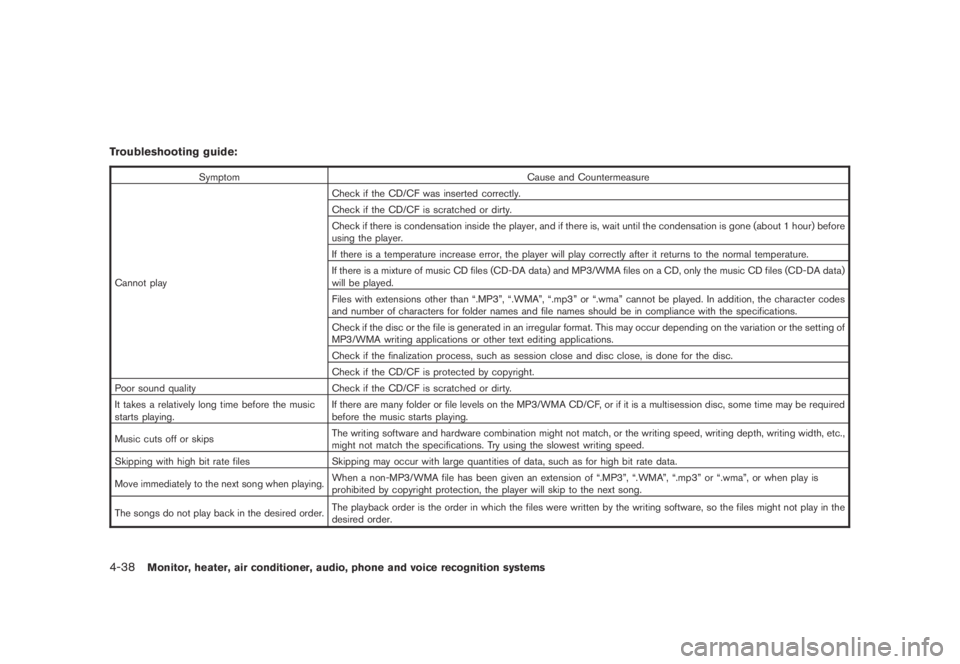
Troubleshooting guide:
Symptom Cause and Countermeasure
Cannot playCheck if the CD/CF was inserted correctly.
Check if the CD/CF is scratched or dirty.
Check if there is condensation inside the player, and if there is, wait until the condensation is gone (about 1 hour) before
using the player.
If there is a temperature increase error, the player will play correctly after it returns to the normal temperature.
If there is a mixture of music CD files (CD-DA data) and MP3/WMA files on a CD, only the music CD files (CD-DA data)
will be played.
Files with extensions other than “.MP3”, “.WMA”, “.mp3” or “.wma” cannot be played. In addition, the character codes
and number of characters for folder names and file names should be in compliance with the specifications.
Check if the disc or the file is generated in an irregular format. This may occur depending on the variation or the setting of
MP3/WMA writing applications or other text editing applications.
Check if the finalization process, such as session close and disc close, is done for the disc.
Check if the CD/CF is protected by copyright.
Poor sound quality Check if the CD/CF is scratched or dirty.
It takes a relatively long time before the music
starts playing.If there are many folder or file levels on the MP3/WMA CD/CF, or if it is a multisession disc, some time may be required
before the music starts playing.
Music cuts off or skipsThe writing software and hardware combination might not match, or the writing speed, writing depth, writing width, etc.,
might not match the specifications. Try using the slowest writing speed.
Skipping with high bit rate files Skipping may occur with large quantities of data, such as for high bit rate data.
Move immediately to the next song when playing.When a non-MP3/WMA file has been given an extension of “.MP3”, “.WMA”, “.mp3” or “.wma”, or when play is
prohibited by copyright protection, the player will skip to the next song.
The songs do not play back in the desired order.The playback order is the order in which the files were written by the writing software, so the files might not play in the
desired order.
4-38Monitor, heater, air conditioner, audio, phone and voice recognition systems
Page 206 of 443
Black plate (204,1)
Model "Z51-D" EDITED: 2007/ 10/ 2
the current track on the CD will be played.
CD PLAY selection:
To change to another CD already loaded into the
player, push the CD play select buttons
*1to
*6.
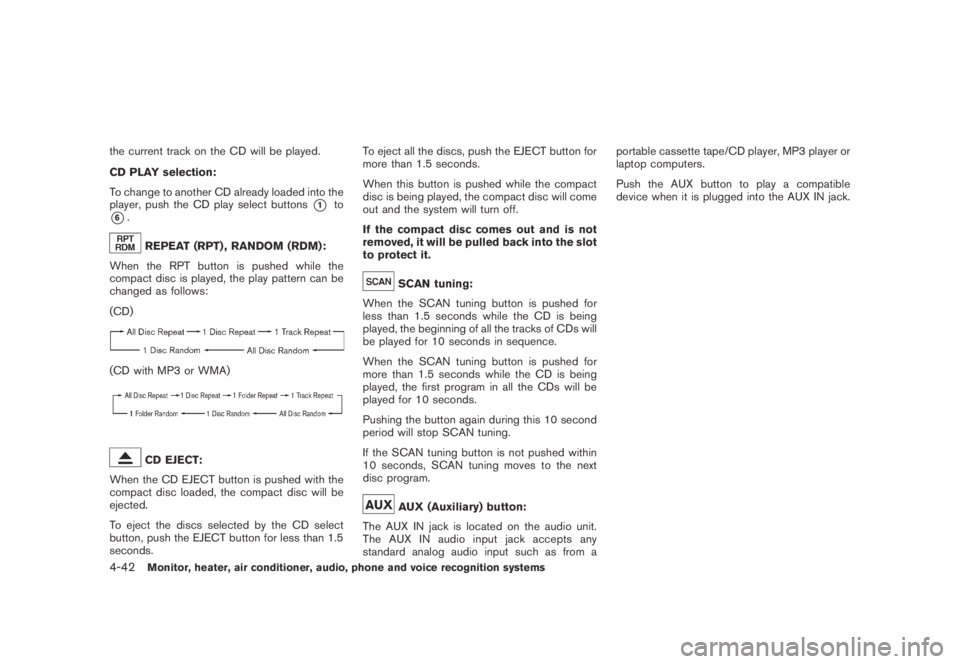
REPEAT (RPT) , RANDOM (RDM):
When the RPT button is pushed while the
compact disc is played, the play pattern can be
changed as follows:
(CD)
(CD with MP3 or WMA)
CD EJECT:
When the CD EJECT button is pushed with the
compact disc loaded, the compact disc will be
ejected.
To eject the discs selected by the CD select
button, push the EJECT button for less than 1.5
seconds.To eject all the discs, push the EJECT button for
more than 1.5 seconds.
When this button is pushed while the compact
disc is being played, the compact disc will come
out and the system will turn off.
If the compact disc comes out and is not
removed, it will be pulled back into the slot
to protect it.
SCAN tuning:
When the SCAN tuning button is pushed for
less than 1.5 seconds while the CD is being
played, the beginning of all the tracks of CDs will
be played for 10 seconds in sequence.
When the SCAN tuning button is pushed for
more than 1.5 seconds while the CD is being
played, the first program in all the CDs will be
played for 10 seconds.
Pushing the button again during this 10 second
period will stop SCAN tuning.
If the SCAN tuning button is not pushed within
10 seconds, SCAN tuning moves to the next
disc program.
AUX (Auxiliary) button:
The AUX IN jack is located on the audio unit.
The AUX IN audio input jack accepts any
standard analog audio input such as from aportable cassette tape/CD player, MP3 player or
laptop computers.
Push the AUX button to play a compatible
device when it is plugged into the AUX IN jack.
4-42Monitor, heater, air conditioner, audio, phone and voice recognition systems
Page 210 of 443
Black plate (208,1)
Model "Z51-D" EDITED: 2007/ 10/ 2
low frequencies and to stop at the next
broadcasting station.
.For XM satellite radio
Push the SEEK·CAT or TRACK button
orto tune to the first channel of the
next or previous category.
During satellite radio reception, the following
notices will be displayed under certain condi-
tions.
.NO SIGNAL (No signal is received while the
SAT tuner is connected.)
.OFF AIR (Broadcasting signed off)
.ANTENNA ERROR (Antenna connection
error)
.LOADING (When the initial setting is
performed)
.UPDATING (When the satellite radio sub-
scription is not active)
.INVALID CH (Invalid channel is received.)
SCAN tuning:
Push the SCAN tuning button to tune from low
to high frequencies and stops at each broad-
casting station for 5 seconds. Pushing the
button again during this 5 seconds period will
stop SCAN tuning and the radio will remaintuned to that station.
If the SCAN tuning button is not pushed within 5
seconds, SCAN tuning moves to the next
station.
*1to*6Station memory operations:
Twelve stations/channels can be set for the FM
band (6 for FM1, 6 for FM2) and the SAT radio
(6 for SAT1, 6 for SAT2) , and 6 stations can be
set for the AM band.
1. Choose the radio band using the radio band
select button.
2. Tune to the desired station using the SEEK,
SCAN or TUNE button.
3. Select the desired station/channel and keep
pushing any of the desired station preset
buttons
*1to*6until a beep sound is
heard. (The radio mutes when the select
button is pushed.)
4. The channel indicator will then come on and
the sound will resume. Memorizing is now
complete.
5. Other buttons can be set in the same
manner.
If the battery cable is disconnected, or if the fuse
blows, the radio memory will be erased. In that
case, reset the desired stations.Text:
When the “Text” key is selected with the multi-
function controller on the display and then the
ENTER button is pushed while the satellite radio
is being played, the text information will be
displayed on the screen.
.CH Name
.Category
.Name
.Title
.Other
Compact Disc (CD) player/changer op-
eration
Push the ignition switch to the ACC or ON
position, push the LOAD button (if so equipped)
and insert the compact disc into the slot with the
label side facing up. The compact disc will be
guided automatically into the slot and start
playing.
After loading the disc, the number of tracks on
the disc and the play time will appear on the
display.
If the radio is already operating, it will auto-
matically turn off and the compact disc will play.
If the system has been turned off while the
compact disc was playing, pushing the ON·-
4-46Monitor, heater, air conditioner, audio, phone and voice recognition systems
Page 211 of 443
Black plate (209,1)
Model "Z51-D" EDITED: 2007/ 10/ 2
OFF/VOL control knob will start the compact
disc.
CD LOAD (if so equipped):
To insert a CD in the CD changer, push the
LOAD button for less than 1.5 seconds. Select
the loading position by pushing the CD insert
select button
*1to*6, then insert the CD.
To insert 6 CDs to the CD changer in
succession, push the LOAD button for more
than 1.5 seconds.
The inserted slot numbers will illuminate on the
display.
orPLAY:
When the DISC (CD play) button is pushed with
the system off and the compact disc loaded, the
system will turn on and the compact disc will
start to play.
When the DISC button is pushed with the
compact disc loaded and the radio playing, the
radio will automatically be turned off and the
compact disc will start to play.
When the DISC button is pushed while a CD is
loaded and a medium is played using the
auxiliary input jacks, you can toggle back and
forth between CD and medium.Text:
When the “Text” key is selected in the screen
using the multi-function controller and then the
ENTER button is pushed while the CD is being
played, the music information below will be
displayed on the screen.
CD:
.Disc title
.Track title
CD with MP3 or WMA:
.Folder title
.File title
.Song title
.Album title
.Artist
FF (Fast Forward) , REW (Re-
wind)/APS (Automatic Pro-
gram Search) FF, APS REW:
When the
(fast forward) or(rewind)
button is pushed for more than 1.5 seconds
while the compact disc is being played, the
compact disc will play while fast forwarding or
rewinding. When the button is released, the
compact disc will return to normal play speed.When the
orbutton is pushed for less
than 1.5 seconds while the compact disc is
being played, the next track or the beginning of
the current track on the CD will be played.
The multi-function controller can also be used to
select tracks when a CD is being played.
CD PLAY selection (if so equipped) :
To change to another CD already loaded into the
player, push the CD play select buttons
*1to
*6or choose a disc displayed on the screen
using the multi-function controller.
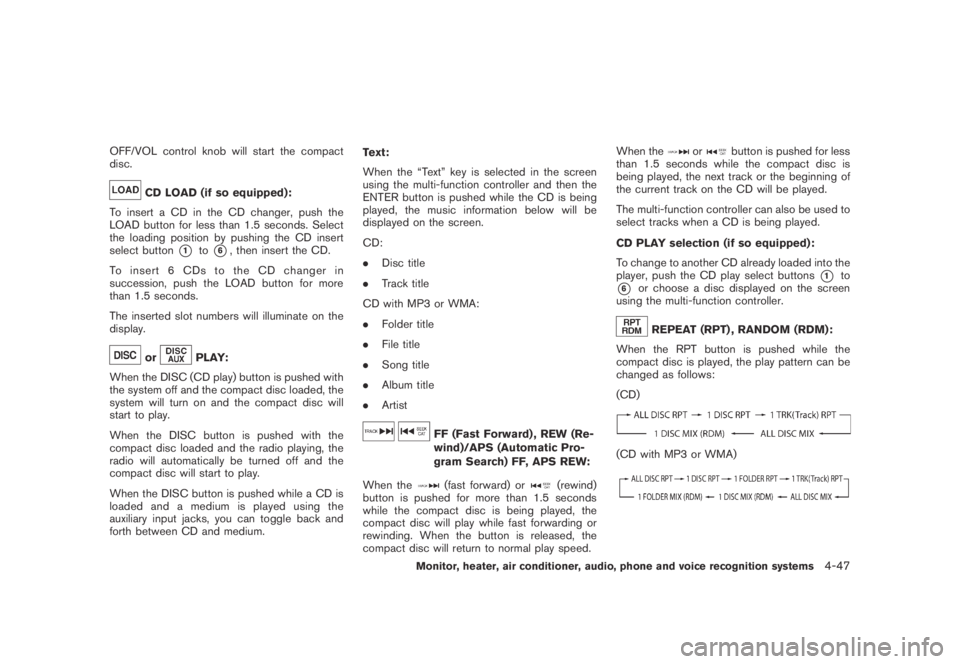
REPEAT (RPT) , RANDOM (RDM):
When the RPT button is pushed while the
compact disc is played, the play pattern can be
changed as follows:
(CD)
(CD with MP3 or WMA)
Monitor, heater, air conditioner, audio, phone and voice recognition systems4-47
Page 212 of 443
Black plate (210,1)
Model "Z51-D" EDITED: 2007/ 10/ 2
CD EJECT:
When the CD EJECT button is pushed with the
compact disc loaded, the compact disc will be
ejected.
To eject the discs selected by the CD select
button, push the EJECT button for less than 1.5
seconds.
To eject all the discs (if so equipped) , push the
EJECT button for more than 1.5 seconds.
When this button is pushed while the compact
disc is being played, the compact disc will come
out and the system will turn off.
If the compact disc comes out and is not
removed, it will be pulled back into the slot
to protect it.
SAA1856
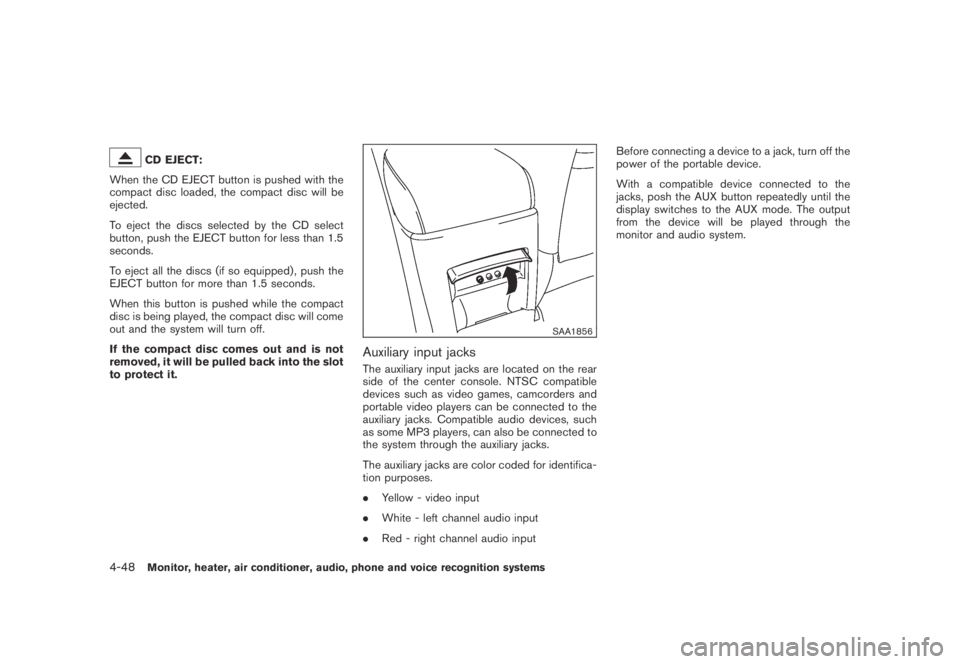
Auxiliary input jacks
The auxiliary input jacks are located on the rear
side of the center console. NTSC compatible
devices such as video games, camcorders and
portable video players can be connected to the
auxiliary jacks. Compatible audio devices, such
as some MP3 players, can also be connected to
the system through the auxiliary jacks.
The auxiliary jacks are color coded for identifica-
tion purposes.
.Yellow - video input
.White - left channel audio input
.Red - right channel audio inputBefore connecting a device to a jack, turn off the
power of the portable device.
With a compatible device connected to the
jacks, posh the AUX button repeatedly until the
display switches to the AUX mode. The output
from the device will be played through the
monitor and audio system.
4-48Monitor, heater, air conditioner, audio, phone and voice recognition systems