wheel NISSAN MURANO 2010 Owner´s Manual
[x] Cancel search | Manufacturer: NISSAN, Model Year: 2010, Model line: MURANO, Model: NISSAN MURANO 2010Pages: 425, PDF Size: 3.62 MB
Page 146 of 425
Black plate (142,1)
Model "Z51-D" EDITED: 2009/ 8/ 3
computer.
. When the vehicle is parked near a parking
meter.
In such cases, correct the operating conditions
before using the Intelligent Key function or use
the mechanical key.
Although the life of the battery varies depending
on the operating conditions, the battery’s life is
approximately 2 years. If the battery is dis-
charged, replace it with a new one.
Since the Intelligent Key is continuously receiv-
ing radio waves, if the key is left near equipment
which transmits strong radio waves, such as
signals from a TV and personal computer, the
battery life may become shorter.
For information regarding replacement of a
battery, see “BATTERY REPLACEMENT” in
the “8. Maintenance and do-it-yourself” section.
For models with a steering wheel lock mechan-
ism: Because the steering wheel is locked
electrically, unlocking the steering wheel with
the ignition switch in the LOCK position is
impossible when the vehicle battery is comple-
tely discharged. Pay special attention that the
vehicle battery is not completely discharged.
As many as 4 Intelligent Keys can be registered
and used with one vehicle. For information about
the purchase and use of additional Intelligent Keys, contact a NISSAN dealer.
CAUTION
.
Do not allow the Intelligent Key,
which contains electrical compo-
nents, to come into contact with
water or salt water. This could affect
the system function.
. Do not drop the Intelligent Key.
. Do not strike the Intelligent Key
sharply against another object.
. Do not change or modify the Intel-
ligent Key.
. Wetting may damage the Intelligent
Key. If the Intelligent Key gets wet,
immediately wipe until it is comple-
tely dry.
. Do not place the Intelligent Key for
an extended period in an area where
temperatures exceed 140 8F (60 8C) .
. Do not attach the Intelligent Key
with a key holder that contains a
magnet.
. Do not place the Intelligent Key near
equipment that produces a mag-
netic field, such as a TV, audio
equipment, personal computer or cellular phone.
If an Intelligent Key is lost or stolen, NISSAN
recommends erasing the ID code of that
Intelligent Key from the vehicle. This may prevent
the unauthorized use of the Intelligent Key to
operate the vehicle. For information regarding
the erasing procedure, contact a NISSAN deal-
er.
3-8
Pre-driving checks and adjustments
Page 163 of 425
Black plate (159,1)
Model "Z51-D" EDITED: 2009/ 8/ 3
SPA2442
The fuel-filler cap is a ratcheting type. Turn the
cap counterclockwise to remove. To tighten, turn
the cap clockwise until ratcheting clicks are
heard.
Put the fuel-filler cap on the cap holder
*A
while refueling.
WARNING
.Do not adjust the steering wheel
while driving. You could lose control
of your vehicle and cause an acci-
dent.
. Do not adjust the steering wheel
any closer to you than is necessary
for proper steering operation and
comfort. The driver’s air bag inflates
with great force. If you are unrest-
rained, leaning forward, sitting side-
ways or out of position in any way,
you are at greater risk of injury or
death in a crash. You may also
receive serious or fatal injuries from
the air bag if you are up against it
when it inflates. Always sit back
against the seatback and as far
away as practical from the steering
wheel. Always use the seat belts.
SPA2443
MANUAL OPERATION
Tilt or telescopic operationPull the lock lever
*1
down and adjust the
steering wheel forward or rearward to the
desired position.
Push the lock lever up securely to lock the
steering wheel in place.
Pull the lock lever
*2
and adjust the steering
wheel up or down to the desired position.
Release the lock lever to lock the steering wheel
in place.
TILT/TELESCOPIC STEERING
Pre-driving checks and adjustments
3-25
Page 164 of 425
Black plate (160,1)
Model "Z51-D" EDITED: 2009/ 8/ 3
SPA2444A
ELECTRIC OPERATION
Tilt or telescopic operationMove the lever to adjust the steering wheel up or
down, forward or rearward to the desired
position.
Entry/Exit function operation (if so
equipped):
The automatic drive positioner system will make
the steering wheel move up automatically when
the driver’s door is opened with the ignition
switch in the LOCK position. This lets the driver
get into and out of the seat more easily.
For more information, see “AUTOMATIC DRIVEPOSITIONER” later in this section.
SIC3451
SUN VISORS
3-26
Pre-driving checks and adjustments
Page 168 of 425
Black plate (164,1)
Model "Z51-D" EDITED: 2009/ 8/ 3
SIC2064
VANITY MIRRORTo use the front vanity mirror, pull down the sun
visor and pull up the cover.The automatic drive positioner system has two
features:
.
Entry/exit function
. Memory storage
ENTRY/EXIT FUNCTIONThis system is designed so that the driver’s seat
and steering column will automatically move
when the selector lever is in the P (Park)
position. This allows the driver to get into and
out of the driver’s seat more easily.
The driver’s seat will slide backward and the
steering wheel will move up when the driver’s
door is opened with the ignition switch in the
LOCK position and the Intelligent Key not
inserted in the Intelligent Key port.
The driver’s seat and steering wheel will return
to the previous positions when the ignition
switch is pushed to the ACC position.
The driver’s seat will not return to the previous
positions if the seat or steering adjusting switch
is operated when the seat is at the exit position.Cancel or activate entry/exit functionThe selector lever must be in the P (Park)
position with the ignition switch in the OFF
position.
The entry/exit function can be activated or canceled by pressing and holding the SET
switch for more than 10 seconds.
The indicator lights on the memory switches (1
and 2) will blink once when the function is
canceled, and the indicator lights will blink twice
when the function is activated. Note that the
indicator lights may illuminate after 5 seconds
while holding the SET switch. This indicates
readiness for linking the Intelligent Key to a
stored memory position. Keep the SET switch
pressed for more than 10 seconds to turn on or
off the entry/exit function.
The entry/exit function can also be activated or
canceled if the “Lift Steering Wheel on Exit” key
or “Slide Driver Seat Back on Exit” key is turned
to ON or OFF in the “Comfort & Conv.” settings.
(See “VEHICLE INFORMATION AND SET-
TINGS” in the “4. Monitor, heater, air condi-
tioner, audio, phone and voice recognition
systems” section.)
Initialize entry/exit functionIf the battery cable is disconnected, or if the fuse
opens, the entry/exit function will not work
though this function was set on before. In such
a case, after connecting the battery or replacing
with a new fuse, open and close the driver’s
door more than two times after the ignition
switch is turned from the ON position to the
LOCK position. The entry/exit function will be
activated.
AUTOMATIC DRIVE POSITIONER (if
so equipped)
3-30
Pre-driving checks and adjustments
Page 169 of 425
Black plate (165,1)
Model "Z51-D" EDITED: 2009/ 8/ 3
SPA2445
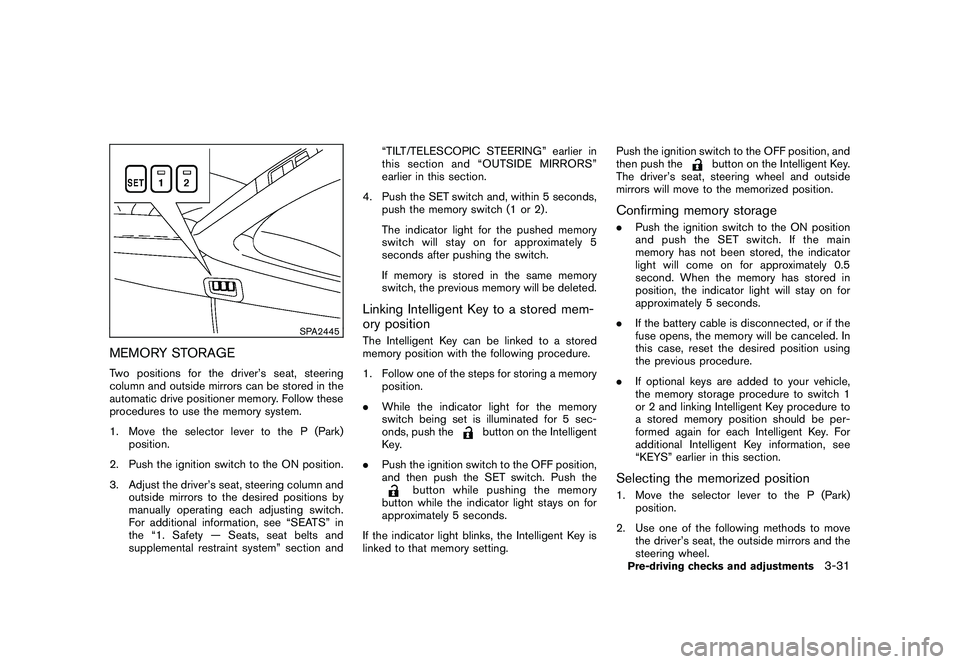
MEMORY STORAGETwo positions for the driver’s seat, steering
column and outside mirrors can be stored in the
automatic drive positioner memory. Follow these
procedures to use the memory system.
1. Move the selector lever to the P (Park)position.
2. Push the ignition switch to the ON position.
3. Adjust the driver’s seat, steering column and outside mirrors to the desired positions by
manually operating each adjusting switch.
For additional information, see “SEATS” in
the “1. Safety — Seats, seat belts and
supplemental restraint system” section and “TILT/TELESCOPIC STEERING” earlier in
this section and “OUTSIDE MIRRORS”
earlier in this section.
4. Push the SET switch and, within 5 seconds, push the memory switch (1 or 2) .
The indicator light for the pushed memory
switch will stay on for approximately 5
seconds after pushing the switch.
If memory is stored in the same memory
switch, the previous memory will be deleted.
Linking Intelligent Key to a stored mem-
ory positionThe Intelligent Key can be linked to a stored
memory position with the following procedure.
1. Follow one of the steps for storing a memoryposition.
. While the indicator light for the memory
switch being set is illuminated for 5 sec-
onds, push the
button on the Intelligent
Key.
. Push the ignition switch to the OFF position,
and then push the SET switch. Push the
button while pushing the memory
button while the indicator light stays on for
approximately 5 seconds.
If the indicator light blinks, the Intelligent Key is
linked to that memory setting. Push the ignition switch to the OFF position, and
then push the
button on the Intelligent Key.
The driver’s seat, steering wheel and outside
mirrors will move to the memorized position.
Confirming memory storage. Push the ignition switch to the ON position
and push the SET switch. If the main
memory has not been stored, the indicator
light will come on for approximately 0.5
second. When the memory has stored in
position, the indicator light will stay on for
approximately 5 seconds.
. If the battery cable is disconnected, or if the
fuse opens, the memory will be canceled. In
this case, reset the desired position using
the previous procedure.
. If optional keys are added to your vehicle,
the memory storage procedure to switch 1
or 2 and linking Intelligent Key procedure to
a stored memory position should be per-
formed again for each Intelligent Key. For
additional Intelligent Key information, see
“KEYS” earlier in this section.Selecting the memorized position1. Move the selector lever to the P (Park)
position.
2. Use one of the following methods to move the driver’s seat, the outside mirrors and the
steering wheel.Pre-driving checks and adjustments
3-31
Page 172 of 425
Black plate (13,1)
4 Monitor, heater, air conditioner, audio,phone and voice recognition systems
Model "Z51-D" EDITED: 2009/ 8/ 3
Safety note ....................................................... 4-2
Center multi-function control panel
(models with color display screen) ......................... 4-2
How to use multi-function controller ................... 4-4
How to use touch screen
(models with navigation system) ........................ 4-4
Start-up screen (models with navigation system) . . . 4-6
Start menu (models with navigation system) ......... 4-6
How to select menus on the screen ................... 4-7
Vehicle information and settings ............................. 4-8
How to use STATUS button .............................. 4-8
How to use brightness control and display ON/
OFF button ................................................... 4-8
How to use INFO button. ................................. 4-8
How to use SETTING button .......................... 4-12
Rearview monitor (if so equipped) ........................ 4-19
How to read the displayed lines ....................... 4-20
How to park with predicted course lines ............ 4-20
Difference between predicted and actual
distances ................................................... 4-22
How to adjust the screen ............................... 4-24
Operating tips ............................................. 4-24
Ventilators ...................................................... 4-25
Heater and air conditioner .................................. 4-26
Automatic operation ...................................... 4-28
Manual operation ......................................... 4-29
To turn the system ON/OFF ........................... 4-30 Operating tips
............................................. 4-30
In-cabin microfilter ........................................ 4-30
Servicing air conditioner ................................ 4-30
Audio system .................................................. 4-31
Audio operation precautions ........................... 4-31
FM-AM radio with Compact Disc (CD)
changer ..................................................... 4-39
FM-AM-SAT radio with Compact Disc (CD)
changer ..................................................... 4-44
CompactFlash (CF) player operation
(models with navigation system) ...................... 4-49
iPod
®player operation (if so equipped) .............. 4-51
“MUSIC BOX” hard-disk drive
(models with navigation system) ...................... 4-52
CD/CF (CompactFlash) care and cleaning ......... 4-59
Steering-wheel-mounted controls for audio ........ 4-61
Antenna ..................................................... 4-62
NISSAN Mobile Entertainment System (MES)
(if so equipped) ............................................... 4-63
DVD player operation precautions .................... 4-63
Digital Versatile Disc (DVD) system
components ................................................ 4-64
Remote controller and headphones battery
replacement ................................................ 4-68
Before operating the DVD entertainment
system ....................................................... 4-68
Playing a Digital Versatile Disc (DVD) ............... 4-69
Page 178 of 425
Black plate (174,1)
Model "Z51-D" EDITED: 2009/ 8/ 3
SAA1454
START-UP SCREEN (models with navi-
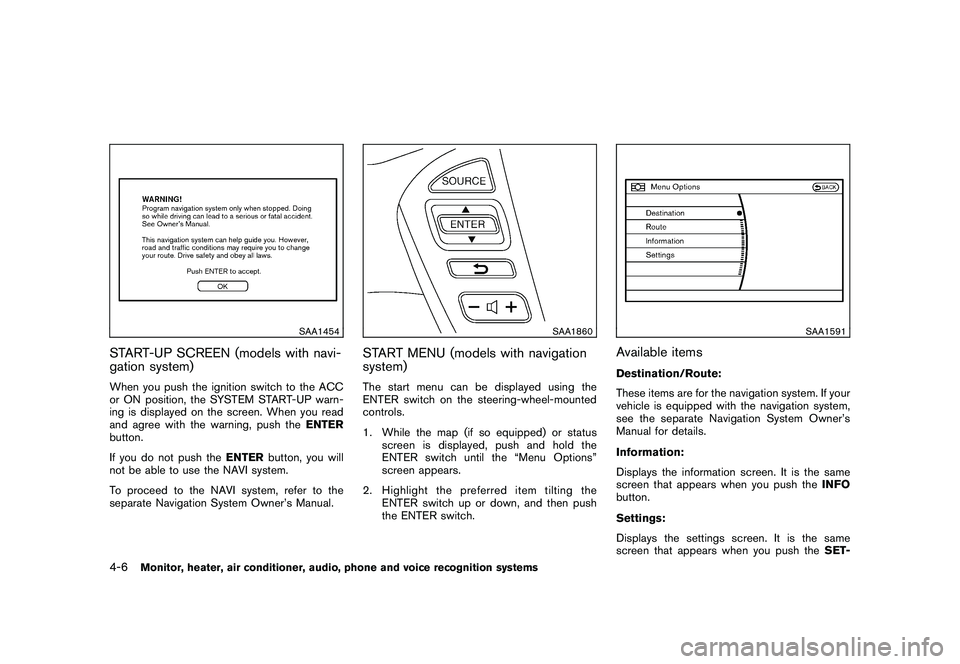
gation system)When you push the ignition switch to the ACC
or ON position, the SYSTEM START-UP warn-
ing is displayed on the screen. When you read
and agree with the warning, push theENTER
button.
If you do not push the ENTERbutton, you will
not be able to use the NAVI system.
To proceed to the NAVI system, refer to the
separate Navigation System Owner’s Manual.
SAA1860
START MENU (models with navigation
system)The start menu can be displayed using the
ENTER switch on the steering-wheel-mounted
controls.
1. While the map (if so equipped) or status
screen is displayed, push and hold the
ENTER switch until the “Menu Options”
screen appears.
2. Highlight the preferred item tilting the ENTER switch up or down, and then push
the ENTER switch.
SAA1591
Available itemsDestination/Route:
These items are for the navigation system. If your
vehicle is equipped with the navigation system,
see the separate Navigation System Owner’s
Manual for details.
Information:
Displays the information screen. It is the same
screen that appears when you push the INFO
button.
Settings:
Displays the settings screen. It is the same
screen that appears when you push the SET-
4-6
Monitor, heater, air conditioner, audio, phone and voice recognition systems
Page 189 of 425
Black plate (185,1)
Model "Z51-D" EDITED: 2009/ 8/ 3
SAA1564SAA1565
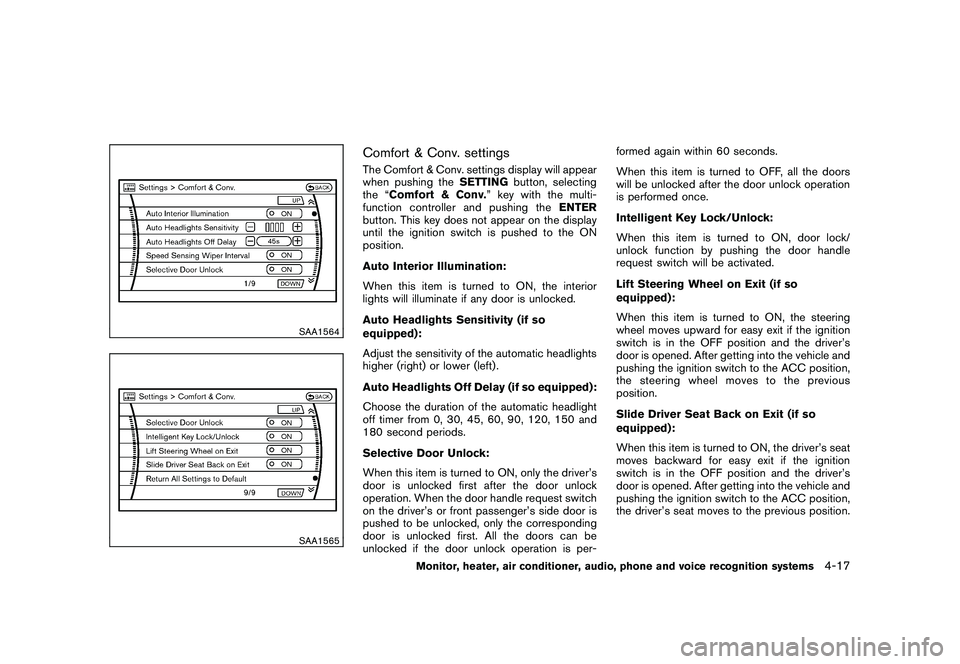
Comfort & Conv. settingsThe Comfort & Conv. settings display will appear
when pushing theSETTINGbutton, selecting
the “Comfort & Conv. ” key with the multi-
function controller and pushing the ENTER
button. This key does not appear on the display
until the ignition switch is pushed to the ON
position.
Auto Interior Illumination:
When this item is turned to ON, the interior
lights will illuminate if any door is unlocked.
Auto Headlights Sensitivity (if so
equipped):
Adjust the sensitivity of the automatic headlights
higher (right) or lower (left) .
Auto Headlights Off Delay (if so equipped):
Choose the duration of the automatic headlight
off timer from 0, 30, 45, 60, 90, 120, 150 and
180 second periods.
Selective Door Unlock:
When this item is turned to ON, only the driver’s
door is unlocked first after the door unlock
operation. When the door handle request switch
on the driver’s or front passenger’s side door is
pushed to be unlocked, only the corresponding
door is unlocked first. All the doors can be
unlocked if the door unlock operation is per- formed again within 60 seconds.
When this item is turned to OFF, all the doors
will be unlocked after the door unlock operation
is performed once.
Intelligent Key Lock/Unlock:
When this item is turned to ON, door lock/
unlock function by pushing the door handle
request switch will be activated.
Lift Steering Wheel on Exit (if so
equipped):
When this item is turned to ON, the steering
wheel moves upward for easy exit if the ignition
switch is in the OFF position and the driver’s
door is opened. After getting into the vehicle and
pushing the ignition switch to the ACC position,
the steering wheel moves to the previous
position.
Slide Driver Seat Back on Exit (if so
equipped):
When this item is turned to ON, the driver’s seat
moves backward for easy exit if the ignition
switch is in the OFF position and the driver’s
door is opened. After getting into the vehicle and
pushing the ignition switch to the ACC position,
the driver’s seat moves to the previous position.
Monitor, heater, air conditioner, audio, phone and voice recognition systems
4-17
Page 192 of 425
Black plate (188,1)
Model "Z51-D" EDITED: 2009/ 8/ 3
because of its monitoring range
limitation.
. Do not put anything on the rear view
camera. The rear view camera is
installed above the license plate.
. When washing the vehicle with
high-pressure water, be sure not to
spray it around the camera. Other-
wise, water may enter the camera
unit causing water condensation on
the lens, a malfunction, fire or an
electric shock.
. Do not strike the camera. It is a
precision instrument. Otherwise, it
may malfunction or cause damage
resulting in a fire or an electric
shock.
CAUTION
Do not scratch the camera lens when
cleaning dirt or snow from the lens.
SAA1896
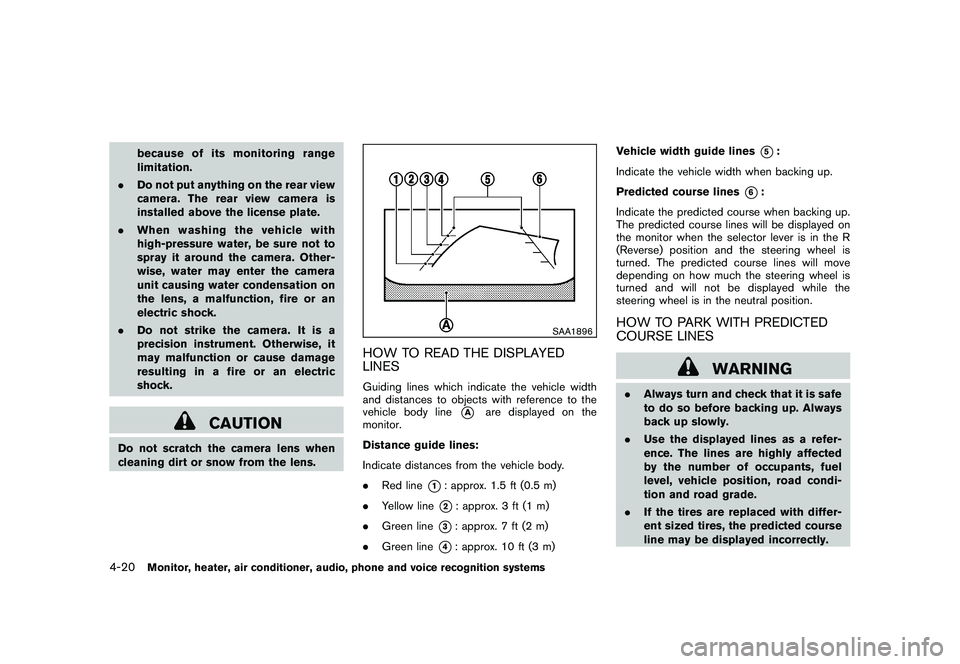
HOW TO READ THE DISPLAYED
LINESGuiding lines which indicate the vehicle width
and distances to objects with reference to the
vehicle body line
*A
are displayed on the
monitor.
Distance guide lines:
Indicate distances from the vehicle body.
. Red line
*1: approx. 1.5 ft (0.5 m)
. Yellow line*2: approx. 3 ft (1 m)
. Green line
*3: approx. 7 ft (2 m)
. Green line
*4: approx. 10 ft (3 m) Vehicle width guide lines
*5:
Indicate the vehicle width when backing up.
Predicted course lines
*6:
Indicate the predicted course when backing up.
The predicted course lines will be displayed on
the monitor when the selector lever is in the R
(Reverse) position and the steering wheel is
turned. The predicted course lines will move
depending on how much the steering wheel is
turned and will not be displayed while the
steering wheel is in the neutral position.
HOW TO PARK WITH PREDICTED
COURSE LINES
WARNING
. Always turn and check that it is safe
to do so before backing up. Always
back up slowly.
. Use the displayed lines as a refer-
ence. The lines are highly affected
by the number of occupants, fuel
level, vehicle position, road condi-
tion and road grade.
. If the tires are replaced with differ-
ent sized tires, the predicted course
line may be displayed incorrectly.
4-20
Monitor, heater, air conditioner, audio, phone and voice recognition systems
Page 193 of 425
Black plate (189,1)
Model "Z51-D" EDITED: 2009/ 8/ 3
.On a snow-covered or slippery road,
there may be a difference between
the predicted course line and the
actual course line.
. If the battery is disconnected or
becomes discharged, the predicted
course lines may be displayed in-
correctly. If this occurs, please per-
form the following procedures:
— Turn the steering wheel from
lock to lock while the engine is
running.
— Drive the vehicle on a straight road for more than 5 minutes.
. When the steering wheel is turned
with the ignition switch in the ACC
position, the predicted course lines
may be displayed incorrectly.
. The displayed lines will appear
slightly off to the right because the
rear view camera is not installed in
the rear center of the vehicle.
. The distance guide line and the
vehicle width line should be used
as a reference only when the vehicle
is on a level paved surface. The
distance viewed on the monitor is
for reference only and may be different than the actual distance
between the vehicle and displayed
objects.
. When backing-up the vehicle up a
hill objects viewed in the monitor
are further than they appear. When
backing-up the vehicle down a hill,
objects viewed in the monitor are
closer than they appear. Use the
inside mirror or glance over your
shoulder to properly judge dis-
tances to other objects.
The vehicle width and predicted course
lines are wider than the actual width and
course.
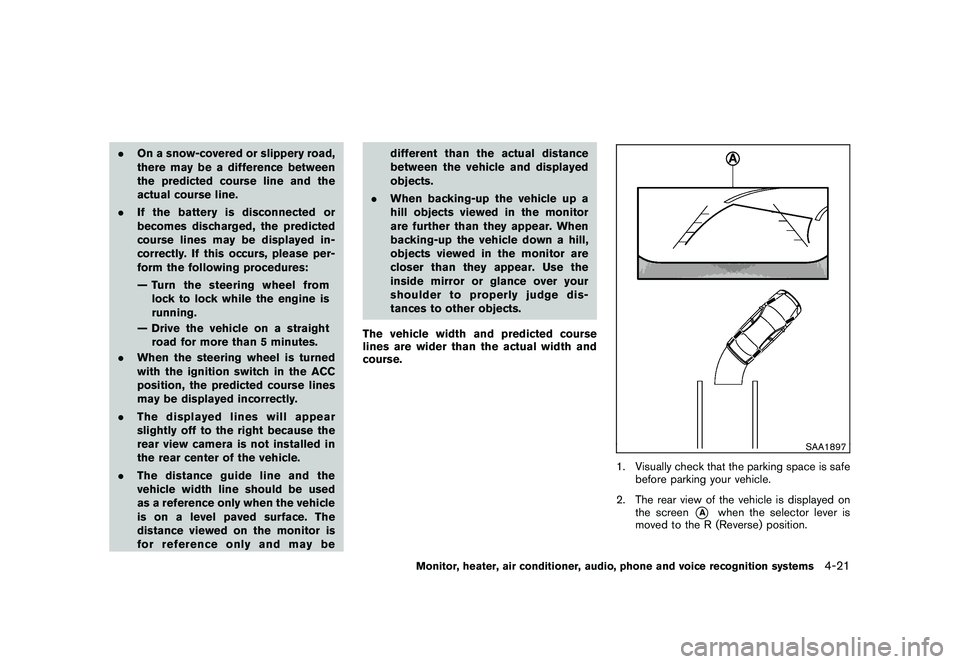
SAA1897
1. Visually check that the parking space is safe before parking your vehicle.
2. The rear view of the vehicle is displayed on the screen
*A
when the selector lever is
moved to the R (Reverse) position.
Monitor, heater, air conditioner, audio, phone and voice recognition systems
4-21