remote control NISSAN PATHFINDER 2010 Owner´s Manual
[x] Cancel search | Manufacturer: NISSAN, Model Year: 2010, Model line: PATHFINDER, Model: NISSAN PATHFINDER 2010Pages: 463, PDF Size: 5.69 MB
Page 257 of 463
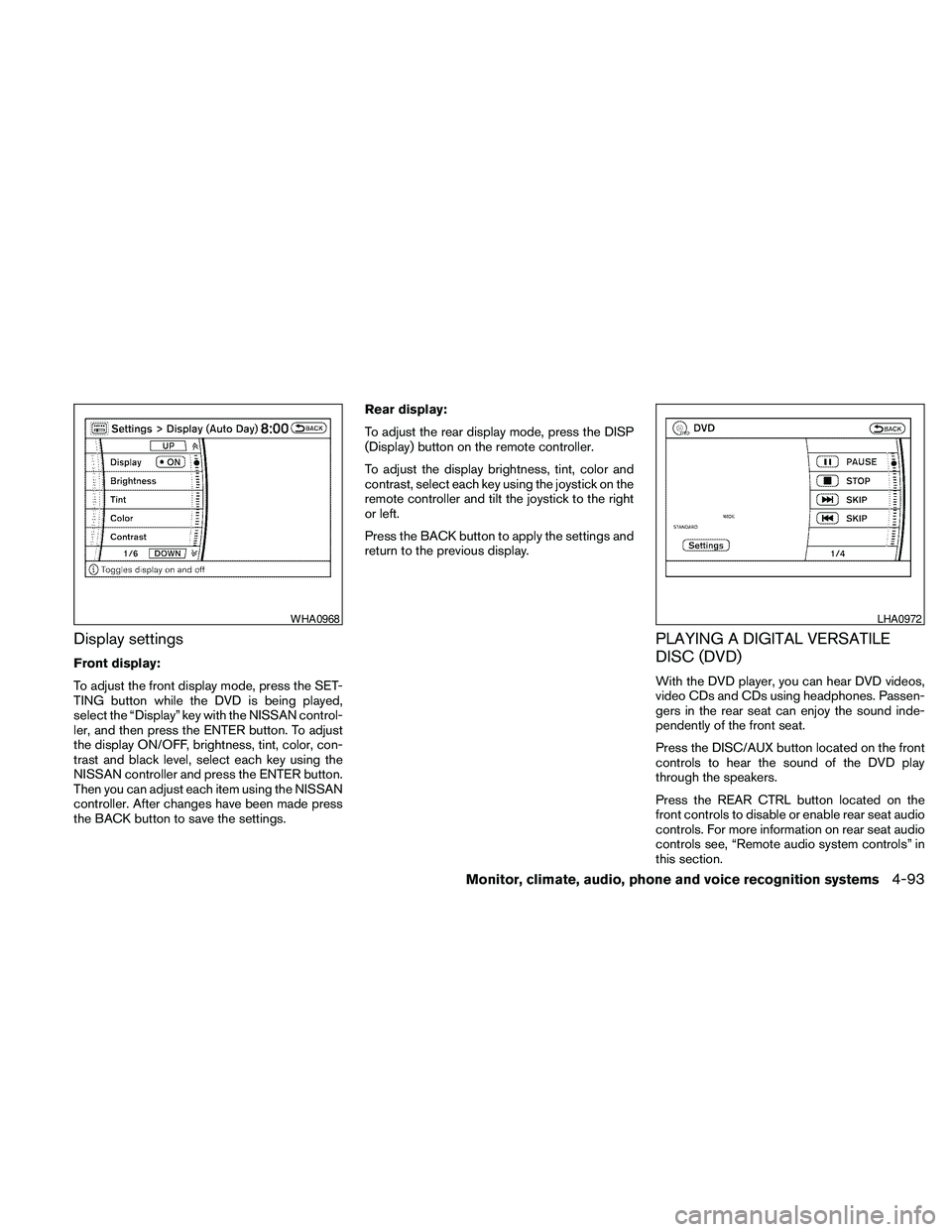
Display settings
Front display:
To adjust the front display mode, press the SET-
TING button while the DVD is being played,
select the “Display” key with the NISSAN control-
ler, and then press the ENTER button. To adjust
the display ON/OFF, brightness, tint, color, con-
trast and black level, select each key using the
NISSAN controller and press the ENTER button.
Then you can adjust each item using the NISSAN
controller. After changes have been made press
the BACK button to save the settings.Rear display:
To adjust the rear display mode, press the DISP
(Display) button on the remote controller.
To adjust the display brightness, tint, color and
contrast, select each key using the joystick on the
remote controller and tilt the joystick to the right
or left.
Press the BACK button to apply the settings and
return to the previous display.
PLAYING A DIGITAL VERSATILE
DISC (DVD)
With the DVD player, you can hear DVD videos,
video CDs and CDs using headphones. Passen-
gers in the rear seat can enjoy the sound inde-
pendently of the front seat.
Press the DISC/AUX button located on the front
controls to hear the sound of the DVD play
through the speakers.
Press the REAR CTRL button located on the
front controls to disable or enable rear seat audio
controls. For more information on rear seat audio
controls see, “Remote audio system controls” in
this section.
WHA0968LHA0972
Monitor, climate, audio, phone and voice recognition systems4-93
Page 258 of 463
Pressing thebutton on the front controls
turns the rear speakers on or off and enables or
disables the wireless headphones .
It is possible to operate the DVD player by remote
control.
Headphones are a wireless type and no cables
are necessary. You can use them in almost all the
ranges in the rear seat. (It is not possible to use
the headphones in the front seat.)
DISC/AUX button
Park the vehicle in a safe location and
apply the parking brake for the front seat
occupants to operate the DVD drive while
watching the images.
Press the DISC/AUX button on the instrument
panel and turn the display to the DVD mode.
When a DVD is loaded, it will be replayed auto-
matically.
The operation screen will be turned on when the
DISC/AUX button located on the instrument
panel is pressed while a DVD is being played,
and it will turn off automatically after a period of
time. To turn it on again, press the DISC/AUX
button once more.
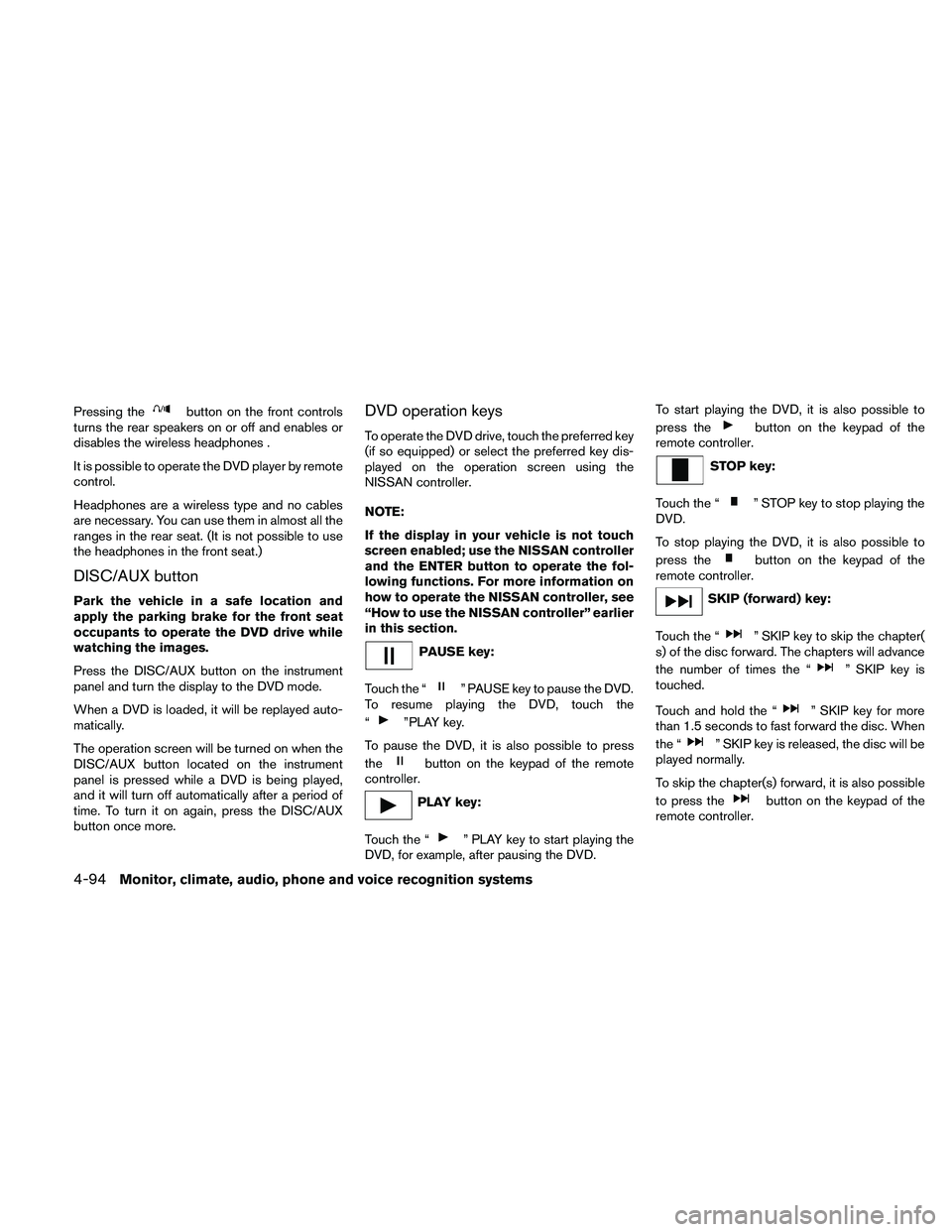
DVD operation keys
To operate the DVD drive, touch the preferred key
(if so equipped) or select the preferred key dis-
played on the operation screen using the
NISSAN controller.
NOTE:
If the display in your vehicle is not touch
screen enabled; use the NISSAN controller
and the ENTER button to operate the fol-
lowing functions. For more information on
how to operate the NISSAN controller, see
“How to use the NISSAN controller” earlier
in this section.
PAUSE key:
Touch the “
” PAUSE key to pause the DVD.
To resume playing the DVD, touch the
“
”PLAY key.
To pause the DVD, it is also possible to press
the
button on the keypad of the remote
controller.
PLAY key:
Touch the “
” PLAY key to start playing the
DVD, for example, after pausing the DVD.To start playing the DVD, it is also possible to
press the
button on the keypad of the
remote controller.
STOP key:
Touch the “
” STOP key to stop playing the
DVD.
To stop playing the DVD, it is also possible to
press the
button on the keypad of the
remote controller.
SKIP (forward) key:
Touch the “
” SKIP key to skip the chapter(
s) of the disc forward. The chapters will advance
the number of times the “
” SKIP key is
touched.
Touch and hold the “
” SKIP key for more
than 1.5 seconds to fast forward the disc. When
the “
” SKIP key is released, the disc will be
played normally.
To skip the chapter(s) forward, it is also possible
to press the
button on the keypad of the
remote controller.
4-94Monitor, climate, audio, phone and voice recognition systems
Page 259 of 463
SKIP (rewind) key:
Touch the “
” SKIP key to skip the chapter(s)
of the disc backward. The chapters will go back
the number of times the “
” SKIP key is
touched.
Touch and hold the “
” SKIP key for more
than 1.5 seconds to rewind the disc. When the
“
” SKIP key is released, the disc will be
played normally.
To skip the chapter(s) backward, it is also pos-
sible to press the
button on the keypad of
the remote controller.
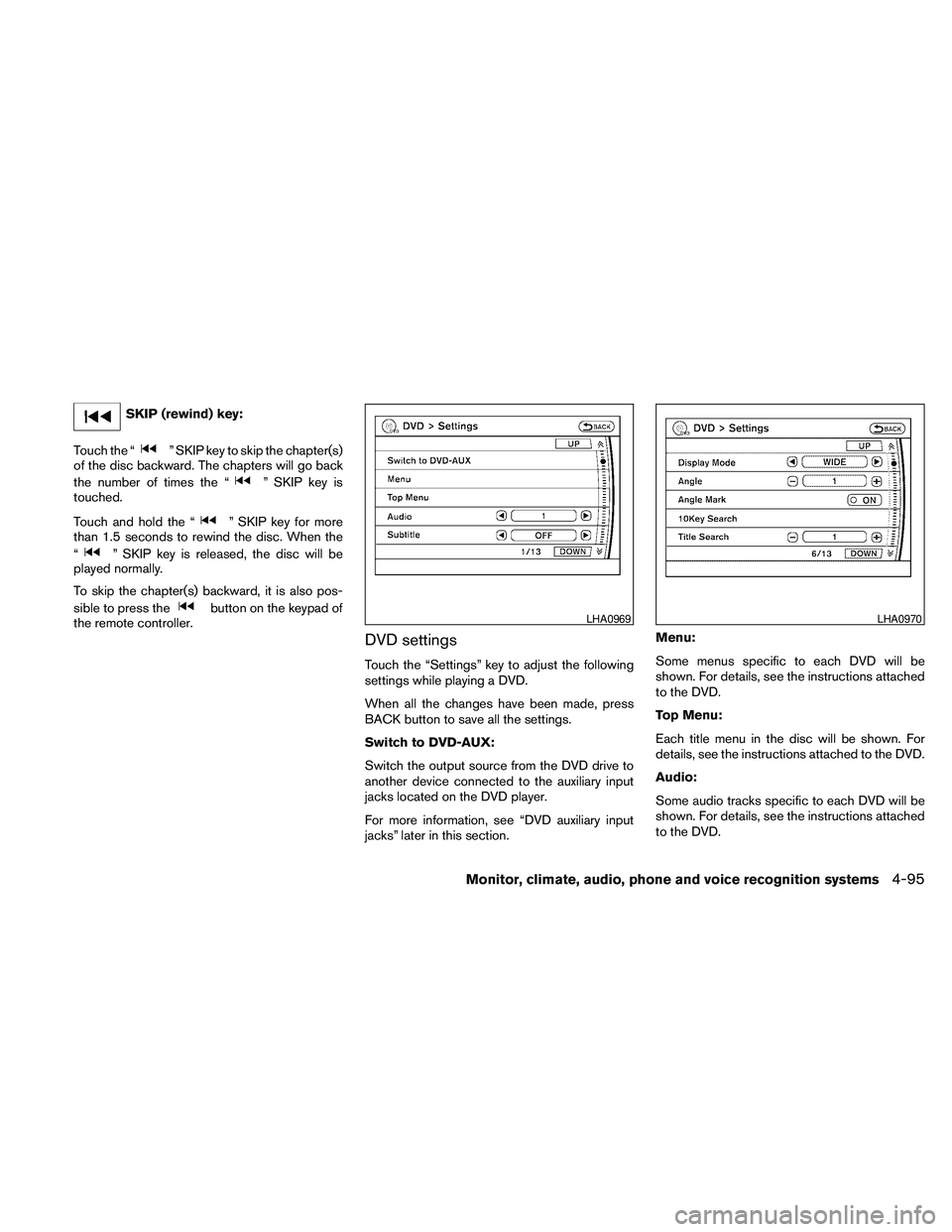
DVD settings
Touch the “Settings” key to adjust the following
settings while playing a DVD.
When all the changes have been made, press
BACK button to save all the settings.
Switch to DVD-AUX:
Switch the output source from the DVD drive to
another device connected to the auxiliary input
jacks located on the DVD player.
For more information, see “DVD auxiliary input
jacks” later in this section.Menu:
Some menus specific to each DVD will be
shown. For details, see the instructions attached
to the DVD.
Top Menu:
Each title menu in the disc will be shown. For
details, see the instructions attached to the DVD.
Audio:
Some audio tracks specific to each DVD will be
shown. For details, see the instructions attached
to the DVD.
LHA0969LHA0970
Monitor, climate, audio, phone and voice recognition systems4-95
Page 261 of 463
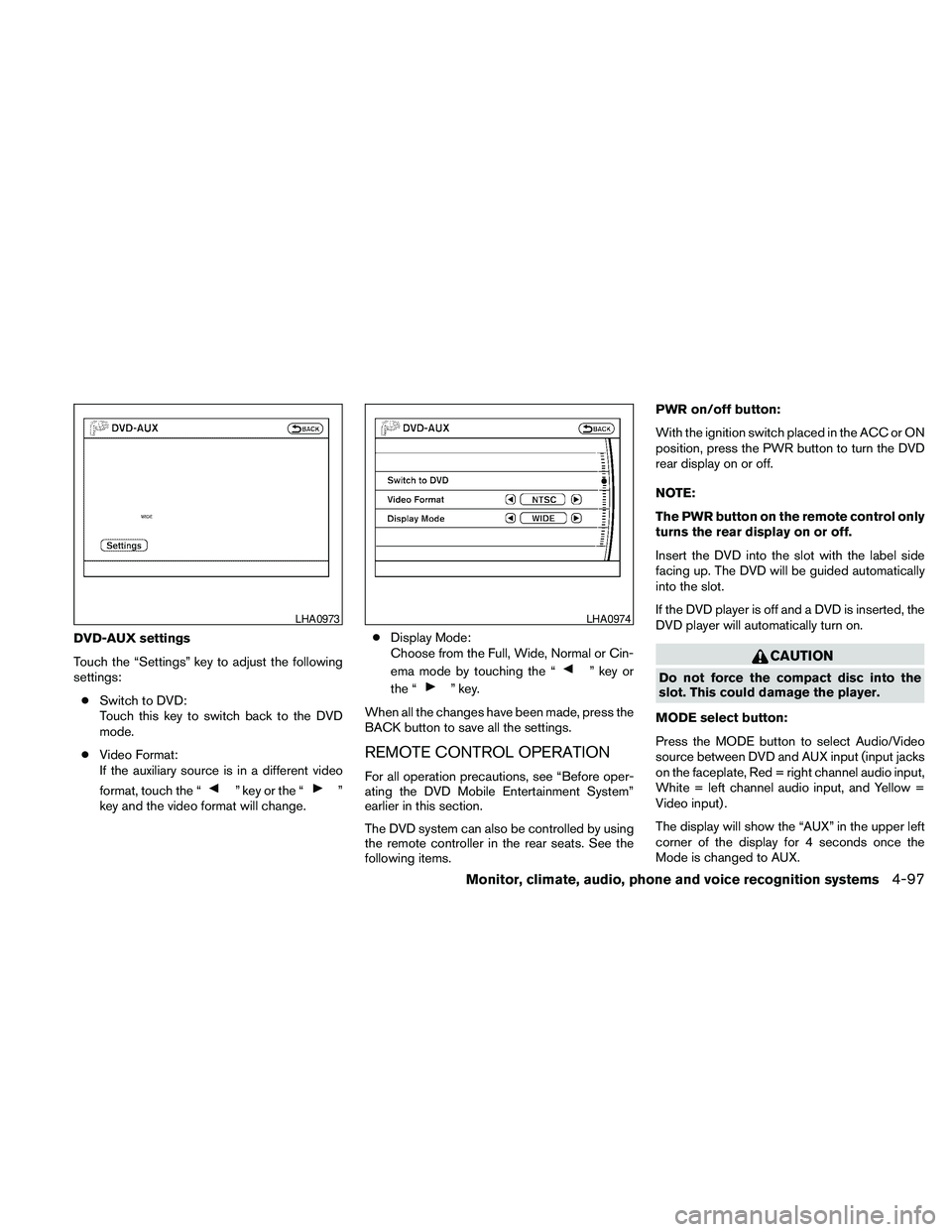
DVD-AUX settings
Touch the “Settings” key to adjust the following
settings:
cSwitch to DVD:
Touch this key to switch back to the DVD
mode.
cVideo Format:
If the auxiliary source is in a different video
format, touch the “
” key or the “”
key and the video format will change.cDisplay Mode:
Choose from the Full, Wide, Normal or Cin-
ema mode by touching the “
” key or
the “
” key.
When all the changes have been made, press the
BACK button to save all the settings.
REMOTE CONTROL OPERATION
For all operation precautions, see “Before oper-
ating the DVD Mobile Entertainment System”
earlier in this section.
The DVD system can also be controlled by using
the remote controller in the rear seats. See the
following items.PWR on/off button:
With the ignition switch placed in the ACC or ON
position, press the PWR button to turn the DVD
rear display on or off.
NOTE:
The PWR button on the remote control only
turns the rear display on or off.
Insert the DVD into the slot with the label side
facing up. The DVD will be guided automatically
into the slot.
If the DVD player is off and a DVD is inserted, the
DVD player will automatically turn on.
CAUTION
Do not force the compact disc into the
slot. This could damage the player.
MODE select button:
Press the MODE button to select Audio/Video
source between DVD and AUX input (input jacks
on the faceplate, Red = right channel audio input,
White = left channel audio input, and Yellow =
Video input) .
The display will show the “AUX” in the upper left
corner of the display for 4 seconds once the
Mode is changed to AUX.
LHA0973LHA0974
Monitor, climate, audio, phone and voice recognition systems4-97
Page 262 of 463
To use the input jacks, refer to “Auxiliary input
jacks” in this section.
PLAY:
When the
PLAY button on the remote
control is pressed, the player will play.
In play mode, the display will briefly show
on the upper left corner of the display.
FF (Fast Forward) , REW
(Rewind):
Press the
(fast forward) /(rewind)
buttons to carry out the fast forward or rewind
presentation at 5 times normal play speed.
Press the
(fast forward) /(rewind)
buttons again or PLAY button to resume the
normal play speed.
NEXT CHAPTER/
PREVIOUS CHAPTER:
When the
(NEXT CHAPTER) button is
pressed while the DVD is playing, the program
next to the present one will start to play from its
beginning. Press several times to skip through
programs. The DVD will advance the number of
times the button is pressed. When the
(PREVIOUS CHAPTER) button is pressed, the
program being played returns to its beginning.
Press several times to skip back through pro-
grams. The DVD will go back the number of times
the button is pressed.
PAUSE:
When the
PAUSE button on the remote
control is pressed, the player will pause playing of
the media. In pause mode, the player will
show
on the upper left corner of the dis-
play until the player is changed to another mode.
STOP:
Press the STOP button once to stop playing the
media. The display will show
in the upper
left corner of the display for 4 seconds, and the
last disc position will be stored. When the PLAY
button is pressed again, it will resume at the
stored disc track and time position.
If the STOP button is pressed again when the
player is already in Stop mode, it will reinitialize
the pointer to the beginning of the disc. In effect,
it will ignore the last stored disc position and
upon receipt of the next play message, will begin
at the Title Menu or at “the beginning of the disc”.DISPLAY:
If the DISPLAY control is pressed for less than 2
seconds, the display menu will appear on the
screen.
cThe display menu will remain on the screen
for 10 seconds if no subsequent control
activations occur.
cUse the NAVIGATION KEYS to navigate
within the display menu and use ENTER to
select the item.
NAVIGATION KEYS:
If media is in activated MENU mode, the NAVI-
GATION KEYS will be used to navigate Up,
Down, Left, and Right within the menu.
If display control menu is on, the NAVIGATION
KEYS will be used to navigate Up, Down, Left,
and Right within the menu.
ENTER:
In MENU mode, press the ENTER button to se-
lect MENU items.
In the display menu, press the ENTER button to
select items for modification, as per the on-
screen instructions.
4-98Monitor, climate, audio, phone and voice recognition systems
Page 263 of 463
MENU:
If the media is in PLAY mode and the MENU
button is pressed, the DVD menu will appear on
the screen. Use the Navigation Keys to navigate
within the menu and use ENTER to select the
item.
Press the MENU button again to return to PLAY
mode.
TITLE:
Press the TITLE button to return the DVD media
to the “title” of the DVD.
Press the TITLE button again to return to the
previous stop point and play.
BACK:
Press the BACK button to exit the current active
menu and return to the previous menu.
SUBTITLE:
Press the SUBTITLE button to call up subtitle
selection menu.
Repeatedly press the SUBTITLE button to cycle
through each available subtitle.
AUDIO:
Press the AUDIO button to call up the audio
menu.Repeatedly press the AUDIO button to cycle
through each available audio track.
ANGLE:
Press the ANGLE button to call up the camera
angle menu.
Repeatedly press the ANGLE button to cycle
through each available angle.
CLEAR:
Press the CLEAR button to clear all numeric
inputs, if actuated prior to expiration of the
3-second timer.
NUMERIC KEYPAD (0–9 &¸10):
Press the NUMERIC KEYPAD to directly access
disc chapters, titles or tracks by inputting their
numeric value.
Use the “¸10” button to input numbers greater
than or equal to 10. Up to 3 digits can be inputted
when selecting the chapter/title/track number.
The subsequent actuation of numeric buttons will
continuously shift the previously input number to
the “left”.The chapter/title/track number will be automati-
cally selected (if valid, based on media content) if
3 seconds expire without any keypad inputs.
The operator can cancel the input
chapter/title/track number by actuating the
CLEAR control prior to the expiration of the
3-second timer.
These functions can be used only for the DVD
discs which correspond to them.
CARE AND MAINTENANCE
Use a lightly dampened, lint free cloth to clean the
surfaces of your NISSAN Mobile Entertainment
System (DVD player face, screen, remote control,
etc.) .
Do not attempt to use the system in extreme
temperature conditions [below -4°F (-20°C) or
above 158°F (70°C)].
Do not attempt to operate the system in extreme
humidity conditions (less than 10% or more than
75%) .
Monitor, climate, audio, phone and voice recognition systems4-99
Page 266 of 463
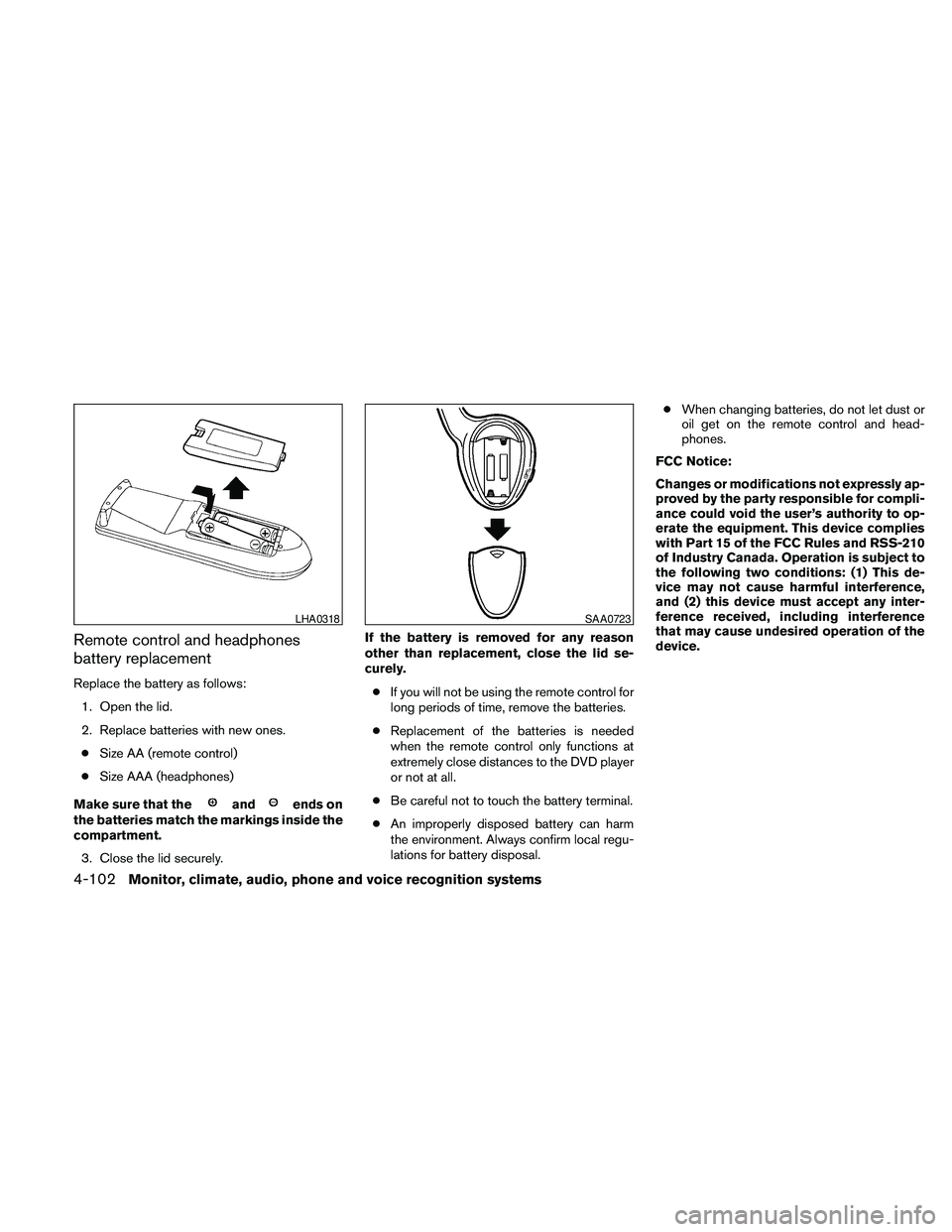
Remote control and headphones
battery replacement
Replace the battery as follows:
1. Open the lid.
2. Replace batteries with new ones.
cSize AA (remote control)
cSize AAA (headphones)
Make sure that the
andends on
the batteries match the markings inside the
compartment.
3. Close the lid securely.If the battery is removed for any reason
other than replacement, close the lid se-
curely.
cIf you will not be using the remote control for
long periods of time, remove the batteries.
cReplacement of the batteries is needed
when the remote control only functions at
extremely close distances to the DVD player
or not at all.
cBe careful not to touch the battery terminal.
cAn improperly disposed battery can harm
the environment. Always confirm local regu-
lations for battery disposal.cWhen changing batteries, do not let dust or
oil get on the remote control and head-
phones.
FCC Notice:
Changes or modifications not expressly ap-
proved by the party responsible for compli-
ance could void the user’s authority to op-
erate the equipment. This device complies
with Part 15 of the FCC Rules and RSS-210
of Industry Canada. Operation is subject to
the following two conditions: (1) This de-
vice may not cause harmful interference,
and (2) this device must accept any inter-
ference received, including interference
that may cause undesired operation of the
device.
LHA0318SAA0723
4-102Monitor, climate, audio, phone and voice recognition systems
Page 353 of 463
cDo not modify the vehicle’s suspension.
If suspension parts such as shock ab-
sorbers, struts, springs, stabilizer bars,
bushings and wheels are not NISSAN
approved for your vehicle or are ex-
tremely deteriorated the Vehicle Dy-
namic Control system may not operate
properly. This could adversely affect ve-
hicle handling performance, and the
VDC OFF indicator light may come on.
cWhen driving on extremely inclined sur-
faces such as higher banked corners,
the Vehicle Dynamic Control system
may not operate properly and the VDC
OFF indicator light may come on. Do
not drive on these types of roads.
cWhen driving on an unstable surface
such as a turntable, ferry, elevator or
ramp, the Vehicle Dynamic Control off
indicator light may illuminate. This is
not a malfunction. Restart the engine
after driving onto a stable surface.
cIf wheels or tires other than the recom-
mended ones are used, the Vehicle Dy-
namic Control system may not operate
properly and the Vehicle Dynamic Con-
trol off indicator light may come on.
cThe Vehicle Dynamic Control system is
not a substitute for winter tires or tire
chains on a snow covered road.FREEING A FROZEN DOOR LOCK
To prevent a door lock from freezing, apply de-
icer through the key hole. If the lock becomes
frozen, heat the key before inserting it into the key
hole or use the remote keyless entry keyfob (if so
equipped) .
ANTI-FREEZE
In the winter when it is anticipated that the tem-
perature will drop below 32°F (0°C) , check the
anti-freeze to assure proper winter protection.
For details, see “Engine cooling system” in the
“Maintenance and do-it-yourself” section of this
manual.
BATTERY
If the battery is not fully charged during extremely
cold weather conditions, the battery fluid may
freeze and damage the battery. To maintain maxi-
mum efficiency, the battery should be checked
regularly. For details, see “Battery” in the “Main-
tenance and do-it-yourself” section of this
manual.
DRAINING OF COOLANT WATER
If the vehicle is to be left outside without anti-
freeze, drain the cooling system, including the
engine block. Refill before operating the vehicle.
For details, see “Changing engine coolant” in the
“Maintenance and do-it-yourself” section of this
manual.
TIRE EQUIPMENT
1. SUMMER tires have a tread designed to
provide superior performance on dry pave-
ment. However, the performance of these
tires will be substantially reduced in snowy
and icy conditions. If you operate your ve-
hicle on snowy or icy roads, NISSAN recom-
mends the use of MUD & SNOW or ALL
SEASON TIRES on all four wheels. Please
consult a NISSAN dealer for the tire type,
size, speed rating and availability informa-
tion.
2. For additional traction on icy roads, studded
tires may be used. However, some U.S.
states and Canadian provinces prohibit their
use. Check local, state and provincial laws
before installing studded tires.
Skid and traction capabilities of studded
snow tires on wet or dry surfaces may be
poorer than that of non-studded snow tires.
COLD WEATHER DRIVING
Starting and driving5-37
Page 457 of 463
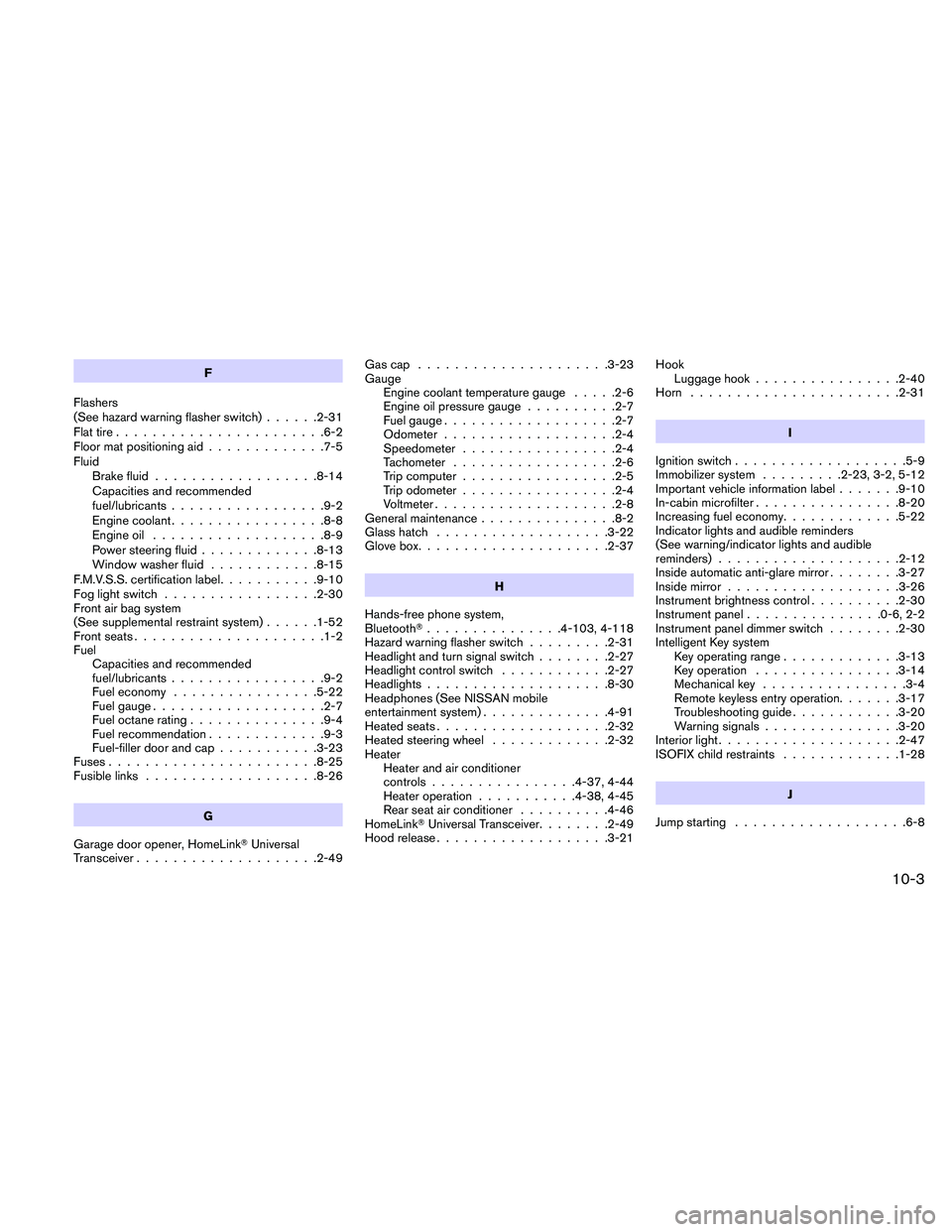
F
Flashers
(See hazard warning flasher switch)......2-31
Flat tire.......................6-2
Floor mat positioning aid.............7-5
Fluid
Brake fluid..................8-14
Capacities and recommended
fuel/lubricants.................9-2
Engine coolant.................8-8
Engine oil...................8-9
Power steering fluid.............8-13
Window washer fluid............8-15
F.M.V.S.S. certification label...........9-10
Fog light switch.................2-30
Front air bag system
(See supplemental restraint system)......1-52
Front seats.....................1-2
Fuel
Capacities and recommended
fuel/lubricants.................9-2
Fuel economy................5-22
Fuel gauge...................2-7
Fuel octane rating...............9-4
Fuel recommendation.............9-3
Fuel-filler door and cap...........3-23
Fuses.......................8-25
Fusible links...................8-26
G
Garage door opener, HomeLinkTUniversal
Transceiver....................2-49Gascap .....................3-23
Gauge
Engine coolant temperature gauge.....2-6
Engine oil pressure gauge..........2-7
Fuel gauge...................2-7
Odometer...................2-4
Speedometer.................2-4
Tachometer..................2-6
Trip computer.................2-5
Trip odometer.................2-4
Voltmeter....................2-8
General maintenance...............8-2
Glass hatch...................3-22
Glove box.....................2-37
H
Hands-free phone system,
BluetoothT...............4-103, 4-118
Hazard warning flasher switch.........2-31
Headlight and turn signal switch........2-27
Headlight control switch............2-27
Headlights....................8-30
Headphones (See NISSAN mobile
entertainment system)..............4-91
Heated seats...................2-32
Heated steering wheel.............2-32
Heater
Heater and air conditioner
controls................4-37, 4-44
Heater operation...........4-38, 4-45
Rear seat air conditioner..........4-46
HomeLinkTUniversal Transceiver........2-49
Hood release...................3-21Hook
Luggage hook................2-40
Horn.......................2-31
I
Ignition switch...................5-9
Immobilizer system.........2-23, 3-2, 5-12
Important vehicle information label.......9-10
In-cabin microfilter................8-20
Increasing fuel economy.............5-22
Indicator lights and audible reminders
(See warning/indicator lights and audible
reminders)....................2-12
Inside automatic anti-glare mirror........3-27
Inside mirror...................3-26
Instrument brightness control..........2-30
Instrument panel...............0-6, 2-2
Instrument panel dimmer switch........2-30
Intelligent Key system
Key operating range.............3-13
Key operation................3-14
Mechanical key................3-4
Remote keyless entry operation.......3-17
Troubleshooting guide............3-20
Warning signals...............3-20
Interior light....................2-47
ISOFIX child restraints.............1-28
J
Jump starting...................6-8
10-3
Page 458 of 463
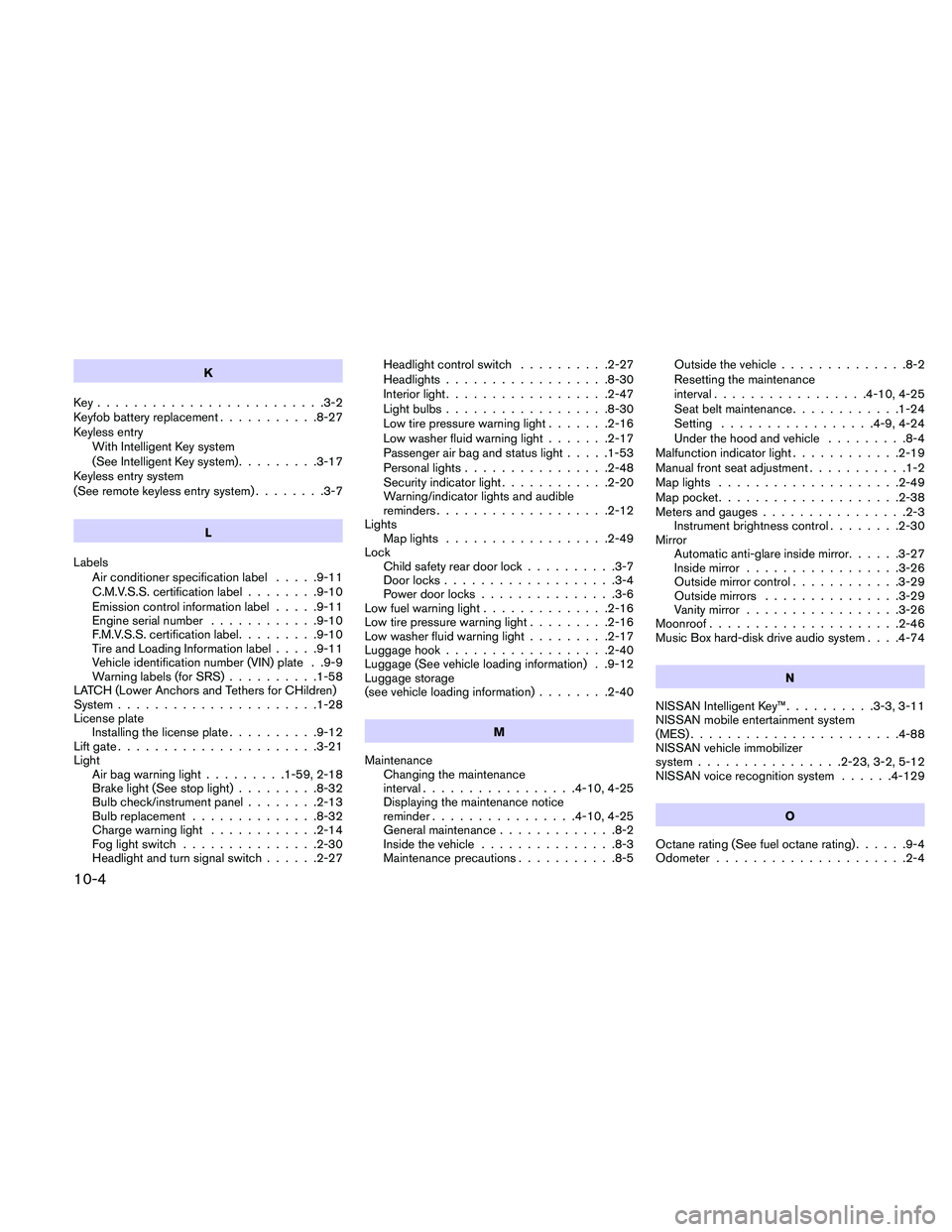
K
Key.........................3-2
Keyfob battery replacement...........8-27
Keyless entry
With Intelligent Key system
(See Intelligent Key system).........3-17
Keyless entry system
(See remote keyless entry system)........3-7
L
Labels
Air conditioner specification label.....9-11
C.M.V.S.S. certification label........9-10
Emission control information label.....9-11
Engine serial number............9-10
F.M.V.S.S. certification label.........9-10
Tire and Loading Information label.....9-11
Vehicle identification number (VIN) plate . .9-9
Warning labels (for SRS)..........1-58
LATCH (Lower Anchors and Tethers for CHildren)
System......................1-28
License plate
Installing the license plate..........9-12
Lift gate......................3-21
Light
Air bag warning light.........1-59, 2-18
Brake light (See stop light).........8-32
Bulb check/instrument panel........2-13
Bulb replacement..............8-32
Charge warning light............2-14
Fog light switch...............2-30
Headlight and turn signal switch......2-27Headlight control switch..........2-27
Headlights..................8-30
Interior light..................2-47
Light bulbs..................8-30
Low tire pressure warning light.......2-16
Low washer fluid warning light.......2-17
Passenger air bag and status light.....1-53
Personal lights................2-48
Security indicator light............2-20
Warning/indicator lights and audible
reminders...................2-12
Lights
Map lights..................2-49
Lock
Child safety rear door lock..........3-7
Door locks...................3-4
Power door locks...............3-6
Low fuel warning light..............2-16
Low tire pressure warning light.........2-16
Low washer fluid warning light.........2-17
Luggage hook..................2-40
Luggage (See vehicle loading information) . .9-12
Luggage storage
(see vehicle loading information)........2-40
M
Maintenance
Changing the maintenance
interval.................4-10, 4-25
Displaying the maintenance notice
reminder................4-10, 4-25
General maintenance.............8-2
Inside the vehicle...............8-3
Maintenance precautions...........8-5Outside the vehicle..............8-2
Resetting the maintenance
interval.................4-10, 4-25
Seat belt maintenance............1-24
Setting.................4-9, 4-24
Under the hood and vehicle.........8-4
Malfunction indicator light............2-19
Manual front seat adjustment...........1-2
Map lights....................2-49
Map pocket....................2-38
Meters and gauges................2-3
Instrument brightness control........2-30
Mirror
Automatic anti-glare inside mirror......3-27
Inside mirror.................3-26
Outside mirror control............3-29
Outside mirrors...............3-29
Vanity mirror.................3-26
Moonroof.....................2-46
Music Box hard-disk drive audio system. . . .4-74
N
NISSAN Intelligent Key™..........3-3, 3-11
NISSAN mobile entertainment system
(MES).......................4-88
NISSAN vehicle immobilizer
system................2-23, 3-2, 5-12
NISSAN voice recognition system......4-129
O
Octane rating (See fuel octane rating)......9-4
Odometer.....................2-4
10-4