ECO mode NISSAN PATHFINDER 2010 Owner´s Manual
[x] Cancel search | Manufacturer: NISSAN, Model Year: 2010, Model line: PATHFINDER, Model: NISSAN PATHFINDER 2010Pages: 463, PDF Size: 5.69 MB
Page 280 of 463
4. The system announces: “Press the
PHONE/SEND (
) button for the
hands-free phone system to enter the
speaker adaptation mode or press the
PHONE/END (
) button to select a dif-
ferent language.”
5. Press the
button.
For information on selecting a different lan-
guage, see “Choosing a language” earlier in
this section.
6. Voice memory A or memory B is selected
automatically. If both memory locations are
already in use, the system will prompt you to
overwrite one. Follow the instructions pro-
vided by the system.
7. When preparation is complete and you are
ready to begin, press the
button.
8. The SA mode will be explained. Follow the
instructions provided by the system.
9. When training is finished, the system will tell
you an adequate number of phrases have
been recorded.
10.
The system will ask you to say your name.
Follow the instructions to register your name.
11. The system will announce that speaker ad-
aptation has been completed and the sys-
tem is ready.The SA mode will stop if:
cThe
button is pressed for more than 5
seconds in SA mode.
cThe vehicle begins moving during SA mode.
cThe ignition switch is placed in the OFF or
LOCK position.
Training phrases
During the SA mode, the system instructs the
trainer to say the following phrases. (The system
will prompt you for each phrase.)
cphone book new entry
cdial three oh four two nine
cdelete call back number
csetup pair phone
cmemo pad play
ceight pause nine three two pause seven
cdelete all entries
ccall seven two four zero nine
cphone book delete entry
cmemo pad record
cdial star two one seven oh
cYe s
cNo
cselect ring tone
cdial eight five six nine twocBluetooth on
csetup change priority
ccall three one nine oh two
cnine seven pause pause three oh eight
cCancel
ccall back number
ccall star two zero nine five
cdelete phone
cdial eight three zero five one
cHome
cfour three pause two nine pause zero
cdelete redial number
cphone book list names
ccall eight oh five four one
cCorrection
csetup change ring tone
cdial seven four oh one eight
csetup main menu
cDelete
cdial nine seven two six six
cmemo pad delete
ccall seven six three oh one
cgo back
ccall five six two eight zero
cdial six six four three seven
4-116Monitor, climate, audio, phone and voice recognition systems
Page 281 of 463
TROUBLESHOOTING GUIDE
The system should respond correctly to all voice
commands without difficulty. If problems are en-
countered, try the following solutions.
Where the solutions are listed by number, try
each solution in turn, starting with number 1, until
the problem is resolved.
Symptom Solution
System fails to interpret the command correctly.1. Ensure that the command is valid. See “List of voice commands” in this section.
2. Ensure that the command is spoken after the tone.
3. Speak clearly without pausing between words and at a level appropriate to the ambient noise level in the vehicle.
4. Ensure that the ambient noise level is not excessive (for example, windows open or defroster on) . NOTE: If it is too
noisy to use the phone, it is likely that the voice commands will not be recognized.
5. If more than one command was said at a time, try saying the commands separately.
6. If the system consistently fails to recognize commands, the voice training procedure should be carried out to im-
prove the recognition response for the speaker. See “Speaker adaptation (SA) mode” in this section.
The system consistently selects the wrong entry from the
phone book.1. Ensure that the phone book entry name requested matches what was originally stored. This can be confirmed by
using the “List Names” command. See “Phone book” in this section.
2. Replace one of the names being confused with a new name.
Monitor, climate, audio, phone and voice recognition systems4-117
Page 288 of 463
4. After the call is over, perform one of the
following to finish the call:
a. Select the “Hang up” key on the Call in
Progress screen and press the ENTER
button.
b. Press the
switch on the steering
wheel.
c. When the Call in Progress screen is dis-
played, press the PHONE button on the
instrument panel to hang up. If any other
screen is currently displayed, press the
PHONE button to display the Call in
Progress screen first, then press the
PHONE button again to hang up.
There are different methods to make a call. Select
one of the following options instead of “Call
(Phonebook)” in Step 2 above.
cRedial:
Dial the previously dialed number again.
cCall (Call Logs):
Select the name or phone number from the
incoming or outgoing call logs.cCall (Downloaded):
Select the name or phone number from the
downloaded cellular phonebook.
cDial (Keypad):
Input the phone number manually using the
keypad displayed on the screen. For infor-
mation on how to use the touch screen, see
“How to use the touch screen” earlier in this
section.
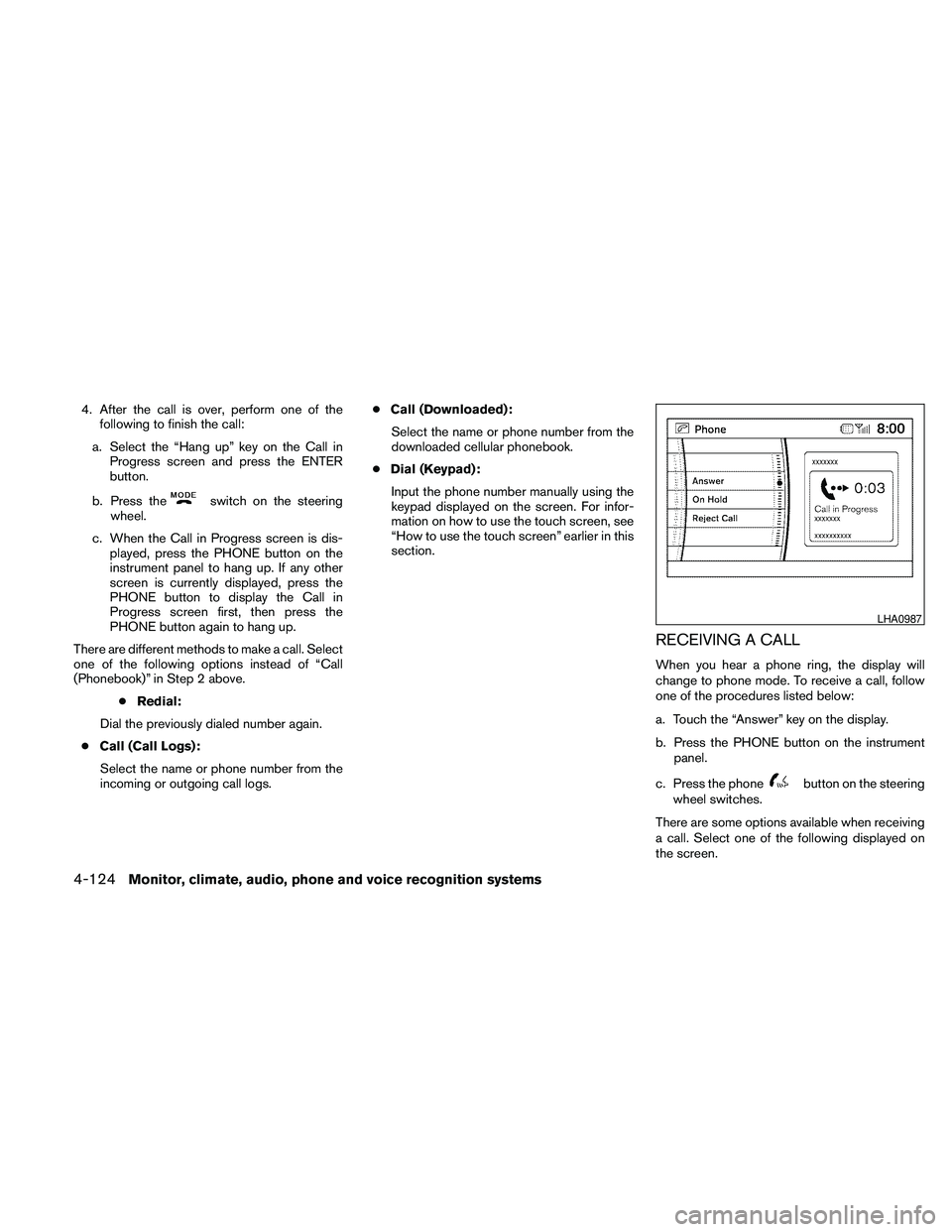
RECEIVING A CALL
When you hear a phone ring, the display will
change to phone mode. To receive a call, follow
one of the procedures listed below:
a. Touch the “Answer” key on the display.
b. Press the PHONE button on the instrument
panel.
c. Press the phone
button on the steering
wheel switches.
There are some options available when receiving
a call. Select one of the following displayed on
the screen.
LHA0987
4-124Monitor, climate, audio, phone and voice recognition systems
Page 289 of 463
Answer:
Accept an incoming call to talk.
On Hold:
Put an incoming call on hold.
Reject Call:
Reject an incoming call.
To finish the call, follow one of the procedures
listed below:
a. Touch the “Reject Call” key on the display.
b. Press the PHONE button on the instrument
panel.
c. Press and hold the phone
button on the
steering wheel switches.
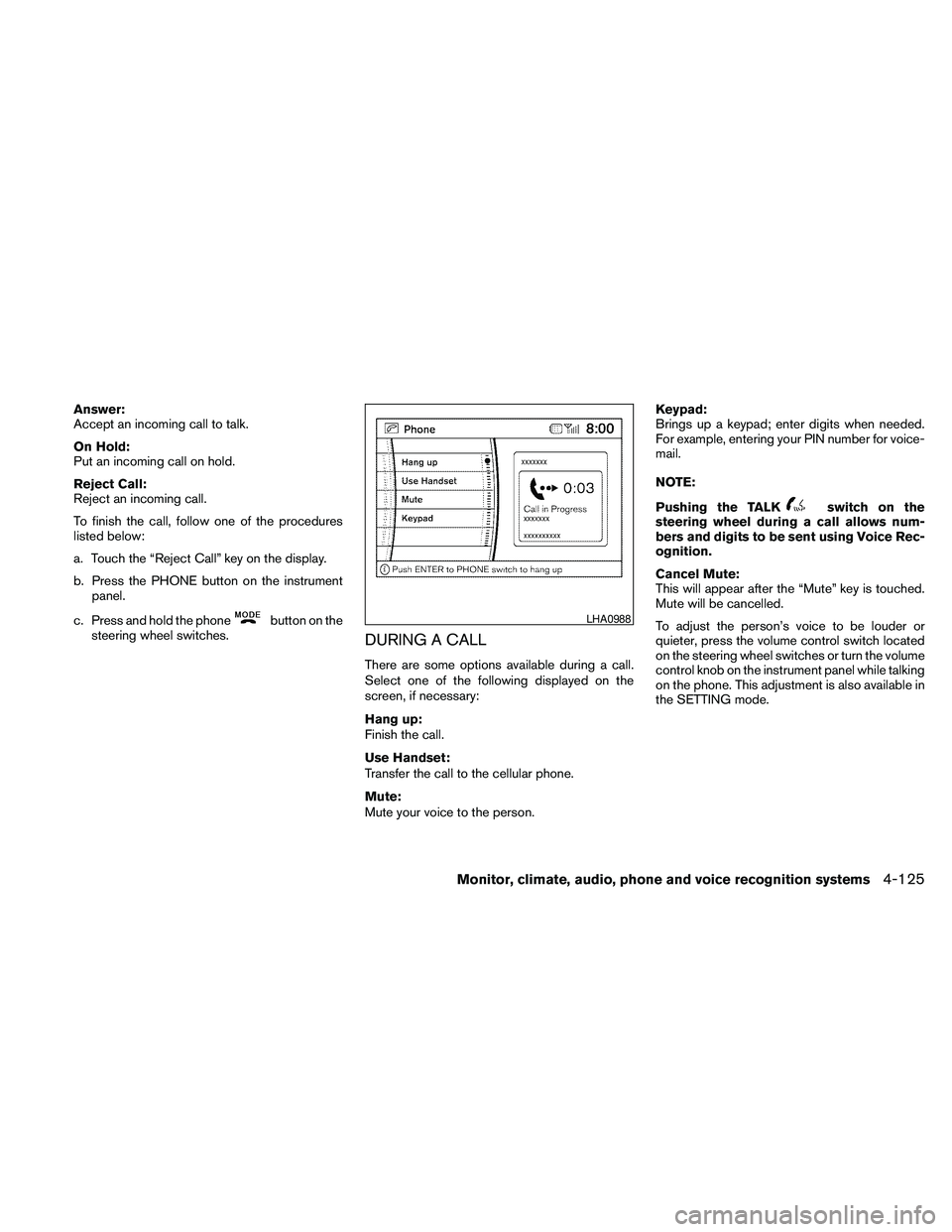
DURING A CALL
There are some options available during a call.
Select one of the following displayed on the
screen, if necessary:
Hang up:
Finish the call.
Use Handset:
Transfer the call to the cellular phone.
Mute:
Mute your voice to the person.Keypad:
Brings up a keypad; enter digits when needed.
For example, entering your PIN number for voice-
mail.
NOTE:
Pushing the TALK
switch on the
steering wheel during a call allows num-
bers and digits to be sent using Voice Rec-
ognition.
Cancel Mute:
This will appear after the “Mute” key is touched.
Mute will be cancelled.
To adjust the person’s voice to be louder or
quieter, press the volume control switch located
on the steering wheel switches or turn the volume
control knob on the instrument panel while talking
on the phone. This adjustment is also available in
the SETTING mode.
LHA0988
Monitor, climate, audio, phone and voice recognition systems4-125
Page 293 of 463
NISSAN Voice Recognition allows hands-free
operation of the systems equipped on this ve-
hicle, such as phone and vehicle information.
There are two voice recognition modes of opera-
tion available. They are:
cStandard Mode
cAlternate Command Mode
In Standard Mode (the factory default setting) ,
commands that are available are always shown
on the display and announced by the system. You
can complete your desired operation by simply
following the prompts given by the system. In this
mode, hands-free operation of Audio Climate
Control and Display is not available through
NISSAN Voice Recognition.
For advanced operation, you can change to an
Alternate Command Mode that enables the op-
eration of the display, audio, and climate control
through NISSAN Voice Recognition. When this
mode is active, an expanded list of commands
can be spoken after pushing the TALK
switch on the steering wheel, and the voice com-
mand menu prompts are turned off.
In Alternate Command Mode the recognition
success rate may be affected because the num-
ber of available commands and the ways of
speaking each command are increased. See“NISSAN Voice Recognition Alternate Com-
mand Mode” later in this section.
To improve the recognition success rate when
Alternate Command Mode is active, try using the
Speaker Adaptation Function available in that
mode. See “Speaker Adaptation Function” later
in this section. Otherwise, it is recommended that
Alternate Command Mode be turned off and
Standard Mode be used for the best recognition
performance.
For the voice commands for the navigation sys-
tem, refer to the Navigation System Owner’s
Manual of your vehicle.
For vehicles in the U.S., the factory default setting
is the Standard Mode. See “Standard Mode” in
this section. For vehicles in Canada, the factory
default setting is the Alternate Command Mode.
See “Alternate Command Mode” later in this sec-
tion.
NISSAN VOICE RECOGNITION
STANDARD MODE
The Standard Mode enables control of naviga-
tion, phone and vehicle information. With this
setting active, commands that are available are
always shown on the display and announced by
the system.
Displaying user guide
If you use the NISSAN Voice Recognition system
for the first time or you do not know how to
operate it, you can display the User Guide for
confirmation.
You can confirm how to use voice commands by
accessing a simplified User Guide, which con-
tains basic instructions and tutorials for several
voice commands.
NISSAN VOICE RECOGNITION
SYSTEM (if so equipped)
Monitor, climate, audio, phone and voice recognition systems4-129
Page 298 of 463
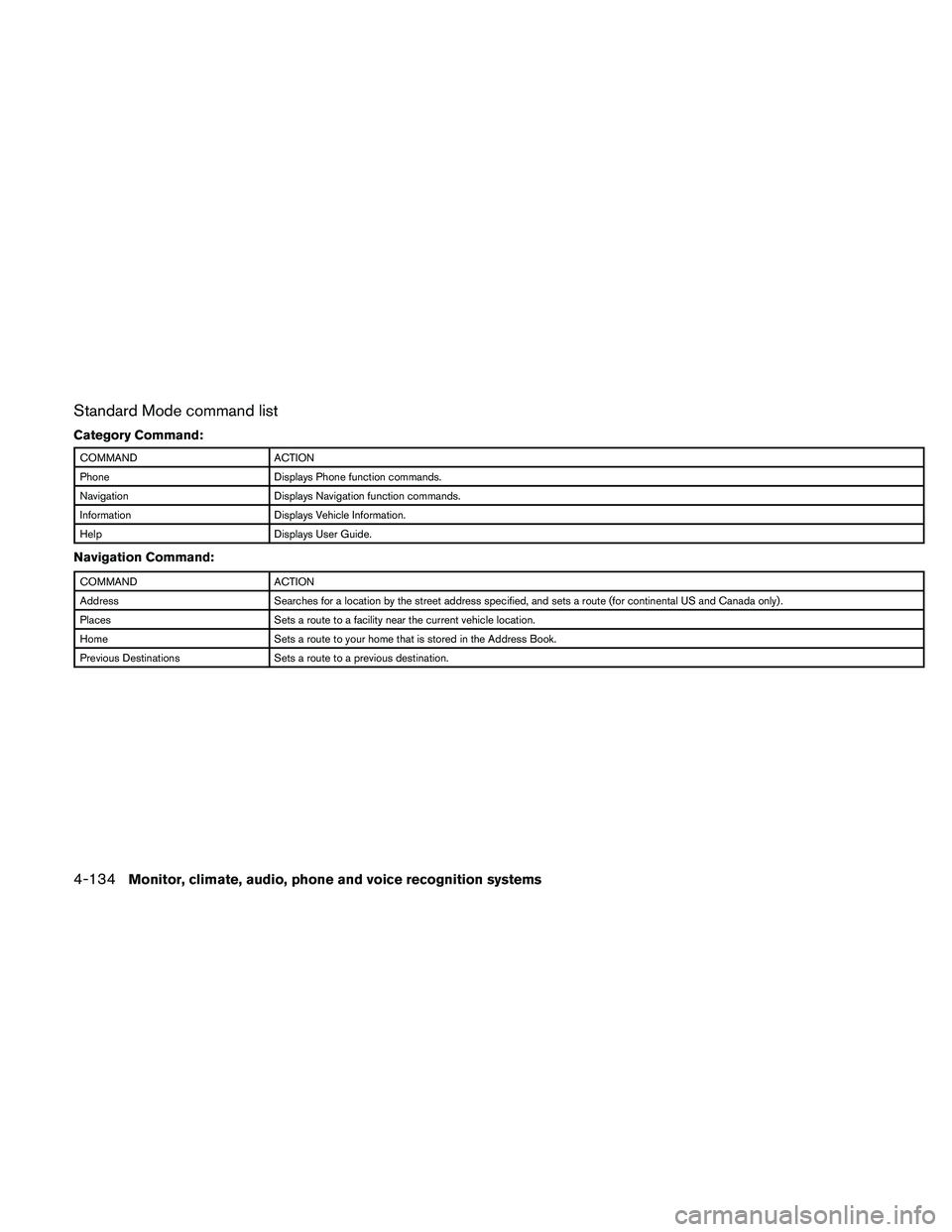
Standard Mode command list
Category Command:
COMMAND ACTION
Phone Displays Phone function commands.
Navigation Displays Navigation function commands.
Information Displays Vehicle Information.
Help Displays User Guide.
Navigation Command:
COMMAND ACTION
Address Searches for a location by the street address specified, and sets a route (for continental US and Canada only) .
Places Sets a route to a facility near the current vehicle location.
Home Sets a route to your home that is stored in the Address Book.
Previous Destinations Sets a route to a previous destination.
4-134Monitor, climate, audio, phone and voice recognition systems
Page 304 of 463
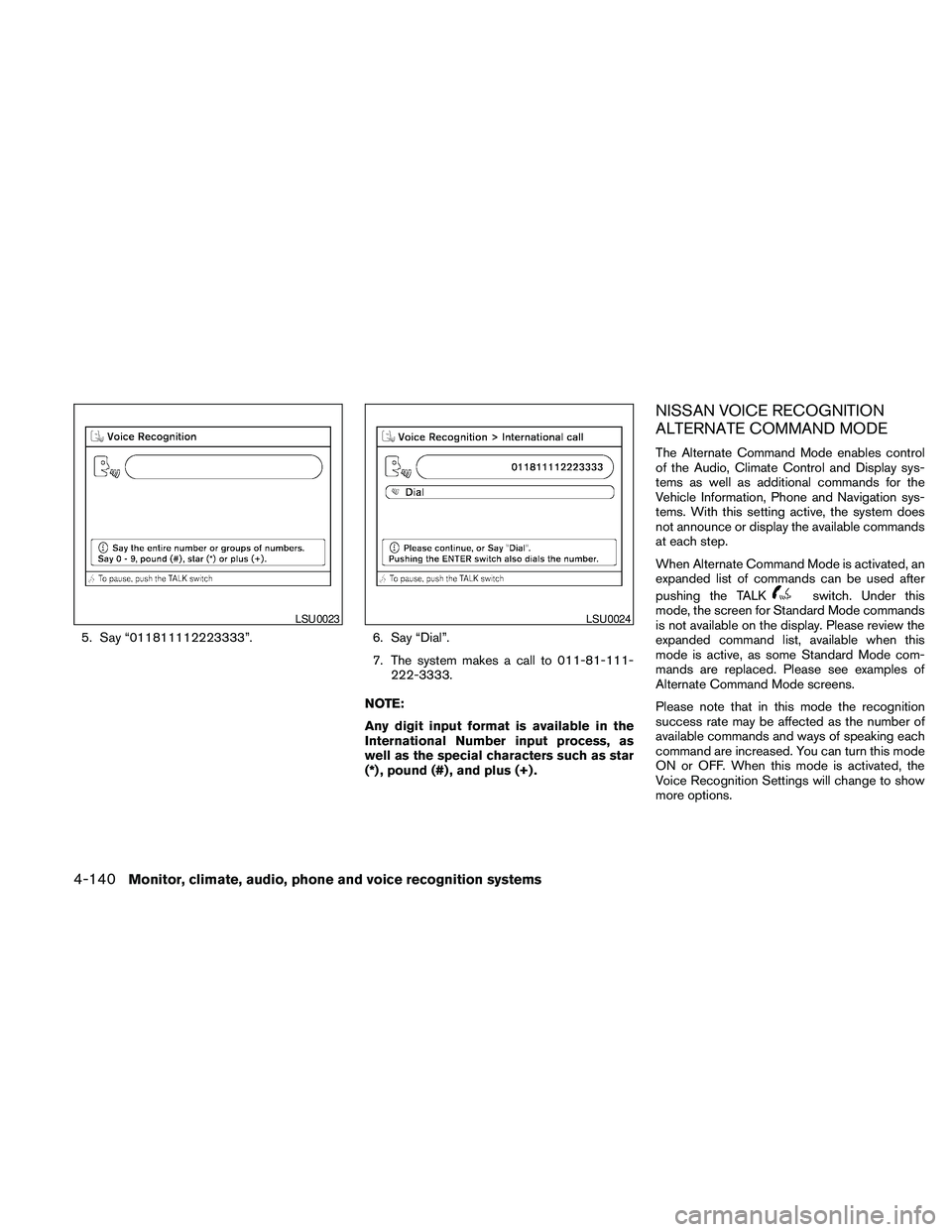
5. Say “011811112223333”. 6. Say “Dial”.
7. The system makes a call to 011-81-111-
222-3333.
NOTE:
Any digit input format is available in the
International Number input process, as
well as the special characters such as star
(*) , pound (#) , and plus (+) .
NISSAN VOICE RECOGNITION
ALTERNATE COMMAND MODE
The Alternate Command Mode enables control
of the Audio, Climate Control and Display sys-
tems as well as additional commands for the
Vehicle Information, Phone and Navigation sys-
tems. With this setting active, the system does
not announce or display the available commands
at each step.
When Alternate Command Mode is activated, an
expanded list of commands can be used after
pushing the TALK
switch. Under this
mode, the screen for Standard Mode commands
is not available on the display. Please review the
expanded command list, available when this
mode is active, as some Standard Mode com-
mands are replaced. Please see examples of
Alternate Command Mode screens.
Please note that in this mode the recognition
success rate may be affected as the number of
available commands and ways of speaking each
command are increased. You can turn this mode
ON or OFF. When this mode is activated, the
Voice Recognition Settings will change to show
more options.
LSU0023LSU0024
4-140Monitor, climate, audio, phone and voice recognition systems
Page 305 of 463
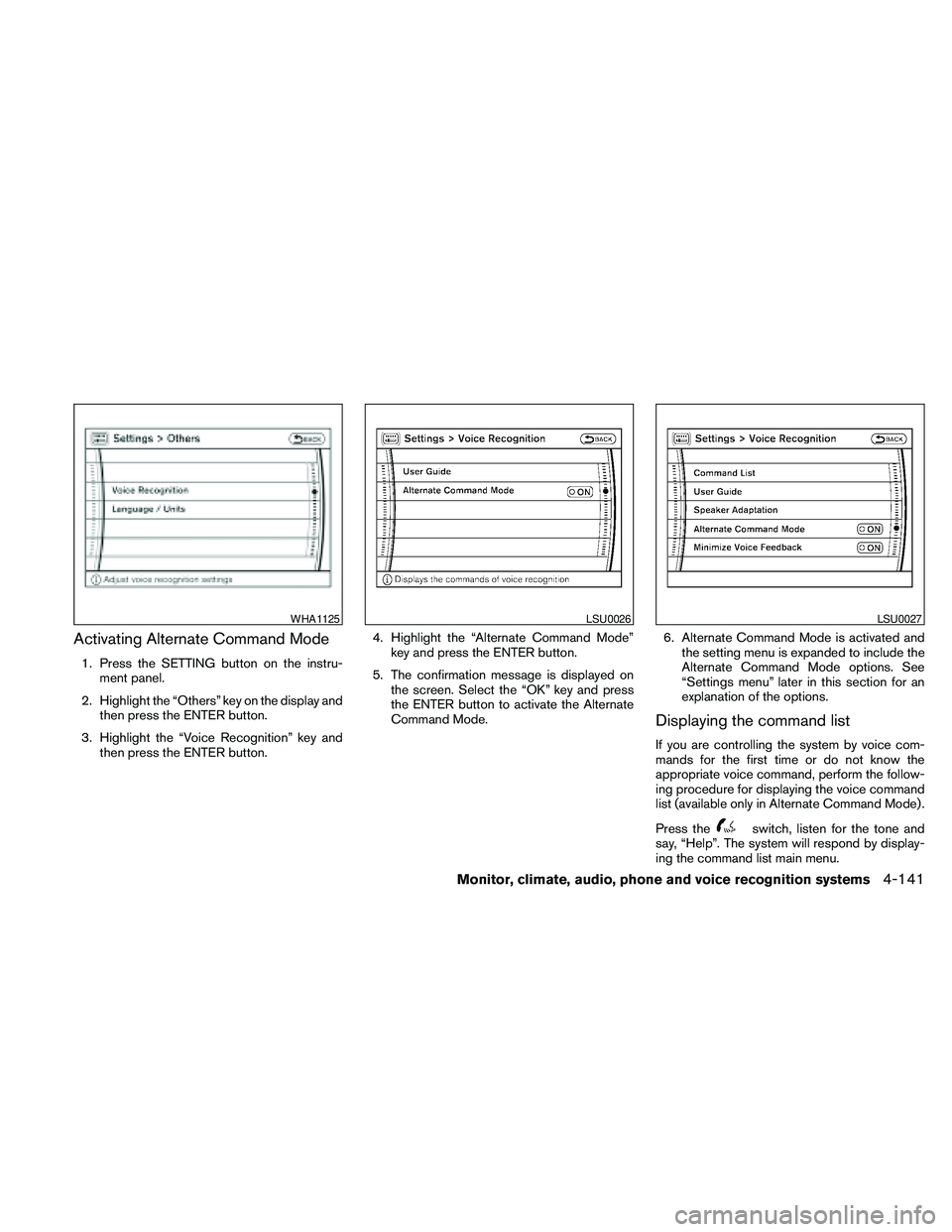
Activating Alternate Command Mode
1. Press the SETTING button on the instru-
ment panel.
2. Highlight the “Others” key on the display and
then press the ENTER button.
3. Highlight the “Voice Recognition” key and
then press the ENTER button.4. Highlight the “Alternate Command Mode”
key and press the ENTER button.
5. The confirmation message is displayed on
the screen. Select the “OK” key and press
the ENTER button to activate the Alternate
Command Mode.6. Alternate Command Mode is activated and
the setting menu is expanded to include the
Alternate Command Mode options. See
“Settings menu” later in this section for an
explanation of the options.
Displaying the command list
If you are controlling the system by voice com-
mands for the first time or do not know the
appropriate voice command, perform the follow-
ing procedure for displaying the voice command
list (available only in Alternate Command Mode) .
Press the
switch, listen for the tone and
say, “Help”. The system will respond by display-
ing the command list main menu.
WHA1125LSU0026LSU0027
Monitor, climate, audio, phone and voice recognition systems4-141
Page 307 of 463
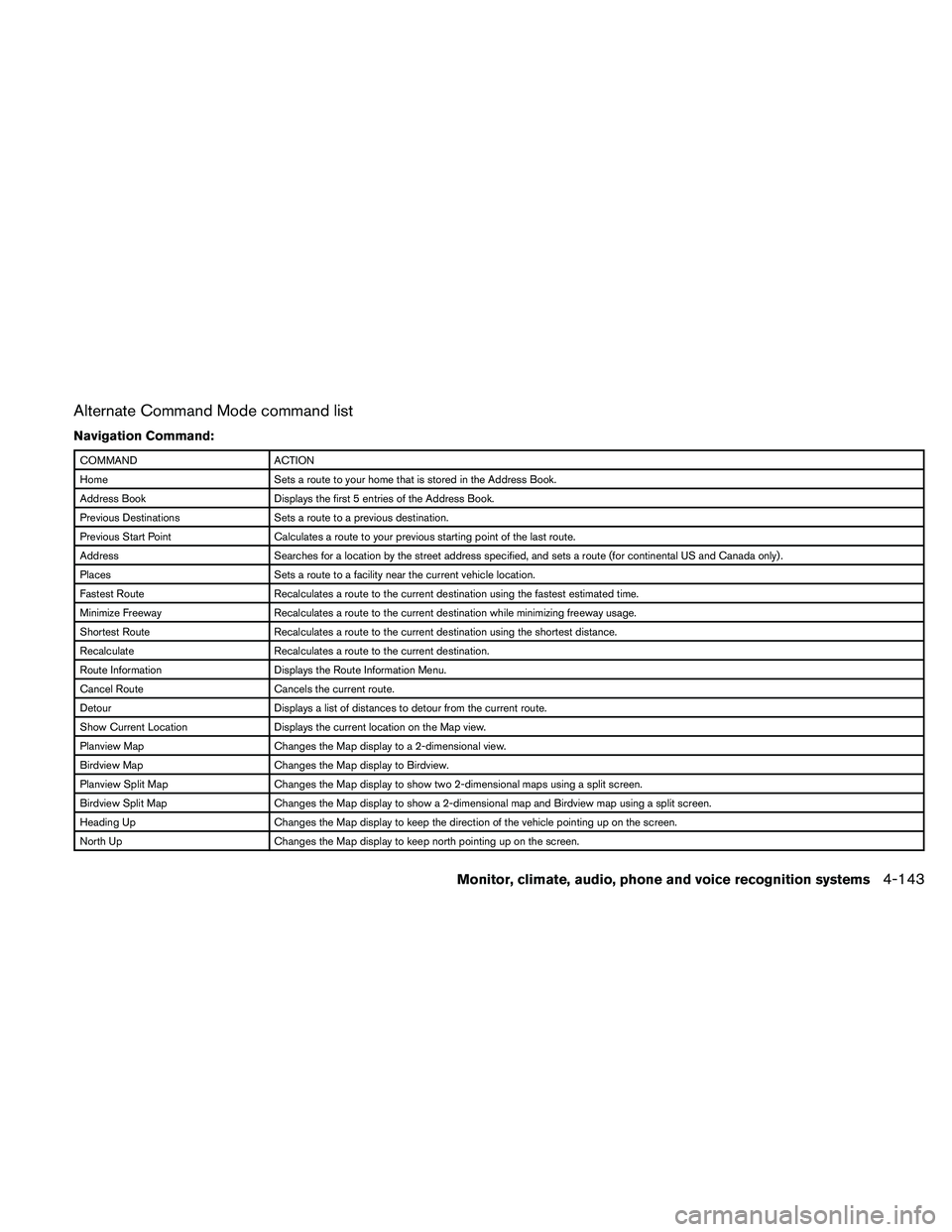
Alternate Command Mode command list
Navigation Command:
COMMAND ACTION
Home Sets a route to your home that is stored in the Address Book.
Address Book Displays the first 5 entries of the Address Book.
Previous Destinations Sets a route to a previous destination.
Previous Start Point Calculates a route to your previous starting point of the last route.
Address Searches for a location by the street address specified, and sets a route (for continental US and Canada only) .
Places Sets a route to a facility near the current vehicle location.
Fastest Route Recalculates a route to the current destination using the fastest estimated time.
Minimize Freeway Recalculates a route to the current destination while minimizing freeway usage.
Shortest Route Recalculates a route to the current destination using the shortest distance.
Recalculate Recalculates a route to the current destination.
Route Information Displays the Route Information Menu.
Cancel Route Cancels the current route.
Detour Displays a list of distances to detour from the current route.
Show Current Location Displays the current location on the Map view.
Planview Map Changes the Map display to a 2-dimensional view.
Birdview Map Changes the Map display to Birdview.
Planview Split Map Changes the Map display to show two 2-dimensional maps using a split screen.
Birdview Split Map Changes the Map display to show a 2-dimensional map and Birdview map using a split screen.
Heading Up Changes the Map display to keep the direction of the vehicle pointing up on the screen.
North Up Changes the Map display to keep north pointing up on the screen.
Monitor, climate, audio, phone and voice recognition systems4-143
Page 309 of 463
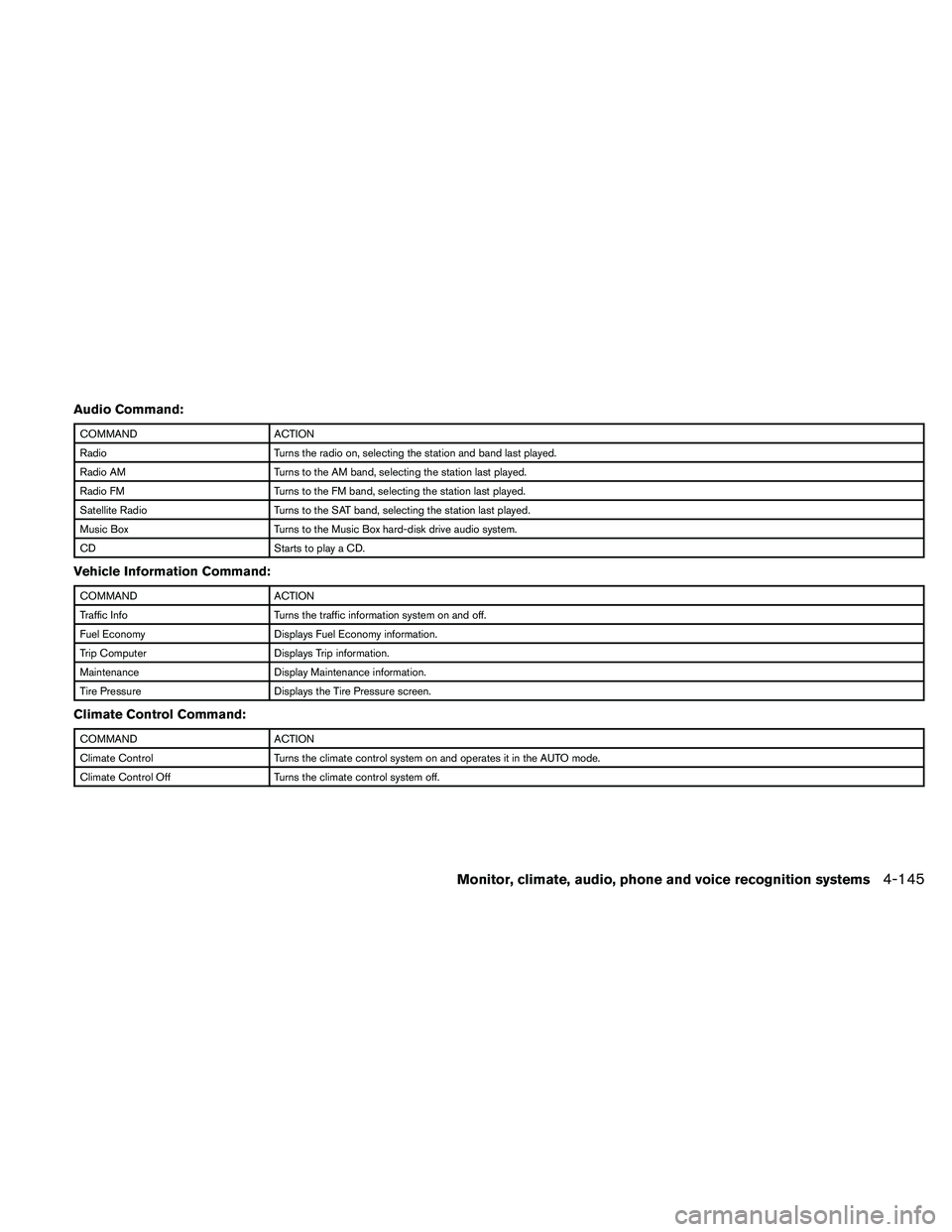
Audio Command:
COMMAND ACTION
Radio Turns the radio on, selecting the station and band last played.
Radio AM Turns to the AM band, selecting the station last played.
Radio FM Turns to the FM band, selecting the station last played.
Satellite Radio Turns to the SAT band, selecting the station last played.
Music Box Turns to the Music Box hard-disk drive audio system.
CD Starts to play a CD.
Vehicle Information Command:
COMMAND ACTION
Traffic Info Turns the traffic information system on and off.
Fuel Economy Displays Fuel Economy information.
Trip Computer Displays Trip information.
Maintenance Display Maintenance information.
Tire Pressure Displays the Tire Pressure screen.
Climate Control Command:
COMMAND ACTION
Climate Control Turns the climate control system on and operates it in the AUTO mode.
Climate Control Off Turns the climate control system off.
Monitor, climate, audio, phone and voice recognition systems4-145