light NISSAN PATHFINDER 2010 Owner´s Manual
[x] Cancel search | Manufacturer: NISSAN, Model Year: 2010, Model line: PATHFINDER, Model: NISSAN PATHFINDER 2010Pages: 463, PDF Size: 5.69 MB
Page 159 of 463
AUTOMATIC ANTI-GLARE
REARVIEW MIRROR (if so equipped)
The inside mirror is designed so that it automati-
cally dims during night time conditions and ac-
cording to the intensity of the headlights of the
vehicle following you. The automatic anti-glare
feature is activated when the ignition switch is in
the ON position.
The indicator light will illuminate when the auto-
matic anti-glare feature is operating.
NOTE:
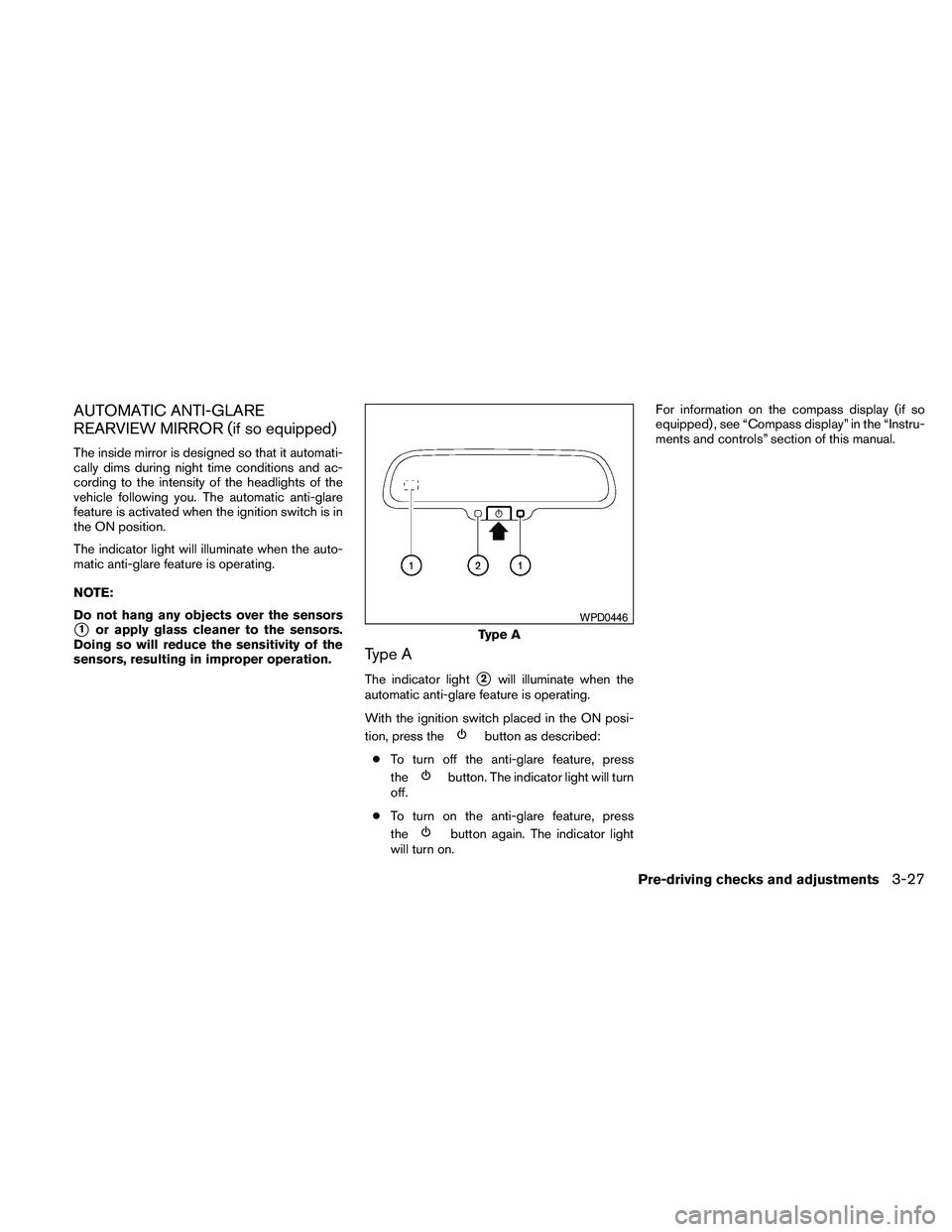
Do not hang any objects over the sensors
s1or apply glass cleaner to the sensors.
Doing so will reduce the sensitivity of the
sensors, resulting in improper operation.
Type A
The indicator lights2will illuminate when the
automatic anti-glare feature is operating.
With the ignition switch placed in the ON posi-
tion, press the
button as described:
cTo turn off the anti-glare feature, press
the
button. The indicator light will turn
off.
cTo turn on the anti-glare feature, press
the
button again. The indicator light
will turn on.For information on the compass display (if so
equipped) , see “Compass display” in the “Instru-
ments and controls” section of this manual.
Type A
WPD0446
Pre-driving checks and adjustments3-27
Page 160 of 463
Type B and Type C
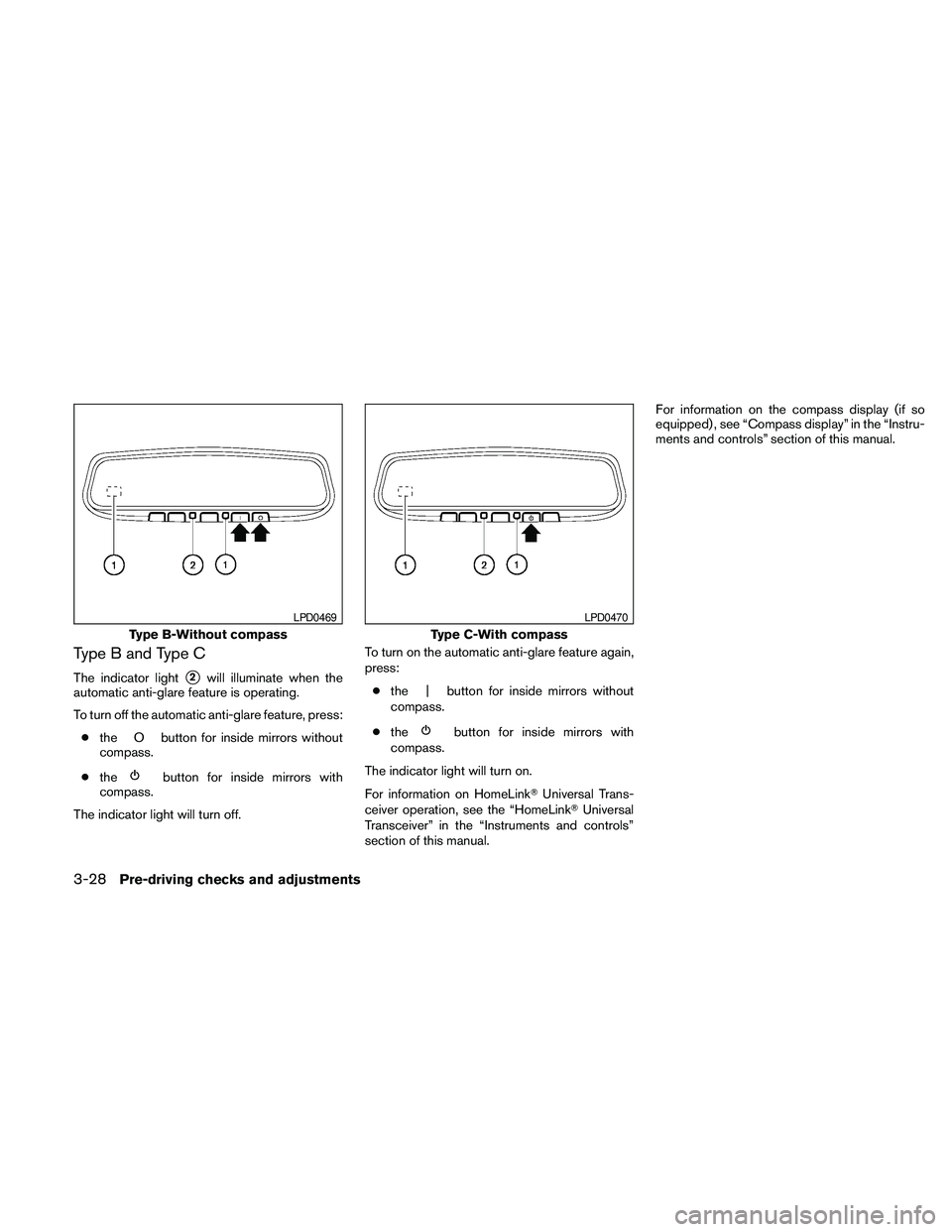
The indicator lights2will illuminate when the
automatic anti-glare feature is operating.
To turn off the automatic anti-glare feature, press:
cthe O button for inside mirrors without
compass.
cthe
button for inside mirrors with
compass.
The indicator light will turn off.To turn on the automatic anti-glare feature again,
press:
cthe | button for inside mirrors without
compass.
cthe
button for inside mirrors with
compass.
The indicator light will turn on.
For information on HomeLinkTUniversal Trans-
ceiver operation, see the “HomeLinkTUniversal
Transceiver” in the “Instruments and controls”
section of this manual.For information on the compass display (if so
equipped) , see “Compass display” in the “Instru-
ments and controls” section of this manual.
Type B-Without compass
LPD0469
Type C-With compass
LPD0470
3-28Pre-driving checks and adjustments
Page 162 of 463
The automatic drive positioner system has two
features:
cMemory storage function
cEntry/exit function
MEMORY STORAGE FUNCTION
Two positions for the driver’s seat, accelerator
and brake pedals, and outside mirrors can be
stored in the automatic drive positioner memory.
Follow these procedures to use the memory sys-
tem.
1. Place the shift selector in the P (Park) posi-
tion.
2. Place the ignition switch in the ON position.3. Adjust the driver’s seat, accelerator and
brake pedals, and outside mirrors to the
desired positions by manually operating
each adjusting switch. For additional infor-
mation, see “Seats” in the “Safety—Seats,
seat belts and supplemental restraint sys-
tem” section of this manual and “Pedal posi-
tion adjustment” and “Outside mirrors” ear-
lier in this section.
During this step, do not place the ignition
switch in any position other than ON.
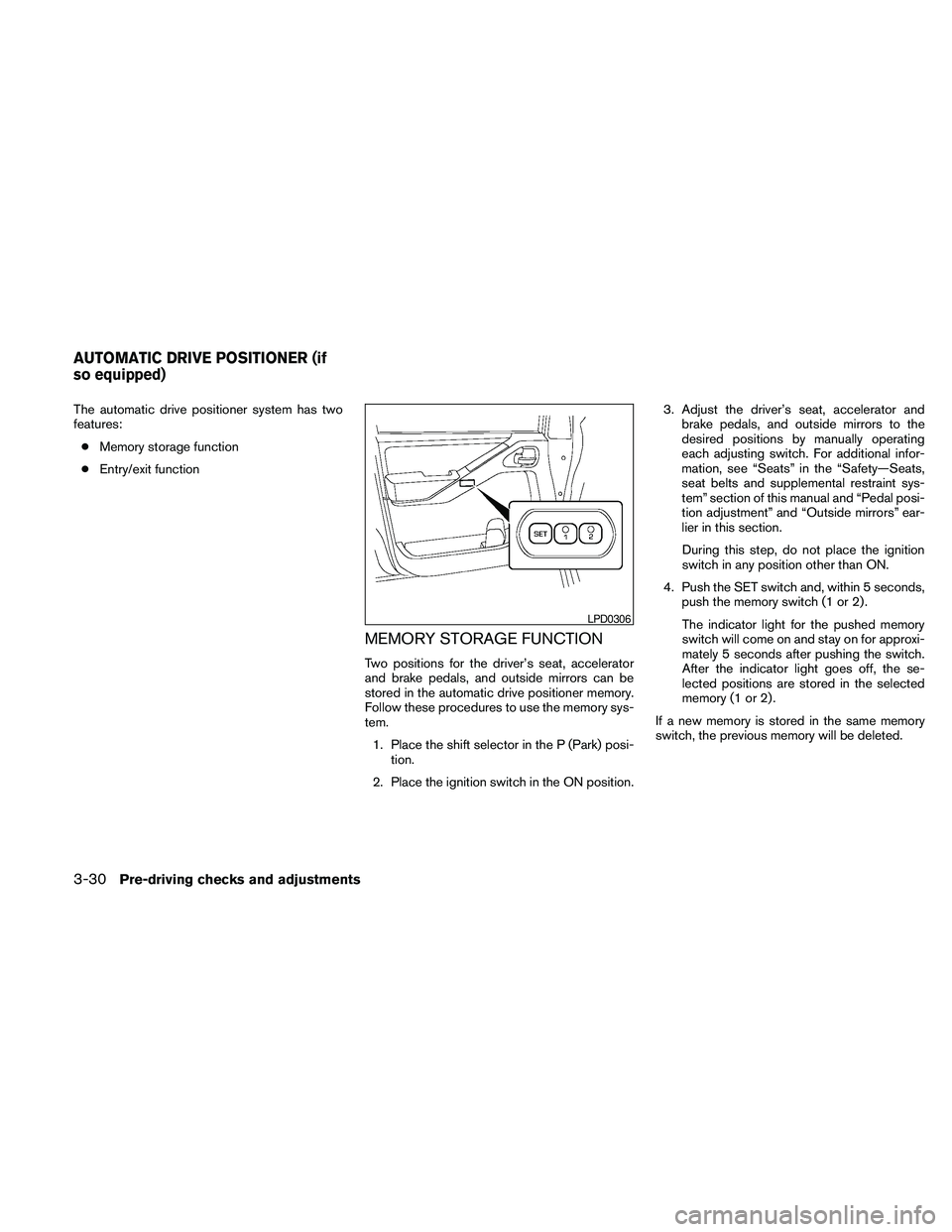
4. Push the SET switch and, within 5 seconds,
push the memory switch (1 or 2) .
The indicator light for the pushed memory
switch will come on and stay on for approxi-
mately 5 seconds after pushing the switch.
After the indicator light goes off, the se-
lected positions are stored in the selected
memory (1 or 2) .
If a new memory is stored in the same memory
switch, the previous memory will be deleted.
LPD0306
AUTOMATIC DRIVE POSITIONER (if
so equipped)
3-30Pre-driving checks and adjustments
Page 163 of 463
Linking a keyfob to a stored memory
position
Each keyfob can be linked to a stored memory
position (memory switch 1 or 2) with the follow-
ing procedure:
1. Follow the steps for storing a memory posi-
tion.
2. While the indicator light for the memory
switch being set is illuminated for 5 sec-
onds, press the
button on the keyfob.
The indicator light will blink. After the indica-
tor light goes off, the keyfob is linked to that
memory setting.
With the key removed from the ignition switch or
the ignition switch is moved to OFF, press
the
button on the keyfob. The driver’s seat,
accelerator and brake pedals, and outside mir-
rors will move to the memorized position.
NOTE:
If a new memory position is saved to the
memory switch, the keyfob automatically
re-links.
Confirming memory storage
cPlace the ignition switch in the ON position
and push the SET switch. If the main memory
has not been stored, the indicator light will
come on for approximately 0.5 seconds.
When the memory has stored the position,
the indicator light will stay on for approxi-
mately 5 seconds.
cIf the battery cable is disconnected, or if the
fuse opens, the memory storage function will
be canceled and must be restarted before a
stored memory position can be set again.
Drive the vehicle over 25 MPH (40 km/h) to
restart the memory storage function. You
can also restart the memory storage function
using the following procedure.
1. Connect the battery cable or replace the
fuse.
2. Open and close the driver’s door more than
2 times with the ignition switch in the LOCK
position.
Once the memory storage function has been
restarted, you can store a memory position.
See “Memory storage function” in this sec-
tion.
Selecting the memorized position
Set the shift selector to the P (Park) position,
then:
cWithin 45 seconds of opening the driver’s
door, push the memory switch (1 or 2) or
cPlace the ignition switch in the ON position
and push the memory switch (1 or 2) .
The driver’s seat, accelerator and brake pedals,
and outside mirrors will move to the memorized
position with the indicator light blinking, and then
the light will stay on for approximately 5 seconds.
ENTRY/EXIT FUNCTION
This system is designed so that the driver’s seat
will automatically move when the shift selector is
placed in the P (Park) position. This allows the
driver to get into and out of the driver’s seat more
easily.
The driver’s seat will slide backward:
cWhen the key is removed from the ignition
switch and the driver’s door is opened.
cWhen the driver’s door is opened with the
ignition switch placed in the LOCK position.
cWhen the ignition switch is turned from
ACC to LOCK with the driver’s door open.
Pre-driving checks and adjustments3-31
Page 169 of 463
CAUTION
cThe glass screen on the liquid crystal
display may break if it is hit with a hard
or sharp object. If the glass breaks, do
not touch the liquid crystalline material,
which contains a small amount of mer-
cury. In case of contact with skin, wash
immediately with soap and water.
cTo clean the display, never use a rough
cloth, alcohol, benzine, thinner or any
kind of solvent or paper towel with a
chemical cleaning agent. They will
scratch or deteriorate the panel.
cDo not splash any liquid such as water
or car fragrance on the display. Contact
with liquid will cause the system to
malfunction.
When you use this system, make sure the engine
is running.
If you use the system with the engine not
running (ignition switch in the ON or ACC
position) for a long time, it will discharge
the battery, and the engine will not start.Reference symbols:
ENTER button — This is a button on the control
panel.
“Display” key — This is a select key on the screen.
By selecting this key you can proceed to the next
function.
HOW TO USE THE NISSAN
CONTROLLER
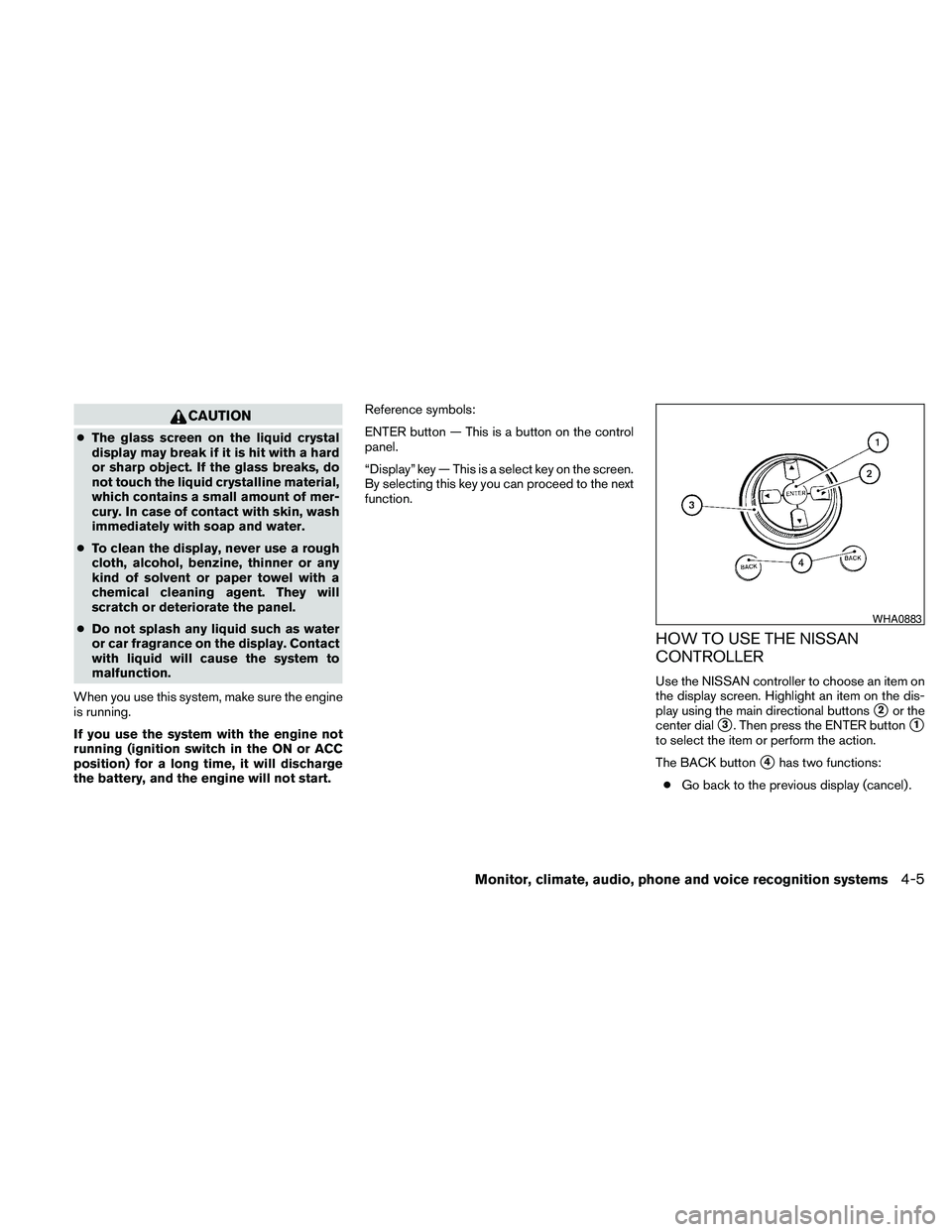
Use the NISSAN controller to choose an item on
the display screen. Highlight an item on the dis-
play using the main directional buttons
s2or the
center dial
s3. Then press the ENTER buttons1
to select the item or perform the action.
The BACK button
s4has two functions:
cGo back to the previous display (cancel) .
WHA0883
Monitor, climate, audio, phone and voice recognition systems4-5
Page 170 of 463
If you press the BACK buttons4during setup,
the setup will be canceled and/or the display will
return to the previous screen.
cFinish setup.
In some screens pressing the BACK button
s4
accepts the changes made during setup.
HOW TO SELECT MENUS ON THE
SCREEN
Vehicle functions are viewed on the center dis-
play screen in menus. Whenever a menu selec-
tion is made or menu item is highlighted, different
areas on the screen provide you with important
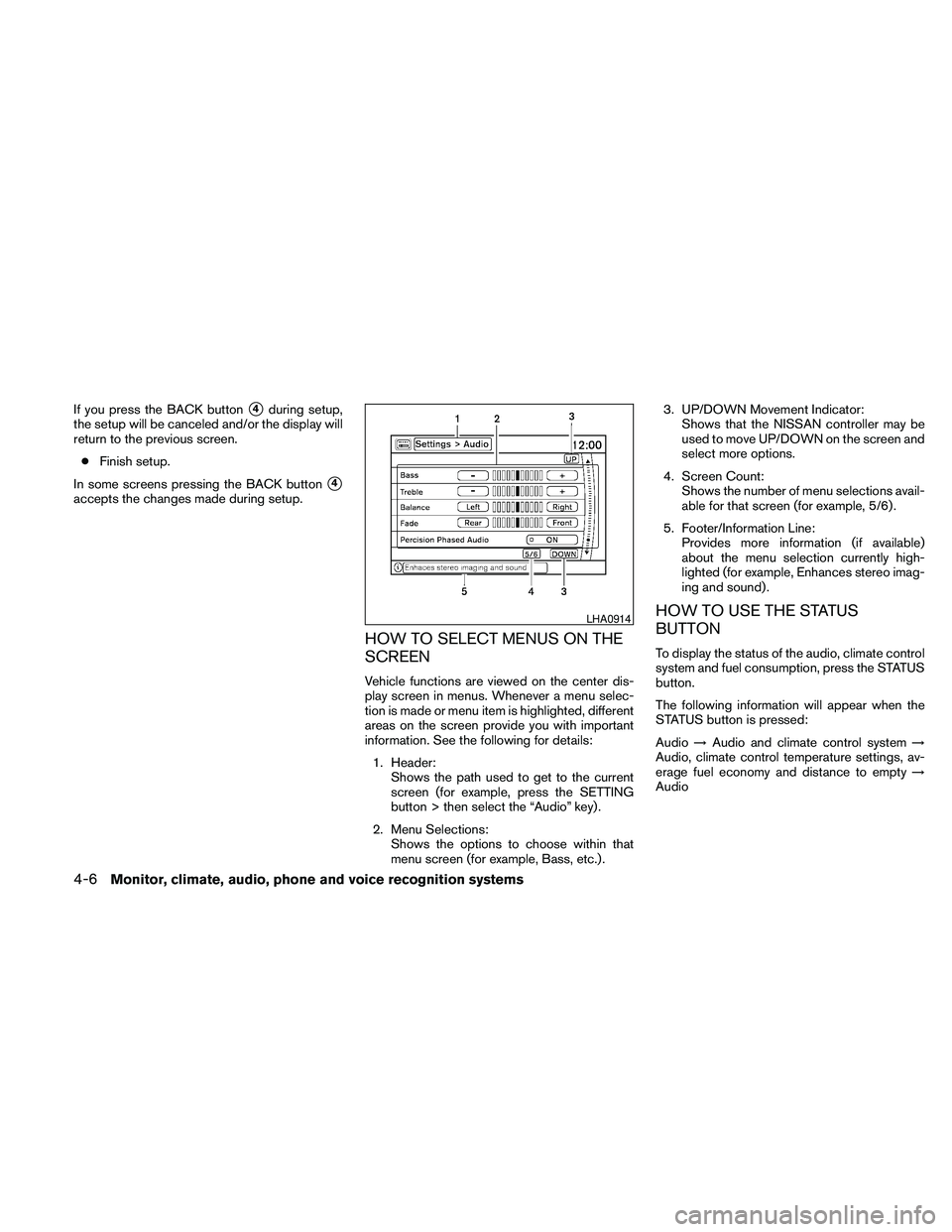
information. See the following for details:
1. Header:
Shows the path used to get to the current
screen (for example, press the SETTING
button > then select the “Audio” key) .
2. Menu Selections:
Shows the options to choose within that
menu screen (for example, Bass, etc.) .3. UP/DOWN Movement Indicator:
Shows that the NISSAN controller may be
used to move UP/DOWN on the screen and
select more options.
4. Screen Count:
Shows the number of menu selections avail-
able for that screen (for example, 5/6) .
5. Footer/Information Line:
Provides more information (if available)
about the menu selection currently high-
lighted (for example, Enhances stereo imag-
ing and sound) .
HOW TO USE THE STATUS
BUTTON
To display the status of the audio, climate control
system and fuel consumption, press the STATUS
button.
The following information will appear when the
STATUS button is pressed:
Audio!Audio and climate control system!
Audio, climate control temperature settings, av-
erage fuel economy and distance to empty!
Audio
LHA0914
4-6Monitor, climate, audio, phone and voice recognition systems
Page 172 of 463
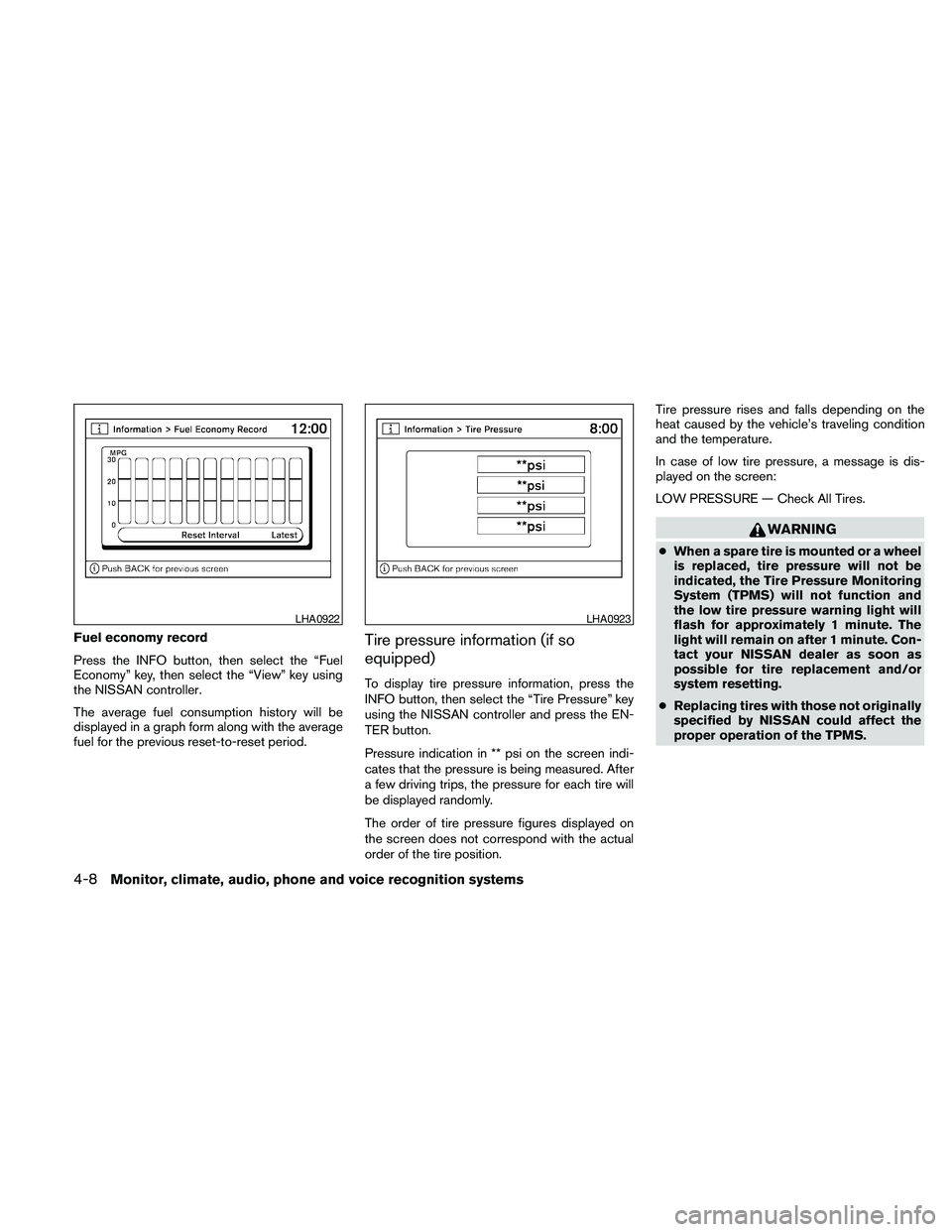
Fuel economy record
Press the INFO button, then select the “Fuel
Economy” key, then select the “View” key using
the NISSAN controller.
The average fuel consumption history will be
displayed in a graph form along with the average
fuel for the previous reset-to-reset period.Tire pressure information (if so
equipped)
To display tire pressure information, press the
INFO button, then select the “Tire Pressure” key
using the NISSAN controller and press the EN-
TER button.
Pressure indication in ** psi on the screen indi-
cates that the pressure is being measured. After
a few driving trips, the pressure for each tire will
be displayed randomly.
The order of tire pressure figures displayed on
the screen does not correspond with the actual
order of the tire position.Tire pressure rises and falls depending on the
heat caused by the vehicle’s traveling condition
and the temperature.
In case of low tire pressure, a message is dis-
played on the screen:
LOW PRESSURE — Check All Tires.
WARNING
cWhen a spare tire is mounted or a wheel
is replaced, tire pressure will not be
indicated, the Tire Pressure Monitoring
System (TPMS) will not function and
the low tire pressure warning light will
flash for approximately 1 minute. The
light will remain on after 1 minute. Con-
tact your NISSAN dealer as soon as
possible for tire replacement and/or
system resetting.
cReplacing tires with those not originally
specified by NISSAN could affect the
proper operation of the TPMS.
LHA0922LHA0923
4-8Monitor, climate, audio, phone and voice recognition systems
Page 174 of 463
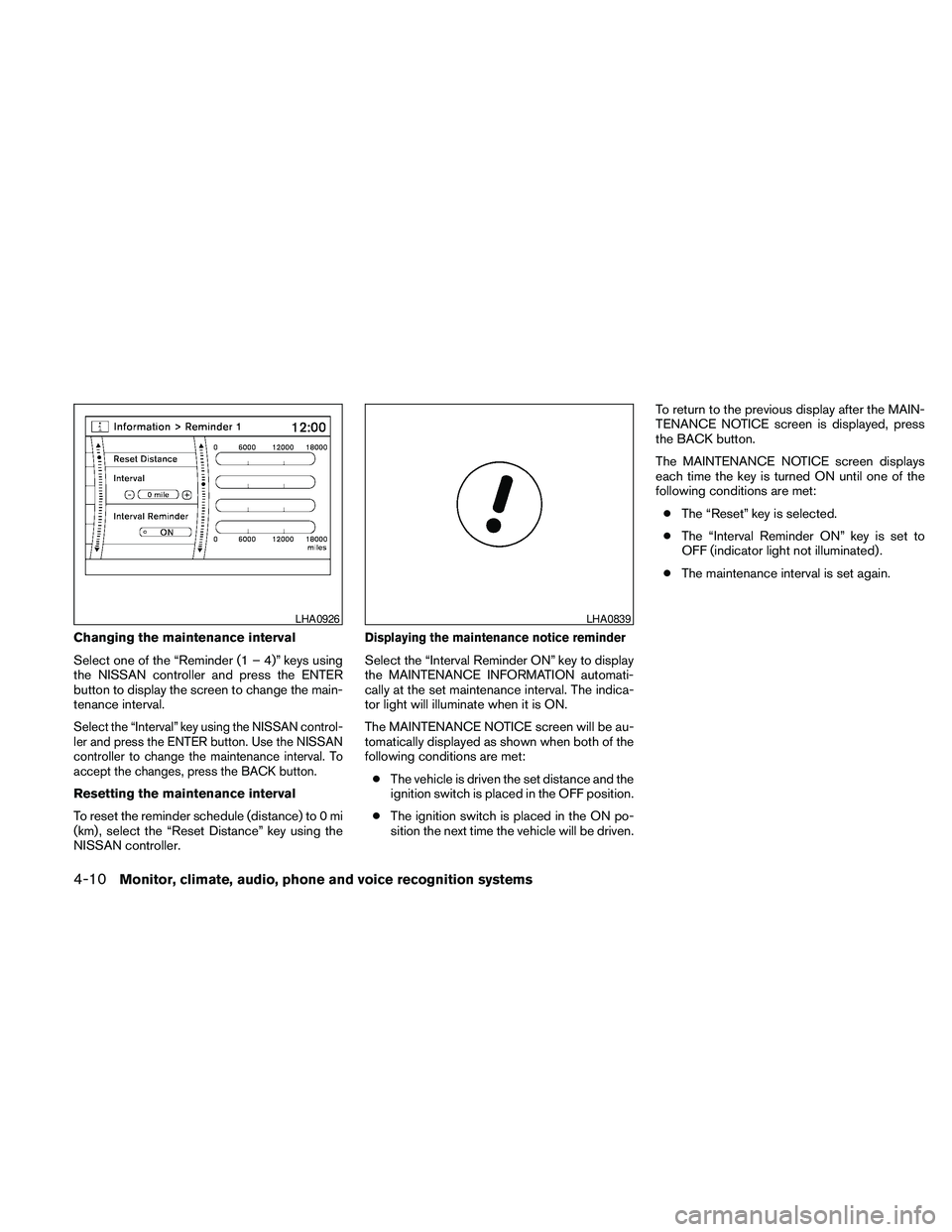
Changing the maintenance interval
Select one of the “Reminder (1 – 4)” keys using
the NISSAN controller and press the ENTER
button to display the screen to change the main-
tenance interval.
Select the “Interval” key using the NISSAN control-
ler and press the ENTER button. Use the NISSAN
controller to change the maintenance interval. To
accept the changes, press the BACK button.
Resetting the maintenance interval
To reset the reminder schedule (distance) to 0 mi
(km) , select the “Reset Distance” key using the
NISSAN controller.
Displaying the maintenance notice reminder
Select the “Interval Reminder ON” key to display
the MAINTENANCE INFORMATION automati-
cally at the set maintenance interval. The indica-
tor light will illuminate when it is ON.
The MAINTENANCE NOTICE screen will be au-
tomatically displayed as shown when both of the
following conditions are met:
cThe vehicle is driven the set distance and the
ignition switch is placed in the OFF position.
cThe ignition switch is placed in the ON po-
sition the next time the vehicle will be driven.To return to the previous display after the MAIN-
TENANCE NOTICE screen is displayed, press
the BACK button.
The MAINTENANCE NOTICE screen displays
each time the key is turned ON until one of the
following conditions are met:
cThe “Reset” key is selected.
cThe “Interval Reminder ON” key is set to
OFF (indicator light not illuminated) .
cThe maintenance interval is set again.
LHA0926LHA0839
4-10Monitor, climate, audio, phone and voice recognition systems
Page 177 of 463
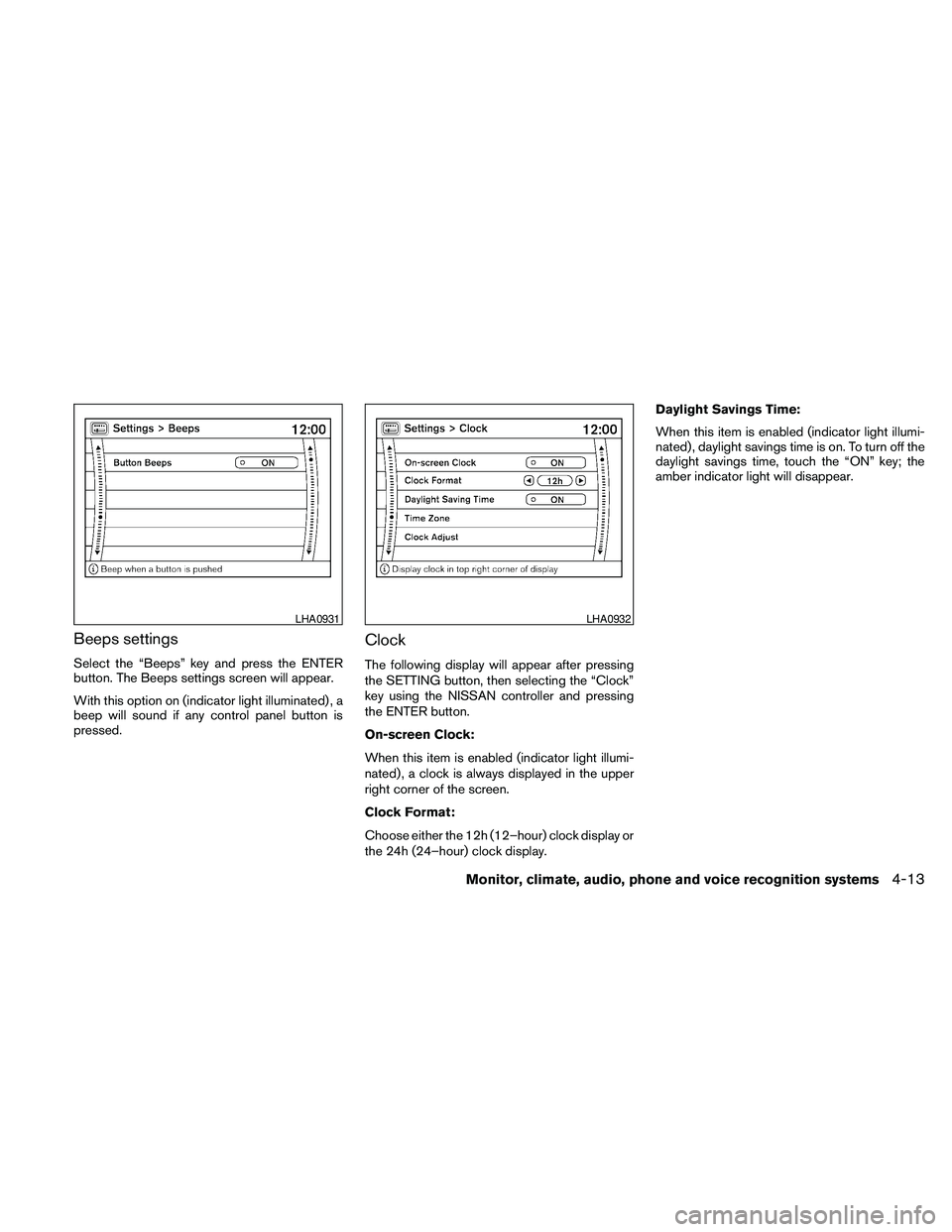
Beeps settings
Select the “Beeps” key and press the ENTER
button. The Beeps settings screen will appear.
With this option on (indicator light illuminated) , a
beep will sound if any control panel button is
pressed.
Clock
The following display will appear after pressing
the SETTING button, then selecting the “Clock”
key using the NISSAN controller and pressing
the ENTER button.
On-screen Clock:
When this item is enabled (indicator light illumi-
nated) , a clock is always displayed in the upper
right corner of the screen.
Clock Format:
Choose either the 12h (12–hour) clock display or
the 24h (24–hour) clock display.Daylight Savings Time:
When this item is enabled (indicator light illumi-
nated) , daylight savings time is on. To turn off the
daylight savings time, touch the “ON” key; the
amber indicator light will disappear.
LHA0931LHA0932
Monitor, climate, audio, phone and voice recognition systems4-13
Page 178 of 463
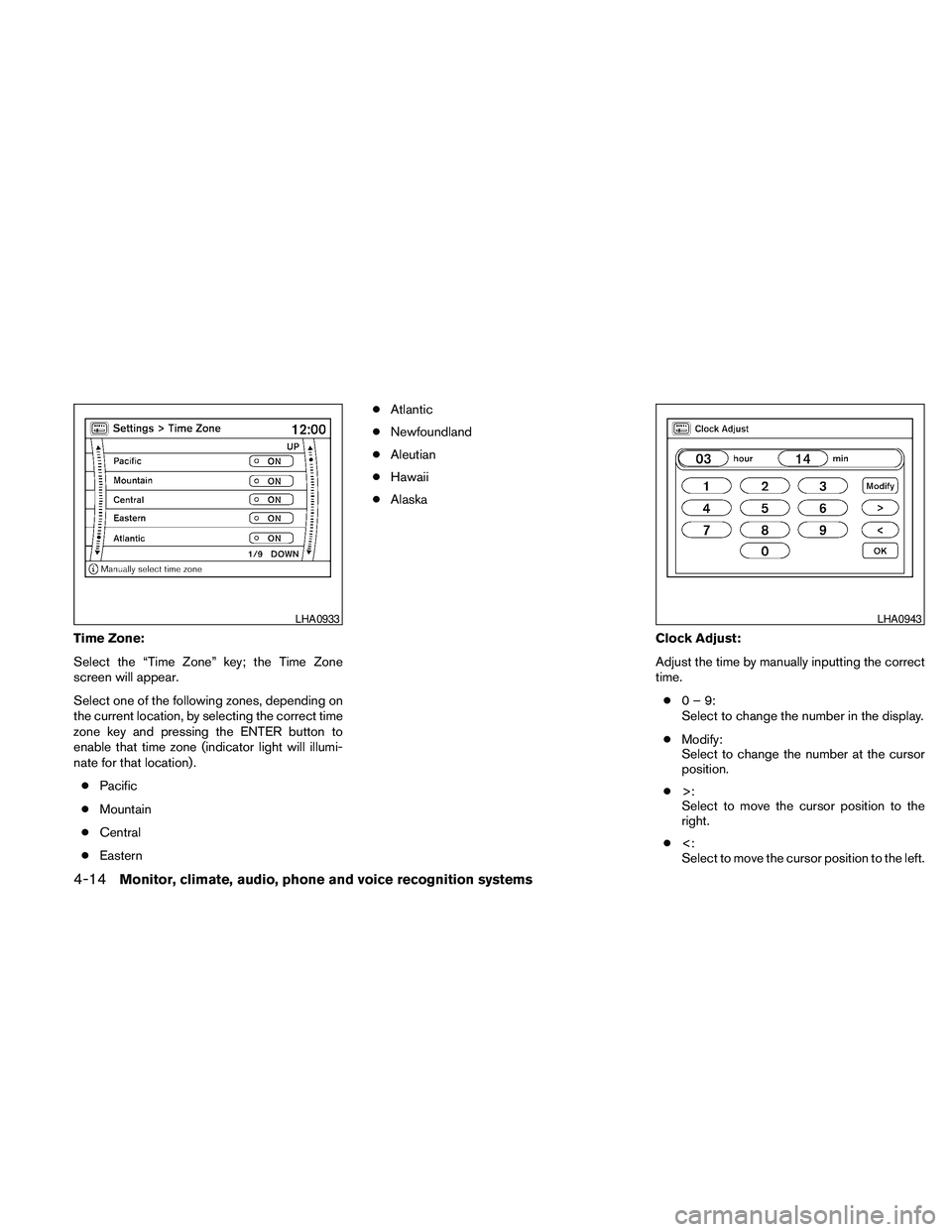
Time Zone:
Select the “Time Zone” key; the Time Zone
screen will appear.
Select one of the following zones, depending on
the current location, by selecting the correct time
zone key and pressing the ENTER button to
enable that time zone (indicator light will illumi-
nate for that location) .
cPacific
cMountain
cCentral
cEasterncAtlantic
cNewfoundland
cAleutian
cHawaii
cAlaska
Clock Adjust:
Adjust the time by manually inputting the correct
time.
c0–9:
Select to change the number in the display.
cModify:
Select to change the number at the cursor
position.
c>:
Select to move the cursor position to the
right.
c<:
Select to move the cursor position to the left.
LHA0933LHA0943
4-14Monitor, climate, audio, phone and voice recognition systems