fuel pressure NISSAN PATHFINDER 2023 Owners Manual
[x] Cancel search | Manufacturer: NISSAN, Model Year: 2023, Model line: PATHFINDER, Model: NISSAN PATHFINDER 2023Pages: 665, PDF Size: 4.64 MB
Page 127 of 665
•If the light illuminates while driving,
avoid sudden steering maneuvers or
abrupt braking, reduce vehicle
speed, pull off the road to a safe loca-
tion and stop the vehicle as soon as
possible. Driving with under-inflated
tires may permanently damage the
tires and increase the likelihood of
tire failure. Serious vehicle damage
could occur and may lead to an acci-
dent and could result in serious per-
sonal injury or death. Check the tire
pressure for all four tires. Adjust the
tire pressure to the recommended
COLD tire pressure shown on the Tire
and Loading Information label lo-
cated in the driver’s door opening to
turn the low tire pressure warning
light off. If the light still illuminates
while driving af ter adjusting the tire
pressure, a tire may be flat or the
TPMS may be malfunctioning. If you
have a flat tire, replace it with a spare
tire as soon as possible. If no tire is
flat and all tires are properly inflated,
have the vehicle checked. It is recom-
mended that you visit a NISSAN
dealer for this service. •
When using a wheel without the
TPMS such as the spare tire, the TPMS
will not function and the low tire
pressure warning light will flash for
approximately 1 minute. The light will
remain on af ter 1 minute. Have your
tires replaced and/or TPMS system
reset as soon as possible. It is recom-
mended that you visit a NISSAN
dealer for these services.
• Replacing tires with those not origi-
nally specified by NISSAN could af-
fect the proper operation of the
TPMS.
CAUTION
• The TPMS is not a substitute for the
regular tire pressure check. Be sure
to check the tire pressure regularly.
• If the vehicle is being driven at
speeds of less than 16 mph (25 km/h),
the TPMS may not operate correctly.
• Be sure to install the specified size of
tires to the four wheels correctly.
Malfunction Indicator Light
(MIL) (if so equipped)
If this indicator light comes on steady or
blinks while the engine is running, it may
indicate a potential emission control
malfunction.
The MIL may also come on steady if the
vehicle runs out of fuel. Check to make sure
that the vehicle has at least 3 gallons (11.4
liters) of fuel in the fuel tank.
Operation
The MIL will come on in one of two ways:
• MIL on steady — An emission control sys- tem malfunction has been detected.
Have the vehicle inspected. It is recom-
mended that you visit a NISSAN dealer for
this service. You do not need to have your
vehicle towed to the dealer.
• MIL blinking — An engine misfire has been detected which may damage the emis-
sion control system. To reduce or avoid
emission control system damage:
do not drive at speeds above 45 mph (72
km/h).
avoid hard acceleration or deceleration.
avoid steep uphill grades.
if possible, reduce the amount of cargo be-
ing hauled or towed.
2-20Instruments and controls
Page 131 of 665
• Audio information
• Compass and navigation information (ifso equipped)
• Shif t position
• Distance to empty
• Odometer
• Clock and outside temperature
HOW TO USE THE VEHICLE
INFORMATION DISPLAY
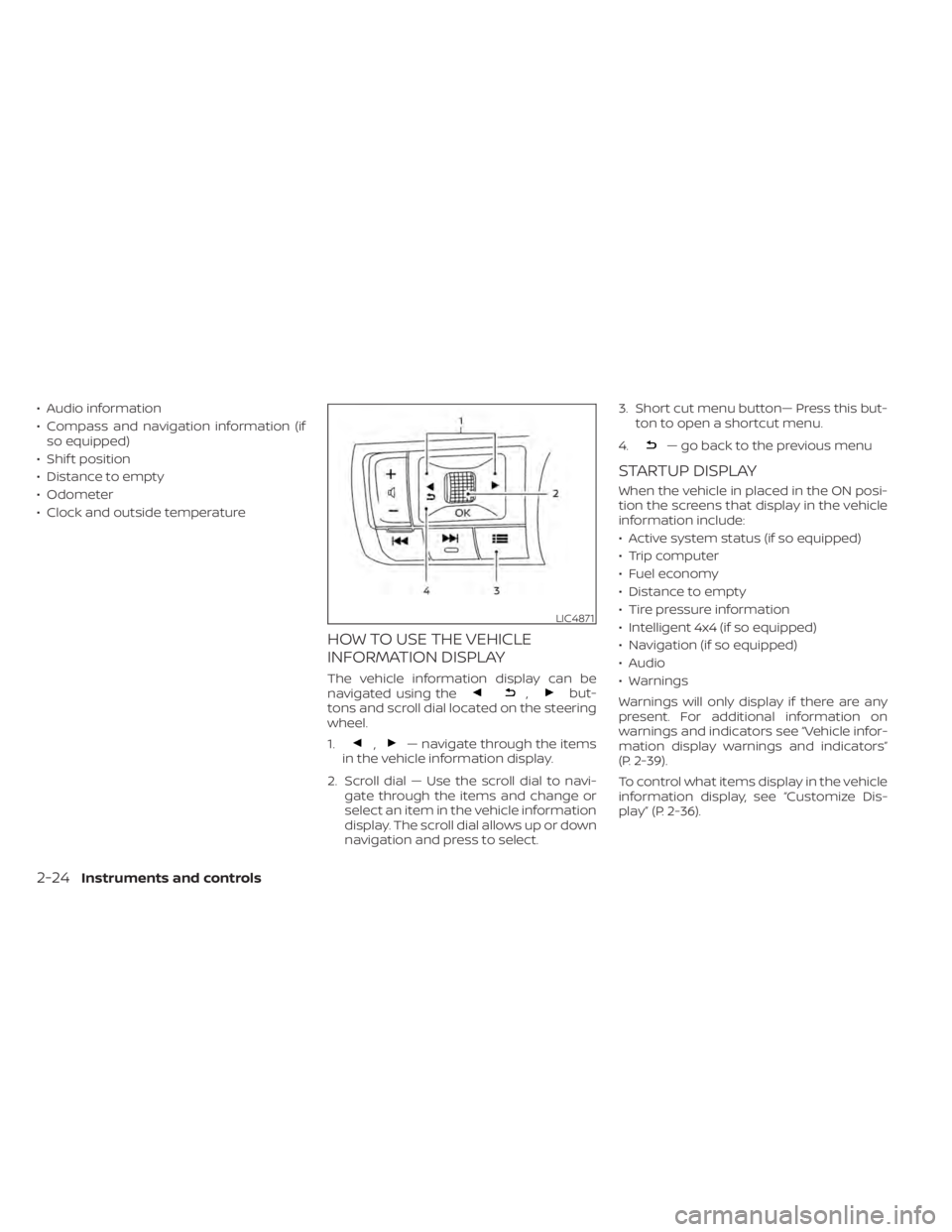
The vehicle information display can be
navigated using the,but-
tons and scroll dial located on the steering
wheel.
1.
,— navigate through the items
in the vehicle information display.
2. Scroll dial — Use the scroll dial to navi- gate through the items and change or
select an item in the vehicle information
display. The scroll dial allows up or down
navigation and press to select. 3. Short cut menu button— Press this but-
ton to open a shortcut menu.
4.
— go back to the previous menu
STARTUP DISPLAY
When the vehicle in placed in the ON posi-
tion the screens that display in the vehicle
information include:
• Active system status (if so equipped)
• Trip computer
• Fuel economy
• Distance to empty
• Tire pressure information
• Intelligent 4x4 (if so equipped)
• Navigation (if so equipped)
• Audio
• Warnings
Warnings will only display if there are any
present. For additional information on
warnings and indicators see “Vehicle infor-
mation display warnings and indicators”
(P. 2-39).
To control what items display in the vehicle
information display, see “Customize Dis-
play ” (P. 2-36).
LIC4871
2-24Instruments and controls
Page 134 of 665
Manual Reset2 can be reset manually by
using the scroll dial or will be reset auto-
matically each time the ignition switch is
placed in the OFF position (if so equipped).
Auto Refuel will be reset automatically each
time when refueling.
For additional information, see “ECO Mode”
(P. 5-34).
6. Tire Pressures
The tire pressure mode shows the pres-
sure of all four tires while the vehicle is
driven.
With the “Tire Pres ECO advice” function ON,
when the tire pressure is getting low,
“Check Tire Pressures for Best Fuel
Economy” or “Add air for Best Fuel
Economy” appears. For additional informa-
tion, see “ECO Mode Setting” (P. 5-34) or “Tire
Pres ECO advice” (P. 5-34).
When the “Tire Pressure Low — Add Air”
warning appears, the display can be
switched to the tire pressure mode by
pushing the scroll dial to reveal additional
details on the displayed warning.
7. Intelligent 4x4 torque
distribution display (if so
equipped)
When the Intelligent 4x4 torque distribution
display is selected, you can view the distri-
bution ratio of the transmission torque to
the front and rear wheels during driving.
8. Compass (if so equipped)
This display indicates the direction the ve-
hicle is heading.
9. Navigation (if so equipped)
When the route guidance is set in the navi-
gation system, this item shows the naviga-
tion route information.
10. Audio
The audio mode shows the status of audio
information.
11. Driver Assistance
The Driver Assistance mode shows the op-
erating condition for the following systems:
•Forward–– Automatic Emergency Braking (AEB)with Pedestrian Detection system –
– Intelligent Forward Collision Warning
(I-FCW)
• Lane: –– Lane Departure Warning (LDW)
–– Intelligent Lane Intervention (I-LI)
• Blind Spot: –– Blind Spot Warning (BSW)
–– Intelligent Blind Spot Intervention
(I-BSI) (if so equipped)
For additional information, see “Intelligent
Blind Spot Intervention (I-BSI)” (P. 5-65),
“Blind Spot Warning (BSW)” (P. 5-52), “Lane
Departure Warning (LDW)” (P. 5-38), “Auto-
matic Emergency Braking (AEB) with Pe-
destrian Detection” (P. 5-137), “Intelligent
Forward Collision Warning (I-FCW)” (P. 5-149)
or “Intelligent Lane Intervention (I-LI)”
(P. 5-45).
12. ProPILOT Assist (if so equipped)
The ProPILOT Assist mode shows operat-
ing conditions for the following systems:
• Intelligent Cruise Control (ICC)
• Steering Assist
The display will also be shown when the
ProPILOT Assist is turned on. For additional
information, see “ProPILOT Assist” (P. 5-88).
Instruments and controls2-27
Page 144 of 665
Menu itemExplanation
Lights Allows user to turn the light mode guidance on or off.
Wiper Displays the available wiper guidance settings.
Front Allows user to turn the front wiper guidance on or off.
Rear Allows user to turn the rear wiper guidance on or off.
High Beam Assist Allows user to turn the High Beam Assist guidance on or off.
Seat Memory Allows user to turn the seat memory guidance on or off.
Cruise Control Allows user to turn the cruise control guidance on or off.
Unit/Language
The unit/language menu allows the user to change the units shown in the vehicle information display.
Some menu items shown below may not be equipped on your vehicle.
Menu item Explanation
Mileage/Fuel Displays the available mileage/fuel display units and allows user to select preferred unit for display.
Tire Pressure Allows user to select the tire pressure display units.
Temperature Allows user to select the temperature display units.
Language Displays the available language options and allows user to select preferred language for display.
Instruments and controls2-37
Page 156 of 665
3. Short cut menu button— Press this but-ton to open a shortcut menu.
4.
— go back to the previous menu
STARTUP DISPLAY
When the vehicle in placed in the ON posi-
tion the screens that display in the vehicle
information include:
• Active system status (if so equipped)
• Trip computer
• Fuel economy
• Distance to empty
• Tire pressure information
• Intelligent 4x4 (if so equipped)
• Navigation (if so equipped)
• Audio
• Warnings
Warnings will only display if there are any
present. For additional information on
warnings and indicators see “Vehicle infor-
mation display warnings and indicators”
(P. 2-65).
To control what items display in the vehicle
information display, see “Customize Dis-
play ” (P. 2-63).
Instruments and controls2-49
Page 159 of 665
Manual Reset2 can be reset manually by
using the scroll dial or will be reset auto-
matically each time the ignition switch is
placed in the OFF position (if so equipped).
Auto Refuel will be reset automatically each
time when refueling.
For additional information, see “ECO Mode”
(P. 5-34).
6. Tire Pressures
The tire pressure mode shows the pres-
sure of all four tires while the vehicle is
driven.
With the “Tire Pres ECO advice” function ON,
when the tire pressure is getting low,
“Check Tire Pressures for Best Fuel
Economy” or “Add air for Best Fuel
Economy” appears. For additional informa-
tion, see “ECO Mode Setting” (P. 5-34) or “Tire
Pres ECO advice” (P. 5-34).
When the “Tire Pressure Low — Add Air”
warning appears, the display can be
switched to the tire pressure mode by
pushing the scroll dial to reveal additional
details on the displayed warning.
7. Intelligent 4x4 torque
distribution display (if so
equipped)
When the Intelligent 4x4 torque distribution
display is selected, you can view the distri-
bution ratio of the transmission torque to
the front and rear wheels during driving.
8. Compass (if so equipped)
This display indicates the direction the ve-
hicle is heading.
9. Navigation (if so equipped)
When the route guidance is set in the navi-
gation system, this item shows the naviga-
tion route information.
10. Audio
The audio mode shows the status of audio
information.
11. Driver Assistance
The Driver Assistance mode shows the op-
erating condition for the following systems:
•Forward–– Automatic Emergency Braking (AEB)with Pedestrian Detection system –
– Intelligent Forward Collision Warning
(I-FCW)
• Lane: –– Lane Departure Warning (LDW)
–– Intelligent Lane Intervention (I-LI)
• Blind Spot: –– Blind Spot Warning (BSW)
–– Intelligent Blind Spot Intervention (I-
BSI) (if so equipped)
For additional information, see “Intelligent
Blind Spot Intervention (I-BSI)” (P. 5-65),
“Blind Spot Warning (BSW)” (P. 5-52), “Lane
Departure Warning (LDW)” (P. 5-38), “Auto-
matic Emergency Braking (AEB) with Pe-
destrian Detection” (P. 5-137), “Intelligent
Forward Collision Warning (I-FCW)” (P. 5-149)
or “Intelligent Lane Intervention (I-LI)”
(P. 5-45).
12. ProPILOT Assist (if so equipped)
The ProPILOT Assist mode shows operat-
ing conditions for the following systems:
• Intelligent Cruise Control (ICC)
• Steering Assist
The display will also be shown when the
ProPILOT Assist is turned on. For additional
information, see “ProPILOT Assist” (P. 5-88).
2-52Instruments and controls
Page 171 of 665
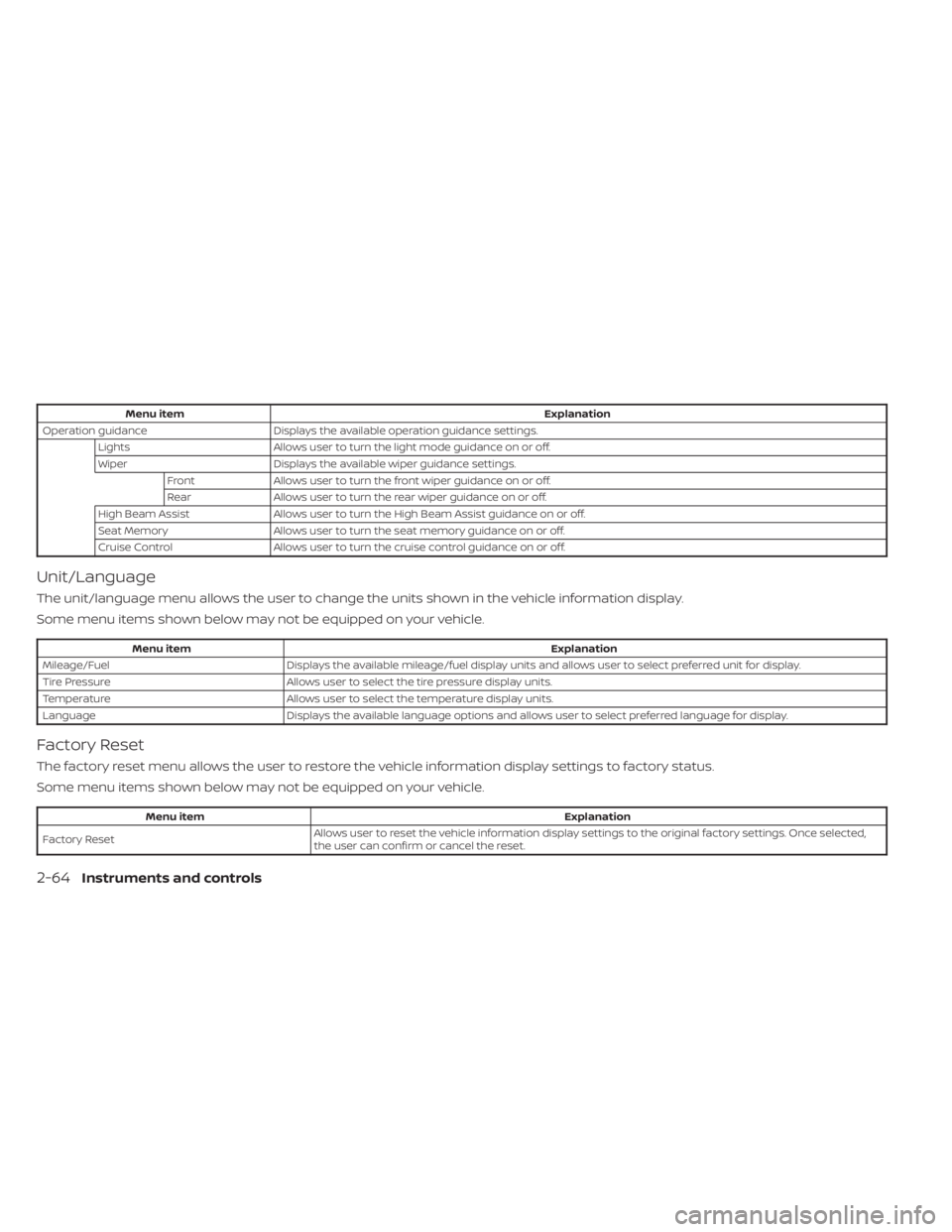
Menu itemExplanation
Operation guidance Displays the available operation guidance settings.
Lights Allows user to turn the light mode guidance on or off.
Wiper Displays the available wiper guidance settings.
Front Allows user to turn the front wiper guidance on or off.
Rear Allows user to turn the rear wiper guidance on or off.
High Beam Assist Allows user to turn the High Beam Assist guidance on or off.
Seat Memory Allows user to turn the seat memory guidance on or off.
Cruise Control Allows user to turn the cruise control guidance on or off.
Unit/Language
The unit/language menu allows the user to change the units shown in the vehicle information display.
Some menu items shown below may not be equipped on your vehicle.
Menu item Explanation
Mileage/Fuel Displays the available mileage/fuel display units and allows user to select preferred unit for display.
Tire Pressure Allows user to select the tire pressure display units.
Temperature Allows user to select the temperature display units.
Language Displays the available language options and allows user to select preferred language for display.
Factory Reset
The factory reset menu allows the user to restore the vehicle information display settings to factory status.
Some menu items shown below may not be equipped on your vehicle.
Menu item Explanation
Factory Reset Allows user to reset the vehicle information display setti
ngs to the original factory settings. Once selected,
the user can confirm or cancel the reset.
2-64Instruments and controls
Page 174 of 665
Electric shif t control
system indicator
This indicator appears when a malfunction
occurs in the electric shif t control system.
When the master warning indicator ap-
pears, the chime sounds and the following
message is displayed in the vehicle infor-
mation display: “When parked apply park-
ing brake”.
When the ignition is placed in the OFF posi-
tion, the chime sounds continuously. En-
sure the parking brake is applied
Have the system checked. It is recom-
mended that you visit a NISSAN dealer for
this service.
Front fog light indicator
(green)
The front fog light indicator appears when
the front fog lights are on. For additional
information, see “Fog light switch” (P. 2-89).
Headlight System Error: See Owner’s
Manual
This warning appears when there is an er-
ror with the system. For additional informa-
tion, see “Headlight and turn signal switch”
(P. 2-82).
High Beam Assist indicator
(green)
This indicator appears when the head-
lights come on while the headlight switch
is in the AUTO position with the high beams
selected and the engine running. This indi-
cates that the high beam assist is
operational.
For additional information, see “Headlight
and turn signal switch” (P. 2-82).
High beam indicator (blue)
This blue indicator appears when the
headlight high beams are on and goes out
when the low beams are selected.
The high beam indicator also appears
when the passing signal is activated.
Hill descent control system
ON indicator
When the ignition switch is placed in the ON
position, this indicator appears briefly and
then turns off.
The indicator appears when the hill de-
scent control system is activated.
If the hill descent control switch is on and
the indicator blinks, the system is not
engaged.If the indicator does not appear when the
hill descent switch is on, the system may
not be functioning properly. Have the sys-
tem checked. It is recommended that you
visit a NISSAN dealer for this service.
For additional information, see “Hill descent
control switch” (P. 2-94) “Hill descent control
system” (P. 5-182).
Low Fuel
This warning appears when the fuel level in
the fuel tank is getting low. Refuel as soon
as it is convenient, preferably before the
fuel gauge reaches 0 (Empty).
There will be
a small reserve of fuel in the tank when
the fuel gauge needle reaches 0 (Empty).
Low Outside Temperature
This warning appears if the outside tem-
perature is below 37°F (3°C). The tempera-
ture can be changed to display in Celsius or
Fahrenheit. For additional information, see
“Driver Assistance” (P. 2-56).
Low tire pressure indicator
Your vehicle is equipped with a Tire Pres-
sure Monitoring System (TPMS) that moni-
tors the tire pressure of all tires except the
spare.
Instruments and controls2-67
Page 175 of 665
The low tire pressure indicator warns of low
tire pressure or indicates that the TPMS is
not functioning properly.
Af ter the ignition switch is placed in the ON
position, this indicator appears for about 1
second and turns off.
Low Washer Fluid
This warning appears when the
windshield-washer fluid is at a low level.
Add windshield-washer fluid as necessary.
For additional information, see
“Windshield-washer fluid” (P. 8-11).
Malfunction Indicator (MIL)
If this indicator appears steady or blinks
while the engine is running, it may indicate
a potential emission control malfunction.
The MIL may also come on steady if the
vehicle runs out of fuel. Check to make sure
that the vehicle has at least 3 gallons (11.4
liters) of fuel in the fuel tank.
Af ter a few driving trips, the
indicator
should turn off if no other potential emis-
sion control system malfunction exists.
If this indicator appears steady for 20 sec-
onds and then blinks for 10 seconds when
the engine is not running, it indicates that the vehicle is not ready for an emission
control system inspection/maintenance
test. For additional information, see “Readi-
ness for Inspection/Maintenance (I/M) test”
(P. 10-36).
Master warning indicator
When the ignition is in the ON position, the
master warning indicator appears with
various other warning messages.
For additional information, see “Vehicle in-
formation display–7 inch (18 cm) Type A”
(P. 2-23) or “Vehicle information display—12.3
inch (31 cm) Type B” (P. 2-48).
Neutral Hold Mode activated
This message appears when the Neutral
hold mode is activated. To exit the Neutral
hold mode, place the vehicle in any other
shif t position other than N (Neutral). For
additional information, see “Neutral hold
mode function” (P. 5-23).
Neutral Hold Mode was not activated
This message appears when the Neutral
hold mode is unavailable. To activate the
Neutral hold mode, wait for a while without
shif ting and then perform the operations
again. For additional information, see “Neu-
tral hold mode function” (P. 5-23).
Neutral Hold Mode guidance
This message appears af ter approxi-
mately 5 seconds when the ignition switch
is placed in the OFF position while the shif t
position is in the N (Neutral) position (Neu-
tral hold mode is available). For additional
information, see “Neutral hold mode func-
tion” (P. 5-23).
Parking Sensor Error: See Owner’s
Manual
This warning appears when there is an er-
ror with the system. For additional informa-
tion, see “Front and rear sonar system”
(P. 5-183).
Power will turn off to save the battery
Under the specific conditions, this warning
may appear in the vehicle information dis-
play af ter a period of time if the ignition
switch is in the ON position and if the ve-
hicle is in P (Park). For additional informa-
tion, see “Push-button ignition switch posi-
tions” (P. 5-14).
Power turned off to save the battery
Under the specific conditions, this warning
may appear af ter the ignition switch is au-
tomatically turned off. For additional infor-
mation, see “Push-button ignition switch
positions” (P. 5-14).
2-68Instruments and controls
Page 290 of 665
•Objects viewed in the RearView
Monitor differ from actual distance
because a wide-angle lens is used.
• Objects in the RearView Monitor will
appear visually opposite compared
to when viewed in the rearview and
outside mirrors.
• Use the displayed lines as a refer-
ence. The lines are highly affected by
the number of occupants, fuel level,
vehicle position, road conditions and
road grade.
• Make sure that the lif tgate is securely
closed when backing up.
• Do not put anything on the rearview
camera. The rearview camera is in-
stalled in the rear bumper.
• When washing the vehicle with high
pressure water, be sure not to spray it
around the camera. Otherwise, water
may enter the camera unit causing
water condensation on the lens, a
malfunction, fire or an electric shock.
• Do not strike the camera. It is a preci-
sion instrument. Otherwise, it may
malfunction or cause damage result-
ing in a fire or an electric shock. The following are operating limitations and
do not represent a system malfunction:
• When the temperature is extremely high
or low, the screen may not clearly display
objects.
• When strong light directly shines on the camera, objects may not be displayed
clearly.
• Vertical lines may be seen in objects on the screen. This is due to strong reflected
light from the bumper.
• The screen may flicker under fluorescent light.
• The colors of objects on the RearView Monitor may differ somewhat from the
actual color of objects.
• Objects on the monitor may not be clear in a dark environment.
• There may be a delay when switching between views.
• If dirt, rain or snow accumulate on the camera, the RearView Monitor may not
display objects clearly. Clean the camera.
• Do not use wax on the camera lens. Wipe off any wax with a clean cloth dampened
with a diluted mild cleaning agent, then
wipe with a dry cloth.
SYSTEM MAINTENANCE
CAUTION
• Do not use alcohol, benzine or thin-
ner to clean the camera. This will
cause discoloration.
• Do not damage the camera as the
monitor screen may be adversely
affected.
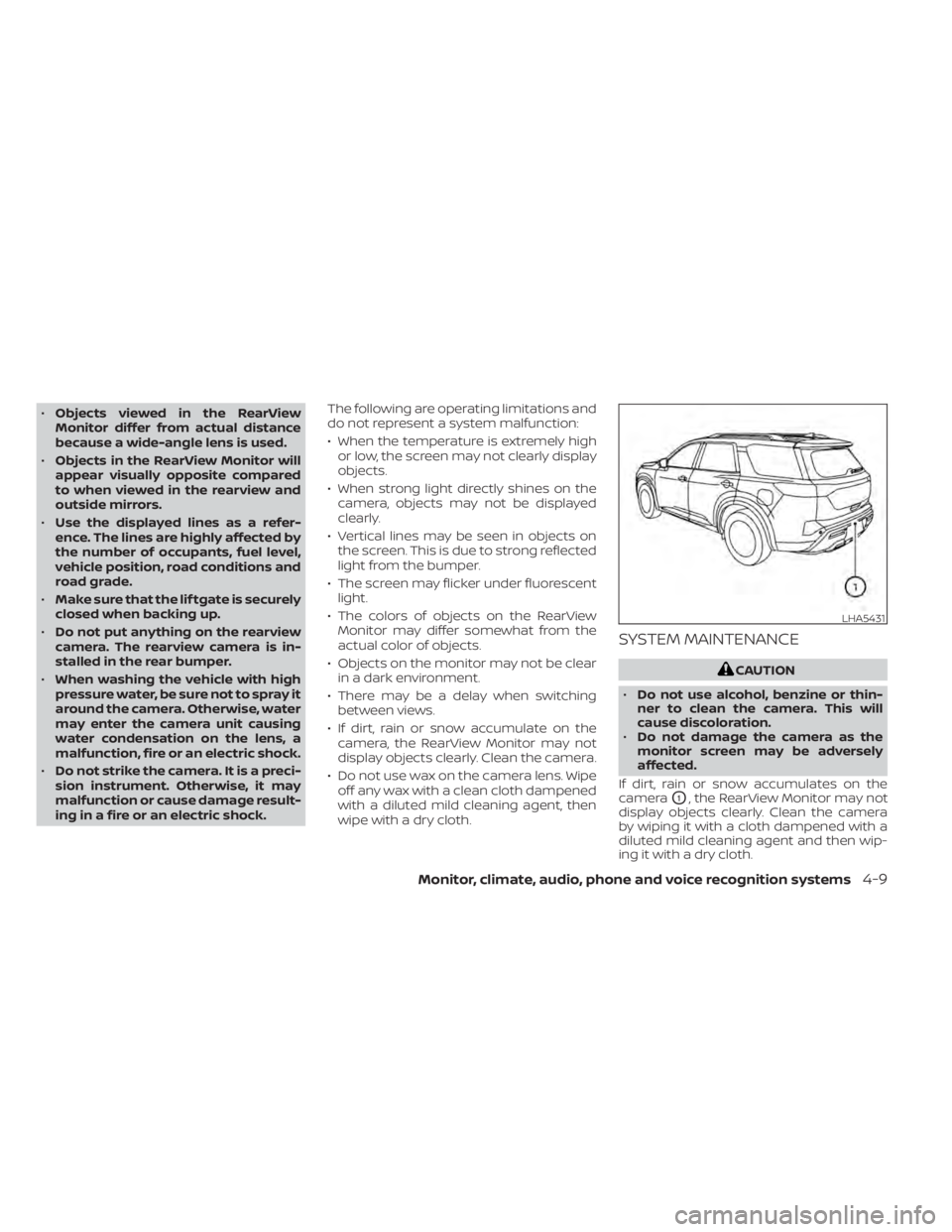
If dirt, rain or snow accumulates on the
camera
O1, the RearView Monitor may not
display objects clearly. Clean the camera
by wiping it with a cloth dampened with a
diluted mild cleaning agent and then wip-
ing it with a dry cloth.
LHA5431
Monitor, climate, audio, phone and voice recognition systems4-9