wheel NISSAN QASHQAI 2017 Owner´s Manual
[x] Cancel search | Manufacturer: NISSAN, Model Year: 2017, Model line: QASHQAI, Model: NISSAN QASHQAI 2017Pages: 508, PDF Size: 2.68 MB
Page 196 of 508
Available views:
.Bird’s-eye view
The surrounding views of the vehicle from
above.
.Front-side view
The view around and ahead of the front
passenger’s side wheel.
.Front view
An approximately 150–degree view of the
front of the vehicle.
.Rear view
An approximately 150–degree view of the
rear of the vehicle.
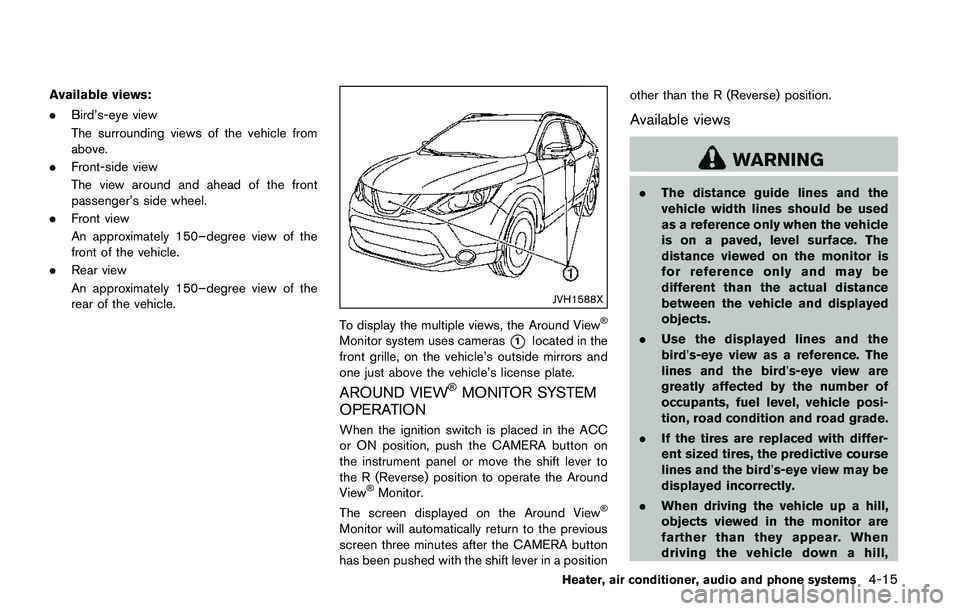
JVH1588X
To display the multiple views, the Around ViewŠ
Monitor system uses cameras*1located in the
front grille, on the vehicle’s outside mirrors and
one just above the vehicle’s license plate.
AROUND VIEWŠMONITOR SYSTEM
OPERATION
When the ignition switch is placed in the ACC
or ON position, push the CAMERA button on
the instrument panel or move the shift lever to
the R (Reverse) position to operate the Around
View
ŠMonitor.
The screen displayed on the Around ViewŠ
Monitor will automatically return to the previous
screen three minutes after the CAMERA button
has been pushed with the shift lever in a positionother than the R (Reverse) position.
Available views
WARNING
.The distance guide lines and the
vehicle width lines should be used
as a reference only when the vehicle
is on a paved, level surface. The
distance viewed on the monitor is
for reference only and may be
different than the actual distance
between the vehicle and displayed
objects.
.Use the displayed lines and the
bird’s-eye view as a reference. The
lines and the bird’s-eye view are
greatly affected by the number of
occupants, fuel level, vehicle posi-
tion, road condition and road grade.
.If the tires are replaced with differ-
ent sized tires, the predictive course
lines and the bird’s-eye view may be
displayed incorrectly.
.When driving the vehicle up a hill,
objects viewed in the monitor are
farther than they appear. When
driving the vehicle down a hill,
Heater, air conditioner, audio and phone systems4-15
Page 197 of 508
4-16Heater, air conditioner, audio and phone systems
objects viewed in the monitor are
closer than they appear.
.Objects in the monitor will appear
visually opposite compared to when
viewed in the rearview and outside
mirrors.
.Use the mirrors or actually look to
properly judge distances to other
objects.
.The distance between objects
viewed in the rear view differs from
actual distance because a wide-
angle lens is used.
.On a snow-covered or slippery road,
there may be a difference between
the predictive course line and the
actual course line.
.The vehicle width and predictive
course lines are wider than the
actual width and course.
.The displayed lines on the rear view
will appear slightly off to the right
because the rear view camera is not
installed in the rear center of the
vehicle.
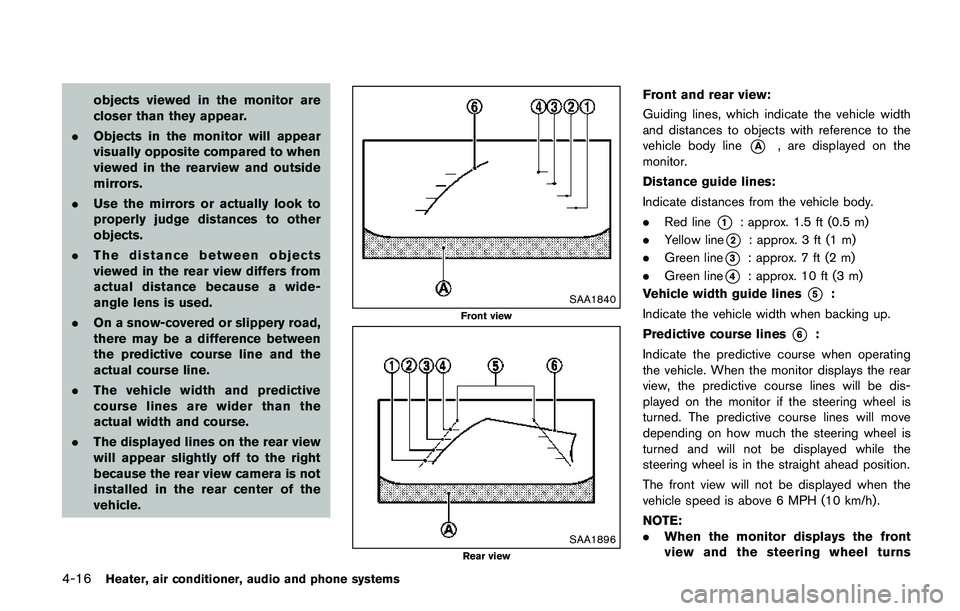
SAA1840
Front view
SAA1896Rear view
Front and rear view:
Guiding lines, which indicate the vehicle width
and distances to objects with reference to the
vehicle body line
*A, are displayed on the
monitor.
Distance guide lines:
Indicate distances from the vehicle body.
.Red line
*1: approx. 1.5 ft (0.5 m)
.Yellow line
*2: approx. 3 ft (1 m)
.Green line
*3: approx. 7 ft (2 m)
.Green line
*4: approx. 10 ft (3 m)
Vehicle width guide lines
*5:
Indicate the vehicle width when backing up.
Predictive course lines
*6:
Indicate the predictive course when operating
the vehicle. When the monitor displays the rear
view, the predictive course lines will be dis-
played on the monitor if the steering wheel is
turned. The predictive course lines will move
depending on how much the steering wheel is
turned and will not be displayed while the
steering wheel is in the straight ahead position.
The front view will not be displayed when the
vehicle speed is above 6 MPH (10 km/h) .
NOTE:
.When the monitor displays the front
view and the steering wheel turns
Page 198 of 508
about 90 degrees or less from the
straight ahead position, both the right
and left predictive course lines
*6are
displayed. When the steering wheel
turns about 90 degrees or more, the
predictive course line is displayed only
on the opposite side of the turn.
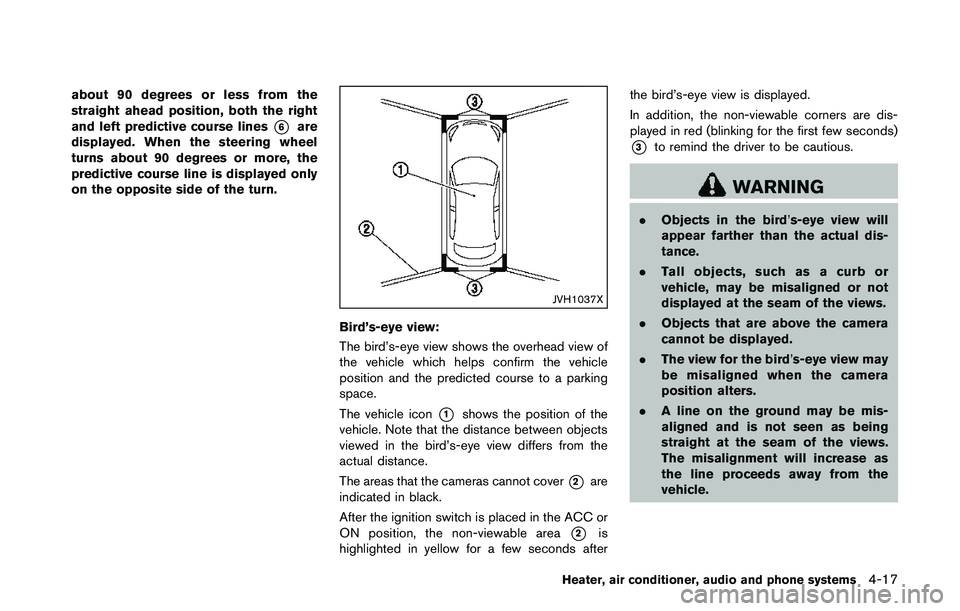
JVH1037X
Bird’s-eye view:
The bird’s-eye view shows the overhead view of
the vehicle which helps confirm the vehicle
position and the predicted course to a parking
space.
The vehicle icon
*1shows the position of the
vehicle. Note that the distance between objects
viewed in the bird’s-eye view differs from the
actual distance.
The areas that the cameras cannot cover
*2are
indicated in black.
After the ignition switch is placed in the ACC or
ON position, the non-viewable area
*2is
highlighted in yellow for a few seconds afterthe bird’s-eye view is displayed.
In addition, the non-viewable corners are dis-
played in red (blinking for the first few seconds)
*3to remind the driver to be cautious.
WARNING
.Objects in the bird’s-eye view will
appear farther than the actual dis-
tance.
.Tall objects, such as a curb or
vehicle, may be misaligned or not
displayed at the seam of the views.
.Objects that are above the camera
cannot be displayed.
.The view for the bird’s-eye view may
be misaligned when the camera
position alters.
.A line on the ground may be mis-
aligned and is not seen as being
straight at the seam of the views.
The misalignment will increase as
the line proceeds away from the
vehicle.
Heater, air conditioner, audio and phone systems4-17
Page 201 of 508
4-20Heater, air conditioner, audio and phone systems
course.
HOW TO PARK WITH PREDICTIVE
COURSE LINES
WARNING
.If the tires are replaced with differ-
ent sized tires, the predictive course
lines may be displayed incorrectly.
.On a snow-covered or slippery road,
there may be a difference between
the predictive course line and the
actual course line.
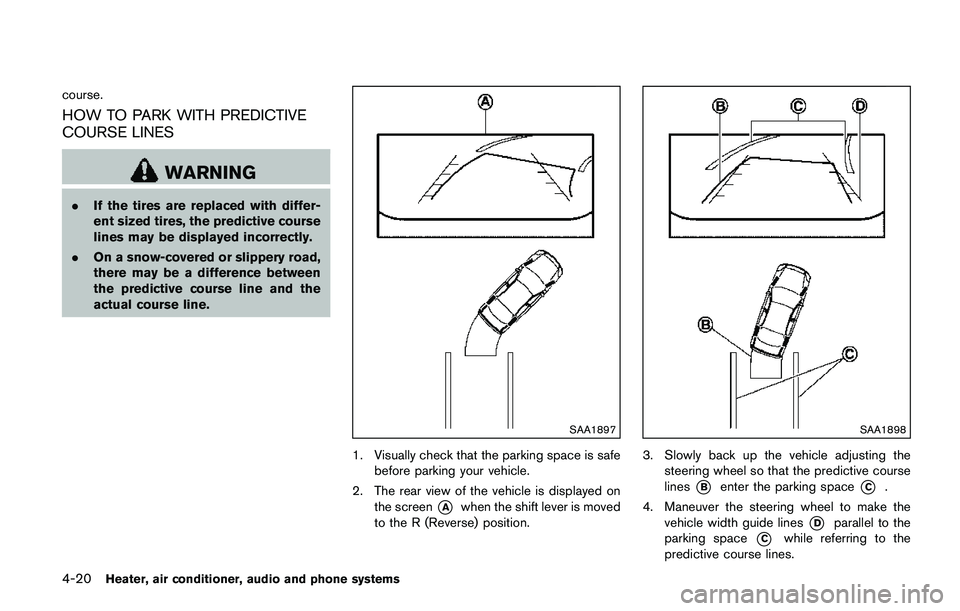
SAA1897
1. Visually check that the parking space is safe
before parking your vehicle.
2. The rear view of the vehicle is displayed on
the screen
*Awhen the shift lever is moved
to the R (Reverse) position.
SAA1898
3. Slowly back up the vehicle adjusting the
steering wheel so that the predictive course
lines
*Benter the parking space*C.
4. Maneuver the steering wheel to make the
vehicle width guide lines
*Dparallel to the
parking space
*Cwhile referring to the
predictive course lines.
Page 217 of 508

4-36Heater, air conditioner, audio and phone systems
sponding temperature control dial.
Also turning the passenger’s side tempera-
ture control dial changes only the front
passenger’s side temperature. (The DUAL
indicator light will illuminate and DUAL will
appear on the display.)
.To cancel the separate temperature setting,
push the DUAL button (the indicator light
will turn off) and the driver’s side tempera-
ture setting will be applied to both the driver
and passenger sides.
Air intake control:
.Push the air recirculation
button to
recirculate interior air inside the vehicle. The
indicator light on the button will come on.
The air recirculation cannot be activated
when the air conditioner is in the front
defrosting mode.
.Push the outside air circulation
button
to draw outside air into the passenger
compartment. The indicator light on the
button will come on.
.To control the air intake automatically, push
and hold either the air recirculation
button or the outside air circulationbutton (whichever button with the indicator
light illuminated) . The indicator lights (both
air recirculation
and outside air circula-
tionbuttons) will flash twice, and thenthe air intake will switch to automatic control.
When the automatic control is set, the
system automatically alternates between
the outside air circulation and the air
recirculation modes. (The indicator light of
the active mode will turn on.)
NOTE:
Even if the system is manually set to the air
recirculation mode, when both outside
temperature and coolant temperature are
low, the system may automatically switch
to the outside air circulation mode.
To turn the system off:
To turn off the heater and air conditioner, push
the ON·OFF button.
Push the ON·OFF button again, the system will
turn on in the mode which was used immediately
before the system was turned off.
Remote engine start logic (if so
equipped)
When the remote engine start function is
activated, the vehicles equipped with the auto-
matic air conditioner and heater may go into
automatic heating or cooling mode depending
on the outside and cabin temperatures. During
this period, the display and the buttons will be
inoperable until the ignition switch is placed in
the ON position. When the temperature is low,the rear defroster and the heated steering wheel
(if so equipped) may also be activated auto-
matically with the activation of the remote engine
start function. (See “Remote engine start” (P.3-
22) .)
Page 255 of 508
4-74Heater, air conditioner, audio and phone systems
JVH1655X
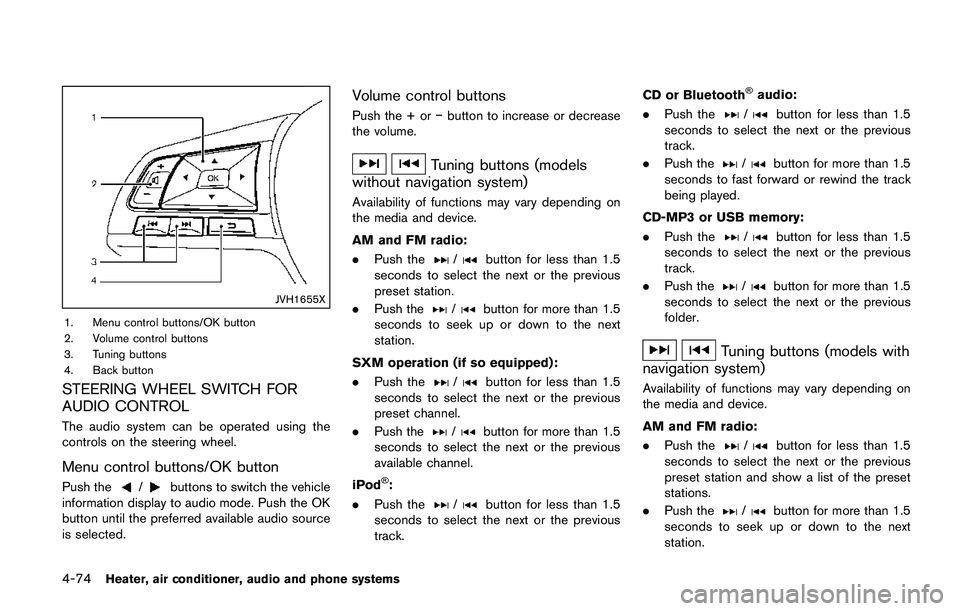
1. Menu control buttons/OK button
2. Volume control buttons
3. Tuning buttons
4. Back button
STEERING WHEEL SWITCH FOR
AUDIO CONTROL
The audio system can be operated using the
controls on the steering wheel.
Menu control buttons/OK button
Push the/buttons to switch the vehicle
information display to audio mode. Push the OK
button until the preferred available audio source
is selected.
Volume control buttons
Push the + oríbutton to increase or decrease
the volume.
Tuning buttons (models
without navigation system)
Availability of functions may vary depending on
the media and device.
AM and FM radio:
.Push the
/button for less than 1.5
seconds to select the next or the previous
preset station.
.Push the
/button for more than 1.5
seconds to seek up or down to the next
station.
SXM operation (if so equipped) :
.Push the
/button for less than 1.5
seconds to select the next or the previous
preset channel.
.Push the
/button for more than 1.5
seconds to select the next or the previous
available channel.
iPod
Š:
.Push the
/button for less than 1.5
seconds to select the next or the previous
track.CD or Bluetooth
Šaudio:
.Push the
/button for less than 1.5
seconds to select the next or the previous
track.
.Push the
/button for more than 1.5
seconds to fast forward or rewind the track
being played.
CD-MP3 or USB memory:
.Push the
/button for less than 1.5
seconds to select the next or the previous
track.
.Push the
/button for more than 1.5
seconds to select the next or the previous
folder.
Tuning buttons (models with
navigation system)
Availability of functions may vary depending on
the media and device.
AM and FM radio:
.Push the
/button for less than 1.5
seconds to select the next or the previous
preset station and show a list of the preset
stations.
.Push the
/button for more than 1.5
seconds to seek up or down to the next
station.
Page 259 of 508
4-78Heater, air conditioner, audio and phone systems
GENERAL INFORMATION
Apple SiriŠEyes Free personal assistant can be
accessed from the vehicle. SiriŠEyes Free can
be accessed in SiriŠEyes Free mode to reduce
user distraction. In this mode, SiriŠEyes Free is
available for interaction by voice control. After
connecting a compatible Apple device by using
Bluetooth
Š, SiriŠEyes Free can be activated
using thebutton on the steering wheel.
SiriŠis a trademark of Apple Inc., registered in
the U.S. and other countries.
INFO:
.Some Siri
ŠEyes Free functions, such as
opening apps, may not be available during
driving.
.For best results, always update your device
to the latest software version.
.Keep the interior of the vehicle as quiet as
possible. Close the windows to eliminate the
surrounding noises (traffic noises, vibration
sounds, etc.) , which may prevent the system
from recognizing the voice commands cor-
rectly.
.For functions that can be used in Siri
ŠEyes
Free, please refer to the Apple website.
REQUIREMENTS
SiriŠis available on the iPhoneŠ4S or later.
Devices released before iPhoneŠ4S are not
supported by the SiriŠEyes Free system.
Visit www.apple.com/ios/siri for details about
device compatibility.
Siri
Šmust be enabled on the phone. Please
check phone settings.
If the device has a lock screen, Siri
Šmust be
accessible from the lock screen. Please check
phone settings.
For best results, always update your device to
the latest software version.
JVH1592X
SIRIŠEYES FREE ACTIVATION
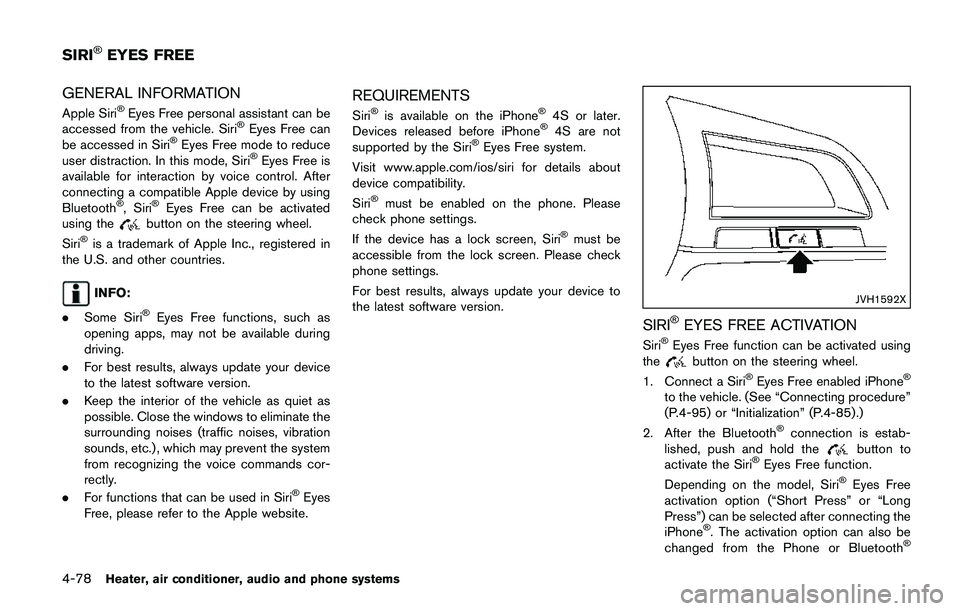
SiriŠEyes Free function can be activated using
thebutton on the steering wheel.
1. Connect a SiriŠEyes Free enabled iPhoneŠ
to the vehicle. (See “Connecting procedure”
(P.4-95) or “Initialization” (P.4-85) .)
2. After the Bluetooth
Šconnection is estab-
lished, push and hold thebutton to
activate the SiriŠEyes Free function.
Depending on the model, SiriŠEyes Free
activation option (“Short Press” or “Long
Press”) can be selected after connecting the
iPhone
Š. The activation option can also be
changed from the Phone or BluetoothŠ
SIRIŠEYES FREE
Page 262 of 508
TROUBLESHOOTING GUIDE
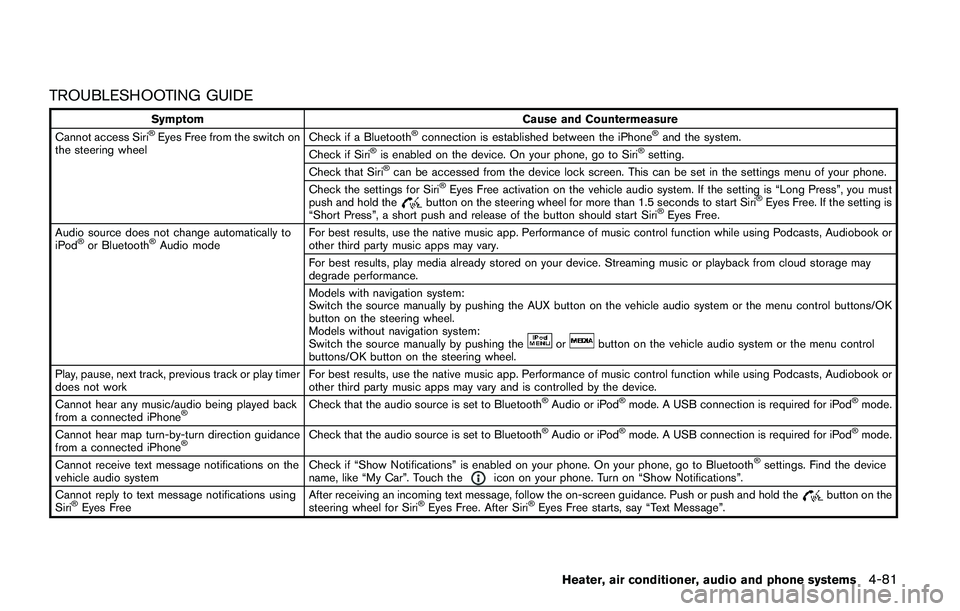
Symptom Cause and Countermeasure
Cannot access SiriŠEyes Free from the switch on
the steering wheelCheck if a BluetoothŠconnection is established between the iPhoneŠand the system.
Check if SiriŠis enabled on the device. On your phone, go to SiriŠsetting.
Check that SiriŠcan be accessed from the device lock screen. This can be set in the settings menu of your phone.
Check the settings for SiriŠEyes Free activation on the vehicle audio system. If the setting is “Long Press”, you must
push and hold thebutton on the steering wheel for more than 1.5 seconds to start SiriŠEyes Free. If the setting is
“Short Press”, a short push and release of the button should start SiriŠEyes Free.
Audio source does not change automatically to
iPod
Šor BluetoothŠAudio modeFor best results, use the native music app. Performance of music control function while using Podcasts, Audiobook or
other third party music apps may vary.
For best results, play media already stored on your device. Streaming music or playback from cloud storage may
degrade performance.
Models with navigation system:
Switch the source manually by pushing the AUX button on the vehicle audio system or the menu control buttons/OK
button on the steering wheel.
Models without navigation system:
Switch the source manually by pushing the
orbutton on the vehicle audio system or the menu control
buttons/OK button on the steering wheel.
Play, pause, next track, previous track or play timer
does not workFor best results, use the native music app. Performance of music control function while using Podcasts, Audiobook or
other third party music apps may vary and is controlled by the device.
Cannot hear any music/audio being played back
from a connected iPhone
ŠCheck that the audio source is set to BluetoothŠAudio or iPodŠmode. A USB connection is required for iPodŠmode.
Cannot hear map turn-by-turn direction guidance
from a connected iPhone
ŠCheck that the audio source is set to BluetoothŠAudio or iPodŠmode. A USB connection is required for iPodŠmode.
Cannot receive text message notifications on the
vehicle audio systemCheck if “Show Notifications” is enabled on your phone. On your phone, go to Bluetooth
Šsettings. Find the device
name, like “My Car”. Touch theicon on your phone. Turn on “Show Notifications”.
Cannot reply to text message notifications using
Siri
ŠEyes FreeAfter receiving an incoming text message, follow the on-screen guidance. Push or push and hold thebutton on the
steering wheel for SiriŠEyes Free. After SiriŠEyes Free starts, say “Text Message”.
Heater, air conditioner, audio and phone systems4-81
Page 265 of 508
4-84Heater, air conditioner, audio and phone systems
IC Regulatory information
.Operation is subject to the following two
conditions: (1) this device may not cause
interference, and (2) this device must accept
any interference, including interference that
may cause undesired operation of the
device.
.This Class B digital apparatus meets all
requirements of the Canadian Interference-
Causing Equipment Regulations.
BluetoothŠtrademark
BluetoothŠis a trademark owned
by Bluetooth SIG, Inc., and
licensed to Visteon Corporation.
USING THE SYSTEM
The voice recognition system allows hands-free
operation of the BluetoothŠHands-Free Phone
System.
If the vehicle is in motion, some commands may
not be available so full attention may be given to
vehicle operation.
JVH1627X
Control buttons and microphone
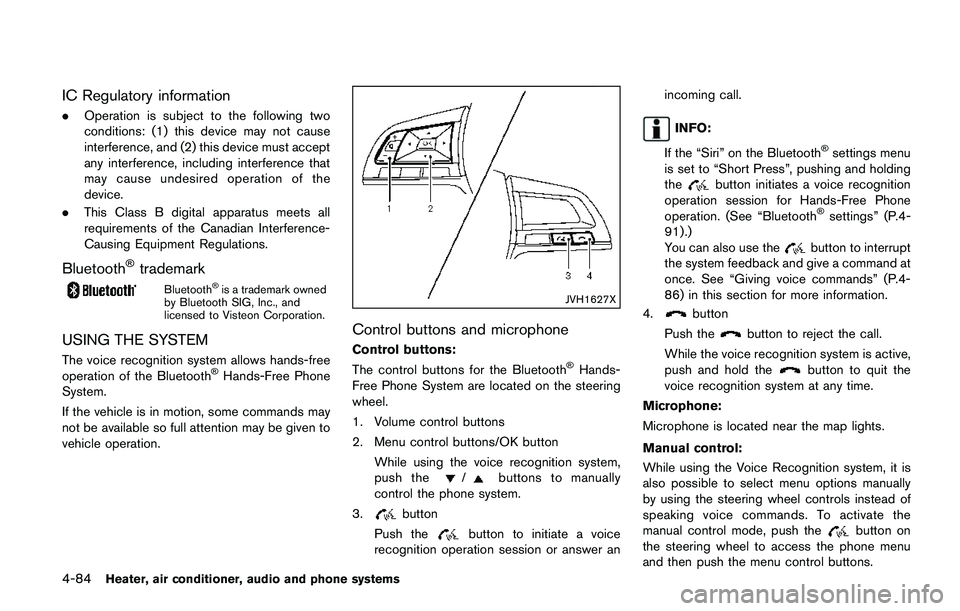
Control buttons:
The control buttons for the BluetoothŠHands-
Free Phone System are located on the steering
wheel.
1. Volume control buttons
2. Menu control buttons/OK button
While using the voice recognition system,
push the
/buttons to manually
control the phone system.
3.
button
Push the
button to initiate a voice
recognition operation session or answer anincoming call.
INFO:
If the “Siri” on the Bluetooth
Šsettings menu
is set to “Short Press”, pushing and holding
the
button initiates a voice recognition
operation session for Hands-Free Phone
operation. (See “Bluetooth
Šsettings” (P.4-
91) .)
You can also use the
button to interrupt
the system feedback and give a command at
once. See “Giving voice commands” (P.4-
86) in this section for more information.
4.
button
Push the
button to reject the call.
While the voice recognition system is active,
push and hold the
button to quit the
voice recognition system at any time.
Microphone:
Microphone is located near the map lights.
Manual control:
While using the Voice Recognition system, it is
also possible to select menu options manually
by using the steering wheel controls instead of
speaking voice commands. To activate the
manual control mode, push the
button on
the steering wheel to access the phone menu
and then push the menu control buttons.
Page 266 of 508
The manual control mode does not allow dialing
a phone number by digits. The user may select
an entry from the Phonebook or Recent Calls
lists. To reactivate Voice Recognition, exit the
manual control mode by pushing and holding the
button. At that time, pushing thebutton
will start the BluetoothŠHands-Free Phone
System.
Choosing a language
You can interact with the BluetoothŠHands-
Free Phone System using several languages
that are available. For operations to change the
language, see “Audio main operation” (P.4-48)
or “Audio main operation” (P.4-56) .
Changing voice feedback volume
If you want to adjust the volume of the voice
feedback, push the volume control buttons on
the steering wheel while being provided with
feedback. You can also use the Power/VOL dial
on the control panel.
Initialization
When the ignition switch is placed in the ACC
or ON position, voice recognition is initialized,
which takes a few seconds. If the
button is
pushed before the initialization completes, the
system will announce “Hands-free phone sys-
tem not ready” and will not react to voice
commands.
Connecting procedure:
NOTE:
The connecting procedure must be per-
formed when the vehicle is stationary. If
the vehicle starts moving during the pro-
cedure, the procedure will be cancelled.
JVH1626X
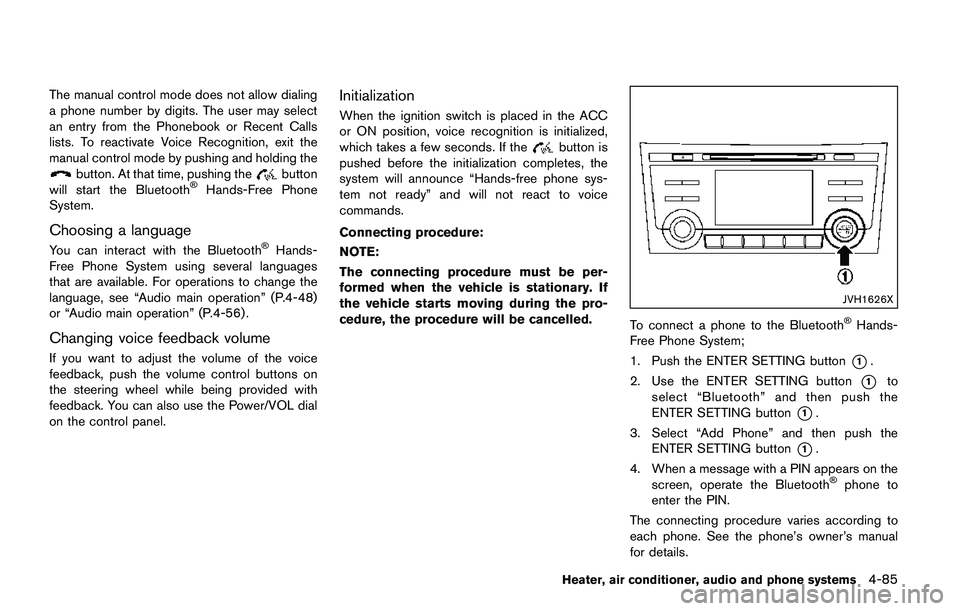
To connect a phone to the BluetoothŠHands-
Free Phone System;
1. Push the ENTER SETTING button
*1.
2. Use the ENTER SETTING button
*1to
select “Bluetooth” and then push the
ENTER SETTING button
*1.
3. Select “Add Phone” and then push the
ENTER SETTING button
*1.
4. When a message with a PIN appears on the
screen, operate the Bluetooth
Šphone to
enter the PIN.
The connecting procedure varies according to
each phone. See the phone’s owner’s manual
for details.
Heater, air conditioner, audio and phone systems4-85