display NISSAN QASHQAI 2017 Owner´s Manual
[x] Cancel search | Manufacturer: NISSAN, Model Year: 2017, Model line: QASHQAI, Model: NISSAN QASHQAI 2017Pages: 508, PDF Size: 2.68 MB
Page 175 of 508
3-28Pre-driving checks and adjustments
WARNING
.Gasoline is extremely flammable
and highly explosive under certain
conditions. You could be burned or
seriously injured if it is misused or
mishandled. Always stop engine
and do not smoke or allow open
flames or sparks near the vehicle
when refueling.
.Do not attempt to top off the fuel
tank after the fuel pump nozzle
shuts off automatically. Continued
refueling may cause fuel overflow,
resulting in fuel spray and possibly
a fire.
.Use only an original equipment type
fuel-filler cap as a replacement. It
has a built-in safety valve needed
for proper operation of the fuel
system and emission control sys-
tem. An incorrect cap can result in a
serious malfunction and possible
injury. It could also cause the mal-
function indicator light to come on.
.Never pour fuel into the throttle
body to attempt to start your vehi-
cle..Do not fill a portable fuel container
in the vehicle or trailer. Static elec-
tricity can cause an explosion of
flammable liquid, vapor or gas in
any vehicle or trailer. To reduce the
risk of serious injury or death when
filling portable fuel containers:
— Always place the container on
the ground when filling.
— Do not use electronic devices
when filling.
— Keep the pump nozzle in contact
with the container while you are
filling it.
— Use only approved portable fuel
containers for flammable liquid.
CAUTION
.If fuel is spilled on the vehicle body,
flush it away with water to avoid
paint damage.
.Insert the cap straight into the fuel-
filler tube, then tighten until the
fuel-filler cap clicks. Failure to tight-
en the fuel-filler cap properly maycause the
malfunction indicator
light (MIL) to illuminate. If the
light illuminates because the fuel-
filler cap is loose or missing, tighten
or install the cap and continue to
drive the vehicle. The
light
should turn off after a few driving
trips. If the
light does not turn
off after a few driving trips, have the
vehicle inspected. It is recom-
mended you visit a NISSAN dealer
for this service.
For additional information, see
“Malfunction Indicator Light (MIL)”
(P.2-16) .
.The LOOSE FUEL CAP warning
message will be displayed if the
fuel-filler cap is not properly tigh-
tened. It may take a few driving trips
for the message to be displayed.
Failure to tighten the fuel-filler cap
properly after the LOOSE FUEL CAP
warning message is displayed may
cause the
Malfunction Indicator
Light (MIL) to illuminate.
Page 176 of 508
JVP0503X
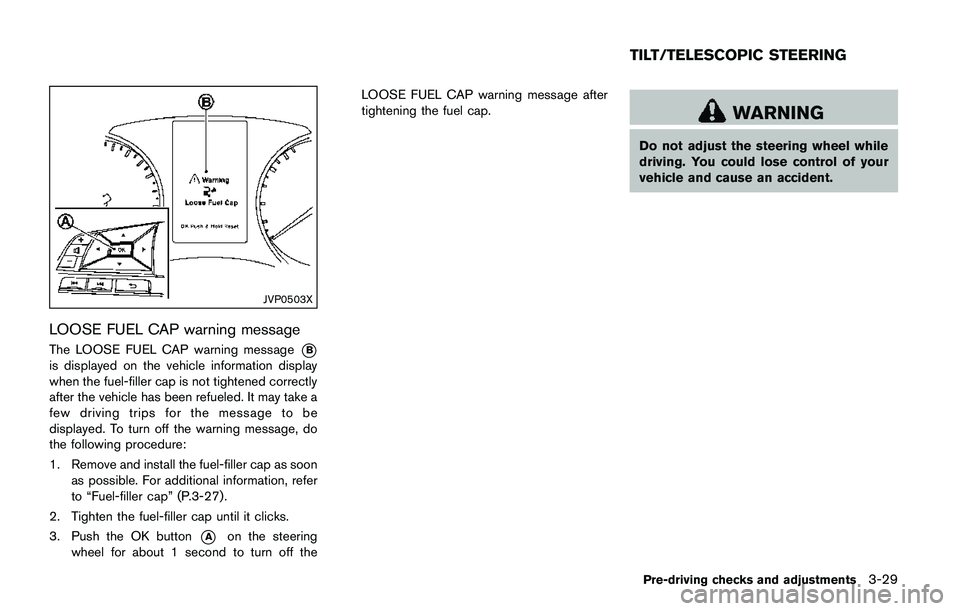
LOOSE FUEL CAP warning message
The LOOSE FUEL CAP warning message*B
is displayed on the vehicle information display
when the fuel-filler cap is not tightened correctly
after the vehicle has been refueled. It may take a
few driving trips for the message to be
displayed. To turn off the warning message, do
the following procedure:
1. Remove and install the fuel-filler cap as soon
as possible. For additional information, refer
to “Fuel-filler cap” (P.3-27).
2. Tighten the fuel-filler cap until it clicks.
3. Push the OK button
*Aon the steering
wheel for about 1 second to turn off theLOOSE FUEL CAP warning message after
tightening the fuel cap.
WARNING
Do not adjust the steering wheel while
driving. You could lose control of your
vehicle and cause an accident.
Pre-driving checks and adjustments3-29
TILT/TELESCOPIC STEERING
Page 182 of 508
4 Heater, air conditioner, audio and phone sys-
tems
Safety note .................................................................................. 4-3
Control buttons and functions (models with
navigation system) .................................................................... 4-3
How to use touch screen ................................................. 4-4
How to use the BACK button ......................................... 4-5
How to use the APPS·i button ........................................ 4-5
How to use brightness control button ........................... 4-8
How to use the POWER/VOLUME dial ....................... 4-8
How to use the ENTER
AUDIO/TUNE·SCROLL dial ............................................. 4-8
RearView Monitor (if so equipped) ...................................... 4-8
RearView Monitor system operation .............................. 4-9
How to read the displayed lines ..................................... 4-9
Difference between predictive and
actual distances ................................................................... 4-9
Adjusting the screen ....................................................... 4-11
RearView Monitor system limitations .......................... 4-12
System maintenance ....................................................... 4-13
Around View
ŠMonitor (if so equipped) .......................... 4-14
Around ViewŠMonitor system operation ................... 4-15
Difference between predictive and
actual distances ................................................................ 4-18
How to park with predictive course lines .................. 4-20
How to switch the display ............................................. 4-21
Adjusting the screen ....................................................... 4-21Around View
ŠMonitor system limitations ................ 4-22
System maintenance ..................................................... 4-24
Moving Object Detection (MOD) (if so equipped) ...... 4-25
MOD system operation ................................................ 4-26
Turning MOD on and off .............................................. 4-27
MOD system limitations ............................................... 4-27
System maintenance ..................................................... 4-28
Ventilators ................................................................................ 4-29
Center ventilators ........................................................... 4-29
Side ventilators ............................................................... 4-29
Rear ventilators (if so equipped) ............................... 4-29
Heater and air conditioner .................................................. 4-30
Manual air conditioner and heater ............................. 4-31
Automatic air conditioner and heater ........................ 4-34
Operating tips (for automatic air conditioner) ........ 4-37
Servicing air conditioner .............................................. 4-37
Audio system .......................................................................... 4-38
Audio operation precautions ....................................... 4-38
FM-AM radio with Compact Disc (CD) player ....... 4-48
FM-AM-SAT radio with Compact Disc (CD) player
(Type A) (if so equipped) ............................................. 4-55
FM-AM-SAT radio with Compact Disc (CD) player
(Type B) (if so equipped) ............................................ 4-63
USB (Universal Serial Bus) connection port .......... 4-72
AUX (Auxiliary) input jack ............................................. 4-73
Page 185 of 508
4-4Heater, air conditioner, audio and phone systems
If you use the system with the engine not
running for a long time, it will discharge
the battery, and the engine will not start.
Reference symbols:
“Example” — Words marked in quotes refer to a
key shown only on the display. These keys can
be selected by touching the screen.
HOW TO USE TOUCH SCREEN
CAUTION
.The glass screen on the liquid
crystal display may break if it is hit
with a hard or sharp object. If the
glass screen breaks, do not touch it.
Doing so could result in an injury.
.To clean the display, never use a
rough cloth, alcohol, benzine, thin-
ner or any kind of solvent or paper
towel with a chemical cleaning
agent. They will scratch or deterio-
rate the panel.
.Do not splash any liquid such as
water or car fragrance on the dis-
play. Contact with liquid will cause
the system to malfunction.To help ensure safe driving, some functions
cannot be operated while driving.
The on-screen functions that are not available
while driving will be “grayed out” or muted.
Park the vehicle in a safe location and then
operate the navigation system.
WARNING
.ALWAYS give your full attention to
driving.
.Avoid using vehicle features that
could distract you. If distracted,
you could lose control of your
vehicle and cause an accident.
JVH1582X
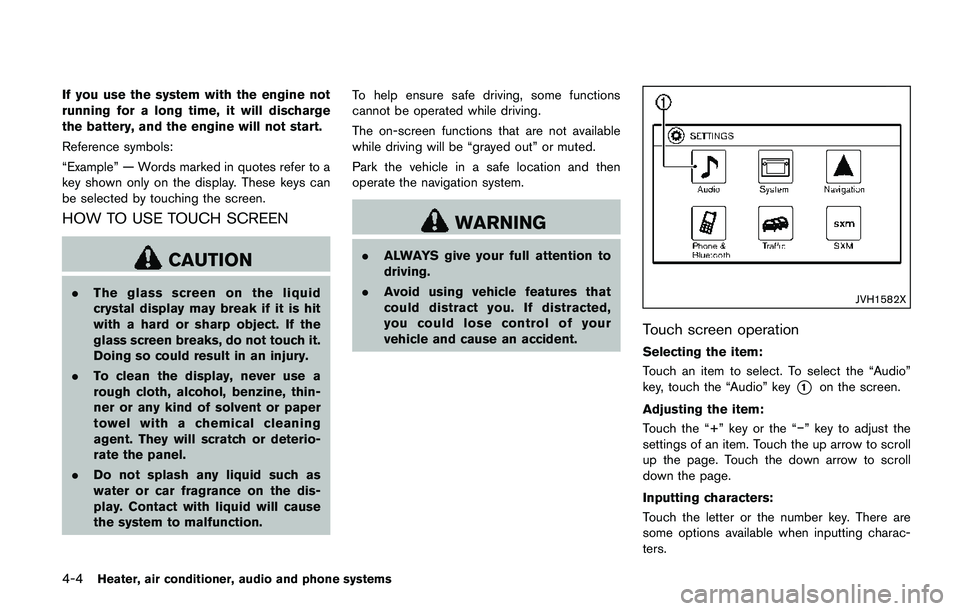
Touch screen operation
Selecting the item:
Touch an item to select. To select the “Audio”
key, touch the “Audio” key
*1on the screen.
Adjusting the item:
Touch the “+” key or the “í” key to adjust the
settings of an item. Touch the up arrow to scroll
up the page. Touch the down arrow to scroll
down the page.
Inputting characters:
Touch the letter or the number key. There are
some options available when inputting charac-
ters.
Page 186 of 508
.123/ABC:
Changes the keyboard between numbers
and alphabets.
.Space:
Inserts a space.
.Delete:
Deletes the last inputted character with one
touch. Touch and hold the “Delete” key to
delete all of the characters.
.OK:
Completes the character input.
Touch screen maintenance
If you clean the touch screen, use a dry, soft
cloth. If additional cleaning is necessary, use a
small amount of neutral detergent with a soft
cloth. Never spray the screen with water or
detergent. Dampen the cloth first and then wipe
the screen.
HOW TO USE THE BACK BUTTON
Push the BACK button to return to the previous
screen.
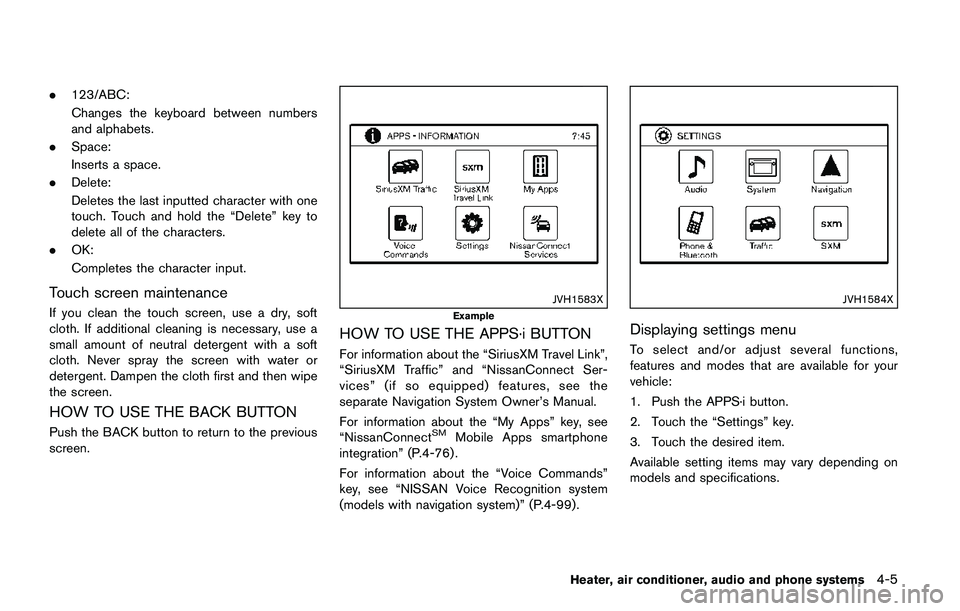
JVH1583X
Example
HOW TO USE THE APPS·i BUTTON
For information about the “SiriusXM Travel Link”,
“SiriusXM Traffic” and “NissanConnect Ser-
vices” (if so equipped) features, see the
separate Navigation System Owner’s Manual.
For information about the “My Apps” key, see
“NissanConnect
SMMobile Apps smartphone
integration” (P.4-76) .
For information about the “Voice Commands”
key, see “NISSAN Voice Recognition system
(models with navigation system)” (P.4-99).
JVH1584X
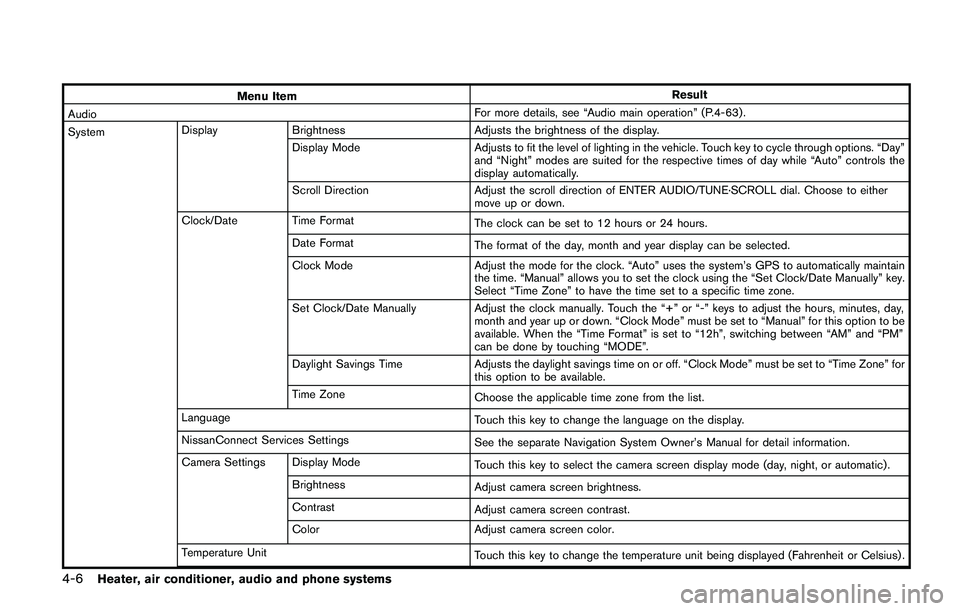
Displaying settings menu
To select and/or adjust several functions,
features and modes that are available for your
vehicle:
1. Push the APPS·i button.
2. Touch the “Settings” key.
3. Touch the desired item.
Available setting items may vary depending on
models and specifications.
Heater, air conditioner, audio and phone systems4-5
Page 187 of 508
4-6Heater, air conditioner, audio and phone systems
Menu ItemResult
AudioFor more details, see “Audio main operation” (P.4-63) .
SystemDisplay Brightness Adjusts the brightness of the display.
Display Mode Adjusts to fit the level of lighting in the vehicle. Touch key to cycle through options. “Day”
and “Night” modes are suited for the respective times of day while “Auto” controls the
display automatically.
Scroll Direction Adjust the scroll direction of ENTER AUDIO/TUNE·SCROLL dial. Choose to either
move up or down.
Clock/Date Time Format
The clock can be set to 12 hours or 24 hours.
Date Format
The format of the day, month and year display can be selected.
Clock Mode Adjust the mode for the clock. “Auto” uses the system’s GPS to automatically maintain
the time. “Manual” allows you to set the clock using the “Set Clock/Date Manually” key.
Select “Time Zone” to have the time set to a specific time zone.
Set Clock/Date Manually Adjust the clock manually. Touch the “+” or “-” keys to adjust the hours, minutes, day,
month and year up or down. “Clock Mode” must be set to “Manual” for this option to be
available. When the “Time Format” is set to “12h”, switching between “AM” and “PM”
can be done by touching “MODE”.
Daylight Savings Time Adjusts the daylight savings time on or off. “Clock Mode” must be set to “Time Zone” for
this option to be available.
Time Zone
Choose the applicable time zone from the list.
Language
Touch this key to change the language on the display.
NissanConnect Services Settings
See the separate Navigation System Owner’s Manual for detail information.
Camera Settings Display Mode
Touch this key to select the camera screen display mode (day, night, or automatic) .
Brightness
Adjust camera screen brightness.
Contrast
Adjust camera screen contrast.
Color Adjust camera screen color.
Temperature Unit
Touch this key to change the temperature unit being displayed (Fahrenheit or Celsius) .
Page 188 of 508
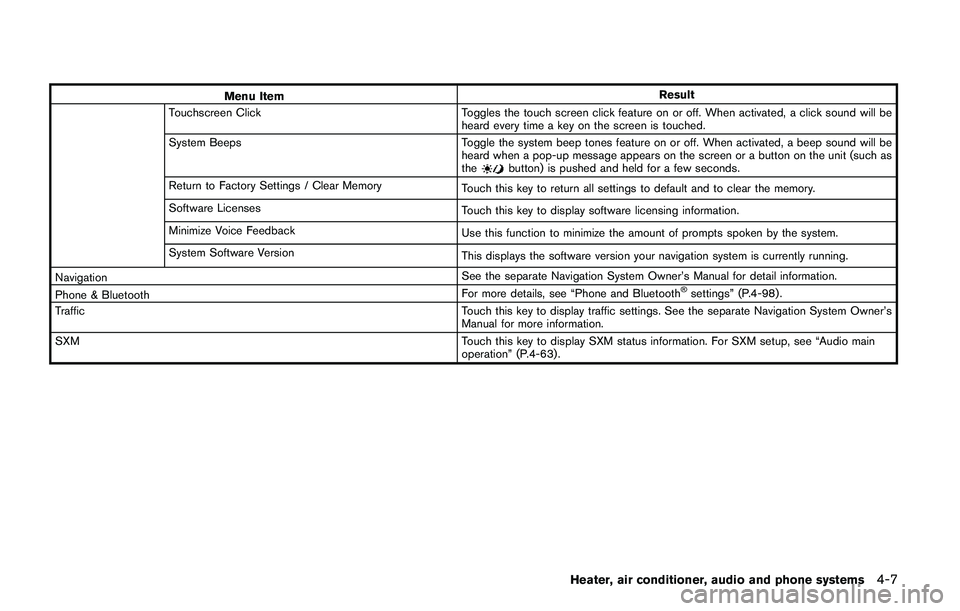
Menu ItemResult
Touchscreen Click Toggles the touch screen click feature on or off. When activated, a click sound will be
heard every time a key on the screen is touched.
System Beeps Toggle the system beep tones feature on or off. When activated, a beep sound will be
heard when a pop-up message appears on the screen or a button on the unit (such as
the
button) is pushed and held for a few seconds.
Return to Factory Settings / Clear Memory
Touch this key to return all settings to default and to clear the memory.
Software Licenses
Touch this key to display software licensing information.
Minimize Voice Feedback
Use this function to minimize the amount of prompts spoken by the system.
System Software Version
This displays the software version your navigation system is currently running.
NavigationSee the separate Navigation System Owner’s Manual for detail information.
Phone & BluetoothFor more details, see “Phone and Bluetooth
Šsettings” (P.4-98) .
TrafficTouch this key to display traffic settings. See the separate Navigation System Owner’s
Manual for more information.
SXMTouch this key to display SXM status information. For SXM setup, see “Audio main
operation” (P.4-63) .
Heater, air conditioner, audio and phone systems4-7
Page 189 of 508
4-8Heater, air conditioner, audio and phone systems
HOW TO USE BRIGHTNESS CON-
TROL BUTTON
Push thebutton to change the display
brightness between the Auto mode and the
Night mode. The brightness control bar will also
be displayed. While the brightness control bar is
being displayed, the brightness can be adjusted
using the ENTER AUDIO/TUNE·SCROLL dial.
Push and hold the
button to turn the display
off. Push the button again to turn the display on.
HOW TO USE THE POWER/VOLUME
DIAL
Push the POWER/VOLUME dial to turn the
audio function on and off. Turn the POWER/
VOLUME dial to adjust the volume. (See “FM-
AM-SAT radio with Compact Disc (CD) player
(Type B)” (P.4-63)
HOW TO USE THE ENTER AUDIO/
TUNE·SCROLL DIAL
Turn the ENTER AUDIO/TUNE·SCROLL dial to
select items on the screen and to adjust the
levels of setting items. Push the dial to confirm
the selected item or setting. (See “FM-AM-SAT
radio with Compact Disc (CD) player (Type B)”
(P.4-63)
WARNING
.Failure to follow the warnings and
instructions for proper use of the
RearView Monitor could result in
serious injury or death.
.RearView Monitor is a convenience
feature and is not a substitute for
proper backing. Always turn and
look out the windows, and check
mirrors to be sure that it is safe to
move before operating the vehicle.
Always back up slowly.
.The system is designed as an aid to
the driver in showing large station-
ary objects directly behind the vehi-
cle, to help avoid damaging the
vehicle.
.The distance guide line and the
vehicle width line should be used
as a reference only when the vehicle
is on a level paved surface. The
distance viewed on the monitor is
for reference only and may be
different than the actual distance
between the vehicle and displayed
objects.
CAUTION
Do not scratch the camera lens when
cleaning dirt or snow from the front of
the camera.
The RearView Monitor system automatically
shows a rear view of the vehicle when the shift
lever is placed in the R (Reverse) position.
The radio can still be heard while the RearView
Monitor is active.
REARVIEW MONITOR (if so
equipped)
Page 190 of 508
JVH1585X
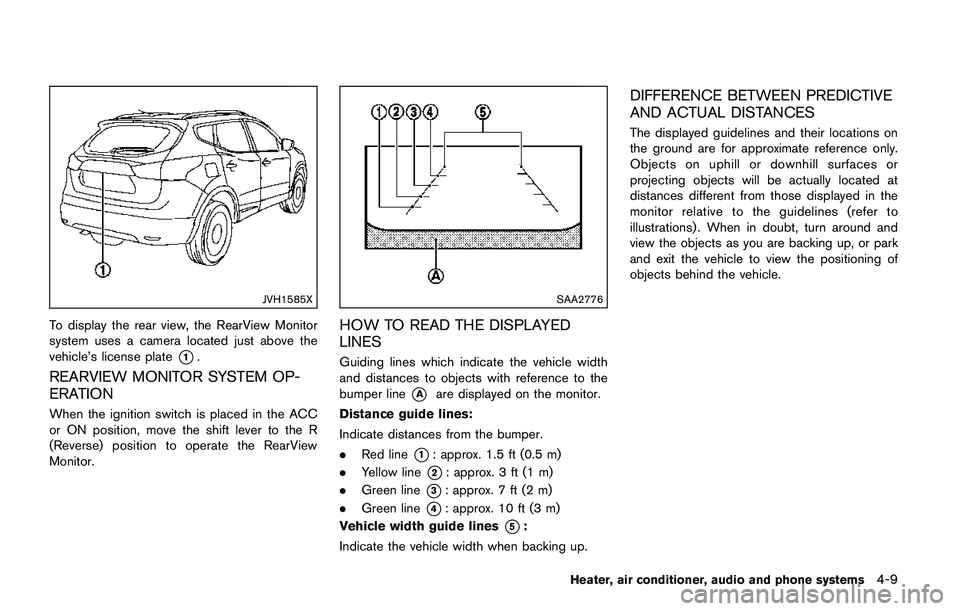
To display the rear view, the RearView Monitor
system uses a camera located just above the
vehicle’s license plate
*1.
REARVIEW MONITOR SYSTEM OP-
ERATION
When the ignition switch is placed in the ACC
or ON position, move the shift lever to the R
(Reverse) position to operate the RearView
Monitor.
SAA2776
HOW TO READ THE DISPLAYED
LINES
Guiding lines which indicate the vehicle width
and distances to objects with reference to the
bumper line
*Aare displayed on the monitor.
Distance guide lines:
Indicate distances from the bumper.
.Red line
*1: approx. 1.5 ft (0.5 m)
.Yellow line
*2: approx. 3 ft (1 m)
.Green line
*3: approx. 7 ft (2 m)
.Green line
*4: approx. 10 ft (3 m)
Vehicle width guide lines
*5:
Indicate the vehicle width when backing up.
DIFFERENCE BETWEEN PREDICTIVE
AND ACTUAL DISTANCES
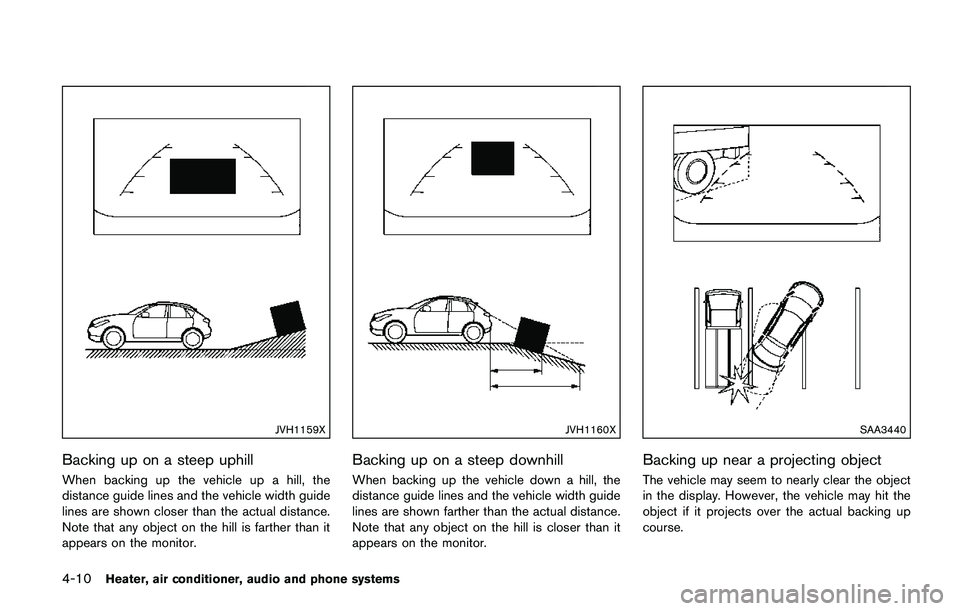
The displayed guidelines and their locations on
the ground are for approximate reference only.
Objects on uphill or downhill surfaces or
projecting objects will be actually located at
distances different from those displayed in the
monitor relative to the guidelines (refer to
illustrations) . When in doubt, turn around and
view the objects as you are backing up, or park
and exit the vehicle to view the positioning of
objects behind the vehicle.
Heater, air conditioner, audio and phone systems4-9
Page 191 of 508
4-10Heater, air conditioner, audio and phone systems
JVH1159X
Backing up on a steep uphill
When backing up the vehicle up a hill, the
distance guide lines and the vehicle width guide
lines are shown closer than the actual distance.
Note that any object on the hill is farther than it
appears on the monitor.
JVH1160X
Backing up on a steep downhill
When backing up the vehicle down a hill, the
distance guide lines and the vehicle width guide
lines are shown farther than the actual distance.
Note that any object on the hill is closer than it
appears on the monitor.
SAA3440
Backing up near a projecting object
The vehicle may seem to nearly clear the object
in the display. However, the vehicle may hit the
object if it projects over the actual backing up
course.