display NISSAN QUEST 2014 RE52 / 4.G Owner's Manual
[x] Cancel search | Manufacturer: NISSAN, Model Year: 2014, Model line: QUEST, Model: NISSAN QUEST 2014 RE52 / 4.GPages: 482, PDF Size: 2.42 MB
Page 106 of 482
SIC3993
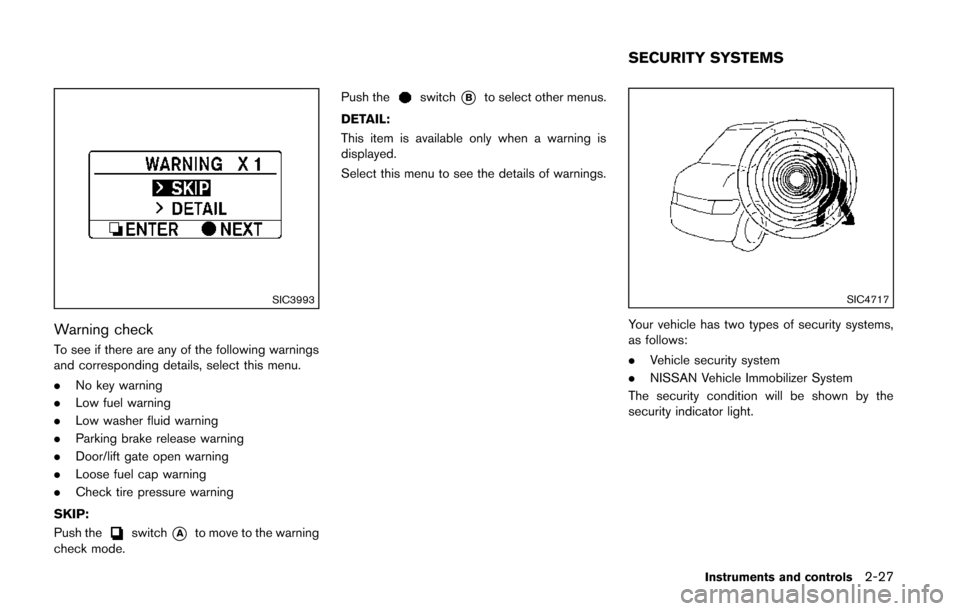
Warning check
To see if there are any of the following warnings
and corresponding details, select this menu.
.No key warning
. Low fuel warning
. Low washer fluid warning
. Parking brake release warning
. Door/lift gate open warning
. Loose fuel cap warning
. Check tire pressure warning
SKIP:
Push the
switch*Ato move to the warning
check mode. Push the
switch*Bto select other menus.
DETAIL:
This item is available only when a warning is
displayed.
Select this menu to see the details of warnings.
SIC4717
Your vehicle has two types of security systems,
as follows:
. Vehicle security system
. NISSAN Vehicle Immobilizer System
The security condition will be shown by the
security indicator light.
Instruments and controls2-27
SECURITY SYSTEMS
Page 162 of 482
LOCK button on the Intelligent Key after the
door is closed. (See “Remote keyless entry
system” (P.3-21) .)
BATTERY SAVER SYSTEM
When all the following conditions are met for a
period of time, the battery saver system will cut
off the power supply to prevent battery dis-
charge.
.The ignition switch is in the ACC position,
and
. All doors are closed, and
. The shift lever is in the P (Park) position.
WARNING SIGNALS
To help prevent the vehicle from moving
unexpectedly by erroneous operation of the
Intelligent Key listed on the following chart or
to help prevent the vehicle from being stolen,
chime or beep sounds inside and outside the
vehicle and a warning displays in the dot matrix
liquid crystal display.
When a chime or beep sounds or the warning
displays, be sure to check the vehicle and
Intelligent Key.
See “Troubleshooting guide” (P.3-20) and “Dot
matrix liquid crystal display” (P.2-18).
Pre-driving checks and adjustments3-19
Page 163 of 482
3-20Pre-driving checks and adjustments
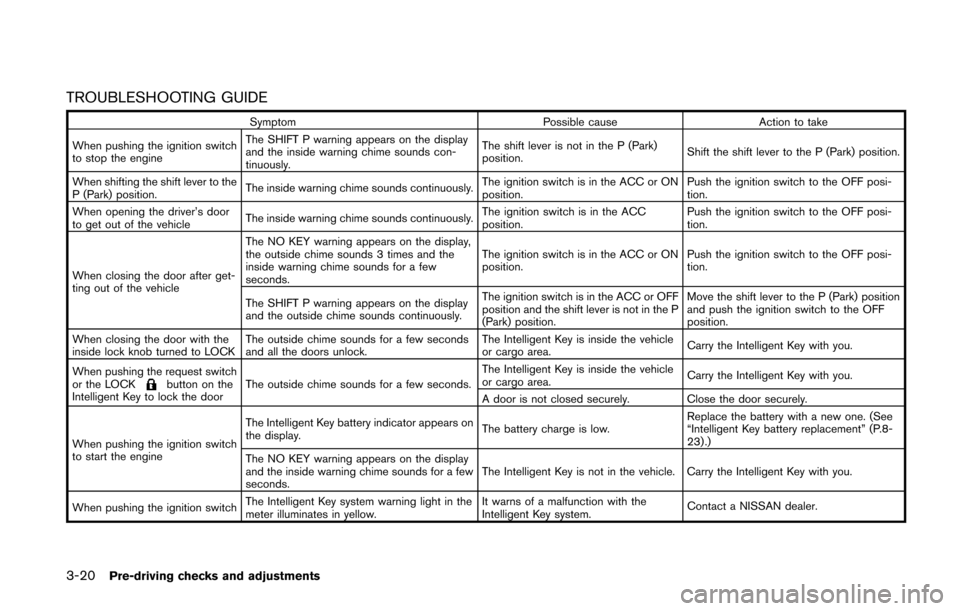
TROUBLESHOOTING GUIDE
SymptomPossible causeAction to take
When pushing the ignition switch
to stop the engine The SHIFT P warning appears on the display
and the inside warning chime sounds con-
tinuously.
The shift lever is not in the P (Park)
position.
Shift the shift lever to the P (Park) position.
When shifting the shift lever to the
P (Park) position. The inside warning chime sounds continuously.
The ignition switch is in the ACC or ON
position.Push the ignition switch to the OFF posi-
tion.
When opening the driver’s door
to get out of the vehicle The inside warning chime sounds continuously. The ignition switch is in the ACC
position.Push the ignition switch to the OFF posi-
tion.
When closing the door after get-
ting out of the vehicle The NO KEY warning appears on the display,
the outside chime sounds 3 times and the
inside warning chime sounds for a few
seconds.
The ignition switch is in the ACC or ON
position.
Push the ignition switch to the OFF posi-
tion.
The SHIFT P warning appears on the display
and the outside chime sounds continuously. The ignition switch is in the ACC or OFF
position and the shift lever is not in the P
(Park) position.Move the shift lever to the P (Park) position
and push the ignition switch to the OFF
position.
When closing the door with the
inside lock knob turned to LOCK The outside chime sounds for a few seconds
and all the doors unlock. The Intelligent Key is inside the vehicle
or cargo area.
Carry the Intelligent Key with you.
When pushing the request switch
or the LOCK
button on the
Intelligent Key to lock the door The outside chime sounds for a few seconds. The Intelligent Key is inside the vehicle
or cargo area.
Carry the Intelligent Key with you.
A door is not closed securely. Close the door securely.
When pushing the ignition switch
to start the engine The Intelligent Key battery indicator appears on
the display.
The battery charge is low.Replace the battery with a new one. (See
“Intelligent Key battery replacement” (P.8-
23).)
The NO KEY warning appears on the display
and the inside warning chime sounds for a few
seconds. The Intelligent Key is not in the vehicle. Carry the Intelligent Key with you.
When pushing the ignition switch The Intelligent Key system warning light in the
meter illuminates in yellow. It warns of a malfunction with the
Intelligent Key system.
Contact a NISSAN dealer.
Page 174 of 482
.Never pour fuel into the throttle
body to attempt to start your vehi-
cle.
. Close the sliding door before open-
ing the fuel-filler door.
. Do not fill a portable fuel container
in the vehicle or trailer. Static elec-
tricity can cause an explosion of
flammable liquid, vapor or gas in
any vehicle or trailer. To reduce the
risk of serious injury or death when
filling portable fuel containers:
— Always place the container on
the ground when filling.
— Do not use electronic devices when filling.
— Keep the pump nozzle in contact with the container while you are
filling it.
— Use only approved portable fuel containers for flammable liquid.
CAUTION
. If fuel is spilled on the vehicle body,
flush it away with water to avoid paint damage.
. Insert the cap straight into the fuel-
filler tube, then tighten until the
fuel-filler cap clicks. Failure to tight-
en the fuel-filler cap properly may
cause the
malfunction indicator
light (MIL) to illuminate. If the
light illuminates because the fuel-
filler cap is loose or missing, tighten
or install the cap and continue to
drive the vehicle. The
light
should turn off after a few driving
trips. If the
light does not turn
off after a few driving trips, have the
vehicle inspected by a NISSAN deal-
er.
For additional information, see
“Malfunction Indicator Light (MIL)”
(P.2-17) .
. The LOOSE FUEL CAP warning will
appear if the fuel-filler cap is not
properly tightened. It may take a few
driving trips for the message to be
displayed. Failure to tighten the
fuel-filler cap properly after the
LOOSE FUEL CAP warning appears
may cause the
Malfunction
Indicator Light (MIL) to illuminate.
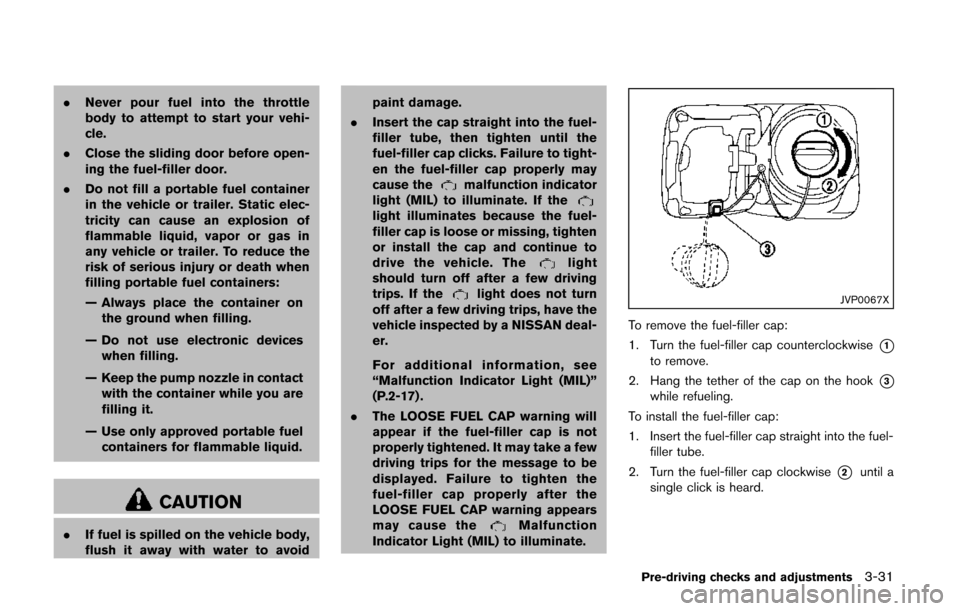
JVP0067X
To remove the fuel-filler cap:
1. Turn the fuel-filler cap counterclockwise
*1to remove.
2. Hang the tether of the cap on the hook
*3while refueling.
To install the fuel-filler cap:
1. Insert the fuel-filler cap straight into the fuel- filler tube.
2. Turn the fuel-filler cap clockwise
*2until a
single click is heard.
Pre-driving checks and adjustments3-31
Page 175 of 482
3-32Pre-driving checks and adjustments
SPA2833
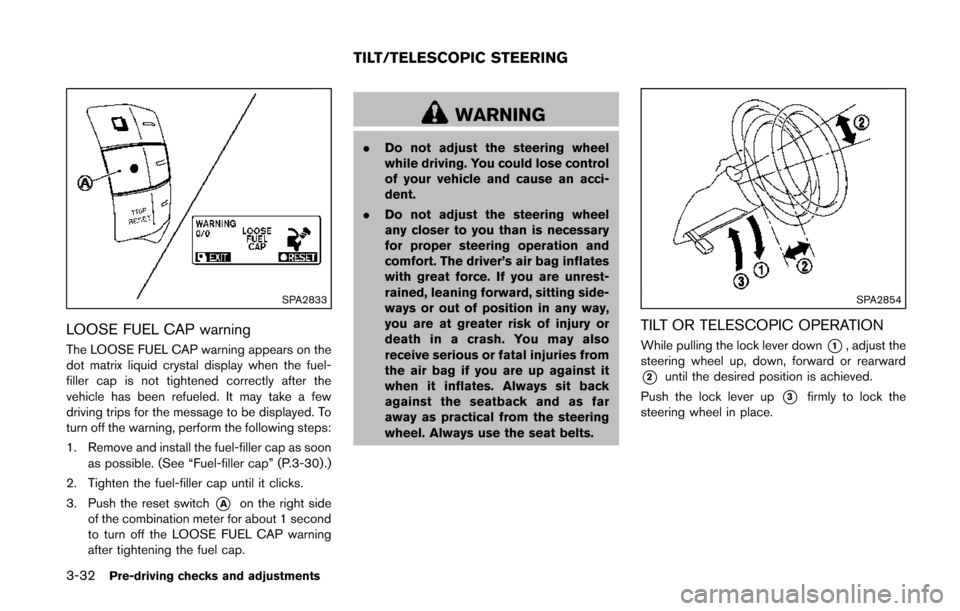
LOOSE FUEL CAP warning
The LOOSE FUEL CAP warning appears on the
dot matrix liquid crystal display when the fuel-
filler cap is not tightened correctly after the
vehicle has been refueled. It may take a few
driving trips for the message to be displayed. To
turn off the warning, perform the following steps:
1. Remove and install the fuel-filler cap as soonas possible. (See “Fuel-filler cap” (P.3-30) .)
2. Tighten the fuel-filler cap until it clicks.
3. Push the reset switch
*Aon the right side
of the combination meter for about 1 second
to turn off the LOOSE FUEL CAP warning
after tightening the fuel cap.
WARNING
. Do not adjust the steering wheel
while driving. You could lose control
of your vehicle and cause an acci-
dent.
. Do not adjust the steering wheel
any closer to you than is necessary
for proper steering operation and
comfort. The driver’s air bag inflates
with great force. If you are unrest-
rained, leaning forward, sitting side-
ways or out of position in any way,
you are at greater risk of injury or
death in a crash. You may also
receive serious or fatal injuries from
the air bag if you are up against it
when it inflates. Always sit back
against the seatback and as far
away as practical from the steering
wheel. Always use the seat belts.
SPA2854
TILT OR TELESCOPIC OPERATION
While pulling the lock lever down*1, adjust the
steering wheel up, down, forward or rearward
*2until the desired position is achieved.
Push the lock lever up
*3firmly to lock the
steering wheel in place.
TILT/TELESCOPIC STEERING
Page 184 of 482

4 Monitor, heater, air conditioner, audio, phoneand voice recognition systems
Safety note ........................................................................\
.......... 4-3
Center multi-function control panel (if so equipped) ...... 4-3
How to use multi-function controller .............................. 4-5
How to use touch screen (models with
navigation system) .............................................................. 4-5
Menu options (models with navigation system) .......... 4-7
How to select menus on the screen .............................. 4-8
Vehicle information and settings (models with center
multi-function control panel) .................................................. 4-8 How to use STATUS button ............................................. 4-8
How to use brightness control and display
ON/OFF button ................................................................... 4-8
How to use DISP button (models without
navigation system) .............................................................. 4-8
How to use ECON button (models without
navigation system) .............................................................. 4-9
How to use INFO button .................................................. 4-9
How to use SETTING button ....................................... 4-13
Rearview monitor (if so equipped) .................................... 4-23
How to read the displayed lines .................................. 4-23
How to park with predictive course lines (if
so equipped) ..................................................................... 4-24
Difference between predictive and
actual distances ................................................................ 4-26
Predictive course line settings (if so equipped) ...... 4-28
How to adjust the screen .............................................. 4-28 Operating tips ................................................................. 4-29
Around ViewTMMonitor (if so equipped) ........................ 4-29
How to switch the display ........................................... 4-31
How to see each view .................................................. 4-32
Difference between predictive and
actual distances ............................................................. 4-36
How to adjust the screen ............................................ 4-38
Operating tips ................................................................. 4-38
Ventilators ........................................................................\
........ 4-38 Center ventilators ........................................................... 4-38
Side ventilators ............................................................... 4-39
Rear ventilators ............................................................... 4-39
Heater and air conditioner .................................................. 4-39
Operating tips (for automatic air conditioner) ........ 4-40
Manual air conditioner .................................................. 4-41
Automatic air conditioner ............................................. 4-46
Servicing air conditioner .............................................. 4-52
In-cabin microfilter ......................................................... 4-53
Audio system ........................................................................\
.. 4-53
Audio operation precautions ....................................... 4-53
FM-AM radio with Compact Disc (CD) player ....... 4-67
FM-AM-SAT radio with Compact Disc (CD) player
(Type A) ........................................................................\
.... 4-71
FM-AM-SAT radio with compact disc (CD) player
(Type B) ........................................................................\
.... 4-79
Page 186 of 482
WARNING
.Do not disassemble or modify this
system. If you do, it may result in
accidents, fire, or electric shock.
. Do not use this system if you notice
any abnormality, such as a frozen
screen or lack of sound. Continued
use of the system may result in
accident, fire or electric shock.
. In case you notice any foreign
object in the system hardware, spill
liquid on it, or notice smoke or smell
coming from it, stop using the
system immediately and contact
your nearest NISSAN dealer. Ignor-
ing such conditions may lead to
accidents, fire, or electric shock.
. Park the vehicle in a safe location
and apply the parking brake to view
the images on the front center dis-
play screen.
Do not attempt to operate the system in
extreme temperature conditions [below
− 48F( −208 C) and above 1588 F (708C)].
Operating this system under these condi-
tions may result in system malfunctions.
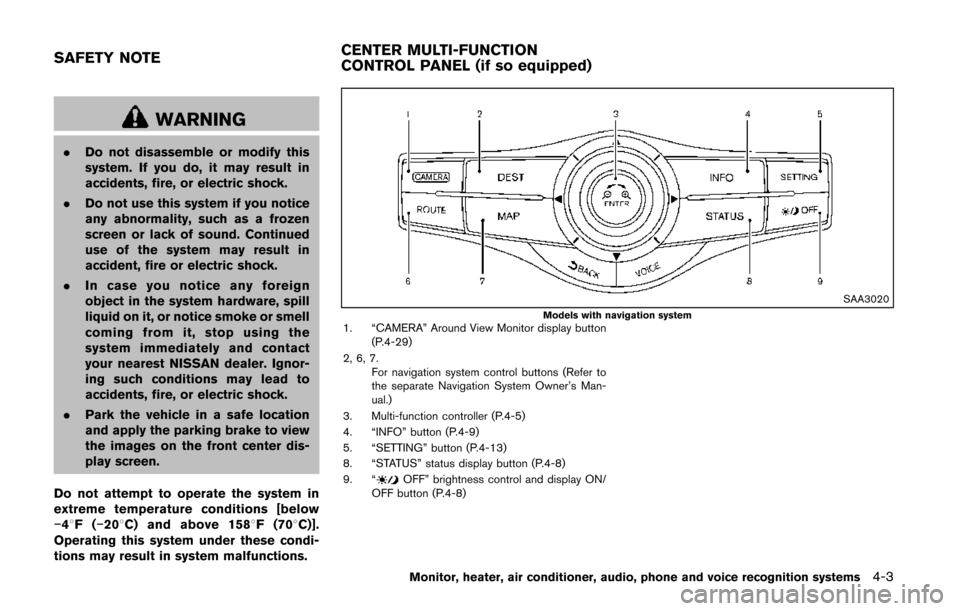
SAA3020Models with navigation system1. “CAMERA” Around View Monitor display button (P.4-29)
2, 6, 7. For navigation system control buttons (Refer to
the separate Navigation System Owner’s Man-
ual.)
3. Multi-function controller (P.4-5)
4. “INFO” button (P.4-9)
5. “SETTING” button (P.4-13)
8. “STATUS” status display button (P.4-8)
9. “
OFF” brightness control and display ON/
OFF button (P.4-8)
Monitor, heater, air conditioner, audio, phone and voice recognition systems4-3
SAFETY NOTE CENTER MULTI-FUNCTION
CONTROL PANEL (if so equipped)
Page 187 of 482
4-4Monitor, heater, air conditioner, audio, phone and voice recognition systems
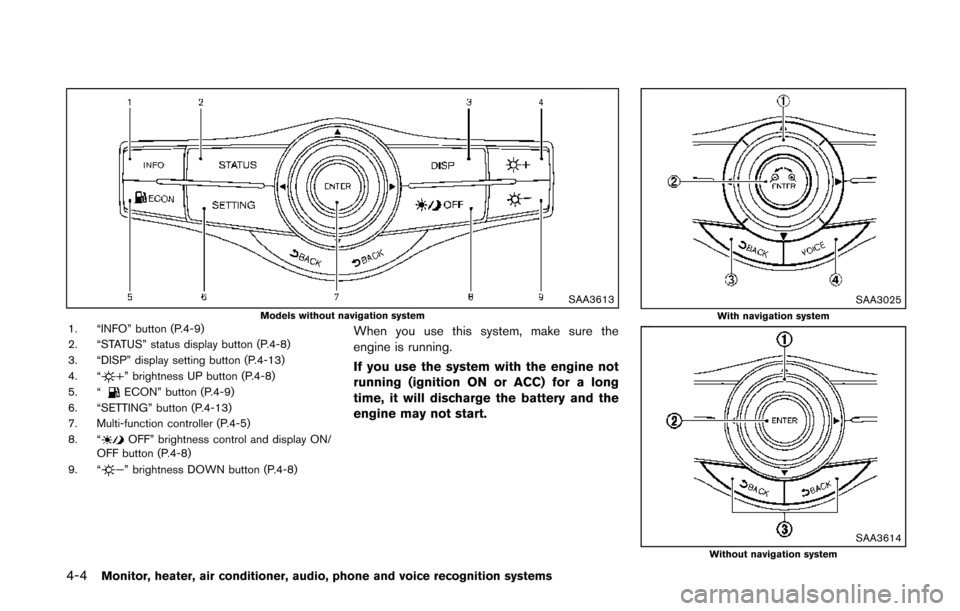
SAA3613Models without navigation system1. “INFO” button (P.4-9)
2. “STATUS” status display button (P.4-8)
3. “DISP” display setting button (P.4-13)
4. “
” brightness UP button (P.4-8)
5. “ECON” button (P.4-9)
6. “SETTING” button (P.4-13)
7. Multi-function controller (P.4-5)
8. “
OFF” brightness control and display ON/
OFF button (P.4-8)
9. “
” brightness DOWN button (P.4-8)
When you use this system, make sure the
engine is running.
If you use the system with the engine not
running (ignition ON or ACC) for a long
time, it will discharge the battery and the
engine may not start.
SAA3025With navigation system
SAA3614Without navigation system
Page 188 of 482
HOW TO USE MULTI-FUNCTION
CONTROLLER
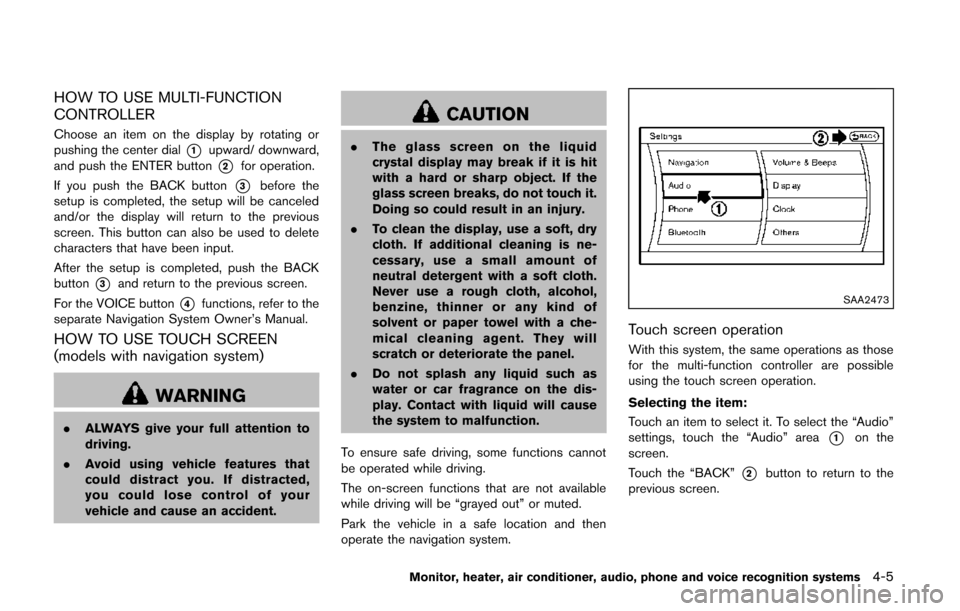
Choose an item on the display by rotating or
pushing the center dial
*1upward/ downward,
and push the ENTER button
*2for operation.
If you push the BACK button
*3before the
setup is completed, the setup will be canceled
and/or the display will return to the previous
screen. This button can also be used to delete
characters that have been input.
After the setup is completed, push the BACK
button
*3and return to the previous screen.
For the VOICE button
*4functions, refer to the
separate Navigation System Owner’s Manual.
HOW TO USE TOUCH SCREEN
(models with navigation system)
WARNING
. ALWAYS give your full attention to
driving.
. Avoid using vehicle features that
could distract you. If distracted,
you could lose control of your
vehicle and cause an accident.
CAUTION
.The glass screen on the liquid
crystal display may break if it is hit
with a hard or sharp object. If the
glass screen breaks, do not touch it.
Doing so could result in an injury.
. To clean the display, use a soft, dry
cloth. If additional cleaning is ne-
cessary, use a small amount of
neutral detergent with a soft cloth.
Never use a rough cloth, alcohol,
benzine, thinner or any kind of
solvent or paper towel with a che-
mical cleaning agent. They will
scratch or deteriorate the panel.
. Do not splash any liquid such as
water or car fragrance on the dis-
play. Contact with liquid will cause
the system to malfunction.
To ensure safe driving, some functions cannot
be operated while driving.
The on-screen functions that are not available
while driving will be “grayed out” or muted.
Park the vehicle in a safe location and then
operate the navigation system.
SAA2473
Touch screen operation
With this system, the same operations as those
for the multi-function controller are possible
using the touch screen operation.
Selecting the item:
Touch an item to select it. To select the “Audio”
settings, touch the “Audio” area
*1on the
screen.
Touch the “BACK”
*2button to return to the
previous screen.
Monitor, heater, air conditioner, audio, phone and voice recognition systems4-5
Page 189 of 482
4-6Monitor, heater, air conditioner, audio, phone and voice recognition systems
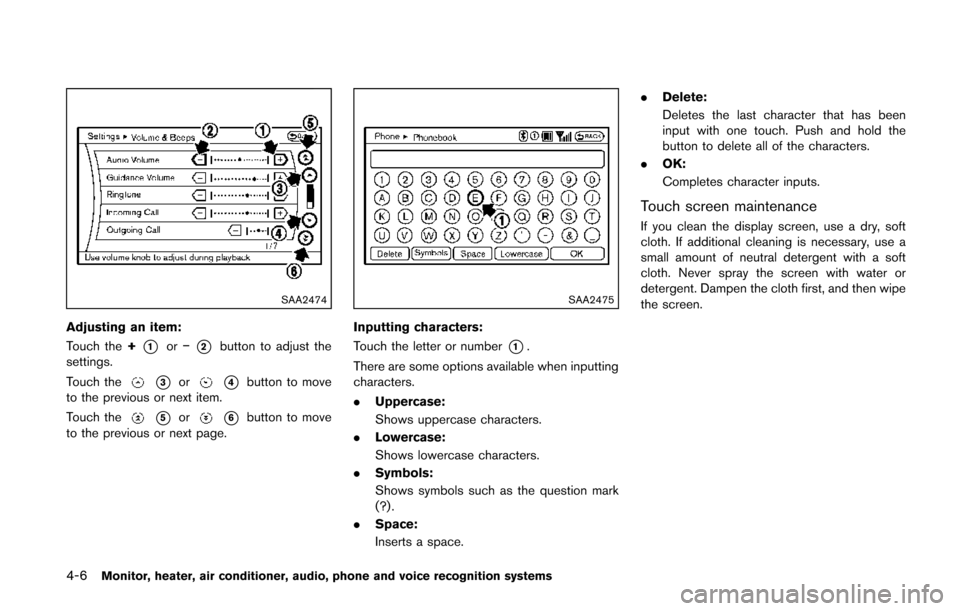
SAA2474
Adjusting an item:
Touch the+
*1or−*2button to adjust the
settings.
Touch the
*3or*4button to move
to the previous or next item.
Touch the
*5or*6button to move
to the previous or next page.
SAA2475
Inputting characters:
Touch the letter or number
*1.
There are some options available when inputting
characters.
. Uppercase:
Shows uppercase characters.
. Lowercase:
Shows lowercase characters.
. Symbols:
Shows symbols such as the question mark
(?) .
. Space:
Inserts a space. .
Delete:
Deletes the last character that has been
input with one touch. Push and hold the
button to delete all of the characters.
. OK:
Completes character inputs.
Touch screen maintenance
If you clean the display screen, use a dry, soft
cloth. If additional cleaning is necessary, use a
small amount of neutral detergent with a soft
cloth. Never spray the screen with water or
detergent. Dampen the cloth first, and then wipe
the screen.