navigation system NISSAN QUEST 2014 RE52 / 4.G Owner's Manual
[x] Cancel search | Manufacturer: NISSAN, Model Year: 2014, Model line: QUEST, Model: NISSAN QUEST 2014 RE52 / 4.GPages: 482, PDF Size: 2.42 MB
Page 201 of 482
4-18Monitor, heater, air conditioner, audio, phone and voice recognition systems
JVH0157M
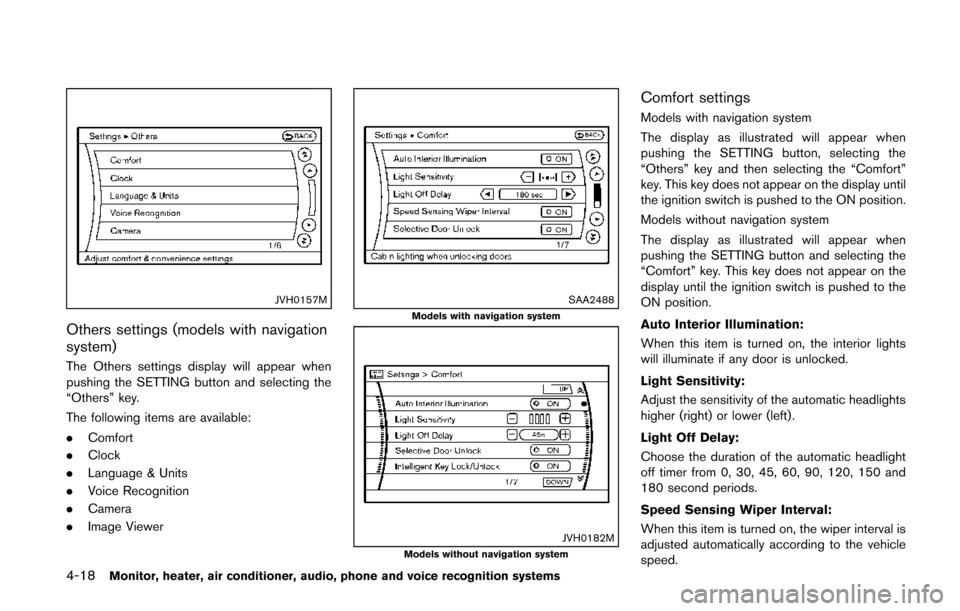
Others settings (models with navigation
system)
The Others settings display will appear when
pushing the SETTING button and selecting the
“Others” key.
The following items are available:
.Comfort
. Clock
. Language & Units
. Voice Recognition
. Camera
. Image Viewer
SAA2488Models with navigation system
JVH0182MModels without navigation system
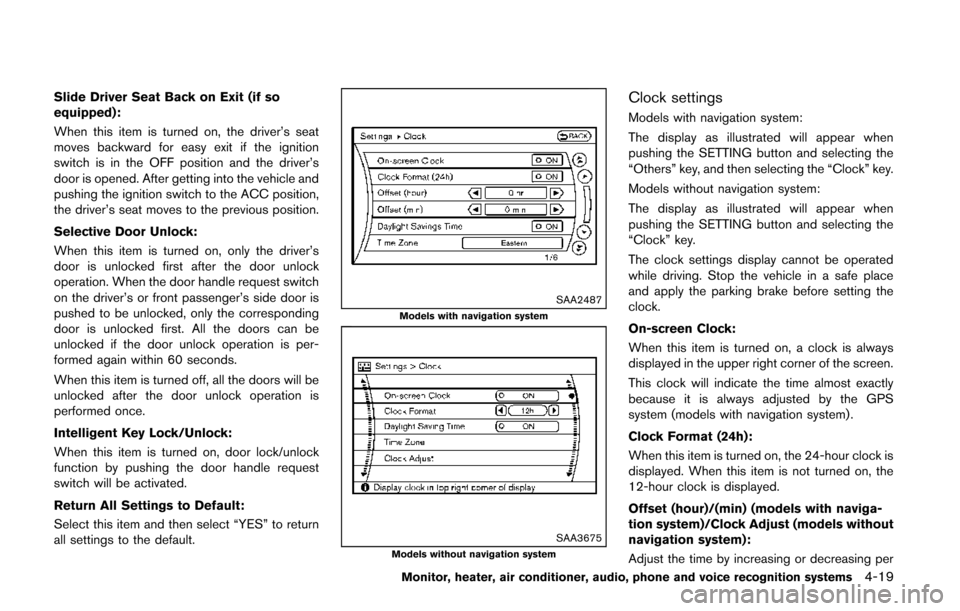
Comfort settings
Models with navigation system
The display as illustrated will appear when
pushing the SETTING button, selecting the
“Others” key and then selecting the “Comfort”
key. This key does not appear on the display until
the ignition switch is pushed to the ON position.
Models without navigation system
The display as illustrated will appear when
pushing the SETTING button and selecting the
“Comfort” key. This key does not appear on the
display until the ignition switch is pushed to the
ON position.
Auto Interior Illumination:
When this item is turned on, the interior lights
will illuminate if any door is unlocked.
Light Sensitivity:
Adjust the sensitivity of the automatic headlights
higher (right) or lower (left).
Light Off Delay:
Choose the duration of the automatic headlight
off timer from 0, 30, 45, 60, 90, 120, 150 and
180 second periods.
Speed Sensing Wiper Interval:
When this item is turned on, the wiper interval is
adjusted automatically according to the vehicle
speed.
Page 202 of 482
Slide Driver Seat Back on Exit (if so
equipped):
When this item is turned on, the driver’s seat
moves backward for easy exit if the ignition
switch is in the OFF position and the driver’s
door is opened. After getting into the vehicle and
pushing the ignition switch to the ACC position,
the driver’s seat moves to the previous position.
Selective Door Unlock:
When this item is turned on, only the driver’s
door is unlocked first after the door unlock
operation. When the door handle request switch
on the driver’s or front passenger’s side door is
pushed to be unlocked, only the corresponding
door is unlocked first. All the doors can be
unlocked if the door unlock operation is per-
formed again within 60 seconds.
When this item is turned off, all the doors will be
unlocked after the door unlock operation is
performed once.
Intelligent Key Lock/Unlock:
When this item is turned on, door lock/unlock
function by pushing the door handle request
switch will be activated.
Return All Settings to Default:
Select this item and then select “YES” to return
all settings to the default.
SAA2487Models with navigation system
SAA3675Models without navigation system
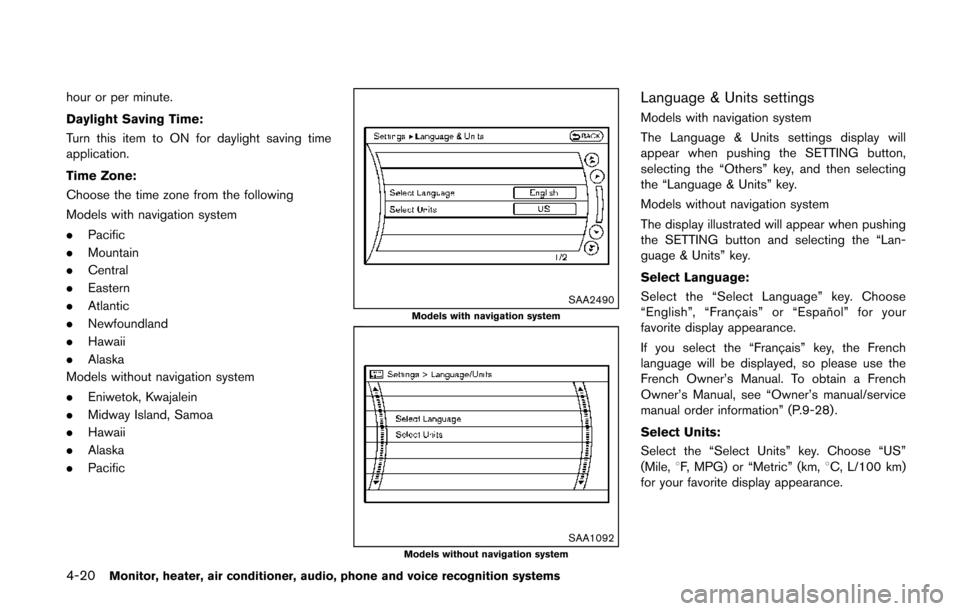
Clock settings
Models with navigation system:
The display as illustrated will appear when
pushing the SETTING button and selecting the
“Others” key, and then selecting the “Clock” key.
Models without navigation system:
The display as illustrated will appear when
pushing the SETTING button and selecting the
“Clock” key.
The clock settings display cannot be operated
while driving. Stop the vehicle in a safe place
and apply the parking brake before setting the
clock.
On-screen Clock:
When this item is turned on, a clock is always
displayed in the upper right corner of the screen.
This clock will indicate the time almost exactly
because it is always adjusted by the GPS
system (models with navigation system) .
Clock Format (24h):
When this item is turned on, the 24-hour clock is
displayed. When this item is not turned on, the
12-hour clock is displayed.
Offset (hour)/(min) (models with naviga-
tion system)/Clock Adjust (models without
navigation system):
Adjust the time by increasing or decreasing per
Monitor, heater, air conditioner, audio, phone and voice recognition systems4-19
Page 203 of 482
4-20Monitor, heater, air conditioner, audio, phone and voice recognition systems
hour or per minute.
Daylight Saving Time:
Turn this item to ON for daylight saving time
application.
Time Zone:
Choose the time zone from the following
Models with navigation system
.Pacific
. Mountain
. Central
. Eastern
. Atlantic
. Newfoundland
. Hawaii
. Alaska
Models without navigation system
. Eniwetok, Kwajalein
. Midway Island, Samoa
. Hawaii
. Alaska
. Pacific
SAA2490Models with navigation system
SAA1092Models without navigation system
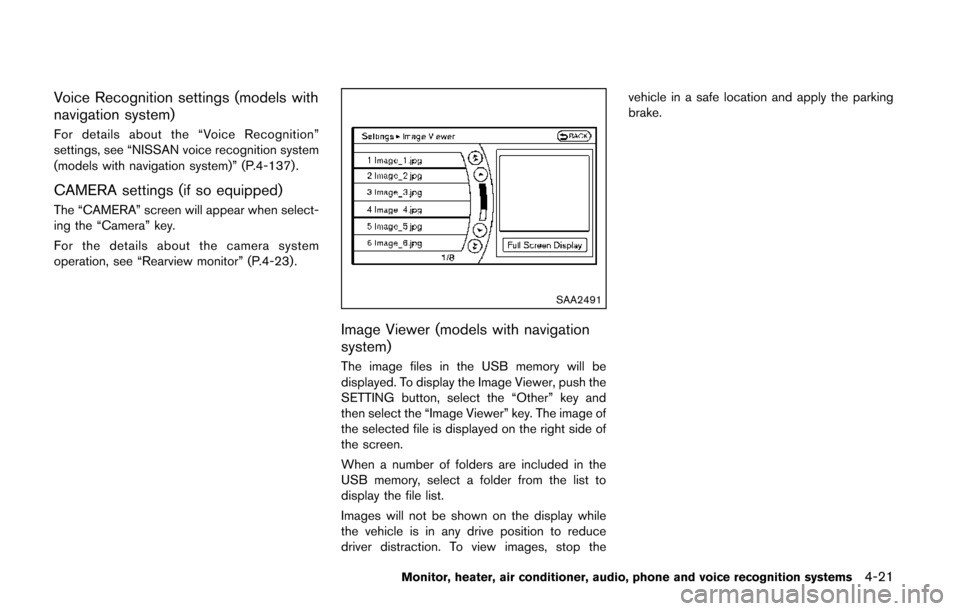
Language & Units settings
Models with navigation system
The Language & Units settings display will
appear when pushing the SETTING button,
selecting the “Others” key, and then selecting
the “Language & Units” key.
Models without navigation system
The display illustrated will appear when pushing
the SETTING button and selecting the “Lan-
guage & Units” key.
Select Language:
Select the “Select Language” key. Choose
“English”, “Franc¸ ais” or “Espan ˜
ol” for your
favorite display appearance.
If you select the “Franc¸ ais” key, the French
language will be displayed, so please use the
French Owner’s Manual. To obtain a French
Owner’s Manual, see “Owner’s manual/service
manual order information” (P.9-28) .
Select Units:
Select the “Select Units” key. Choose “US”
(Mile, 8F, MPG) or “Metric” (km, 8C, L/100 km)
for your favorite display appearance.
Page 204 of 482
Voice Recognition settings (models with
navigation system)
For details about the “Voice Recognition”
settings, see “NISSAN voice recognition system
(models with navigation system)” (P.4-137).
CAMERA settings (if so equipped)
The “CAMERA” screen will appear when select-
ing the “Camera” key.
For the details about the camera system
operation, see “Rearview monitor” (P.4-23).
SAA2491
Image Viewer (models with navigation
system)
The image files in the USB memory will be
displayed. To display the Image Viewer, push the
SETTING button, select the “Other” key and
then select the “Image Viewer” key. The image of
the selected file is displayed on the right side of
the screen.
When a number of folders are included in the
USB memory, select a folder from the list to
display the file list.
Images will not be shown on the display while
the vehicle is in any drive position to reduce
driver distraction. To view images, stop thevehicle in a safe location and apply the parking
brake.
Monitor, heater, air conditioner, audio, phone and voice recognition systems4-21
Page 211 of 482
4-28Monitor, heater, air conditioner, audio, phone and voice recognition systems
SAA2404Models with navigation system
SAA2606Models without navigation system
PREDICTIVE COURSE LINE SETTINGS
(if so equipped)
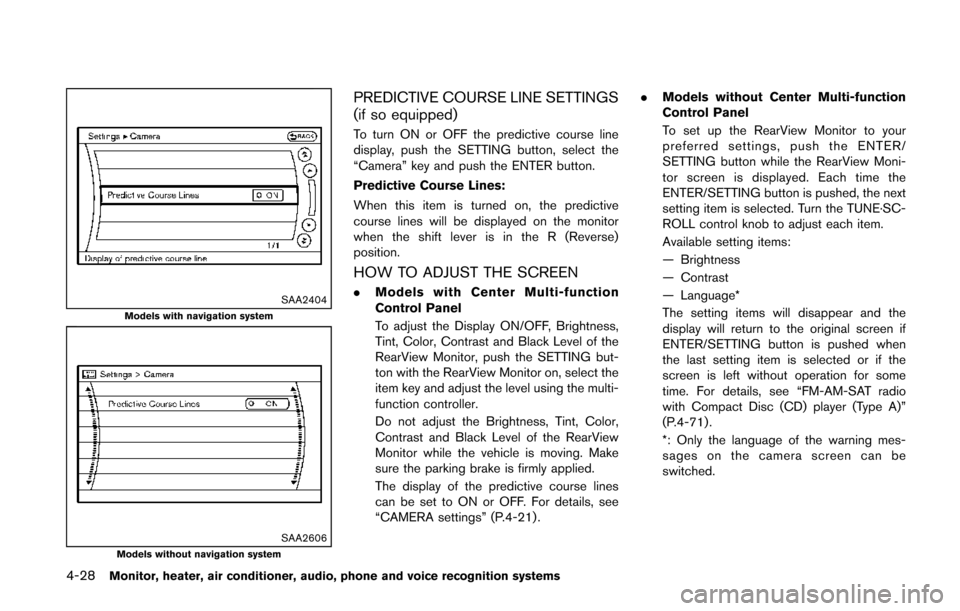
To turn ON or OFF the predictive course line
display, push the SETTING button, select the
“Camera” key and push the ENTER button.
Predictive Course Lines:
When this item is turned on, the predictive
course lines will be displayed on the monitor
when the shift lever is in the R (Reverse)
position.
HOW TO ADJUST THE SCREEN
.Models with Center Multi-function
Control Panel
To adjust the Display ON/OFF, Brightness,
Tint, Color, Contrast and Black Level of the
RearView Monitor, push the SETTING but-
ton with the RearView Monitor on, select the
item key and adjust the level using the multi-
function controller.
Do not adjust the Brightness, Tint, Color,
Contrast and Black Level of the RearView
Monitor while the vehicle is moving. Make
sure the parking brake is firmly applied.
The display of the predictive course lines
can be set to ON or OFF. For details, see
“CAMERA settings” (P.4-21) . .
Models without Center Multi-function
Control Panel
To set up the RearView Monitor to your
preferred settings, push the ENTER/
SETTING button while the RearView Moni-
tor screen is displayed. Each time the
ENTER/SETTING button is pushed, the next
setting item is selected. Turn the TUNE·SC-
ROLL control knob to adjust each item.
Available setting items:
— Brightness
— Contrast
— Language*
The setting items will disappear and the
display will return to the original screen if
ENTER/SETTING button is pushed when
the last setting item is selected or if the
screen is left without operation for some
time. For details, see “FM-AM-SAT radio
with Compact Disc (CD) player (Type A)”
(P.4-71) .
*: Only the language of the warning mes-
sages on the camera screen can be
switched.
Page 240 of 482
— The file is not MP3, WMA, AAC, M4A orDivX®type.
Region Invalid:
— The DVD is not for region 1 or all regions. Use DVDs with a region code “1”, “ALL”
or “1 included” for your DVD entertain-
ment system. (The region code
*Ais
displayed as a small symbol printed on
the top of the DVD
*B.) This vehicle-
installed DVD player cannot play DVDs
with a region code other than “1” or
“ALL”.
Copyright and trademark:
. The technology protected by the U.S. patent
and other intellectual property rights owned
by Macrovision Corporation and other right
holders is adopted for this system.
. This copyright protected technology cannot
be used without a permit from Macrovision
Corporation. It is limited to be personal use,
etc., as long as the permit from Macrovision
Corporation is not issued.
. Modifying or disassembling is prohibited.
. Dolby digital is manufactured under license
from Dolby Laboratories, Inc.
. Dolby and the double D mark “
” are
trademarks of Dolby Laboratories, Inc. .
DTS and DTS 2.0 “
” are registered
trademarks of DTS, Inc.
Parental level (parental control):
DVDs with the parental control setting can be
played with this system. Please use your own
judgement to set the parental control with the
system.
Disc selection:
The following disc formats can be played with
the DVD drive.
. DVD-VIDEO
. VIDEO-CD
. CD-DA (Conventional Compact Disc)
. DTS-CD (models with navigation system)
USB (Universal Serial Bus) (if so
equipped)
WARNING
Do not connect, disconnect or operate
the USB device while driving. Doing so
can be a distraction. If distracted you
could lose control of your vehicle and
cause an accident or serious injury.
CAUTION
.Do not force the USB device into the
USB port. Inserting the USB device
tilted or up-side-down into the port
may damage the port. Make sure
that the USB device is connected
correctly into the USB port.
. Do not grab the USB port cover (if
so equipped) when pulling the USB
device out of the port. This could
damage the port and the cover.
. Do not leave the USB cable in a
place where it can be pulled unin-
tentionally. Pulling the cable may
damage the port.
The vehicle is not equipped with a USB device.
USB devices should be purchased separately
as necessary.
This system cannot be used to format USB
devices. To format a USB device, use a personal
computer.
In some states/area, the USB device for the
front seats plays only sound without images for
regulatory reasons, even when the vehicle is
parked.
This system supports various USB memory
Monitor, heater, air conditioner, audio, phone and voice recognition systems4-57
Page 245 of 482
4-62Monitor, heater, air conditioner, audio, phone and voice recognition systems
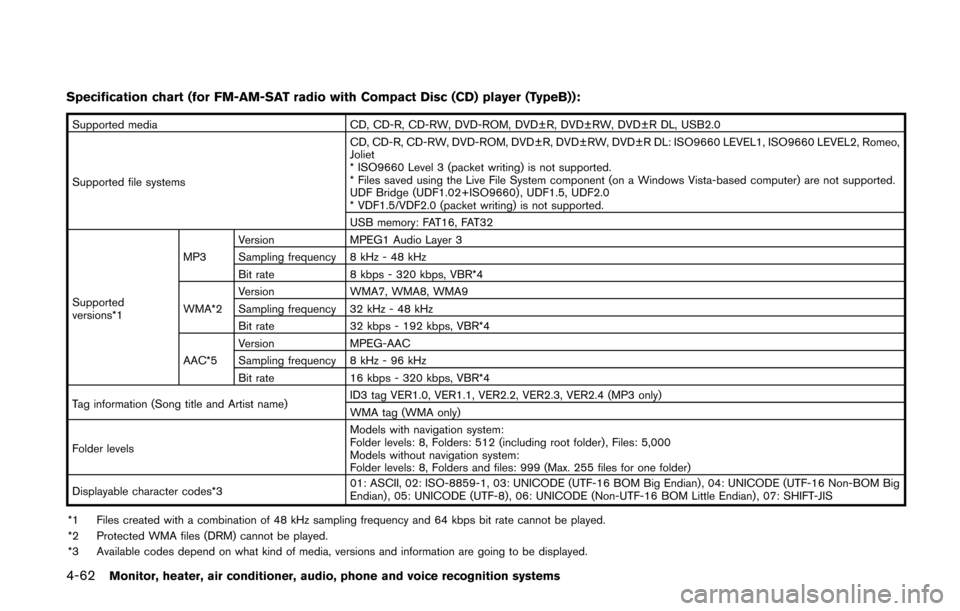
Specification chart (for FM-AM-SAT radio with Compact Disc (CD) player (TypeB)):
Supported mediaCD, CD-R, CD-RW, DVD-ROM, DVD±R, DVD±RW, DVD±R DL, USB2.0
Supported file systems CD, CD-R, CD-RW, DVD-ROM, DVD±R, DVD±RW, DVD±R DL: ISO9660 LEVEL1, ISO9660 LEVEL2, Romeo,
Joliet
* ISO9660 Level 3 (packet writing) is not supported.
* Files saved using the Live File System component (on a Windows Vista-based computer) are not supported.
UDF Bridge (UDF1.02+ISO9660) , UDF1.5, UDF2.0
* VDF1.5/VDF2.0 (packet writing) is not supported.
USB memory: FAT16, FAT32
Supported
versions*1 MP3
Version
MPEG1 Audio Layer 3
Sampling frequency 8 kHz - 48 kHz
Bit rate 8 kbps - 320 kbps, VBR*4
WMA*2 Version
WMA7, WMA8, WMA9
Sampling frequency 32 kHz - 48 kHz
Bit rate 32 kbps - 192 kbps, VBR*4
AAC*5 Version
MPEG-AAC
Sampling frequency 8 kHz - 96 kHz
Bit rate 16 kbps - 320 kbps, VBR*4
Tag information (Song title and Artist name) ID3 tag VER1.0, VER1.1, VER2.2, VER2.3, VER2.4 (MP3 only)
WMA tag (WMA only)
Folder levels Models with navigation system:
Folder levels: 8, Folders: 512 (including root folder) , Files: 5,000
Models without navigation system:
Folder levels: 8, Folders and files: 999 (Max. 255 files for one folder)
Displayable character codes*3 01: ASCII, 02: ISO-8859-1, 03: UNICODE (UTF-16 BOM Big Endian) , 04: UNICODE (UTF-16 Non-BOM Big
Endian) , 05: UNICODE (UTF-8), 06: UNICODE (Non-UTF-16 BOM Little Endian) , 07: SHIFT-JIS
*1 Files created with a combination of 48 kHz sampling frequency and 64 kbps bit rate cannot be played.
*2 Protected WMA files (DRM) cannot be played.
*3 Available codes depend on what kind of media, versions and information are going to be displayed.
Page 246 of 482
*4 When VBR files are played, the playback time may not be displayed correctly.
*5 Models with navigation system.
Monitor, heater, air conditioner, audio, phone and voice recognition systems4-63
Page 249 of 482
4-66Monitor, heater, air conditioner, audio, phone and voice recognition systems
Bluetooth®Audio player (models with
navigation system)
Bluetooth®is a trademark owned
by Bluetooth SIG, Inc. and li-
censed to Clarion Co., Ltd.
. Some Bluetooth®audio devices may not be
recognized by the in-vehicle audio system.
. It is necessary to set up the wireless
connection between a compatible Blue-
tooth
®audio device and the in-vehicle
Bluetooth®module before using the Blue-
tooth®audio player.
. Operating procedure of the Bluetooth®
audio player will vary depending on the
device. Make sure you understand how to
operate an audio device before using it with
this system.
. The Bluetooth
®audio player may be
stopped under the following conditions:
— Receiving a hands-free call.
— Checking the connection to the hands- free phone.
. Do not place a Bluetooth
®audio device in
an area surrounded by metal or far away
from the in-vehicle Bluetooth
®module to
prevent tone quality degradation and wire-
less connection disruption. .
While an audio device is connected through
a Bluetooth
®wireless connection, the bat-
tery power of the device may discharge
quicker than usual.
. This system supports the Bluetooth
®Audio
Distribution Profile (A2DP, AVRCP).
. Wireless LAN (Wi-Fi) and the Bluetooth
®
functions share the same frequency band
(2.4 GHz) . Using the Bluetooth®and the
wireless LAN functions at the same time may
slow down or disconnect the communica-
tion and cause undesired noise. It is
recommended that you turn off the wireless
LAN (Wi-Fi) when using the Bluetooth
®
functions.
Page 264 of 482
.UPDATING (When the satellite radio sub-
scription is not active)
SCAN tuning:
Push the SCAN tuning button to tune from low
to high frequencies and stop at each broad-
casting station/channel for 5 seconds. Pushing
the button again during this 5 seconds period
will stop SCAN tuning and the radio will remain
tuned to that station/channel.
If the SCAN tuning button is not pushed within 5
seconds, SCAN tuning moves to the next
station/channel.
*1to*6Station memory operations:
12 stations/channels can be set for the FM band
(6 each for FM1 and FM2) , 18 for SiriusXM
Satellite Radio (6 each for XM1, XM2 and XM3)
and 6 stations can be set for the AM band.
1. Choose the radio band using the radio band select button.
2. Tune to the desired station/channel using the SEEK/TRACK, SCAN button or the
radio TUNE knob.
3. Push and hold the desired station preset button
*1to*6until the radio mutes.
4. The station indicator will then come on and the sound will resume. Memorizing is now
complete. 5. Other buttons can be set in the same
manner.
If the battery cable is disconnected, or if the fuse
opens, the radio memory will be erased. In that
case, reset the desired stations/channels.
List (AM and FM radio) (models with
navigation system):
When the “List” key on the display is selected
while the FM or AM radio is being played, the
preset station list will be displayed.
If 1 of the 6 preset stations listed is touched and
held, the current station will be stored as the
new preset.
Menu (SiriusXM Satellite Radio):
When the “Menu” key on the display is selected
while the SiriusXM Satellite Radio is being
played, the menu list will be displayed.
The following items are available.
. Preset List
Displays the preset channel list. If 1 of the 6
preset stations listed is touched and held,
the current station will be stored as the new
preset.
. Customize Channel List
Selects specific channels to skip while using
the TUNE, SEEK/CATEGORY or Menu-
Categories feature. .
Favorite Artists & Songs
Stores the current artist or song that is being
played. Touch the “Alert” key to be reminded
when the stored artist or song is playing on a
station while listening to SiriusXM Satellite
Radio.
. Categories
Selecting a category will go to the first
channel in that category as defined by
SiriusXM Satellite Radio.
. Direct Tune
Inputs the channel number by using a
keypad.
Text (models without navigation system):
When the “Text” key is selected with the multi-
function controller on the display and then the
ENTER button is pushed while the satellite radio
is being played, the text information listed below
will be displayed on the screen.
. CH Name
. Category
. Name
. Title
. Other
Monitor, heater, air conditioner, audio, phone and voice recognition systems4-81