display NISSAN ROGUE 2021 Owner´s Manual
[x] Cancel search | Manufacturer: NISSAN, Model Year: 2021, Model line: ROGUE, Model: NISSAN ROGUE 2021Pages: 556, PDF Size: 2.7 MB
Page 340 of 556
5-86Starting and driving
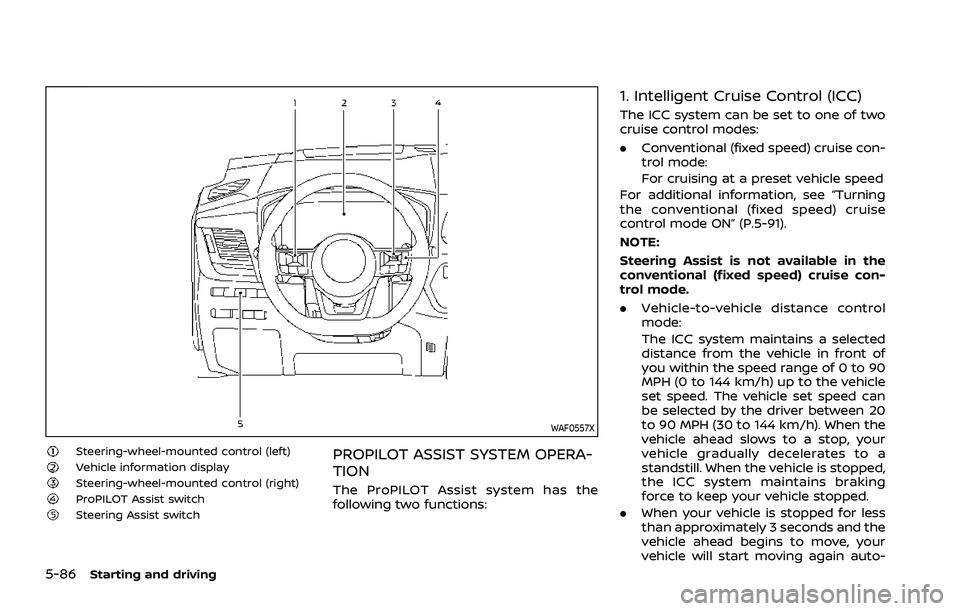
WAF0557X
Steering-wheel-mounted control (left)Vehicle information displaySteering-wheel-mounted control (right)ProPILOT Assist switchSteering Assist switch
PROPILOT ASSIST SYSTEM OPERA-
TION
The ProPILOT Assist system has the
following two functions:
1. Intelligent Cruise Control (ICC)
The ICC system can be set to one of two
cruise control modes:
.Conventional (fixed speed) cruise con-
trol mode:
For cruising at a preset vehicle speed
For additional information, see “Turning
the conventional (fixed speed) cruise
control mode ON” (P.5-91).
NOTE:
Steering Assist is not available in the
conventional (fixed speed) cruise con-
trol mode.
. Vehicle-to-vehicle distance control
mode:
The ICC system maintains a selected
distance from the vehicle in front of
you within the speed range of 0 to 90
MPH (0 to 144 km/h) up to the vehicle
set speed. The vehicle set speed can
be selected by the driver between 20
to 90 MPH (30 to 144 km/h). When the
vehicle ahead slows to a stop, your
vehicle gradually decelerates to a
standstill. When the vehicle is stopped,
the ICC system maintains braking
force to keep your vehicle stopped.
. When your vehicle is stopped for less
than approximately 3 seconds and the
vehicle ahead begins to move, your
vehicle will start moving again auto-
Page 341 of 556
matically.
. When your vehicle is at a standstill for
more than approximately 3 seconds
and the vehicle ahead begins to
accelerate, push up the RES+ switch
or lightly depress the accelerator ped-
al. The ICC system starts to follow the
vehicle ahead.
. Always check surroundings before
restarting the vehicle.
. For vehicles equipped with ProPILOT
Assist with Navi-link and only when on
a limited access freeway (as identified
in the navigation map data):
— The time the vehicle can remain
stopped and automatically restart
is extended from 3 seconds to 30
seconds.
— If a vehicle ahead cuts in or out of the lane ahead, the vehicle may not
automatically start when the traffic
ahead begins to move. You need to
push up the RES+ switch or lightly
depress the accelerator pedal to
follow the vehicle directly ahead
when it is safe to do so.
. When no vehicle is detected ahead
within the driver selected distance, the
vehicle travels at the speed set by the
driver. The speed must be above 20
MPH (30 km/h) to use this function. NOTE:
Even if the Automatic Emergency Brak-
ing (AEB) setting is turned off by the
driver using the “Settings” menu in the
vehicle information display, AEB will be
automatically turned on when ICC is
used.
2. Steering Assist
The Steering Assist function helps the
driver to keep the vehicle centered within
the traveling lane.
When there is no vehicle ahead, Steering
Assist is not available at speeds under 37
MPH (60 km/h).
Starting and driving5-87
Page 343 of 556
WAF0577XModels with full-screen display
WAF0578XModels with analog meter and color display
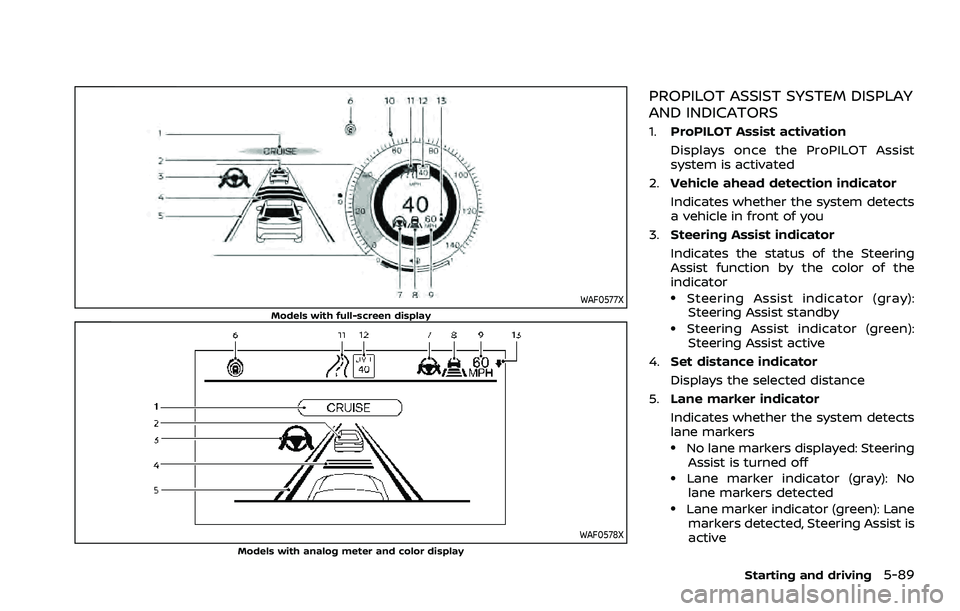
PROPILOT ASSIST SYSTEM DISPLAY
AND INDICATORS
1.ProPILOT Assist activation
Displays once the ProPILOT Assist
system is activated
2. Vehicle ahead detection indicator
Indicates whether the system detects
a vehicle in front of you
3. Steering Assist indicator
Indicates the status of the Steering
Assist function by the color of the
indicator
.Steering Assist indicator (gray):
Steering Assist standby
.Steering Assist indicator (green): Steering Assist active
4. Set distance indicator
Displays the selected distance
5. Lane marker indicator
Indicates whether the system detects
lane markers
.No lane markers displayed: Steering
Assist is turned off
.Lane marker indicator (gray): No
lane markers detected
.Lane marker indicator (green): Lane markers detected, Steering Assist is
active
Starting and driving5-89
Page 344 of 556
5-90Starting and driving
.Lane marker indicator (orange):Lane departure is detected
6. ProPILOT Assist status indicator
(
)
Indicates the status of the ProPILOT
Assist system by the color of the
indicator
.ProPILOT Assist status indicator (white): ProPILOT Assist is on but
in standby
.ProPILOT Assist status indicator(blue): ProPILOT Assist active
7. Steering Assist status indicator/
warning (
,)
Displays the status of the Steering
Assist by the color of the indicator/
warning
.No Steering Assist status indicator displayed: Steering Assist is turned
off
.Steering Assist status indicator(gray): Steering Assist standby
.Steering Assist status indicator
(green): Steering Assist active
.Steering Assist status indicator (or- ange): Steering Assist malfunction
8. Speed control status indicator/set
distance indicator/lane marker indi-
cator (
)
Displays the status of speed control by
the color of the indicator, and displays the selected distance by the number
of horizontal bars shown
.Speed control status indicator
(white): ICC standby
.Speed control status indicator(green): ICC (distance control mode)
is active
— Green vehicle icon displayed: Vehi- cle detected ahead
— No vehicle icon shown: No vehicle detected ahead (Your vehicle main-
tains the driver-selected set speed.)
.Speed control status indicator (or-ange): Indicates an ICC malfunction
For the lane marker indicator, see
“Steering Assist display and indicators”
(P.5-114).
9. Vehicle set speed indicator
Indicates the vehicle set speed
10. Vehicle set speed indicator (if so
equipped) (
)
Indicates the vehicle set speed
11. Road information indicator (if so
equipped) (
,)
Indicates the detected road informa-
tion
For additional information, see “Speed
Adjust by Route - a feature of ProPI-
LOT Assist with Navi-link” (P.5-105). 12.
Detected speed limit indicator (if so
equipped) (
)
Indicates the currently detected
speed limit
For additional information, see “Speed
Limit Assist - a feature of ProPILOT
Assist with Navi-link” (P.5-102).
13. Speed Limit Assist indicator (if so
equipped) (A,
,)
Indicates the Speed Limit Assist acti-
vation mode or system operation
For additional information, see “Speed
Limit Assist - a feature of ProPILOT
Assist with Navi-link” (P.5-102).
NOTE:
When the ProPILOT Assist system is
activated, the display will automatically
be switched to the ProPILOT Assist
system display. To disable this function,
turn “Transition (Cruise)” off under “Cus-
tomize Display” of the settings menu.
The ProPILOT Assist display is also shown
in the Head Up Display (HUD) (if so
equipped). (See “Head Up Display (HUD)”
(P.2-47).)
Page 345 of 556
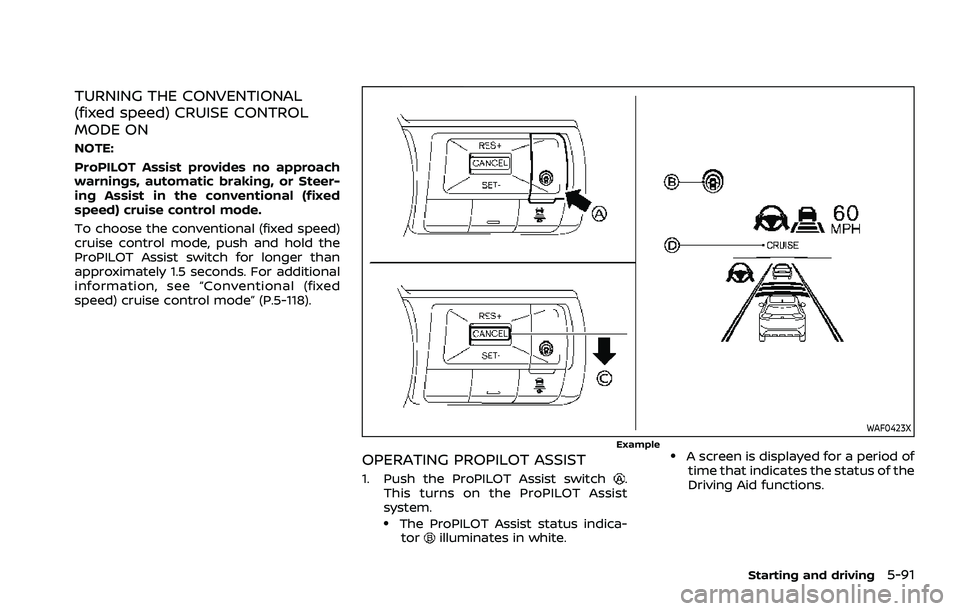
TURNING THE CONVENTIONAL
(fixed speed) CRUISE CONTROL
MODE ON
NOTE:
ProPILOT Assist provides no approach
warnings, automatic braking, or Steer-
ing Assist in the conventional (fixed
speed) cruise control mode.
To choose the conventional (fixed speed)
cruise control mode, push and hold the
ProPILOT Assist switch for longer than
approximately 1.5 seconds. For additional
information, see “Conventional (fixed
speed) cruise control mode” (P.5-118).
WAF0423XExample
OPERATING PROPILOT ASSIST
1. Push the ProPILOT Assist switch.
This turns on the ProPILOT Assist
system.
.The ProPILOT Assist status indica- torilluminates in white.
.A screen is displayed for a period oftime that indicates the status of the
Driving Aid functions.
Starting and driving5-91
Page 346 of 556
5-92Starting and driving
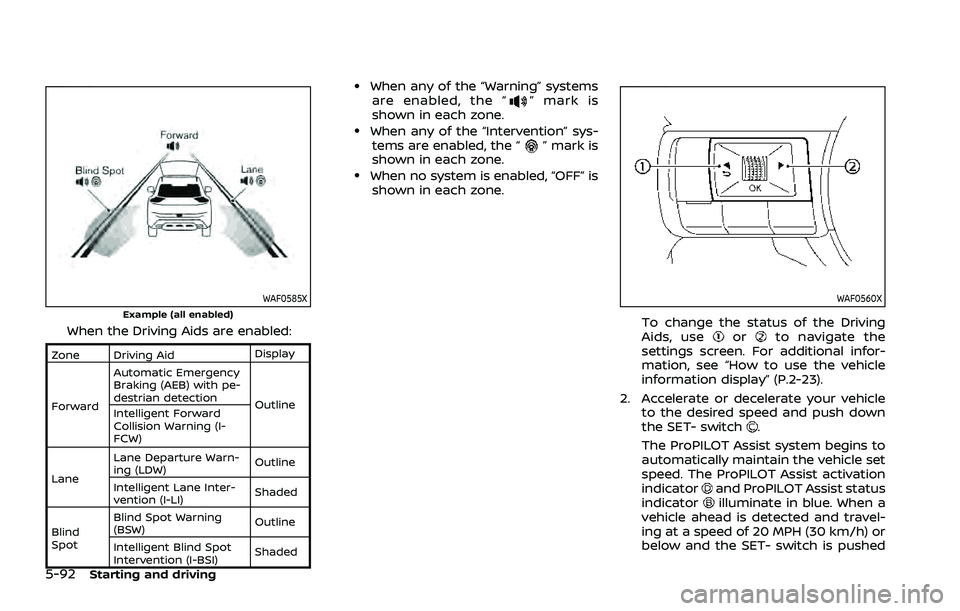
WAF0585XExample (all enabled)
When the Driving Aids are enabled:
Zone Driving AidDisplay
Forward Automatic Emergency
Braking (AEB) with pe-
destrian detection
Outline
Intelligent Forward
Collision Warning (I-
FCW)
Lane Lane Departure Warn-
ing (LDW)
Outline
Intelligent Lane Inter-
vention (I-LI) Shaded
Blind
Spot Blind Spot Warning
(BSW)
Outline
Intelligent Blind Spot
Intervention (I-BSI) Shaded
.When any of the “Warning” systems
are enabled, the “” mark is
shown in each zone.
.When any of the “Intervention” sys- tems are enabled, the “” mark is
shown in each zone.
.When no system is enabled, “OFF” is
shown in each zone.
WAF0560X
To change the status of the Driving
Aids, useorto navigate the
settings screen. For additional infor-
mation, see “How to use the vehicle
information display” (P.2-23).
2. Accelerate or decelerate your vehicle to the desired speed and push down
the SET- switch
.
The ProPILOT Assist system begins to
automatically maintain the vehicle set
speed. The ProPILOT Assist activation
indicator
and ProPILOT Assist status
indicatorilluminate in blue. When a
vehicle ahead is detected and travel-
ing at a speed of 20 MPH (30 km/h) or
below and the SET- switch is pushed
Page 347 of 556
down, the vehicle set speed is 20 MPH
(30 km/h).
NOTE:
When the I-LI and I-BSI systems are
enabled in the settings menu of the
vehicle information display, turning the
ProPILOT Assist system on will turn on
the I-LI and I-BSI systems at the same
time. If the I-LI system is disabled in the
settings menu, the I-LI system will
automatically be turned on when the
Steering Assist system is active. For
additional information, see “Intelligent
Lane Intervention (I-LI)” (P.5-51), “Intelli-
gent Lane Intervention (I-LI)” (P.5-115)
and “Intelligent Blind Spot Intervention
(I-BSI)” (P.5-65).
WAF0634X
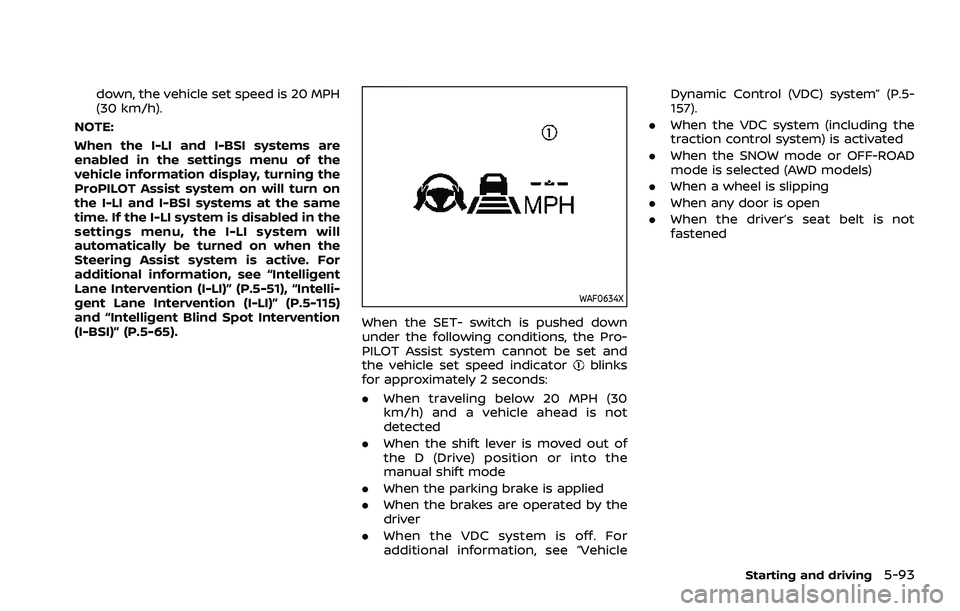
When the SET- switch is pushed down
under the following conditions, the Pro-
PILOT Assist system cannot be set and
the vehicle set speed indicator
blinks
for approximately 2 seconds:
. When traveling below 20 MPH (30
km/h) and a vehicle ahead is not
detected
. When the shift lever is moved out of
the D (Drive) position or into the
manual shift mode
. When the parking brake is applied
. When the brakes are operated by the
driver
. When the VDC system is off. For
additional information, see “Vehicle Dynamic Control (VDC) system” (P.5-
157).
. When the VDC system (including the
traction control system) is activated
. When the SNOW mode or OFF-ROAD
mode is selected (AWD models)
. When a wheel is slipping
. When any door is open
. When the driver’s seat belt is not
fastened
Starting and driving5-93
Page 348 of 556
5-94Starting and driving
WAF0561X
How to change the vehicle set
speed
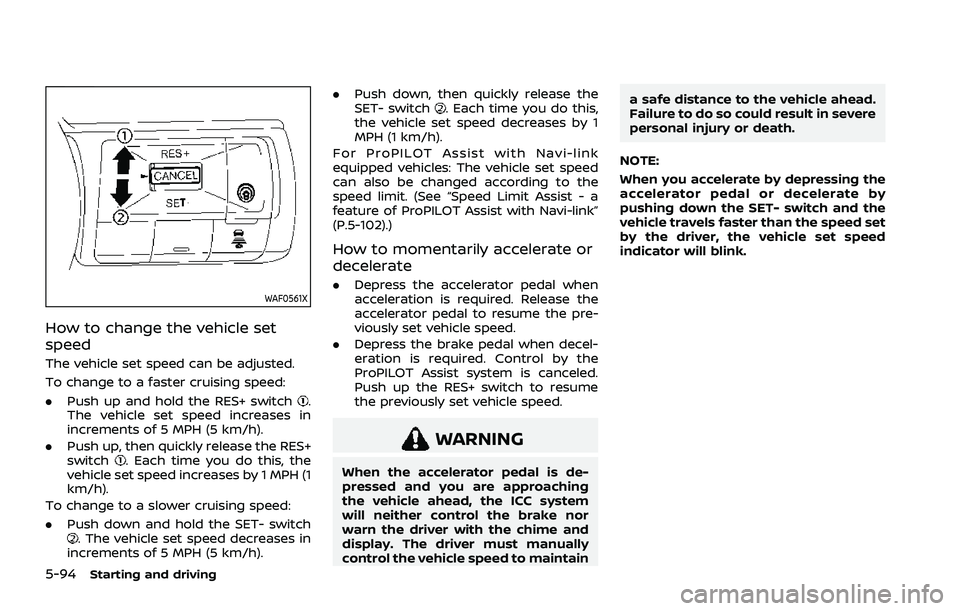
The vehicle set speed can be adjusted.
To change to a faster cruising speed:
.Push up and hold the RES+ switch
.
The vehicle set speed increases in
increments of 5 MPH (5 km/h).
. Push up, then quickly release the RES+
switch
. Each time you do this, the
vehicle set speed increases by 1 MPH (1
km/h).
To change to a slower cruising speed:
. Push down and hold the SET- switch
. The vehicle set speed decreases in
increments of 5 MPH (5 km/h). .
Push down, then quickly release the
SET- switch
. Each time you do this,
the vehicle set speed decreases by 1
MPH (1 km/h).
For ProPILOT Assist with Navi-link
equipped vehicles: The vehicle set speed
can also be changed according to the
speed limit. (See “Speed Limit Assist - a
feature of ProPILOT Assist with Navi-link”
(P.5-102).)
How to momentarily accelerate or
decelerate
. Depress the accelerator pedal when
acceleration is required. Release the
accelerator pedal to resume the pre-
viously set vehicle speed.
. Depress the brake pedal when decel-
eration is required. Control by the
ProPILOT Assist system is canceled.
Push up the RES+ switch to resume
the previously set vehicle speed.
WARNING
When the accelerator pedal is de-
pressed and you are approaching
the vehicle ahead, the ICC system
will neither control the brake nor
warn the driver with the chime and
display. The driver must manually
control the vehicle speed to maintain a safe distance to the vehicle ahead.
Failure to do so could result in severe
personal injury or death.
NOTE:
When you accelerate by depressing the
accelerator pedal or decelerate by
pushing down the SET- switch and the
vehicle travels faster than the speed set
by the driver, the vehicle set speed
indicator will blink.
Page 350 of 556
5-96Starting and driving
WAF0425X
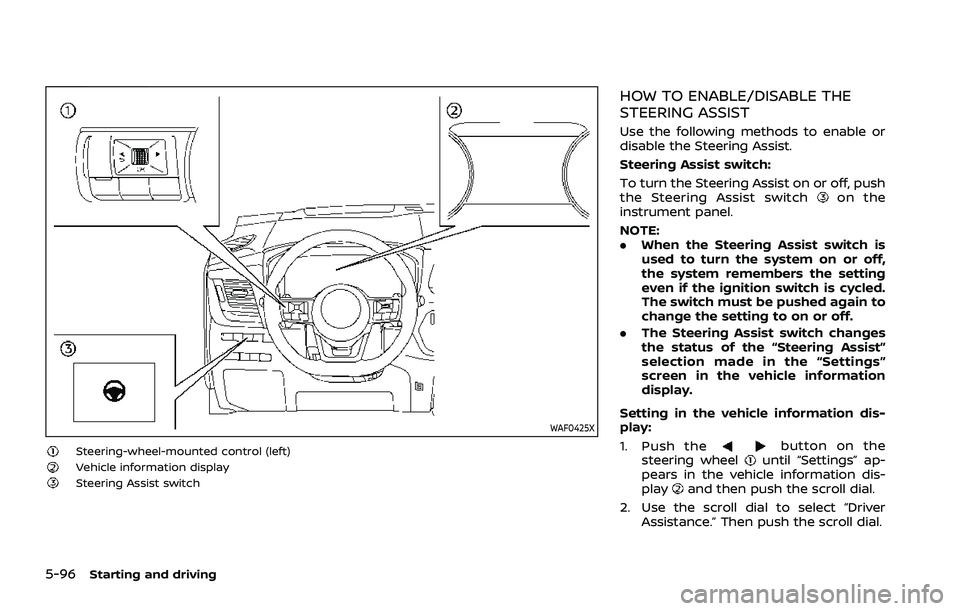
Steering-wheel-mounted control (left)Vehicle information displaySteering Assist switch
HOW TO ENABLE/DISABLE THE
STEERING ASSIST
Use the following methods to enable or
disable the Steering Assist.
Steering Assist switch:
To turn the Steering Assist on or off, push
the Steering Assist switch
on the
instrument panel.
NOTE:
. When the Steering Assist switch is
used to turn the system on or off,
the system remembers the setting
even if the ignition switch is cycled.
The switch must be pushed again to
change the setting to on or off.
. The Steering Assist switch changes
the status of the “Steering Assist”
selection made in the “Settings”
screen in the vehicle information
display.
Setting in the vehicle information dis-
play:
1. Push the
button on the
steering wheeluntil “Settings” ap-
pears in the vehicle information dis-
play
and then push the scroll dial.
2. Use the scroll dial to select “Driver Assistance.” Then push the scroll dial.
Page 351 of 556
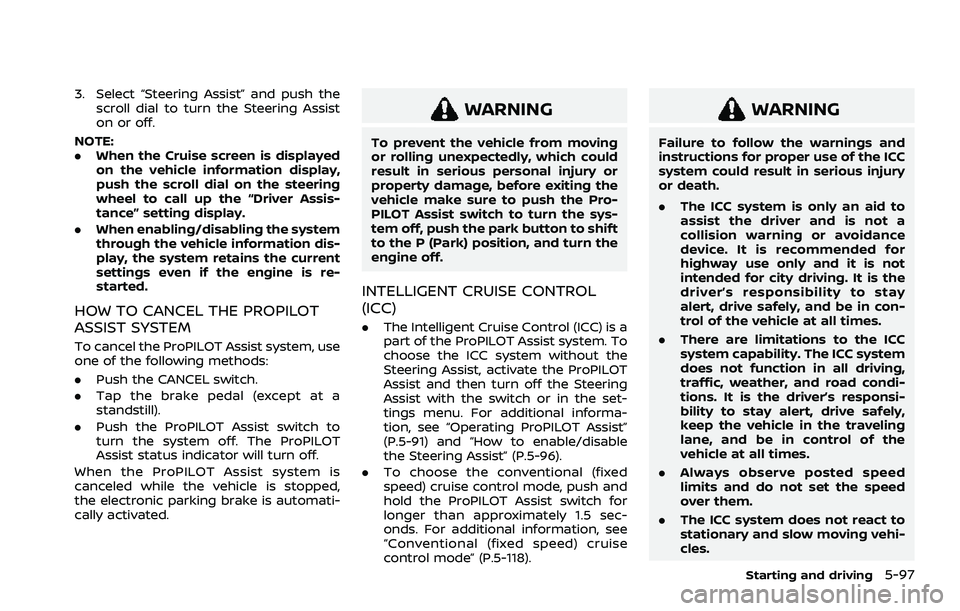
3. Select “Steering Assist” and push thescroll dial to turn the Steering Assist
on or off.
NOTE:
. When the Cruise screen is displayed
on the vehicle information display,
push the scroll dial on the steering
wheel to call up the “Driver Assis-
tance” setting display.
. When enabling/disabling the system
through the vehicle information dis-
play, the system retains the current
settings even if the engine is re-
started.
HOW TO CANCEL THE PROPILOT
ASSIST SYSTEM
To cancel the ProPILOT Assist system, use
one of the following methods:
.Push the CANCEL switch.
. Tap the brake pedal (except at a
standstill).
. Push the ProPILOT Assist switch to
turn the system off. The ProPILOT
Assist status indicator will turn off.
When the ProPILOT Assist system is
canceled while the vehicle is stopped,
the electronic parking brake is automati-
cally activated.
WARNING
To prevent the vehicle from moving
or rolling unexpectedly, which could
result in serious personal injury or
property damage, before exiting the
vehicle make sure to push the Pro-
PILOT Assist switch to turn the sys-
tem off, push the park button to shift
to the P (Park) position, and turn the
engine off.
INTELLIGENT CRUISE CONTROL
(ICC)
. The Intelligent Cruise Control (ICC) is a
part of the ProPILOT Assist system. To
choose the ICC system without the
Steering Assist, activate the ProPILOT
Assist and then turn off the Steering
Assist with the switch or in the set-
tings menu. For additional informa-
tion, see “Operating ProPILOT Assist”
(P.5-91) and “How to enable/disable
the Steering Assist” (P.5-96).
. To choose the conventional (fixed
speed) cruise control mode, push and
hold the ProPILOT Assist switch for
longer than approximately 1.5 sec-
onds. For additional information, see
“Conventional (fixed speed) cruise
control mode” (P.5-118).
WARNING
Failure to follow the warnings and
instructions for proper use of the ICC
system could result in serious injury
or death.
.The ICC system is only an aid to
assist the driver and is not a
collision warning or avoidance
device. It is recommended for
highway use only and it is not
intended for city driving. It is the
driver’s responsibility to stay
alert, drive safely, and be in con-
trol of the vehicle at all times.
. There are limitations to the ICC
system capability. The ICC system
does not function in all driving,
traffic, weather, and road condi-
tions. It is the driver’s responsi-
bility to stay alert, drive safely,
keep the vehicle in the traveling
lane, and be in control of the
vehicle at all times.
. Always observe posted speed
limits and do not set the speed
over them.
. The ICC system does not react to
stationary and slow moving vehi-
cles.
Starting and driving5-97