display NISSAN ROGUE 2021 Owner´s Manual
[x] Cancel search | Manufacturer: NISSAN, Model Year: 2021, Model line: ROGUE, Model: NISSAN ROGUE 2021Pages: 556, PDF Size: 2.7 MB
Page 282 of 556
5-28Starting and driving
The automatic brake hold function main-
tains the braking force without the driver
having to depress the brake pedal when
the vehicle is stopped at a traffic light or
intersection. As soon as the driver de-
presses the accelerator pedal again, the
automatic brake hold function is deacti-
vated and the braking force is released.
The operating status of the automatic
brake hold can be displayed on the
vehicle information display.
WARNING
.The automatic brake hold func-
tion is not designed to hold the
vehicle on a steep hill or slippery
road. Never use the automatic
brake hold when the vehicle is
stopped on a steep hill or slippery
road. Failure to do so may cause
the vehicle to move.
. The automatic brake hold warn-
ing may appear in the vehicle
information display to request
that the driver retake control by
depressing the brake pedal.
. When the automatic brake hold
function is activated but fails to
maintain the vehicle at a stand-
still, depress the brake pedal to
stop the vehicle. If the vehicle unexpectedly moves due to out-
side conditions, the chime may
sound and automatic brake hold
warning may illuminate in the
vehicle information display.
. Be sure to deactivate the auto-
matic brake hold function when
using a car wash or towing your
vehicle.
. Make sure to push the park but-
ton to shift to the P (Park) posi-
tion and apply the electronic
parking brake when parking your
vehicle, riding on or off the vehi-
cle, or loading luggage. Failure to
do so could cause the vehicle to
move or roll away unexpectedly
and result in serious personal
injury or property damage.
. If any of the following conditions
occur, the automatic brake hold
function may not function. Have
the system checked promptly. It
is recommended that you visit a
NISSAN dealer for this service.
Failure to operate the vehicle in
accordance with these conditions
could cause the vehicle to move
or roll away unexpectedly and
result in serious personal injury
or property damage. — A warning message appears
in the vehicle information dis-
play.
— The indicator light on the automatic brake hold switch
does not illuminate when the
switch is pushed.
. The automatic brake hold func-
tion will not be activated if the
slip indicator light, electronic
parking brake system warning
light or master warning light illu-
minates and the Chassis Control
System Error warning message
appears in the vehicle informa-
tion display.
. To maintain the braking force to
keep the vehicle to a standstill, a
noise may be heard. This is not a
malfunction.
AUTOMATIC BRAKE HOLD
Page 285 of 556
WAF0540XVehicle information display: 2WD models
WAF0541XVehicle information display: AWD models
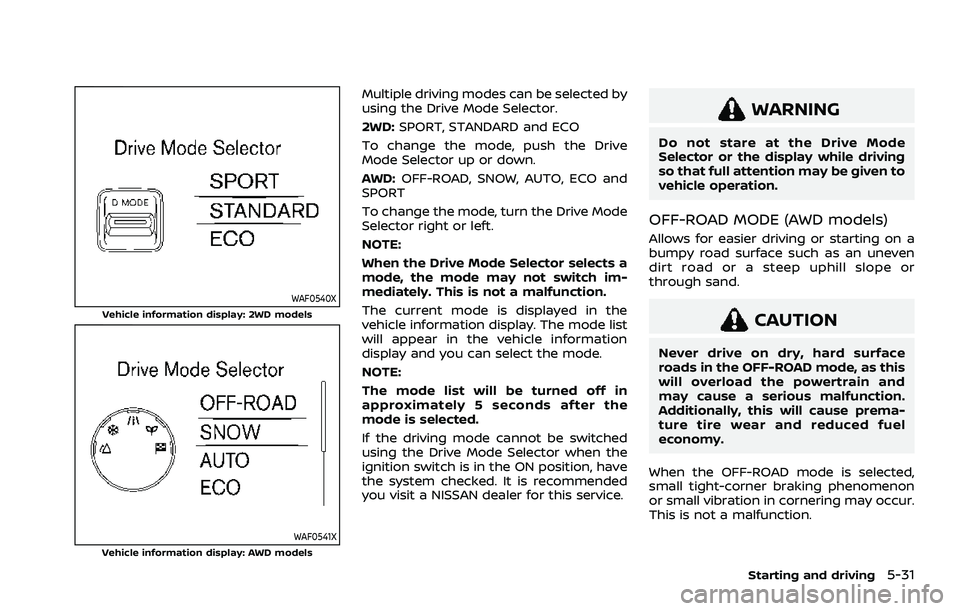
Multiple driving modes can be selected by
using the Drive Mode Selector.
2WD:SPORT, STANDARD and ECO
To change the mode, push the Drive
Mode Selector up or down.
AWD: OFF-ROAD, SNOW, AUTO, ECO and
SPORT
To change the mode, turn the Drive Mode
Selector right or left.
NOTE:
When the Drive Mode Selector selects a
mode, the mode may not switch im-
mediately. This is not a malfunction.
The current mode is displayed in the
vehicle information display. The mode list
will appear in the vehicle information
display and you can select the mode.
NOTE:
The mode list will be turned off in
approximately 5 seconds after the
mode is selected.
If the driving mode cannot be switched
using the Drive Mode Selector when the
ignition switch is in the ON position, have
the system checked. It is recommended
you visit a NISSAN dealer for this service.
WARNING
Do not stare at the Drive Mode
Selector or the display while driving
so that full attention may be given to
vehicle operation.
OFF-ROAD MODE (AWD models)
Allows for easier driving or starting on a
bumpy road surface such as an uneven
dirt road or a steep uphill slope or
through sand.
CAUTION
Never drive on dry, hard surface
roads in the OFF-ROAD mode, as this
will overload the powertrain and
may cause a serious malfunction.
Additionally, this will cause prema-
ture tire wear and reduced fuel
economy.
When the OFF-ROAD mode is selected,
small tight-corner braking phenomenon
or small vibration in cornering may occur.
This is not a malfunction.
Starting and driving5-31
Page 287 of 556
Tire Pres ECO advice
The “Tire Pres ECO advice” is a function to
show an ECO advice message in the
vehicle information display when low tire
pressure is detected. To activate or deac-
tivate this function, see “ECO Mode
Setting” (P.2-26).
When the setting is ON, the ECO Drive
Report display shows "See Tire Pres-
sures". You can switch the display to the
Tire Pressures display by pushing the
button on the steering wheel.
WAF0126X
ECO Pedal Guide function
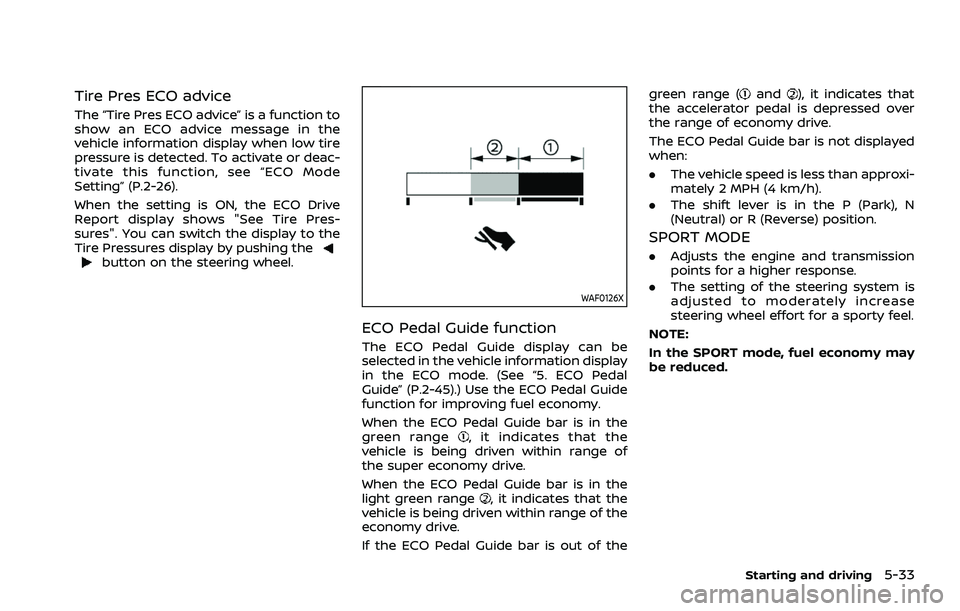
The ECO Pedal Guide display can be
selected in the vehicle information display
in the ECO mode. (See “5. ECO Pedal
Guide” (P.2-45).) Use the ECO Pedal Guide
function for improving fuel economy.
When the ECO Pedal Guide bar is in the
green range
, it indicates that the
vehicle is being driven within range of
the super economy drive.
When the ECO Pedal Guide bar is in the
light green range
, it indicates that the
vehicle is being driven within range of the
economy drive.
If the ECO Pedal Guide bar is out of the green range (
and), it indicates that
the accelerator pedal is depressed over
the range of economy drive.
The ECO Pedal Guide bar is not displayed
when:
. The vehicle speed is less than approxi-
mately 2 MPH (4 km/h).
. The shift lever is in the P (Park), N
(Neutral) or R (Reverse) position.
SPORT MODE
.Adjusts the engine and transmission
points for a higher response.
. The setting of the steering system is
adjusted to moderately increase
steering wheel effort for a sporty feel.
NOTE:
In the SPORT mode, fuel economy may
be reduced.
Starting and driving5-33
Page 291 of 556
WAF0412X
Steering-wheel-mounted controls (left
side)
Vehicle information display
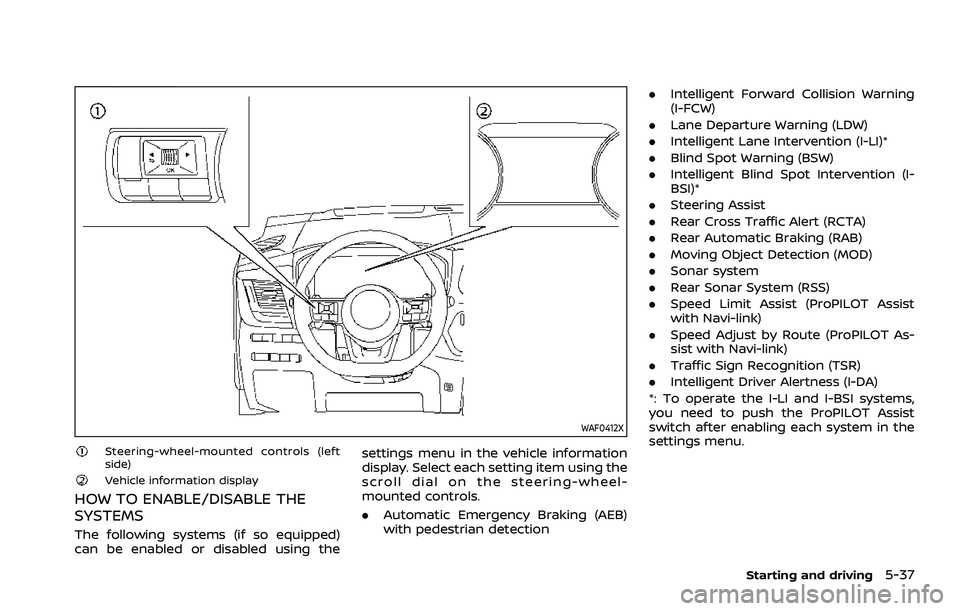
HOW TO ENABLE/DISABLE THE
SYSTEMS
The following systems (if so equipped)
can be enabled or disabled using thesettings menu in the vehicle information
display. Select each setting item using the
scroll dial on the steering-wheel-
mounted controls.
.
Automatic Emergency Braking (AEB)
with pedestrian detection .
Intelligent Forward Collision Warning
(I-FCW)
. Lane Departure Warning (LDW)
. Intelligent Lane Intervention (I-LI)*
. Blind Spot Warning (BSW)
. Intelligent Blind Spot Intervention (I-
BSI)*
. Steering Assist
. Rear Cross Traffic Alert (RCTA)
. Rear Automatic Braking (RAB)
. Moving Object Detection (MOD)
. Sonar system
. Rear Sonar System (RSS)
. Speed Limit Assist (ProPILOT Assist
with Navi-link)
. Speed Adjust by Route (ProPILOT As-
sist with Navi-link)
. Traffic Sign Recognition (TSR)
. Intelligent Driver Alertness (I-DA)
*: To operate the I-LI and I-BSI systems,
you need to push the ProPILOT Assist
switch after enabling each system in the
settings menu.
Starting and driving5-37
Page 292 of 556
5-38Starting and driving
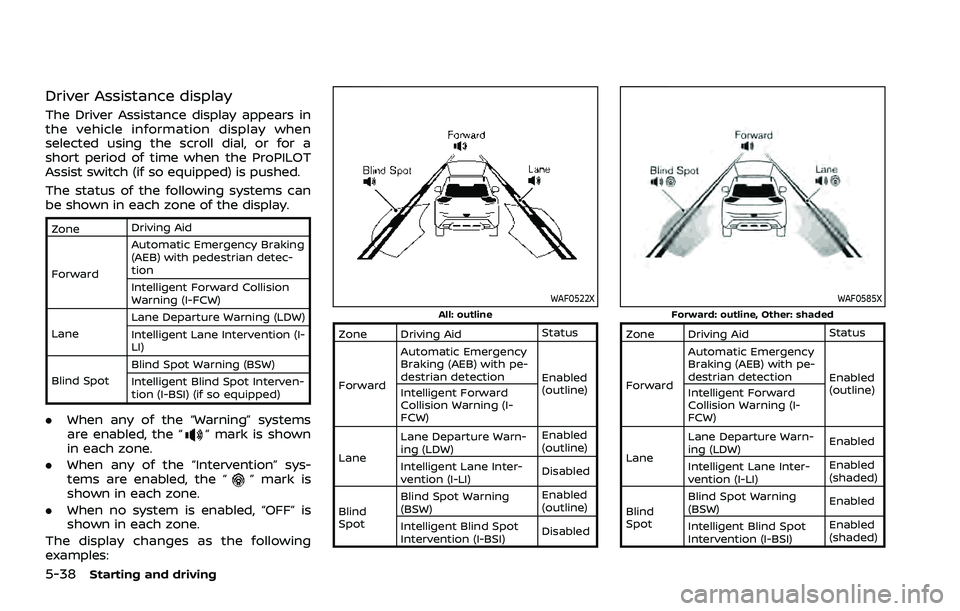
Driver Assistance display
The Driver Assistance display appears in
the vehicle information display when
selected using the scroll dial, or for a
short period of time when the ProPILOT
Assist switch (if so equipped) is pushed.
The status of the following systems can
be shown in each zone of the display.
ZoneDriving Aid
Forward Automatic Emergency Braking
(AEB) with pedestrian detec-
tion
Intelligent Forward Collision
Warning (I-FCW)
Lane Lane Departure Warning (LDW)
Intelligent Lane Intervention (I-
LI)
Blind Spot Blind Spot Warning (BSW)
Intelligent Blind Spot Interven-
tion (I-BSI) (if so equipped)
.
When any of the “Warning” systems
are enabled, the “” mark is shown
in each zone.
. When any of the “Intervention” sys-
tems are enabled, the “
” mark is
shown in each zone.
. When no system is enabled, “OFF” is
shown in each zone.
The display changes as the following
examples:
WAF0522XAll: outline
Zone Driving Aid Status
Forward Automatic Emergency
Braking (AEB) with pe-
destrian detection
Enabled
(outline)
Intelligent Forward
Collision Warning (I-
FCW)
Lane Lane Departure Warn-
ing (LDW)
Enabled
(outline)
Intelligent Lane Inter-
vention (I-LI) Disabled
Blind
Spot Blind Spot Warning
(BSW)
Enabled
(outline)
Intelligent Blind Spot
Intervention (I-BSI) Disabled
WAF0585XForward: outline, Other: shaded
Zone Driving Aid
Status
Forward Automatic Emergency
Braking (AEB) with pe-
destrian detection
Enabled
(outline)
Intelligent Forward
Collision Warning (I-
FCW)
Lane Lane Departure Warn-
ing (LDW)
Enabled
Intelligent Lane Inter-
vention (I-LI) Enabled
(shaded)
Blind
Spot Blind Spot Warning
(BSW)
Enabled
Intelligent Blind Spot
Intervention (I-BSI) Enabled
(shaded)
Page 293 of 556
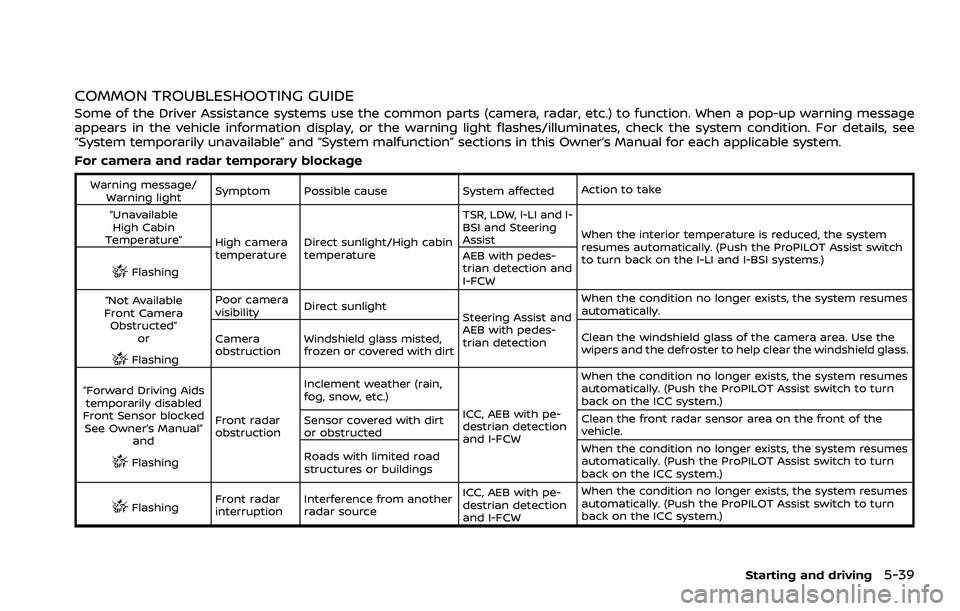
COMMON TROUBLESHOOTING GUIDE
Some of the Driver Assistance systems use the common parts (camera, radar, etc.) to function. When a pop-up warning message
appears in the vehicle information display, or the warning light flashes/illuminates, check the system condition. For details, see
“System temporarily unavailable” and “System malfunction” sections in this Owner’s Manual for each applicable system.
For camera and radar temporary blockage
Warning message/Warning light Symptom Possible cause System affected
Action to take
“Unavailable High Cabin
Temperature” High camera
temperatureDirect sunlight/High cabin
temperature TSR, LDW, I-LI and I-
BSI and Steering
Assist
When the interior temperature is reduced, the system
resumes automatically. (Push the ProPILOT Assist switch
to turn back on the I-LI and I-BSI systems.)
Flashing AEB with pedes-
trian detection and
I-FCW
“Not Available
Front Camera Obstructed”
or
Flashing Poor camera
visibility
Direct sunlight
Steering Assist and
AEB with pedes-
trian detectionWhen the condition no longer exists, the system resumes
automatically.
Camera
obstruction Windshield glass misted,
frozen or covered with dirt Clean the windshield glass of the camera area. Use the
wipers and the defroster to help clear the windshield glass.
“Forward Driving Aids temporarily disabled
Front Sensor blocked See Owner’s Manual” and
Flashing Front radar
obstruction Inclement weather (rain,
fog, snow, etc.)
ICC, AEB with pe-
destrian detection
and I-FCWWhen the condition no longer exists, the system resumes
automatically. (Push the ProPILOT Assist switch to turn
back on the ICC system.)
Sensor covered with dirt
or obstructed Clean the front radar sensor area on the front of the
vehicle.
Roads with limited road
structures or buildings When the condition no longer exists, the system resumes
automatically. (Push the ProPILOT Assist switch to turn
back on the ICC system.)
Flashing
Front radar
interruption Interference from another
radar source ICC, AEB with pe-
destrian detection
and I-FCWWhen the condition no longer exists, the system resumes
automatically. (Push the ProPILOT Assist switch to turn
back on the ICC system.)
Starting and driving5-39
Page 297 of 556
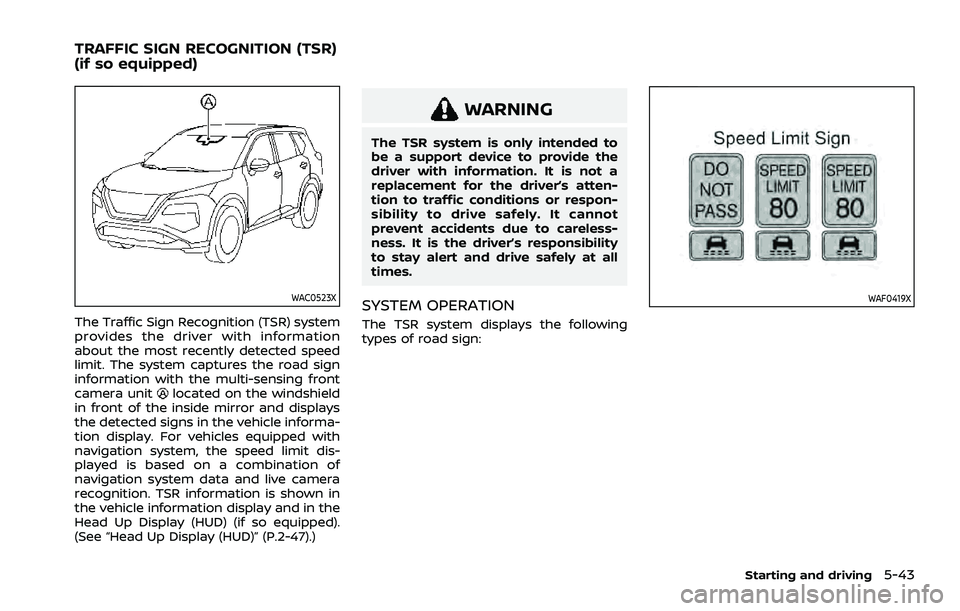
WAC0523X
The Traffic Sign Recognition (TSR) system
provides the driver with information
about the most recently detected speed
limit. The system captures the road sign
information with the multi-sensing front
camera unit
located on the windshield
in front of the inside mirror and displays
the detected signs in the vehicle informa-
tion display. For vehicles equipped with
navigation system, the speed limit dis-
played is based on a combination of
navigation system data and live camera
recognition. TSR information is shown in
the vehicle information display and in the
Head Up Display (HUD) (if so equipped).
(See “Head Up Display (HUD)” (P.2-47).)
WARNING
The TSR system is only intended to
be a support device to provide the
driver with information. It is not a
replacement for the driver’s atten-
tion to traffic conditions or respon-
sibility to drive safely. It cannot
prevent accidents due to careless-
ness. It is the driver’s responsibility
to stay alert and drive safely at all
times.
SYSTEM OPERATION
The TSR system displays the following
types of road sign:
WAF0419X
Starting and driving5-43
TRAFFIC SIGN RECOGNITION (TSR)
(if so equipped)
Page 298 of 556
5-44Starting and driving
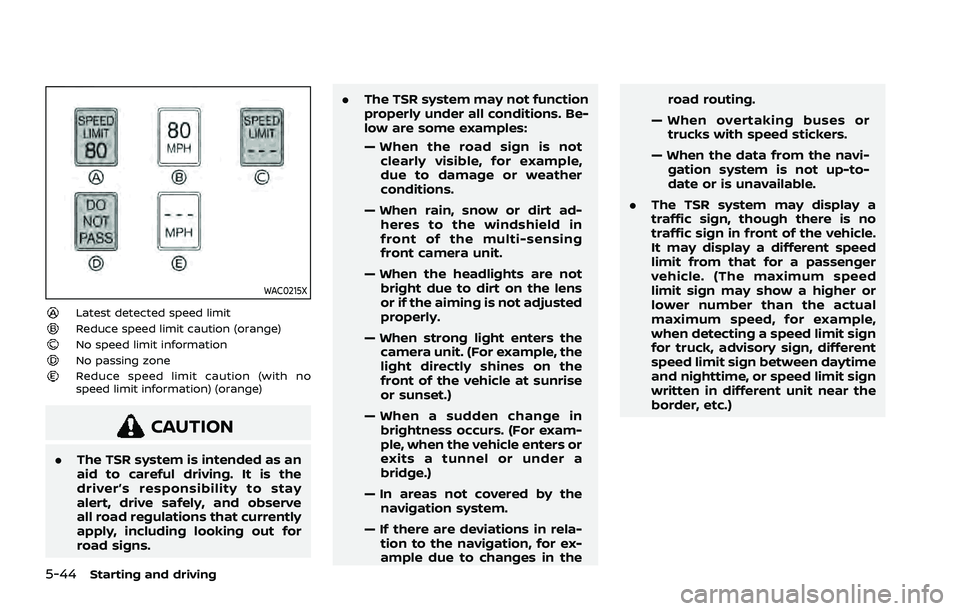
WAC0215X
Latest detected speed limitReduce speed limit caution (orange)No speed limit informationNo passing zoneReduce speed limit caution (with no
speed limit information) (orange)
CAUTION
.The TSR system is intended as an
aid to careful driving. It is the
driver’s responsibility to stay
alert, drive safely, and observe
all road regulations that currently
apply, including looking out for
road signs. .
The TSR system may not function
properly under all conditions. Be-
low are some examples:
— When the road sign is not
clearly visible, for example,
due to damage or weather
conditions.
— When rain, snow or dirt ad- heres to the windshield in
front of the multi-sensing
front camera unit.
— When the headlights are not bright due to dirt on the lens
or if the aiming is not adjusted
properly.
— When strong light enters the camera unit. (For example, the
light directly shines on the
front of the vehicle at sunrise
or sunset.)
— When a sudden change in brightness occurs. (For exam-
ple, when the vehicle enters or
exits a tunnel or under a
bridge.)
— In areas not covered by the navigation system.
— If there are deviations in rela- tion to the navigation, for ex-
ample due to changes in the road routing.
— When overtaking buses or trucks with speed stickers.
— When the data from the navi- gation system is not up-to-
date or is unavailable.
. The TSR system may display a
traffic sign, though there is no
traffic sign in front of the vehicle.
It may display a different speed
limit from that for a passenger
vehicle. (The maximum speed
limit sign may show a higher or
lower number than the actual
maximum speed, for example,
when detecting a speed limit sign
for truck, advisory sign, different
speed limit sign between daytime
and nighttime, or speed limit sign
written in different unit near the
border, etc.)
Page 299 of 556
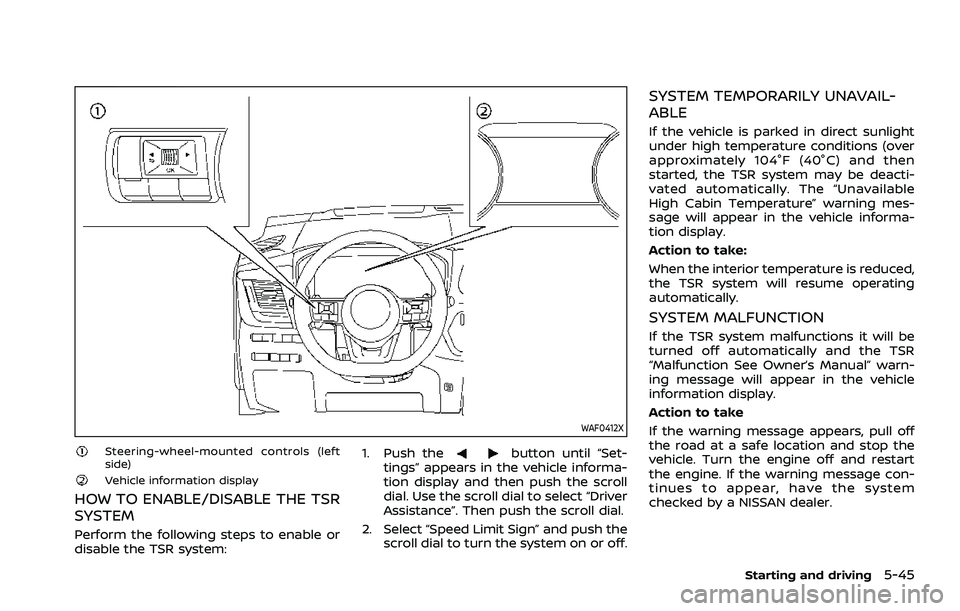
WAF0412X
Steering-wheel-mounted controls (left
side)
Vehicle information display
HOW TO ENABLE/DISABLE THE TSR
SYSTEM
Perform the following steps to enable or
disable the TSR system:1. Push the
button until “Set-
tings” appears in the vehicle informa-
tion display and then push the scroll
dial. Use the scroll dial to select “Driver
Assistance”. Then push the scroll dial.
2. Select “Speed Limit Sign” and push the scroll dial to turn the system on or off.
SYSTEM TEMPORARILY UNAVAIL-
ABLE
If the vehicle is parked in direct sunlight
under high temperature conditions (over
approximately 104°F (40°C) and then
started, the TSR system may be deacti-
vated automatically. The “Unavailable
High Cabin Temperature” warning mes-
sage will appear in the vehicle informa-
tion display.
Action to take:
When the interior temperature is reduced,
the TSR system will resume operating
automatically.
SYSTEM MALFUNCTION
If the TSR system malfunctions it will be
turned off automatically and the TSR
“Malfunction See Owner’s Manual” warn-
ing message will appear in the vehicle
information display.
Action to take
If the warning message appears, pull off
the road at a safe location and stop the
vehicle. Turn the engine off and restart
the engine. If the warning message con-
tinues to appear, have the system
checked by a NISSAN dealer.
Starting and driving5-45
Page 301 of 556
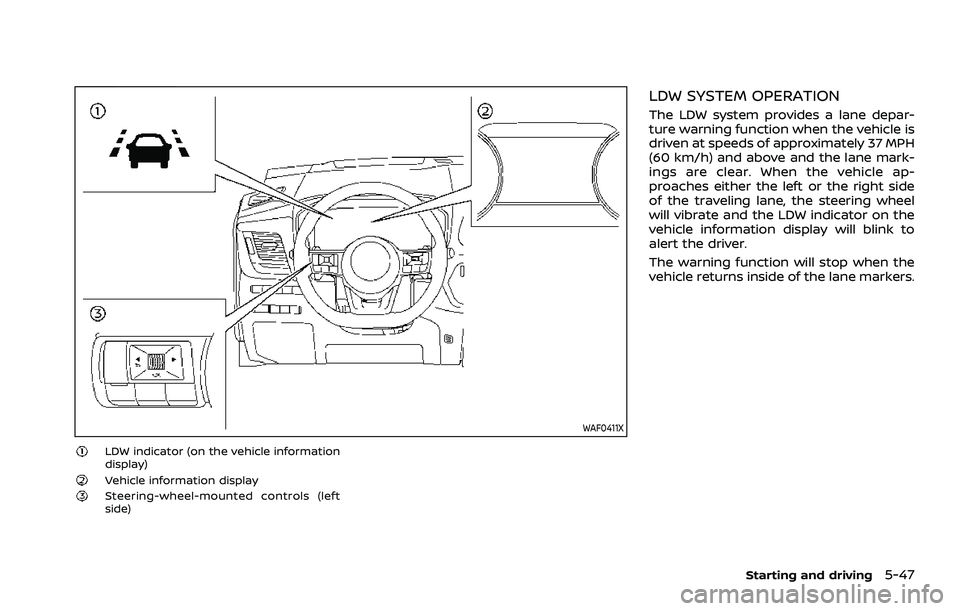
WAF0411X
LDW indicator (on the vehicle information
display)
Vehicle information displaySteering-wheel-mounted controls (left
side)
LDW SYSTEM OPERATION
The LDW system provides a lane depar-
ture warning function when the vehicle is
driven at speeds of approximately 37 MPH
(60 km/h) and above and the lane mark-
ings are clear. When the vehicle ap-
proaches either the left or the right side
of the traveling lane, the steering wheel
will vibrate and the LDW indicator on the
vehicle information display will blink to
alert the driver.
The warning function will stop when the
vehicle returns inside of the lane markers.
Starting and driving5-47