audio NISSAN ROGUE 2021 Owner´s Manual
[x] Cancel search | Manufacturer: NISSAN, Model Year: 2021, Model line: ROGUE, Model: NISSAN ROGUE 2021Pages: 556, PDF Size: 2.7 MB
Page 135 of 556
Outside air temperature (°F or °C)
The outside air temperature is displayed
in °F or °C in the range of −40 to 140°F (−40
to 60°C).
The outside air temperature mode in-
cludes a low temperature warning fea-
ture. If the outside air temperature is
below 27°F (−3°C), the indicator
is
displayed.
The outside temperature sensor is lo-
cated in front of the radiator. The sensor
may be affected by road or engine heat,
wind directions and other driving condi-
tions. The display may differ from the
actual outside temperature or the tem-
perature displayed on various signs or
billboards.
WAC0417X
WAC0544X
WARNING
. Failure to properly adjust the
brightness and position of the
displayed image may interfere
with the driver’s ability to see
through the windshield, which
could cause an accident leading
to severe injury or death.
. Do not use the Head Up Display
(HUD) for extended periods of
time as that can cause you to
not see other vehicles, pedes-
trians or objects, which could
cause an accident leading to se-
vere injury or death.
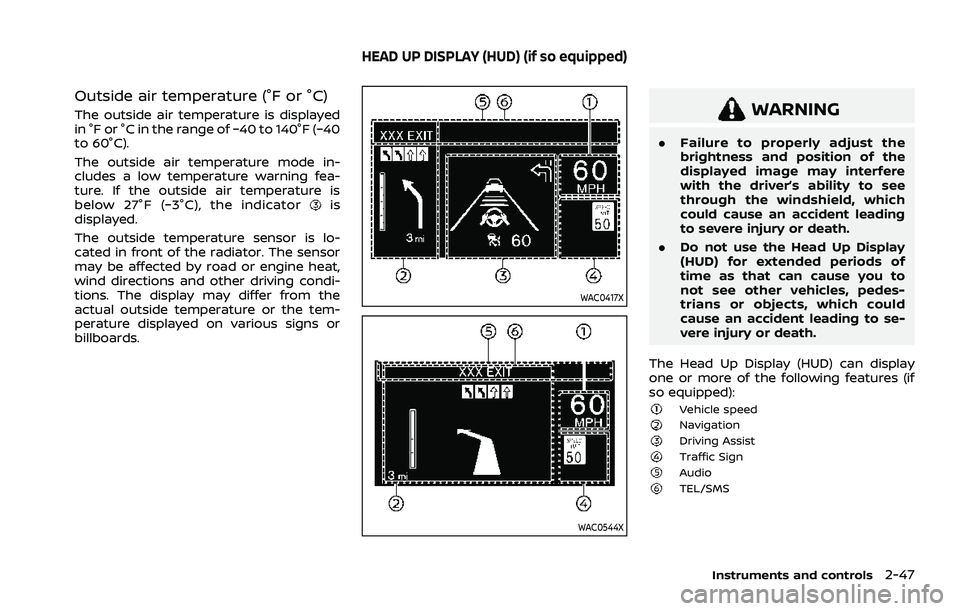
The Head Up Display (HUD) can display
one or more of the following features (if
so equipped):
Vehicle speedNavigationDriving AssistTraffic SignAudioTEL/SMS
Instruments and controls2-47
HEAD UP DISPLAY (HUD) (if so equipped)
Page 137 of 556
JVI1787X
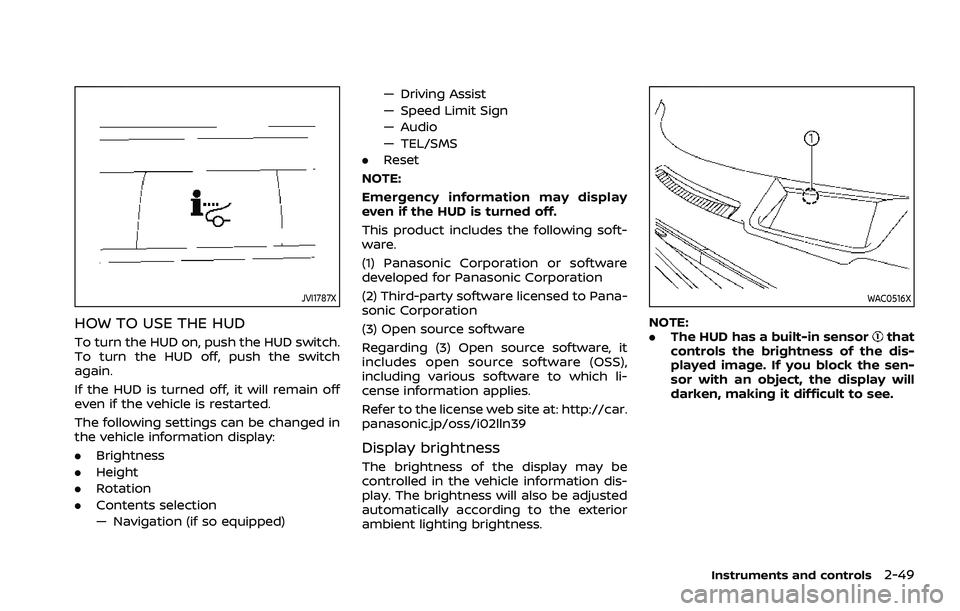
HOW TO USE THE HUD
To turn the HUD on, push the HUD switch.
To turn the HUD off, push the switch
again.
If the HUD is turned off, it will remain off
even if the vehicle is restarted.
The following settings can be changed in
the vehicle information display:
.Brightness
. Height
. Rotation
. Contents selection
— Navigation (if so equipped) — Driving Assist
— Speed Limit Sign
— Audio
— TEL/SMS
. Reset
NOTE:
Emergency information may display
even if the HUD is turned off.
This product includes the following soft-
ware.
(1) Panasonic Corporation or software
developed for Panasonic Corporation
(2) Third-party software licensed to Pana-
sonic Corporation
(3) Open source software
Regarding (3) Open source software, it
includes open source software (OSS),
including various software to which li-
cense information applies.
Refer to the license web site at: http://car.
panasonic.jp/oss/i02lln39
Display brightness
The brightness of the display may be
controlled in the vehicle information dis-
play. The brightness will also be adjusted
automatically according to the exterior
ambient lighting brightness.
WAC0516X
NOTE:
. The HUD has a built-in sensorthat
controls the brightness of the dis-
played image. If you block the sen-
sor with an object, the display will
darken, making it difficult to see.
Instruments and controls2-49
Page 138 of 556
2-50Instruments and controls
DRIVER ASSISTANCE/NAVIGATION/
TRAFFIC SIGN/AUDIO/TEL/SMS
LINKING
The HUD will display Driver Assistance and
navigation information.
The Driver Assistance display will show
warning situations for the following sys-
tems:
.Automatic Emergency Braking (AEB)
with pedestrian detection
. Intelligent Forward Collision Warning
(I-FCW)
. Lane Departure Warning (LDW)
. Intelligent Lane Intervention (I-LI)
. Hands-free warning (for vehicles with
ProPILOT Assist) (if so equipped)
The Navigation System linking display will
show the following items:
. Intersection names
. Arrows indicating turning direction
. Distance to the next intersection
. Recommended lane indicator
The Traffic Signs Recognition (TSR) sys-
tem linking display will show the following
items:
. Speed Limit Sign
. No Entry Sign The Audio System linking display will
show the following items:
.
Songs
. Radio stations
The TEL/SMS linking display will show the
following item:
. Caller’s name or phone number
JVI1587X
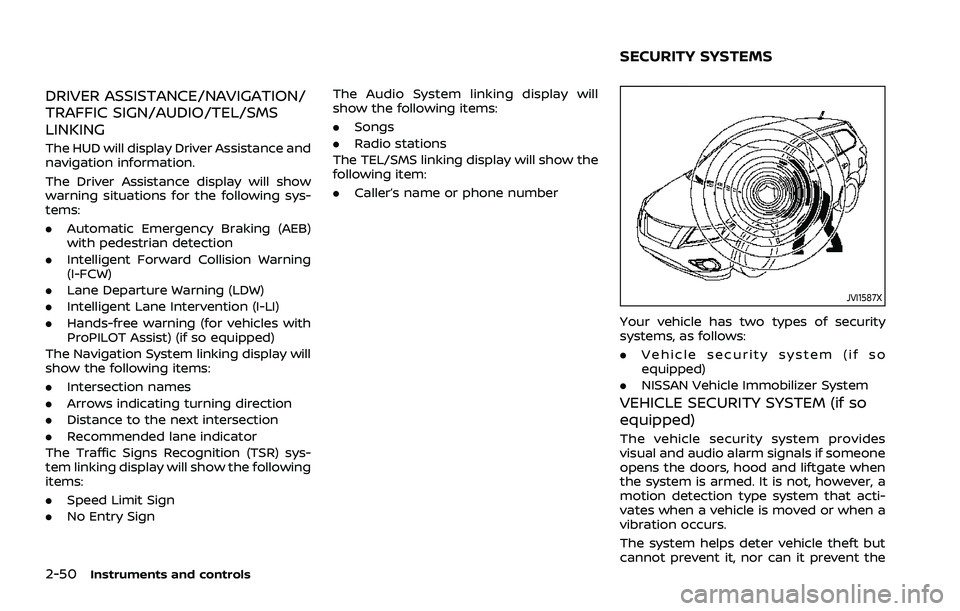
Your vehicle has two types of security
systems, as follows:
.Vehicle security system (if so
equipped)
. NISSAN Vehicle Immobilizer System
VEHICLE SECURITY SYSTEM (if so
equipped)
The vehicle security system provides
visual and audio alarm signals if someone
opens the doors, hood and liftgate when
the system is armed. It is not, however, a
motion detection type system that acti-
vates when a vehicle is moved or when a
vibration occurs.
The system helps deter vehicle theft but
cannot prevent it, nor can it prevent the
SECURITY SYSTEMS
Page 185 of 556
magnetic field, such as a TV,
audio equipment, personal com-
puters, cellular phone or wireless
charger.
If an Intelligent Key is lost or stolen,
NISSAN recommends erasing the ID code
of that Intelligent Key from the vehicle.
This may prevent the unauthorized use of
the Intelligent Key to operate the vehicle.
For information regarding the erasing
procedure, it is recommended that you
contact a NISSAN dealer.
For models with request switch: The
Intelligent Key function can be disabled.
For information about disabling the In-
telligent Key function, it is recommended
that you contact a NISSAN dealer.
WAD0230X
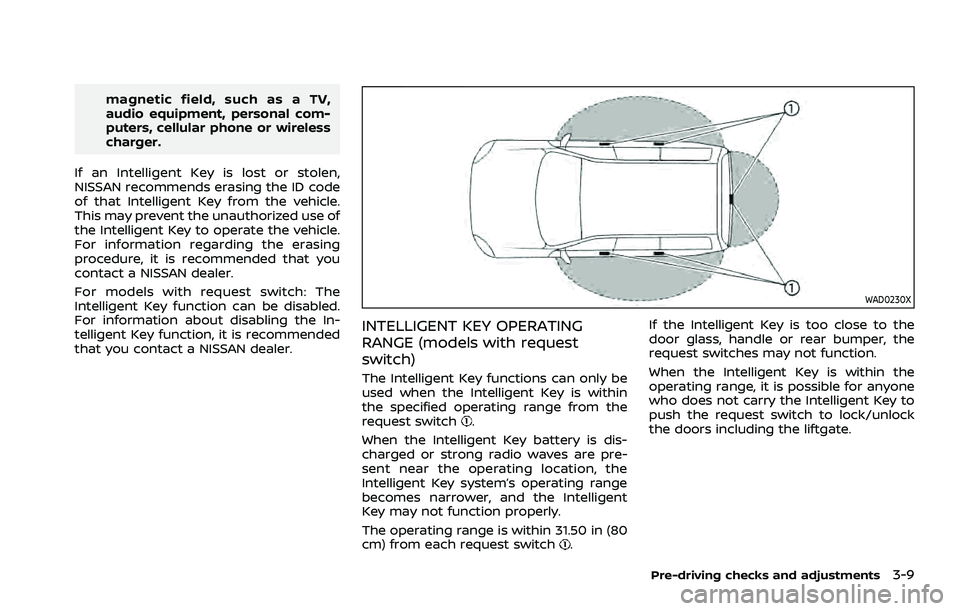
INTELLIGENT KEY OPERATING
RANGE (models with request
switch)
The Intelligent Key functions can only be
used when the Intelligent Key is within
the specified operating range from the
request switch
.
When the Intelligent Key battery is dis-
charged or strong radio waves are pre-
sent near the operating location, the
Intelligent Key system’s operating range
becomes narrower, and the Intelligent
Key may not function properly.
The operating range is within 31.50 in (80
cm) from each request switch
. If the Intelligent Key is too close to the
door glass, handle or rear bumper, the
request switches may not function.
When the Intelligent Key is within the
operating range, it is possible for anyone
who does not carry the Intelligent Key to
push the request switch to lock/unlock
the doors including the liftgate.
Pre-driving checks and adjustments3-9
Page 191 of 556
HOW TO USE REMOTE KEYLESS
ENTRY FUNCTION
WARNING
.Radio waves could adversely af-
fect electric medical equipment.
Those who use a pacemaker
should contact the electric med-
ical equipment manufacturer for
the possible influences before
use.
. The Intelligent Key transmits
radio waves when the buttons
are pushed. The FAA advises that
the radio waves may affect air-
craft navigation and communica-
tion systems. Do not operate the
Intelligent Key while on an air-
plane. Make sure the buttons are
not operated unintentionally
when the unit is stored during a
flight.
CAUTION
.Do not allow the Intelligent Key,
which contains electrical compo-
nents, to come into contact with
water or salt water. This could affect the system function.
. Do not drop the Intelligent Key.
. Do not strike the Intelligent Key
sharply against another object.
. Do not change or modify the
Intelligent Key.
. Wetting may damage the Intelli-
gent Key. If the Intelligent Key
gets wet, immediately wipe until
it is completely dry.
. If the outside temperature is be-
low 14°F (-10°C) degrees, the bat-
tery of the Intelligent Key may not
function properly.
. Do not place the Intelligent Key
for an extended period in an area
where temperatures exceed
140°F (60°C).
. Do not attach the Intelligent Key
with a key holder that contains a
magnet.
. Do not place the Intelligent Key
near equipment that produces a
magnetic field, such as a TV,
audio equipment, personal com-
puters, cellular phone or wireless
charger.
The remote keyless entry function can
operate all door locks using the remote keyless entry function of the Intelligent
Key. The remote keyless entry function
can operate at a distance of approxi-
mately 33 ft (10 m) from the vehicle. (The
operating distance depends upon the
conditions around the vehicle.)
The remote keyless entry function will not
operate:
.
When the Intelligent Key is not within
the operational range.
. When the Intelligent Key battery is
discharged.
The remote keyless entry function can
also operate the vehicle alarm.
Pre-driving checks and adjustments3-15
Page 215 of 556
4 Monitor, heater, air conditioner, audioand phone systems
NissanConnect® Owner’s Manual .................................... 4-2
RearView Monitor (if so equipped) ................................. 4-2
RearView Monitor system operation ..................... 4-3
How to read the displayed lines ................................ 4-3
Difference between predictive and
actual distances ...................................................................... 4-4
How to park with predictive course lines .......... 4-5
Adjusting the screen ........................................................... 4-7
How to turn on and off predictive
course lines ........................................................................\
......... 4-7
RearView Monitor system limitations .................... 4-7
System maintenance .......................................................... 4-8
Intelligent Around View® Monitor (if
so equipped) ........................................................................\
............. 4-9 Intelligent Around View® Monitor
system operation ................................................................ 4-10
Difference between predictive and
actual distances ................................................................... 4-14
How to park with predictive course lines ....... 4-16
How to switch the display ........................................... 4-17
Adjusting the screen ........................................................ 4-18
Intelligent Around View® Monitor
system limitations .............................................................. 4-19
System maintenance ....................................................... 4-21 Moving Object Detection (MOD) (if
so equipped) ........................................................................\
......... 4-22
MOD system operation ................................................ 4-22
Turning MOD on and off ............................................ 4-24
MOD system limitations .............................................. 4-24
System maintenance .................................................... 4-25
Ventilators ........................................................................\
.............. 4-26 Center ventilators ............................................................ 4-26
Side ventilators .................................................................. 4-26
Rear ventilators .................................................................. 4-26
Heater and air conditioner ................................................ 4-27 Manual air conditioner and heater .................... 4-28
Automatic air conditioner (models without
rear control) ........................................................................\
.. 4-32
Automatic air conditioner (models with
rear control) ........................................................................\
.. 4-35
Operating tips (for automatic
air conditioner) ................................................................... 4-38
Servicing air conditioner ............................................. 4-38
Antenna ........................................................................\
.................... 4-39 Shark fin antenna ............................................................ 4-39
Car phone or CB radio ......................................................... 4-39
Page 216 of 556
4-2Monitor, heater, air conditioner, audio and phone systems
For models with NissanConnect® System,
refer to NissanConnect® Owner’s Manual
that includes the following information.
Available functions may vary depending
on the models and specifications.
.Audio
. Hands-Free Phone
. Apple CarPlay®
. Android Auto
TM
.NissanConnect® Services powered by
SiriusXM®
. Navigation system
. Voice recognition
. Information and settings viewable on
NissanConnect®
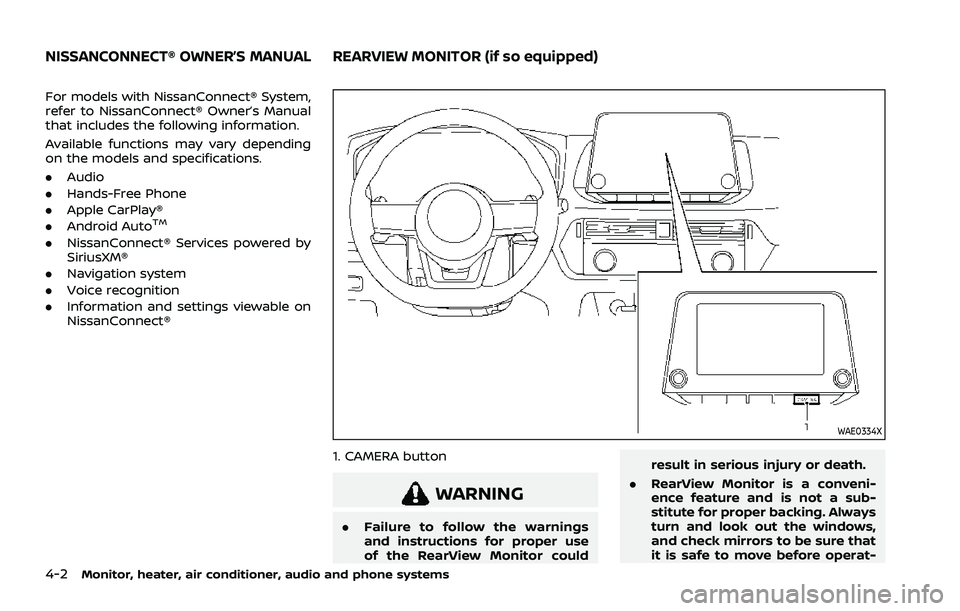
WAE0334X
1. CAMERA button
WARNING
.Failure to follow the warnings
and instructions for proper use
of the RearView Monitor could result in serious injury or death.
. RearView Monitor is a conveni-
ence feature and is not a sub-
stitute for proper backing. Always
turn and look out the windows,
and check mirrors to be sure that
it is safe to move before operat-
NISSANCONNECT® OWNER’S MANUALREARVIEW MONITOR (if so equipped)
Page 217 of 556
ing the vehicle. Always back up
slowly.
. The system is designed as an aid
to the driver in showing large
stationary objects directly behind
the vehicle, to help avoid dama-
ging the vehicle.
. The distance guide line and the
vehicle width line should be used
as a reference only when the
vehicle is on a level paved sur-
face. The distance viewed on the
monitor is for reference only and
may be different than the actual
distance between the vehicle and
displayed objects.
CAUTION
Do not scratch the camera lens when
cleaning dirt or snow from the front
of the camera.
The RearView Monitor system automati-
cally shows a rear view of the vehicle
when the shift lever is placed in the R
(Reverse) position.
The radio can still be heard while the
RearView Monitor is active.
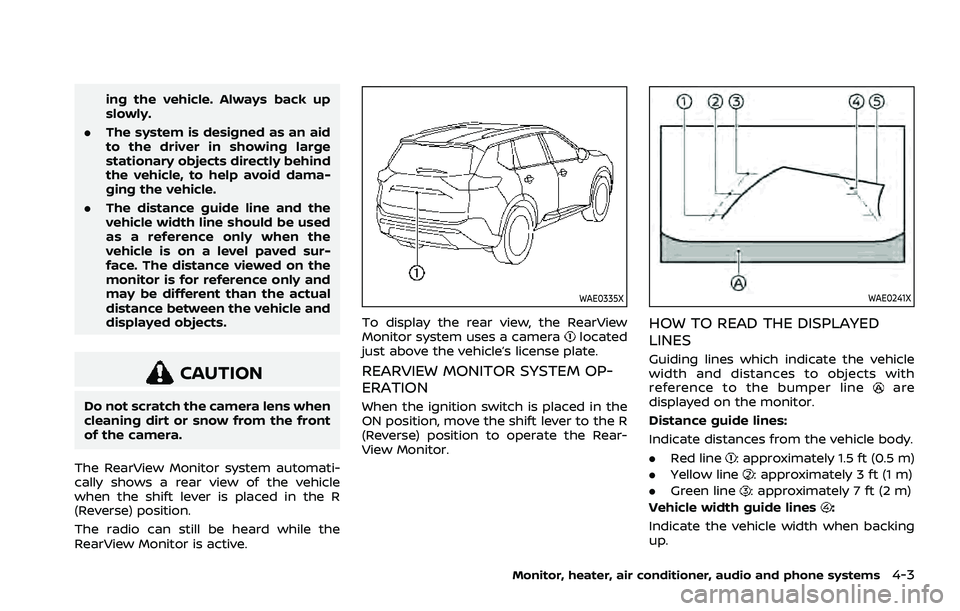
WAE0335X
To display the rear view, the RearView
Monitor system uses a cameralocated
just above the vehicle’s license plate.
REARVIEW MONITOR SYSTEM OP-
ERATION
When the ignition switch is placed in the
ON position, move the shift lever to the R
(Reverse) position to operate the Rear-
View Monitor.
WAE0241X
HOW TO READ THE DISPLAYED
LINES
Guiding lines which indicate the vehicle
width and distances to objects with
reference to the bumper line
are
displayed on the monitor.
Distance guide lines:
Indicate distances from the vehicle body.
. Red line
: approximately 1.5 ft (0.5 m)
. Yellow line
: approximately 3 ft (1 m)
. Green line
: approximately 7 ft (2 m)
Vehicle width guide lines
:
Indicate the vehicle width when backing
up.
Monitor, heater, air conditioner, audio and phone systems4-3
Page 218 of 556
4-4Monitor, heater, air conditioner, audio and phone systems
Predictive course lines:
Indicate the predictive course when back-
ing up. The predictive course lines will be
displayed on the monitor when the shift
lever is in the R (Reverse) position and if
the steering wheel is turned. The predic-
tive course lines will move depending on
how much the steering wheel is turned
and will not be displayed while the steer-
ing wheel is in the straight ahead position.
The vehicle width guide lines and the
width of the predictive course lines are
wider than the actual width and course.
DIFFERENCE BETWEEN PREDICTIVE
AND ACTUAL DISTANCES
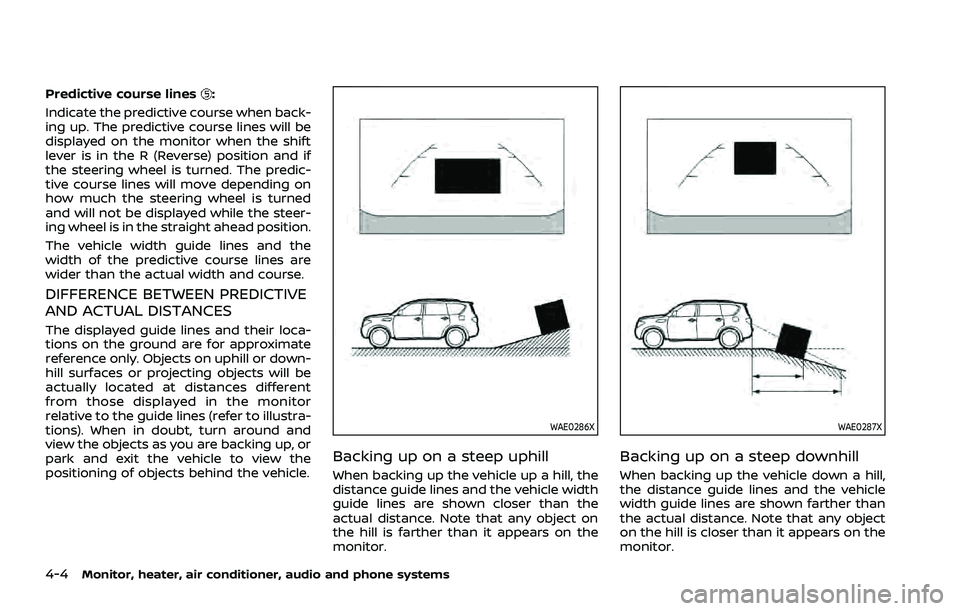
The displayed guide lines and their loca-
tions on the ground are for approximate
reference only. Objects on uphill or down-
hill surfaces or projecting objects will be
actually located at distances different
from those displayed in the monitor
relative to the guide lines (refer to illustra-
tions). When in doubt, turn around and
view the objects as you are backing up, or
park and exit the vehicle to view the
positioning of objects behind the vehicle.
WAE0286X
Backing up on a steep uphill
When backing up the vehicle up a hill, the
distance guide lines and the vehicle width
guide lines are shown closer than the
actual distance. Note that any object on
the hill is farther than it appears on the
monitor.
WAE0287X
Backing up on a steep downhill
When backing up the vehicle down a hill,
the distance guide lines and the vehicle
width guide lines are shown farther than
the actual distance. Note that any object
on the hill is closer than it appears on the
monitor.
Page 219 of 556
WAE0288X
Backing up near a projecting object
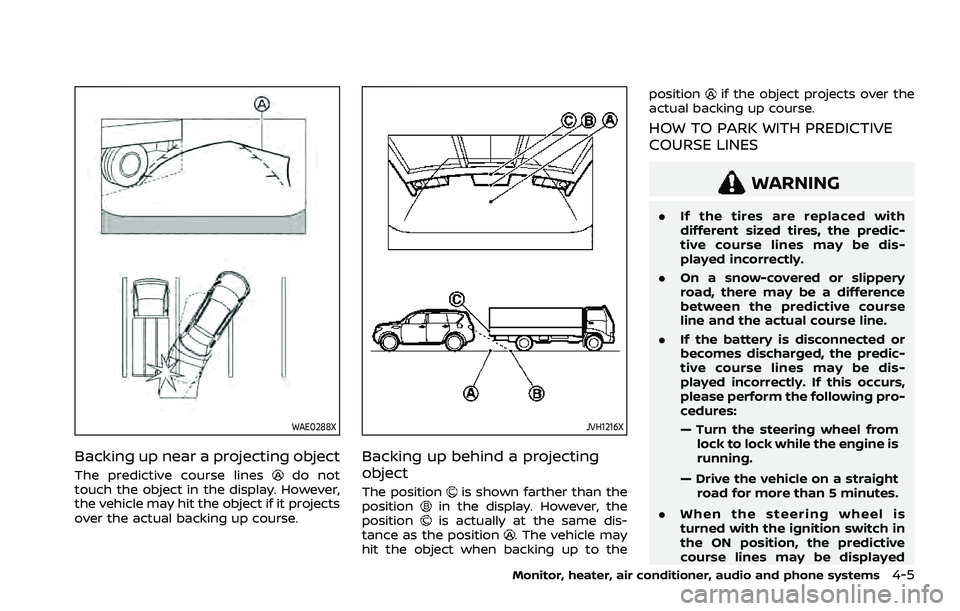
The predictive course linesdo not
touch the object in the display. However,
the vehicle may hit the object if it projects
over the actual backing up course.
JVH1216X
Backing up behind a projecting
object
The positionis shown farther than the
positionin the display. However, the
positionis actually at the same dis-
tance as the position. The vehicle may
hit the object when backing up to the position
if the object projects over the
actual backing up course.
HOW TO PARK WITH PREDICTIVE
COURSE LINES
WARNING
. If the tires are replaced with
different sized tires, the predic-
tive course lines may be dis-
played incorrectly.
. On a snow-covered or slippery
road, there may be a difference
between the predictive course
line and the actual course line.
. If the battery is disconnected or
becomes discharged, the predic-
tive course lines may be dis-
played incorrectly. If this occurs,
please perform the following pro-
cedures:
— Turn the steering wheel from
lock to lock while the engine is
running.
— Drive the vehicle on a straight road for more than 5 minutes.
. When the steering wheel is
turned with the ignition switch in
the ON position, the predictive
course lines may be displayed
Monitor, heater, air conditioner, audio and phone systems4-5