Settings NISSAN ROGUE 2023 Owners Manual
[x] Cancel search | Manufacturer: NISSAN, Model Year: 2023, Model line: ROGUE, Model: NISSAN ROGUE 2023Pages: 508, PDF Size: 2.44 MB
Page 83 of 508

2 Instruments and controls
Cockpit ........................................................................\
.......................... 2-3
Instrument panel ........................................................................\
.. 2-4
Meters and gauges ..................................................................... 2-5Speedometer and odometer ........................................ 2-6
Tachometer ........................................................................\
........ 2-7
Engine coolant temperature gauge ....................... 2-7
Fuel gauge ........................................................................\
........... 2-8
Instrument brightness control .................................... 2-9
Continuously Variable Transmission (CVT)
position indicator (if so equipped) ........................... 2-9
Warning lights, indicator lights and
audible reminders ..................................................................... 2-10 Checking lights ..................................................................... 2-11
Warning/indicator lights (red) ................................... 2-11
Warning/indicator lights (yellow) ........................... 2-13
Warning/indicator lights (other) ............................. 2-17
Audible reminders .............................................................. 2-18
Vehicle information display ............................................... 2-19 How to use the vehicle
information display ........................................................... 2-20
Startup display ...................................................................... 2-20
Settings ........................................................................\
............... 2-21
Vehicle information display warnings
and indicators ........................................................................\
2-31
Trip computer ........................................................................\
2-40 Clock and outside air temperature ................... 2-42
Traffic Sign Recognition (if so equipped) ...... 2-43
Security systems ....................................................................... 2-45
Vehicle Security System .............................................. 2-45
NISSAN Vehicle Immobilizer System ................. 2-47
Wiper and washer switch ................................................... 2-48
Windshield wiper and washer operation ...... 2-49
Rear window wiper and washer switch ................. 2-50
Rear window and outside mirror
defroster switch ........................................................................\
. 2-51
Headlight and turn signal switch ................................ 2-52 Headlight switch ............................................................... 2-52
Turn signal switch ........................................................... 2-58
Fog light switch (if so equipped) ......................... 2-59
Horn ........................................................................\
............................. 2-59
Heated steering wheel (if so equipped) .................. 2-59
Heated seats (if so equipped) ......................................... 2-60
Dynamic driver assistance switch
(models without ProPILOT assist) ............................... 2-61
Steering assist switch (models with
ProPILOT assist) ........................................................................\
. 2-62
Vehicle Dynamic Control (VDC) off switch ........... 2-62
Intelligent 4x4 LOCK switch (if so equipped) ...... 2-63
Rear door alert ........................................................................\
.... 2-63
ECO mode switch ..................................................................... 2-64
Page 101 of 508
NISSAN Intelligent Key® door buz-
zer (if so equipped)
The Intelligent Key door buzzer sounds if
any one of the following improper opera-
tions is found.
.The Intelligent Key is left inside the
vehicle when locking the doors.
. The Intelligent Key is left outside the
vehicle when operating the vehicle.
When the buzzer sounds, be sure to
check both the vehicle and the Intelligent
Key. For additional information, refer to
“Intelligent Key system” (P.3-11).
Brake pad wear warning
The disc brake pads have audible wear
warnings. When a brake pad requires
replacement, it will make a high pitched
scraping sound when the vehicle is in
motion. This scraping sound will first
occur only when the brake pedal is
depressed. After more wear of the brake
pad, the sound will always be heard even
if the brake pedal is not depressed. Have
the brakes checked as soon as possible if
the warning sound is heard.
Parking brake reminder chime
The parking brake reminder chime will
sound if the vehicle is driven at more than
4 MPH (7 km/h) (models not equipped
with electronic parking brake) or 2 MPH (4
km/h) (models equipped with electronic
parking brake) with the parking brake
applied. Stop the vehicle and release the
parking brake.
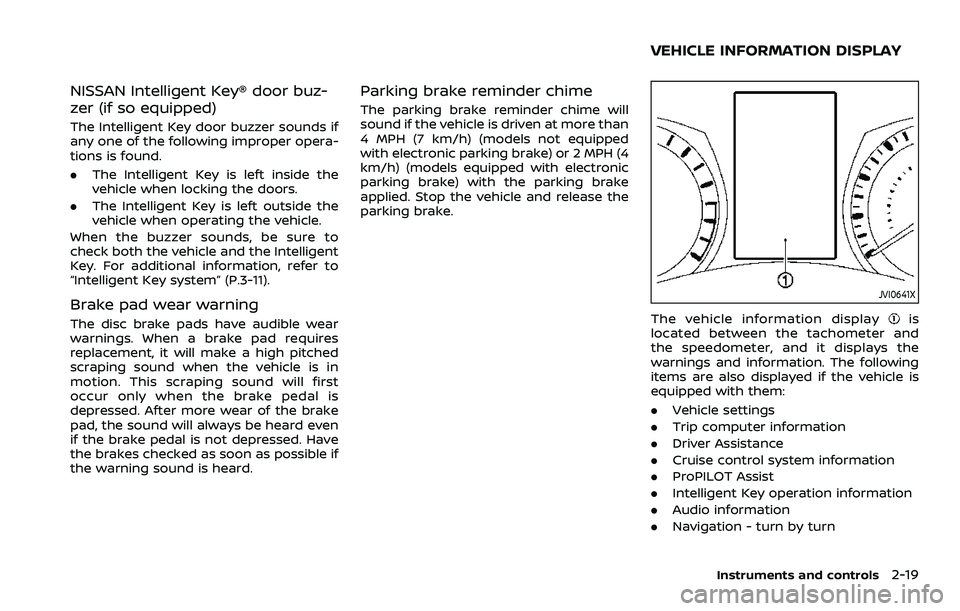
JVI0641X
The vehicle information displayis
located between the tachometer and
the speedometer, and it displays the
warnings and information. The following
items are also displayed if the vehicle is
equipped with them:
. Vehicle settings
. Trip computer information
. Driver Assistance
. Cruise control system information
. ProPILOT Assist
. Intelligent Key operation information
. Audio information
. Navigation - turn by turn
Instruments and controls2-19
VEHICLE INFORMATION DISPLAY
Page 102 of 508
2-20Instruments and controls
.Indicators and warnings
. Tire pressure information
. Chassis Control
. Other information
JVI1566X
HOW TO USE THE VEHICLE INFOR-
MATION DISPLAY
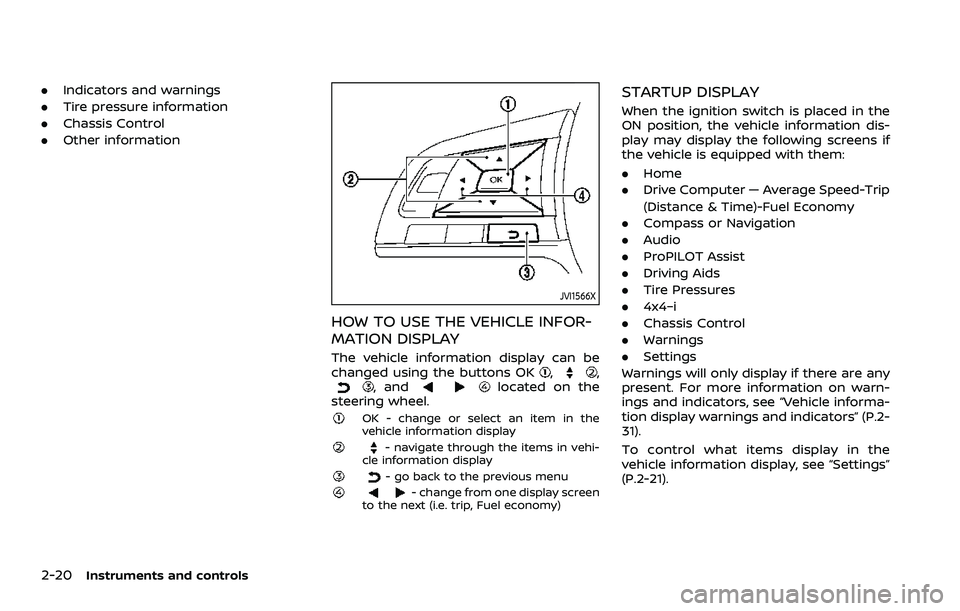
The vehicle information display can be
changed using the buttons OK,,, andlocated on the
steering wheel.
OK - change or select an item in the
vehicle information display
- navigate through the items in vehi-
cle information display
- go back to the previous menu- change from one display screen
to the next (i.e. trip, Fuel economy)
STARTUP DISPLAY
When the ignition switch is placed in the
ON position, the vehicle information dis-
play may display the following screens if
the vehicle is equipped with them:
. Home
. Drive Computer — Average Speed-Trip
(Distance & Time)-Fuel Economy
. Compass or Navigation
. Audio
. ProPILOT Assist
. Driving Aids
. Tire Pressures
. 4x4–i
. Chassis Control
. Warnings
. Settings
Warnings will only display if there are any
present. For more information on warn-
ings and indicators, see “Vehicle informa-
tion display warnings and indicators” (P.2-
31).
To control what items display in the
vehicle information display, see “Settings”
(P.2-21).
Page 103 of 508
SETTINGS
The setting mode allows you to change
the information displayed in the vehicle
information display:
.Driver Assistance
. Clock
. Meter Settings
. Vehicle Settings
. Maintenance
. Alarm (if so equipped)
. Tire Pressures
. Unit
. Language
. Factory Reset
Driver Assistance
To change the status, warnings or turn on
or off any of the systems/warnings dis-
played in the “Driver Assistance” menu,
use the
buttonsto select and the
OKto change a menu item:
. Driving Aids
. Parking Aids (if so equipped)
. Chassis Control (if so equipped)
. Driver Attention (if so equipped)
. Speed Limit Sign (if so equipped)
Driving Aids:
To change the status, warnings or turn on
or off any of the systems/warnings dis- played in the “Driving Aids” menu, use the
buttonsto select and the OKto
change a menu item:
. Steering Assist (if so equipped)
Allows user to turn the Steering Assist
ON/OFF.
. Emergency Brake
— Front
Allows user to turn the Automatic
Emergency Braking (AEB) with Pe-
destrian Detection system and In-
telligent Forward Collision Warning
(I-FCW) system ON/OFF
— Rear Allows user to turn the Rear Auto-
matic Braking (RAB) system ON/
OFF.
. Lane
— Warning (LDW)
Allows user to turn the Lane De-
parture Warning (LDW) system ON/
OFF.
— Prevention (LDP) Allows user to turn the Intelligent
Lane Intervention (I-LI) system ON/
OFF.
. Blind Spot
— Warning (BSW)
Allows user to turn the Blind Spot
Warning (BSW) system ON/OFF.
For additional information, see “ProPILOT assist” (P.5-64), “Automatic Emergency
Braking (AEB) with Pedestrian Detection
system” (P.5-97), “Rear Automatic Braking
(RAB)” (P.5-116), “Lane Departure Warning
(LDW)” (P.5-35), “Intelligent Lane Interven-
tion (I-LI)” (P.5-86), and “Blind Spot Warn-
ing (BSW)” (P.5-46).
Parking Aids (if so equipped):
To change the status or turn on or off any
of the systems displayed in the “Parking
Aids” menu, use the
buttonsto
select and the OKto change a menu
item:
. Moving Object (if so equipped)
Press the OK
to turn the Moving
Object Detection (MOD) ON/OFF.
. Cross Traffic
Press the OK
to turn the Rear Cross
Traffic Alert (RCTA) ON/OFF.
. Rear Sensor (if so equipped)
Allows user to turn the rear sensor
ON/OFF.
. Display (if so equipped)
Allows user to turn the Rear Sonar
System (RSS) display ON/OFF.
. Volume (if so equipped)
Allows user to select sensor volume
(High, Med. or Low).
. Range (if so equipped)
Allows user to select the sensor range
Instruments and controls2-21
Page 104 of 508
2-22Instruments and controls
(Far, Mid. or Near).
For additional information, see “Moving
Object Detection (MOD)” (P.4-21), “Rear
Cross Traffic Alert (RCTA)” (P.5-54) and
“Rear Sonar System (RSS)” (P.5-136).
Chassis Control:
To change the status, warnings or turn on
or off any of the systems/warnings dis-
played in the “Chassis Control” menu.
Use the
buttonsto select and the
OKto change a menu item:
. Trace Control
— See “Intelligent Trace Control” (P.5-
133) for more information.
. Engine Brake (if so equipped)
— See “Intelligent Engine Brake (Con-
tinuously Variable Transmission
(CVT) models)” (P.5-134) for more
information.
Press the OK
to turn ON/OFF.
Driver Attention (if so equipped) :
This menu allows the customer to turn
the Intelligent Driver Alertness (I-DA) on or
off. See “Intelligent Driver Alertness (I-DA)”
(P.5-94).
Speed Limit Sign (if so equipped):
This menu allows the customer to turn
the Traffic Sign Recognition on or off. For
additional information, see “Traffic Sign Recognition” (P.2-43).
Clock
Allows user to adjust the clock settings
and time within the vehicle information
display. Adjustments that can be made
include automatically setting the time,
12H/24H format, Daylight Savings Time,
time zone, and manually setting the time
(depending on the vehicle’s equipment).
The clock may also be set within the
center display. For additional information,
refer to the separate NissanConnect®
Owner’s Manual.
Meter Settings
The meter settings allows the customer
to choose from the various meter selec-
tions.
The meter settings can be changed using
the
and the OKbuttons.
Main Menu Selection:
The items that display when the ignition
switch is placed in the ON position can be
enabled/disabled. To change the items
that are displayed, use the
to scroll
and the OKto select a menu item.
Body Color:
The color of the vehicle that displays in
the vehicle information display when the
ignition switch is placed in the ON posi- tion can be changed.
1. Use the
buttonsuntil “Body
Color” is selected, and press OK.
2. Select the body color using the
buttonsand press OK.
ECO Mode Settings:
This setting allows the customer to
change the ECO mode system settings.
Use the
buttonsuntil “ECO Mode
Settings” is selected, and press OK.
- ECO Indicator
This setting allows the customer to en-
able/disable the ambient ECO indicator in
the vehicle information display.
1. Use the
buttonsto select “ECO
Indicator”.
2. Press the OK
to turn ON/OFF the
ambient ECO in the vehicle informa-
tion display.
- DISP Mode
Page 105 of 508

WAC0086X
This setting allows the customer to en-
able/disable the ECO pedal guide func-
tion.
1. Use the
buttonsto select “DISP
Mode”.
2. Press the OK
to select “Pedal” or
“Inst.FE.”.
For detailed information, see “ECO mode
system” (P.5-32).
ECO Drive Report:
- Display
This setting allows the customer to en-
able/disable the ECO Drive Report in the
vehicle information display. 1. Use the
buttonsto select “Dis-
play”.
2. Press the OK
to turn ON/OFF the
ECO management display in the vehi-
cle information display.
- View History
This setting allows the customer to reset
the past history of the fuel economy and
the best fuel economy.
Welcome Effect:
You can choose whether or not to display
the welcome screen when the ignition
switch is placed in the ON position. You
can also choose the following items to
define how the welcome screen looks:
. Dial Effect
. Display Effect
Select “Welcome Effect” using the
buttonsand press the OKto select
this menu. Use thebuttonsto
navigate between the menu options and
press the OK
to turn each function ON/
OFF.
Vehicle Settings
The vehicle settings allows the customer
to change settings for the following
settings.
. Lighting
. Turn indicator
. Locking
. Wipers
. Driving Position (if so equipped)
. Rear Door Alert
. Remote start (if so equipped)
The vehicle settings can be changed
using the
, and the OKbuttons.
Lighting:
The “Lighting” menu has the following
options:
. Welcome Light
The welcome lighting can be set to be
ON or OFF. From the “Lighting” menu,
select “Welcome Light”. Use the OK
to turn this feature ON or OFF.
. Auto Room Lamp
The interior light timer can be set to
be ON or OFF. From the “Lighting”
menu, select “Auto Room Lamp”. Use
the OK
to turn this feature ON or
OFF.
. Light Sensitivity
The sensitivity of the Intelligent Auto
Instruments and controls2-23
Page 108 of 508
2-26Instruments and controls
Alarm (if so equipped)
This setting allows the customer to set
alarms.
Select “Alarm” using the
buttonand
press OK button.
Timer Alert (if so equipped):
This setting allows the customer to set an
alert to notify the driver that the set time
has been reached.
1. Use the
buttonto select “Timer
Alert”.
2. Press the OK button
.
3. To change the timer amount, use the
buttonand the OK buttonto
save the selected time amount.
Navigation (if so equipped):
This setting allows the customer to en-
able/disable the alert for navigation in the
vehicle information display.
1. Use the
buttonto select “Navi-
gation”.
2. Press the OK button
to turn ON/OFF
the alert.
Phone (if so equipped):
This setting allows the customer to en-
able/disable the alert for an incoming call
in the vehicle information display. 1. Use the
buttonto select
“Phone”.
2. Press the OK button
to turn ON/OFF
the alert.
Mail (if so equipped):
This setting allows the customer to en-
able/disable the alert for incoming mail in
the vehicle information display.
1. Use the
buttonto select “Mail”.
2. Press the OK button
to turn ON/OFF
the alert.
Tire Pressures
The settings in the “Tire pressures” menu
are all related to the Tire Pressure Mon-
itoring System (TPMS). (See “Tire Pressure
Monitoring System (TPMS)” (P.5-5), “Tire
Pressure Monitoring System (TPMS)” (P.6-
3), “Tire Pressure Monitoring System
(TPMS)” (P.8-29).)
Page 110 of 508
2-28Instruments and controls
Language
The language of the vehicle information
display can be changed.
Use the
button, and the OK buttonto select and change the language of
the vehicle information display.
Factory Reset
The settings in the vehicle information
display can be reset back to the factory
default. To reset the vehicle information
display:
1. Select “Factory Reset” using the
buttonand press the OK button.
2. Select “YES” to return all settings back to default by pressing the OK button
.
Page 118 of 508
2-36Instruments and controls
41. Steering assist indicator (if so
equipped)
This indicator appears when the steering
assist system is engaged.
See “ProPILOT assist” (P.5-64).
42. Steering assist alert (if so
equipped)
This message may appear when the
steering assist system is engaged.
It will be displayed under the following
condition:
.When not holding the steering wheel
or when there is no steering wheel
operation.
Hold on the steering wheel immediately.
When the steering operation is detected,
the warning turns off and the steering
assist function is automatically restored.
For additional information, refer to “Pro-
PILOT assist” (P.5-64).
43. Automatic Emergency Braking
(AEB) emergency warning indicator
This indicator illuminates along, with an
audible warning, when the system de-
tects the possibility of a forward collision.
See “Automatic Emergency Braking (AEB)
with Pedestrian Detection system” (P.5-
97).
44. Rear Door Alert is activated
When the system is enabled, this message
appears when the Rear Door Alert system
is active and can remind the driver to
check the back seat.
. Using the steering switch, a driver can
select “Dismiss Message” to clear the
display for a period of time. If no
selection is made, this message auto-
matically turns off after a period of
time.
. Using the steering switch, a driver can
select “Disable Alert” to disable the
horn alert for the remainder of the
current trip.
For additional information, see “Rear door
alert” (P.2-63).
WARNING
Selecting “Dismiss Message” during a
stop within a trip temporarily dis-
misses the message for that stop
without turning the system off.
Alerts can be provided for other
stops during the trip. Selecting “Dis-
able Alert” turns off the Rear Door
Alert system for the remainder of a
trip and no audible alert will be
provided. NOTE:
This system is disabled until a driver
enables it using the vehicle information
display. See “Vehicle Settings” (P.2-23).
45. Check Back Seat For all articles
When the system is enabled, this message
appears when the vehicle comes to a
complete stop, the shift lever is moved
from the D (Drive) position to P (Park)
position, and the driver exits the vehicle.
This message alerts the driver, after a
period of time, to check for items in the
rear seat after the audible alert has been
provided.
NOTE:
This system is disabled until a driver
enables it using the vehicle information
display. For additional information, see
“Vehicle Settings” (P.2-23).
46. Rear Automatic Braking (RAB)
indicator
This indicator illuminates to indicate the
status of the Rear Automatic Braking
(RAB) system.
See “Rear Automatic Braking (RAB)” (P.5-
116).
Page 127 of 508
— When overtaking buses ortrucks with speed stickers.
Turning the TSR system on and off
Turning the TSR system on or off is done
using the "Settings" menu in the vehicle
information display. For details, see “Ve-
hicle information display” (P.2-19).
Perform the following steps to enable or
disable the TSR system:
1. In the "Settings" menu, select the "Driver Assistance" key.
2. Touch "Speed Limit Sign" to turn the system ON/OFF.
System temporarily unavailable
If the vehicle is parked in direct sunlight
under high temperature conditions (over
approximately 40°C (104°F)) and then
started, the TSR system may be deacti-
vated automatically. The “Unavailable:
high cabin temperature” warning mes-
sage will appear in the vehicle informa-
tion display.
Action to take:
When the interior temperature is reduced,
the TSR system will resume operating
automatically.
System Malfunction
If the TSR system malfunctions it will be
turned off automatically and the TSR
"Malfunction" warning message will ap-
pear in the vehicle information display.
Action to take:
If the TSR "Malfunction" warning mes-
sage appears, pull off the road at a safe
location and stop the vehicle. Turn the
engine off and restart the engine. If the
TSR "Malfunction" message continues to
appear, have the system checked by a
NISSAN dealer.
Maintenance
The TSR uses the same multi-sensing
front camera unit that is used by the
Lane Departure Warning (LDW) system,
located in front of the interior rearview
mirror. For maintenance of the camera,
see “System maintenance” (P.5-39).
JVI1587X
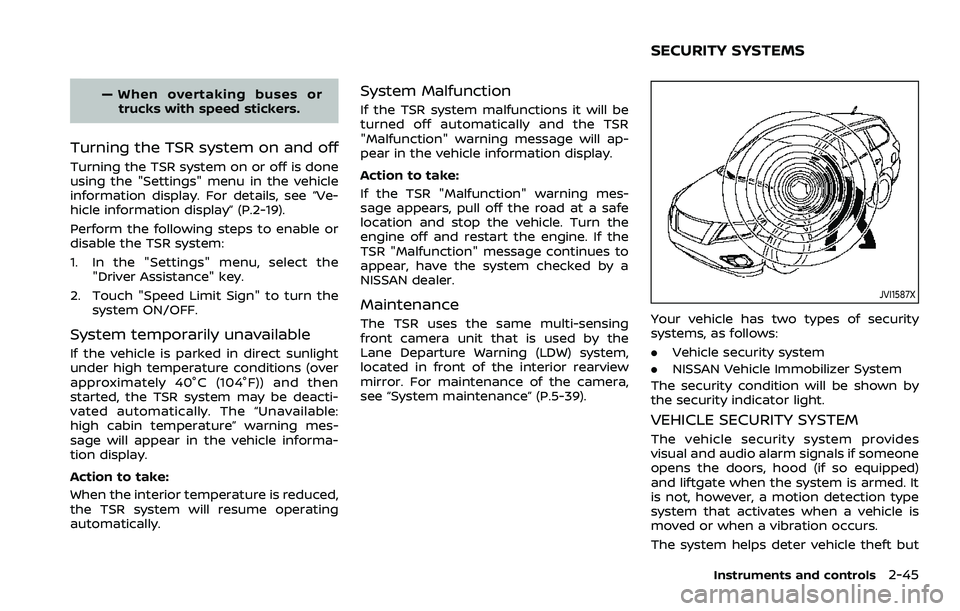
Your vehicle has two types of security
systems, as follows:
.Vehicle security system
. NISSAN Vehicle Immobilizer System
The security condition will be shown by
the security indicator light.
VEHICLE SECURITY SYSTEM
The vehicle security system provides
visual and audio alarm signals if someone
opens the doors, hood (if so equipped)
and liftgate when the system is armed. It
is not, however, a motion detection type
system that activates when a vehicle is
moved or when a vibration occurs.
The system helps deter vehicle theft but
Instruments and controls2-45
SECURITY SYSTEMS