ESP NISSAN ROGUE SPORT 2017 User Guide
[x] Cancel search | Manufacturer: NISSAN, Model Year: 2017, Model line: ROGUE SPORT, Model: NISSAN ROGUE SPORT 2017Pages: 512, PDF Size: 3.33 MB
Page 185 of 512

4-6Heater, air conditioner, audio and phone systems
Menu ItemResult
Audio For more details, see “Audio main operation” (P.4-63).
System Display Brightness Adjusts the brightness of the display.
Display Mode Adjusts to fit the level of lighting in the vehicle. Touch key to cycle through
options. “Day” and “Night” modes are suited for the respective times of day
while “Auto” controls the display automatically.
Scroll Direction Adjust the scroll direction of ENTER AUDIO/TUNE·SCROLL dial. Choose to
either move up or down.
Clock/Date Time Format The clock can be set to 12 hours or 24 hours.
Date Format The format of the day, month and year display can be selected.
Clock Mode Adjust the mode for the clock. “Auto” uses the system’s GPS to automatically
maintain the time. “Manual” allows you to set the clock using the “Set Clock/
Date Manually” key. Select “Time Zone” to have the time set to a specific time
zone.
Set Clock/Date Manually Adjust the clock manually. Touch the “+” or “-” keys to adjust the hours, minutes, day, month and year up or down. “Clock Mode” must be set to
“Manual” for this option to be available. When the “Time Format” is set to
“12h”, switching between “AM” and “PM” can be done by touching “MODE”.
Daylight Savings Time Adjusts the daylight savings time on or off. “Clock Mode” must be set to “Time Zone” for this option to be available.
Time Zone Choose the applicable time zone from the list.
Language Touch this key to change the language on the display.
NissanConnect Services Settings See the separate Navigation System Owner’s Manual for detail information.
Camera Settings Display Mode Touch this key to select the camera screen display mode (day, night, or
automatic).
Brightness Adjust camera screen brightness.
Contrast Adjust camera screen contrast.
Color Adjust camera screen color.
Page 193 of 512
4-14Heater, air conditioner, audio and phone systems
JVH1587X
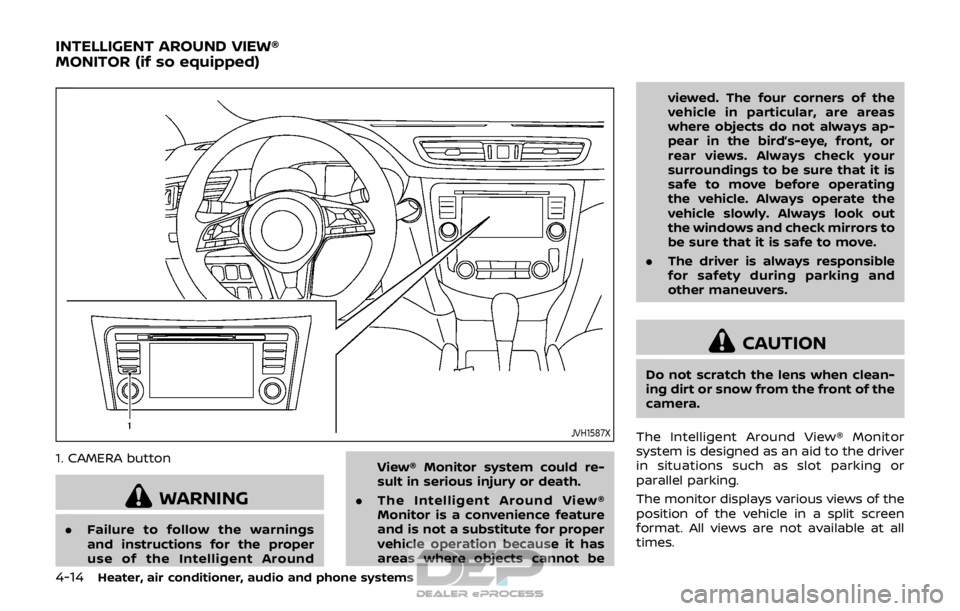
1. CAMERA button
WARNING
.Failure to follow the warnings
and instructions for the proper
use of the Intelligent Around View® Monitor system could re-
sult in serious injury or death.
. The Intelligent Around View®
Monitor is a convenience feature
and is not a substitute for proper
vehicle operation because it has
areas where objects cannot be viewed. The four corners of the
vehicle in particular, are areas
where objects do not always ap-
pear in the bird’s-eye, front, or
rear views. Always check your
surroundings to be sure that it is
safe to move before operating
the vehicle. Always operate the
vehicle slowly. Always look out
the windows and check mirrors to
be sure that it is safe to move.
. The driver is always responsible
for safety during parking and
other maneuvers.
CAUTION
Do not scratch the lens when clean-
ing dirt or snow from the front of the
camera.
The Intelligent Around View® Monitor
system is designed as an aid to the driver
in situations such as slot parking or
parallel parking.
The monitor displays various views of the
position of the vehicle in a split screen
format. All views are not available at all
times.
INTELLIGENT AROUND VIEW®
MONITOR (if so equipped)
Page 200 of 512

5. When the vehicle is parked in thespace completely, move the shift lever
to the P (Park) position and apply the
parking brake.
HOW TO SWITCH THE DISPLAY
With the ignition switch placed in the ACC
or ON position, push the CAMERA button
or move the shift lever to the R (Reverse)
position to operate the Intelligent Around
View® Monitor.
The Intelligent Around View® Monitor dis-
plays different split screen views depend-
ing on the position of the shift lever. Push
the CAMERA button to switch between
the available views.
If the shift lever is in the R (Reverse)
position, the available views are:
.Rear view/bird’s-eye view split screen
. Rear view/front-side view split screen
. Rear view
If the shift lever is in the P (Park) position,
the available views are:
. Front view/bird’s-eye view split screen
. Front view/front-side view split screen
The display will switch from the Intelligent
Around View® Monitor screen when:
. The shift lever is in the D (Drive)
position and the vehicle speed in-
creases above approximately 6 MPH
(10 km/h). .
A different screen is selected (when
the shift lever is not in the “R” (Reverse)
position).
JVH1636X
ADJUSTING THE SCREEN
To adjust the screen brightness when the
Intelligent Around View® Monitor is dis-
played, push the
button.
Adjust brightness to the preferred setting
using the ENTER AUDIO/TUNE·SCROLL
dial
.
The Intelligent Around View® Monitor
settings can also be adjusted from “Set-
tings” menu. (See “Displaying settings
menu” (P.4-5).)
NOTE:
Do not adjust the display settings of the
Intelligent Around View® Monitor while
the vehicle is moving. Make sure the
Heater, air conditioner, audio and phone systems4-21
Page 215 of 512

4-36Heater, air conditioner, audio and phone systems
maximum levels.
. After the windshield is cleared, push
the AUTO button (the AUTO indicator
light will turn on).
. When the front defroster
button is
pushed, the air conditioner will turn on
when the outside air temperature is
above approximately 36°F (2°C) to
defog the windshield. The air recircu-
lation mode will automatically turn off.
The outside air circulation mode will
be selected to improve the defogging
performance.
Do not set the temperature too low when
the front defroster mode is on (the
indicator light is illuminated), because
doing so may fog up the windshield.
Manual operation
The manual mode can be used to control
the heater and air conditioner to your
desired settings.
Fan speed control:
Push the fan speed control button (
side orside) to manually control the
fan speed.
Push the AUTO button to change the fan
speed to the automatic mode.
Air flow control:
Push the MODE button to select the
desired mode:
— Air flows mainly from the center and
side ventilators.
— Air flows mainly from the center andside ventilators and foot outlets.
— Air flows mainly from the foot outletand partly from the defroster.
— Air flows mainly from the frontdefroster outlets and foot outlets.
Temperature control:
Turn the temperature control dial to set
the desired temperature.
.When the DUAL indicator light is not
illuminated, pushing the DUAL button
(the indicator light will turn on) allows
the user to independently change the
driver and passenger side tempera-
tures with the corresponding tem-
perature control dial.
Also turning the passenger’s side
temperature control dial changes only
the front passenger’s side tempera-
ture. (The DUAL indicator light will
illuminate and DUAL will appear on
the display.)
. To cancel the separate temperature
setting, push the DUAL button (the
indicator light will turn off) and the
driver’s side temperature setting will
be applied to both the driver and
passenger sides. Air intake control:
.
Push the air recirculation
button
to recirculate interior air inside the
vehicle. The indicator light on the
button will come on.
The air recirculation cannot be acti-
vated when the air conditioner is in
the front defrosting mode.
. Push the outside air circulation
button to draw outside air into the
passenger compartment. The indica-
tor light on the button will come on.
. To control the air intake automatically,
push and hold either the air recircula-
tion
button or the outside air
circulationbutton (whichever but-
ton with the indicator light illumi-
nated). The indicator lights (both air
recirculation
and outside air cir-
culationbuttons) will flash twice,
and then the air intake will switch to
automatic control. When the auto-
matic control is set, the system auto-
matically alternates between the
outside air circulation and the air
recirculation modes. (The indicator
light of the active mode will turn on.)
NOTE:
Even if the system is manually set to the
air recirculation mode, when both out-
side temperature and coolant tempera-
ture are low, the system may
Page 220 of 512
USB (Universal Serial Bus) Connec-
tion Port
WARNING
Do not connect, disconnect or oper-
ate the USB device while driving.
Doing so can be a distraction. If
distracted you could lose control of
your vehicle and cause an accident
or serious injury.
CAUTION
.Do not force the USB device into
the USB connection port. Insert-
ing the USB device tilted or up-
side-down into the port may da-
mage the port. Make sure that
the USB device is connected cor-
rectly into the USB connection
port.
. Do not grab the USB connection
port cover (if so equipped) when
pulling the USB device out of the
port. This could damage the port
and the cover.
. Do not leave the USB cable in a
place where it can be pulled unintentionally. Pulling the cable
may damage the port.
The vehicle is not equipped with a USB
device. USB devices should be purchased
separately as necessary.
This system cannot be used to format
USB devices. To format a USB device, use
a personal computer.
In some states/area, the USB device for
the front seats plays only sound without
images for regulatory reasons, even when
the vehicle is parked.
This system supports various USB mem-
ory devices, USB hard drives and iPod®
players. Some USB devices may not be
supported by this system.
. Partitioned USB devices may not be
played correctly.
. Some characters used in other lan-
guages (Chinese, Japanese, etc.) are
not displayed properly on display.
Using English language characters
with a USB device is recommended.
General notes for USB use:
Refer to your device manufacturer’s own-
er information regarding the proper use
and care of the device. Notes for iPod® use:
“Made for iPod®”, “Made for iPhone®”, and
“Made for iPad®” mean that an electronic
accessory has been designed to connect
specifically to iPod®, iPhone®, or iPad®,
respectively, and has been certified by the
developer to meet Apple performance
standards.
Apple is not responsible for the operation
of this device or its compliance with
safety and regulatory standards.
Please note that the use of this accessory
with iPod®, iPhone®, or iPad® may affect
wireless performance.
iPad®, iPhone®, iPod®, iPod classic®, iPod
nano®, iPod shuffle®, and iPod touch® are
trademarks of Apple Inc., registered in the
U.S. and other countries. Lightning is a
trademark of Apple Inc.
.
Improperly plugging in the iPod® may
cause a checkmark to be displayed on
and off (flickering). Always make sure
that the iPod® is connected properly.
. An iPod nano® (1st Generation) may
remain in fast forward or rewind mode
if it is connected during a seek opera-
tion. In this case, please manually
reset the iPod®.
. An iPod nano® (2nd Generation) will
continue to fast-forward or rewind if it
is disconnected during a seek opera-
Heater, air conditioner, audio and phone systems4-41
Page 221 of 512

4-42Heater, air conditioner, audio and phone systems
tion.
. An incorrect song title may appear
when the Play Mode is changed while
using an iPod nano® (2nd Generation)
. Audiobooks may not play in the same
order as they appear on an iPod®.
. Large video files cause slow responses
in an iPod®. The display may momen-
tarily black out, but will soon recover.
. If an iPod® automatically selects large
video files while in the shuffle mode,
the display may momentarily black
out, but will soon recover.
Compressed Audio Files (MP3/
WMA)
Explanation of terms:
.MP3 — MP3 is short for Moving Pic-
tures Experts Group Audio Layer 3.
MP3 is the most well known com-
pressed digital audio file format. This
format allows for near “CD quality”
sound, but at a fraction of the size of
normal audio files. MP3 conversion of
an audio track can reduce the file size
by approximately a 10:1 ratio (Sam-
pling: 44.1 kHz, Bit rate: 128 kbps) with
virtually no perceptible loss in quality.
The compression reduces certain
parts of sound that seem inaudible
to most people. .
WMA — Windows Media Audio (WMA) is
a compressed audio format created
by Microsoft as an alternative to MP3.
The WMA codec offers greater file
compression than the MP3 codec,
enabling storage of more digital audio
tracks in the same amount of space
when compared to MP3s at the same
level of quality.
This product is protected by certain
intellectual property rights of Micro-
soft Corporation and third parties. Use
or distribution of such technology
outside of this product is prohibited
without a license from Microsoft or an
authorized Microsoft subsidiary and
third parties.
. Bit rate — Bit rate denotes the number
of bits per second used by a digital
music file. The size and quality of a
compressed digital audio file is deter-
mined by the bit rate used when
encoding the file.
. Sampling frequency — Sampling fre-
quency is the rate at which the
samples of a signal are converted
from analog to digital (A/D conver-
sion) per second.
. Multisession — Multisession is one of
the methods for writing data to med-
ia. Writing data once to the media is
called a single session, and writing more than once is called a multises-
sion.
. ID3/WMA Tag — The ID3/WMA tag is
the part of the encoded MP3 or WMA
file that contains information about
the digital music file such as song title,
artist, album title, encoding bit rate,
track time duration, etc. ID3 tag in-
formation is displayed on the Album/
Artist/Track title line on the display.
* Windows® and Windows Media® are
registered trademarks or trademarks of
Microsoft Corporation in the United
States of America and/or other countries.
Page 229 of 512

4-50Heater, air conditioner, audio and phone systems
Select “Language Select” using the
ENTER SETTING/TUNE·FOLDER dial
and then push the ENTER SETTING/
TUNE·FOLDER dial. Use the ENTER
SETTING/TUNE·FOLDER dial to select
the preferred language. Push the
ENTER SETTING/TUNE·FOLDER dial to
apply the setting.
DISP button:
Display of the screen can be canceled by
pushing the
button. You can still
listen to music that is being played back
even while the screen display is turned
off. If you want to display the screen
again, push the
button once more.
Pushing some of the audio source but-
tons will also turn the screen back on and
display the screens of the corresponding
sources.
MEDIA button:
Pushing the
button will switch the
audio source as follows:
USB/iPod® ?Bluetooth Audio ?AUX ?
USB/iPod®
FM-AM Radio operation
radio (FM·AM) band select:
Push the
button to change the band
as follows:
AM ?FM1 ?FM2? AM
The FM stereo indicator (STEREO) is
shown on the screen during FM stereo
reception. When the stereo broadcast
signal is weak, the radio automatically
changes from stereo to monaural recep-
tion.
TUNE (Tuning):
Turn the ENTER SETTING/TUNE·FOLDER
dial for manual tuning.
Radio Data System (RDS):
RDS stands for Radio Data System, and is
a data information service transmitted by
some radio stations on the FM band (not
AM band) encoded within a regular radio
broadcast. Currently, most RDS stations
are in large cities, but many stations are
now considering broadcasting RDS data.
The station name, such as “The Groove”, is
displayed on the display.
SEEK tuning:
Push the
orbutton to tune from
low to high or high to low frequencies and to stop at the next broadcasting
station.
SCAN tuning:
Push the
button to tune from low to
high frequencies and stop at each broad-
casting station for several seconds. Push-
ing the
button again during this
several seconds period will stop SCAN
tuning and the radio will remain tuned to
that station.
If the
button is not pushed within this
period, SCAN tuning moves to the next
station.
toStation memory opera-
tions:
Up to 12 stations can be set for the FM
band (6 each for FM1 and FM2) and 6
stations can be set for the AM band.
1. Choose the radio band using the
button.
2. Tune to the desired station.
3. Push and hold the desired station preset button
tountil beep
sounds.
4. The station indicator will then come on. The station is now set to the
button memory.
Page 236 of 512

.Speed Sensitive Vol.
Select the “Speed Sensitive Vol.” using
the ENTER SETTING/TUNE·SCROLL dial
and then push the ENTER SETTING/
TUNE·SCROLL dial. To change the
Speed Sensitive Volume (Speed Sensi-
tive Vol.) level from off (0) to 5, turn the
ENTER SETTING/TUNE·SCROLL dial.
Push the ENTER SETTING/TUNE·SC-
ROLL dial to apply the setting.
. AUX Vol.
Controls the volume level of incoming
sound when an auxiliary device is
connected to the system. Select the
“AUX Vol.” using the ENTER SETTING/
TUNE·SCROLL dial and then push the
ENTER SETTING/TUNE·SCROLL dial.
Choose a setting between +1 and +3
or choose 0 to disable the feature
entirely. Push the ENTER SETTING/
TUNE·SCROLL dial to apply the setting.
. Language Select
The language settings can be chan-
ged.
Select “Language Select” using the
ENTER SETTING/TUNE·SCROLL dial
and then push the ENTER SETTING/
TUNE·SCROLL dial. Use the ENTER
SETTING/TUNE·SCROLL dial to select
the preferred language. Push the
ENTER SETTING/TUNE·SCROLL dial to
apply the setting.DISP button:
Display of the screen can be canceled by
pushing the
button. You can still
listen to music that is being played back
even while the screen display is turned
off. If you want to display the screen
again, push the
button once more.
Pushing some of the audio source but-
tons will also turn the screen back on and
display the screens of the corresponding
sources.
MEDIA button:
Pushing the
button will switch the
audio source as follows:
CD ?USB/iPod® ?Bluetooth Audio ?
AUX ?CD
FM-AM-SAT Radio operation
radio (FM·AM) band select:
Pushing the
button will change the
band as follows:
AM ?FM1 ?FM2 ?AM
The FM stereo indicator (STEREO) is
shown on the screen during FM stereo
reception. When the stereo broadcast
signal is weak, the radio automatically
changes from stereo to monaural recep-
tion.
radio (SAT) band select:
Pushing the XM button will change the
band as follows:
XM1 ?XM2 ?XM3 ?XM1 (satellite, if so
equipped)
When the XM button is pushed while the
ignition switch is placed in the ACC or ON
position, the radio will come on at the
channel last played.
The last channel played will also come on
when the Power/VOL dial is pushed to
turn the audio system power on.
The satellite radio is not available in
Alaska, Hawaii and Guam.
If another audio source is playing when
the XM button is pushed, the audio
source will automatically be turned off
and the last radio channel played will
come on.
When the stereo broadcast signal is weak,
the radio will automatically change from
stereo to monaural reception.
TUNE (Tuning):
. For AM and FM radio
Turn the radio ENTER SETTING/TU-
NE·SCROLL dial for manual tuning.
. For SiriusXM Satellite Radio (if so
equipped)
Turn the radio ENTER SETTING/TU-
Heater, air conditioner, audio and phone systems4-57
Page 266 of 512

Giving voice commands
To operate voice recognition, push and
release thebutton located on the
steering wheel. After the tone sounds,
speak a command.
The command given is picked up by the
microphone, and voice feedback is given
when the command is accepted.
. If you need to hear the available
commands for the current menu
again, say “Help” and the system will
repeat them.
. If a command is not recognized, the
system announces, “Command not
recognized. Please try again.” Make
sure the command is said exactly as
prompted by the system and repeat
the command in a clear voice.
. If you want to go back to the previous
command, you can say “Go back” or
“Correction” any time the system is
waiting for a response.
. You can cancel a command when the
system is waiting for a response by
saying, “Cancel” or “Quit”. The system
announces “Cancel” or “Quit” and ends
the voice recognition operation ses-
sion. You can also push and hold the
button on the steering wheel at
any time to end the voice recognition
operation session. Whenever the voice recognition operation session is can-
celled, a double beep is played to
indicate you have exited the system.
. If you want to adjust the volume of the
voice feedback, push the volume con-
trol buttons on the steering wheel
while being provided with feedback.
You can also use the Power/VOL dial
on the control panel.
Voice Prompt Interrupt:
In most cases you can interrupt the voice
feedback to speak the next command by
pushing the
button on the steering
wheel. After interrupting the system, wait
for a beep before speaking your com-
mand.
One Shot Call:
To use the system faster, you may speak
the second level commands with the
main menu command on the main menu.
For example, push the
button and
after the tone say, “Call Redial”.
Operating tips:
To get the best performance out of the
voice recognition system, observe the
following:
. Keep the interior of the vehicle as
quiet as possible. Close the windows
to eliminate surrounding noises (traf-
fic noises, vibration sounds, etc.), which may prevent the system from
recognizing voice commands cor-
rectly.
. Wait until the tone sounds before
speaking a command. Otherwise, the
command will not be received prop-
erly.
. Start speaking a command within five
seconds after the tone sounds.
. Speak in a natural voice without
pausing between words.
Voice commands
Voice commands can be used to operate
the Bluetooth® Hands-Free Phone Sys-
tem. Push the
button to bring up the
phone command menu. The available
options are:
. Call
. Phonebook
. Recent Calls
. Messaging (if available)
. Select Phone
Call:
For more information on the “Call” com-
mand, see “Making a call” (P.4-89).
Phonebook:
The following commands are available
under “Phonebook”:
Heater, air conditioner, audio and phone systems4-87
Page 268 of 512

tion on these commands, see “Text mes-
saging” (P.4-90).
Select Phone:
Speak this command to select a phone to
use from a list of those phones connected
to the vehicle.
Making a call
To make a call from a phone connected
to the vehicle’s Bluetooth® Hands-Free
Phone System:
1. Push the
button.
2. The system will prompt you for a command. Say “Call”.
3. Select one of the available voice commands to continue:
.(A Name)
Speak the name of a phonebook
entry to place a call to that entry.
The system will respond with the
name it interpreted from your com-
mand and will prompt you to con-
firm that the name is correct. Say
“Dial” to initiate the call or “Correc-
tion” to return to the previous
screen.
.List NamesSelect this command to call a
phone number that is stored in
the phonebook.
.Phone NumberSpeak this command to place a call
by inputting numbers.
For 7- and 10-digit phone numbers,
speak the numbers. When finished,
say “Dial” to initiate the call. Say
“Correction” at any time in the
process to correct a misspoken or
misinterpreted number.
For phone numbers with more
digits or special characters, say
“Special Number”, then speak the
digits. Up to 24 digits can be
entered. Available special charac-
ters are “Star”, “Pound”, “Plus” and
“Pause”. When finished, say “Dial” to
initiate the call. Say “Correction” at
any time in the process to correct a
misspoken or misinterpreted num-
ber or character.
.Redial
Speak this command to dial the
number of the last outgoing call.
The system will display “Redial”. The
name of the phonebook entry will
be displayed if it is available. Other-
wise, the number being redialed will
be displayed.
.Call BackSpeak this command to dial the
number of the last incoming call.
The system will display “Call Back”.
The name of the phonebook entry
will be displayed if it is available. Otherwise, the number being called
back will be displayed.
Receiving a call
When a call is received by the phone
connected to the vehicle’s Bluetooth®
Hands-Free Phone System, the call infor-
mation is displayed on either the vehicle
information display or both the vehicle
information display and the color display.
Push the
button to accept the call.
Push thebutton to reject the call.
During a call
While a call is active, push thebutton
to access additional options. Speak one of
the following commands:
. Send
Speak this command followed by the
digits to enter digits during the phone
call.
. Mute On or Mute Off
Speak the command to mute or un-
mute the system.
. Transfer Call
Speak this command to transfer the
call to the handset. To transfer the call
back from the handset to the Blue-
tooth® Hands-Free Phone System,
push the
button and confirm
when prompted.
Heater, air conditioner, audio and phone systems4-89