ECO mode NISSAN ROGUE SPORT 2017 Service Manual
[x] Cancel search | Manufacturer: NISSAN, Model Year: 2017, Model line: ROGUE SPORT, Model: NISSAN ROGUE SPORT 2017Pages: 512, PDF Size: 3.33 MB
Page 182 of 512
WARNING
.Do not disassemble or modify
this system. If you do, it may
result in accidents, fire, or electric
shock.
. Do not use this system if you
notice any abnormality, such as
a frozen screen or lack of sound.
Continued use of the system may
result in accident, fire or electric
shock.
. In case you notice any foreign
object in the system hardware,
spill liquid on it, or notice smoke
or smell coming from it, stop
using the system immediately. It
is recommended you visit a
NISSAN dealer for servicing.
Ignoring such conditions may
lead to accidents, fire, or electric
shock.
Do not attempt to operate the system in
extreme temperature conditions [below
−4°F (−20°C) and above 158°F (70°C)].
Operating this system under these con-
ditions may result in system malfunc-
tions.
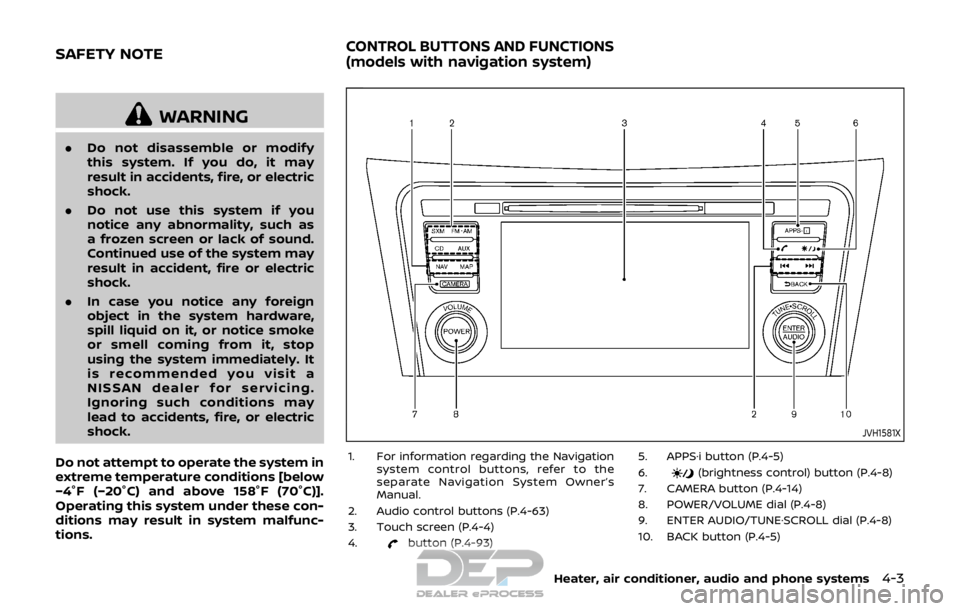
JVH1581X
1. For information regarding the Navigation system control buttons, refer to the
separate Navigation System Owner’s
Manual.
2. Audio control buttons (P.4-63)
3. Touch screen (P.4-4)
4.
button (P.4-93) 5. APPS·i button (P.4-5)
6.
(brightness control) button (P.4-8)
7. CAMERA button (P.4-14)
8. POWER/VOLUME dial (P.4-8)
9. ENTER AUDIO/TUNE·SCROLL dial (P.4-8)
10. BACK button (P.4-5)
Heater, air conditioner, audio and phone systems4-3
SAFETY NOTECONTROL BUTTONS AND FUNCTIONS
(models with navigation system)
Page 184 of 512

.123/ABC:
Changes the keyboard between num-
bers and alphabets.
. Space:
Inserts a space.
. Delete:
Deletes the last inputted character
with one touch. Touch and hold the
“Delete” key to delete all of the char-
acters.
. OK:
Completes the character input.
Touch screen maintenance
If you clean the touch screen, use a dry,
soft cloth. If additional cleaning is neces-
sary, use a small amount of neutral
detergent with a soft cloth. Never spray
the screen with water or detergent.
Dampen the cloth first and then wipe
the screen.
HOW TO USE THE BACK BUTTON
Push the BACK button to return to the
previous screen.
JVH1583X
Example
HOW TO USE THE APPS·i BUTTON
For information about the “SiriusXM Tra-
vel Link”, “SiriusXM Traffic” and “Nissan-
Connect Services” (if so equipped)
features, see the separate Navigation
System Owner’s Manual.
For information about the “My Apps” key,
see “NissanConnect
SMMobile Apps smart-
phone integration” (P.4-78).
For information about the “Voice Com-
mands” key, see “NISSAN Voice Recogni-
tion system (models with navigation
system)” (P.4-100).
JVH1584X
Displaying settings menu
To select and/or adjust several functions,
features and modes that are available for
your vehicle:
1. Push the APPS·i button.
2. Touch the “Settings” key.
3. Touch the desired item.
Available setting items may vary depend-
ing on models and specifications.
Heater, air conditioner, audio and phone systems4-5
Page 209 of 512
4-30Heater, air conditioner, audio and phone systems
WARNING
.The heater and air conditioner
operate only when the engine is
running.
. Never leave children or adults
who would normally require the
support of others alone in the
vehicle. Pets should not be left
alone either. They could unknow-
ingly activate switches or con-
trols and inadvertently become
involved in a serious accident
and injure themselves. On hot,
sunny days, temperatures in a
closed vehicle could quickly be-
come high enough to cause se-
vere or possibly fatal injuries to
people or animals.
. Do not use the recirculation mode
for long periods as it may cause
the interior air to become stale
and the windows to fog up.
. Do not adjust the heating and air
conditioning controls while driv-
ing so that full attention may be
given to vehicle operation.
The heater and air conditioner operate
when the engine is running. The air blower will operate even if the engine is
turned off and the ignition switch is
placed in the ON position.
NOTE:
.
Odors from inside and outside the
vehicle can build up in the air condi-
tioner unit. Odor can enter the pas-
senger compartment through the
ventilators.
. When parking, set the heater and air
conditioner controls to turn off air
recirculation to allow fresh air into
the passenger compartment. This
should help reduce odors inside the
vehicle.
HEATER AND AIR CONDITIONER
Page 213 of 512

4-34Heater, air conditioner, audio and phone systems
selected, the air conditioner automatically
turns on if the outside temperature is
more than 36°F (2°C). This dehumidifies
the air which helps defog the windshield.
The air recirculation mode automatically
turns off, allowing outside air to be drawn
into the passenger compartment to
further improve the defogging perfor-
mance.
The air conditioner is always on in front
defroster or
mode, regardless of
whether the indicator light is on or off.
NOTE:
. The air conditioner system should
be operated for approximately 10
minutes at least once a month. This
helps prevent damage to the air
conditioner system due to the lack
of lubrication.
. A visible mist may be seen coming
from the ventilators in hot, humid
conditions as the air is cooled ra-
pidly. This does not indicate a mal-
function.
. If the engine coolant temperature
becomes too high, the air recircula-
tion mode will be activated and the
indicator light will come on automa-
tically.
. If the engine coolant temperature
gauge indicates engine coolant tem-
perature over the normal range, turn the air conditioner off. (See “If your
vehicle overheats” (P.6-11).)
Page 216 of 512

automatically switch to the outside air
circulation mode.
To turn the system off:
To turn off the heater and air conditioner,
push the ON·OFF button.
Push the ON·OFF button again, the sys-
tem will turn on in the mode which was
used immediately before the system was
turned off.
Remote engine start logic (if so
equipped)
When the remote engine start function is
activated, the vehicles equipped with the
automatic air conditioner and heater may
go into automatic heating or cooling
mode depending on the outside and
cabin temperatures. During this period,
the display and the buttons will be
inoperable until the ignition switch is
placed in the ON position. When the
temperature is low, the rear defroster
and the heated steering wheel (if so
equipped) may also be activated auto-
matically with the activation of the re-
mote engine start function. (See “Remote
engine start” (P.3-22).)
JVH0727X
JVH0728X
OPERATING TIPS (for automatic air
conditioner)
When the engine coolant temperature
and outside air temperature are low, the
air flow from the foot outlets may not
operate for a maximum of 150 seconds.
However, this is not a malfunction. After
the coolant temperature warms up, air
flow from the foot outlets will operate
normally.
The sensors
and, located on the
instrument panel, help maintain a con-
stant temperature. Do not put anything
on or around the sensors.
SERVICING AIR CONDITIONER
WARNING
The air conditioner system contains
refrigerant under high pressure. To
avoid personal injury, any air condi-
tioner service should be done only by
an experienced technician with the
proper equipment.
The air conditioner system in your vehicle
is charged with a refrigerant designed
with the environment in mind.
This refrigerant will not harm the
earth’s ozone layer. However, it may
Heater, air conditioner, audio and phone systems4-37
Page 218 of 512

SAA0306
FM radio reception:
Range: FM range is normally limited to 25
to 30 miles (40 to 48 km), with monaural
(single station) FM having slightly more
range than stereo FM. External influences
may sometimes interfere with FM station
reception even if the FM station is within
25 miles (40 km). The strength of the FM
signal is directly related to the distance
between the transmitter and receiver. FM
signals follow a line-of-sight path, exhibit-
ing many of the same characteristics as
light. For example they will reflect off
objects.
Fade and drift: As your vehicle moves
away from a station transmitter, thesignals will tend to fade and/or drift.
Static and flutter: During signal interfer-
ence from buildings, large hills or due to
antenna position, usually in conjunction
with increased distance from the station
transmitter, static or flutter can be heard.
This can be reduced by lowering the
treble setting to reduce the treble re-
sponse.
Multipath reception: Because of the re-
flective characteristics of FM signals, di-
rect and reflected signals reach the
receiver at the same time. The signals
may cancel each other, resulting in mo-
mentary flutter or loss of sound.
AM radio reception:
AM signals, because of their low fre-
quency, can bend around objects and
skip along the ground. In addition, the
signals can be bounced off the iono-
sphere and bent back to earth. Because
of these characteristics. AM signals are
also subject to interference as they travel
from transmitter to receiver.
Fading: Occurs while the vehicle is pas-
sing through freeway underpasses or in
areas with many tall buildings. It can also
occur for several seconds during iono-
spheric turbulence even in areas where
no obstacles exist.
Static: Caused by thunderstorms, electri-cal power lines, electric signs and even
traffic lights.
Satellite radio reception (if so
equipped):
When the satellite radio is used for the
first time or the battery has been re-
placed, the satellite radio may not work
properly. This is not a malfunction. Wait
more than 10 minutes with the satellite
radio ON and the vehicle away from any
metal or large buildings for the satellite
radio to receive all of the necessary data.
The satellite radio mode requires an
active SiriusXM Satellite Radio subscrip-
tion. The satellite radio is not available in
Alaska, Hawaii and Guam.
Satellite radio performance may be af-
fected if cargo carried on the roof blocks
the satellite radio signal.
If possible, do not put cargo near the
satellite antenna.
A buildup of ice on the satellite radio
antenna can affect satellite radio perfor-
mance. Remove the ice to restore satellite
radio reception.
Heater, air conditioner, audio and phone systems4-39
Page 220 of 512
USB (Universal Serial Bus) Connec-
tion Port
WARNING
Do not connect, disconnect or oper-
ate the USB device while driving.
Doing so can be a distraction. If
distracted you could lose control of
your vehicle and cause an accident
or serious injury.
CAUTION
.Do not force the USB device into
the USB connection port. Insert-
ing the USB device tilted or up-
side-down into the port may da-
mage the port. Make sure that
the USB device is connected cor-
rectly into the USB connection
port.
. Do not grab the USB connection
port cover (if so equipped) when
pulling the USB device out of the
port. This could damage the port
and the cover.
. Do not leave the USB cable in a
place where it can be pulled unintentionally. Pulling the cable
may damage the port.
The vehicle is not equipped with a USB
device. USB devices should be purchased
separately as necessary.
This system cannot be used to format
USB devices. To format a USB device, use
a personal computer.
In some states/area, the USB device for
the front seats plays only sound without
images for regulatory reasons, even when
the vehicle is parked.
This system supports various USB mem-
ory devices, USB hard drives and iPod®
players. Some USB devices may not be
supported by this system.
. Partitioned USB devices may not be
played correctly.
. Some characters used in other lan-
guages (Chinese, Japanese, etc.) are
not displayed properly on display.
Using English language characters
with a USB device is recommended.
General notes for USB use:
Refer to your device manufacturer’s own-
er information regarding the proper use
and care of the device. Notes for iPod® use:
“Made for iPod®”, “Made for iPhone®”, and
“Made for iPad®” mean that an electronic
accessory has been designed to connect
specifically to iPod®, iPhone®, or iPad®,
respectively, and has been certified by the
developer to meet Apple performance
standards.
Apple is not responsible for the operation
of this device or its compliance with
safety and regulatory standards.
Please note that the use of this accessory
with iPod®, iPhone®, or iPad® may affect
wireless performance.
iPad®, iPhone®, iPod®, iPod classic®, iPod
nano®, iPod shuffle®, and iPod touch® are
trademarks of Apple Inc., registered in the
U.S. and other countries. Lightning is a
trademark of Apple Inc.
.
Improperly plugging in the iPod® may
cause a checkmark to be displayed on
and off (flickering). Always make sure
that the iPod® is connected properly.
. An iPod nano® (1st Generation) may
remain in fast forward or rewind mode
if it is connected during a seek opera-
tion. In this case, please manually
reset the iPod®.
. An iPod nano® (2nd Generation) will
continue to fast-forward or rewind if it
is disconnected during a seek opera-
Heater, air conditioner, audio and phone systems4-41
Page 221 of 512

4-42Heater, air conditioner, audio and phone systems
tion.
. An incorrect song title may appear
when the Play Mode is changed while
using an iPod nano® (2nd Generation)
. Audiobooks may not play in the same
order as they appear on an iPod®.
. Large video files cause slow responses
in an iPod®. The display may momen-
tarily black out, but will soon recover.
. If an iPod® automatically selects large
video files while in the shuffle mode,
the display may momentarily black
out, but will soon recover.
Compressed Audio Files (MP3/
WMA)
Explanation of terms:
.MP3 — MP3 is short for Moving Pic-
tures Experts Group Audio Layer 3.
MP3 is the most well known com-
pressed digital audio file format. This
format allows for near “CD quality”
sound, but at a fraction of the size of
normal audio files. MP3 conversion of
an audio track can reduce the file size
by approximately a 10:1 ratio (Sam-
pling: 44.1 kHz, Bit rate: 128 kbps) with
virtually no perceptible loss in quality.
The compression reduces certain
parts of sound that seem inaudible
to most people. .
WMA — Windows Media Audio (WMA) is
a compressed audio format created
by Microsoft as an alternative to MP3.
The WMA codec offers greater file
compression than the MP3 codec,
enabling storage of more digital audio
tracks in the same amount of space
when compared to MP3s at the same
level of quality.
This product is protected by certain
intellectual property rights of Micro-
soft Corporation and third parties. Use
or distribution of such technology
outside of this product is prohibited
without a license from Microsoft or an
authorized Microsoft subsidiary and
third parties.
. Bit rate — Bit rate denotes the number
of bits per second used by a digital
music file. The size and quality of a
compressed digital audio file is deter-
mined by the bit rate used when
encoding the file.
. Sampling frequency — Sampling fre-
quency is the rate at which the
samples of a signal are converted
from analog to digital (A/D conver-
sion) per second.
. Multisession — Multisession is one of
the methods for writing data to med-
ia. Writing data once to the media is
called a single session, and writing more than once is called a multises-
sion.
. ID3/WMA Tag — The ID3/WMA tag is
the part of the encoded MP3 or WMA
file that contains information about
the digital music file such as song title,
artist, album title, encoding bit rate,
track time duration, etc. ID3 tag in-
formation is displayed on the Album/
Artist/Track title line on the display.
* Windows® and Windows Media® are
registered trademarks or trademarks of
Microsoft Corporation in the United
States of America and/or other countries.
Page 233 of 512

4-54Heater, air conditioner, audio and phone systems
Bluetooth® audio player operation
If you have a compatible Bluetooth®
audio device that is capable of playing
audio files, the device can be connected
to the vehicle’s audio system so that the
audio files on the device play through the
vehicle’s speakers.
Regulatory information:
Bluetooth® trademark:
Bluetooth® is a trademark
owned by Bluetooth SIG, Inc.
and licensed to Visteon Cor-
poration.
Connecting Bluetooth® device:
To connect your Bluetooth® device to the
vehicle, follow the procedure below:
1. Push the ENTER SETTING/TUNE·FOLDER dial.JVH0620X
2. Select “Bluetooth” .
3. Select “Add Phone” . This same screencan be accessed to remove, replace or
select a different Bluetooth® device.
4. The system acknowledges the com- mand and asks you to initiate a
connection from the Bluetooth® de-
vice. The procedure for connecting a
Bluetooth® device varies according to
the cellular phone model. See the
owner’s manual of the Bluetooth®
device for details.
Bluetooth® audio main operation:
To switch to the Bluetooth® audio mode,
push the
button repeatedly until the
Bluetooth® audio mode is displayed on the screen.
The controls for the Bluetooth® audio are
displayed on the screen. Use the Preset
button to play and use the Presetbutton to pause.
AUX device player operation
The AUX input jack is located on the lower
part of the instrument panel. (See “AUX
(Auxiliary) input jack” (P.4-75).) The AUX
input jack accepts any standard analog
audio input such as from a portable
cassette tape/CD player, MP3 player or
laptop computer.
Push the
button repeatedly to play a
compatible device when it is plugged into
the AUX input jack.
NISSAN strongly recommends using a
stereo mini plug cable when connecting
your music device to the audio system.
Music may not play properly when a
monaural cable is used.
Page 237 of 512

4-58Heater, air conditioner, audio and phone systems
NE·SCROLL dial to seek channels from
all of the categories when any cate-
gory is not selected.
Radio Data System (RDS):
RDS stands for Radio Data System, and is
a data information service transmitted by
some radio stations on the FM band (not
AM band) encoded within a regular radio
broadcast. Currently, most RDS stations
are in large cities, but many stations are
now considering broadcasting RDS data.
The station name, such as “The Groove”, is
displayed on the display.
SEEK tuning/CAT (category):
. For AM and FM radio
Push the
orbutton to tune
from low to high or high to low
frequencies and to stop at the next
broadcasting station.
. For SiriusXM Satellite Radio
Push the
orbutton to tune to
the first channel of the next or pre-
vious category.
SCAN tuning:
Push the
button to tune from low to
high frequencies and stop at each broad-
casting station for several seconds. Push-
ing the
button again during this several seconds period will stop SCAN
tuning and the radio will remain tuned to
that station.
If the
button is not pushed within five
seconds, SCAN tuning moves to the next
station.
toStation memory opera-
tions:
6 stations can be set for the AM band. 12
stations can be set for the FM band (6 for
FM1, 6 for FM2). 18 channels can be set for
the satellite radio (6 for XM1, 6 for XM2, 6
for XM3).
1. Choose the radio band using the
or XM button.
2. Tune to the desired station or chan- nel.
3. Push and hold the desired station or channel preset button
tountil
beep sounds.
4. The station or channel indicator will then come on. Memorizing is now
complete.
5. Other buttons can be set in the same manner.
If the battery cable is disconnected, or if
the fuse opens, the station memory will
be erased. In that case, reset the desired
stations or channels.
CD player operation
Place the ignition switch in the ACC or ON
position, and insert the Compact Disc (CD)
into the slot with the label side facing up.
The CD will be guided automatically into
the slot and start playing.
After loading the CD, the number of
tracks on the CD and the play time will
appear on the display.
If another audio source is already operat-
ing, it will automatically turn off and the
CD will play.
If the system was turned off while the CD
was playing, pushing the Power/VOL dial
will start the CD.
PLAY:
With a CD loaded, push the
button
until the CD mode is displayed on the
screen.
CD/MP3 display mode:
While listening to an MP3/WMA CD, cer-
tain text may be displayed on the screen
if the CD has been encoded with text
information. Depending on how the MP3/
WMA CD is encoded, information such as
Artist, Song and Folder will be displayed.
The track number and the total number
of tracks in the current folder or on the
current disc are displayed on the screen