display NISSAN SENTRA 2023 Owners Manual
[x] Cancel search | Manufacturer: NISSAN, Model Year: 2023, Model line: SENTRA, Model: NISSAN SENTRA 2023Pages: 556, PDF Size: 6.11 MB
Page 266 of 556
“Recent Calls”
The following commands are available un-
der “Recent Calls”:
• Incoming CallsSpeak this command to list the last 20
incoming calls to the vehicle. If the call is
from an entry in the phonebook, the
name will be displayed. Otherwise, the
phone number of the incoming call will
be displayed.
When prompted, speak or touch the item
number on the screen to place the call.
Touch the “Next” key to move through the
list of incoming calls.
• Outgoing Calls Speak this command to list the last 20
outgoing calls from the vehicle. If the call
was to an entry in the phonebook, the
name will be displayed. Otherwise, the
phone number of the outgoing call will be
displayed.
When prompted, speak or touch the item
number on the screen to place the call.
Touch the “Next” key to move through the
list of outgoing calls. • Missed Calls
Speak this command to list the last 20
missed calls to the vehicle. If the call is
from an entry in the phonebook, the
name will be displayed. Otherwise, the
phone number of the missed call will be
displayed.
When prompted, speak or touch the item
number on the screen to place the call.
Touch the “Next” key to move through the
list of missed calls.
“Read Text/Send Text” (if so
equipped)
Speak this command to access text mes-
saging functions.
For additional information, see “Text mes-
saging” (P. 4-77).
“Phonebook through voice
command”
Speak “Phonebook” to view a list of quick
steps to access entries stored in the
phonebook. Commands are organized by
the phone number type selected in the cel-
lular device. For additional information, re-
fer to the cellular phone’s owner’s manual. The following commands are available:
•
•
•
•
•
•
For additional information on manually se-
lecting phonebook entries, see “Making a
call” (P. 4-76).
“Quick dial”
Speak this command to access the Quick
dial menu. Af ter the prompt, speak or se-
lect an item number on the displayed list to
place the call. For additional information,
see “Making a call” (P. 4-76).
“Redial”
Speak this command to call the last num-
ber dialed. Af ter the prompt, say “Redial” to
dial the number of the last outgoing call.
The system will display “Redialing
try will be displayed if it is available, other-
wise the number being redialed will be
displayed.
4-74Monitor, climate, audio, phone and voice recognition systems
Page 267 of 556
“Select Phone”
Speak this command to access the Con-
nections menu. For additional information,
see “Bluetooth® connections screen”
(P. 4-81).
“Add Phone”
Speak this command to access the Con-
nections menu. For additional information,
see “Bluetooth® connections screen”
(P. 4-81).
“Settings”
Speak this command to access the Sys-
tem Voice settings menu. The system will
exit Voice Recognition mode. Touch one of
the following options on the screen to
change the settings.
• Beep Only for Opening PromptBy touching the “ON” key, the indicator
light will illuminate, the system voice will
turn off and only a tone will sound when
the Bluetooth® Hands-Free Phone Sys-
tem is activated. To turn the system voice
back on, touch the “ON” key again, the
indicator light will turn off. • Best Match List
When the system doesn't recognize a
phonebook name or dial number, it will
provide a list of similar sounding results.
To turn this off, touch the “ON” key, the
indicator light will turn off. To turn on,
touch the “ON” key again, the indicator
light will turn on.
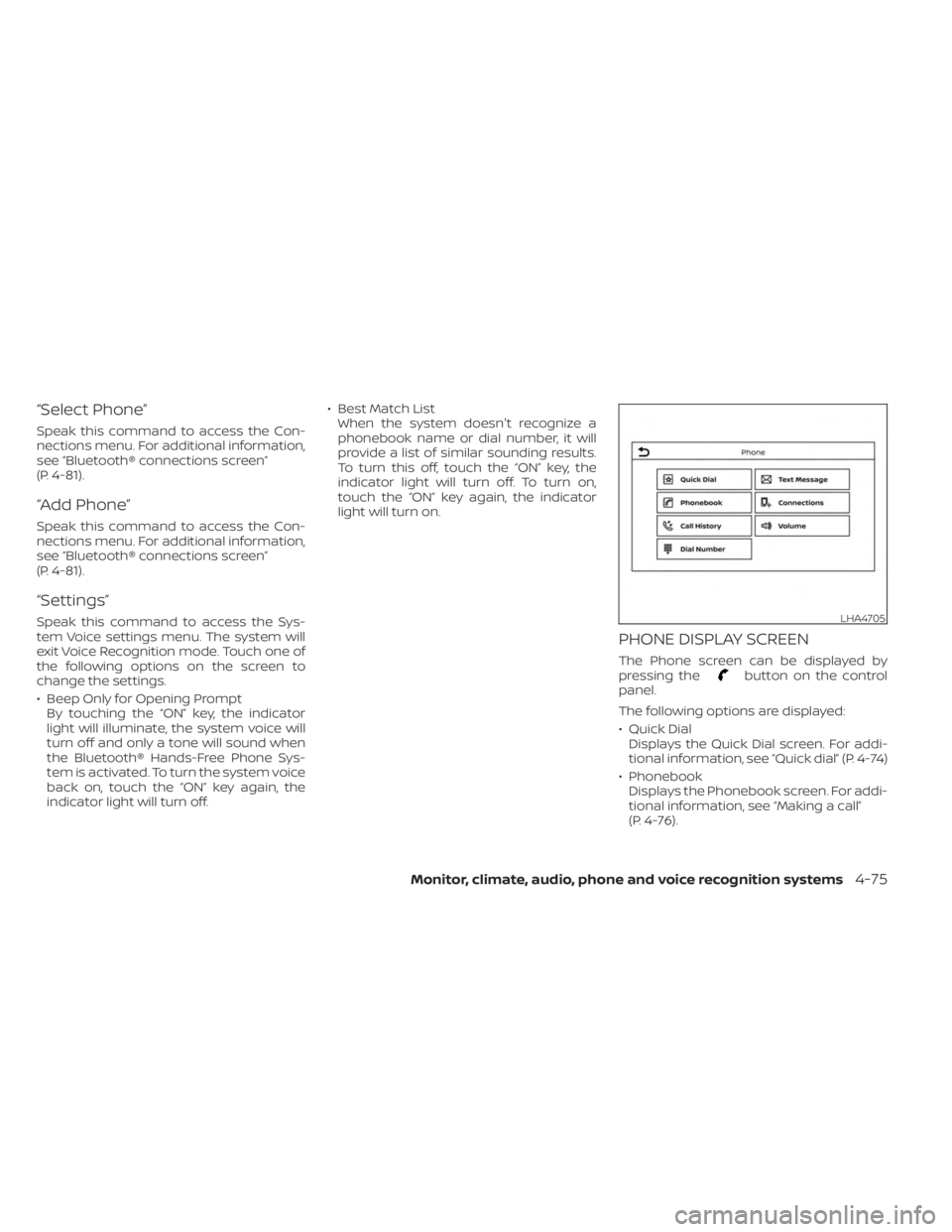
PHONE DISPLAY SCREEN
The Phone screen can be displayed by
pressing thebutton on the control
panel.
The following options are displayed:
• Quick Dial Displays the Quick Dial screen. For addi-
tional information, see “Quick dial” (P. 4-74)
• Phonebook Displays the Phonebook screen. For addi-
tional information, see “Making a call”
(P. 4-76).
LHA4705
Monitor, climate, audio, phone and voice recognition systems4-75
Page 268 of 556
• Call HistoryDisplays the Call History screen. For addi-
tional information, see “Making a call”
(P. 4-76).
• Dial Number Displays the Dial Number screen. For ad-
ditional information, see “Making a call”
(P. 4-76).
• Text Message Displays the received message screen.
For additional information, see “Text mes-
saging” (P. 4-77).
• Connections Displays the Connections screen. For ad-
ditional information, see “Bluetooth® con-
nections screen” (P. 4-81).
• Volume Displays the volume adjustment screen.
For additional information, see “Volume &
beeps” (P. 4-84).
MAKING A CALL
1. Press thebutton on the Launch Bar.
The “Phone” screen will appear on the
display.
2. Select one of the options to make a call. Phonebook
To access the phonebook:
1. Press the
button on the steering
wheel or touch the “” key on the
launch bar.
2. Touch the “Phonebook” key.
3. Choose the desired entry from the dis- played list.
Call History
1. Select a phonebook name or phone number from the recent incoming, out-
going, or missed calls tabs.
2. Touch a phonebook name or phone number listed to initiate the call.
Dial Number
1. Enter the phone number manually using the keypad displayed on the screen.
2. Touch the “OK” key on the screen to initi- ate the call.
For additional options to make a call, see
“Voice commands” (P. 4-73).
RECEIVING/ENDING A CALL
When a call is received by the phone con-
nected to the vehicle’s Bluetooth® Hands-
Free Phone System, the call information is
displayed on the control panel display.
To accept the incoming call, either:
• Press the
button on the steering
wheel, or
• Touch the “
Answer” key on the
screen.
To end or reject an incoming call, either:
• Press and hold the
button on the
steering wheel, or
• Touch the “
Decline” key on the
screen.
If the user is not able to answer the call
right away, touch the “Hold Call” key dis-
played on the screen. A message will be
played for the caller: “I’m not able to take a
call right now.” The user may then accept
the call when available or reject the call.
4-76Monitor, climate, audio, phone and voice recognition systems
Page 269 of 556
DURING A CALL
While a call is active the following options
will appear on the control panel display:
• MuteTouch this key to mute or unmute the
system.
• Dial Number Touch this key to dial digits during the
phone call.
• Switch to Handset Touch the “Use Handset” key on the
screen to transfer the call to the handset
(cellular phone). To transfer the call back
from the handset to the Bluetooth®
Hands-Free Phone System, press the
button on the control panel then
select the “Transfer Hands-free” key on
the screen.
NOTE:
Some jurisdictions prohibit the use of
cellular telephones while driving. • Switch Call
This option will only be available when a
second call is active.
If supported by the phone, the
Bluetooth® Hands-Free Phone System
allows for call waiting functionality. If a
call is received while another call is al-
ready active, a message will be displayed
on the screen. Press the
button on
the steering wheel or touch the “
Answer” key on screen to accept the in-
coming call. Touch the “Decline” key
on the screen to reject the second call.
While a call is active, press the
button
on the steering wheel to access additional
options. Speak one of the following
commands:
• “Send Digits” Speak this command followed by the dig-
its to enter digits during the phone call.
• “Switch call” Speak this command to hold the second
call and switch back to the original call.
TEXT MESSAGING (if so equipped)
WARNING
• Laws in some jurisdictions may re-
strict the use of “Text-to-Speech”.
Check local regulations before using
this feature.
• Laws in some jurisdictions may re-
strict the use of some of the applica-
tions and features, such as social
networking and texting. Check local
regulations for any requirements.
• Use the text messaging feature af ter
stopping your vehicle in a safe loca-
tion. If you have to use the feature
while driving, exercise extreme
caution at all times so full attention
may be given to vehicle operation.
• If you are unable to devote full atten-
tion to vehicle operation while using
the text messaging feature, pull off
the road to a safe location and stop
your vehicle.
Monitor, climate, audio, phone and voice recognition systems4-77
Page 271 of 556
The display will show a list of 20 messages
with the sender and delivery time. Touch
the “Next” key on the screen to view all mes-
sages. To view a text message press the
button on the steering wheel and
speak the number item list on the screen.
The following options will be available:
• Play Speak this command to have the system
say the message.
• Reply Speak this command to send a text mes-
sage response to the sender of the text
message.
• Call Speak this command to call the sender.
• Previous Speak this command to move to the pre-
vious text message (if available).
•Next Speak this command to move to the next
text message (if available).
Siri® Eyes Free (if so equipped)
If a connected phone is equipped with Siri®,
it can also be used to create custom mes-
sages that are sent through the phone. For
additional information, see “Siri® Eyes Free”
(P. 4-63).
NOTE:
Text messages are only displayed if the
vehicle speed is less than 5 mph (8
km/h).
NOTE:
For Apple iPhones®, text messages can
only be sent through Siri.
Text messaging using the control
panel
Display received message list
1. Press the
button on the control
panel.
2. Touch the “Text Message” key on the screen
3. Touch an item on the list to read or reply to the message.
Up to 100 messages can be stored in the
message list.
Received message screen
Touching the “Read” key on the incoming
message notification screen or selecting a
message from the message list will show
the details of the received message on the
display. Available actions:
•Prev.
Touch this key to read the previous
message.
•Next Touch this key to read the next message.
• Play/Stop Touch the “Play” key to have the hands-
free phone system read out the received
message. Touch the “Stop” key to stop
reading.
• Call If the sender of the message is registered
in the phonebook, touch the “Call” key to
make a call to the sender.
• Reply A reply message can be selected from
the predefined list.
Sending a text message (if so equipped)
This function may not be supported de-
pending on the cellular phone.
1. Press the
button on the control
panel.
2. Touch the “Text Message” key on the screen.
3. Touch the “Create Message” key on the screen.
Monitor, climate, audio, phone and voice recognition systems4-79
Page 272 of 556
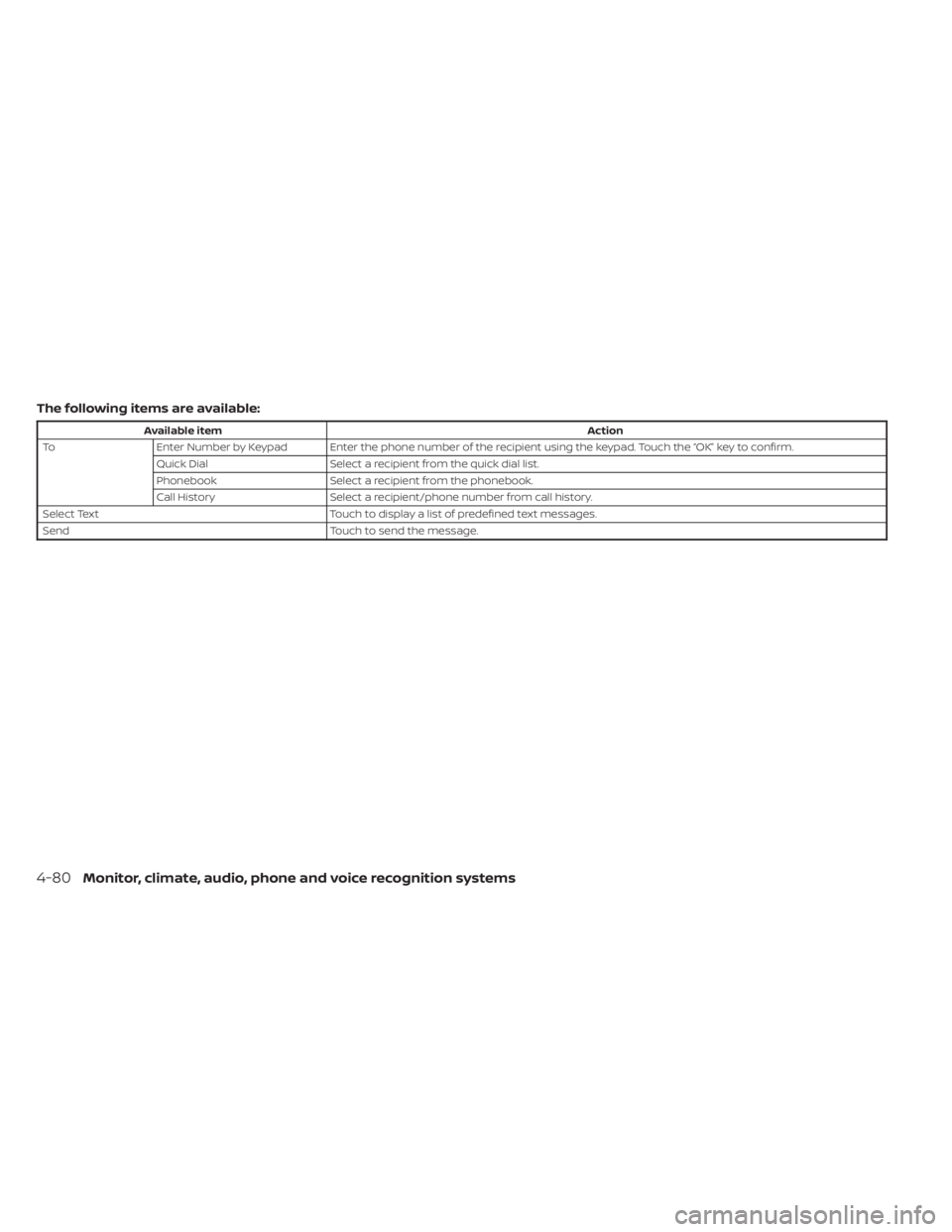
The following items are available:
Available itemAction
To Enter Number by Keypad Enter the phone number of the recipient using the keypad. Touch the “OK” key to confirm.
Quick Dial Select a recipient from the quick dial list.
Phonebook Select a recipient from the phonebook.
Call History Select a recipient/phone number from call history.
Select Text Touch to display a list of predefined text messages.
Send Touch to send the message.
4-80Monitor, climate, audio, phone and voice recognition systems
Page 273 of 556
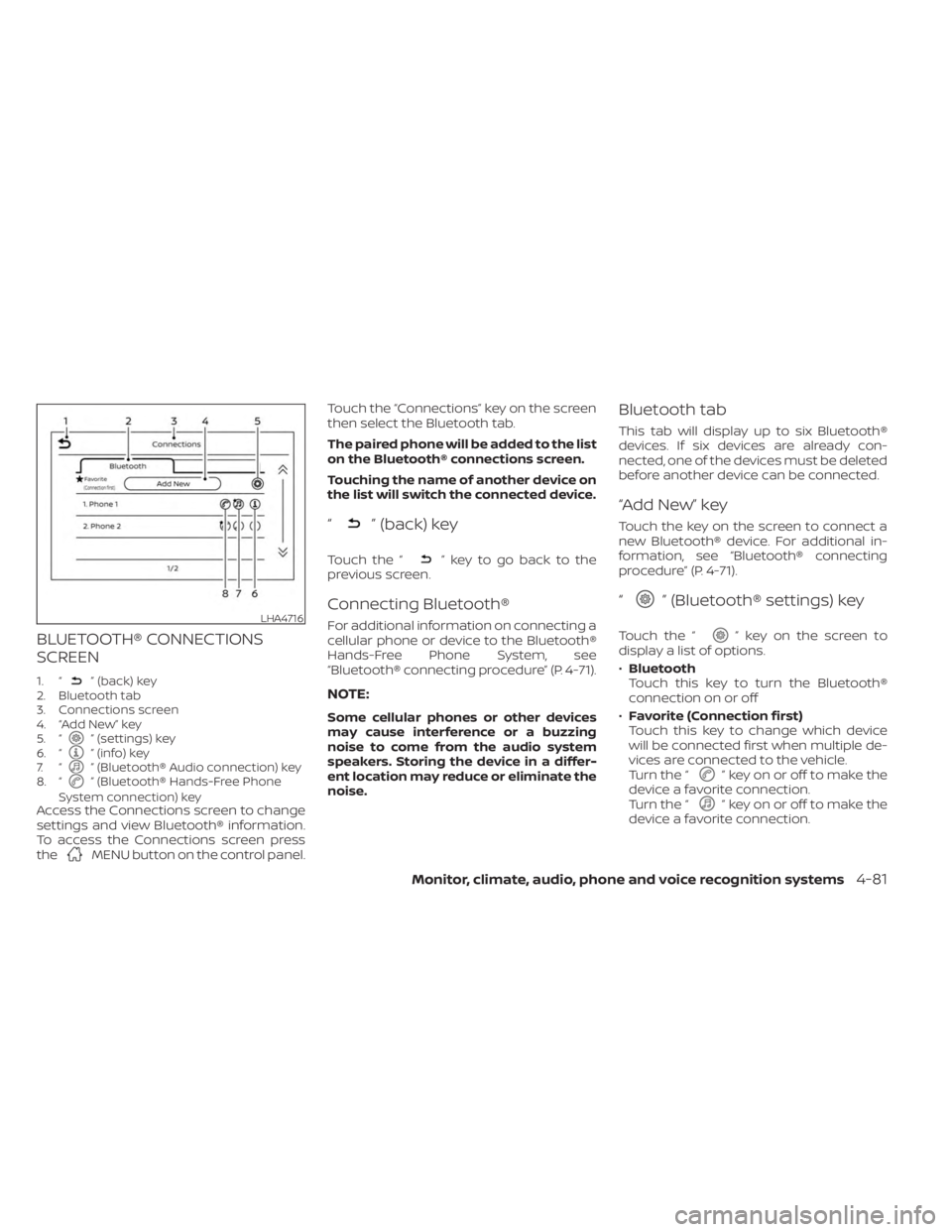
BLUETOOTH® CONNECTIONS
SCREEN
1. “” (back) key
2. Bluetooth tab
3. Connections screen
4. “Add New” key
5. “
” (settings) key
6. “” (info) key
7. “” (Bluetooth® Audio connection) key
8. “” (Bluetooth® Hands-Free Phone
System connection) key
Access the Connections screen to change
settings and view Bluetooth® information.
To access the Connections screen press
the
MENU button on the control panel. Touch the “Connections” key on the screen
then select the Bluetooth tab.
The paired phone will be added to the list
on the Bluetooth® connections screen.
Touching the name of another device on
the list will switch the connected device.
“” (back) key
Touch the “” key to go back to the
previous screen.
Connecting Bluetooth®
For additional information on connecting a
cellular phone or device to the Bluetooth®
Hands-Free Phone System, see
“Bluetooth® connecting procedure” (P. 4-71).
NOTE:
Some cellular phones or other devices
may cause interference or a buzzing
noise to come from the audio system
speakers. Storing the device in a differ-
ent location may reduce or eliminate the
noise.
Bluetooth tab
This tab will display up to six Bluetooth®
devices. If six devices are already con-
nected, one of the devices must be deleted
before another device can be connected.
“Add New” key
Touch the key on the screen to connect a
new Bluetooth® device. For additional in-
formation, see “Bluetooth® connecting
procedure” (P. 4-71).
“” (Bluetooth® settings) key
Touch the “” key on the screen to
display a list of options.
• Bluetooth
Touch this key to turn the Bluetooth®
connection on or off
• Favorite (Connection first)
Touch this key to change which device
will be connected first when multiple de-
vices are connected to the vehicle.
Turn the “
” key on or off to make the
device a favorite connection.
Turn the “
” key on or off to make the
device a favorite connection.
LHA4716
Monitor, climate, audio, phone and voice recognition systems4-81
Page 274 of 556
•Pin
Touch this key to customize the PIN code.
Input a four digit number then touch the
“OK” key. The new PIN will be set.
“” (info) key
Touch the “” key on the screen to
display the information of the cellular
phone or to delete the device.
Touch the “Delete” key to remove a paired
device then select “Yes” when a message
appears.
“” (Bluetooth® Hands-Free
Phone System connection) key
A list of connected devices will be displayed
on the screen. Touch the “” key next to
the name to connect a device to the
Hands-Free Phone System. If the phone is
listed as a favorite, a star will appear on the
icon. Touch the key again to disconnect the
device. The device will not be removed
from the list. For additional information on
removing a device, see “
(info) key”
(P. 4-82).
“” (Bluetooth® Audio
connection) key
A list of connected devices will be displayed
on the screen. Touch the “” key next to
the name to connect a device to
Bluetooth® Audio. If the device is listed as a
favorite, a star will appear on the icon.
Touch the key again to disconnect the de-
vice. The device will not be removed from
the list. For additional information on re-
moving a device, see “
(info) key”
(P. 4-82).
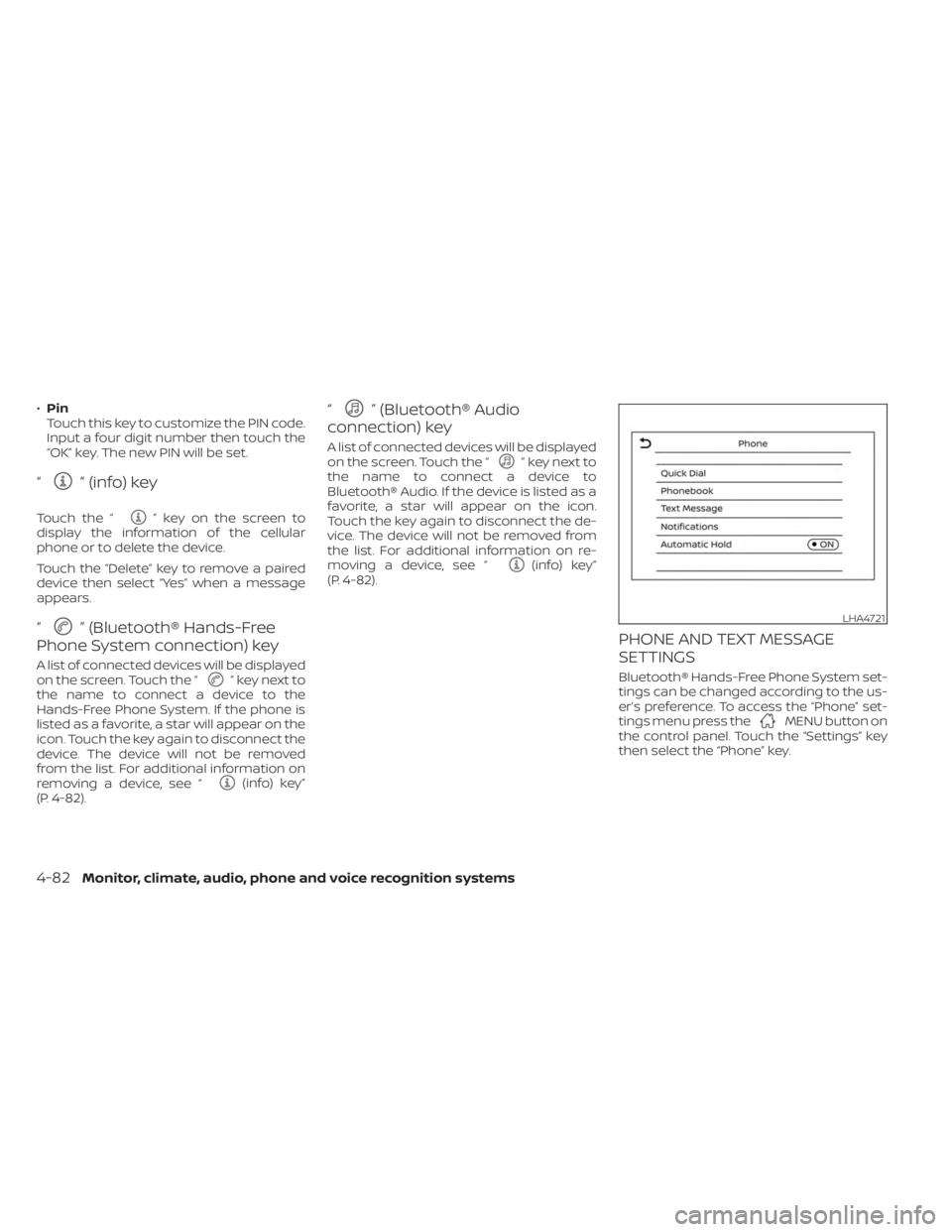
PHONE AND TEXT MESSAGE
SETTINGS
Bluetooth® Hands-Free Phone System set-
tings can be changed according to the us-
er’s preference. To access the “Phone” set-
tings menu press the
MENU button on
the control panel. Touch the “Settings” key
then select the “Phone” key.
LHA4721
4-82Monitor, climate, audio, phone and voice recognition systems
Page 275 of 556
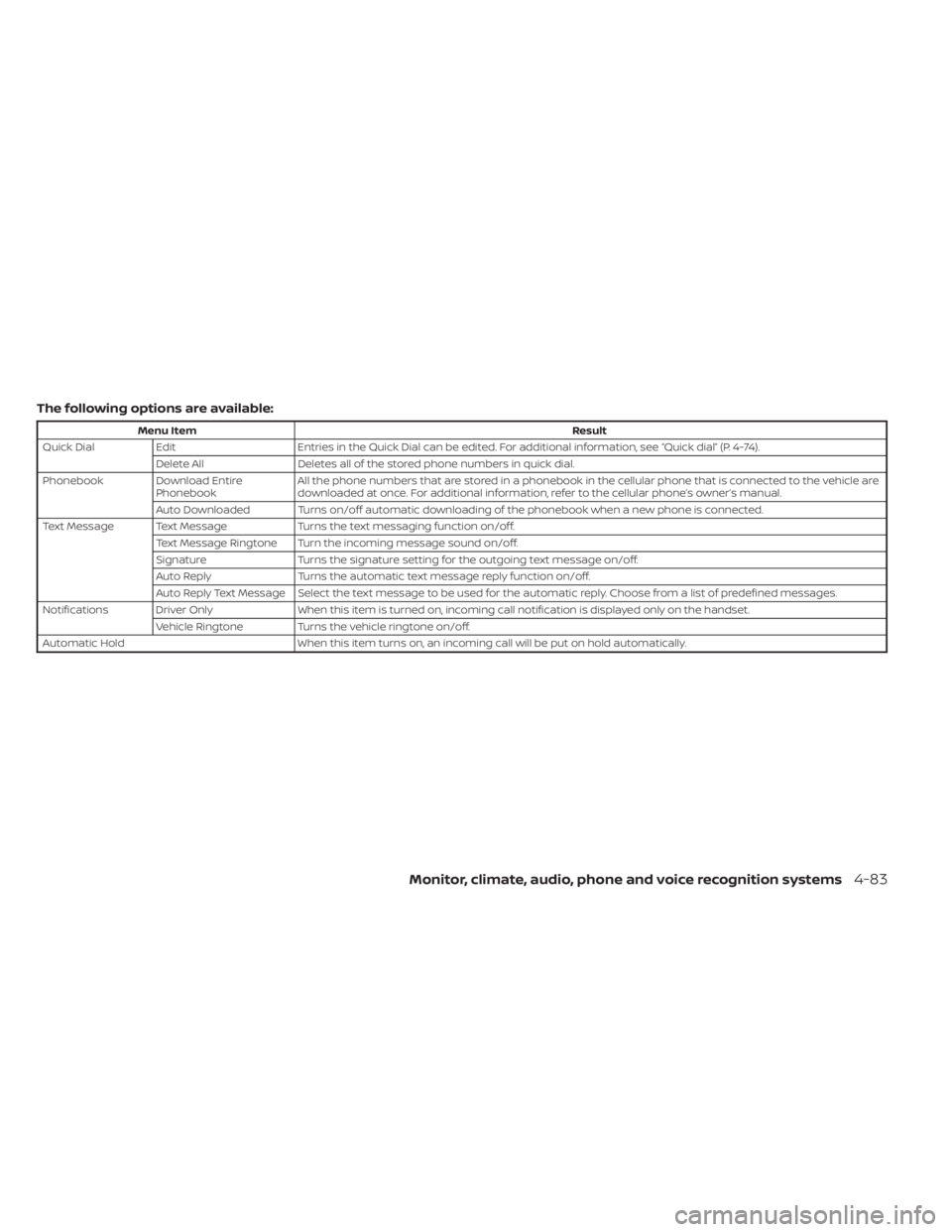
The following options are available:
Menu ItemResult
Quick Dial Edit Entries in the Quick Dial can be edited. For additional information, see “Quick dial” (P. 4-74).
Delete All Deletes all of the stored phone numbers in quick dial.
Phonebook Download Entire Phonebook All the phone numbers that are stored in a phonebook in the cellular phone that is connected to the vehicle are
downloaded at once. For additional information, refer to the cellular phone’s owner’s manual.
Auto Downloaded Turns on/off automatic downloading of the phonebook when a new phone is connected.
Text Message Text Message Turns the text messaging function on/off.
Text Message Ringtone Turn the incoming message sound on/off.
Signature Turns the signature setting for the outgoing text message on/off.
Auto Reply Turns the automatic text message reply function on/off.
Auto Reply Text Message Select the text message to be used for the automatic reply. Choose from a list of predefined messages.
Notifications Driver Only When this item is turned on, incoming call notification is displayed only on the handset.
Vehicle Ringtone Turns the vehicle ringtone on/off.
Automatic Hold When this item turns on, an incoming call will be put on hold automatically.
Monitor, climate, audio, phone and voice recognition systems4-83
Page 282 of 556
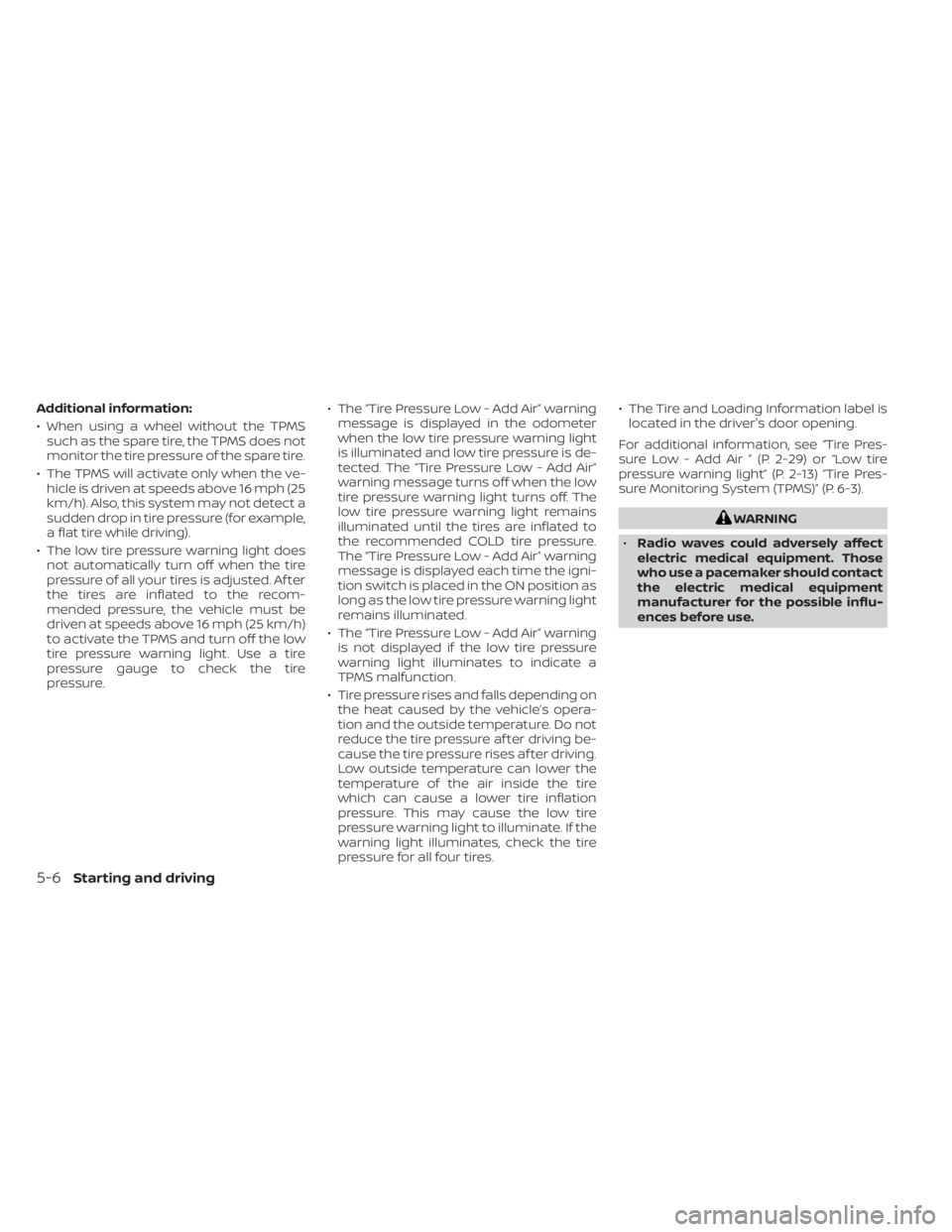
Additional information:
• When using a wheel without the TPMSsuch as the spare tire, the TPMS does not
monitor the tire pressure of the spare tire.
• The TPMS will activate only when the ve- hicle is driven at speeds above 16 mph (25
km/h). Also, this system may not detect a
sudden drop in tire pressure (for example,
a flat tire while driving).
• The low tire pressure warning light does not automatically turn off when the tire
pressure of all your tires is adjusted. Af ter
the tires are inflated to the recom-
mended pressure, the vehicle must be
driven at speeds above 16 mph (25 km/h)
to activate the TPMS and turn off the low
tire pressure warning light. Use a tire
pressure gauge to check the tire
pressure. • The “Tire Pressure Low - Add Air” warning
message is displayed in the odometer
when the low tire pressure warning light
is illuminated and low tire pressure is de-
tected. The “Tire Pressure Low - Add Air”
warning message turns off when the low
tire pressure warning light turns off. The
low tire pressure warning light remains
illuminated until the tires are inflated to
the recommended COLD tire pressure.
The “Tire Pressure Low - Add Air” warning
message is displayed each time the igni-
tion switch is placed in the ON position as
long as the low tire pressure warning light
remains illuminated.
• The “Tire Pressure Low - Add Air” warning is not displayed if the low tire pressure
warning light illuminates to indicate a
TPMS malfunction.
• Tire pressure rises and falls depending on the heat caused by the vehicle’s opera-
tion and the outside temperature. Do not
reduce the tire pressure af ter driving be-
cause the tire pressure rises af ter driving.
Low outside temperature can lower the
temperature of the air inside the tire
which can cause a lower tire inflation
pressure. This may cause the low tire
pressure warning light to illuminate. If the
warning light illuminates, check the tire
pressure for all four tires. • The Tire and Loading Information label is
located in the driver's door opening.
For additional information, see “Tire Pres-
sure Low - Add Air ” (P. 2-29) or “Low tire
pressure warning light” (P. 2-13) “Tire Pres-
sure Monitoring System (TPMS)” (P. 6-3).
WARNING
• Radio waves could adversely affect
electric medical equipment. Those
who use a pacemaker should contact
the electric medical equipment
manufacturer for the possible influ-
ences before use.
5-6Starting and driving