bluetooth NISSAN TITAN 2017 2.G Owner's Manual
[x] Cancel search | Manufacturer: NISSAN, Model Year: 2017, Model line: TITAN, Model: NISSAN TITAN 2017 2.GPages: 671, PDF Size: 7.96 MB
Page 321 of 671
CONNECT PHONE
To use this feature, a compatible smartphone
must be connected via Bluetooth® or USB to the
vehicle. For additional information on connecting
your phone, refer to Bluetooth® Hands-Free
Phone System without Navigation System” or
“Bluetooth® Hands-Free Phone System with
Navigation System” in this section.
NOTE:
For vehicles with navigation, Apple iP-
hones® REQUIRE the phone to be plugged
in via USB for NissanConnect Mobile Apps
to function.
For vehicles without Navigation, Apple iP-
hones® must be paired via Bluetooth® for
NissanConnect Mobile Apps to function.
NOTE:
For Android phones, NissanConnect Mo-
bile Apps REQUIRES the phone to be
paired via Bluetooth®.
APPLICATION DOWNLOAD
Once connected, the NissanConnect App will
search your phone to determine which compat-
ible applications are currently installed. The user
will then choose which apps they want to bring
into their vehicle from the list of apps within the
“Manage My Apps” section of the NissanCon-
nect App on their smartphone. The vehicle will
then download the in-vehicle interface for each of
these compatible applications. Once down-
loaded, the user can access their selected smart-
phone applications through the vehicle interface.
For additional information on application avail-
ability visit www.nissanusa.com/connect/ or ww-
w.canada.nissanconnect.comNissanConnect
SMServices is a suite of telemat-
ics tools that provide emergency preparedness,
remote access, customizable alerts and conve-
nience services. This feature is an option on
Navigation equipped vehicles. For additional in-
formation, refer to the separate Navigation Sys-
tem Owner’s Manual.
NISSANCONNECTSMSERVICES (if so
equipped)
4-84Monitor, climate, audio, phone and voice recognition systems
Page 322 of 671
Apple Siri® Eyes Free personal assistant can be
accessed from the vehicle. Siri Eyes Free can be
accessed in Siri Eyes Free mode to reduce user
distraction. In this mode, Siri Eyes Free is avail-
able for interaction by voice control. After con-
necting a compatible Apple device by using
Bluetooth®, Siri Eyes Free can be activated from
the
TALK switch on the steering wheel.
Siri® is a trademark of Apple Inc., registered in
the U.S. and other countries.
● Some Siri Eyes Free functions, such as dis-
playing pictures or opening apps, may not
be available while driving.
● For best results, always update your device
to the latest software version.
● Keep the interior of the vehicle as quiet as
possible. Close the windows to eliminate the
surrounding noises (traffic noises, vibration
sounds, etc.) , which may prevent the system
from recognizing the voice commands cor-
rectly.
● For functions that can be used in Siri Eyes
Free, please refer to the Apple website.
REQUIREMENTS
Siri is only available on the iPhone® 4S or later.
Devices released before iPhone® 4S are not
supported by the Siri Eyes Free system. Visit
www.apple.com/ios/siri for details about device
compatibility.
Siri must be enabled on the phone. Please check
phone settings.
If the device has a lock screen, Siri must be
accessible from the lock screen. Please check
phone settings.
For best results, always update your device to the
latest software version.
SIRI® ACTIVATION
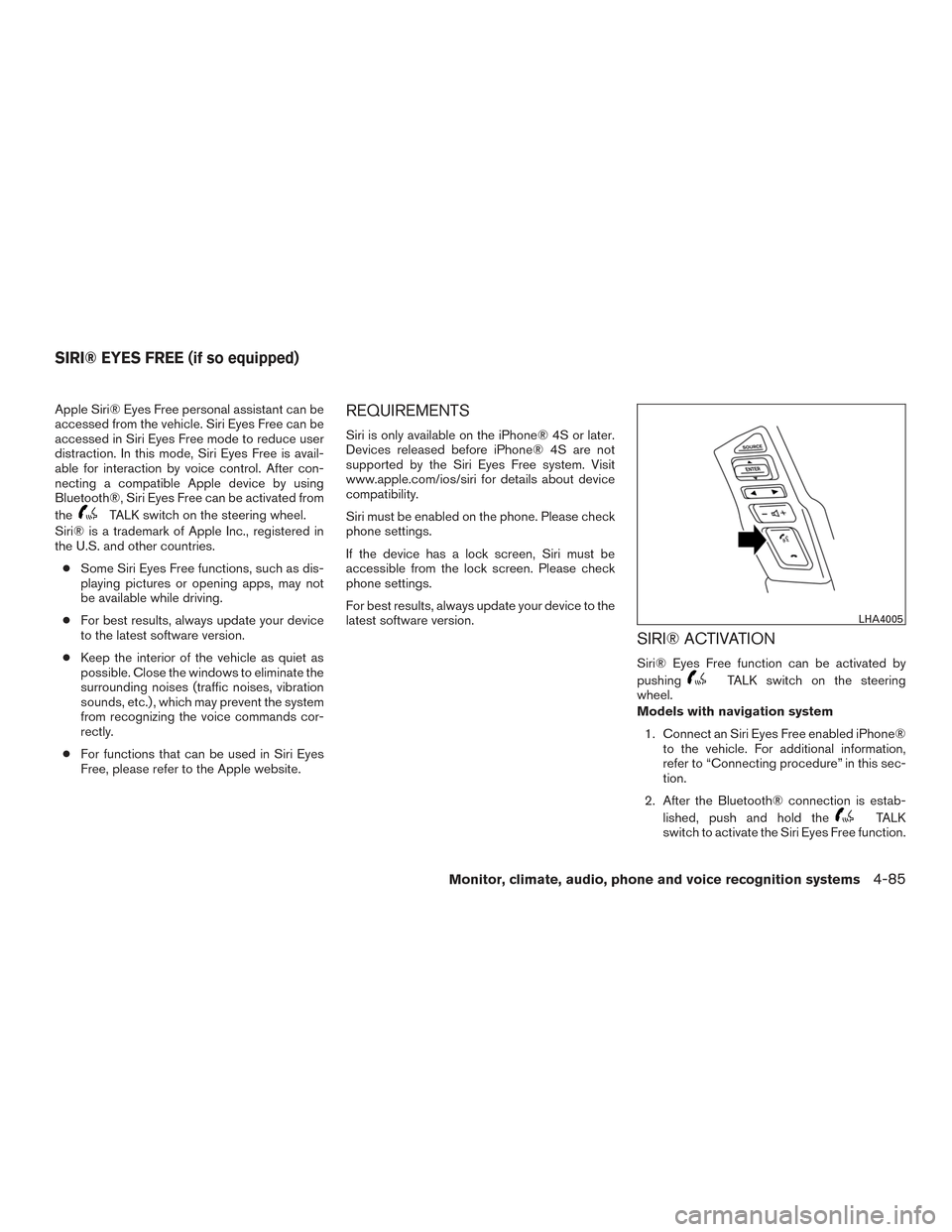
Siri® Eyes Free function can be activated by
pushing
TALK switch on the steering
wheel.
Models with navigation system
1. Connect an Siri Eyes Free enabled iPhone® to the vehicle. For additional information,
refer to “Connecting procedure” in this sec-
tion.
2. After the Bluetooth® connection is estab- lished, push and hold the
TALK
switch to activate the Siri Eyes Free function.
LHA4005
SIRI® EYES FREE (if so equipped)
Monitor, climate, audio, phone and voice recognition systems4-85
Page 323 of 671
Models without navigation system1. Connect a Siri Eyes Free enabled iPhone® to the vehicle. For additional information,
refer to “Initialization” in this section.
2. After the Bluetooth® connection is estab- lished, the switch operation select screen is
displayed.
3. Select “Short Press” or “Long Press” for Siri Eyes Free activation Switch action can also
be changed from the Bluetooth® settings
menu. For additional information, refer to
“Changing Siri Eyes Free Settings (models
without navigation system)” in this section.
OPERATING SIRI® EYES FREE
1. Push or push and hold theTALK
switch.
2. Speak your command and then listen to the Siri Eyes Free reply.
After starting Siri Eyes Free, push the
TALK switch again within 5 seconds of the end of
the Siri Eyes Free announcement to extend the
session.
Example 1 – Playing music
1. Push or push and hold the
TALK
switch.
2. Say “Play (artist name, song name, etc.)”. 3. Your vehicle will automatically change to
Bluetooth® Audio or iPod® mode* when
the music starts playing. Mode selection is
determined by the phone.
* If the iPhone® is also connected with the USB
cable.
If the audio track does not start playing automati-
cally after Siri Eyes Free ends, try changing the
track or audio source to resume playback.
NOTE:
For best results, use the native music app.
Performance of music control function
while using Podcasts, Audiobook or other
3rd party music apps may vary and is con-
trolled by the iPhone®.
Example 2 – Replying to text messages 1. If a compatible iPhone® is connected and “Show Notifications” of the iPhone® set-
tings is enabled, the vehicle will display a
notification for new incoming text messages.
2. After reading the message, push or push and hold the
TALK switch to reply
using Siri Eyes Free.
3. After a beep sounds, say “Text message” or a similar command to reply using Siri Eyes
Free.
CHANGING SIRI® EYES FREE
SETTINGS (models with navigation
system)
Settings for Siri® Eyes Free can be found in the
Bluetooth settings menu. For additional informa-
tion, refer to “Bluetooth® settings” in this section.
1. Press the [
] button.
2. Touch the “Settings” key.
3. Touch the “Phone & Bluetooth” key.
4. Touch the “Phone settings” key.
5. Select “Short Press” or “Long Press” to set the activation.
4-86Monitor, climate, audio, phone and voice recognition systems
Page 324 of 671
TROUBLESHOOTING GUIDE
SymptomCause and Countermeasure
Cannot access Siri Eyes
Free from switch on the
steering wheel Check if a Bluetooth® connection is established between the iPhone® and the system.
Check if Siri is enabled on the device. On your phone, go to Siri setting.
Check that Siri can be accessed from the device lock screen. This can be set in the settings menu of your phone.
Models without navigation system:
Check the settings for Siri Eyes Free activation on the vehicle audio system. If the setting is “Long Press”, you must push and hold the
TALK
switch on the steering wheel for more than 1.5 seconds to start Siri Eyes Free. If the setting is “Short Press”, a short push and release of the switch
should start Siri Eyes Free.
Audio Source does not
change automatically to
iPod® or Bluetooth® Audio
mode For best results, use the native Music app. Performance of music control function while using Podcasts, Audiobook or other 3rd party music apps may
vary.
For best results, play media already stored on your device. Streaming music or playback from cloud storage may degrade performance.
Switch the source manually by pressing the AUX or MEDIA button on the vehicle audio system or the SOURCE select switch on the steering wheel.
Play, pause, next track, previ-
ous track or play timer does
not work For best results, use the native Music app. Performance of music control function while using Podcasts, Audiobook or other 3rd party music apps may
vary and is controlled by the device.
Cannot hear any music/
audio being played back
from a connected iPhone® Check that the audio source is set to Bluetooth® Audio or iPod® mode. A USB connection is required for iPod® mode.
Cannot hear map turn-by-
turn direction guidance from
a connected iPhone® Check that the audio source is set to Bluetooth® Audio or iPod® mode. A USB connection is required for iPod® mode.
Cannot receive text message
notifications on the vehicle
audio system Check if “Send Notifications” is enabled on your phone. On the phone, go to Bluetooth® settings. Find the device name, like “My Car”. Press the info
button. Turn on “Show Notifications”.
Cannot reply to text mes-
sage notifications by Siri
Eyes Free After receiving an incoming text message, follow on-screen guidance. Push or push and hold the
TALK switch on the steering wheel for Siri
Eyes Free. After Siri Eyes Free starts, say “Text Message”.
Monitor, climate, audio, phone and voice recognition systems4-87
Page 351 of 671
WARNING
●Use a phone after stopping your vehicle
in a safe location. If you have to use a
phone while driving, exercise extreme
caution at all times so full attention may
be given to vehicle operation.
● If you are unable to devote full attention
to vehicle operation while talking on
the phone, pull off the road to a safe
location and stop your vehicle.
CAUTION
To avoid discharging the vehicle battery,
use a phone after starting the engine.
Your NISSAN is equipped with the Bluetooth®
Hands-Free Phone System. If you have a com-
patible Bluetooth® enabled cellular phone, you
can set up the wireless connection between your
cellular phone and the in-vehicle phone module.
With Bluetooth® wireless technology, you can make or receive a hands-free telephone call with
your cellular phone in the vehicle.
Once your cellular phone is connected to the
in-vehicle phone module, no other phone con-
necting procedure is required. Your phone is
automatically connected with the in-vehicle
LHA3780
BLUETOOTH® HANDS-FREE PHONE
SYSTEM WITHOUT NAVIGATION
SYSTEM (if so equipped)
4-114Monitor, climate, audio, phone and voice recognition systems
Page 352 of 671
phone module when the ignition switch is placed
in the ON position with the previously connected
cellular phone turned on and carried in the ve-
hicle.
NOTE:
Some devices require the user to accept
connections to other Bluetooth® devices. If
your phone does not connect automatic
ally to the system, consult the phone’s
Owner’s Manual for details on device op-
eration.
You can connect up to five different Bluetooth®
cellular phones to the in-vehicle phone module.
However, you can talk on only one cellular phone
at a time.
Before using the Bluetooth® Hands-Free Phone
System, refer to the following notes.● Set up the wireless connection between a
compatible cellular phone and the in-vehicle
phone module before using the hands-free
phone system.
● Some Bluetooth® enabled cellular phones
may not be recognized or work properly.
Please visit www.nissanusa.com/bluetooth
or www.nissan.ca/bluetooth for a recom-
mended phone list and connecting instruc-
tions. ●
You will not be able to use a hands-free
phone under the following conditions:
– Your vehicle is outside of the cellular ser- vice area.
– Your vehicle is in an area where it is difficult to receive a cellular signal; such
as in a tunnel, in an underground parking
garage, near a tall building or in a moun-
tainous area.
– Your cellular phone is locked to prevent it from being dialed.
● When the radio wave condition is not ideal
or ambient sound is too loud, it may be
difficult to hear the other person’s voice dur-
ing a call.
● Do not place the cellular phone in an area
surrounded by metal or far away from the
in-vehicle phone module to prevent tone
quality degradation and wireless connection
disruption.
● While a cellular phone is connected through
the Bluetooth® wireless connection, the
battery power of the cellular phone may dis-
charge quicker than usual. The Bluetooth®
Hands-Free Phone System cannot charge
cellular phones. ●
Some cellular phones or other devices may
cause interference or a buzzing noise to
come from the audio system speakers. Stor-
ing the device in a different location may
reduce or eliminate the noise.
● For additional information, refer to the cellu-
lar phone Owner’s Manual regarding the
telephone charges, cellular phone antenna
and body, etc.
● For additional information, refer to “Trouble-
shooting guide” in this section. You can also
visit www.nissanusa.com/bluetooth or
www.nissan.ca/bluetooth for troubleshoot-
ing help if the hands-free phone system
seems to be malfunctioning.
REGULATORY INFORMATION
FCC Regulatory information
– CAUTION: To maintain compliance with FCC’s RF exposure guidelines, use only the
supplied antenna. Unauthorized antenna,
modification, or attachments could damage
the transmitter and may violate FCC regula-
tions.
– Operation is subject to the following two con- ditions:
1. This device may not cause interference and
Monitor, climate, audio, phone and voice recognition systems4-115
Page 353 of 671
2. this device must accept any interference,including interference that may cause unde-
sired operation of the device.
IC Regulatory information
– Operation is subject to the following two con- ditions: (1) this device may not cause interfer-
ence, and (2) this device must accept any
interference, including interference that may
cause undesired operation of the device.
– This Class B digital apparatus meets all re- quirements of the Canadian Interference-
Causing Equipment Regulations.
BLUETOOTH® is a
trademark owned by
Bluetooth SIG, Inc.
and licensed to
Visteon.
USING THE SYSTEM
The system allows hands-free operation of the
Bluetooth® Hands-Free Phone System.
If the vehicle is in motion, some commands may
not be available so full attention may be given to
vehicle operation.
Initialization
When the ignition switch is placed in the ON
position, NISSAN Voice Recognition is initialized,
which takes a few seconds. If the
button is
pressed before the initialization completes, the
system will announce “Hands-free phone system
not ready” and will not react to voice commands.
Operating tips
To get the best performance out of the NISSAN
Voice Recognition System, observe the follow-
ing:
● Keep the interior of the vehicle as quiet as
possible. Keep all vents pointed away from
the microphone and close the windows to
eliminate surrounding noises (traffic noises,
vibration sounds, etc.) , which may prevent
the system from recognizing voice com-
mands correctly.
● Wait until the tone sounds before speaking a
command. Otherwise, the command will not
be received properly.
● Start speaking a command within 5 seconds
after the tone sounds.
● Speak in a natural voice without pausing
between words. ●
For calling contacts by name, please say
both the first and last name of the contact for
better recognition.
Giving voice commands
To operate NISSAN Voice Recognition, press
and release the
button located on the
steering wheel. After the tone sounds, speak a
command.
The command given is picked up by the micro-
phone, and voice feedback is given when the
command is accepted.
● If you need to hear the available commands
for the current menu again, say “Help” and
the system will repeat them.
● If a command is not recognized, the system
announces, “Command not recognized.
Please try again.” Make sure the command is
said exactly as prompted by the system and
repeat the command in a clear voice.
● If you want to go back to the previous com-
mand, you can say “Go back” or “Correc-
tion” any time the system is waiting for a
response.
4-116Monitor, climate, audio, phone and voice recognition systems
Page 354 of 671
●You can cancel a command when the sys-
tem is waiting for a response by saying,
“Cancel” or “Quit.” The system announces
“Cancel” and ends the Voice Recognition
session. You can also press and hold
the
button on the steering wheel for
5 seconds at any time to end the Voice
Recognition session. Whenever the Voice
Recognition session is canceled, a double
beep is played to indicate you have exited
the system.
● If you want to adjust the volume of the voice
feedback, push the volume control switches
(+ or -) on the steering wheel while being
provided with feedback. You can also use
the radio volume control knob.
Voice Prompt Interrupt
In most cases you can interrupt the voice feed-
back to speak the next command by pressing
the
button on the steering wheel. After
interrupting the system, wait for a beep before
speaking your command.
One Shot Call
To use the system faster, you may speak the
second level commands with the main menu
command on the main menu. For example, press
the
button and after the tone say, “Call
Redial”.
CONTROL BUTTONS
The control buttons for the Bluetooth® Hands-
Free Phone System are located on the steering
wheel.
PHONE/SEND
Press the
button to initiate
a Voice Recognition session or
answer an incoming call. You can also use the
button
to interrupt the system feedback
and give a command at once. For
additional information, refer to
“Voice Commands” and “During a
call” in this section.
PHONE/END
While the voice recognition sys-
tem is active, press and hold
the
button for 5 seconds to
quit the voice recognition system
at any time.
Tuning switch
While using the voice recognition
system, tilt the tuning switch up or
down to manually control the
phone system.
LHA3781
Monitor, climate, audio, phone and voice recognition systems4-117
Page 355 of 671
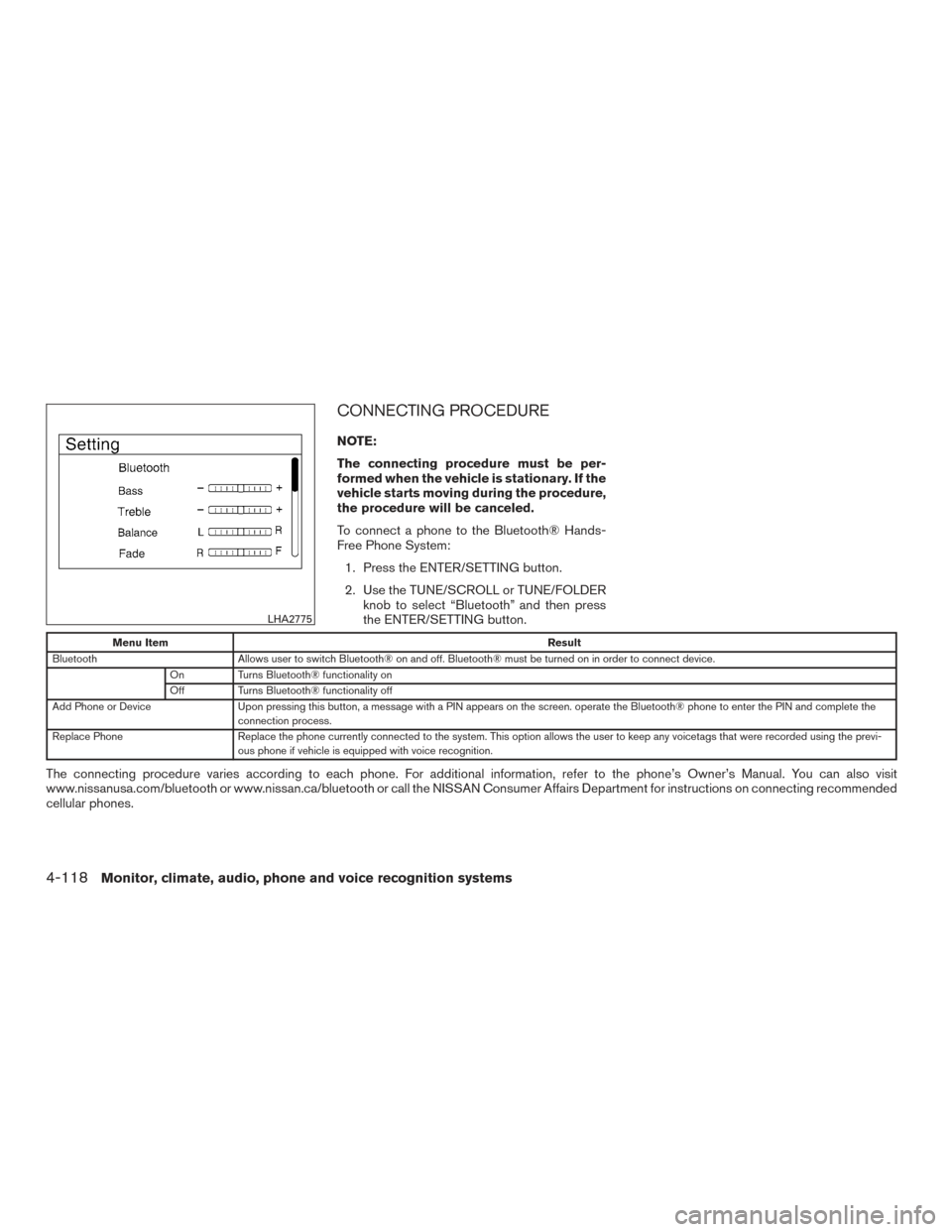
CONNECTING PROCEDURE
NOTE:
The connecting procedure must be per-
formed when the vehicle is stationary. If the
vehicle starts moving during the procedure,
the procedure will be canceled.
To connect a phone to the Bluetooth® Hands-
Free Phone System:1. Press the ENTER/SETTING button.
2. Use the TUNE/SCROLL or TUNE/FOLDER knob to select “Bluetooth” and then press
the ENTER/SETTING button.
Menu Item Result
Bluetooth Allows user to switch Bluetooth® on and off. Bluetooth® must be turned on in order to connect device.
On Turns Bluetooth® functionality on
Off Turns Bluetooth® functionality off
Add Phone or Device Upon pressing this button, a message with a PIN appears on the screen. operate the Bluetooth® phone to enter the PIN and complete the
connection process.
Replace Phone Replace the phone currently connected to the system. This option allows the user to keep any voicetags that were recorded using the previ -
ous phone if vehicle is equipped with voice recognition.
The connecting procedure varies according to each phone. For additional information, refer to the phone’s Owner’s Manual. You can also visit
www.nissanusa.com/bluetooth or www.nissan.ca/bluetooth or call the NISSAN Consumer Affairs Department for instructions on connecting recommended
cellular phones.
LHA2775
4-118Monitor, climate, audio, phone and voice recognition systems
Page 356 of 671
VOICE COMMANDS
Voice commands can be used to operate the
Bluetooth® Hands-Free Phone System. Press
the
button and say “Phone” to bring up the
phone command menu. The available options
are:
● Call
● Phonebook
● Recent Calls
● Messaging (if so equipped)
● Show Applications (if so equipped)
● Select Phone or Device
“Call”
For additional information, refer to “Making a call”
in this section.
“Phonebook”
The following commands are available under
“Phonebook”: ●
(a name)
Say a name in the phonebook to bring up a
list of options for that phonebook entry. The
system will say the name it interpreted based
on the voice command provided. If the name
is incorrect, say “Correction” to hear another
name.
Once the correct phonebook entry is identi-
fied, say “Dial” to dial the number or “Send
Text” to send a text message to that number.
Say “Record Name” to record a name for the
phonebook entry. Say “Delete Recording” to
delete a recorded name for the phonebook
entry.
● List Names
Speak this command to have the system list
the names in the phonebook one by one
alphabetically. Say “Dial” to dial the number
of the current name or “Send Text” to send a
text message to that number. Say “Next En-
try” or “Previous Entry” to move through the
list alphabetically. Say “Record Name” to
record a name for the current phonebook
entry. Say “Delete Recording” to delete a
recorded name for the current phonebook
entry. ●
Transfer Entry (if so equipped)
This command can be used to transfer mul-
tiple contacts at a time. To enable manual
contact transfer capability, set “Phonebook
Download” to “Off” in the Setting menu. The
ability to transfer contacts via the OPP
Bluetooth® profile depends on your mobile
phone. For additional information, refer to
your phone’s Owner’s Manual.
● Delete Entry (if so equipped)
Speak this command to delete an entry in
the phonebook. Choose an entry to delete
by speaking the desired name or say “List
Names”.
“Recent Calls”
The following commands are available under
“Recent Calls”:
● Incoming Calls
Speak this command to list the last five
incoming calls to the vehicle. If the call is
from an entry in the phonebook, the name
will be displayed. Otherwise, the phone
number of the incoming call will be dis-
played.
Say “Dial” to call the number or “Send Text”
to send a text message to that number. Say
“Next Entry” or “Previous Entry” to move
through the list of incoming calls.
Monitor, climate, audio, phone and voice recognition systems4-119