AUX NISSAN TITAN 2018 Owner´s Manual
[x] Cancel search | Manufacturer: NISSAN, Model Year: 2018, Model line: TITAN, Model: NISSAN TITAN 2018Pages: 650, PDF Size: 7.54 MB
Page 351 of 650
TITLE button
Press this button to navigate the title menu
if included on the disc.
CH- SEARCH/SKIP button
Non-functioning.
AUTO MEMORY button
Non-functioning.
DOWN button
Press this button to navigate down when
displaying a menu or file list.
RETURN button
Press this button to return to a previous
menu screen.
LEFT button
Press this button to navigate lef t when dis-
playing a menu or file list.
UP button
Press this button to navigate up when dis-
playing a menu or file list.
MENU button
Press this button to go to the root menu if
included on the disc.
MUTE button
Press this button to mute the audio when
playing discs or playing files from a USB
device. Press this button again to resume
audio.
SOUND AROUND ON/OFF
Turns the FM transmitter ON/OFF.
DVD–A button
Press this button to transmit the remote
control codes and functions to operate
monitor A.
GENERAL OPERATING
INSTRUCTIONS
Turning the monitor ON or OFF
1. Press the POWER button on the frontpanel or the remote control to turn the
monitor on or off. When powered on,
the front panel controls will illuminate.
2. Af ter the monitor has been turned on and is displaying a picture, adjust the viewing angle by pivoting the screen to
optimize the picture quality.
3. Remember to turn the monitor off and return the LCD monitor to the fully
closed (upright) position when not in
use.
Listening through vehicle
speakers
Press the AUX button on the factory radio
and toggle through AUX screens to select
VTRF — Jack to listen to the audio from
monitor A.
Sharing sources between Monitor
A and Monitor B
The source button on your monitor unit or
remote control allows viewing monitor A
video on monitor B and vice versa. Press
the source button to cycle through avail-
able video sources.
Disc/DVD Basic Operation
To get the most use out of each disc, make
sure you read this section completely.
For additional information, refer to “CD care
and cleaning” in this section.
4-102Monitor, climate, audio, phone and voice recognition systems
Page 364 of 650
audio/video/image files is inserted, the file
list screen may appear first.
Selecting Files
1. To select files during the video play-back, press the MENU button on the
remote control to access the file list.
Press the
orbuttons
on the remote control to select the de-
sired file.
2. Once the desired file is highlighted, press the ENTER button on the remote
control to select it.
Selecting Folders
1. To select folders during video playback,press the MENU button on the remote
control to access the list.
2. Press the
button to access
the previous level (go up one level) or,
press the
button to access
the next level (go down one level).
3. Once the desired folder is highlighted, press the ENTER button on the remote
control to select it.
Skipping Files
Press the NEXT button on the remote con-
trol to select to the next file. Press the PREV
button one time to select the beginning of
the current file. Press the PREV button two
times to select the previous file.
Repeat Modes
To access the repeat mode options, press
the REPEAT button on the remote control.
The repeat mode options are as follows:
∙
REPEAT ALL: Repeat the entire
disc or USB device (default).
∙
REPEAT FOLDER: Repeat the cur-
rent folder
∙
REPEAT ONE: Repeat the current
file.
∙ REPEAT OFF: Playback stops af ter the disc or USB device is played in its en-
tirety.
Direct File Access
Press the number keys on the remote con-
trol (0–9) to access a file directly. For ex-
ample, to go to track 14, press “1”,”4”, then
ENTER on the remote control.
CHARGING A USB DEVICE
Plug the USB cable (not supplied) into the
USB connection port and then connect the
other end to the USB device.
NOTE:
Depending on the device, it may or may
not charge when connected to the USB
port. Not all devices are able to charge
when connected to the USB port.
CONNECTING AN EXTERNAL
AUXILIARY A/V SOURCE — INPUT
An external A/V source such as a media
player, video game, or other audio/video
device may be connected to the RCA type
jacks on the front of the monitor. Connect
the external audio/video source to the RCA
type input jacks on the front of the monitor
using RCA type connectors (sold sepa-
rately).
Yellow: Video input
Red: Audio-right channel input
White: Audio-lef t channel input
The system will automatically select the
auxiliary input mode when the RCA type
connectors are inserted into the input
Monitor, climate, audio, phone and voice recognition systems4-115
Page 365 of 650
jacks. The auxiliary input connection over-
rides disc and USB playback.
The system provides priority for each of the
following device inputs:1. External RCA A/V input
2. USB port
3. Disc playback
For example if a disc is playing and a USB
device is plugged in, the USB device will
take priority over disc playback. The exter-
nal RCA A/V input connections have prior-
ity over both USB port and disc playback.
CONNECTING AN EXTERNAL A/V
MONITOR — OUTPUT
An external audio/video monitor may be
connected to the 3.5mm A/V connector
(sold separately).
NOTE:
Use the 3.5mm A/V cable made specifi-
cally for the device. An optional adapter
(sold separately) may be used to convert
the 3.5mm A/V output to the standard
RCA jacks.
SELECTING MONITOR A OR B AS
THE SOURCE
It is possible to select monitor B as the
source from monitor A and vice versa. This
will allow content that is playing on monitor
B to be displayed on monitor A.
Monitor A:
To select monitor B as the source for moni-
tor A, press the source button on the front
panel or the remote control until “MONITOR
B” is displayed.
Monitor B:
To select monitor A as the source for moni-
tor B, press the source button on the front
panel or the remote control until “MONITOR
A” is displayed.
TROUBLESHOOTING GUIDE
Symptom Remedy
Monitor does
not power on. Is ignition switch turned to the
ON or ACC position?
Are batteries installed in the re-
mote control?
Check the remote control to
make sure “DVD-A” button is
pressed for controlling monitor
A and “DVD-B” button is pressed
for controlling monitor B.
Symptom Remedy
Remote con-
trol does not
function.
Verif y that the batteries in the
remote control are good.
Verif y that the remote sensor
lens is not obstructed.
Disc will not
play. Insert the disc with label side
facing the rear of the vehicle.
Check if the disc is defective by
trying another disc.
Check the type of disc being
played. This unit only plays DVD
(Single, Dual Layer), DVD-R/+R,
DVD+R Dual layer, DVD-RW/+RW,
CD, CD-R, and CD-RW.
Both the unit and DVD discs are
coded by region. If the region
codes don’t match, the DVD
can’tbeplayed.
Disc plays, but
stops
intermittently. The disc is dirty and needs
cleaning.
Condensation has formed in-
side the unit. Remove the disc
and allow unit to dry out.
No picture. Check the signal source is
connected.
Check the menu source setting.
Match your monitor mode with
the source correctly.
Distorted
picture. Check the disc for fingerprints
and clean with a sof t cloths,
wiping from center to edge.
4-116Monitor, climate, audio, phone and voice recognition systems
Page 430 of 650
For Canada
Applicable law: Canada 310
This device complies with Industry Canada
licence-exempt RSS standard(s). Operation
is subject to the following two conditions:1. This device may not cause interference, and
2. This device must accept any interfer- ence, including interference that may
cause undesired operation of the de-
vice.
Frequency bands: 24.05 – 24.25GHz
Output power: less than 20 milliwatts
Droit applicable: Canada 310
Le présent appareil est conforme aux CNR
d’Industrie Canada applicables aux appar-
eils radio exempts de licence. L’exploitation
est autorisée aux deux conditions suiv-
antes: 1. L’appareil ne doit pas produire de brouillage, et
2. L’utilisateur de l’appareil doit accepter tout brouillage radioélectrique subi,
même si le brouillage est susceptible
d’en compromettre le fonctionnement. Bandes de fréquences: 24.05 - 24.25GHz
Puissance émise: Moins de 20 milliwattsWARNING
Failure to follow the warnings and in-
structions for proper use of the RCTA
system could result in serious injury or
death.
∙ The RCTA system is not a replacement
for proper driving procedures and is
not designed to prevent contact with
vehicles or objects. When backing out
of a parking space, always use the
side and rear mirrors and turn and
look in the direction your vehicle will
move. Never rely solely on the RCTA
system.
The RCTA system will assist you when
backing out from a parking space. When
the vehicle is in reverse, the system is de-
signed to detect other vehicles approach-
ing from the right or lef t of the vehicle. If the
system detects cross traffic, it will alert you.
REAR CROSS TRAFFIC ALERT (RCTA)
(if so equipped)
Starting and driving5-33
Page 438 of 650
For Canada
Applicable law: Canada 310
This device complies with Industry Canada
licence-exempt RSS standard(s). Operation
is subject to the following two conditions:1. This device may not cause interference, and
2. This device must accept any interfer- ence, including interference that may
cause undesired operation of the de-
vice.
Frequency bands: 24.05 – 24.25GHz
Output power: less than 20 milliwatts
Droit applicable: Canada 310
Le présent appareil est conforme aux CNR
d’Industrie Canada applicables aux appar-
eils radio exempts de licence. L’exploitation
est autorisée aux deux conditions suiv-
antes: 1. L’appareil ne doit pas produire de brouillage, et
2. L’utilisateur de l’appareil doit accepter tout brouillage radioélectrique subi,
même si le brouillage est susceptible
d’en compromettre le fonctionnement. Bandes de fréquences: 24.05 - 24.25GHz
Puissance émise: Moins de 20 milliwatts
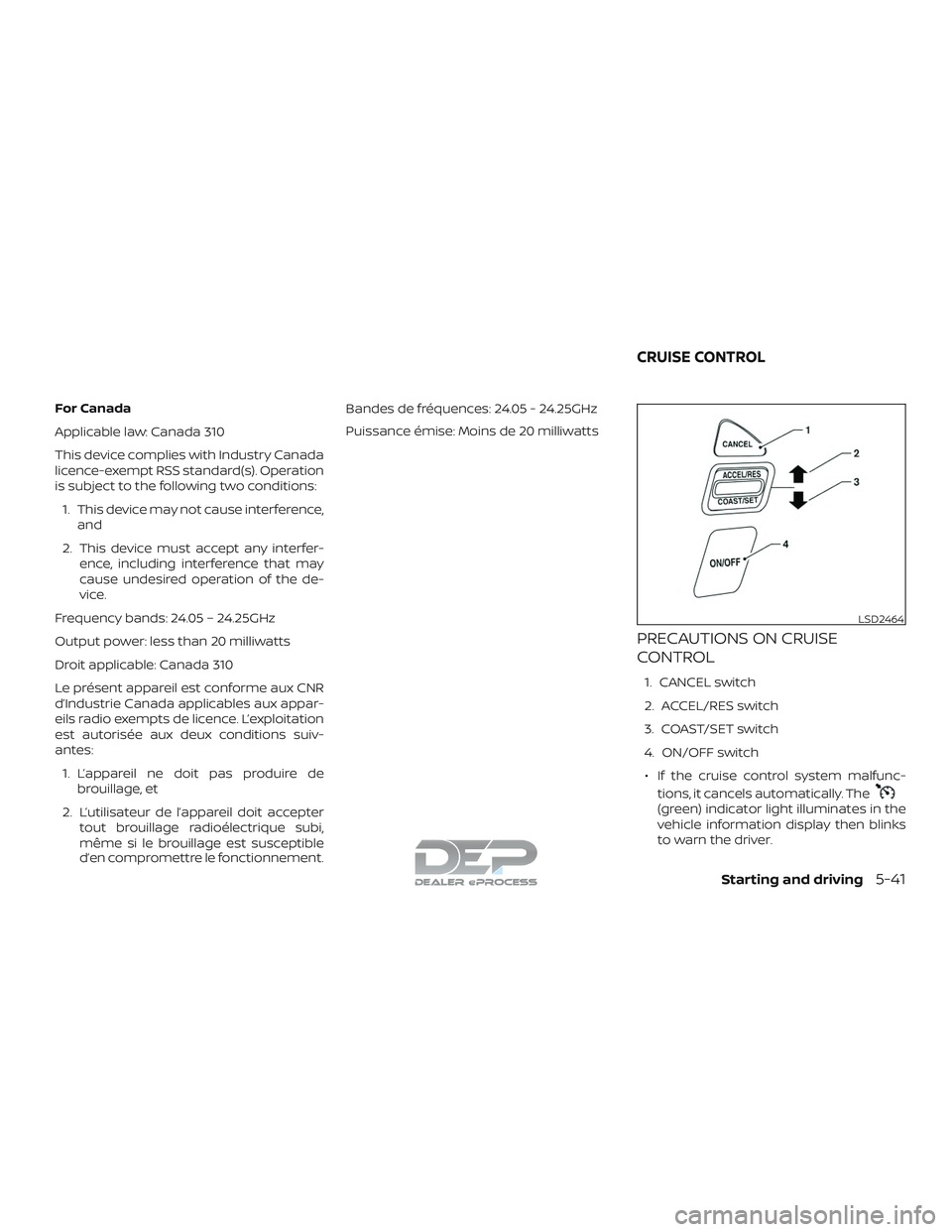
PRECAUTIONS ON CRUISE
CONTROL
1. CANCEL switch
2. ACCEL/RES switch
3. COAST/SET switch
4. ON/OFF switch
∙ If the cruise control system malfunc- tions, it cancels automatically. The
(green) indicator light illuminates in the
vehicle information display then blinks
to warn the driver.
LSD2464
CRUISE CONTROL
Starting and driving5-41
Page 634 of 650
11 Index
4WD.......................5-45
4WDwarninglight..............2-22
4-Wheel Drive.................5-45
A
Active Brake Limited Slip (ABLS)
system .....................5-59
Aimingcontrol,headlights.........2-57
Air bag (See supplemental restraint
system) .................... .1-53
Air bag system Front (See supplemental front impact air
bagsystem).............1-60, 1-75
Air bag warning labels ............1-80
Airbagwarninglight..........1-81, 2-29
Air bag warning light,
supplemental ..............1-81, 2-29
Air cleaner ...................8-19
Air cleaner housing filter ..........8-19
Air conditioner Air conditioner operation ....4-38,4-44
Air conditioner specification label . .10-20
Air conditioner system refrigerant and oil
recommendations ............10-8
Air conditioner system refrigerant
recommendations ............10-8
Heater and air conditioner (automatic)
(if so equipped) ..............4-43
Heater and air conditioner
controls ..................4-44
Servicing air conditioner ........4-48Air flow charts
.................4-39
Alarm system
(See vehicle security system) .......2-48
Anchor point locations ............1-31
Antenna ....................4-88
Antifreeze ...................5-69
Anti-lock brake warning light .......2-22
Anti-lock Braking System (ABS) ......5-57
Apps ......................4-88
Audible reminders ..............2-32
Audiosystem.................4-48 AMradioreception............4-49
Bluetooth® audio .........4-84,4-85
Bluetooth® streaming audio . .4-84, 4-85
Compact disc (CD)
player.............4-59,4-65,4-72
FM-AM radio with compact disc (CD)
player....................4-57
FM/AM/SAT radio with compact disc (CD)
player.................4-61,4-67
FMradioreception............4-49
iPod®Player.............4-78,4-81
iPod® player operation ......4-78,4-81
Radio ....................4-48
Steering wheel audio control
switch....................4-87
USBinterface............4-74,4-76
USB (Universal Serial Bus) Connection
Port.....................4-76
Autolightswitch ...............2-55
Automatic Automatic drive positioner . . .3-42, 3-44
Automatic power window switch. . .2-89 Driving with automatic
transmission................5-17
Automatic anti-glare inside mirror ....3-32
Automatic door locks .............3-8
Automatic drive positioner .....3-42,3-44
Automatic transmission fluid temperature
gauge ......................2-11
AUXjack....................4-69
B
Back button ...................4-7
Battery..................5-69,8-15 Charge warning light ..........2-25
Battery replacement ............8-26
Keyfob...................8-26
NISSAN Intelligent Key® .........8-26
Before starting the engine .........5-14
Belt(Seedrivebelt)..............8-17
Blind Spot Warning (BSW) ..........5-23
Block heater Engine ....................5-71
Bluetooth® audio ...........4-84,4-85
Bluetooth® hands-free phone
system .................4-120,4-133
Booster seats .................1-49
Br ak
e
Anti-lock Braking System (ABS) ....5-57
Brakefluid.................8-13
Brakelight(Seestoplight) .......8-31
Brakesystem...............5-56
Brakewarninglight ...........2-24