climate settings NISSAN TITAN 2018 Owner´s Manual
[x] Cancel search | Manufacturer: NISSAN, Model Year: 2018, Model line: TITAN, Model: NISSAN TITAN 2018Pages: 650, PDF Size: 7.54 MB
Page 341 of 650
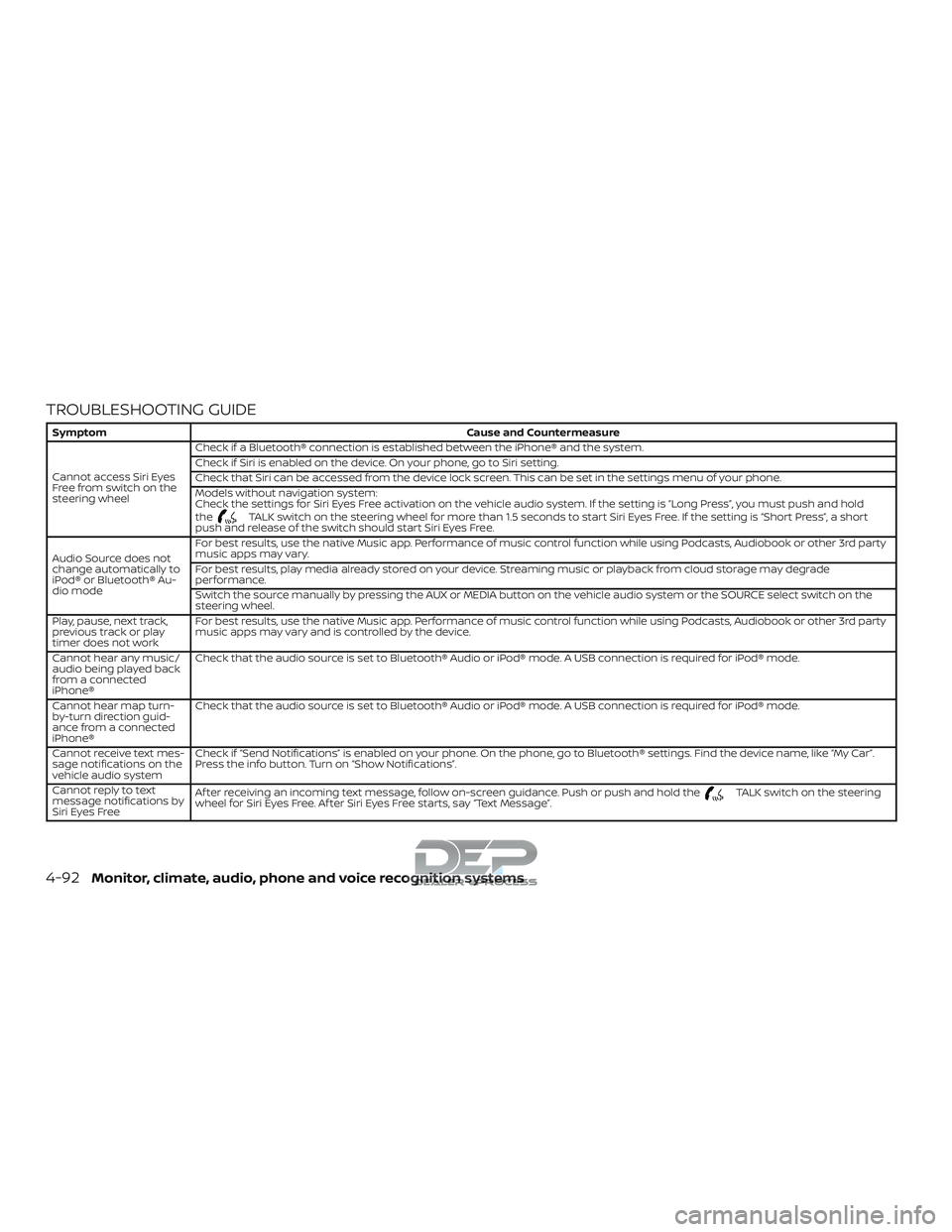
TROUBLESHOOTING GUIDE
SymptomCause and Countermeasure
Cannot access Siri Eyes
Freefromswitchonthe
steering wheel Check if a Bluetooth® connection is established between the iPhone® and the system.
Check if Siri is enabled on the device. On your phone, go to Siri setting.
Check that Siri can be accessed from the device lock screen. This can be set in the settings menu of your phone.
Models without navigation system:
Check the settings for Siri Eyes Free activation on the vehicle audio system. If the setting is “Long Press”, you must push and hold
the
TALK switch on the steering wheel for more than 1.5 seconds to start Siri Eyes Free. If the setting is “Short Press”, a short
push and release of the switch should start Siri Eyes Free.
Audio Source does not
change automatically to
iPod® or Bluetooth® Au-
dio mode For best results, use the native Music app. Performance of music control function while using Podcasts, Audiobook or other 3rd party
music apps may vary.
For best results, play media already stored on your device. Streaming music or playback from cloud storage may degrade
performance.
Switch the source manually by pressing the AUX or MEDIA button on the vehicle audio system or the SOURCE select switch on the
steering wheel.
Play, pause, next track,
previous track or play
timer does not work For best results, use the native Music app. Performance of music control function while using Podcasts, Audiobook or other 3rd party
music apps may vary and is controlled by the device.
Cannot hear any music/
audio being played back
from a connected
iPhone® Check that the audio source is set to Bluetooth® Audio or iPod® mode. A USB connection is required for iPod® mode.
Cannot hear map turn-
by-turn direction guid-
ance from a connected
iPhone® Check that the audio source is set to Bluetooth® Audio or iPod® mode. A USB connection is required for iPod® mode.
Cannot receive text mes-
sage notifications on the
vehicle audio system Check if “Send Notifications” is enabled on your phone. On the phone, go to Bluetooth® settings. Find the device name, like “My Car”.
Press the info button. Turn on “Show Notifications”.
Cannot reply to text
message notifications by
Siri Eyes Free Af ter receiving an incoming text message, follow on-screen guidance. Push or push and hold the
TALK switch on the steering
wheel for Siri Eyes Free. Af ter Siri Eyes Free starts, say “Text Message”.
4-92Monitor, climate, audio, phone and voice recognition systems
Page 352 of 650
Regional coding
Both the DVD player and discs are coded by
region. These regional codes must match
in order for the disc to play. The system is
preset to the region code designated for
your area by the DVD Copy Control Asso-
ciation. Other regions may not be played in
this system.
Supported Disc Types∙ DVD-Video: DVD contains video
∙ DVD +/- R: DVD contains video
∙ CD-DA: CD contains audio
∙ CD-Video: CD contains video
∙ CD-R/+RW: CD contains audio
Unsupported Disc Types
Before you load a disc, make sure that it is
compatible with the player. Note that the
following disc CANNOT be used with this
system: Optical disc- CD-1, CD-ROM, and
DVD-ROM Mini disc- CDG (audio only, not
graphics), and Blu-ray (list is not all inclu-
sive).
Loading and Playing Discs
Press the POWER button to turn the moni-
tor on. Insert the disc about half way into the disc compartment slot, with the disc’s
label facing the rear of the vehicle. Do NOT
insert the disc at an angle. The Disc must
be inserted straight into the player.
The disc will load automatically and begin
to play. Some discs may start at the root
menu, where playback must be selected to
start a movie. Depending on the disc and
playback location on the disc, a “
”icon
may be displayed in the upper lef t-hand
corner of the screen indicating that play-
back is not possible during certain times.
Additional information on Media
Compatibility
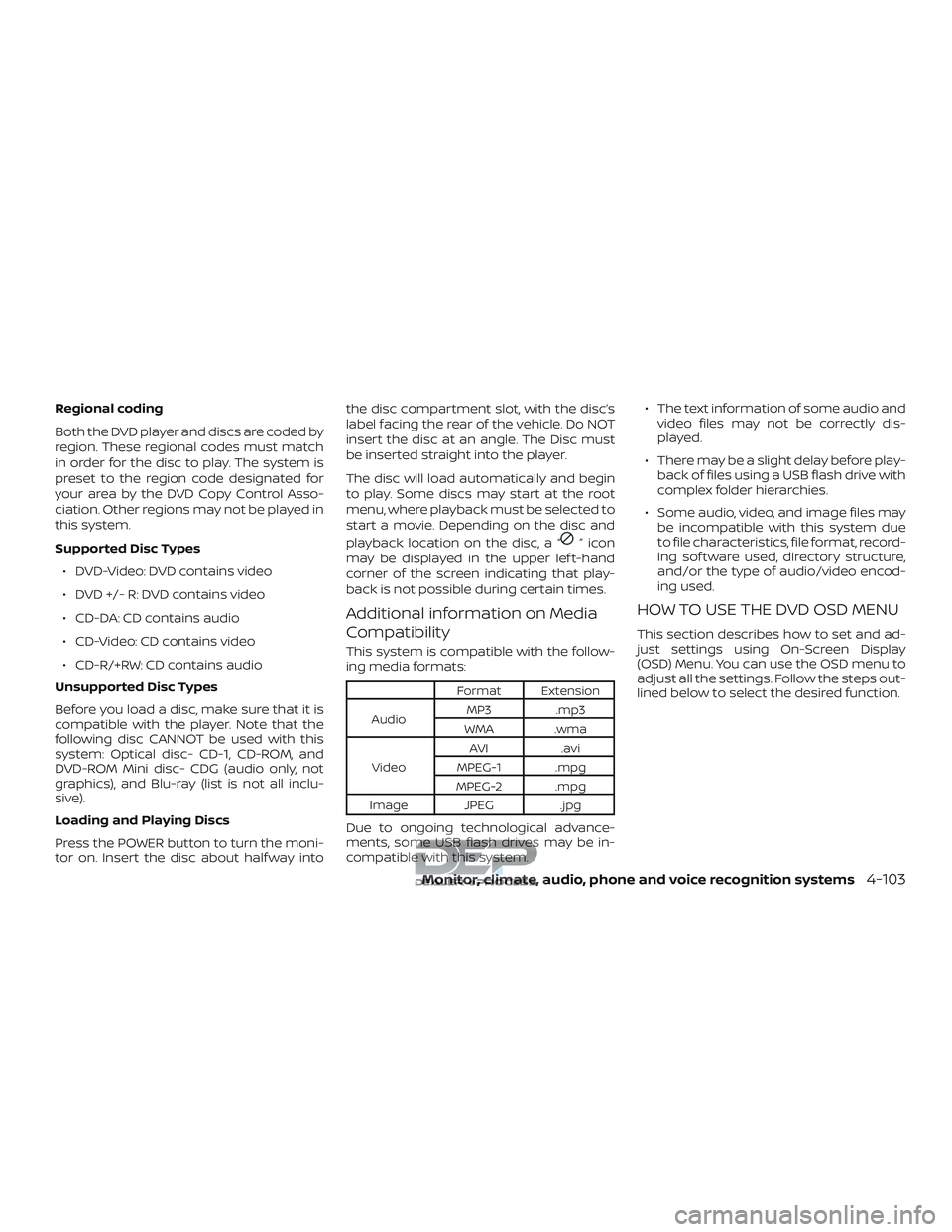
This system is compatible with the follow-
ing media formats:
Format Extension
Audio MP3 .mp3
WMA .wma
Video AVI
.avi
MPEG-1 .mpg
MPEG-2 .mpg
Image JPEG .jpg
Due to ongoing technological advance-
ments, some USB flash drives may be in-
compatible with this system. ∙ The text information of some audio and
video files may not be correctly dis-
played.
∙ There may be a slight delay before play- back of files using a USB flash drive with
complex folder hierarchies.
∙ Some audio, video, and image files may be incompatible with this system due
to file characteristics, file format, record-
ing sof tware used, directory structure,
and/or the type of audio/video encod-
ing used.
HOW TO USE THE DVD OSD MENU
This section describes how to set and ad-
just settings using On-Screen Display
(OSD) Menu. You can use the OSD menu to
adjust all the settings. Follow the steps out-
lined below to select the desired function.
Monitor, climate, audio, phone and voice recognition systems4-103
Page 354 of 650
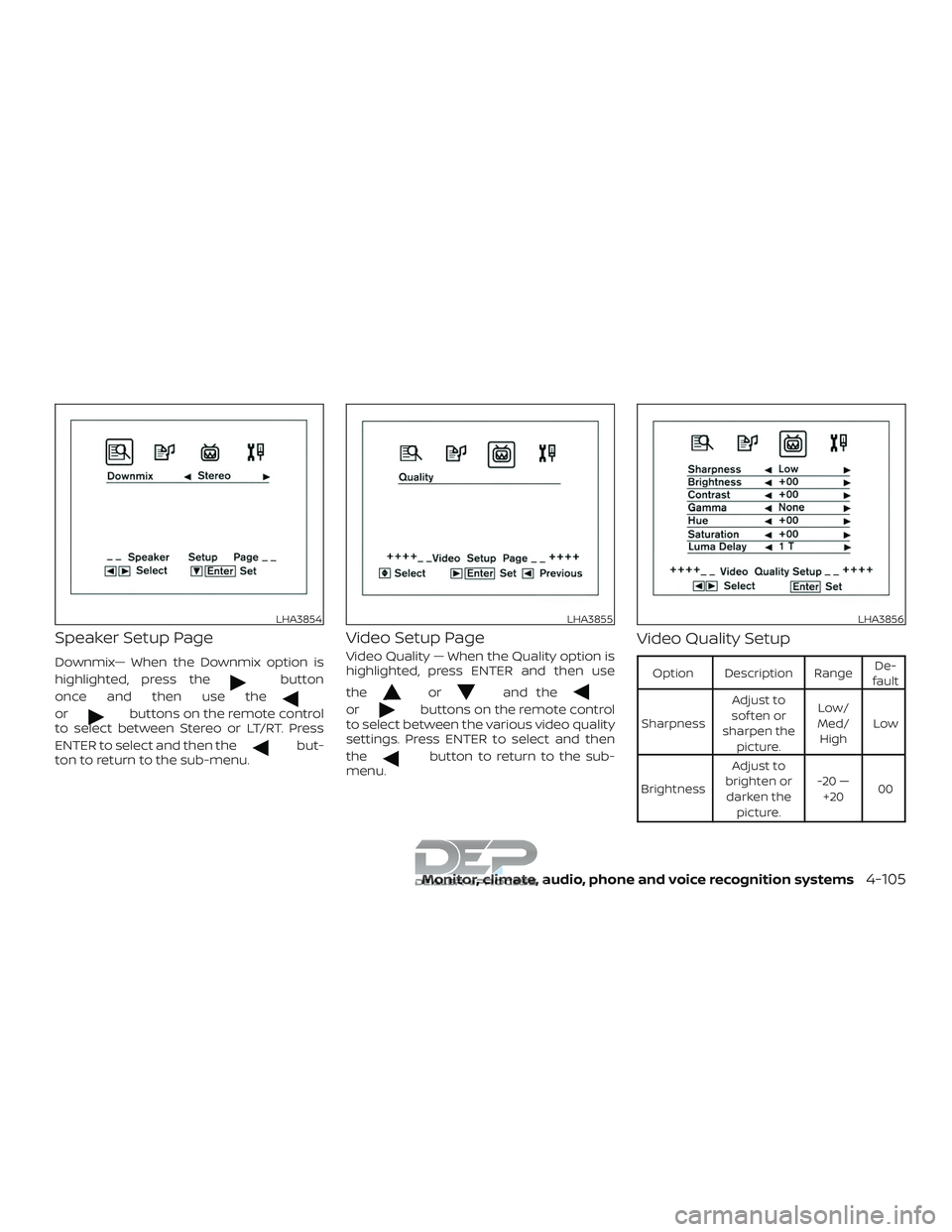
Speaker Setup Page
Downmix— When the Downmix option is
highlighted, press the
button
once and then use the
orbuttons on the remote control
to select between Stereo or LT/RT. Press
ENTER to select and then the
but-
ton to return to the sub-menu.
Video Setup Page
Video Quality — When the Quality option is
highlighted, press ENTER and then use
the
orand the
orbuttons on the remote control
to select between the various video quality
settings. Press ENTER to select and then
the
button to return to the sub-
menu.
Video Quality Setup
Option Description Range De-
fault
Sharpness Adjust to
sof ten or
sharpen the picture. Low/
Med/ High Low
Brightness Adjust to
brighten or darken the picture. -20 —
+20 00
LHA3854LHA3855LHA3856
Monitor, climate, audio, phone and voice recognition systems4-105
Page 358 of 650
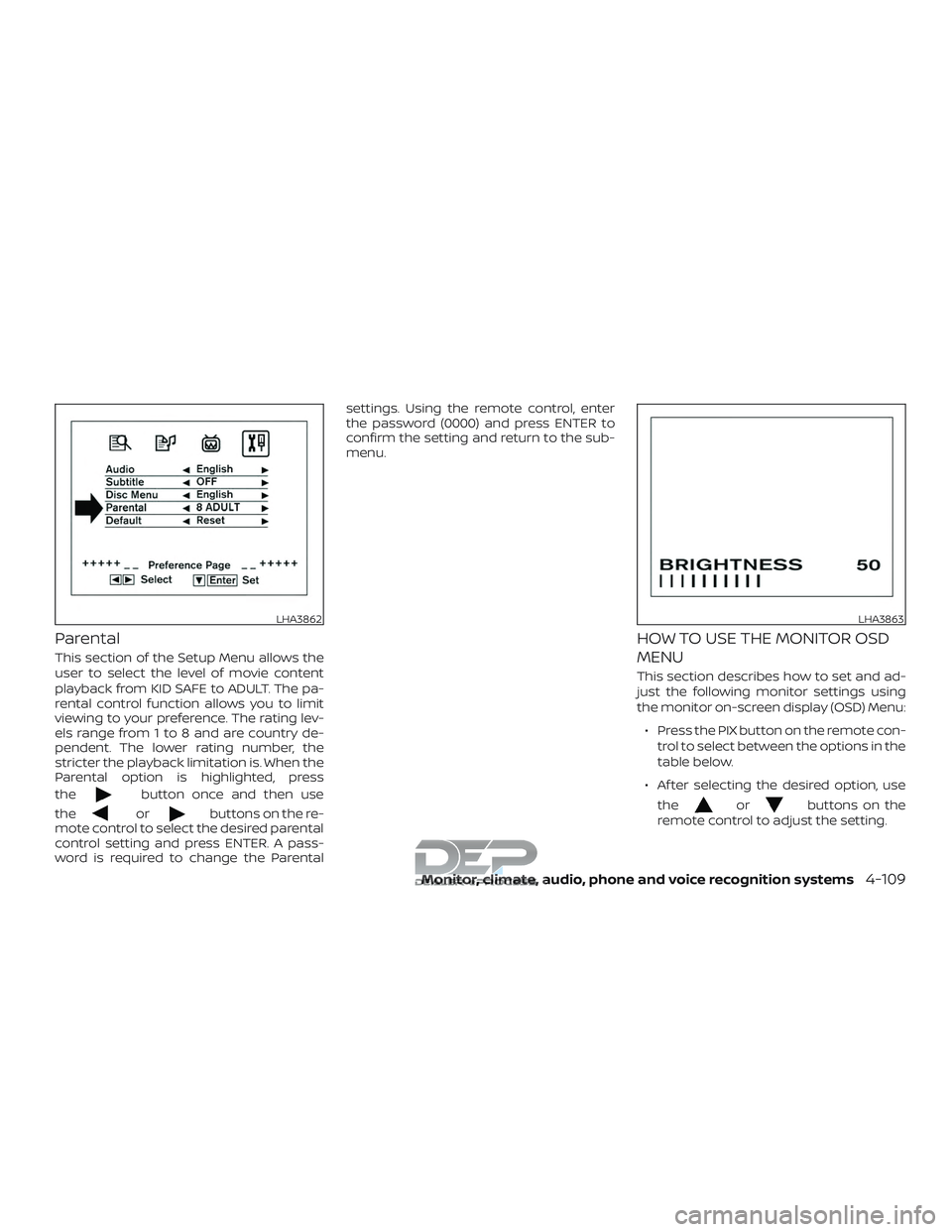
Parental
This section of the Setup Menu allows the
user to select the level of movie content
playback from KID SAFE to ADULT. The pa-
rental control function allows you to limit
viewing to your preference. The rating lev-
els range from 1 to 8 and are country de-
pendent. The lower rating number, the
stricter the playback limitation is. When the
Parental option is highlighted, press
the
button once and then use
the
orbuttons on the re-
mote control to select the desired parental
control setting and press ENTER. A pass-
word is required to change the Parental settings. Using the remote control, enter
the password (0000) and press ENTER to
confirm the setting and return to the sub-
menu.
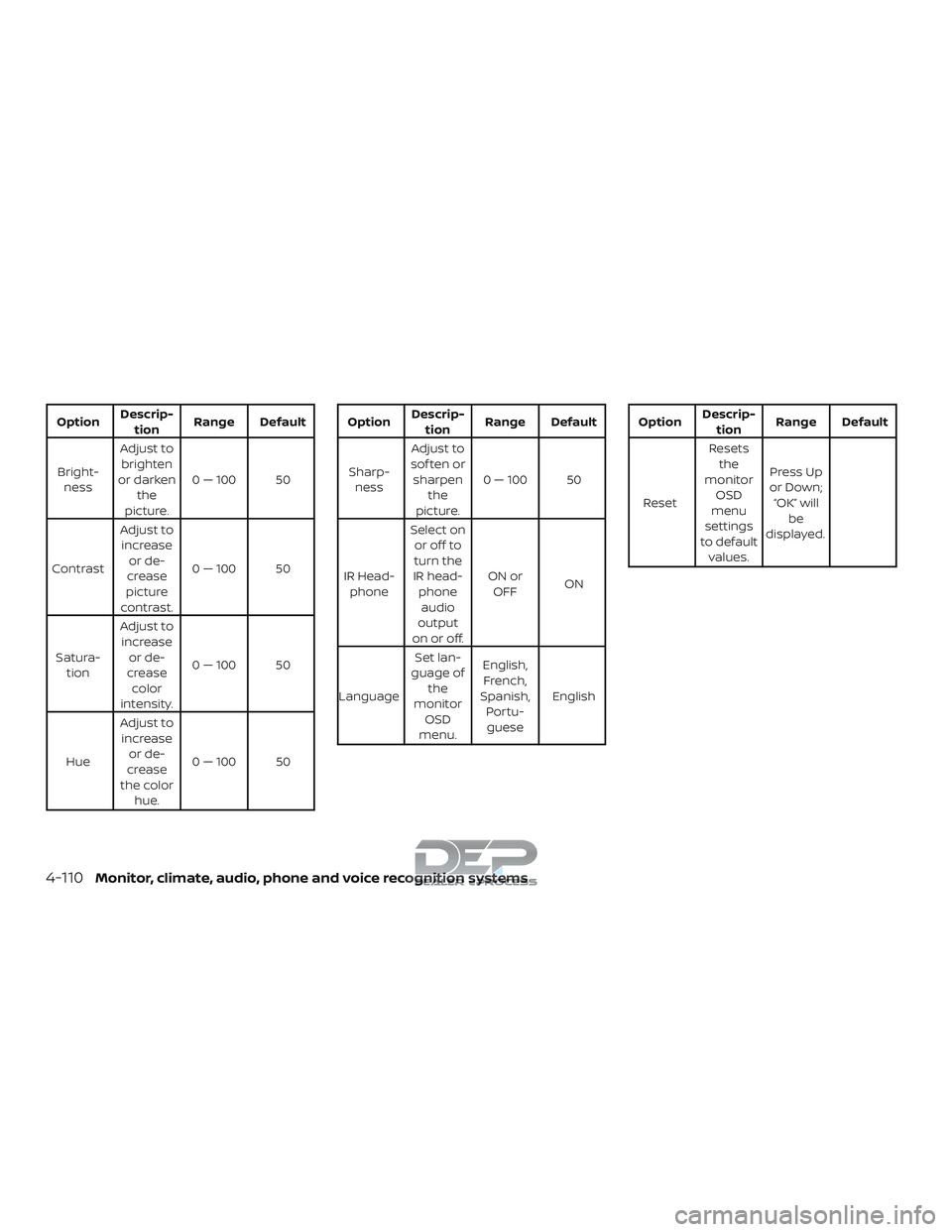
HOW TO USE THE MONITOR OSD
MENU
This section describes how to set and ad-
just the following monitor settings using
the monitor on-screen display (OSD) Menu:
∙ Press the PIX button on the remote con- trol to select between the options in the
table below.
∙ Af ter selecting the desired option, use the
orbuttons on the
remote control to adjust the setting.
LHA3862LHA3863
Monitor, climate, audio, phone and voice recognition systems4-109
Page 359 of 650
OptionDescrip-
tion Range Default
Bright- ness Adjust to
brighten
or darken the
picture. 0 — 100 50
Contrast Adjust to
increase or de-
crease
picture
contrast. 0 — 100 50
Satura- tion Adjust to
increase or de-
crease color
intensity. 0 — 100 50
Hue Adjust to
increase or de-
crease
the color hue. 0 — 100 50Option
Descrip-
tion Range Default
Sharp- ness Adjust to
sof ten or sharpen the
picture. 0 — 100 50
IR Head- phone Select on
or off to
turn the
IR head- phoneaudio
output
on or off. ON or
OFF ON
Language Set lan-
guage of the
monitor OSD
menu. English,
French,
Spanish, Portu-guese EnglishOption
Descrip-
tion Range Default
Reset Resets
the
monitor OSD
menu
settings
to default values. Press Up
or Down; “OK” will be
displayed.
4-110Monitor, climate, audio, phone and voice recognition systems
Page 378 of 650
NOTE:
Many phones may require special permis-
sion to enable text messaging. Check the
phone’s screen during Bluetooth® pairing.
For some phones, you may need to enable
‘Notifications’ in the phone’s Bluetooth®
menu for text messages to appear on the
headunit. Please consult you phone’s
Owner’s manual. Text message integra-
tion requires that the phone support MAP
(Message Access Profile) for both receiv-
ing and sending text messages. Some
phones may not support all text messag-
ing features. For additional information,
refer to www.nissanusa.com/bluetooth or
www.nissan.ca/bluetooth for compatibil-
ity information, as well as your device’s
Owner’s manual.
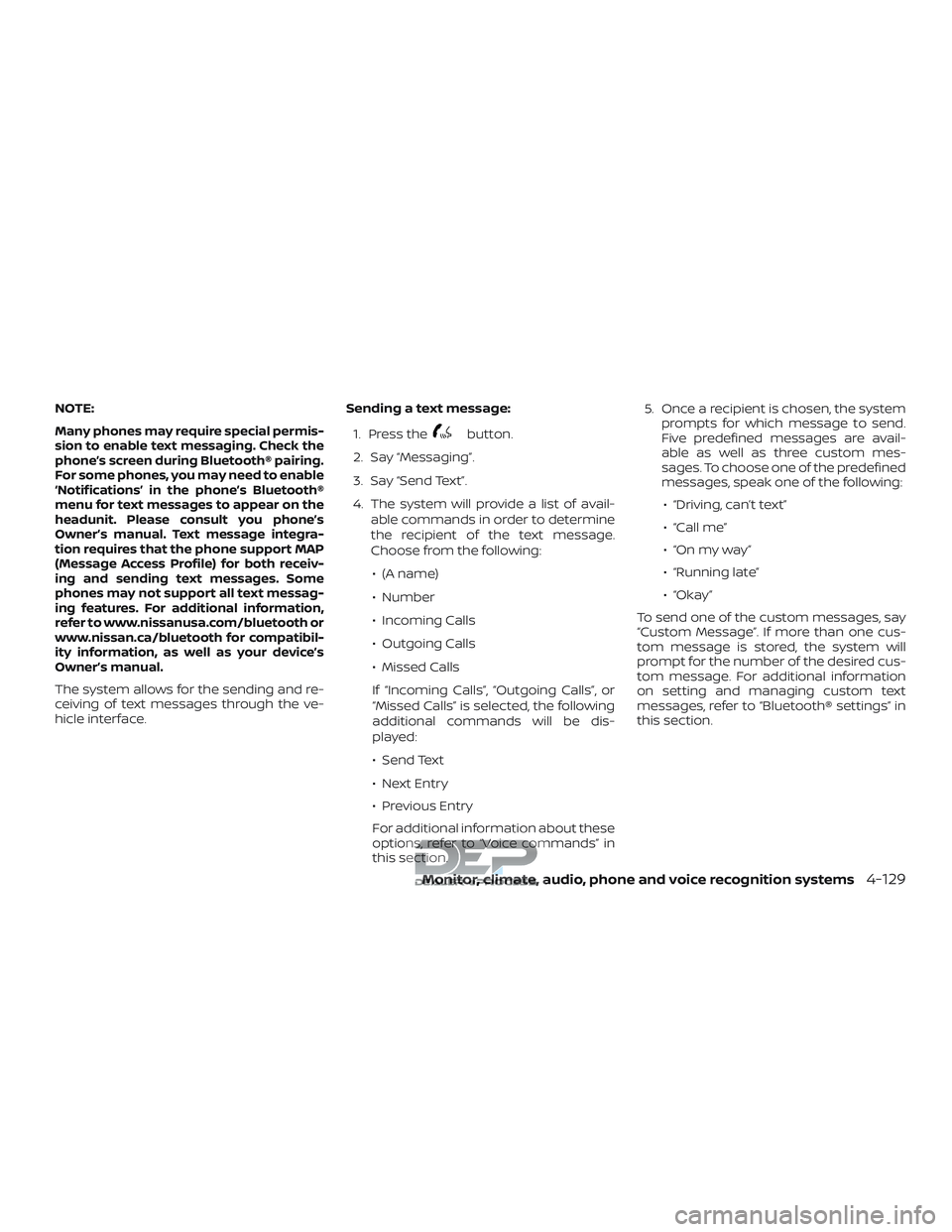
The system allows for the sending and re-
ceiving of text messages through the ve-
hicle interface.Sending a text message:
1. Press the
button.
2. Say “Messaging”.
3. Say “Send Text”.
4. The system will provide a list of avail- able commands in order to determine
the recipient of the text message.
Choose from the following:
∙ (A name)
∙ Number
∙ Incoming Calls
∙ Outgoing Calls
∙ Missed Calls
If “Incoming Calls”, “Outgoing Calls”, or
“Missed Calls” is selected, the following
additional commands will be dis-
played:
∙ Send Text
∙ Next Entry
∙ Previous Entry
For additional information about these
options, refer to “Voice commands” in
this section. 5. Once a recipient is chosen, the system
prompts for which message to send.
Five predefined messages are avail-
able as well as three custom mes-
sages. To choose one of the predefined
messages, speak one of the following:
∙ “Driving, can’t text”
∙ “Call me”
∙ “On my way ”
∙ “Running late”
∙ “Okay ”
To send one of the custom messages, say
“Custom Message”. If more than one cus-
tom message is stored, the system will
prompt for the number of the desired cus-
tom message. For additional information
on setting and managing custom text
messages, refer to “Bluetooth® settings” in
this section.
Monitor, climate, audio, phone and voice recognition systems4-129
Page 379 of 650
Reading a received text message:1. Press the
button.
2. Say “Messaging”.
3. Say “Read Text”.
The text message, sender and delivery
time are shown on the screen. Use the tun-
ing switch on the steering wheel to scroll
through all text messages if more than one
are available. Press the
button to exit
the text message screen. Press the
button to access the following options for
replying to the text message:
∙ Call Back Speak this command to call the sender
of the text message using the
Bluetooth® Hands-Free Phone System.
∙ Send Text Speak this command to send a text
message response to the sender of the
text message.
∙ Read Text Speak this command to read the text
message again. ∙ Previous Text
Speak this command to move to the
previous text message (if available).
∙ Next Text Speak this command to move to the
next text message (if available).
Siri® Eyes Free
If a connected phone is equipped with Siri®,
it can also be used to create custom mes-
sages that are sent through the phone. For
additional information, refer to Siri® Eyes
Free in this section.
NOTE:
Text messages are only displayed if the
vehicle speed is less than 5 mph
(8 km/h).
NOTE:
For Apple iPhones, text messages can
only be sent through Siri.
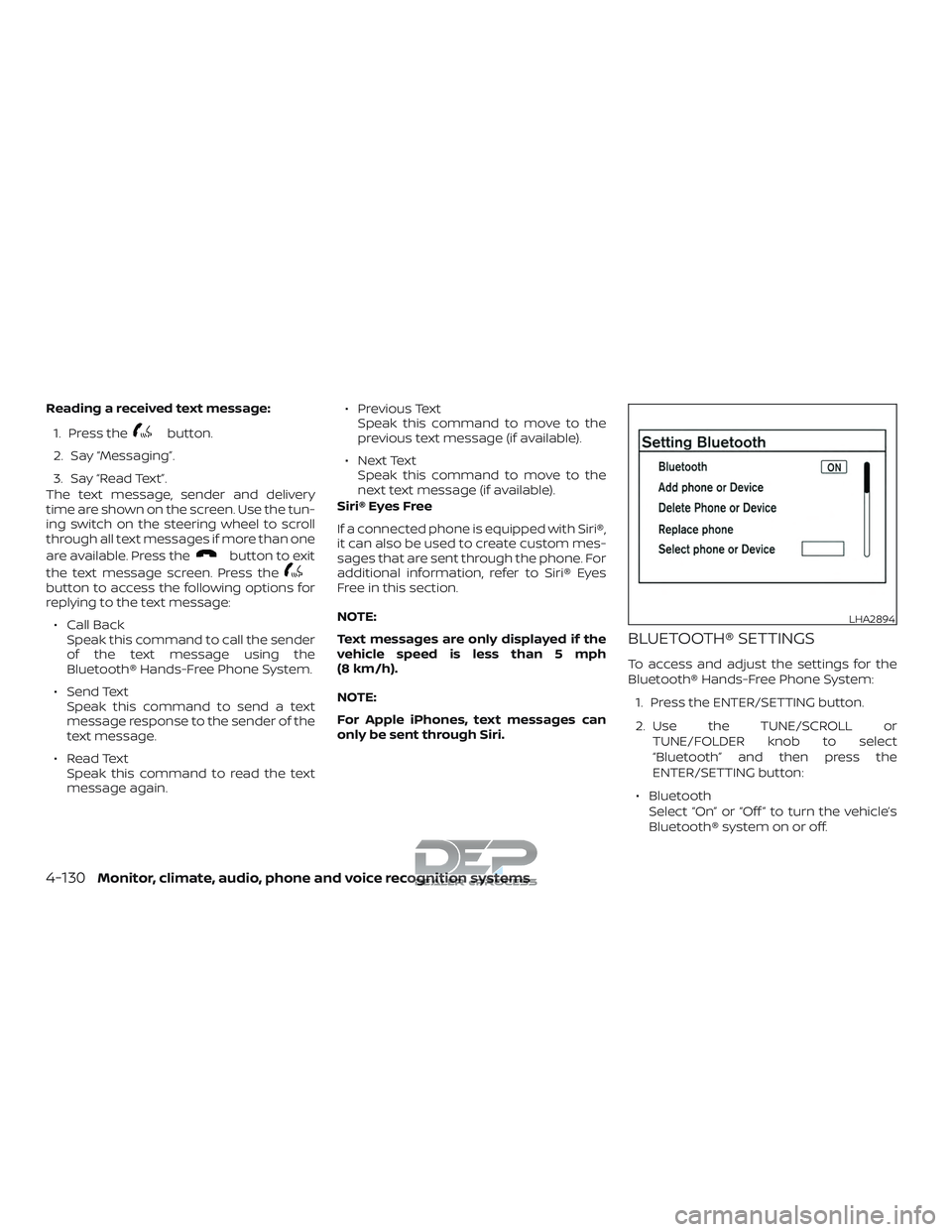
BLUETOOTH® SETTINGS
To access and adjust the settings for the
Bluetooth® Hands-Free Phone System:
1. Press the ENTER/SETTING button.
2. Use the TUNE/SCROLL or TUNE/FOLDER knob to select
“Bluetooth” and then press the
ENTER/SETTING button:
∙ Bluetooth Select “On” or “Off ” to turn the vehicle’s
Bluetooth® system on or off.
LHA2894
4-130Monitor, climate, audio, phone and voice recognition systems
Page 385 of 650
CONNECTING PROCEDURE
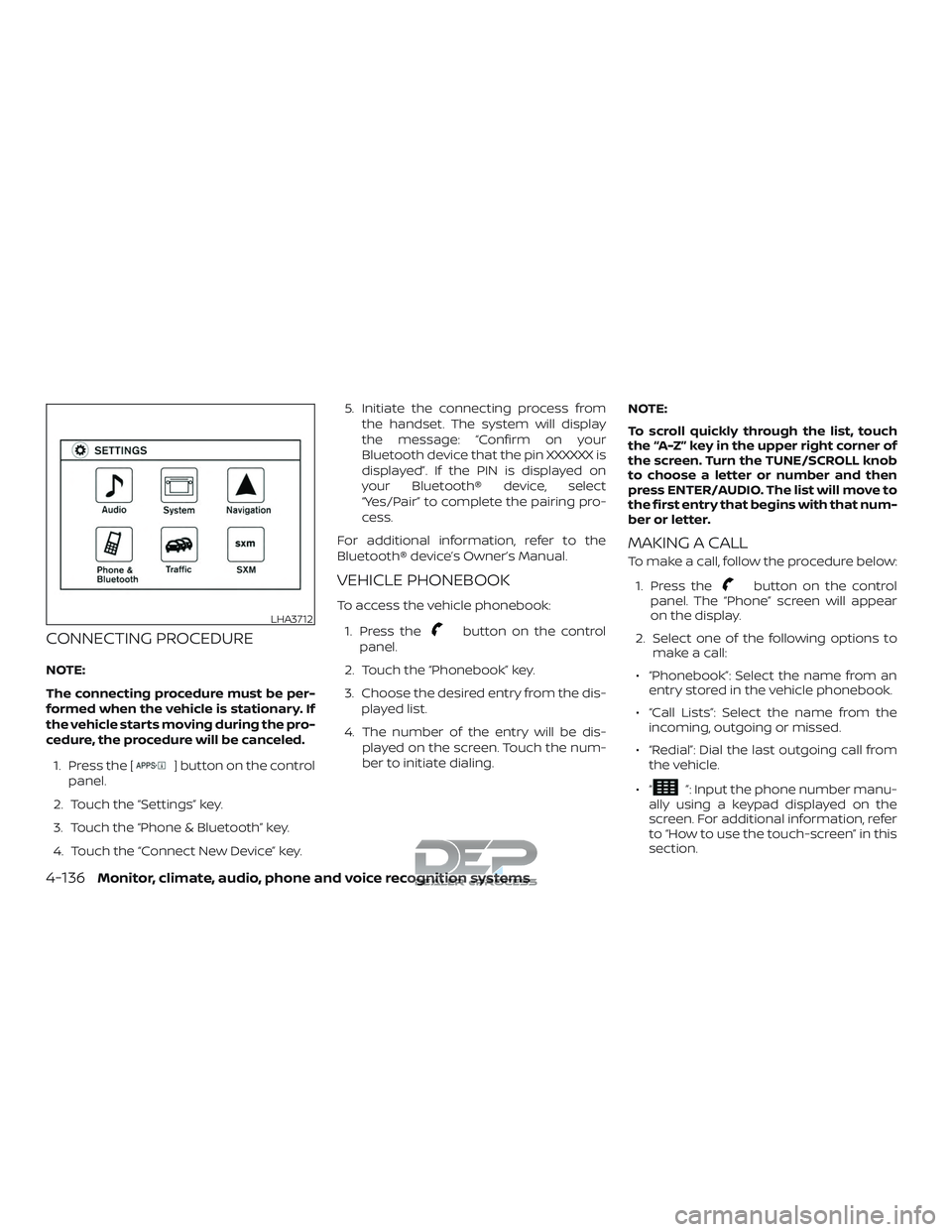
NOTE:
The connecting procedure must be per-
formed when the vehicle is stationary. If
the vehicle starts moving during the pro-
cedure, the procedure will be canceled.1. Press the [
] button on the control
panel.
2. Touch the “Settings” key.
3. Touch the “Phone & Bluetooth” key.
4. Touch the “Connect New Device” key. 5. Initiate the connecting process from
the handset. The system will display
the message: “Confirm on your
Bluetooth device that the pin XXXXXX is
displayed”. If the PIN is displayed on
your Bluetooth® device, select
“Yes/Pair” to complete the pairing pro-
cess.
For additional information, refer to the
Bluetooth® device’s Owner’s Manual.
VEHICLE PHONEBOOK
To access the vehicle phonebook:
1. Press the
button on the control
panel.
2. Touch the “Phonebook” key.
3. Choose the desired entry from the dis- played list.
4. The number of the entry will be dis- played on the screen. Touch the num-
ber to initiate dialing. NOTE:
To scroll quickly through the list, touch
the “A-Z” key in the upper right corner of
the screen. Turn the TUNE/SCROLL knob
to choose a letter or number and then
press ENTER/AUDIO. The list will move to
the first entry that begins with that num-
ber or letter.
MAKING A CALL
To make a call, follow the procedure below:
1. Press the
button on the control
panel. The “Phone” screen will appear
on the display.
2. Select one of the following options to make a call:
∙ “Phonebook”: Select the name from an entry stored in the vehicle phonebook.
∙ “Call Lists”: Select the name from the incoming, outgoing or missed.
∙ “Redial”: Dial the last outgoing call from the vehicle.
∙“
”: Input the phone number manu-
ally using a keypad displayed on the
screen. For additional information, refer
to “How to use the touch-screen” in this
section.
LHA3712
4-136Monitor, climate, audio, phone and voice recognition systems
Page 387 of 650
Sending a text message:1. Press the
button on the steering
wheel.
2. Say “Phone” af ter the tone.
3. Say “Send Text” af ter the tone.
4. The system will provide a list of avail- able commands in order to determine
the recipient of the text message.
Choose from the following:
∙ To (a name)
∙ Enter Number
∙ Missed Calls
∙ Incoming Calls
∙ Outgoing Calls
For additional information, refer to
“Voice commands” in this section. 5. Once a recipient is chosen, the system
prompts for which message to send.
Nine predefined messages are avail-
able as well as three custom mes-
sages. To choose one of the predefined
messages, speak one of the following
af ter the tone:
∙ “Driving, can’t text”
∙ “Call me”
∙ “On my way ”
∙ “Running late”
∙ “Okay ”
∙ “Yes”
∙ “No”
∙ “Where are you?”
∙ “When?”
∙ “Custom Messages”
To send one of the custom messages,
say “Custom Messages”. If more than
one custom message is stored, the
system will prompt for the number of
the desired custom message. For ad-
ditional information, refer to
“Bluetooth® settings” in this section. Reading a received text message:
1. Press thebutton on the steering
wheel.
2. Say “Phone” af ter the tone.
3. Say “Read Text” af ter the tone.
The text message, sender and delivery
time are shown on the screen. Use the tun-
ing switch to scroll through all text mes-
sages if more than one are available. Press
the
button to exit the text message
screen. Press the
button to access
the following options for replying to the text
message:
∙ Call Back Speak this command to call the sender
of the text message using the
Bluetooth® Hands-Free Phone System.
∙ Send Text Speak this command to send a text
message response to the sender of the
text message.
∙ Read Text Speak this command to read the text
message again.
∙ Previous Text Speak this command to move to the
previous text message (if available).
4-138Monitor, climate, audio, phone and voice recognition systems
Page 388 of 650
∙ Next TextSpeak this command to move to the
next text message (if available).
NOTE:
Text messages are only displayed if the
vehicle speed is less than 5 mph
(8 km/h).
NOTE:
iPhones® can only send text messages
via Siri® Eyes Free.
Making custom messages with Siri® Eyes
Free
If a connected phone is equipped with Siri®,
it can also be used to create custom mes-
sages. For additional information, refer to
“Siri® Eyes Free” in this section.
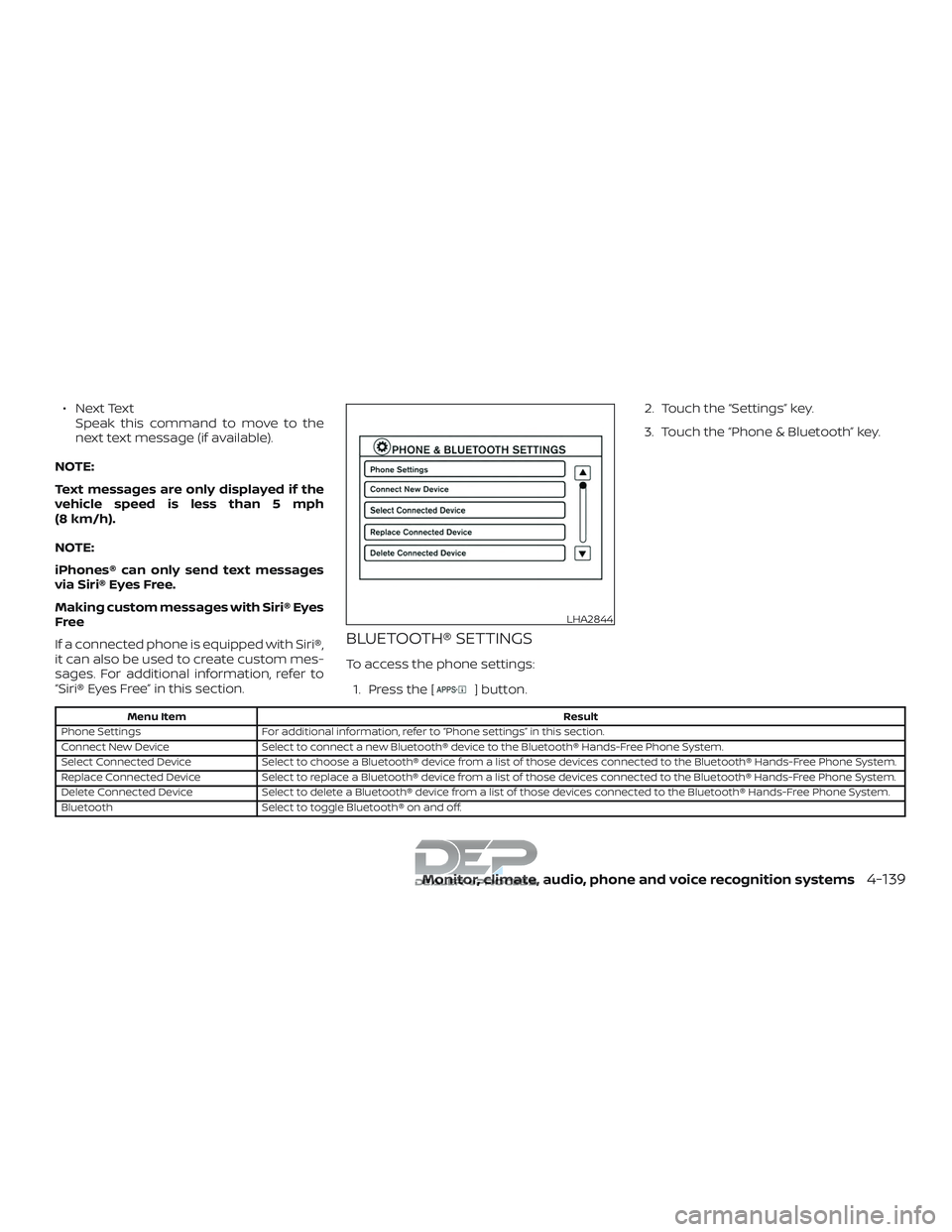
BLUETOOTH® SETTINGS
To access the phone settings: 1. Press the [
] button. 2. Touch the “Settings” key.
3. Touch the “Phone & Bluetooth” key.
Menu Item
Result
Phone Settings For additional information, refer to “Phone settings” in this section.
Connect New Device Select to connect a new Bluetooth® device to the Bluetooth® Hands-Free Phone System.
Select Connected Device Select to choose a Bluetooth® device from a list of those devices connected to the Bluetooth® Hands-Free Phone System.
Replace Connected Device Select to replace a Bluetooth® device from a list of those devices connected to the Bluetooth® Hands-Free Phone System.
Delete Connected Device Select to delete a Bluetooth® device from a list of those devices connected to the Bluetooth® Hands-Free Phone System.
Bluetooth Select to toggle Bluetooth® on and off.
LHA2844
Monitor, climate, audio, phone and voice recognition systems4-139