climate control NISSAN TITAN 2018 Owner´s Manual
[x] Cancel search | Manufacturer: NISSAN, Model Year: 2018, Model line: TITAN, Model: NISSAN TITAN 2018Pages: 650, PDF Size: 7.54 MB
Page 317 of 650
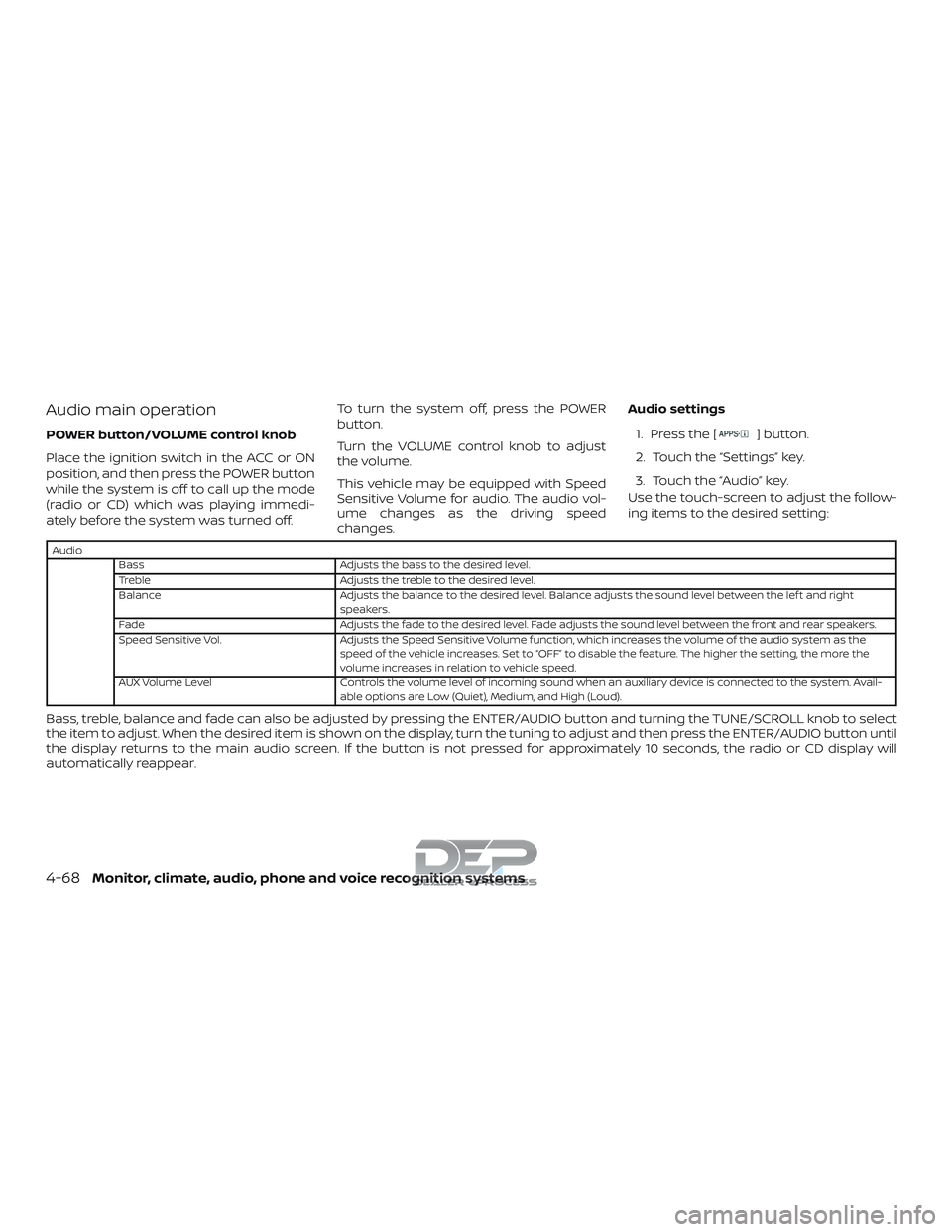
Audio main operation
POWER button/VOLUME control knob
Place the ignition switch in the ACC or ON
position, and then press the POWER button
while the system is off to call up the mode
(radio or CD) which was playing immedi-
ately before the system was turned off.To turn the system off, press the POWER
button.
Turn the VOLUME control knob to adjust
the volume.
This vehicle may be equipped with Speed
Sensitive Volume for audio. The audio vol-
ume changes as the driving speed
changes.Audio settings
1. Press the [] button.
2. Touch the “Settings” key.
3. Touch the “Audio” key.
Use the touch-screen to adjust the follow-
ing items to the desired setting:
Audio
Bass Adjusts the bass to the desired level.
Treble Adjusts the treble to the desired level.
Balance Adjusts the balance to the desired level. Balance adjusts the sound level between the lef t and right
speakers.
Fade Adjusts the fade to the desired level. Fade adjusts the sound level between the front and rear speakers.
Speed Sensitive Vol. Adjusts the Speed Sensitive Volume function, which increases the volume of the audio system as the
speed of the vehicle increases. Set to “OFF” to disable the feature. The higher the setting, the more the
volume increases in relation to vehicle speed.
AUX Volume Level Controls the volume level of incoming sound when an auxiliary device is connected to the system. Avail-
able options are Low (Quiet), Medium, and High (Loud).
Bass, treble, balance and fade can also be adjusted by pressing the ENTER/AUDIO button and turning the TUNE/SCROLL knob to select
the item to adjust. When the desired item is shown on the display, turn the tuning to adjust and then press the ENTER/AUDIO button until
the display returns to the main audio screen. If the button is not pressed for approximately 10 seconds, the radio or CD display will
automatically reappear.
4-68Monitor, climate, audio, phone and voice recognition systems
Page 318 of 650
![NISSAN TITAN 2018 Owner´s Manual SXM settings
To view the SXM settings:1. Press the [
] button.
2. Touch the “Settings” key.
3. Touch the “SXM” key.
The signal strength, activation status and
other information are displayed o](/img/5/40372/w960_40372-317.png "NISSAN TITAN 2018 Owner´s Manual SXM settings
To view the SXM settings:1. Press the [
] button.
2. Touch the “Settings” key.
3. Touch the “SXM” key.
The signal strength, activation status and
other information are displayed o")
SXM settings
To view the SXM settings:1. Press the [
] button.
2. Touch the “Settings” key.
3. Touch the “SXM” key.
The signal strength, activation status and
other information are displayed on the
screen.
AUX button
The AUX IN audio input jack accepts any
standard analog audio input such as from
a portable cassette tape/CD player, MP3
player or a laptop computer. Press the AUX
button to play a compatible device
plugged into the AUX IN jack.
FM/AM/SAT radio operation
FM·AM button
Press the FM·AM button to change the
band as follows:
AM →FM1 →FM2 →AM
If another audio source is playing when the
FM·AM button is pressed, the audio source
playing will automatically be turned off and
the last radio station played will begin playing.
SXM band select
Pressing the SXM button will change the
band as follows:
SXM1* →SXM2*→ SXM3*→SXM1* (satellite, if
so equipped)
When the SXM button is pressed while the
ignition switch is in the ACC or ON position,
the radio will come on at the last station
played.
The last station played will also come on
when the VOL (volume) control knob is
pressed to turn the radio on.
*When the SXM button is pressed, the sat-
ellite radio mode will be skipped unless an
optional satellite receiver and antenna are
installed and a SiriusXM® Satellite Radio
service subscription is active. Satellite radio
is not available in Alaska, Hawaii and Guam.
If a compact disc is playing when the SXM
button is pressed, the compact disc will
automatically be turned off and the last
radio station played will come on.
While the radio is in SXM mode, the opera-
tion can be controlled through the touch-
screen. Touch the “Channels” key to display
a list of channels. Touch a channel dis-
played on the list to change to that chan- nel. Touch the “Categories” key to display a
list of categories. Touch a category dis-
played on the list to display options within
that category.
Tuning with the touch-screen
When in AM or FM mode, the radio can be
tuned using the touch-screen. To bring up
the visual tuner, touch the “Tune” key on the
lower right corner of the screen. A screen
appears with a bar running from low fre-
quencies on the lef t to high frequencies on
the right. Touch the screen at the location
of the frequency you wish to tune and the
station will change to that frequency. To
return to the regular radio display screen,
touch the “OK” key.
Tuning with the TUNE knob
The radio can also be manually tuned us-
ing the TUNE knob. When in FM or AM mode,
turn the TUNE knob to the lef t for lower
frequencies or to the right for higher fre-
quencies. When in SXM mode, turn the
TUNE knob to change the channel.
Monitor, climate, audio, phone and voice recognition systems4-69
Page 323 of 650
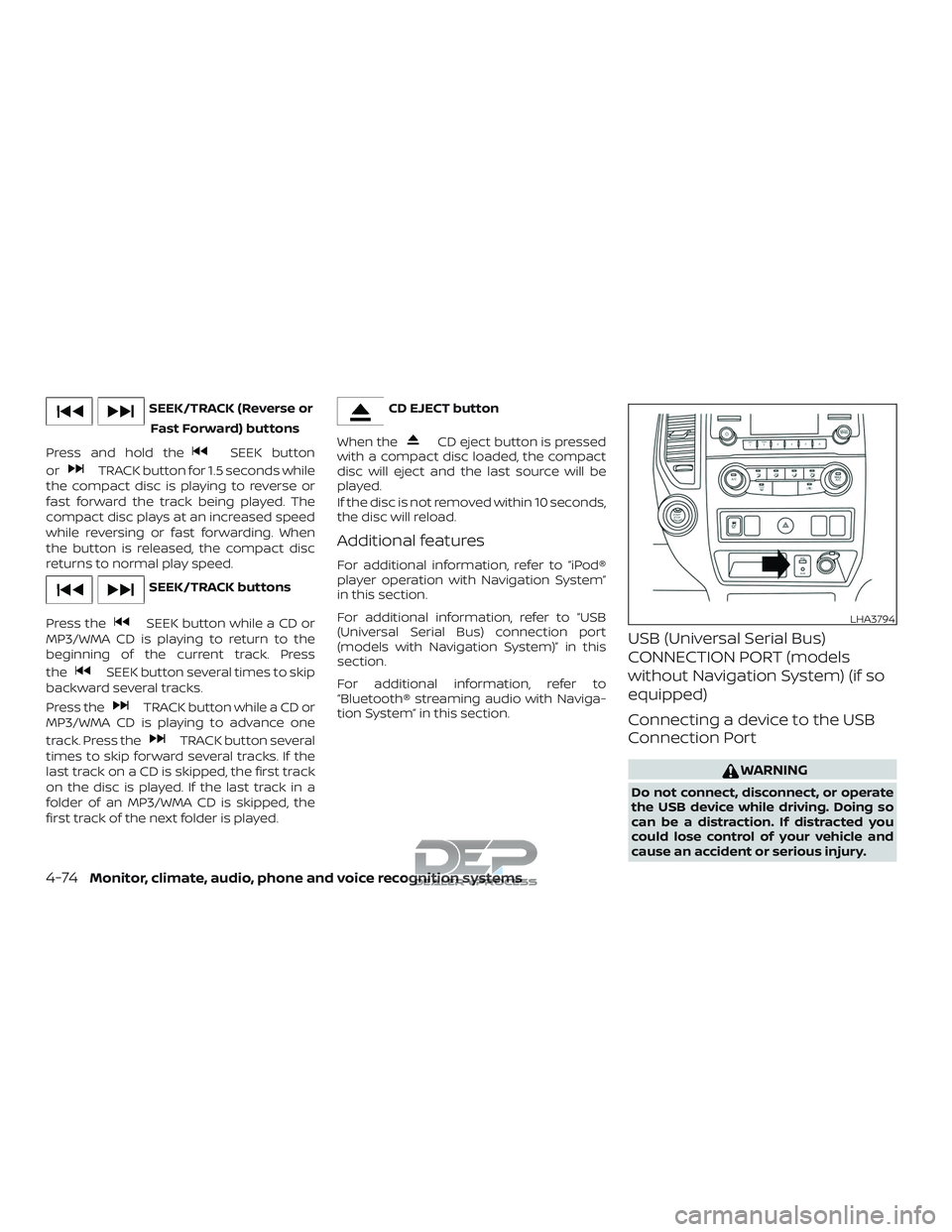
SEEK/TRACK (Reverse orFast Forward) buttons
Press and hold the
SEEK button
or
TRACK button for 1.5 seconds while
the compact disc is playing to reverse or
fast forward the track being played. The
compact disc plays at an increased speed
while reversing or fast forwarding. When
the button is released, the compact disc
returns to normal play speed.
SEEK/TRACK buttons
Press the
SEEK button while a CD or
MP3/WMA CD is playing to return to the
beginning of the current track. Press
the
SEEK button several times to skip
backward several tracks.
Press the
TRACK button while a CD or
MP3/WMA CD is playing to advance one
track. Press the
TRACK button several
times to skip forward several tracks. If the
last track on a CD is skipped, the first track
on the disc is played. If the last track in a
folder of an MP3/WMA CD is skipped, the
first track of the next folder is played.
CD EJECT button
When the
CD eject button is pressed
with a compact disc loaded, the compact
disc will eject and the last source will be
played.
If the disc is not removed within 10 seconds,
the disc will reload.
Additional features
For additional information, refer to “iPod®
player operation with Navigation System”
in this section.
For additional information, refer to “USB
(Universal Serial Bus) connection port
(models with Navigation System)” in this
section.
For additional information, refer to
“Bluetooth® streaming audio with Naviga-
tion System” in this section.
USB (Universal Serial Bus)
CONNECTION PORT (models
without Navigation System) (if so
equipped)
Connecting a device to the USB
Connection Port
WARNING
Do not connect, disconnect, or operate
the USB device while driving. Doing so
can be a distraction. If distracted you
could lose control of your vehicle and
cause an accident or serious injury.
LHA3794
4-74Monitor, climate, audio, phone and voice recognition systems
Page 324 of 650
CAUTION
∙ To avoid damage and loss of functionwhen using a USB device, note the fol-
lowing precautions.
∙ Do not force the USB device into the USB port. Inserting the USB device
tilted or up-side-down into the port
may damage the port. Make sure that
the USB device is connected correctly
into the USB port.
∙ Do not grab the USB port cover (if so equipped) when pulling the USB de-
vice out of the port. This could dam-
age the port and the cover.
∙ Do not leave the USB cable in a place where it can be pulled unintentionally.
Pulling the cable may damage the
port.
For additional information, refer to your de-
vice manufacturer’s owner information re-
garding the proper use and care of the
device.
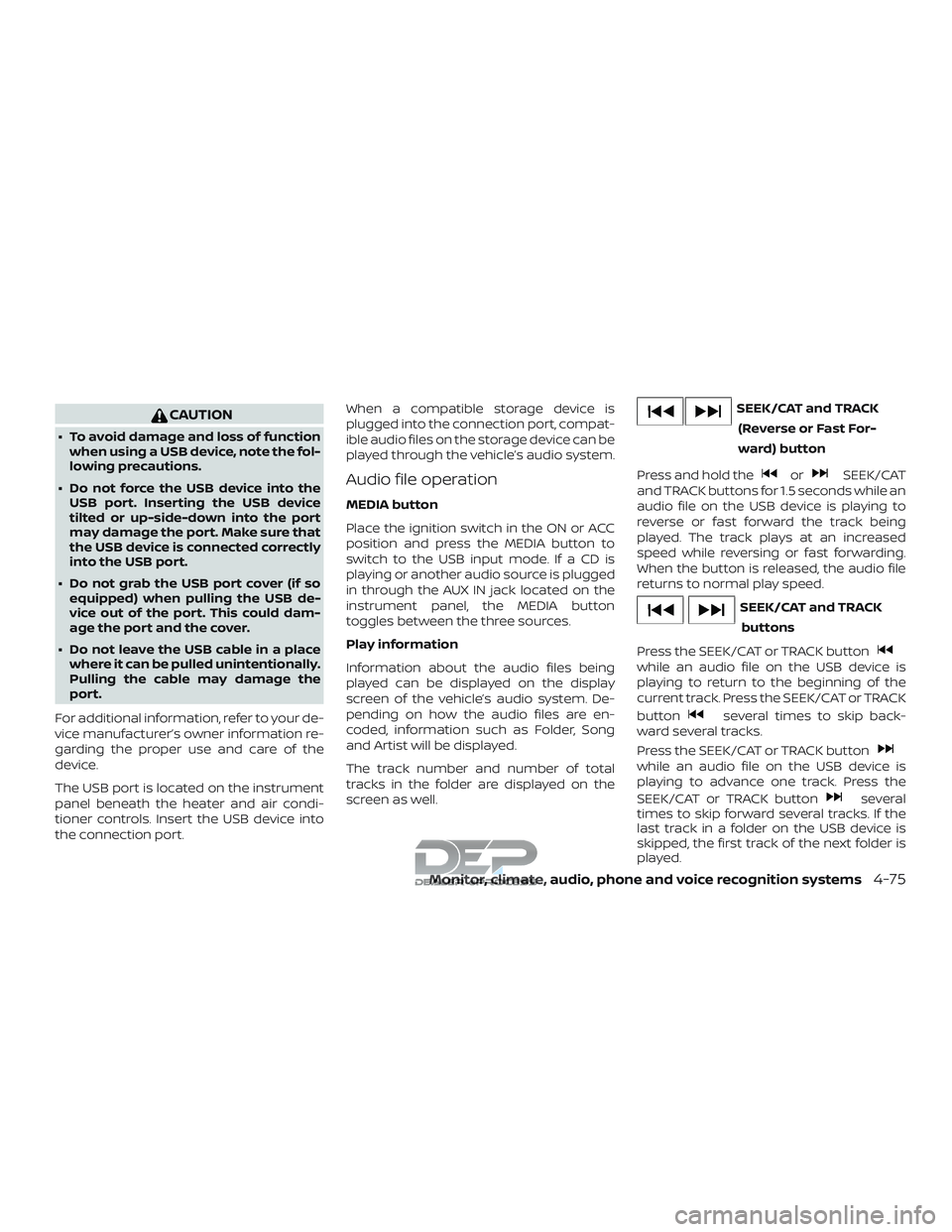
The USB port is located on the instrument
panel beneath the heater and air condi-
tioner controls. Insert the USB device into
the connection port. When a compatible storage device is
plugged into the connection port, compat-
ible audio files on the storage device can be
played through the vehicle’s audio system.
Audio file operation
MEDIA button
Place the ignition switch in the ON or ACC
position and press the MEDIA button to
switch to the USB input mode. If a CD is
playing or another audio source is plugged
in through the AUX IN jack located on the
instrument panel, the MEDIA button
toggles between the three sources.
Play information
Information about the audio files being
played can be displayed on the display
screen of the vehicle’s audio system. De-
pending on how the audio files are en-
coded, information such as Folder, Song
and Artist will be displayed.
The track number and number of total
tracks in the folder are displayed on the
screen as well.
SEEK/CAT and TRACK
(Reverse or Fast For-
ward) button
Press and hold the
orSEEK/CAT
and TRACK buttons for 1.5 seconds while an
audio file on the USB device is playing to
reverse or fast forward the track being
played. The track plays at an increased
speed while reversing or fast forwarding.
When the button is released, the audio file
returns to normal play speed.
SEEK/CAT and TRACK
buttons
Press the SEEK/CAT or TRACK button
while an audio file on the USB device is
playing to return to the beginning of the
current track. Press the SEEK/CAT or TRACK
button
several times to skip back-
ward several tracks.
Press the SEEK/CAT or TRACK button
while an audio file on the USB device is
playing to advance one track. Press the
SEEK/CAT or TRACK button
several
times to skip forward several tracks. If the
last track in a folder on the USB device is
skipped, the first track of the next folder is
played.
Monitor, climate, audio, phone and voice recognition systems4-75
Page 325 of 650
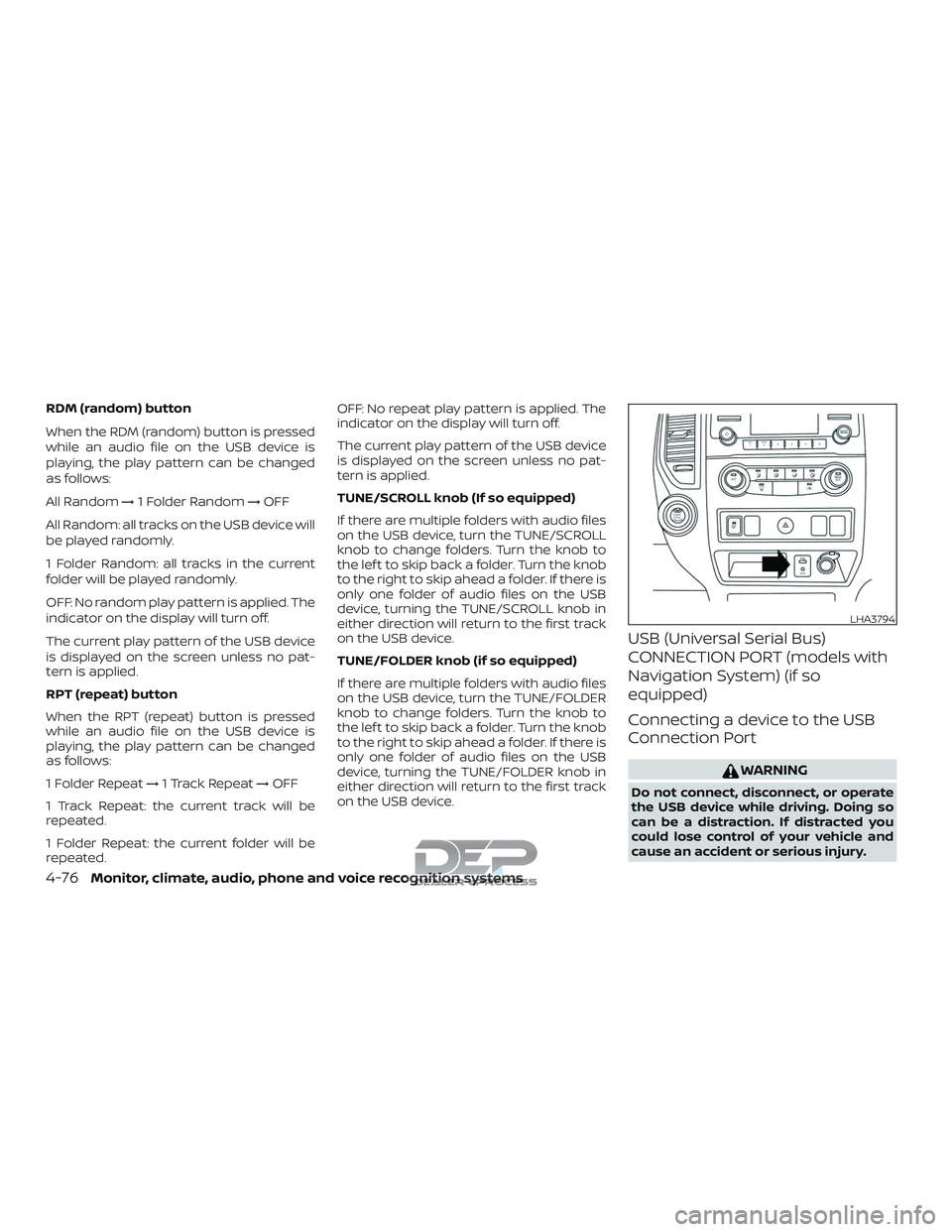
RDM (random) button
When the RDM (random) button is pressed
while an audio file on the USB device is
playing, the play pattern can be changed
as follows:
All Random→1 Folder Random →OFF
All Random: all tracks on the USB device will
be played randomly.
1 Folder Random: all tracks in the current
folder will be played randomly.
OFF: No random play pattern is applied. The
indicator on the display will turn off.
The current play pattern of the USB device
is displayed on the screen unless no pat-
tern is applied.
RPT (repeat) button
When the RPT (repeat) button is pressed
while an audio file on the USB device is
playing, the play pattern can be changed
as follows:
1 Folder Repeat →1 Track Repeat →OFF
1 Track Repeat: the current track will be
repeated.
1 Folder Repeat: the current folder will be
repeated. OFF: No repeat play pattern is applied. The
indicator on the display will turn off.
The current play pattern of the USB device
is displayed on the screen unless no pat-
tern is applied.
TUNE/SCROLL knob (If so equipped)
If there are multiple folders with audio files
on the USB device, turn the TUNE/SCROLL
knob to change folders. Turn the knob to
the lef t to skip back a folder. Turn the knob
to the right to skip ahead a folder. If there is
only one folder of audio files on the USB
device, turning the TUNE/SCROLL knob in
either direction will return to the first track
on the USB device.
TUNE/FOLDER knob (if so equipped)
If there are multiple folders with audio files
on the USB device, turn the TUNE/FOLDER
knob to change folders. Turn the knob to
the lef t to skip back a folder. Turn the knob
to the right to skip ahead a folder. If there is
only one folder of audio files on the USB
device, turning the TUNE/FOLDER knob in
either direction will return to the first track
on the USB device.
USB (Universal Serial Bus)
CONNECTION PORT (models with
Navigation System) (if so
equipped)
Connecting a device to the USB
Connection Port
WARNING
Do not connect, disconnect, or operate
the USB device while driving. Doing so
can be a distraction. If distracted you
could lose control of your vehicle and
cause an accident or serious injury.
LHA3794
4-76Monitor, climate, audio, phone and voice recognition systems
Page 326 of 650
CAUTION
∙ To avoid damage and loss of functionwhen using a USB device, note the fol-
lowing precautions.
∙ Do not force the USB device into the USB port. Inserting the USB device
tilted or up-side-down into the port
may damage the port. Make sure that
the USB device is connected correctly
into the USB port.
∙ Do not grab the USB port cover (if so equipped) when pulling the USB de-
vice out of the port. This could dam-
age the port and the cover.
∙ Do not leave the USB cable in a place where it can be pulled unintentionally.
Pulling the cable may damage the
port.
For additional information, refer to your de-
vice manufacturer’s owner information re-
garding the proper use and care of the
device.
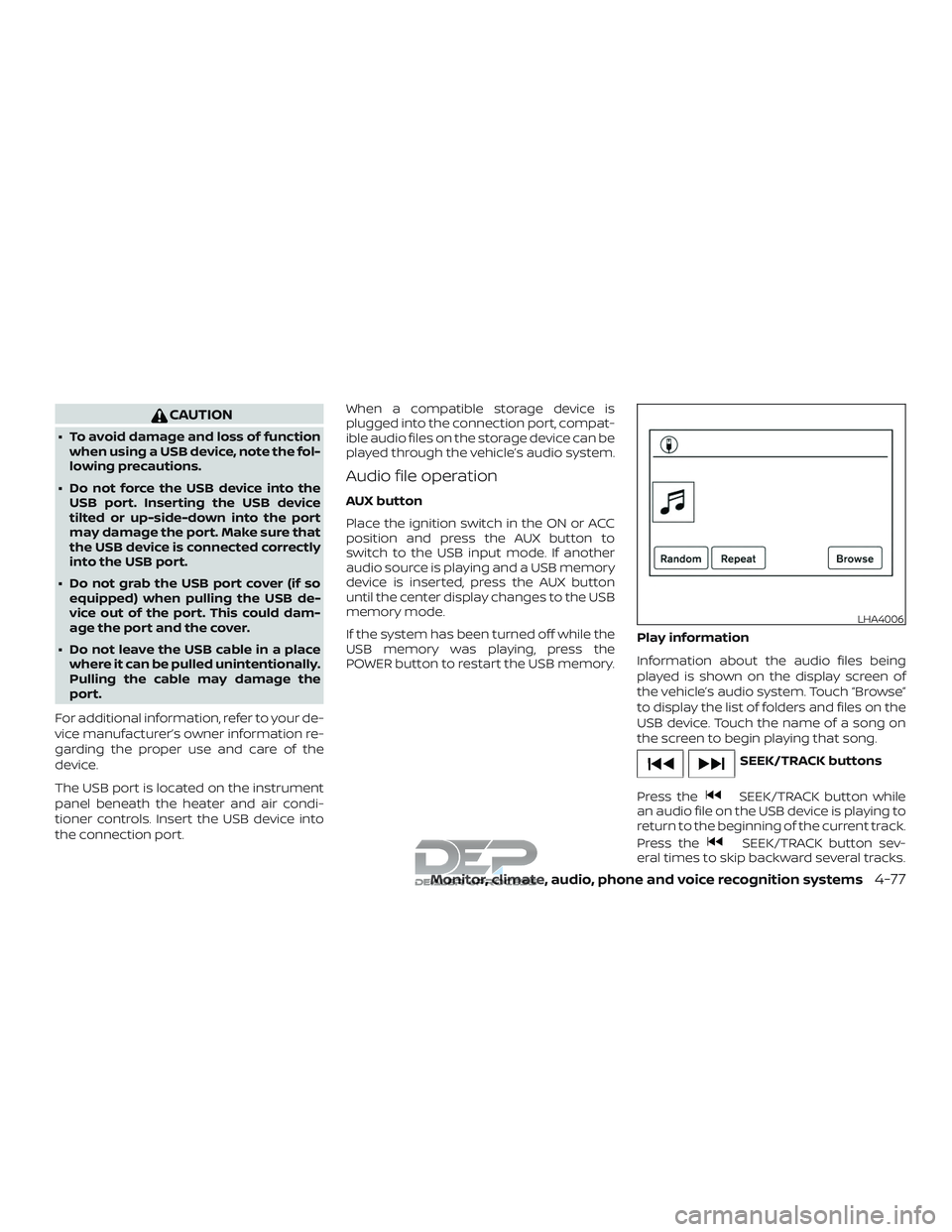
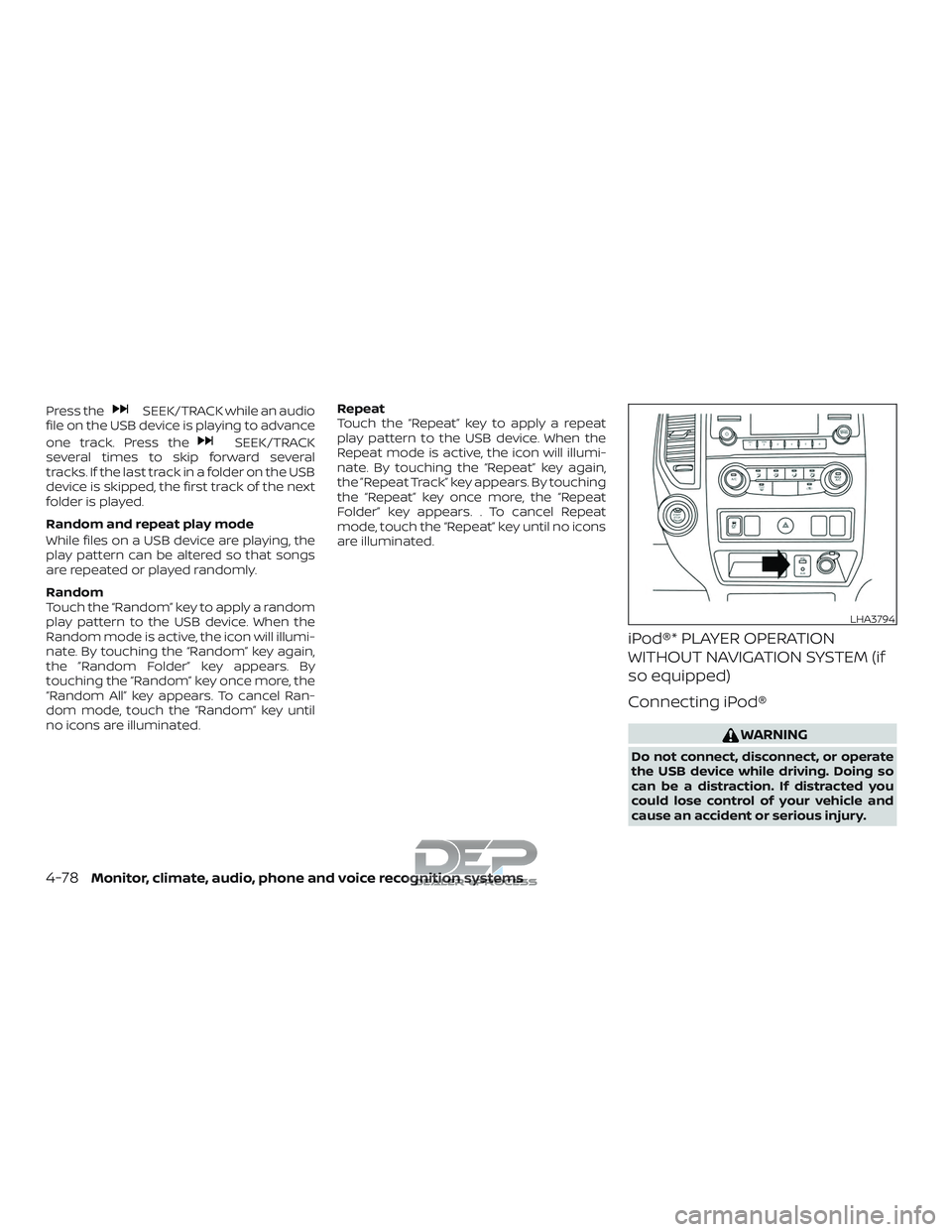
The USB port is located on the instrument
panel beneath the heater and air condi-
tioner controls. Insert the USB device into
the connection port. When a compatible storage device is
plugged into the connection port, compat-
ible audio files on the storage device can be
played through the vehicle’s audio system.
Audio file operation
AUX button
Place the ignition switch in the ON or ACC
position and press the AUX button to
switch to the USB input mode. If another
audio source is playing and a USB memory
device is inserted, press the AUX button
until the center display changes to the USB
memory mode.
If the system has been turned off while the
USB memory was playing, press the
POWER button to restart the USB memory.
Play information
Information about the audio files being
played is shown on the display screen of
the vehicle’s audio system. Touch “Browse”
to display the list of folders and files on the
USB device. Touch the name of a song on
the screen to begin playing that song.
SEEK/TRACK buttons
Press the
SEEK/TRACK button while
an audio file on the USB device is playing to
return to the beginning of the current track.
Press the
SEEK/TRACK button sev-
eral times to skip backward several tracks.
LHA4006
Monitor, climate, audio, phone and voice recognition systems4-77
Page 327 of 650
Press theSEEK/TRACK while an audio
file on the USB device is playing to advance
one track. Press the
SEEK/TRACK
several times to skip forward several
tracks. If the last track in a folder on the USB
device is skipped, the first track of the next
folder is played.
Random and repeat play mode
While files on a USB device are playing, the
play pattern can be altered so that songs
are repeated or played randomly.
Random
Touch the “Random” key to apply a random
play pattern to the USB device. When the
Random mode is active, the icon will illumi-
nate. By touching the “Random” key again,
the ”Random Folder” key appears. By
touching the “Random” key once more, the
“Random All” key appears. To cancel Ran-
dom mode, touch the “Random” key until
no icons are illuminated. Repeat
Touch the “Repeat” key to apply a repeat
play pattern to the USB device. When the
Repeat mode is active, the icon will illumi-
nate. By touching the “Repeat” key again,
the ”Repeat Track” key appears. By touching
the “Repeat” key once more, the “Repeat
Folder” key appears. . To cancel Repeat
mode, touch the “Repeat” key until no icons
are illuminated.
iPod®* PLAYER OPERATION
WITHOUT NAVIGATION SYSTEM (if
so equipped)
Connecting iPod®
WARNING
Do not connect, disconnect, or operate
the USB device while driving. Doing so
can be a distraction. If distracted you
could lose control of your vehicle and
cause an accident or serious injury.
LHA3794
4-78Monitor, climate, audio, phone and voice recognition systems
Page 328 of 650
CAUTION
∙ Do not force the USB device into theUSB port. Inserting the USB device
tilted or up-side-down into the port
may damage the port. Make sure that
the USB device is connected correctly
into the USB port.
∙ Do not grab the USB port cover (if so equipped) when pulling the USB de-
vice out of the port. This could dam-
age the port and the cover.
∙ Do not leave the USB cable in a place where it can be pulled unintentionally.
Pulling the cable may damage the
port.
For additional information, refer to your de-
vice manufacturer’s owner information re-
garding the proper use and care of the
device.
To connect an iPod® to the vehicle so that
the iPod® can be controlled with the audio
system controls and display screen, use
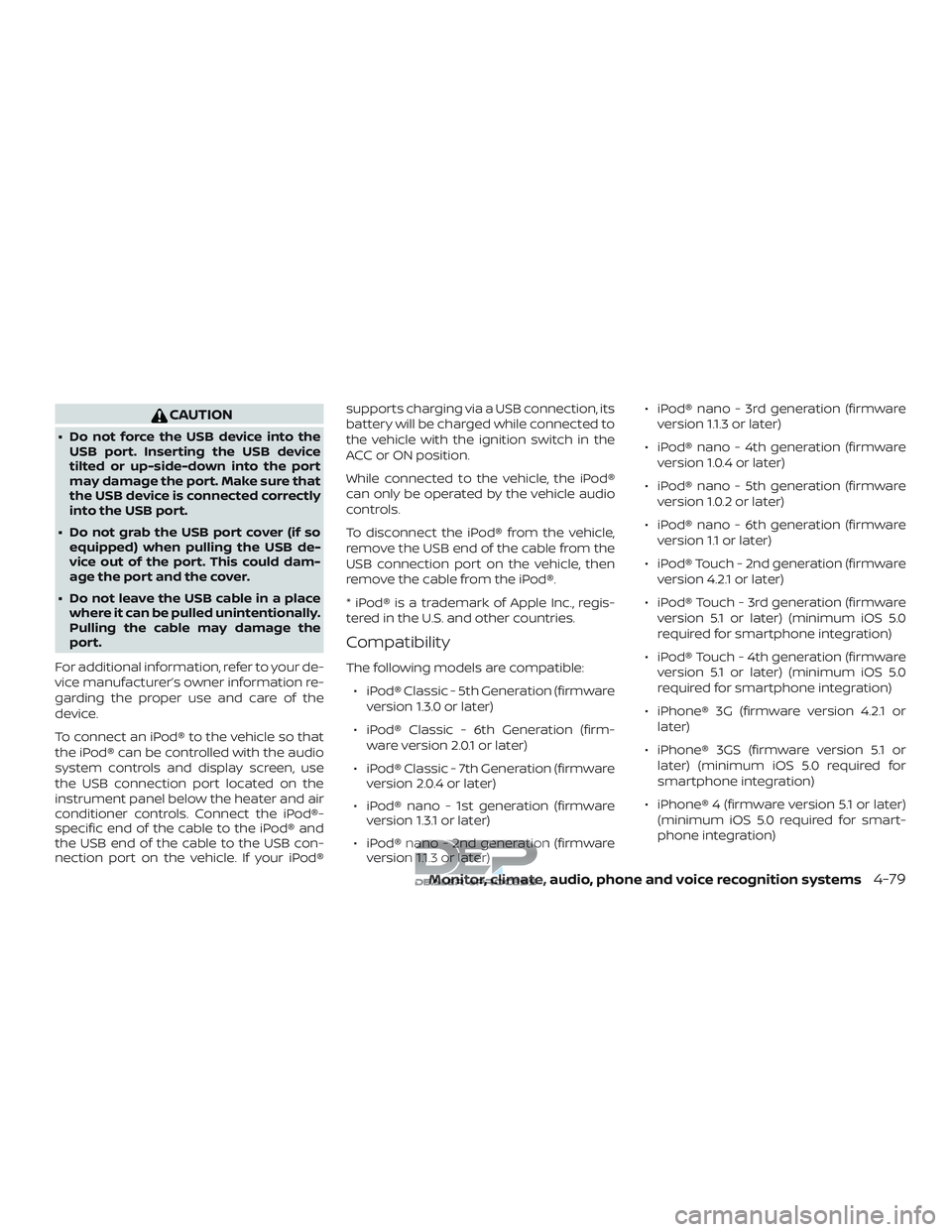
the USB connection port located on the
instrument panel below the heater and air
conditioner controls. Connect the iPod®-
specific end of the cable to the iPod® and
the USB end of the cable to the USB con-
nection port on the vehicle. If your iPod® supports charging via a USB connection, its
battery will be charged while connected to
the vehicle with the ignition switch in the
ACC or ON position.
While connected to the vehicle, the iPod®
can only be operated by the vehicle audio
controls.
To disconnect the iPod® from the vehicle,
remove the USB end of the cable from the
USB connection port on the vehicle, then
remove the cable from the iPod®.
* iPod® is a trademark of Apple Inc., regis-
tered in the U.S. and other countries.
Compatibility
The following models are compatible:
∙ iPod® Classic - 5th Generation (firmware version 1.3.0 or later)
∙ iPod® Classic - 6th Generation (firm- ware version 2.0.1 or later)
∙ iPod® Classic - 7th Generation (firmware version 2.0.4 or later)
∙ iPod® nano - 1st generation (firmware version 1.3.1 or later)
∙ iPod® nano - 2nd generation (firmware version 1.1.3 or later) ∙ iPod® nano - 3rd generation (firmware
version 1.1.3 or later)
∙ iPod® nano - 4th generation (firmware version 1.0.4 or later)
∙ iPod® nano - 5th generation (firmware version 1.0.2 or later)
∙ iPod® nano - 6th generation (firmware version 1.1 or later)
∙ iPod® Touch - 2nd generation (firmware version 4.2.1 or later)
∙ iPod® Touch - 3rd generation (firmware version 5.1 or later) (minimum iOS 5.0
required for smartphone integration)
∙ iPod® Touch - 4th generation (firmware version 5.1 or later) (minimum iOS 5.0
required for smartphone integration)
∙ iPhone® 3G (firmware version 4.2.1 or later)
∙ iPhone® 3GS (firmware version 5.1 or later) (minimum iOS 5.0 required for
smartphone integration)
∙ iPhone® 4 (firmware version 5.1 or later) (minimum iOS 5.0 required for smart-
phone integration)
Monitor, climate, audio, phone and voice recognition systems4-79
Page 330 of 650
iPod®* PLAYER OPERATION WITH
NAVIGATION SYSTEM (if so
equipped)
Connecting iPod®
WARNING
Do not connect, disconnect, or operate
the USB device while driving. Doing so
can be a distraction. If distracted you
could lose control of your vehicle and
cause an accident or serious injury.
CAUTION
∙ Do not force the USB device into theUSB port. Inserting the USB device
tilted or up-side-down into the port
may damage the port. Make sure that
the USB device is connected correctly
into the USB port.
∙ Do not grab the USB port cover (if so equipped) when pulling the USB de-
vice out of the port. This could dam-
age the port and the cover.
∙ Do not leave the USB cable in a place where it can be pulled unintentionally.
Pulling the cable may damage the
port.
For additional information, refer to your de-
vice manufacturer’s owner information re-
garding the proper use and care of the
device.
To connect an iPod® to the vehicle so that
the iPod® can be controlled with the audio
system controls and display screen, use
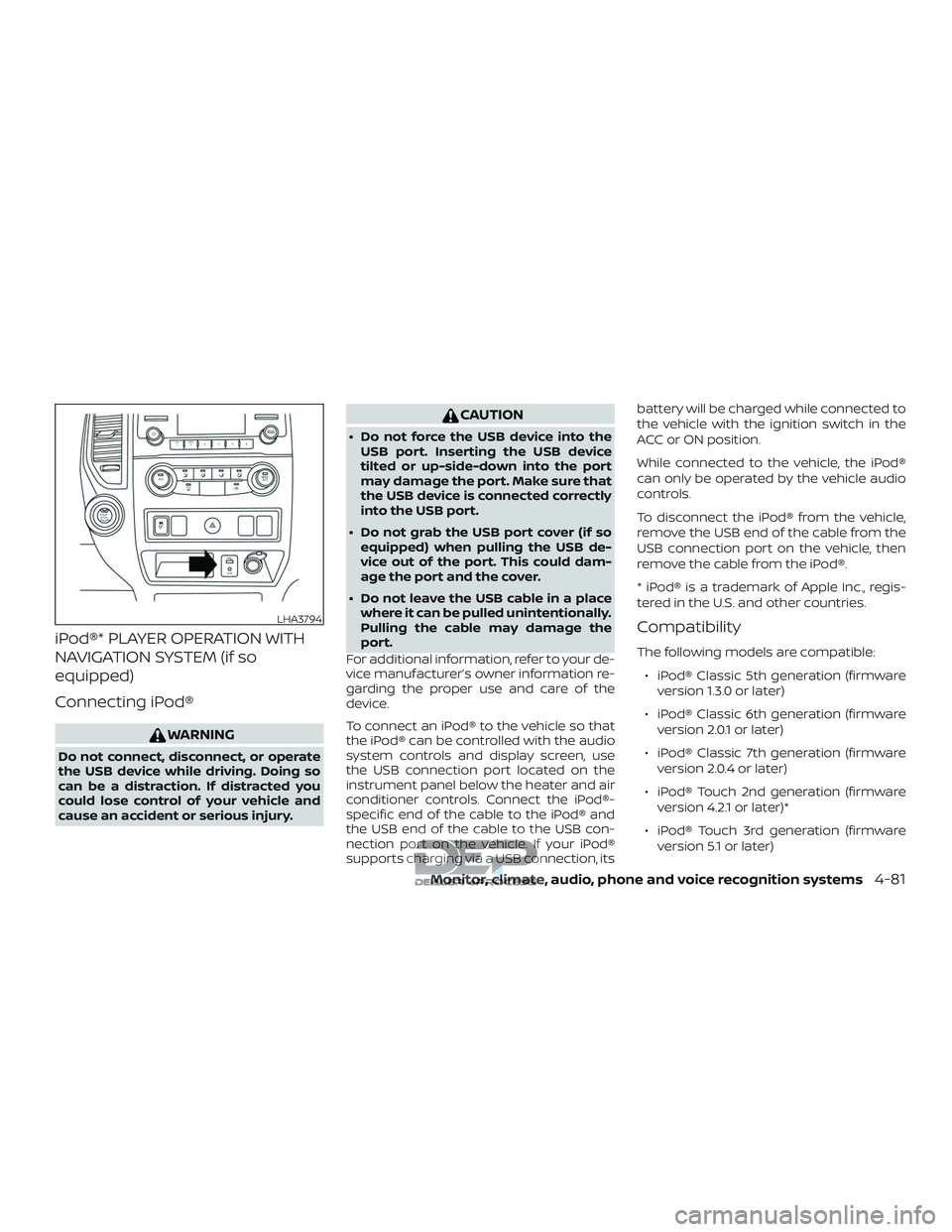
the USB connection port located on the
instrument panel below the heater and air
conditioner controls. Connect the iPod®-
specific end of the cable to the iPod® and
the USB end of the cable to the USB con-
nection port on the vehicle. If your iPod®
supports charging via a USB connection, its battery will be charged while connected to
the vehicle with the ignition switch in the
ACC or ON position.
While connected to the vehicle, the iPod®
can only be operated by the vehicle audio
controls.
To disconnect the iPod® from the vehicle,
remove the USB end of the cable from the
USB connection port on the vehicle, then
remove the cable from the iPod®.
* iPod® is a trademark of Apple Inc., regis-
tered in the U.S. and other countries.
Compatibility
The following models are compatible:
∙ iPod® Classic 5th generation (firmware version 1.3.0 or later)
∙ iPod® Classic 6th generation (firmware version 2.0.1 or later)
∙ iPod® Classic 7th generation (firmware version 2.0.4 or later)
∙ iPod® Touch 2nd generation (firmware version 4.2.1 or later)*
∙ iPod® Touch 3rd generation (firmware version 5.1 or later)
LHA3794
Monitor, climate, audio, phone and voice recognition systems4-81
Page 333 of 650
BLUETOOTH® STREAMING AUDIO
WITHOUT NAVIGATION SYSTEM (if
so equipped)
If you have a compatible Bluetooth® audio
device that is capable of playing audio files,
the device can be connected to the vehi-
cle’s audio system so that the audio files on
the device play through the vehicle’s
speakers.
Connecting Bluetooth® audio
To connect your Bluetooth® audio device
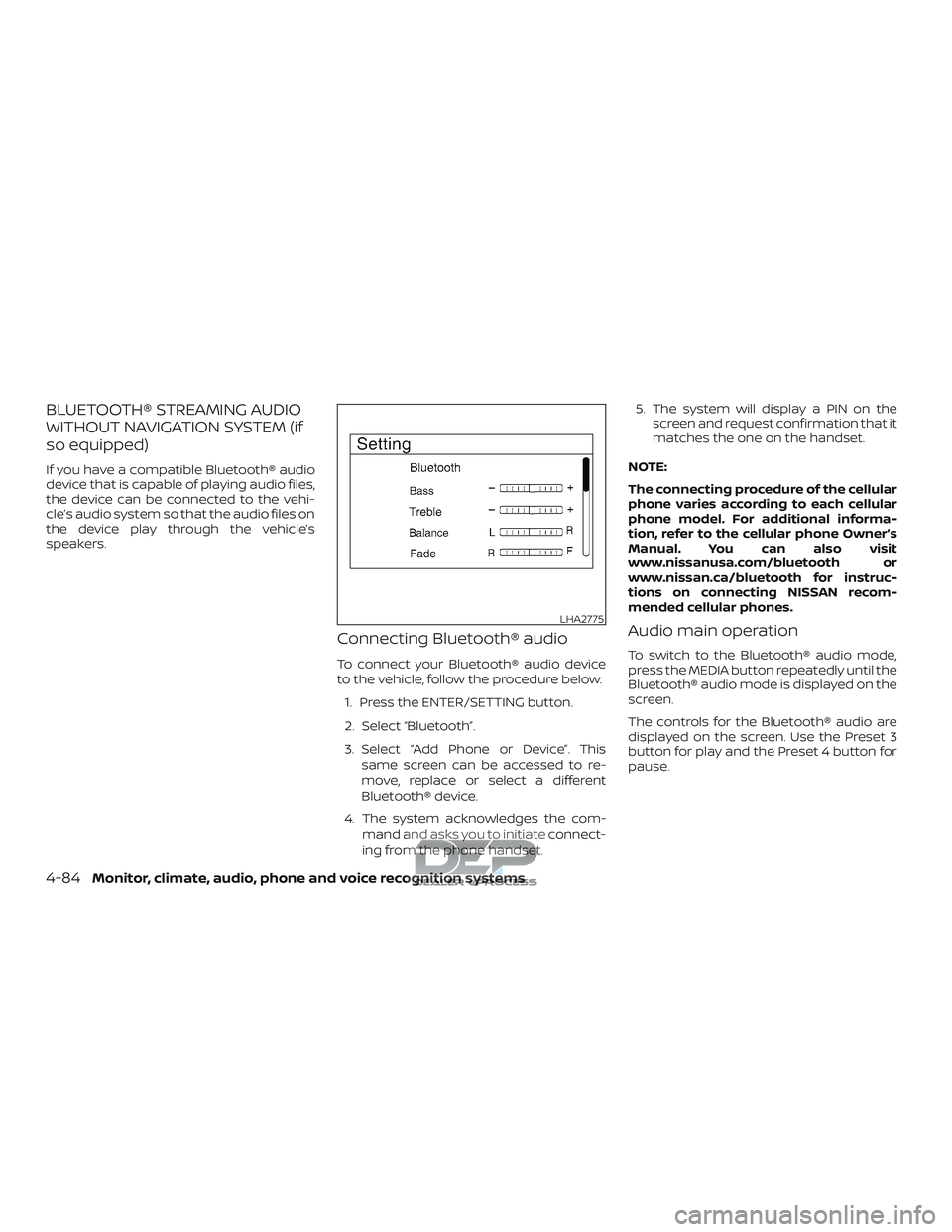
to the vehicle, follow the procedure below:1. Press the ENTER/SETTING button.
2. Select “Bluetooth”.
3. Select “Add Phone or Device”. This same screen can be accessed to re-
move, replace or select a different
Bluetooth® device.
4. The system acknowledges the com- mand and asks you to initiate connect-
ing from the phone handset. 5. The system will display a PIN on the
screen and request confirmation that it
matches the one on the handset.
NOTE:
The connecting procedure of the cellular
phone varies according to each cellular
phone model. For additional informa-
tion, refer to the cellular phone Owner’s
Manual. You can also visit
www.nissanusa.com/bluetooth or
www.nissan.ca/bluetooth for instruc-
tions on connecting NISSAN recom-
mended cellular phones.
Audio main operation
To switch to the Bluetooth® audio mode,
press the MEDIA button repeatedly until the
Bluetooth® audio mode is displayed on the
screen.
The controls for the Bluetooth® audio are
displayed on the screen. Use the Preset 3
button for play and the Preset 4 button for
pause.
LHA2775
4-84Monitor, climate, audio, phone and voice recognition systems