climate control NISSAN TITAN 2018 Owner´s Manual
[x] Cancel search | Manufacturer: NISSAN, Model Year: 2018, Model line: TITAN, Model: NISSAN TITAN 2018Pages: 650, PDF Size: 7.54 MB
Page 360 of 650
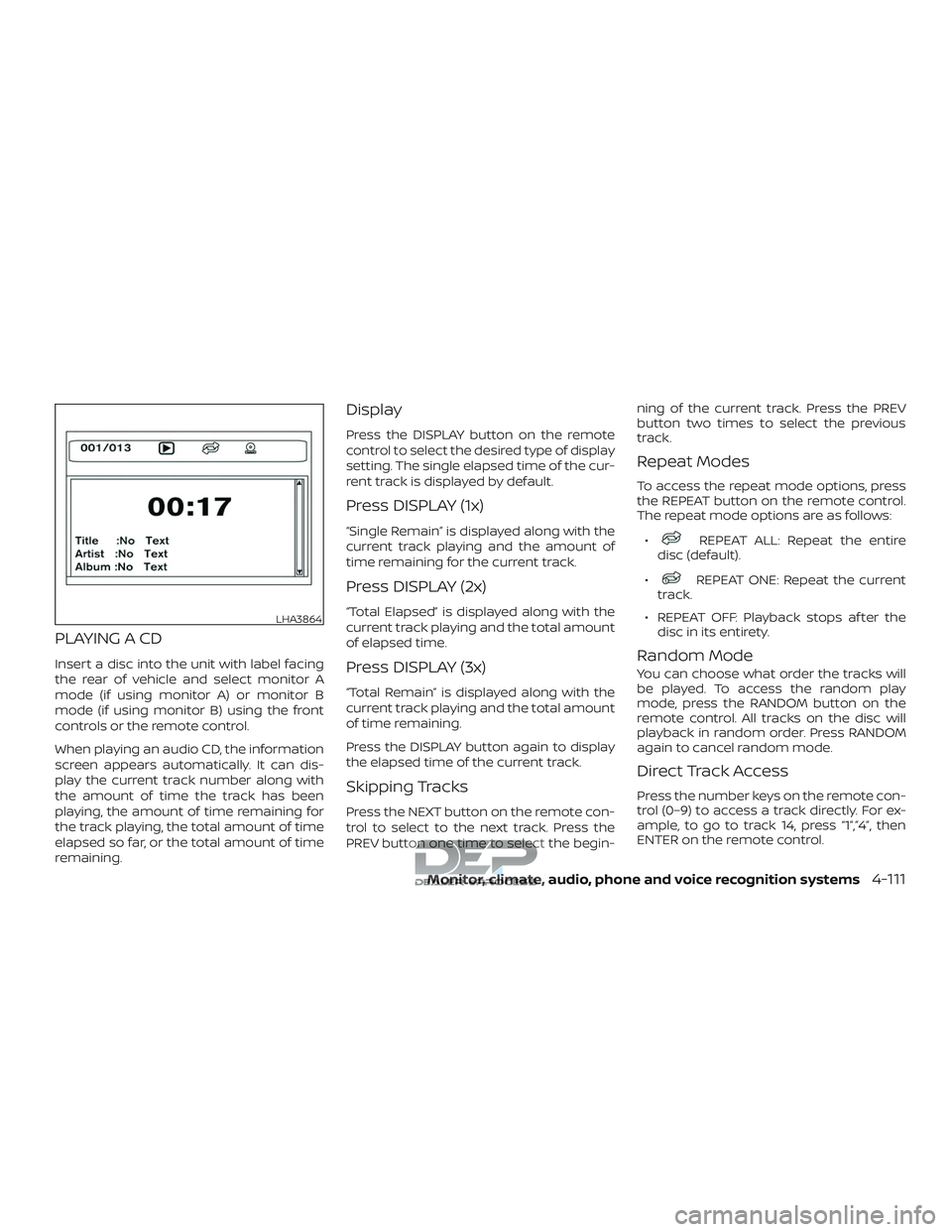
PLAYING A CD
Insert a disc into the unit with label facing
the rear of vehicle and select monitor A
mode (if using monitor A) or monitor B
mode (if using monitor B) using the front
controls or the remote control.
When playing an audio CD, the information
screen appears automatically. It can dis-
play the current track number along with
the amount of time the track has been
playing, the amount of time remaining for
the track playing, the total amount of time
elapsed so far, or the total amount of time
remaining.
Display
Press the DISPLAY button on the remote
control to select the desired type of display
setting. The single elapsed time of the cur-
rent track is displayed by default.
Press DISPLAY (1x)
“Single Remain” is displayed along with the
current track playing and the amount of
time remaining for the current track.
Press DISPLAY (2x)
“Total Elapsed” is displayed along with the
current track playing and the total amount
of elapsed time.
Press DISPLAY (3x)
“Total Remain” is displayed along with the
current track playing and the total amount
of time remaining.
Press the DISPLAY button again to display
the elapsed time of the current track.
Skipping Tracks
Press the NEXT button on the remote con-
trol to select to the next track. Press the
PREV button one time to select the begin-ning of the current track. Press the PREV
button two times to select the previous
track.
Repeat Modes
To access the repeat mode options, press
the REPEAT button on the remote control.
The repeat mode options are as follows:
∙
REPEAT ALL: Repeat the entire
disc (default).
∙
REPEAT ONE: Repeat the current
track.
∙ REPEAT OFF: Playback stops af ter the disc in its entirety.
Random Mode
You can choose what order the tracks will
be played. To access the random play
mode, press the RANDOM button on the
remote control. All tracks on the disc will
playback in random order. Press RANDOM
again to cancel random mode.
Direct Track Access
Press the number keys on the remote con-
trol (0–9) to access a track directly. For ex-
ample, to go to track 14, press “1”,”4”, then
ENTER on the remote control.
LHA3864
Monitor, climate, audio, phone and voice recognition systems4-111
Page 361 of 650
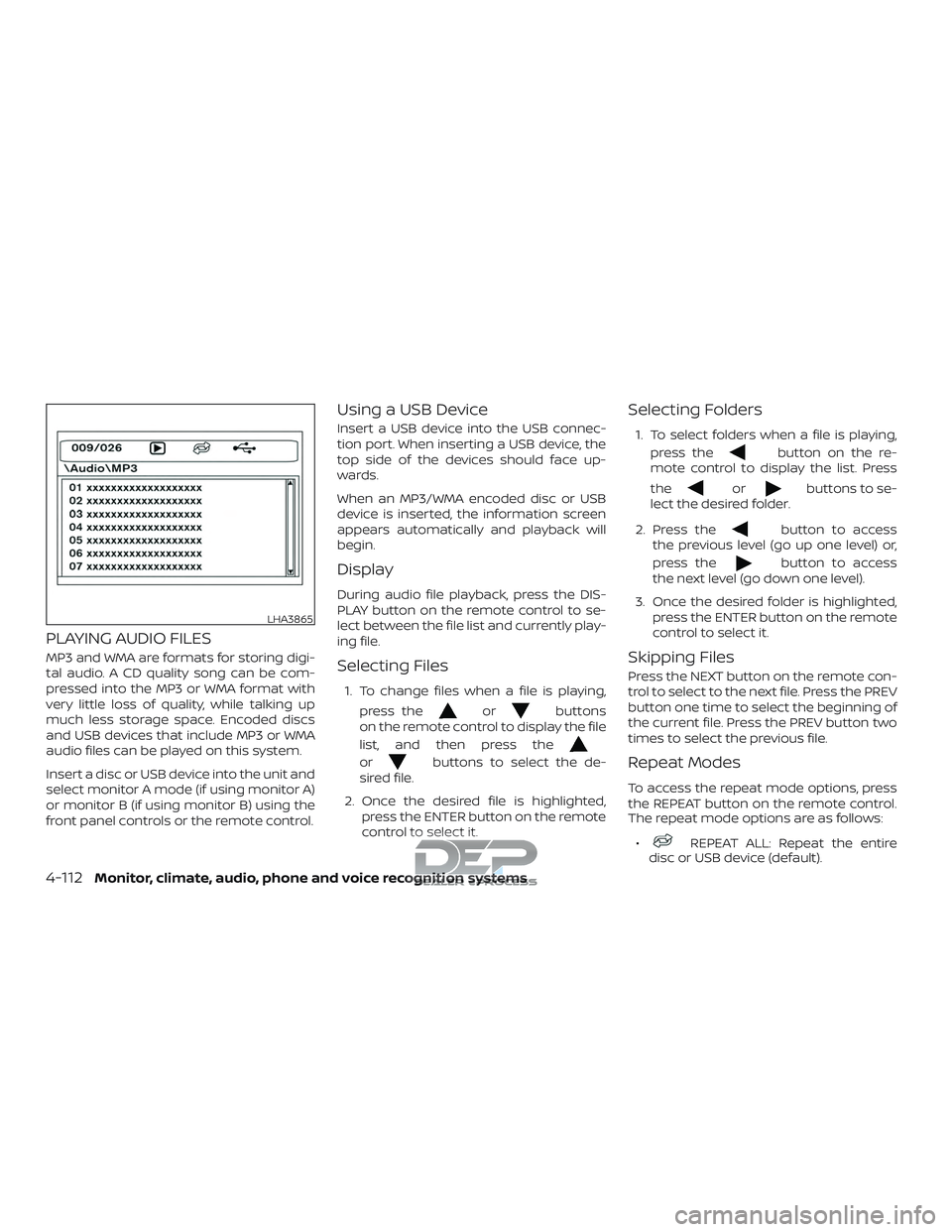
PLAYING AUDIO FILES
MP3 and WMA are formats for storing digi-
tal audio. A CD quality song can be com-
pressed into the MP3 or WMA format with
very little loss of quality, while talking up
much less storage space. Encoded discs
and USB devices that include MP3 or WMA
audio files can be played on this system.
Insert a disc or USB device into the unit and
select monitor A mode (if using monitor A)
or monitor B (if using monitor B) using the
front panel controls or the remote control.
Using a USB Device
Insert a USB device into the USB connec-
tion port. When inserting a USB device, the
top side of the devices should face up-
wards.
When an MP3/WMA encoded disc or USB
device is inserted, the information screen
appears automatically and playback will
begin.
Display
During audio file playback, press the DIS-
PLAY button on the remote control to se-
lect between the file list and currently play-
ing file.
Selecting Files
1. To change files when a file is playing,press the
orbuttons
on the remote control to display the file
list, and then press the
orbuttons to select the de-
sired file.
2. Once the desired file is highlighted, press the ENTER button on the remote
control to select it.
Selecting Folders
1. To select folders when a file is playing,
press the
button on the re-
mote control to display the list. Press
the
orbuttons to se-
lect the desired folder.
2. Press the
button to access
the previous level (go up one level) or,
press the
button to access
the next level (go down one level).
3. Once the desired folder is highlighted, press the ENTER button on the remote
control to select it.
Skipping Files
Press the NEXT button on the remote con-
trol to select to the next file. Press the PREV
button one time to select the beginning of
the current file. Press the PREV button two
times to select the previous file.
Repeat Modes
To access the repeat mode options, press
the REPEAT button on the remote control.
The repeat mode options are as follows:
∙
REPEAT ALL: Repeat the entire
disc or USB device (default).
LHA3865
4-112Monitor, climate, audio, phone and voice recognition systems
Page 362 of 650
∙REPEAT FOLDER: Repeat the cur-
rent folder
∙
REPEAT ONE: Repeat the current
file.
∙ REPEAT OFF: Playback stops af ter the disc or USB device is played in its en-
tirety.
Random Mode
You can choose what order the files will be
played. To access the random play mode,
press the RANDOM button on the remote
control. The files in the current folder will
playback in random order. Press RANDOM
again to cancel random mode.
Direct File Access
Press the number keys on the remote con-
trol (0–9) to access a file directly. For ex-
ample, to go to track 14, press “1”,”4”, then
ENTER on the remote control.
PLAYING IMAGE FILES
Insert a disc or USB device into the unit and
select monitor A mode (if using monitor A)
or monitor B (if using monitor B) using the
front panel controls or the remote control.
Using a USB Device
Insert a USB device into the USB connec-
tion port. When inserting a USB device, the
top side of the devices should face up-
wards.
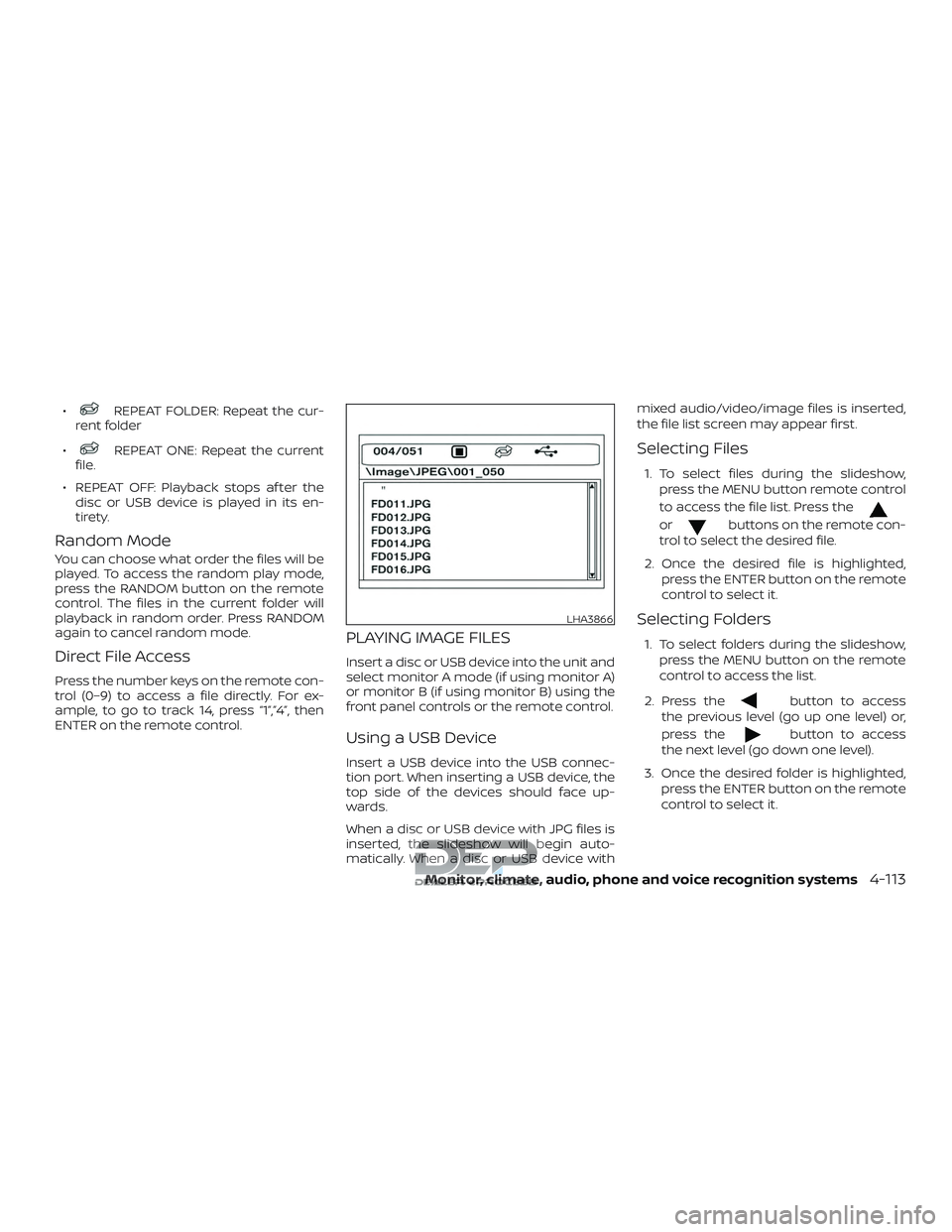
When a disc or USB device with JPG files is
inserted, the slideshow will begin auto-
matically. When a disc or USB device with mixed audio/video/image files is inserted,
the file list screen may appear first.
Selecting Files
1. To select files during the slideshow,
press the MENU button remote control
to access the file list. Press the
orbuttons on the remote con-
trol to select the desired file.
2. Once the desired file is highlighted, press the ENTER button on the remote
control to select it.
Selecting Folders
1. To select folders during the slideshow,press the MENU button on the remote
control to access the list.
2. Press the
button to access
the previous level (go up one level) or,
press the
button to access
the next level (go down one level).
3. Once the desired folder is highlighted, press the ENTER button on the remote
control to select it.
LHA3866
Monitor, climate, audio, phone and voice recognition systems4-113
Page 363 of 650
Repeat Modes
To access the repeat mode options, press
the REPEAT button on the remote control.
The repeat mode options are as follows:∙
REPEAT ALL: Repeat the entire
disc or USB device (default).
∙
REPEAT FOLDER: Repeat the cur-
rent folder
∙
REPEAT ONE: Repeat the current
file.
∙ REPEAT OFF: Playback stops af ter the disc or USB device is played in its en-
tirety.
Thumbnail Views
1. Press the STOP button on the remote control during the slideshow to display
images in thumbnail mode. Press
the
orand
the
orbuttons on the
remote control to select the desired
language.
2. Once the desired image is highlighted, press the ENTER button on the remote
control to select it.
Rotating Images
During the slideshow, press thebutton on the remote control to rotate the
image 90° clockwise. Press the
button to rotate the image 90° counter-
clockwise.
Inverting Images
During the slideshow, press thebutton on the remote control to invert the
image (Up-Down).
Mirroring Images
During the slideshow, press
the
button on the remote control
to mirror the image (Lef t-Right).
Direct File Access
Press the number keys on the remote con-
trol (0–9) to access a file directly. For ex-
ample, to go to track 14, press “1”,”4”, then
ENTER on the remote control.
PLAYING VIDEO FILES
Insert a disc or USB device into the unit and
select monitor A mode (if using monitor A)
or monitor B (if using monitor B) using the
front panel controls or the remote control.
Using a USB Device
Insert a USB device into the USB connec-
tion port. When inserting a USB device, the
top side of the device should face upwards.
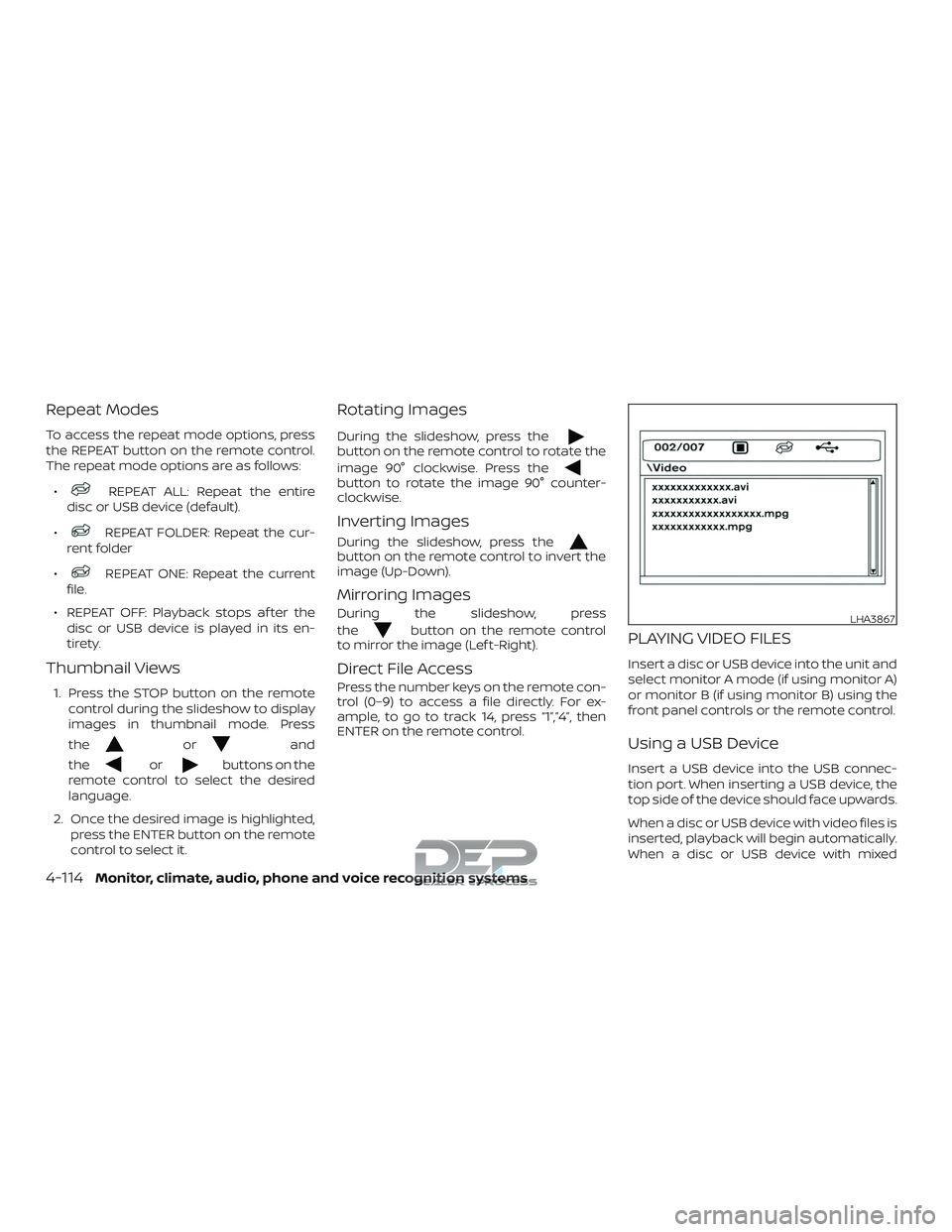
When a disc or USB device with video files is
inserted, playback will begin automatically.
When a disc or USB device with mixed
LHA3867
4-114Monitor, climate, audio, phone and voice recognition systems
Page 364 of 650
audio/video/image files is inserted, the file
list screen may appear first.
Selecting Files
1. To select files during the video play-back, press the MENU button on the
remote control to access the file list.
Press the
orbuttons
on the remote control to select the de-
sired file.
2. Once the desired file is highlighted, press the ENTER button on the remote
control to select it.
Selecting Folders
1. To select folders during video playback,press the MENU button on the remote
control to access the list.
2. Press the
button to access
the previous level (go up one level) or,
press the
button to access
the next level (go down one level).
3. Once the desired folder is highlighted, press the ENTER button on the remote
control to select it.
Skipping Files
Press the NEXT button on the remote con-
trol to select to the next file. Press the PREV
button one time to select the beginning of
the current file. Press the PREV button two
times to select the previous file.
Repeat Modes
To access the repeat mode options, press
the REPEAT button on the remote control.
The repeat mode options are as follows:
∙
REPEAT ALL: Repeat the entire
disc or USB device (default).
∙
REPEAT FOLDER: Repeat the cur-
rent folder
∙
REPEAT ONE: Repeat the current
file.
∙ REPEAT OFF: Playback stops af ter the disc or USB device is played in its en-
tirety.
Direct File Access
Press the number keys on the remote con-
trol (0–9) to access a file directly. For ex-
ample, to go to track 14, press “1”,”4”, then
ENTER on the remote control.
CHARGING A USB DEVICE
Plug the USB cable (not supplied) into the
USB connection port and then connect the
other end to the USB device.
NOTE:
Depending on the device, it may or may
not charge when connected to the USB
port. Not all devices are able to charge
when connected to the USB port.
CONNECTING AN EXTERNAL
AUXILIARY A/V SOURCE — INPUT
An external A/V source such as a media
player, video game, or other audio/video
device may be connected to the RCA type
jacks on the front of the monitor. Connect
the external audio/video source to the RCA
type input jacks on the front of the monitor
using RCA type connectors (sold sepa-
rately).
Yellow: Video input
Red: Audio-right channel input
White: Audio-lef t channel input
The system will automatically select the
auxiliary input mode when the RCA type
connectors are inserted into the input
Monitor, climate, audio, phone and voice recognition systems4-115
Page 365 of 650
jacks. The auxiliary input connection over-
rides disc and USB playback.
The system provides priority for each of the
following device inputs:1. External RCA A/V input
2. USB port
3. Disc playback
For example if a disc is playing and a USB
device is plugged in, the USB device will
take priority over disc playback. The exter-
nal RCA A/V input connections have prior-
ity over both USB port and disc playback.
CONNECTING AN EXTERNAL A/V
MONITOR — OUTPUT
An external audio/video monitor may be
connected to the 3.5mm A/V connector
(sold separately).
NOTE:
Use the 3.5mm A/V cable made specifi-
cally for the device. An optional adapter
(sold separately) may be used to convert
the 3.5mm A/V output to the standard
RCA jacks.
SELECTING MONITOR A OR B AS
THE SOURCE
It is possible to select monitor B as the
source from monitor A and vice versa. This
will allow content that is playing on monitor
B to be displayed on monitor A.
Monitor A:
To select monitor B as the source for moni-
tor A, press the source button on the front
panel or the remote control until “MONITOR
B” is displayed.
Monitor B:
To select monitor A as the source for moni-
tor B, press the source button on the front
panel or the remote control until “MONITOR
A” is displayed.
TROUBLESHOOTING GUIDE
Symptom Remedy
Monitor does
not power on. Is ignition switch turned to the
ON or ACC position?
Are batteries installed in the re-
mote control?
Check the remote control to
make sure “DVD-A” button is
pressed for controlling monitor
A and “DVD-B” button is pressed
for controlling monitor B.
Symptom Remedy
Remote con-
trol does not
function.
Verif y that the batteries in the
remote control are good.
Verif y that the remote sensor
lens is not obstructed.
Disc will not
play. Insert the disc with label side
facing the rear of the vehicle.
Check if the disc is defective by
trying another disc.
Check the type of disc being
played. This unit only plays DVD
(Single, Dual Layer), DVD-R/+R,
DVD+R Dual layer, DVD-RW/+RW,
CD, CD-R, and CD-RW.
Both the unit and DVD discs are
coded by region. If the region
codes don’t match, the DVD
can’tbeplayed.
Disc plays, but
stops
intermittently. The disc is dirty and needs
cleaning.
Condensation has formed in-
side the unit. Remove the disc
and allow unit to dry out.
No picture. Check the signal source is
connected.
Check the menu source setting.
Match your monitor mode with
the source correctly.
Distorted
picture. Check the disc for fingerprints
and clean with a sof t cloths,
wiping from center to edge.
4-116Monitor, climate, audio, phone and voice recognition systems
Page 366 of 650
Symptom Remedy
Cannot ad-
vance through
a DVD movie.You cannot advance through
the opening credits and warn-
ing information that appears at
the beginning of DVDs because
the disc is programmed to pro-
hibit these actions.
No sound or
distorted
sound. Make sure that the external me-
dia device is connected
properly, and all cables are se-
curely inserted into the appro-
priate jacks.
Verif y that the batteries in the
headphones are good.
If you are using the wireless
headphones, make sure you
turn on the power and select
thecorrectmonitor(AorB).
Is volume turned on the head-
phones?
Is anything blocking the path
between the monitor IR sensor
and headphones?
When placing the headphones
on your head, make sure to ob-
serve the Lef t and Right
orientation. The headphones
must be oriented correctly (fac-
ing forward) in order to receive
the audio signal.Symptom Remedy
Monitor feels
warm.
When the monitor is in use for a
long period of time, the surface
will be warm. This is normal.
Player does
not respond
to all com-
mands during
playback. Some operations are not per-
mitted by the DVD.
For additional information, refer
to the specific instructions in-
cluded with the DVD.
When a DVD is
inserted, a Pa-
rental Setting
message is
displayed, pro-
hibiting DVD
movie
playback. Using the remote control, enter
the 4–digit Parental Password
(0000) and then press Enter.
Af ter the Pa-
rental Pass-
word is
entered, a
Password In-
correct mes-
sage is dis-
played and
DVD movie will
not play. If the incorrect Parental Pass-
word is entered more than two
times, the until will stop play-
back and return to the
splashscreen. Using the remote
control, press Play to initiate
playback and display the Paren-
tal Setting message. Using the
remote control, enter the 4–digit
Parental Password (0000) and
then press Enter.SPECIFICATIONS
LCD Backlight LED
Resolution 480x3(RGB) x234
Display 7”TFT LCD Panel
DVD Mechanism Slot-In Loader
Supported Disc
DVD (Single, Dual Layer),
DVD-R/+R, DVD-R/+R Dual
layer, DVD-RW/+RW, CD,
CD-R, CD-RW
Sources Internal CD/DVD, USB Flash
Memory, External A/V Input
I/O Ports USB 2.0 port, 3.5mm A/V
Output Jack, 3.5mm Head-
phone Jack, RCA Type A/V
Input Jacks
Frequency Re-
sponse 20Hz — 20kHz
Headphone (Audio
Out) Output Level: 2Vpp (input
0dB 1kHz)
Load Impedance: 10kΩ
Video Display Sys-
tem NTSC/PAL
Video Out Output Level: 1Vpp (±20%)
Load Impedance: 75Ω
Wireless Audio Dual channel infrared audio
transmitter, supports stereo
headphone operation
IR Channels Channels
A :2.3/2.8 MHz
B: 3.2/3.8 MHz
Monitor, climate, audio, phone and voice recognition systems4-117
Page 368 of 650
WEEE NOTICE
Disposal of Old Electrical & Electronic
Equipment (Applicable in the European
Union and other European countries with
separate collection systems).
This symbol on the product or on its pack-
aging indicates that the device shall not be
treated as household waste. Instead, it
shall be handed over to the applicable col-
lection point for the recycling of electrical
and electronic equipment By ensuring this
device is disposed of correctly, you will help
prevent potential negative consequences
for the environment and human health,which could otherwise be caused by inap-
propriate waste handling of this device.
The recycling of material will help to con-
serve natural resources. For additional in-
formation about recycling of this device,
please contact your local city office, your
household waste disposal service or the
shop where you purchased the device. Ap-
plicable accessory: remote control.
MACROVISION NOTICE
This product incorporates copyright pro-
tection technology that is protected by
method claims of certain U.S. patents and
other intellectual property rights owned by
Macrovision Corporation and other rights
owners. Use of this copyright protection
technology must be authorized by Macro-
vision Corporation, and is intended for
home and other limited viewing used only
unless otherwise authorized by Macrovi-
sion Corporation. Reverse engineering or
disassembly is prohibited.
DOLBY DIGITAL
Manufactured under license from Dolby
Laboratories.
Dolby and the double-D symbol are regis-
tered trademarks of Dolby Laboratories.
LHA3869LHA3870
Monitor, climate, audio, phone and voice recognition systems4-119
Page 369 of 650
When installing a CB, ham radio or car
phone in your vehicle, be sure to observe
the following precautions; otherwise, the
new equipment may adversely affect the
engine control system and other electronic
parts.
WARNING
∙ A cellular phone should not be usedfor any purpose while driving so full
attention may be given to vehicle op-
eration. Some jurisdictions prohibit
the use of cellular phones while
driving.
∙ If you must make a call while your ve- hicle is in motion, the hands free cellu-
lar phone operational mode (if so
equipped) is highly recommended.
Exercise extreme caution at all times
so full attention may be given to ve-
hicle operation.
∙ If you are unable to devote full atten- tion to vehicle operation while talking
on the phone, pull off the road to a
safe location and stop your vehicle.
CAUTION
∙ Keep the antenna as far away as pos-sible from the electronic control
modules.
∙ Keep the antenna wire more than 8 in (20 cm) away from the electronic con-
trol system harnesses. Do not route
the antenna wire next to any harness.
∙ Adjust the antenna standing-wave ratio as recommended by the
manufacturer.
∙ Connect the ground wire from the CB radio chassis to the body.
∙ For additional information, it is rec- ommended that you visit a NISSAN
dealer for this service.
WARNING
∙ Use a phone af ter stopping your ve-hicle in a safe location. If you have to
use a phone while driving, exercise ex-
treme caution at all times so full at-
tention may be given to vehicle
operation.
∙ If you are unable to devote full atten- tion to vehicle operation while talking
on the phone, pull off the road to a
safe location and stop your vehicle.
CAUTION
To avoid discharging the vehicle bat-
tery, use a phone af ter starting the
engine.
CAR PHONE OR CB RADIO BLUETOOTH® HANDS-FREE PHONE
SYSTEM WITHOUT NAVIGATION
SYSTEM (if so equipped)
4-120Monitor, climate, audio, phone and voice recognition systems
Page 373 of 650
∙ If you want to adjust the volume of thevoice feedback, push the volume con-
trol switches (+ or -) on the steering
wheel while being provided with feed-
back. You can also use the radio volume
control knob.
Voice Prompt Interrupt
In most cases you can interrupt the voice
feedback to speak the next command by
pressing the
button on the steering
wheel. Af ter interrupting the system, wait
for a beep before speaking your command.
One Shot Call
To use the system faster, you may speak
the second level commands with the main
menu command on the main menu. For
example, press the
button and af ter
the tone say, “Call Redial”.
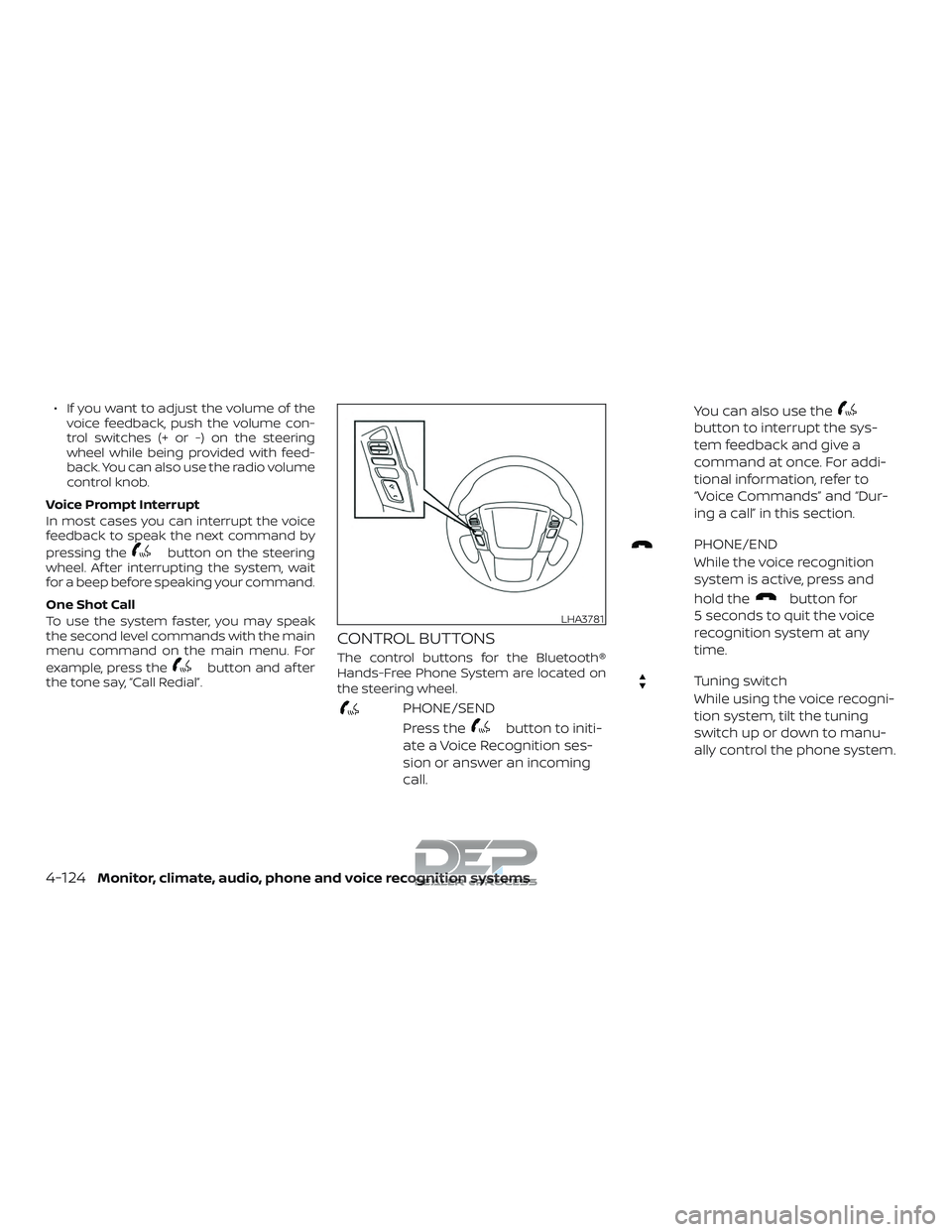
CONTROL BUTTONS
The control buttons for the Bluetooth®
Hands-Free Phone System are located on
the steering wheel.
PHONE/SEND
Press the
button to initi-
ate a Voice Recognition ses-
sion or answer an incoming
call. You can also use the
button to interrupt the sys-
tem feedback and give a
command at once. For addi-
tional information, refer to
“Voice Commands” and “Dur-
ing a call” in this section.
PHONE/END
While the voice recognition
system is active, press and
hold the
button for
5 seconds to quit the voice
recognition system at any
time.
Tuning switch
While using the voice recogni-
tion system, tilt the tuning
switch up or down to manu-
ally control the phone system.
LHA3781
4-124Monitor, climate, audio, phone and voice recognition systems