ECO mode NISSAN TITAN 2019 Owner´s Manual
[x] Cancel search | Manufacturer: NISSAN, Model Year: 2019, Model line: TITAN, Model: NISSAN TITAN 2019Pages: 682, PDF Size: 7.99 MB
Page 342 of 682
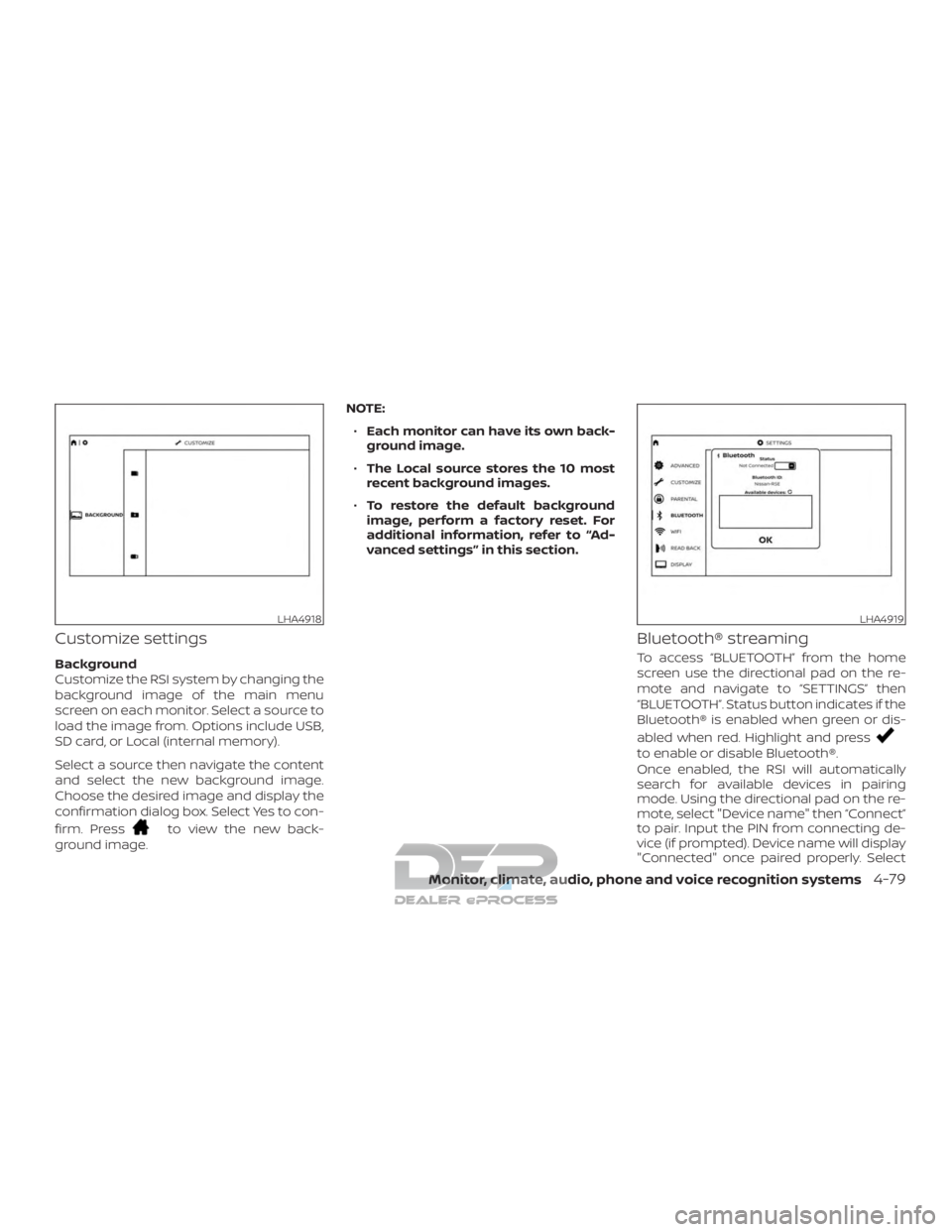
Customize settings
Background
Customize the RSI system by changing the
background image of the main menu
screen on each monitor. Select a source to
load the image from. Options include USB,
SD card, or Local (internal memory).
Select a source then navigate the content
and select the new background image.
Choose the desired image and display the
confirmation dialog box. Select Yes to con-
firm. Press
to view the new back-
ground image. NOTE:
∙ Each monitor can have its own back-
ground image.
∙ The Local source stores the 10 most
recent background images.
∙ To restore the default background
image, perform a factory reset. For
additional information, refer to “Ad-
vanced settings” in this section.
Bluetooth® streaming
To access “BLUETOOTH” from the home
screen use the directional pad on the re-
mote and navigate to “SETTINGS” then
“BLUETOOTH”. Status button indicates if the
Bluetooth® is enabled when green or dis-
abled when red. Highlight and press
to enable or disable Bluetooth®.
Once enabled, the RSI will automatically
search for available devices in pairing
mode. Using the directional pad on the re-
mote, select "Device name" then “Connect”
to pair. Input the PIN from connecting de-
vice (if prompted). Device name will display
"Connected" once paired properly. Select
LHA4918LHA4919
Monitor, climate, audio, phone and voice recognition systems4-79
Page 343 of 682
“OK” to confirm changes and close the win-
dow. To unpair a Bluetooth® device, select
Device name then Unpair.
If the device is not listed, select Refresh
Symbol and the device will appear in Avail-
able device list. If device does not appear,
double check that the device is in pairing
mode (refer to the device’s manual for in-
structions).
Bluetooth® equipped vehicles can stream
audio from the display through vehicle’s
sound system once paired. For additional
information, refer to the separate
NissanConnect® Owner’s Manual.
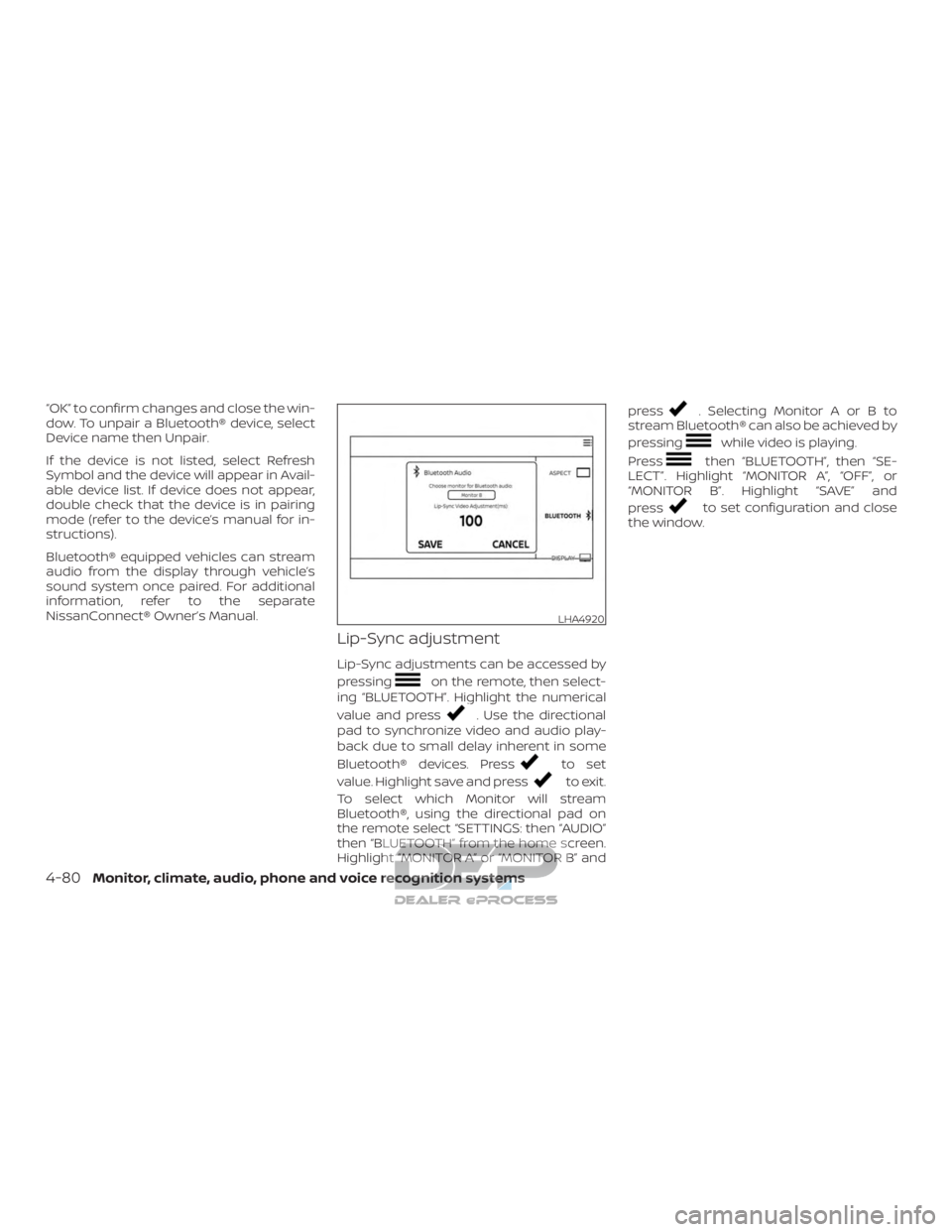
Lip-Sync adjustment
Lip-Sync adjustments can be accessed by
pressing
on the remote, then select-
ing “BLUETOOTH”. Highlight the numerical
value and press
. Use the directional
pad to synchronize video and audio play-
back due to small delay inherent in some
Bluetooth® devices. Press
to set
value. Highlight save and press
to exit.
To select which Monitor will stream
Bluetooth®, using the directional pad on
the remote select “SETTINGS: then “AUDIO”
then “BLUETOOTH” from the home screen.
Highlight “MONITOR A” or “MONITOR B” and press
. Selecting Monitor A or B to
stream Bluetooth® can also be achieved by
pressing
while video is playing.
Press
then “BLUETOOTH”, then “SE-
LECT”. Highlight “MONITOR A”, “OFF”, or
“MONITOR B”. Highlight “SAVE” and
press
to set configuration and close
the window.
LHA4920
4-80Monitor, climate, audio, phone and voice recognition systems
Page 345 of 682
For example, to set the ratings limit for PG
and below, select “RATINGS” then “3” using
the directional pad and press
, based
on the rating levels. For additional informa-
tion, refer to “About parental lock” in this
section. To change password, select “SETTINGS”
then “PARENTAL” from the home screen.
Enter the current password, select “PASS-
WORD” then “MODIFY” to set new password,
press
once to enter, and select again
to confirm. To exit “PARENTAL” menu
press
. To remove the parental lock password, se-
lect “SETTINGS” then “PARENTAL” from the
home screen. Enter the current password.
Select “PASSWORD” then “REMOVE”,
press
to enter, and select again to
confirm. To exit Parental menu press
.
TROUBLESHOOTING
Symptom Remedy
Monitor does not power on Verif y the vehicle is in the ON or ACC position.
Verif y the battery is installed correctly in the remote control.
Verif y the in-line fuse protection is good. Refer to the RSI system installation instructions for vehicle-specific fuse location.
Monitor front panel controls
flash red For further diagnosis, it is recommended that you visit a NISSAN dealer.
System frozen - will not re-
spond Sof t reset the system by pressing and holding the power button on the top of the driver side monitor for 5 seconds.
Hard reset the system by turning the ignition off, then back on.
Disc will not play Insert the disc with label side facing the rear of the vehicle.
Check if the disc is defective by trying another disc.
Check the type of disc being played. This unit only plays DVD (Single, Dual Layer), DVD-R/+R, DVD+R Dual layer, DVD-RW/+RW, CD,
CD-R, and CD-RW.
The unit and the disc are coded by region. If the region codes don’t match, the DVD can’t be played.
Disc plays, but stops inter-
mittently The disc may be dirty and need cleaning.
Condensation may have formed inside the unit. Remove the disc and allow unit to dry out.
The disc may be scratched too badly to play.
No picture Check that the signal source is connected.
Check the menu source setting. Match your monitor mode with the source correctly.
Distorted picture Check the disc for fingerprints and clean with a sof t cloth, wiping from center to edge.
4-82Monitor, climate, audio, phone and voice recognition systems
Page 346 of 682
SymptomRemedy
Cannot advance through a
DVD movie You cannot advance through the opening credits and warning information that appears at the beginning of DVDs because the
disc is programmed to prohibit these actions.
Some discs may not allow this function. Try another disc.
No sound or distorted
sound Make sure that the external media device is connected properly, and all cables are securely inserted into the appropriate jacks.
Verif y that the batteries in the headphones are fresh.
If you are using the wireless headphones, make sure you turn on the power and select the correct monitor (A or B).
Verif y the volume is turned up on headphones and the system.
Verif y nothing is blocking the path between the monitor IR sensor and headphones.
When placing the headphones on your head, make sure to observe the Lef t and Right orientation. The headphones must be ori-
ented correctly (facing forward) to receive the audio signal.
Monitor feels warm When the monitor is in use for a long period of time, the surface will be warm. This is normal.
Player does not respond to
all commands during play-
back The DVD may not permit some commands. Refer to the specific instructions included with the DVD for more information.
A Parental Setting message
is displayed, prohibiting
movie playback Enter the 4-digit Parental Password using the remote and then press
. For additional information, refer to “Changing paren-
tal lock” in this section.
Cannot connect mobile de-
vice to the internal RSI Wi-Fi
network Check to make sure Wi-Fi is enabled on the mobile device.
Check to make sure RSI is set to Access Point mode.
Check to make sure the correct password is used. For additional information, refer to “Using Wi-Fi” in this section.
Cannot connect RSI system
to an external Wi-Fi network Check to make sure RSI is set to Client Mode. Check to make sure the correct password is used. For additional information, refer
to “Using Wi-Fi” in this section.
Cannot establish a
Bluetooth® connection Check to make sure Bluetooth® is enabled on the RSI system. For additional information, refer to “Bluetooth® streaming” in this
section.
Cannot establish a Mira-
cast® connection to the RSI
system Check to make sure mobile device supports Miracast®. Visit www.wi-fi.org for a current list of Miracast® certified devices.
Check to make sure Miracast® is enabled on the mobile device.
Select Miracast® source from the RSI main menu.
Monitor, climate, audio, phone and voice recognition systems4-83
Page 347 of 682
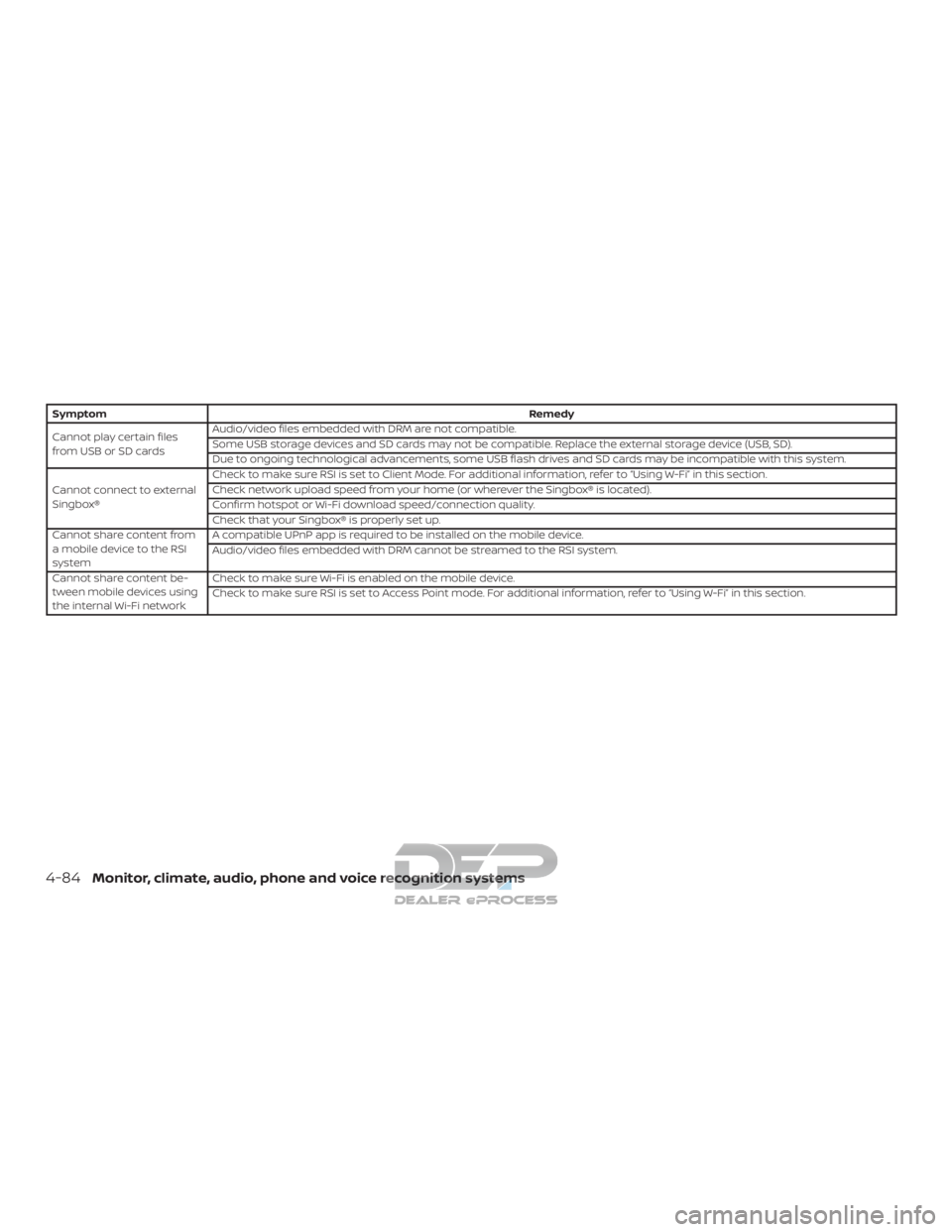
SymptomRemedy
Cannot play certain files
from USB or SD cards Audio/video files embedded with DRM are not compatible.
Some USB storage devices and SD cards may not be compatible. Replace the external storage device (USB, SD).
Due to ongoing technological advancements, some USB flash drives and SD cards may be incompatible with this system.
Cannot connect to external
Singbox® Check to make sure RSI is set to Client Mode. For additional information, refer to “Using W-Fi” in this section.
Check network upload speed from your home (or wherever the Singbox® is located).
Confirm hotspot or Wi-Fi download speed/connection quality.
Check that your Singbox® is properly set up.
Cannot share content from
a mobile device to the RSI
system A compatible UPnP app is required to be installed on the mobile device.
Audio/video files embedded with DRM cannot be streamed to the RSI system.
Cannot share content be-
tween mobile devices using
the internal Wi-Fi network Check to make sure Wi-Fi is enabled on the mobile device.
Check to make sure RSI is set to Access Point mode. For additional information, refer to “Using W-Fi” in this section.
4-84Monitor, climate, audio, phone and voice recognition systems
Page 352 of 682
All other trademarks and their respective
logos cited herein are the property of their
respective owners.When installing a CB, ham radio or car
phone in your vehicle, be sure to observe
the following precautions; otherwise, the
new equipment may adversely affect the
engine control system and other electronic
parts.
WARNING
∙ A cellular phone should not be used
for any purpose while driving so full
attention may be given to vehicle op-
eration. Some jurisdictions prohibit
the use of cellular phones while
driving.
∙ If you must make a call while your ve- hicle is in motion, the hands free cellu-
lar phone operational mode (if so
equipped) is highly recommended.
Exercise extreme caution at all times
so full attention may be given to ve-
hicle operation.
∙ If you are unable to devote full atten- tion to vehicle operation while talking
on the phone, pull off the road to a
safe location and stop your vehicle.
CAUTION
∙ Keep the antenna as far away as pos-sible from the electronic control
modules.
∙ Keep the antenna wire more than 8 in (20 cm) away from the electronic con-
trol system harnesses. Do not route
the antenna wire next to any harness.
∙ Adjust the antenna standing-wave ratio as recommended by the
manufacturer.
∙ Connect the ground wire from the CB radio chassis to the body.
∙ For additional information, it is rec- ommended that you visit a NISSAN
dealer for this service.
CAR PHONE OR CB RADIO
Monitor, climate, audio, phone and voice recognition systems4-89
Page 353 of 682
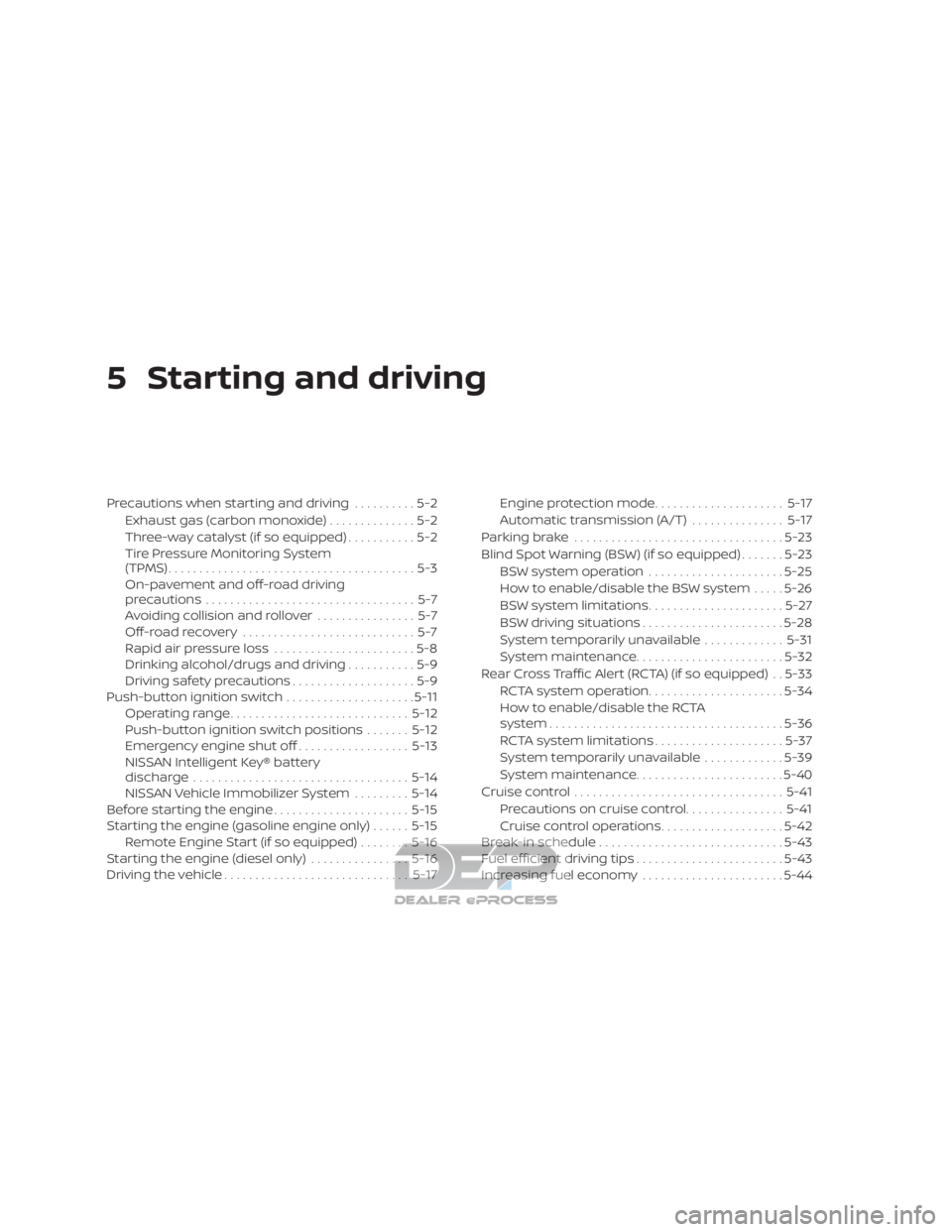
5 Starting and driving
Precautions when starting and driving..........5-2
Exhaust gas (carbon monoxide) ..............5-2
Three-way catalyst (if so equipped) ...........5-2
Tire Pressure Monitoring System
(TPMS)........................................5-3
On-pavement and off-road driving
precautions ..................................5-7
Avoiding collision and rollover ................5-7
Off-roadrecovery ............................5-7
Rapid air pressure loss .......................5-8
Drinking alcohol/drugs and driving ...........5-9
Driving safety precautions ....................5-9
Push-button ignition switch .....................5-11
Operating range ............................. 5-12
Push-button ignition switch positions .......5-12
Emergency engine shut off ..................5-13
NISSAN Intelligent Key® battery
discharge ................................... 5-14
NISSAN Vehicle Immobilizer System .........5-14
Before starting the engine ......................5-15
Starting the engine (gasoline engine only) ......5-15
Remote Engine Start (if so equipped) ........5-16
Starting the engine (diesel only) ................5-16
Driving the vehicle .............................. 5-17Engine protection mode
.....................5-17
Automatic transmission (A/T) ...............5-17
Parking brake .................................. 5-23
Blind Spot Warning (BSW) (if so equipped) .......5-23
BSW system operation ......................5-25
How to enable/disable the BSW system .....5-26
BSW system limitations ......................5-27
BSW driving situations .......................5-28
System temporarily unavailable .............5-31
System maintenance ........................ 5-32
Rear Cross Traffic Alert (RCTA) (if so equipped) . . 5-33 RCTA system operation ......................5-34
How to enable/disable the RCTA
system ...................................... 5-36
RCTA system limitations .....................5-37
System temporarily unavailable .............5-39
System maintenance ........................ 5-40
Cruise control .................................. 5-41
Pr ec autions
on cruise control ................5-41
Cruise control operations ....................5-42
Break-in schedule .............................. 5-43
Fuel efficient driving tips ........................5-43
Increasing fuel economy .......................5-44
Page 368 of 682
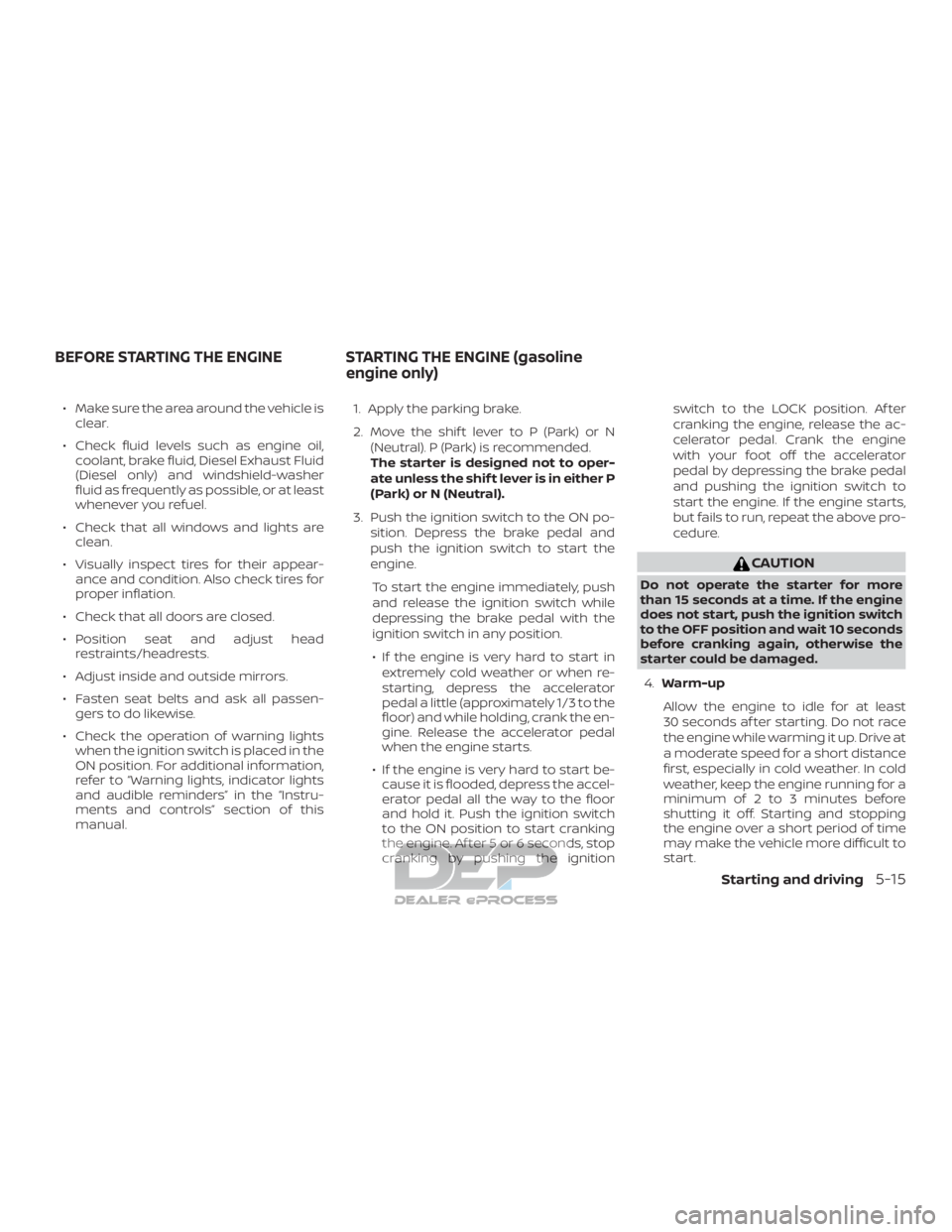
∙ Make sure the area around the vehicle isclear.
∙ Check fluid levels such as engine oil, coolant, brake fluid, Diesel Exhaust Fluid
(Diesel only) and windshield-washer
fluid as frequently as possible, or at least
whenever you refuel.
∙ Check that all windows and lights are clean.
∙ Visually inspect tires for their appear- ance and condition. Also check tires for
proper inflation.
∙ Check that all doors are closed.
∙ Position seat and adjust head restraints/headrests.
∙ Adjust inside and outside mirrors.
∙ Fasten seat belts and ask all passen- gers to do likewise.
∙ Check the operation of warning lights when the ignition switch is placed in the
ON position. For additional information,
refer to “Warning lights, indicator lights
and audible reminders” in the “Instru-
ments and controls” section of this
manual. 1. Apply the parking brake.
2. Move the shif t lever to P (Park) or N
(Neutral). P (Park) is recommended.
The starter is designed not to oper-
ate unless the shif t lever is in either P
(Park) or N (Neutral).
3. Push the ignition switch to the ON po- sition. Depress the brake pedal and
push the ignition switch to start the
engine.
To start the engine immediately, push
and release the ignition switch while
depressing the brake pedal with the
ignition switch in any position.
∙ If the engine is very hard to start in extremely cold weather or when re-
starting, depress the accelerator
pedal a little (approximately 1/3 to the
floor) and while holding, crank the en-
gine. Release the accelerator pedal
when the engine starts.
∙ If the engine is very hard to start be- cause it is flooded, depress the accel-
erator pedal all the way to the floor
and hold it. Push the ignition switch
to the ON position to start cranking
the engine. Af ter 5 or 6 seconds, stop
cranking by pushing the ignition switch to the LOCK position. Af ter
cranking the engine, release the ac-
celerator pedal. Crank the engine
with your foot off the accelerator
pedal by depressing the brake pedal
and pushing the ignition switch to
start the engine. If the engine starts,
but fails to run, repeat the above pro-
cedure.
CAUTION
Do not operate the starter for more
than 15 seconds at a time. If the engine
does not start, push the ignition switch
to the OFF position and wait 10 seconds
before cranking again, otherwise the
starter could be damaged.
4. Warm-up
Allow the engine to idle for at least
30 seconds af ter starting. Do not race
the engine while warming it up. Drive at
a moderate speed for a short distance
first, especially in cold weather. In cold
weather, keep the engine running for a
minimum of 2 to 3 minutes before
shutting it off. Starting and stopping
the engine over a short period of time
may make the vehicle more difficult to
start.
BEFORE STARTING THE ENGINE STARTING THE ENGINE (gasoline engine only)
Starting and driving5-15
Page 370 of 682
ENGINE PROTECTION MODE
The engine has an engine protection mode
to reduce the chance of damage if the
coolant temperature becomes too high
(for example, when climbing steep grades
in high temperatures with heavy loads,
such as when towing a trailer). When the
engine temperature reaches a certain
level:∙ The engine coolant temperature gauge will move toward the H position.
∙ Engine power may be reduced.
∙ The air conditioning cooling function may be automatically turned off for a
short time (the blower will continue to
operate).
Engine power and, under some conditions,
vehicle speed will decrease. Vehicle speed
can be controlled with the accelerator
pedal, but the vehicle may not accelerate at
the desired speed. The transmission will
downshif t or upshif t as it reaches pre-
scribed shif t points. You can also shif t
manually.
As driving conditions change and engine
coolant temperature is reduced, vehicle
speed can be increased using the accel- erator pedal, and the air conditioning cool-
ing function will automatically be turned
back on.
The Malfunction Indicator Light (MIL) may
also come on if the engine coolant tem-
perature is not reduced or the air condi-
tioning cooling function does not turn back
on. If
only it remains on, you do not need to
have your vehicle towed, but have it in-
spected soon. It is recommended that you
visit a NISSAN dealer for this service. For
additional information, refer to “Malfunc-
tion Indicator Light (MIL)” in the “Instru-
ments and controls” section of this manual.
WARNING
Overheating can result in reduced en-
gine power and vehicle speed. The re-
duced speed may be lower than other
traffic, which could increase the chance
of a collision. Be especially careful when
driving. If the vehicle cannot maintain a
safe driving speed, pull to the side of the
road in a safe area. Allow the engine to
cool and return to normal operation. For
additional information, refer to “If your
vehicle overheats” in the “In case of
emergency ” section of this manual.
CAUTION
Running the engine with the engine oil
pressure warning light on could cause
serious damage to the engine almost
immediately. Such damage is not cov-
ered by warranty. Turn off the engine as
soon as it is safe to do so.
AUTOMATIC TRANSMISSION (A/T)
WARNING
∙ Do not depress the accelerator pedal while shif ting from P (Park) or N (Neu-
tral) to R (Reverse) or D (Drive). Always
depress the brake pedal until shif ting
is completed. Failure to do so could
cause you to lose control and have an
accident.
∙ Cold engine idle speed is high, so use caution when shif ting into a forward
or reverse gear before the engine has
warmed up.
∙ Never shif t to either the P (Park) or R (Reverse) position while the vehicle is
moving forward and P (Park) or D
(Drive) position while the vehicle is re-
versing. This could cause an accident
or damage the transmission.
DRIVING THE VEHICLE
Starting and driving5-17
Page 373 of 682

Manual shif t mode
When the manual shif t mode switch is
pushed while driving, the transmission en-
ters the manual shif t mode. Shif t ranges
can be selected manually.
In the manual shif t mode, the shif t range is
displayed on the position indicator in the
meter. Af ter pushing the manual shif t
mode switch, the position indicator varies
depending on the gear position and ve-
hicle speed.Shif t ranges up or down one by one as
follows:
M1
←→ M2←→ M3←→ M4←→ M5←→ M6
←→ M7*←→ D
*If so equipped
M7 (Seventh) (if so equipped)
Use this position for all normal forward
driving at highway speeds.
M1 ←→ M2←→ M3←→ M4←→ M5←→ M6
←→ M7
M7 will be displayed on the position indica-
tor in the meter.
M6 (Sixth)
Use this position for all normal forward
driving at highway speeds.
M1 ←→ M2←→ M3←→ M4←→ M5←→ M6
M6 will be displayed on the position indica-
tor in the meter
M5 (Fif th)
Use this position for all normal forward
driving at highway speeds.
M1 ←→ M2←→ M3←→ M4←→ M5
M5 will be displayed on the position indica-
tor in the meter. M4 (Fourth)
For driving up or down long slopes where
engine braking would be advantageous.
Shif t ranges up or down one by one as
follows:
M1
←→ M2←→ M3←→ M4
M4 will be displayed on the position indica-
tor in the meter.
M3 (Third)
Use for hill climbing or engine braking on
downhill grades.
Shif t ranges up or down one by one as
follows:
M1 ←→ M2←→ M3
M3 will be displayed on the position indica-
tor in the meter.
M2 (Second)
Use for hill climbing or engine braking on
downhill grades.
Shif t ranges up or down one by one as
follows:
M1 ←→ M2
M2 will be displayed on the position indica-
tor in the meter.
LSD2457
5-20Starting and driving