climate settings NISSAN TITAN 2022 User Guide
[x] Cancel search | Manufacturer: NISSAN, Model Year: 2022, Model line: TITAN, Model: NISSAN TITAN 2022Pages: 635, PDF Size: 7.78 MB
Page 296 of 635
VIDEO OPERATION
Volume control
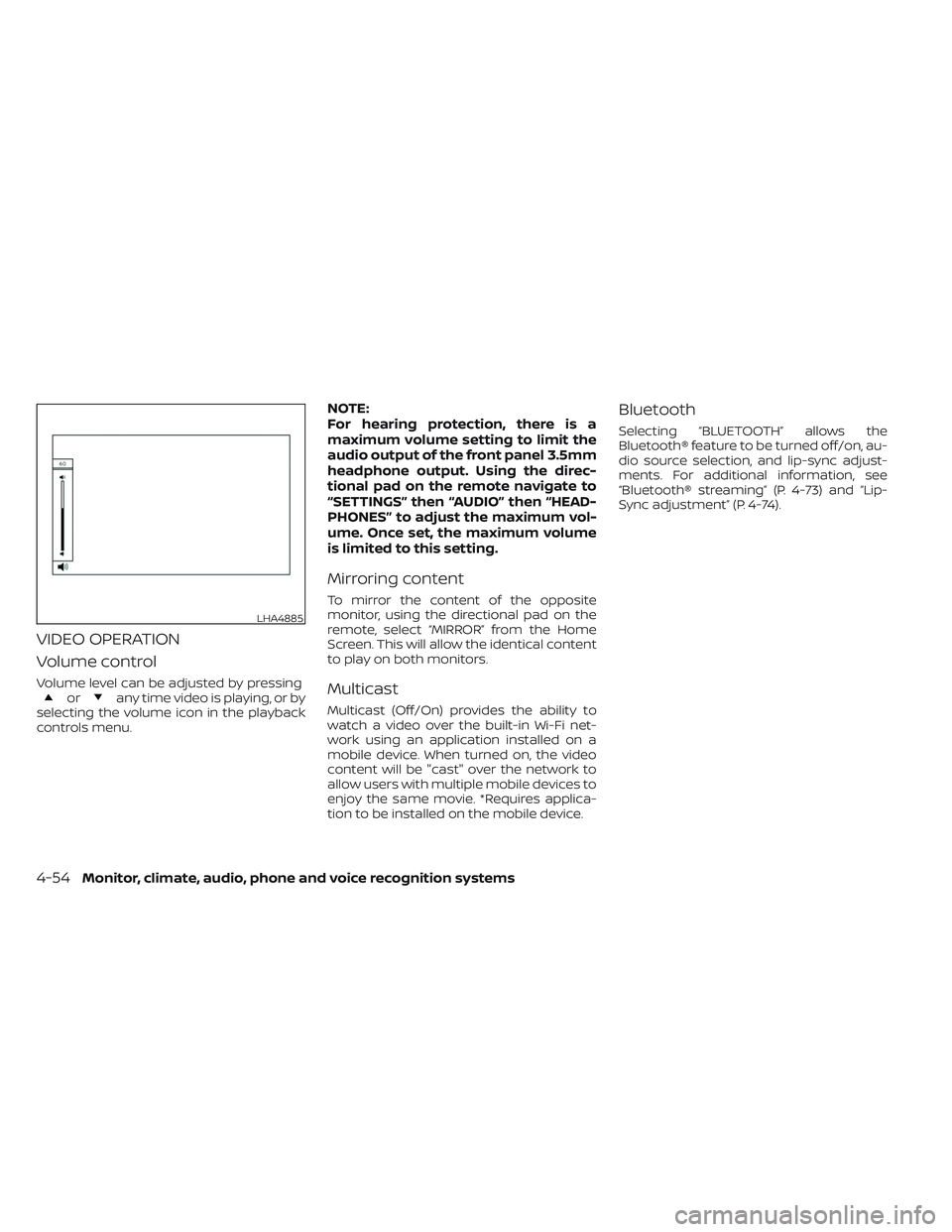
Volume level can be adjusted by pressingorany time video is playing, or by
selecting the volume icon in the playback
controls menu.
NOTE:
For hearing protection, there is a
maximum volume setting to limit the
audio output of the front panel 3.5mm
headphone output. Using the direc-
tional pad on the remote navigate to
“SETTINGS” then “AUDIO” then “HEAD-
PHONES” to adjust the maximum vol-
ume. Once set, the maximum volume
is limited to this setting.
Mirroring content
To mirror the content of the opposite
monitor, using the directional pad on the
remote, select “MIRROR” from the Home
Screen. This will allow the identical content
to play on both monitors.
Multicast
Multicast (Off/On) provides the ability to
watch a video over the built-in Wi-Fi net-
work using an application installed on a
mobile device. When turned on, the video
content will be "cast" over the network to
allow users with multiple mobile devices to
enjoy the same movie. *Requires applica-
tion to be installed on the mobile device.
Bluetooth
Selecting “BLUETOOTH” allows the
Bluetooth® feature to be turned off/on, au-
dio source selection, and lip-sync adjust-
ments. For additional information, see
“Bluetooth® streaming” (P. 4-73) and “Lip-
Sync adjustment” (P. 4-74).
LHA4885
4-54Monitor, climate, audio, phone and voice recognition systems
Page 302 of 635
10.Next
Select to go to the next chapter.
11. Repeat
Select once to repeat the entire video.
Select again to repeat the currently
playing chapter one time.
Playing videos
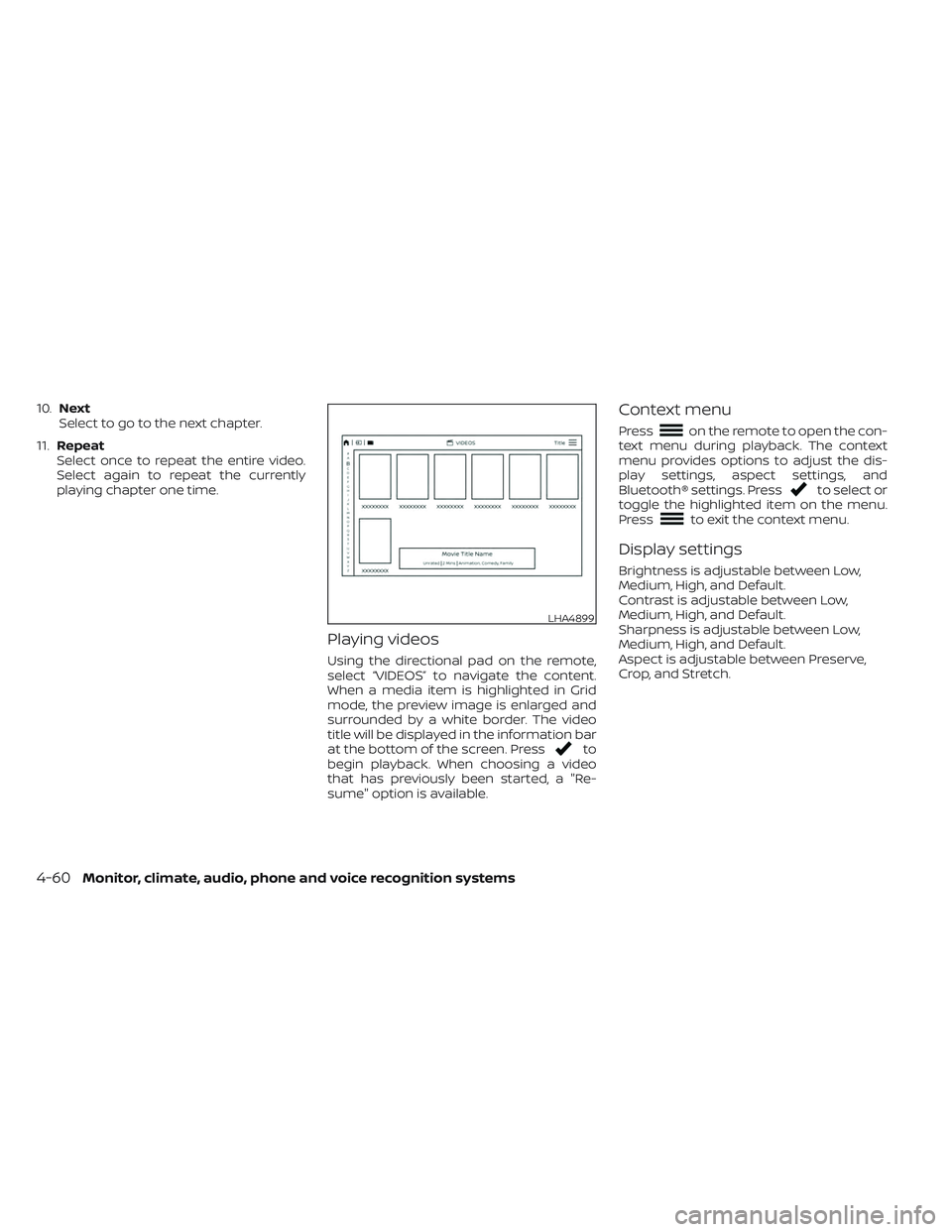
Using the directional pad on the remote,
select “VIDEOS” to navigate the content.
When a media item is highlighted in Grid
mode, the preview image is enlarged and
surrounded by a white border. The video
title will be displayed in the information bar
at the bottom of the screen. Press
to
begin playback. When choosing a video
that has previously been started, a "Re-
sume" option is available.
Context menu
Presson the remote to open the con-
text menu during playback. The context
menu provides options to adjust the dis-
play settings, aspect settings, and
Bluetooth® settings. Press
to select or
toggle the highlighted item on the menu.
Press
to exit the context menu.
Display settings
Brightness is adjustable between Low,
Medium, High, and Default.
Contrast is adjustable between Low,
Medium, High, and Default.
Sharpness is adjustable between Low,
Medium, High, and Default.
Aspect is adjustable between Preserve,
Crop, and Stretch.
LHA4899
4-60Monitor, climate, audio, phone and voice recognition systems
Page 303 of 635
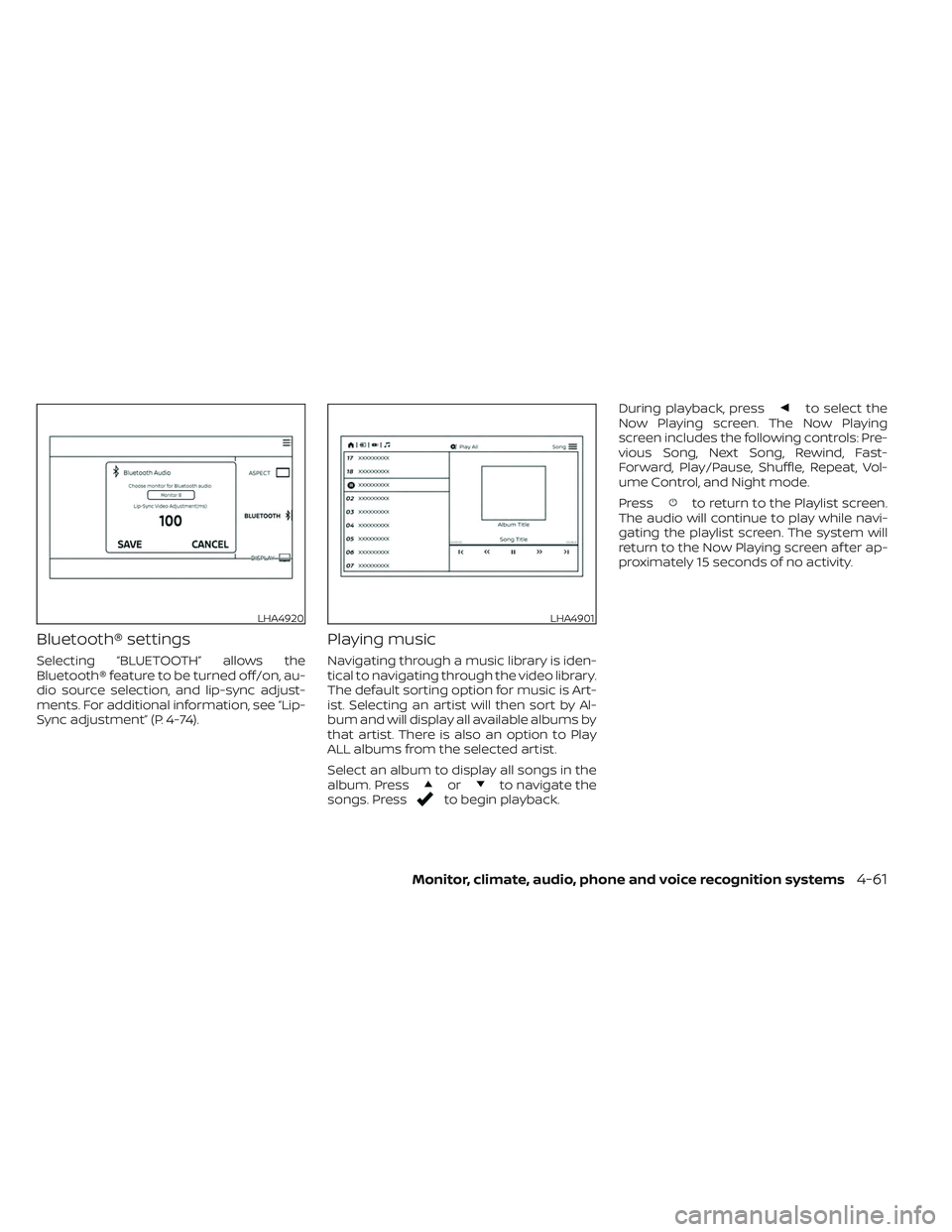
Bluetooth® settings
Selecting “BLUETOOTH” allows the
Bluetooth® feature to be turned off/on, au-
dio source selection, and lip-sync adjust-
ments. For additional information, see “Lip-
Sync adjustment” (P. 4-74).
Playing music
Navigating through a music library is iden-
tical to navigating through the video library.
The default sorting option for music is Art-
ist. Selecting an artist will then sort by Al-
bum and will display all available albums by
that artist. There is also an option to Play
ALL albums from the selected artist.
Select an album to display all songs in the
album. Press
orto navigate the
songs. Pressto begin playback. During playback, press
to select the
Now Playing screen. The Now Playing
screen includes the following controls: Pre-
vious Song, Next Song, Rewind, Fast-
Forward, Play/Pause, Shuffle, Repeat, Vol-
ume Control, and Night mode.
Press
to return to the Playlist screen.
The audio will continue to play while navi-
gating the playlist screen. The system will
return to the Now Playing screen af ter ap-
proximately 15 seconds of no activity.
LHA4920LHA4901
Monitor, climate, audio, phone and voice recognition systems4-61
Page 304 of 635
Navigating photos
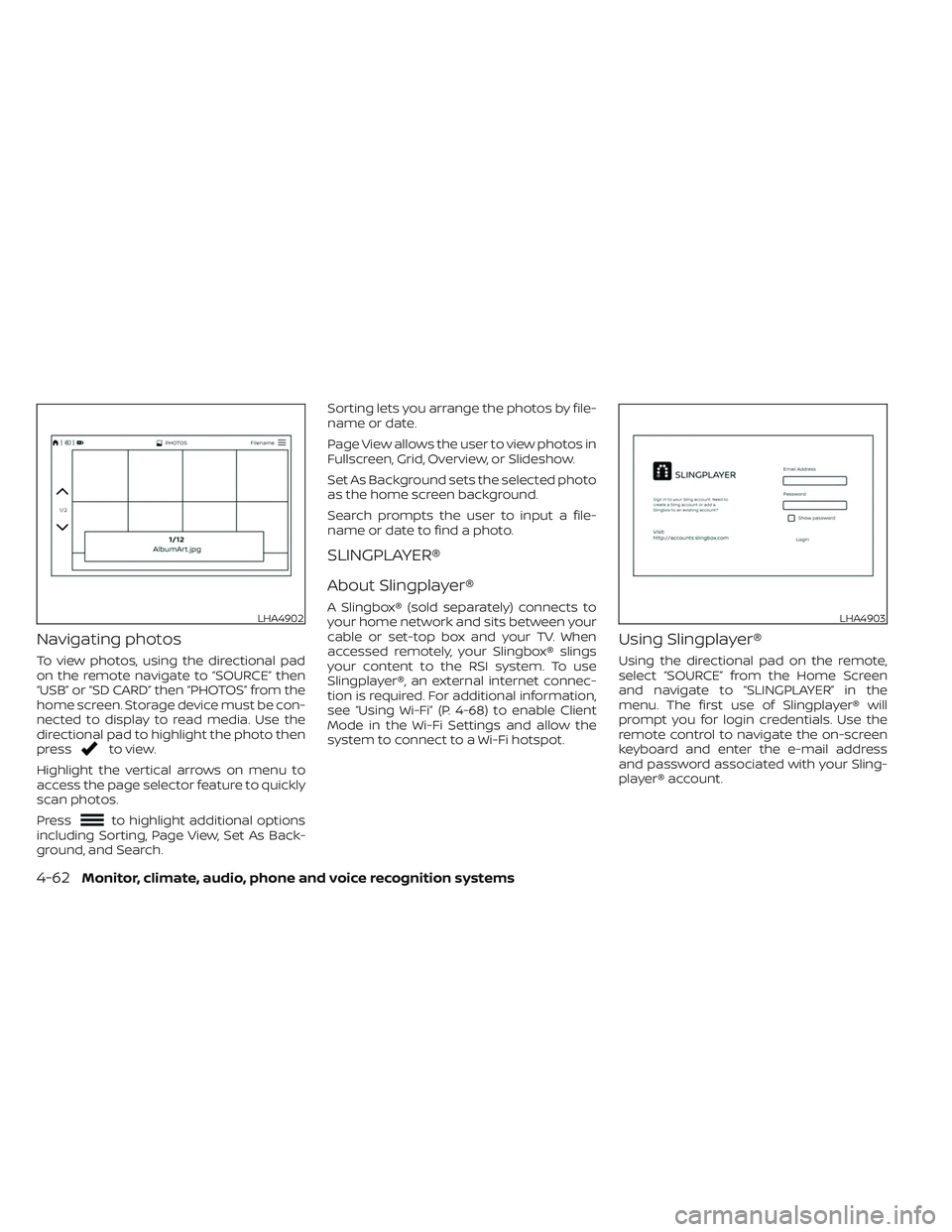
To view photos, using the directional pad
on the remote navigate to “SOURCE” then
“USB” or “SD CARD” then “PHOTOS” from the
home screen. Storage device must be con-
nected to display to read media. Use the
directional pad to highlight the photo then
press
to view.
Highlight the vertical arrows on menu to
access the page selector feature to quickly
scan photos.
Press
to highlight additional options
including Sorting, Page View, Set As Back-
ground, and Search. Sorting lets you arrange the photos by file-
name or date.
Page View allows the user to view photos in
Fullscreen, Grid, Overview, or Slideshow.
Set As Background sets the selected photo
as the home screen background.
Search prompts the user to input a file-
name or date to find a photo.
SLINGPLAYER®
About Slingplayer®
A Slingbox® (sold separately) connects to
your home network and sits between your
cable or set-top box and your TV. When
accessed remotely, your Slingbox® slings
your content to the RSI system. To use
Slingplayer®, an external internet connec-
tion is required. For additional information,
see “Using Wi-Fi” (P. 4-68) to enable Client
Mode in the Wi-Fi Settings and allow the
system to connect to a Wi-Fi hotspot.
Using Slingplayer®
Using the directional pad on the remote,
select “SOURCE” from the Home Screen
and navigate to “SLINGPLAYER” in the
menu. The first use of Slingplayer® will
prompt you for login credentials. Use the
remote control to navigate the on-screen
keyboard and enter the e-mail address
and password associated with your Sling-
player® account.
LHA4902LHA4903
4-62Monitor, climate, audio, phone and voice recognition systems
Page 305 of 635
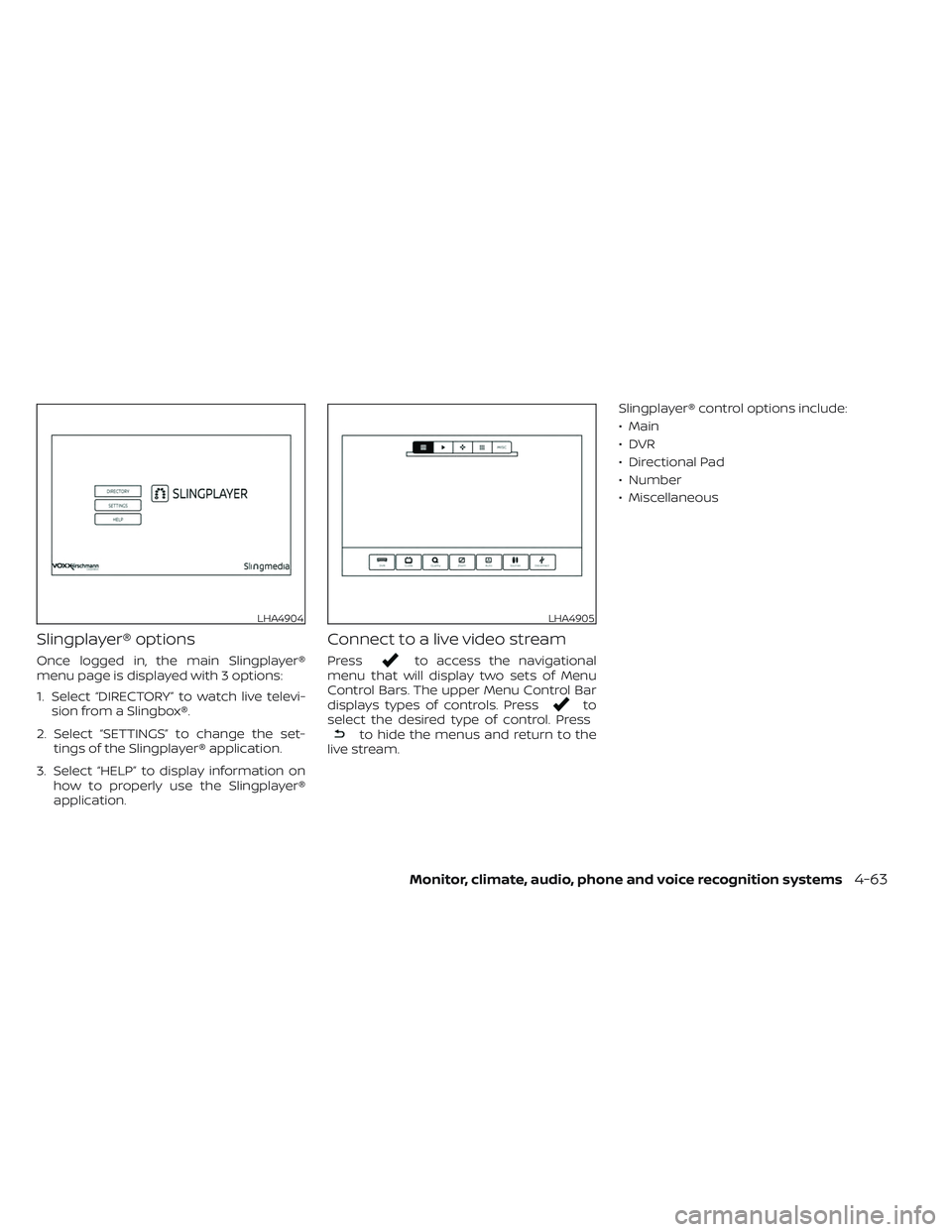
Slingplayer® options
Once logged in, the main Slingplayer®
menu page is displayed with 3 options:
1. Select “DIRECTORY” to watch live televi-sion from a Slingbox®.
2. Select “SETTINGS” to change the set- tings of the Slingplayer® application.
3. Select “HELP” to display information on how to properly use the Slingplayer®
application.
Connect to a live video stream
Pressto access the navigational
menu that will display two sets of Menu
Control Bars. The upper Menu Control Bar
displays types of controls. Press
to
select the desired type of control. Press
to hide the menus and return to the
live stream. Slingplayer® control options include:
• Main
•DVR
• Directional Pad
• Number
• Miscellaneous
LHA4904LHA4905
Monitor, climate, audio, phone and voice recognition systems4-63
Page 307 of 635
NOTE: Miracast® works with Android OS
mobile devices only. This feature is not sup-
ported on iOS devices.
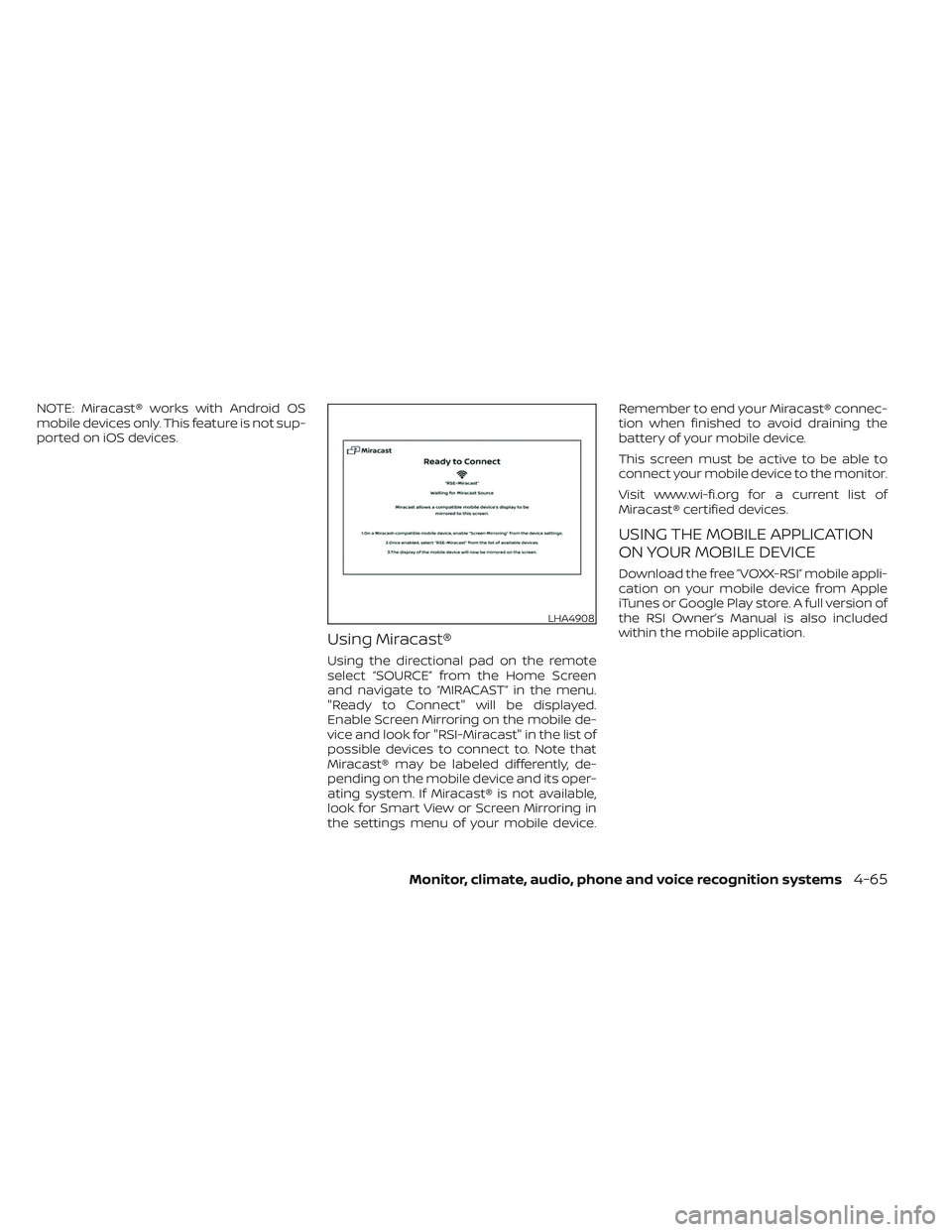
Using Miracast®
Using the directional pad on the remote
select “SOURCE” from the Home Screen
and navigate to “MIRACAST” in the menu.
"Ready to Connect" will be displayed.
Enable Screen Mirroring on the mobile de-
vice and look for "RSI-Miracast" in the list of
possible devices to connect to. Note that
Miracast® may be labeled differently, de-
pending on the mobile device and its oper-
ating system. If Miracast® is not available,
look for Smart View or Screen Mirroring in
the settings menu of your mobile device.Remember to end your Miracast® connec-
tion when finished to avoid draining the
battery of your mobile device.
This screen must be active to be able to
connect your mobile device to the monitor.
Visit www.wi-fi.org for a current list of
Miracast® certified devices.
USING THE MOBILE APPLICATION
ON YOUR MOBILE DEVICE
Download the free ”VOXX-RSI” mobile appli-
cation on your mobile device from Apple
iTunes or Google Play store. A full version of
the RSI Owner’s Manual is also included
within the mobile application.
LHA4908
Monitor, climate, audio, phone and voice recognition systems4-65
Page 308 of 635
WARNING
THIS MOBILE APP IS NOT FOR DRIVER
USE
To reduce risk of a crash which can re-
sult in death or serious injury, always
drive carefully and in accordance with
traffic laws. The driver should not use
the mobile app while the vehicle is in
motion. Mobile app use may only be
exercised by the driver af ter you have
stopped your vehicle in an appropriate
location permitted by law. The mobile
app is specifically designed to be used
by passengers other than the driver,
provided it does not interfere with driv-
ing, and does not distract the driver's
attention to the road.
SMARTSTREAM
About SmartStream
SmartStream is a wireless connection
technology that allows content streaming
between a mobile device and the RSI sys-
tem and between mobile devices. Content
is streamed over the built-in Wi-Fi network
using an application installed on a mobile
device. There is no need for an external
internet connection.
Using SmartStream
Before using the SmartStream feature, a
compatible UPnP application is required to
be downloaded and installed on your mo-
bile device. To stream content from a mo-
bile device, you must first connect it to the
RSI network.
Connecting a mobile device to the RSI
network:
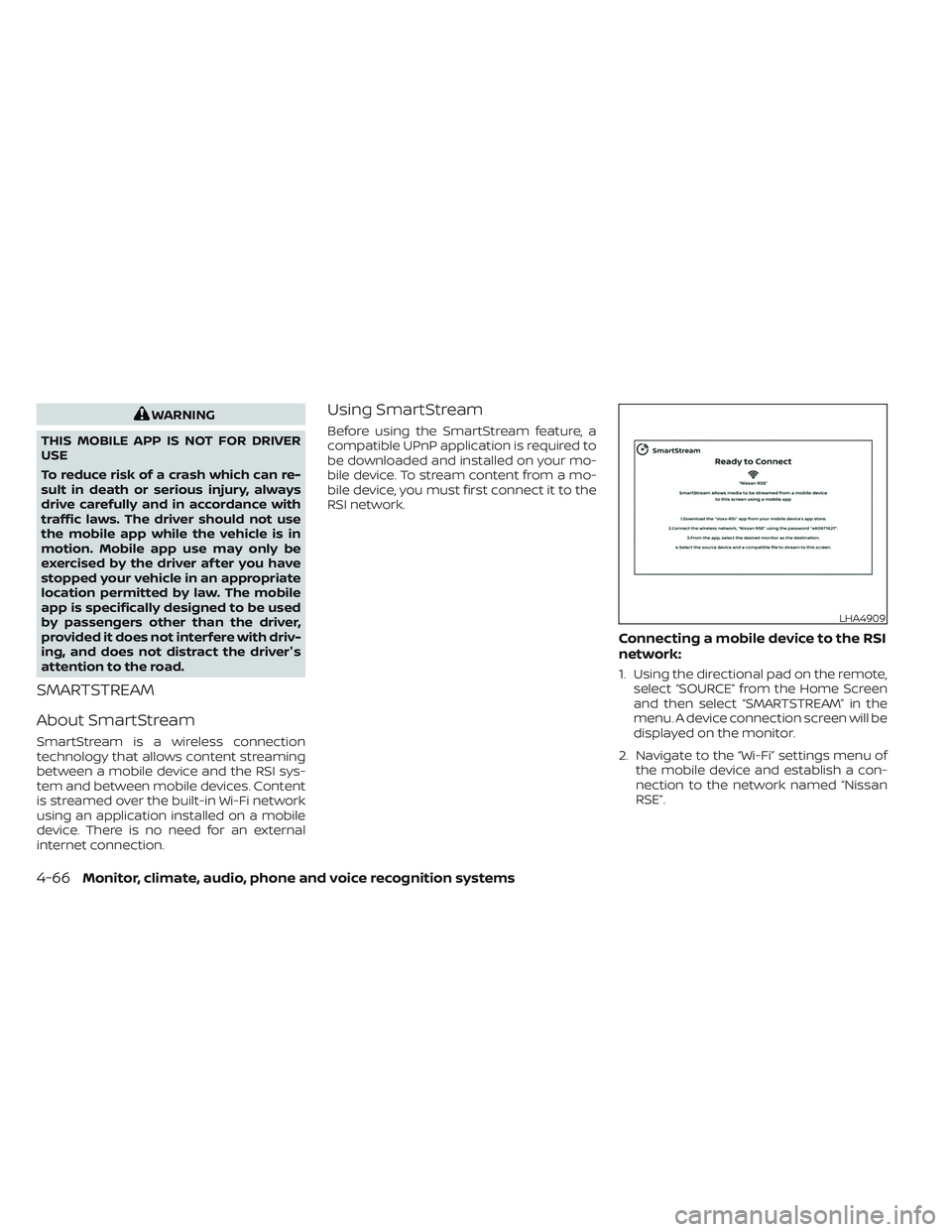
1. Using the directional pad on the remote, select “SOURCE” from the Home Screen
and then select “SMARTSTREAM” in the
menu. A device connection screen will be
displayed on the monitor.
2. Navigate to the “Wi-Fi” settings menu of the mobile device and establish a con-
nection to the network named “Nissan
RSE”.
LHA4909
4-66Monitor, climate, audio, phone and voice recognition systems
Page 309 of 635
3. When prompted, enter the networkpassword to join the Nissan RSE net-
work. Select the Show Password check
box in the Wi-Fi Settings menu to display
the current password. For additional in-
formation, see “Using Wi-Fi” (P. 4-68).
NOTE:
Access Point must be selected to use
the SmartStream feature. For addi-
tional information, see “Using Wi-Fi”
(P. 4-68).
Streaming content from a mobile
device:
1. Once connected, launch the application,and select SmartStream on the mobile
device.
2. Choose the desired monitor to stream to by selecting Monitor A or Monitor B.
Note: To stream content from a mobile
device the monitor must be set to
SmartStream in the source menu. 3. Select the desired source content from
the list of available devices. Content can
be browsed from all devices that are
connected to the RSI Wi-Fi network and
have a compatible UPnP application
installed.
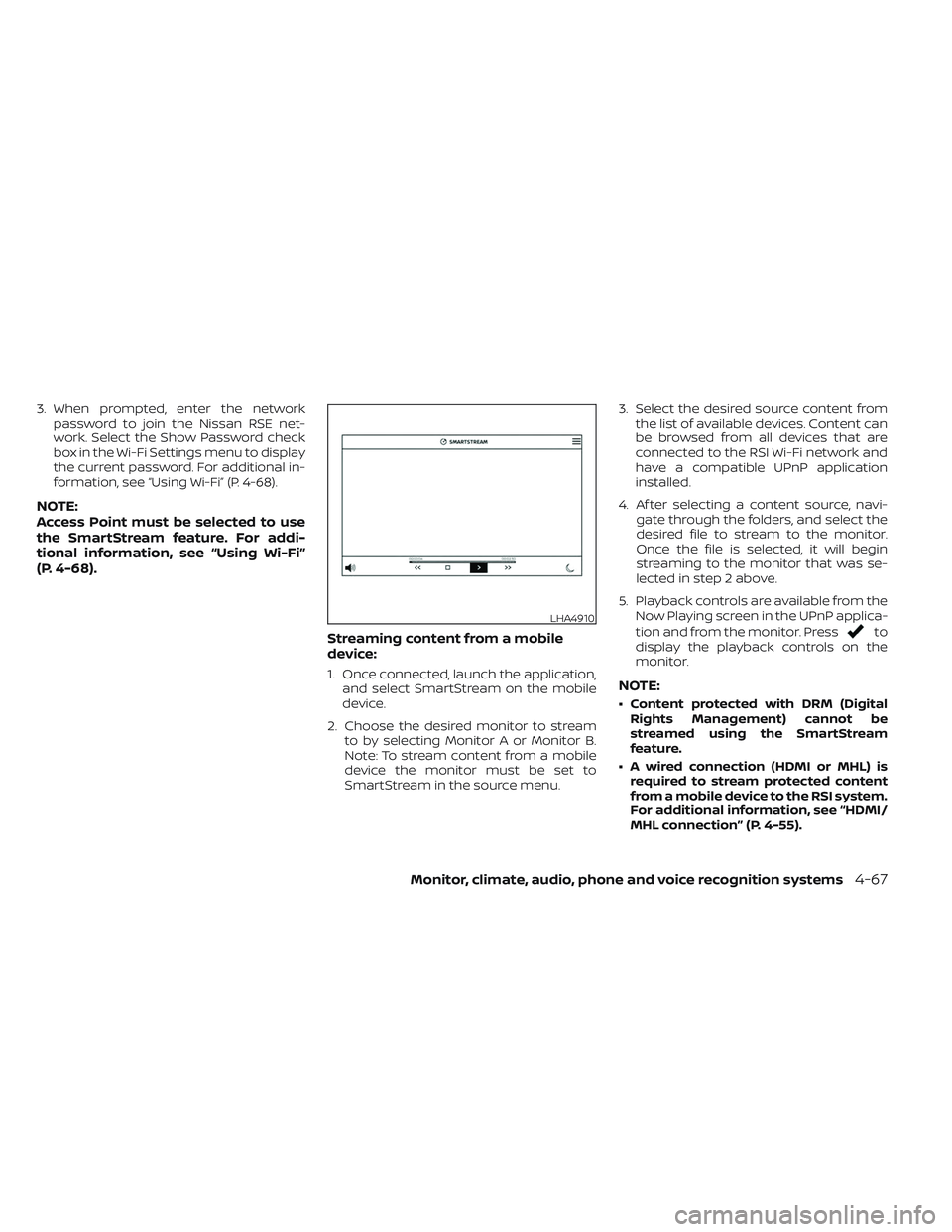
4. Af ter selecting a content source, navi- gate through the folders, and select the
desired file to stream to the monitor.
Once the file is selected, it will begin
streaming to the monitor that was se-
lected in step 2 above.
5. Playback controls are available from the Now Playing screen in the UPnP applica-
tion and from the monitor. Press
to
display the playback controls on the
monitor.
NOTE:
• Content protected with DRM (Digital Rights Management) cannot be
streamed using the SmartStream
feature.
• A wired connection (HDMI or MHL) is required to stream protected content
from a mobile device to the RSI system.
For additional information, see “HDMI/
MHL connection” (P. 4-55).
LHA4910
Monitor, climate, audio, phone and voice recognition systems4-67
Page 310 of 635
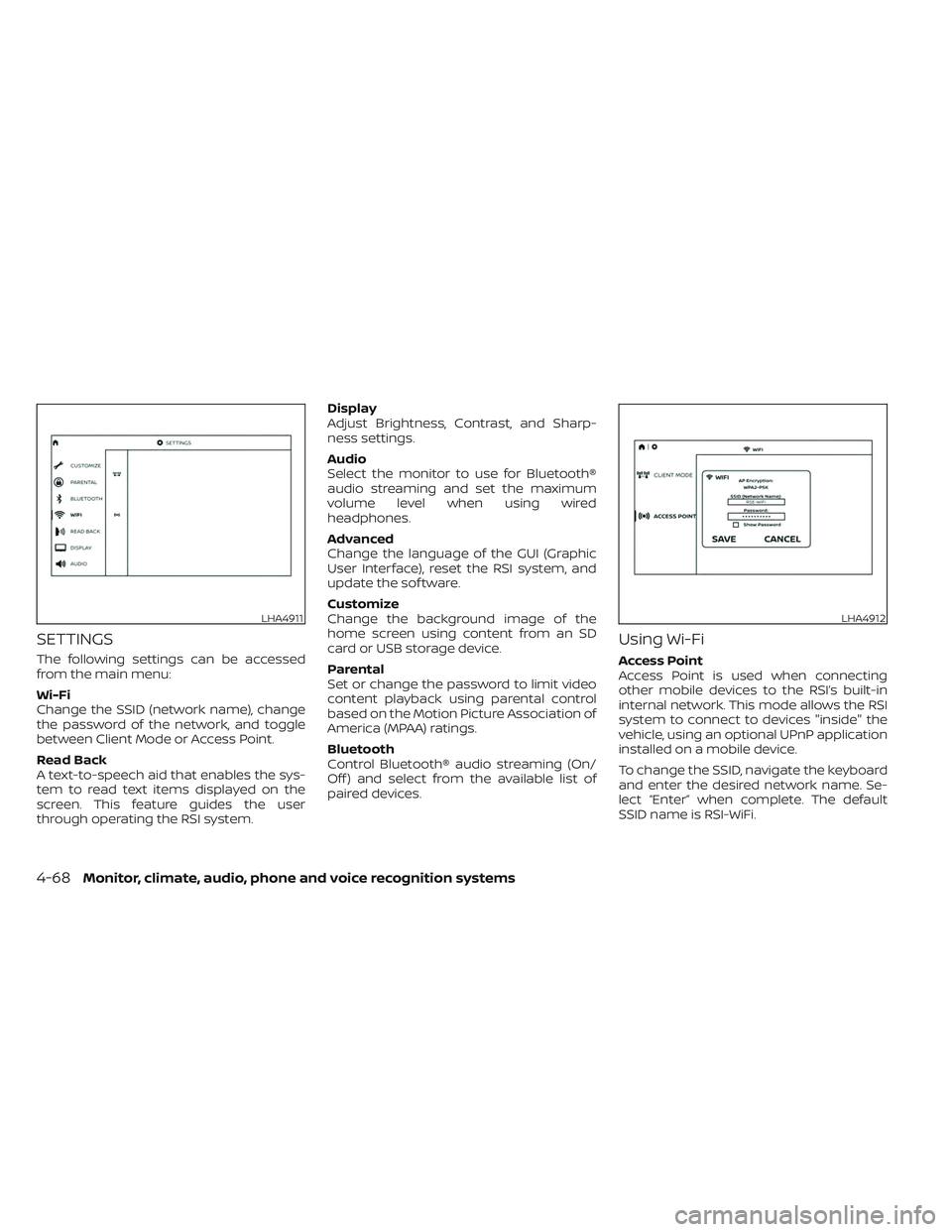
SETTINGS
The following settings can be accessed
from the main menu:
Wi-Fi
Change the SSID (network name), change
the password of the network, and toggle
between Client Mode or Access Point.
Read Back
A text-to-speech aid that enables the sys-
tem to read text items displayed on the
screen. This feature guides the user
through operating the RSI system.Display
Adjust Brightness, Contrast, and Sharp-
ness settings.
Audio
Select the monitor to use for Bluetooth®
audio streaming and set the maximum
volume level when using wired
headphones.
Advanced
Change the language of the GUI (Graphic
User Interface), reset the RSI system, and
update the sof tware.
Customize
Change the background image of the
home screen using content from an SD
card or USB storage device.
Parental
Set or change the password to limit video
content playback using parental control
based on the Motion Picture Association of
America (MPAA) ratings.
Bluetooth
Control Bluetooth® audio streaming (On/
Off ) and select from the available list of
paired devices.
Using Wi-Fi
Access Point
Access Point is used when connecting
other mobile devices to the RSI’s built-in
internal network. This mode allows the RSI
system to connect to devices "inside" the
vehicle, using an optional UPnP application
installed on a mobile device.
To change the SSID, navigate the keyboard
and enter the desired network name. Se-
lect “Enter” when complete. The default
SSID name is RSI-WiFi.
LHA4911LHA4912
4-68Monitor, climate, audio, phone and voice recognition systems
Page 312 of 635
Speech Rate
Speech Rate can be adjusted between
Normal, Fast, or Slow. This setting controls
how fast the spoken text is pronounced.
*Complies with FCC/Accessibility rule 21st
Century Communications and Video Ac-
cessibility Act (CVAA).
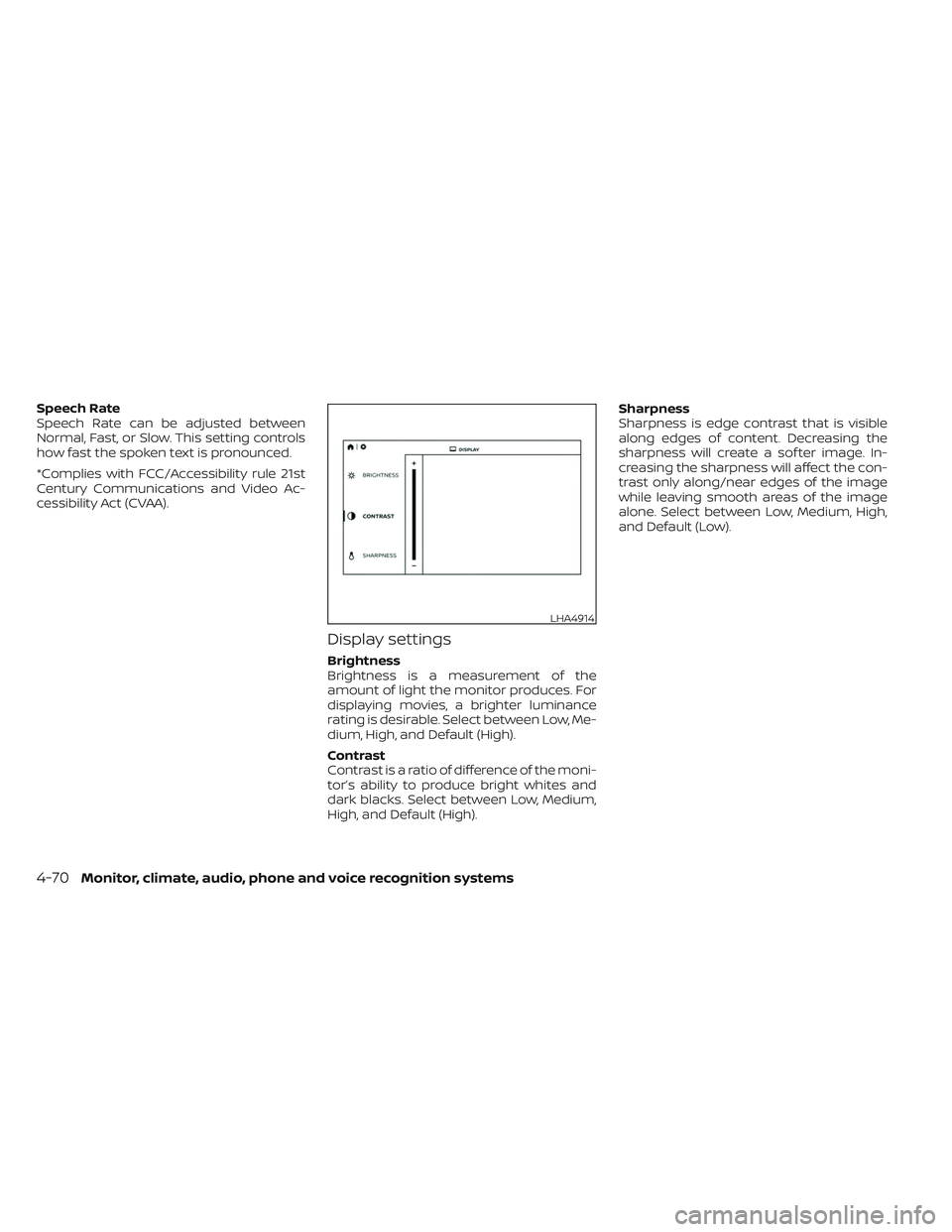
Display settings
Brightness
Brightness is a measurement of the
amount of light the monitor produces. For
displaying movies, a brighter luminance
rating is desirable. Select between Low, Me-
dium, High, and Default (High).
Contrast
Contrast is a ratio of difference of the moni-
tor’s ability to produce bright whites and
dark blacks. Select between Low, Medium,
High, and Default (High).Sharpness
Sharpness is edge contrast that is visible
along edges of content. Decreasing the
sharpness will create a sof ter image. In-
creasing the sharpness will affect the con-
trast only along/near edges of the image
while leaving smooth areas of the image
alone. Select between Low, Medium, High,
and Default (Low).
LHA4914
4-70Monitor, climate, audio, phone and voice recognition systems