ad blue NISSAN VERSA NOTE 2018 Owner´s Manual
[x] Cancel search | Manufacturer: NISSAN, Model Year: 2018, Model line: VERSA NOTE, Model: NISSAN VERSA NOTE 2018Pages: 878, PDF Size: 9.62 MB
Page 169 of 878
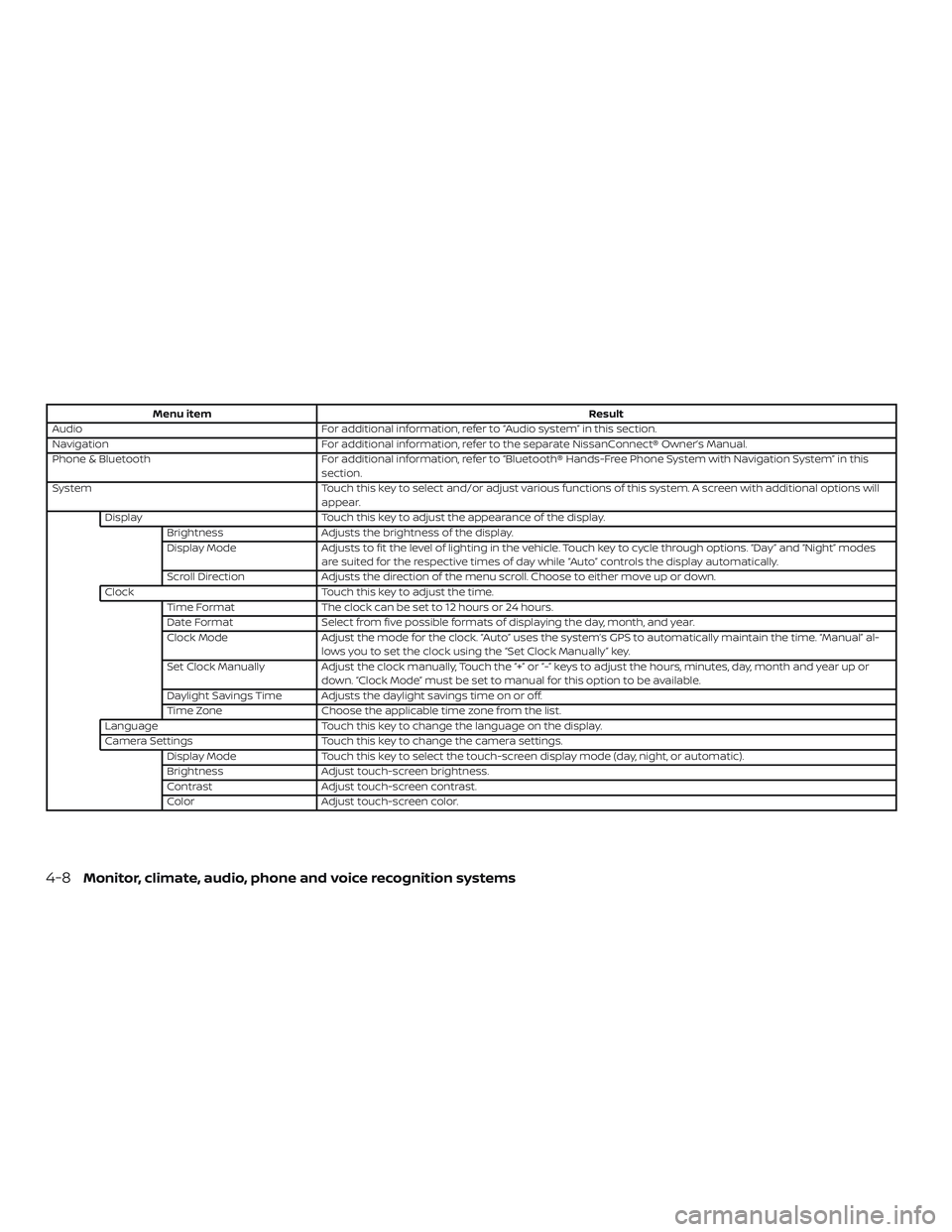
Menu itemResult
Audio For additional information, refer to “Audio system” in this section.
Navigation For additional information, refer to the separate NissanConnect® Owner’s Manual.
Phone & Bluetooth For additional information, refer to “Bluetooth® Hands-Free Phone System with Navigation System” in this
section.
System Touch this key to select and/or adjust various functions of this system. A screen with additional options will
appear.
Display Touch this key to adjust the appearance of the display.
Brightness Adjusts the brightness of the display.
Display Mode Adjusts to fit the level of lighting in the vehicle. Touch key to cycle through options. “Day” and “Night” modes
are suited for the respective times of day while “Auto” controls the display automatically.
Scroll Direction Adjusts the direction of the menu scroll. Choose to either move up or down.
Clock Touch this key to adjust the time.
Time Format The clock can be set to 12 hours or 24 hours.
Date Format Select from five possible formats of displaying the day, month, and year.
Clock Mode Adjust the mode for the clock. “Auto” uses the system’s GPS to automatically maintain the time. “Manual” al-
lows you to set the clock using the “Set Clock Manually” key.
Set Clock Manually Adjust the clock manually, Touch the “+” or “-” keys to adjust the hours, minutes, day, month and year up or
down. “Clock Mode” must be set to manual for this option to be available.
Daylight Savings Time Adjusts the daylight savings time on or off.
Time Zone Choose the applicable time zone from the list.
Language Touch this key to change the language on the display.
Camera Settings Touch this key to change the camera settings.
Display Mode Touch this key to select the touch-screen display mode (day, night, or automatic).
Brightness Adjust touch-screen brightness.
Contrast Adjust touch-screen contrast.
Color Adjust touch-screen color.
4-8Monitor, climate, audio, phone and voice recognition systems
Page 205 of 878
∙ If an iPod® automatically selects largevideo files while in the shuffle mode, the
vehicle center display may momen-
tarily black out, but will soon recover.
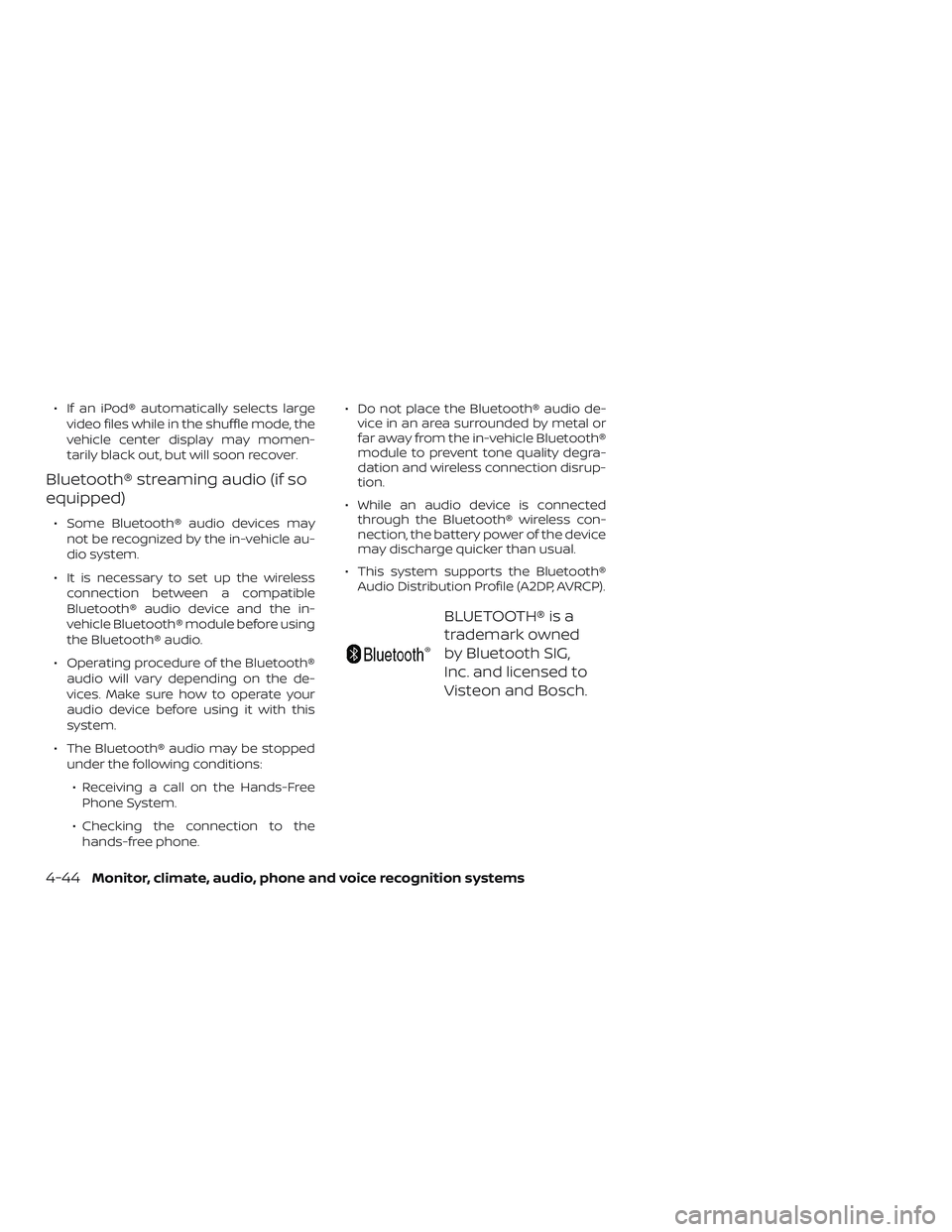
Bluetooth® streaming audio (if so
equipped)
∙ Some Bluetooth® audio devices maynot be recognized by the in-vehicle au-
dio system.
∙ It is necessary to set up the wireless connection between a compatible
Bluetooth® audio device and the in-
vehicle Bluetooth® module before using
the Bluetooth® audio.
∙ Operating procedure of the Bluetooth® audio will vary depending on the de-
vices. Make sure how to operate your
audio device before using it with this
system.
∙ The Bluetooth® audio may be stopped under the following conditions:
∙ Receiving a call on the Hands-Free Phone System.
∙ Checking the connection to the hands-free phone. ∙ Do not place the Bluetooth® audio de-
vice in an area surrounded by metal or
far away from the in-vehicle Bluetooth®
module to prevent tone quality degra-
dation and wireless connection disrup-
tion.
∙ While an audio device is connected through the Bluetooth® wireless con-
nection, the battery power of the device
may discharge quicker than usual.
∙ This system supports the Bluetooth® Audio Distribution Profile (A2DP, AVRCP).
BLUETOOTH® is a
trademark owned
by Bluetooth SIG,
Inc. and licensed to
Visteon and Bosch.
4-44
Monitor, climate, audio, phone and voice recognition systems
Page 211 of 878
Audio main operation
(power) button / VOL (volume)
control knob
Place the ignition switch in the ACC or ON
position and press the
(power) but-
ton while the system is off to call up the
mode (radio, CD, AUX, Bluetooth® audio,
USB or iPod®) that was playing immediately
before the system was turned off. To turn the system off, press the
(power) button.
Turn the VOL (volume) control knob to ad-
just the volume.
This vehicle may be equipped with Speed
Sensitive Volume. When this feature is ac-
tive, the audio volume changes as the driv-
ing speed changes.
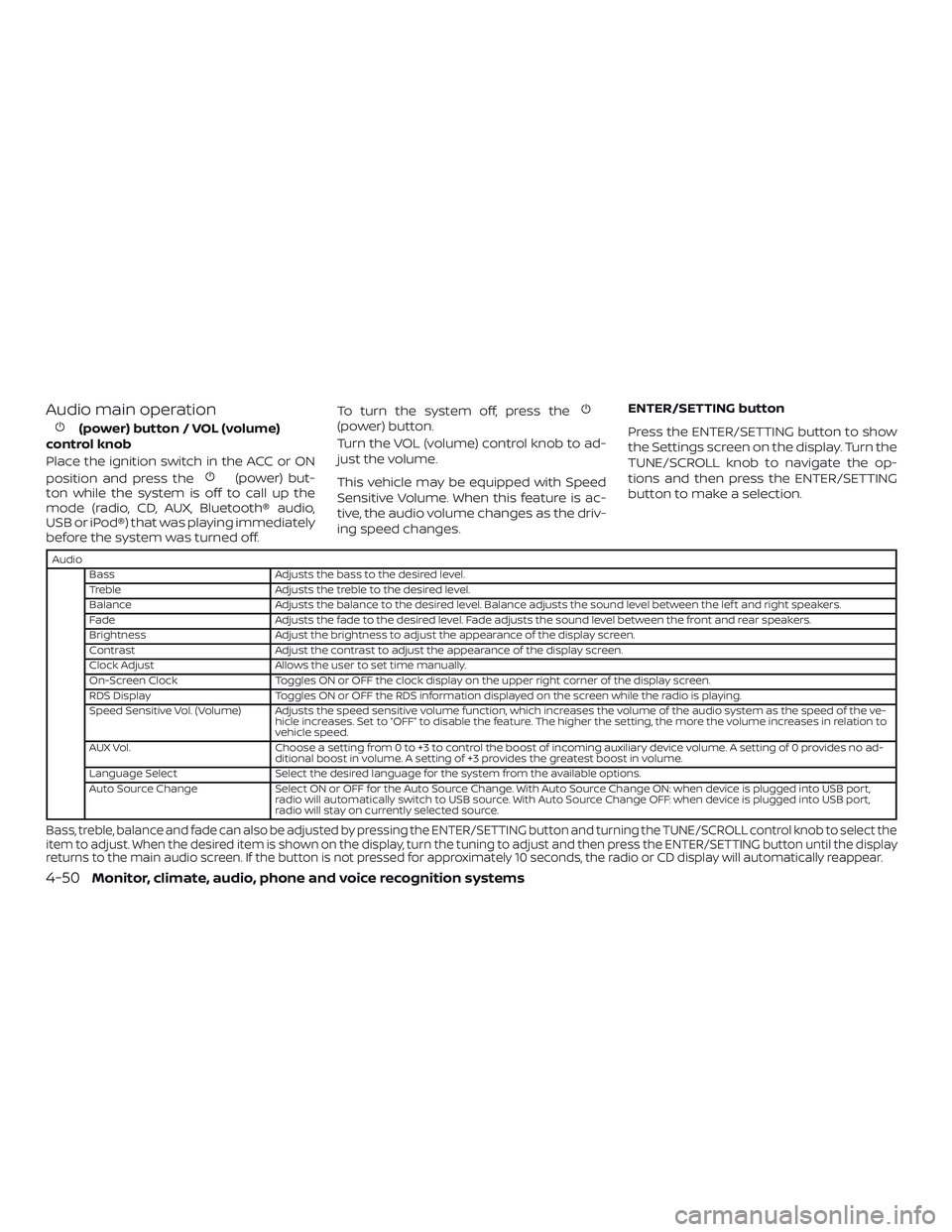
ENTER/SETTING button
Press the ENTER/SETTING button to show
the Settings screen on the display. Turn the
TUNE/SCROLL knob to navigate the op-
tions and then press the ENTER/SETTING
button to make a selection.
Audio
Bass Adjusts the bass to the desired level.
Treble Adjusts the treble to the desired level.
Balance Adjusts the balance to the desired level. Balance adjusts the sound level between the lef t and right speakers.
Fade Adjusts the fade to the desired level. Fade adjusts the sound level between the front and rear speakers.
Brightness Adjust the brightness to adjust the appearance of the display screen.
Contrast Adjust the contrast to adjust the appearance of the display screen.
Clock Adjust Allows the user to set time manually.
On-Screen Clock Toggles ON or OFF the clock display on the upper right corner of the display screen.
RDS Display Toggles ON or OFF the RDS information displayed on the screen while the radio is playing.
Speed Sensitive Vol. (Volume) Adjusts the speed sensitive volume function, which increases the volume of the audio system as the speed of the ve- hicle increases. Set to “OFF” to disable the feature. The higher the setting, the more the volume increases in relation to
vehicle speed.
AUX Vol. Choose a setting from 0 to +3 to control the boost of incoming auxiliary device volume. A setting of 0 provides no ad-
ditional boost in volume. A setting of +3 provides the greatest boost in volume.
Language Select Select the desired language for the system from the available options.
Auto Source Change Select ON or OFF for the Auto Source Change. With Auto Source Change ON: when device is plugged into USB port,
radio will automatically switch to USB source. With Auto Source Change OFF: when device is plugged into USB port,
radio will stay on currently selected source.
Bass, treble, balance and fade can also be adjusted by pressing the ENTER/SETTING button and turning the TUNE/SCROLL control knob to select the
item to adjust. When the desired item is shown on the display, turn the tuning to adjust and then press the ENTER/SETTING button until the display
returns to the main audio screen. If the button is not pressed for approximately 10 seconds, the radio or CD display will automatically reappear.
4-50Monitor, climate, audio, phone and voice recognition systems
Page 214 of 878
Press the SEEK/CAT buttonwhile a
CD or MP3/WMA CD is playing to advance
one track. Press the SEEK/CAT button
several times to skip forward several
tracks. If the last track on a CD is skipped,
the first track on the disc is played. If the last
track in a folder of an MP3/WMA CD is
skipped, the first track of the next folder is
played.
TUNE/SCROLL knob (MP3/WMA CD only)
If a MP3/WMA CD with multiple folders is
playing, turn the TUNE/SCROLL knob to
change folders. Turn the knob to the lef t to
skip back a folder. Turn the knob to the right
to skip ahead a folder.
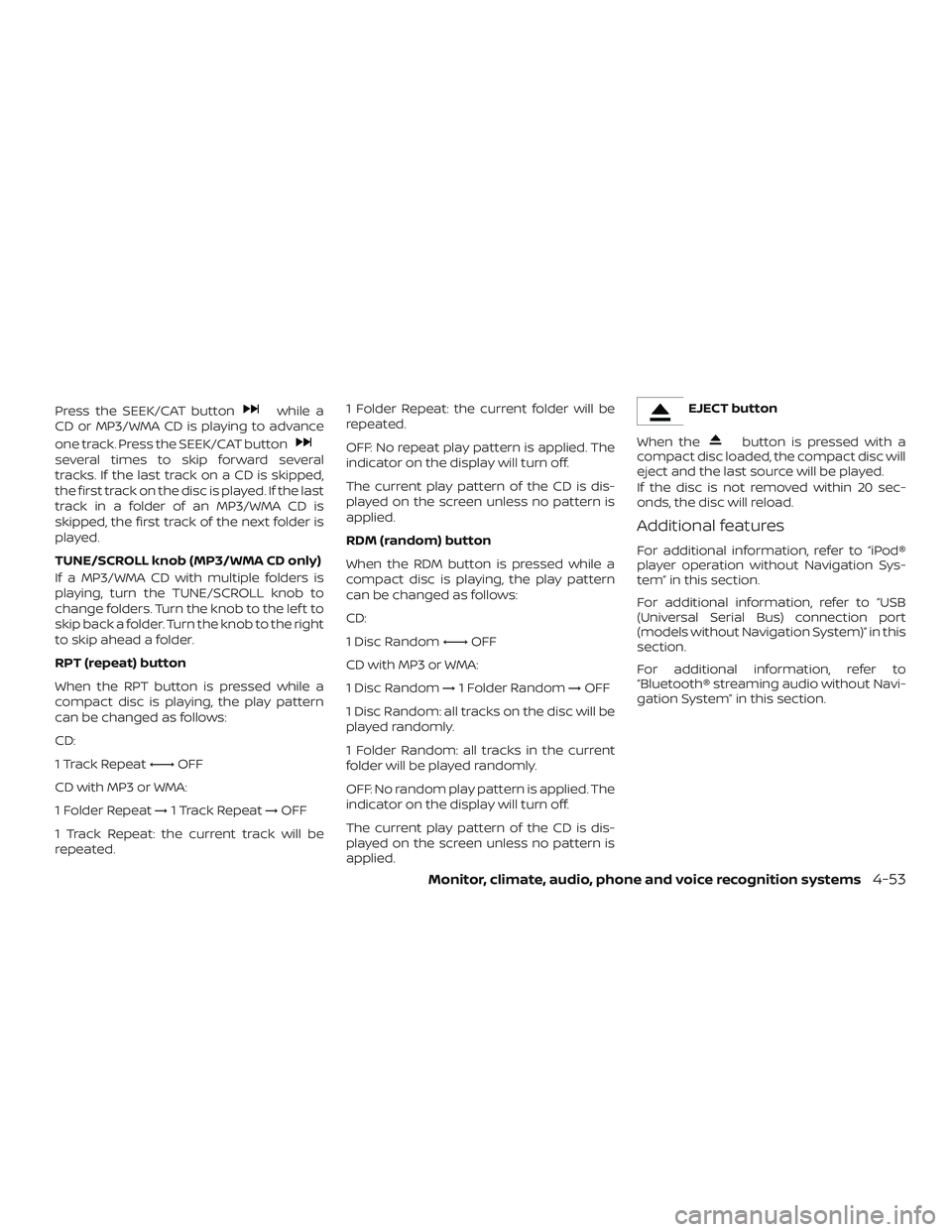
RPT (repeat) button
When the RPT button is pressed while a
compact disc is playing, the play pattern
can be changed as follows:
CD:
1 Track Repeat ←→OFF
CD with MP3 or WMA:
1 Folder Repeat →1 Track Repeat →OFF
1 Track Repeat: the current track will be
repeated. 1 Folder Repeat: the current folder will be
repeated.
OFF: No repeat play pattern is applied. The
indicator on the display will turn off.
The current play pattern of the CD is dis-
played on the screen unless no pattern is
applied.
RDM (random) button
When the RDM button is pressed while a
compact disc is playing, the play pattern
can be changed as follows:
CD:
1 Disc Random
←→OFF
CD with MP3 or WMA:
1 Disc Random →1 Folder Random →OFF
1 Disc Random: all tracks on the disc will be
played randomly.
1 Folder Random: all tracks in the current
folder will be played randomly.
OFF: No random play pattern is applied. The
indicator on the display will turn off.
The current play pattern of the CD is dis-
played on the screen unless no pattern is
applied.
EJECT button
When the
button is pressed with a
compact disc loaded, the compact disc will
eject and the last source will be played.
If the disc is not removed within 20 sec-
onds, the disc will reload.
Additional features
For additional information, refer to “iPod®
player operation without Navigation Sys-
tem” in this section.
For additional information, refer to “USB
(Universal Serial Bus) connection port
(models without Navigation System)” in this
section.
For additional information, refer to
“Bluetooth® streaming audio without Navi-
gation System” in this section.
Monitor, climate, audio, phone and voice recognition systems4-53
Page 215 of 878
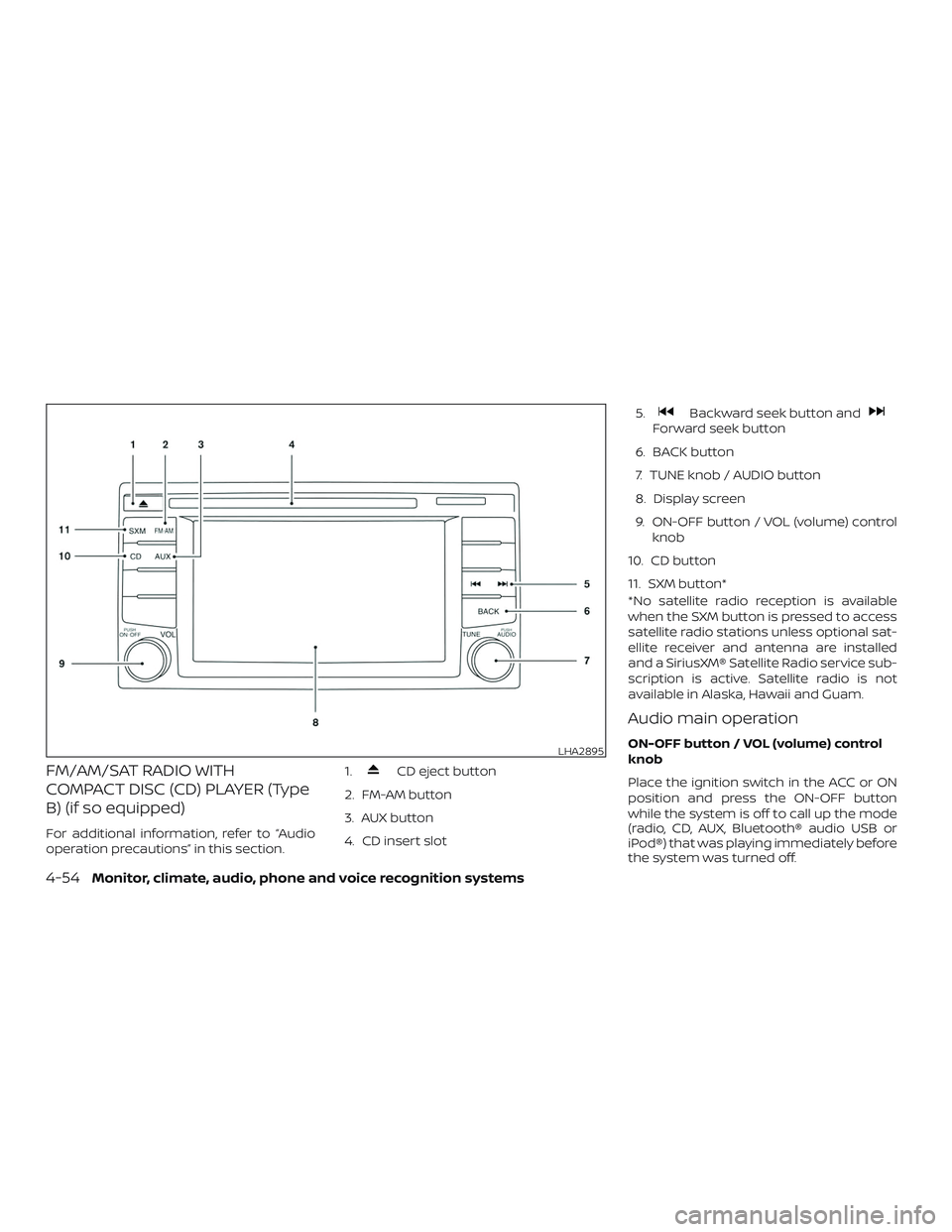
FM/AM/SAT RADIO WITH
COMPACT DISC (CD) PLAYER (Type
B) (if so equipped)
For additional information, refer to “Audio
operation precautions” in this section.1.
CD eject button
2. FM-AM button
3. AUX button
4. CD insert slot 5.
Backward seek button andForward seek button
6. BACK button
7. TUNE knob / AUDIO button
8. Display screen
9. ON-OFF button / VOL (volume) control knob
10. CD button
11. SXM button*
*No satellite radio reception is available
when the SXM button is pressed to access
satellite radio stations unless optional sat-
ellite receiver and antenna are installed
and a SiriusXM® Satellite Radio service sub-
scription is active. Satellite radio is not
available in Alaska, Hawaii and Guam.
Audio main operation
ON-OFF button / VOL (volume) control
knob
Place the ignition switch in the ACC or ON
position and press the ON-OFF button
while the system is off to call up the mode
(radio, CD, AUX, Bluetooth® audio USB or
iPod®) that was playing immediately before
the system was turned off.LHA2895
4-54Monitor, climate, audio, phone and voice recognition systems
Page 222 of 878
SEEK (Reverse or FastForward) buttons
Press and hold the SEEK buttons
orfor 1.5 seconds while the compact
disc is playing to reverse or fast forward the
track being played. The compact disc plays
at an increased speed while reversing or
fast forwarding. When the button is re-
leased, the compact disc returns to normal
play speed.
SEEK buttons
Press the SEEK button
while a CD or
MP3/WMA CD is playing to return to the
beginning of the current track. Press the
SEEK button
several times to skip
backward several tracks.
Press the SEEK button
while a CD or
MP3/WMA CD is playing to advance one
track. Press the SEEK button
several
times to skip forward several tracks. If the
last track on a CD is skipped, the first track
on the disc is played. If the last track in a
folder of an MP3/WMA CD is skipped, the
first track of the next folder is played. AUX button
The AUX IN audio input jack accepts any
standard analog audio input such as from
a portable cassette tape/CD player, MP3
player or a laptop computer. Press the AUX
button to play a compatible device
plugged into the AUX IN jack.
EJECT button
When the
button is pressed with a
compact disc loaded, the compact disc will
eject and the last source will be played.
If the disc is not removed within 10 seconds,
the disc will reload.
Additional features
For additional information, refer to “iPod®
player operation with Navigation System”
in this section.
For additional information, refer to “USB
(Universal Serial Bus) connection port
(models with Navigation System)” in this
section.
For additional information, refer to
“Bluetooth® streaming audio with Naviga-
tion System” in this section.
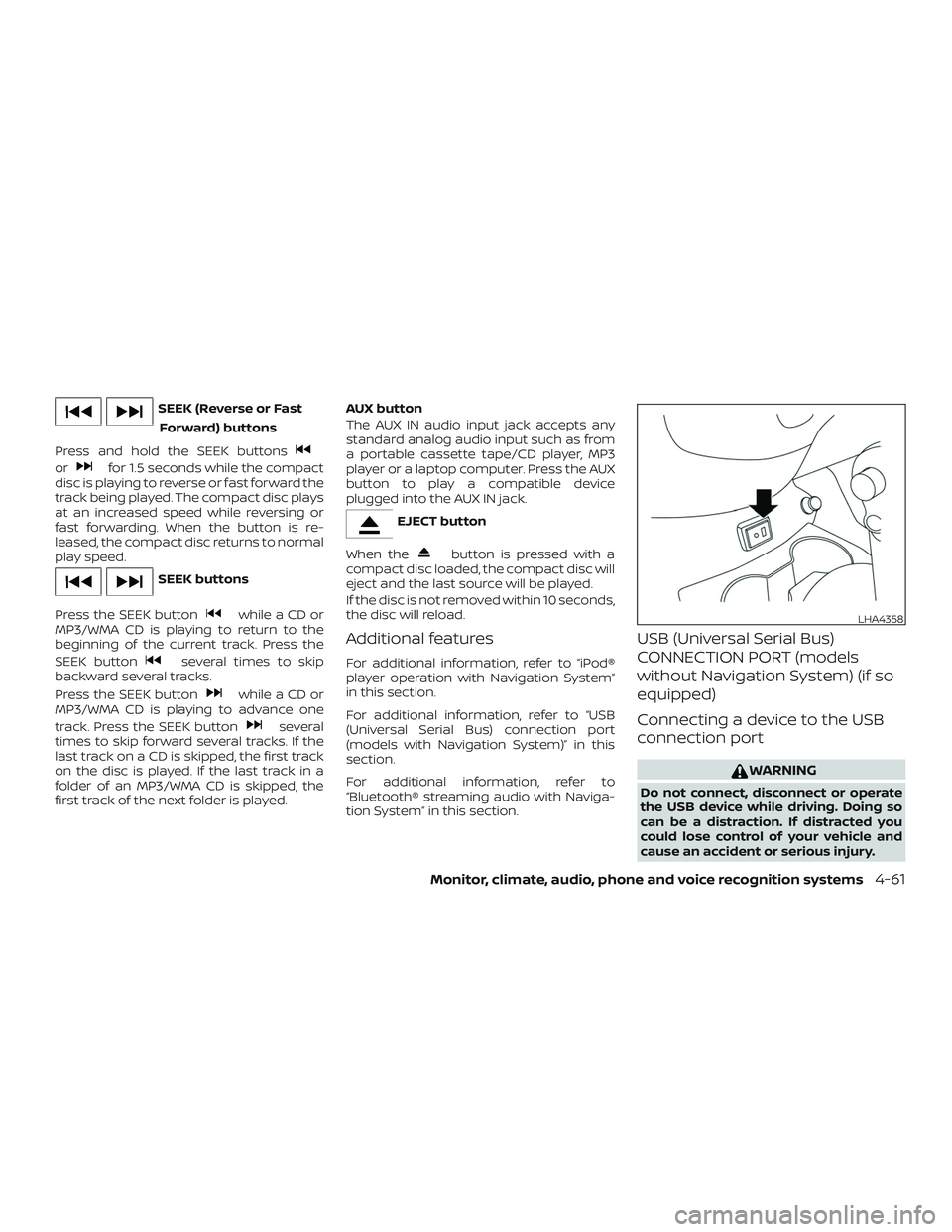
USB (Universal Serial Bus)
CONNECTION PORT (models
without Navigation System) (if so
equipped)
Connecting a device to the USB
connection port
WARNING
Do not connect, disconnect or operate
the USB device while driving. Doing so
can be a distraction. If distracted you
could lose control of your vehicle and
cause an accident or serious injury.
LHA4358
Monitor, climate, audio, phone and voice recognition systems4-61
Page 232 of 878
SEEK buttons
Press the SEEK button
orto
skip backward or forward one track.
Press and hold the SEEK button
orfor 1.5 seconds while a track is
playing to reverse or fast forward the track
being played. The track plays at an in-
creased speed while reversing or fast for-
warding. When the button is released, the
track returns to normal play speed.
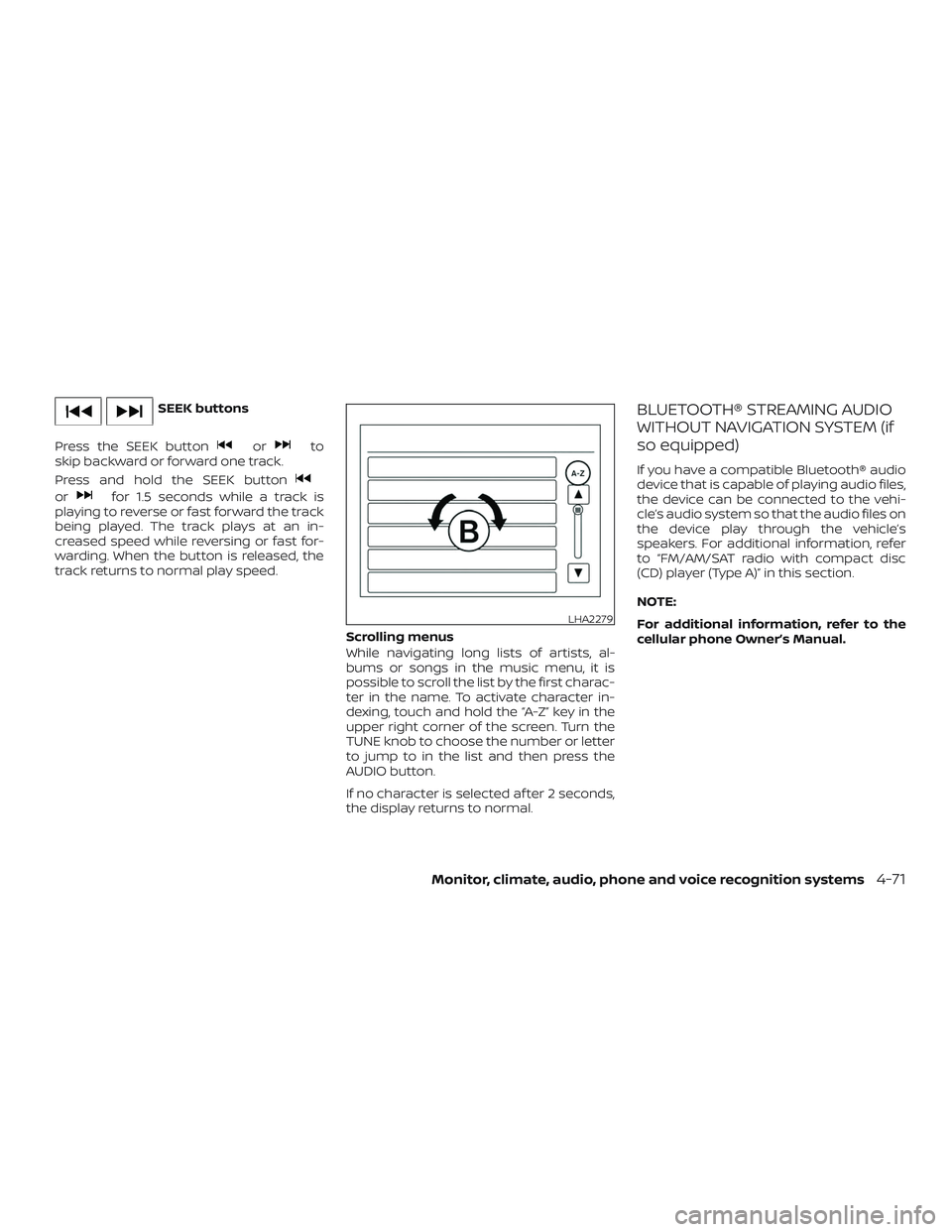
Scrolling menus
While navigating long lists of artists, al-
bums or songs in the music menu, it is
possible to scroll the list by the first charac-
ter in the name. To activate character in-
dexing, touch and hold the “A-Z” key in the
upper right corner of the screen. Turn the
TUNE knob to choose the number or letter
to jump to in the list and then press the
AUDIO button.
If no character is selected af ter 2 seconds,
the display returns to normal.
BLUETOOTH® STREAMING AUDIO
WITHOUT NAVIGATION SYSTEM (if
so equipped)
If you have a compatible Bluetooth® audio
device that is capable of playing audio files,
the device can be connected to the vehi-
cle’s audio system so that the audio files on
the device play through the vehicle’s
speakers. For additional information, refer
to “FM/AM/SAT radio with compact disc
(CD) player (Type A)” in this section.
NOTE:
For additional information, refer to the
cellular phone Owner’s Manual.
LHA2279
Monitor, climate, audio, phone and voice recognition systems4-71
Page 233 of 878
Connecting Bluetooth® audio
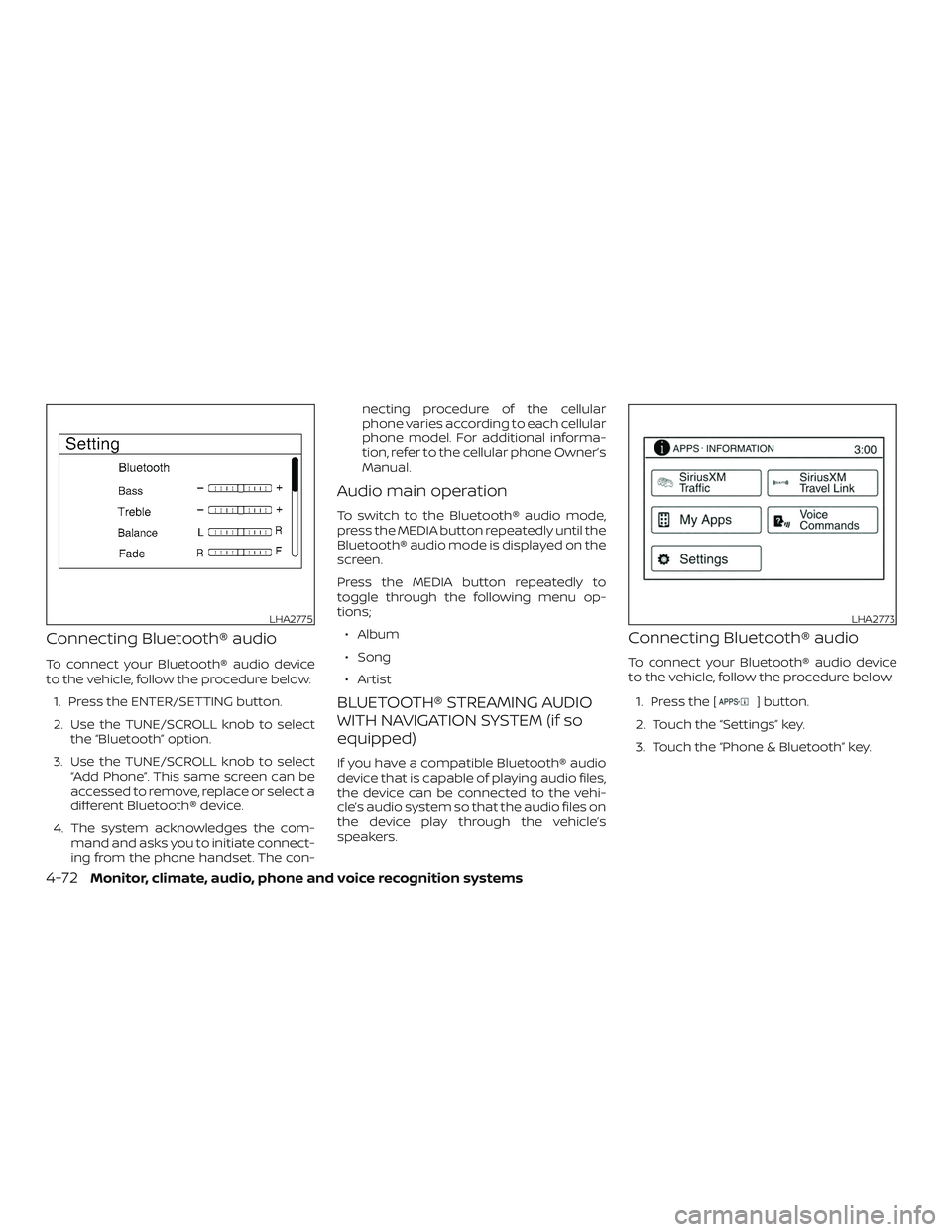
To connect your Bluetooth® audio device
to the vehicle, follow the procedure below:1. Press the ENTER/SETTING button.
2. Use the TUNE/SCROLL knob to select the “Bluetooth” option.
3. Use the TUNE/SCROLL knob to select “Add Phone”. This same screen can be
accessed to remove, replace or select a
different Bluetooth® device.
4. The system acknowledges the com- mand and asks you to initiate connect-
ing from the phone handset. The con- necting procedure of the cellular
phone varies according to each cellular
phone model. For additional informa-
tion, refer to the cellular phone Owner’s
Manual.
Audio main operation
To switch to the Bluetooth® audio mode,
press the MEDIA button repeatedly until the
Bluetooth® audio mode is displayed on the
screen.
Press the MEDIA button repeatedly to
toggle through the following menu op-
tions;
∙ Album
∙ Song
∙ Artist
BLUETOOTH® STREAMING AUDIO
WITH NAVIGATION SYSTEM (if so
equipped)
If you have a compatible Bluetooth® audio
device that is capable of playing audio files,
the device can be connected to the vehi-
cle’s audio system so that the audio files on
the device play through the vehicle’s
speakers.
Connecting Bluetooth® audio
To connect your Bluetooth® audio device
to the vehicle, follow the procedure below:
1. Press the [
] button.
2. Touch the “Settings” key.
3. Touch the “Phone & Bluetooth” key.
LHA2775LHA2773
4-72Monitor, climate, audio, phone and voice recognition systems
Page 234 of 878
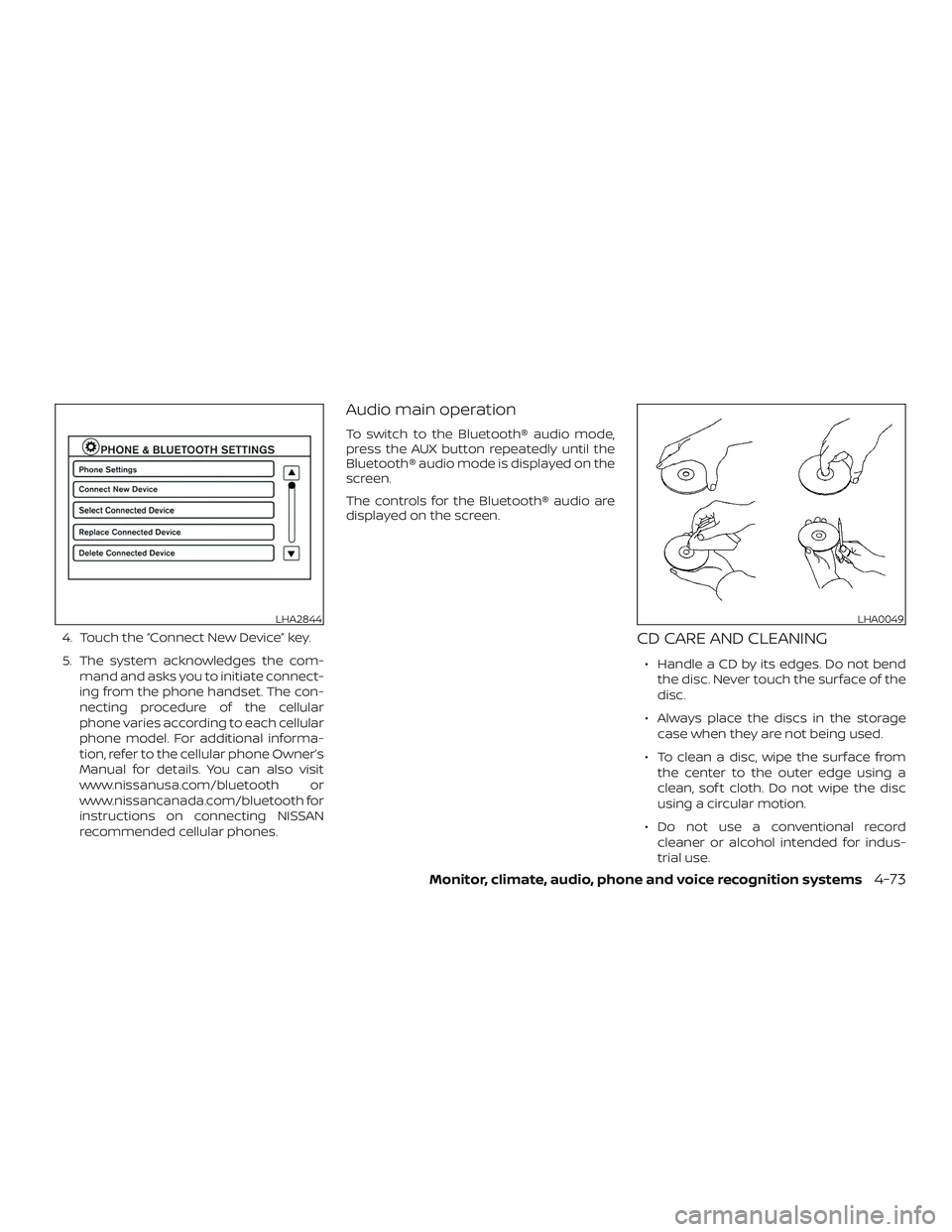
4. Touch the “Connect New Device” key.
5. The system acknowledges the com-mand and asks you to initiate connect-
ing from the phone handset. The con-
necting procedure of the cellular
phone varies according to each cellular
phone model. For additional informa-
tion, refer to the cellular phone Owner’s
Manual for details. You can also visit
www.nissanusa.com/bluetooth or
www.nissancanada.com/bluetooth for
instructions on connecting NISSAN
recommended cellular phones.
Audio main operation
To switch to the Bluetooth® audio mode,
press the AUX button repeatedly until the
Bluetooth® audio mode is displayed on the
screen.
The controls for the Bluetooth® audio are
displayed on the screen.
CD CARE AND CLEANING
∙ Handle a CD by its edges. Do not bendthe disc. Never touch the surface of the
disc.
∙ Always place the discs in the storage case when they are not being used.
∙ To clean a disc, wipe the surface from the center to the outer edge using a
clean, sof t cloth. Do not wipe the disc
using a circular motion.
∙ Do not use a conventional record cleaner or alcohol intended for indus-
trial use.
LHA2844LHA0049
Monitor, climate, audio, phone and voice recognition systems4-73
Page 235 of 878
∙ A new disc may be rough on the innerand outer edges. Remove the rough
edges by rubbing the inner and outer
edges with the side of a pen or pencil as
illustrated.
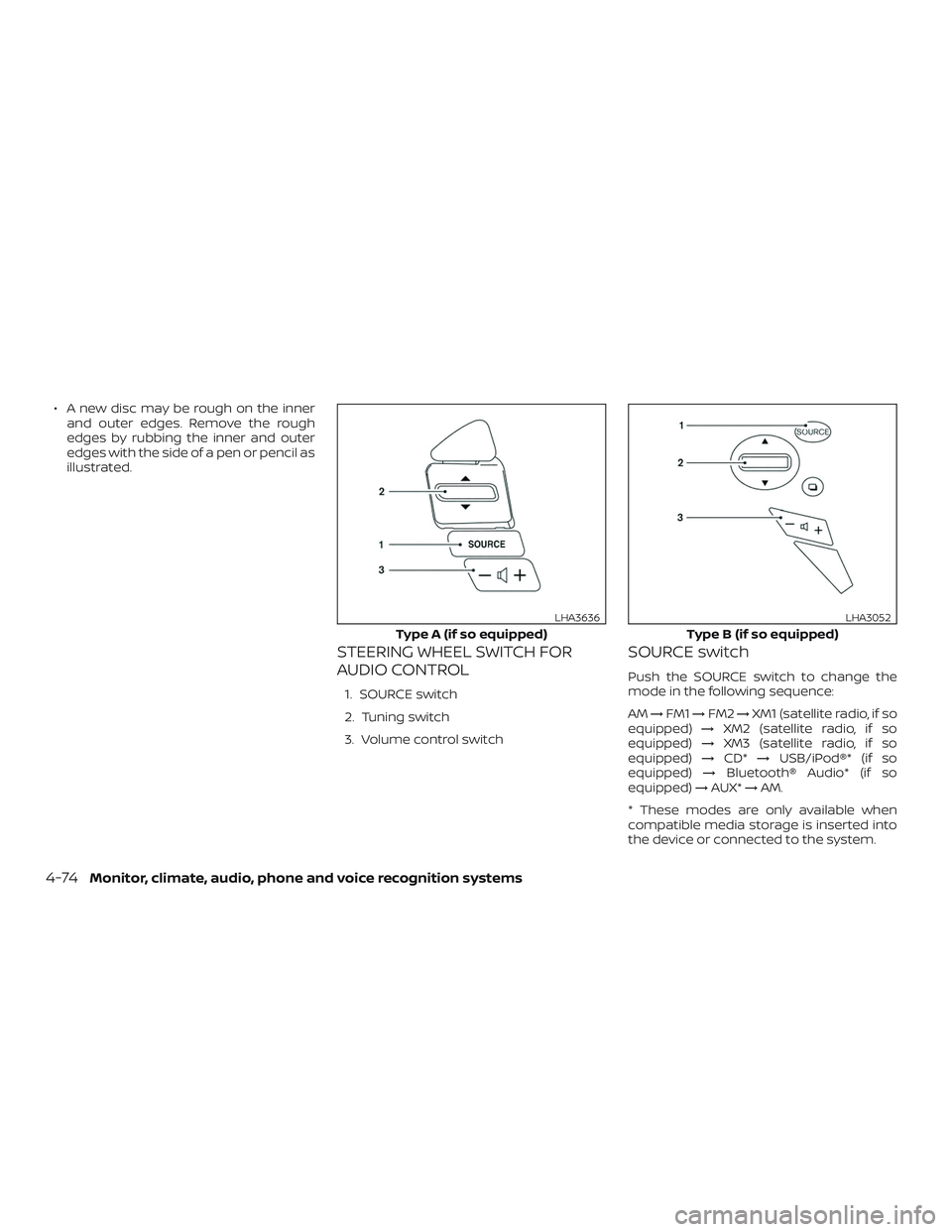
STEERING WHEEL SWITCH FOR
AUDIO CONTROL
1. SOURCE switch
2. Tuning switch
3. Volume control switch
SOURCE switch
Push the SOURCE switch to change the
mode in the following sequence:
AM →FM1 →FM2 →XM1 (satellite radio, if so
equipped) →XM2 (satellite radio, if so
equipped) →XM3 (satellite radio, if so
equipped) →CD* →USB/iPod®* (if so
equipped) →Bluetooth® Audio* (if so
equipped) →AUX* →AM.
* These modes are only available when
compatible media storage is inserted into
the device or connected to the system.
Type A (if so equipped)
LHA3636
Type B (if so equipped)
LHA3052
4-74Monitor, climate, audio, phone and voice recognition systems