media NISSAN VERSA NOTE 2018 Owner´s Manual
[x] Cancel search | Manufacturer: NISSAN, Model Year: 2018, Model line: VERSA NOTE, Model: NISSAN VERSA NOTE 2018Pages: 878, PDF Size: 9.62 MB
Page 200 of 878
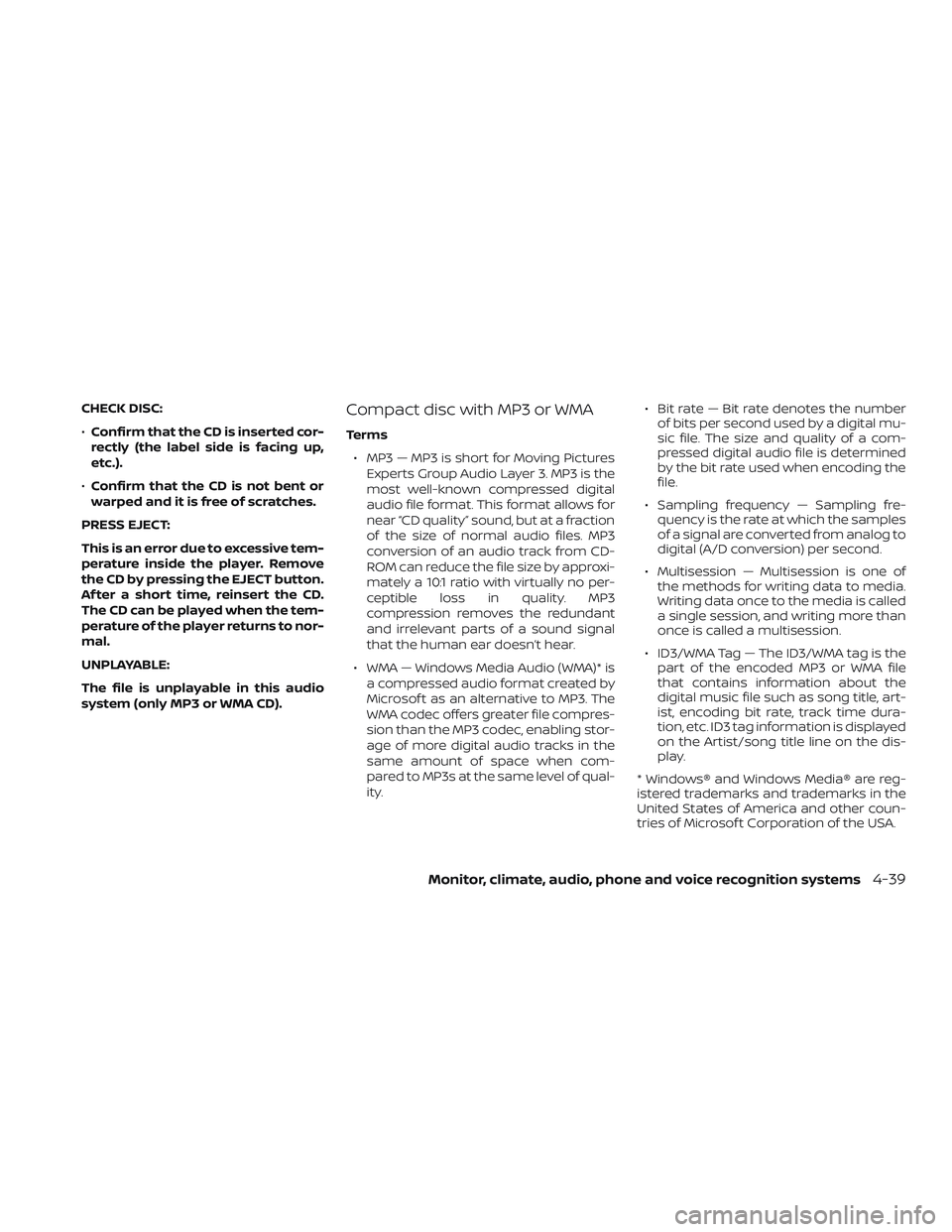
CHECK DISC:
∙Confirm that the CD is inserted cor-
rectly (the label side is facing up,
etc.).
∙ Confirm that the CD is not bent or
warped and it is free of scratches.
PRESS EJECT:
This is an error due to excessive tem-
perature inside the player. Remove
the CD by pressing the EJECT button.
Af ter a short time, reinsert the CD.
The CD can be played when the tem-
perature of the player returns to nor-
mal.
UNPLAYABLE:
The file is unplayable in this audio
system (only MP3 or WMA CD).Compact disc with MP3 or WMA
Terms ∙ MP3 — MP3 is short for Moving Pictures Experts Group Audio Layer 3. MP3 is the
most well-known compressed digital
audio file format. This format allows for
near “CD quality” sound, but at a fraction
of the size of normal audio files. MP3
conversion of an audio track from CD-
ROM can reduce the file size by approxi-
mately a 10:1 ratio with virtually no per-
ceptible loss in quality. MP3
compression removes the redundant
and irrelevant parts of a sound signal
that the human ear doesn’t hear.
∙ WMA — Windows Media Audio (WMA)* is a compressed audio format created by
Microsof t as an alternative to MP3. The
WMA codec offers greater file compres-
sion than the MP3 codec, enabling stor-
age of more digital audio tracks in the
same amount of space when com-
pared to MP3s at the same level of qual-
ity. ∙ Bit rate — Bit rate denotes the number
of bits per second used by a digital mu-
sic file. The size and quality of a com-
pressed digital audio file is determined
by the bit rate used when encoding the
file.
∙ Sampling frequency — Sampling fre- quency is the rate at which the samples
of a signal are converted from analog to
digital (A/D conversion) per second.
∙ Multisession — Multisession is one of the methods for writing data to media.
Writing data once to the media is called
a single session, and writing more than
once is called a multisession.
∙ ID3/WMA Tag — The ID3/WMA tag is the part of the encoded MP3 or WMA file
that contains information about the
digital music file such as song title, art-
ist, encoding bit rate, track time dura-
tion, etc. ID3 tag information is displayed
on the Artist/song title line on the dis-
play.
* Windows® and Windows Media® are reg-
istered trademarks and trademarks in the
United States of America and other coun-
tries of Microsof t Corporation of the USA.
Monitor, climate, audio, phone and voice recognition systems4-39
Page 202 of 878
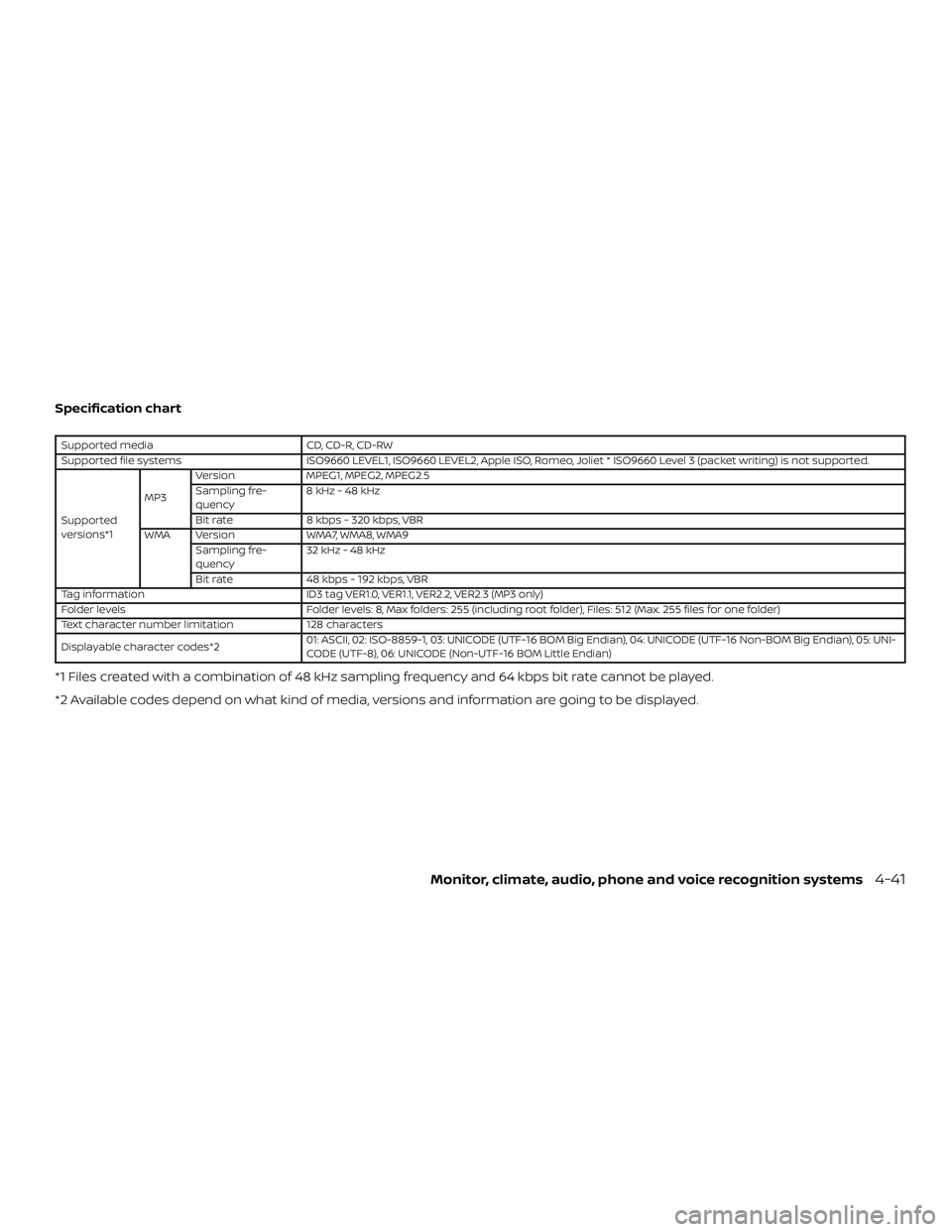
Specification chart
Supported mediaCD, CD-R, CD-RW
Supported file systems ISO9660 LEVEL1, ISO9660 LEVEL2, Apple ISO, Romeo, Joliet * ISO9660 Level 3 (packet writing) is not supported.
Supported
versions*1 MP3
Version
MPEG1, MPEG2, MPEG2.5
Sampling fre-
quency 8kHz-48kHz
Bit rate 8 kbps - 320 kbps, VBR
WMA Version WMA7, WMA8, WMA9
Sampling fre-
quency 32 kHz - 48 kHz
Bit rate 48 kbps - 192 kbps, VBR
Tag information ID3 tag VER1.0, VER1.1, VER2.2, VER2.3 (MP3 only)
Folder levels Folder levels: 8, Max folders: 255 (including root folder), Files: 512 (Max. 255 files for one folder)
Text character number limitation 128 characters
Displayable character codes*2 01: ASCII, 02: ISO-8859-1, 03: UNICODE (UTF-16 BOM Big Endian), 04: UNICODE (UTF-16 Non-BOM Big Endian), 05: UNI-
CODE (UTF-8), 06: UNICODE (Non-UTF-16 BOM Little Endian)
*1 Files created with a combination of 48 kHz sampling frequency and 64 kbps bit rate cannot be played.
*2 Available codes depend on what kind of media, versions and information are going to be displayed.
Monitor, climate, audio, phone and voice recognition systems4-41
Page 203 of 878
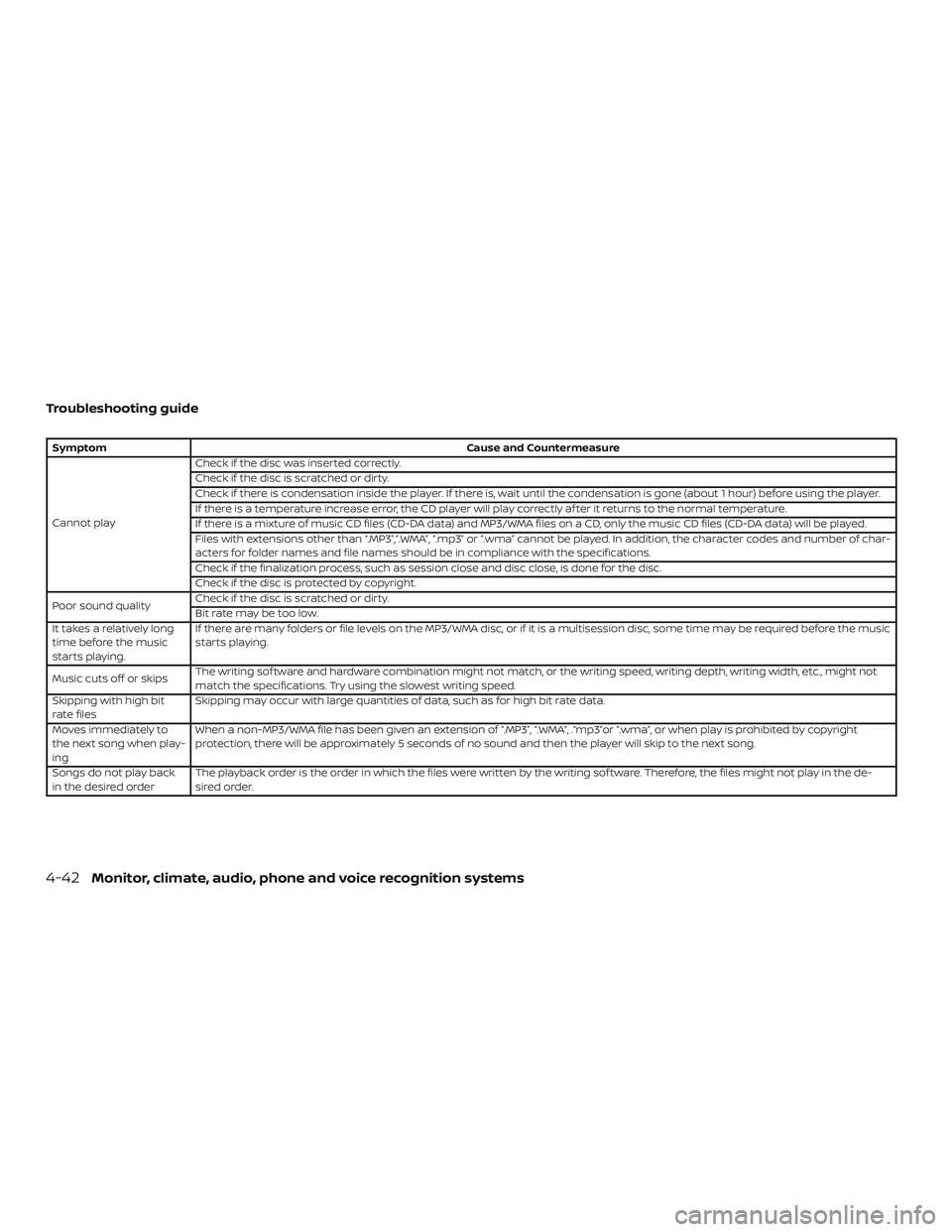
Troubleshooting guide
SymptomCause and Countermeasure
Cannot play Check if the disc was inserted correctly.
Check if the disc is scratched or dirty.
Check if there is condensation inside the player. If there is, wait until the condensation is gone (about 1 hour) before using the player.
If there is a temperature increase error, the CD player will play correctly af ter it returns to the normal temperature.
If there is a mixture of music CD files (CD-DA data) and MP3/WMA files on a CD, only the music CD files (CD-DA data) will be played.
Files with extensions other than “.MP3”,“.WMA”, “.mp3” or “.wma” cannot be played. In addition, the character codes and number of char-
acters for folder names and file names should be in compliance with the specifications.
Check if the finalization process, such as session close and disc close, is done for the disc.
Check if the disc is protected by copyright.
Poor sound quality Check if the disc is scratched or dirty.
Bit rate may be too low.
It takes a relatively long
time before the music
starts playing. If there are many folders or file levels on the MP3/WMA disc, or if it is a multisession disc, some time may be required before the music
starts playing.
Music cuts off or skips The writing sof tware and hardware combination might not match, or the writing speed, writing depth, writing width, etc., might not
match the specifications. Try using the slowest writing speed.
Skipping with high bit
rate files Skipping may occur with large quantities of data, such as for high bit rate data.
Moves immediately to
the next song when play-
ing When a non-MP3/WMA file has been given an extension of “.MP3”, “.WMA”, .“mp3”or “.wma”, or when play is prohibited by copyright
protection, there will be approximately 5 seconds of no sound and then the player will skip to the next song.
Songs do not play back
in the desired order The playback order is the order in which the files were written by the writing sof tware. Therefore, the files might not play in the de-
sired order.
4-42Monitor, climate, audio, phone and voice recognition systems
Page 206 of 878
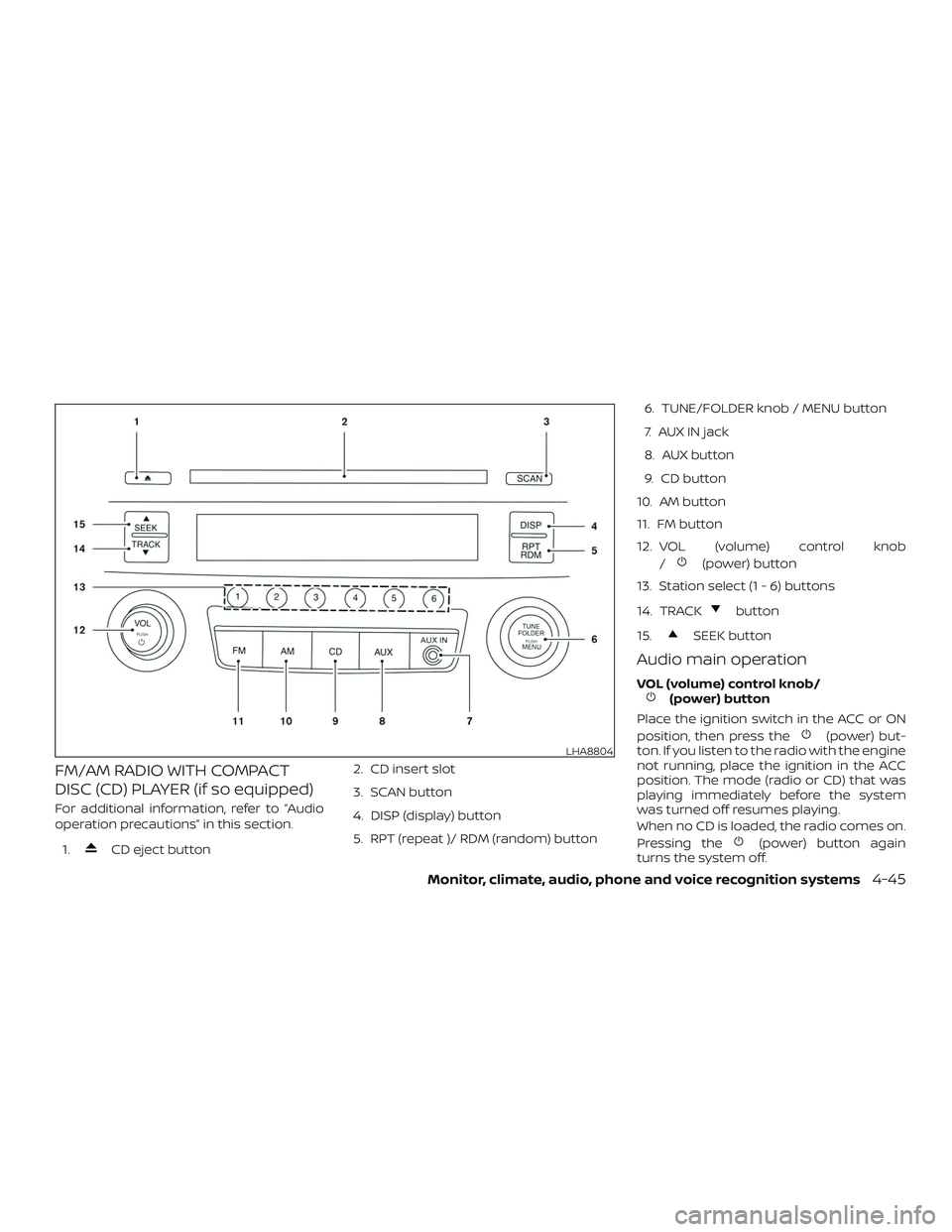
FM/AM RADIO WITH COMPACT
DISC (CD) PLAYER (if so equipped)
For additional information, refer to “Audio
operation precautions” in this section.1.
CD eject button 2. CD insert slot
3. SCAN button
4. DISP (display) button
5. RPT (repeat )/ RDM (random) button 6. TUNE/FOLDER knob / MENU button
7. AUX IN jack
8. AUX button
9. CD button
10. AM button
11. FM button
12. VOL (volume) control knob /
(power) button
13. Station select (1 - 6) buttons
14. TRACK
button
15.
SEEK button
Audio main operation
VOL (volume) control knob/(power) button
Place the ignition switch in the ACC or ON
position, then press the
(power) but-
ton. If you listen to the radio with the engine
not running, place the ignition in the ACC
position. The mode (radio or CD) that was
playing immediately before the system
was turned off resumes playing.
When no CD is loaded, the radio comes on.
Pressing the
(power) button again
turns the system off.
LHA8804
Monitor, climate, audio, phone and voice recognition systems4-45
Page 210 of 878
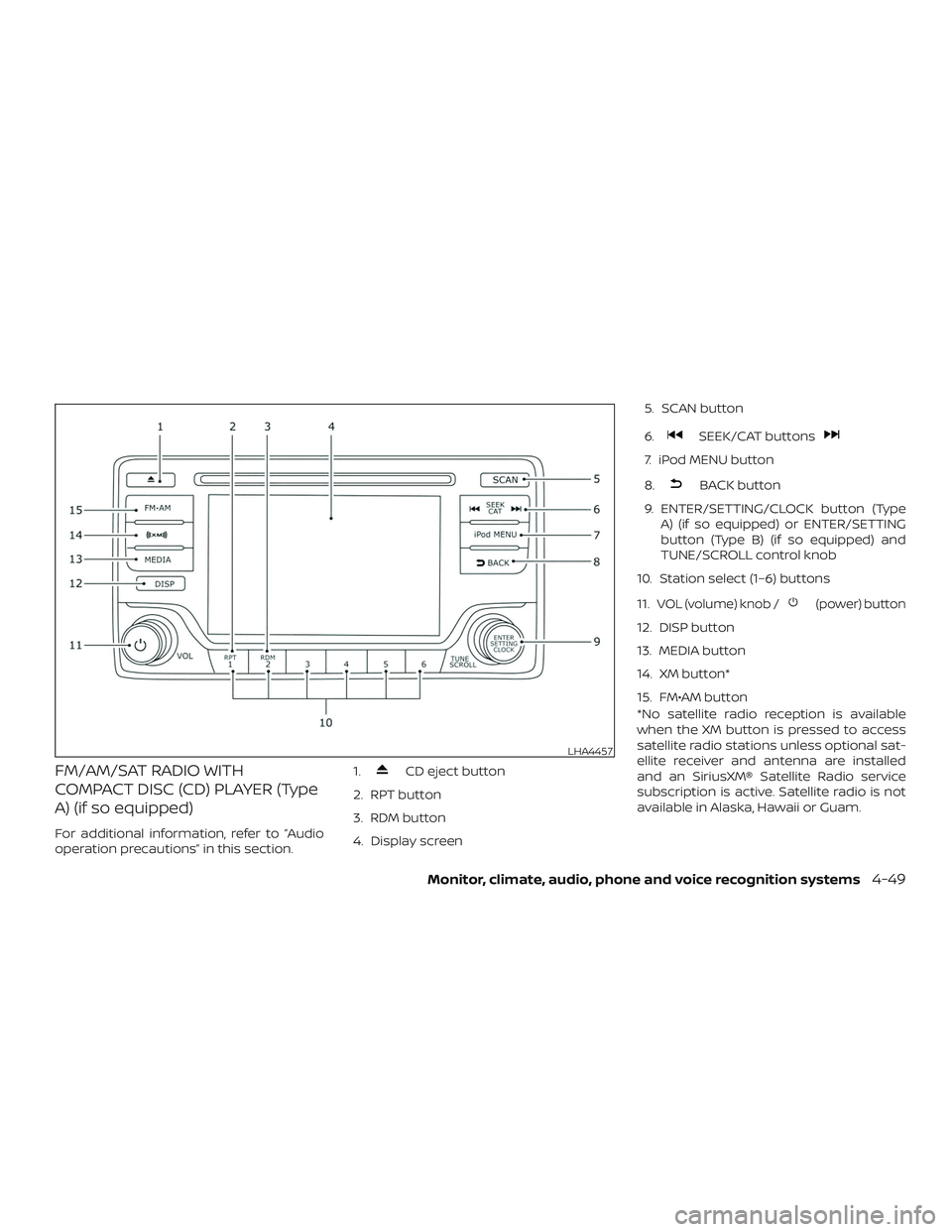
FM/AM/SAT RADIO WITH
COMPACT DISC (CD) PLAYER (Type
A) (if so equipped)
For additional information, refer to “Audio
operation precautions” in this section.1.
CD eject button
2. RPT button
3. RDM button
4. Display screen 5. SCAN button
6.
SEEK/CAT buttons
7. iPod MENU button
8.
BACK button
9. ENTER/SETTING/CLOCK button (Type A) (if so equipped) or ENTER/SETTING
button (Type B) (if so equipped) and
TUNE/SCROLL control knob
10. Station select (1–6) buttons
11.
VOL (volume) knob /(power) button
12. DISP button
13. MEDIA button
14. XM button*
15. FM•AM button
*No satellite radio reception is available
when the XM button is pressed to access
satellite radio stations unless optional sat-
ellite receiver and antenna are installed
and an SiriusXM® Satellite Radio service
subscription is active. Satellite radio is not
available in Alaska, Hawaii or Guam.
LHA4457
Monitor, climate, audio, phone and voice recognition systems4-49
Page 211 of 878
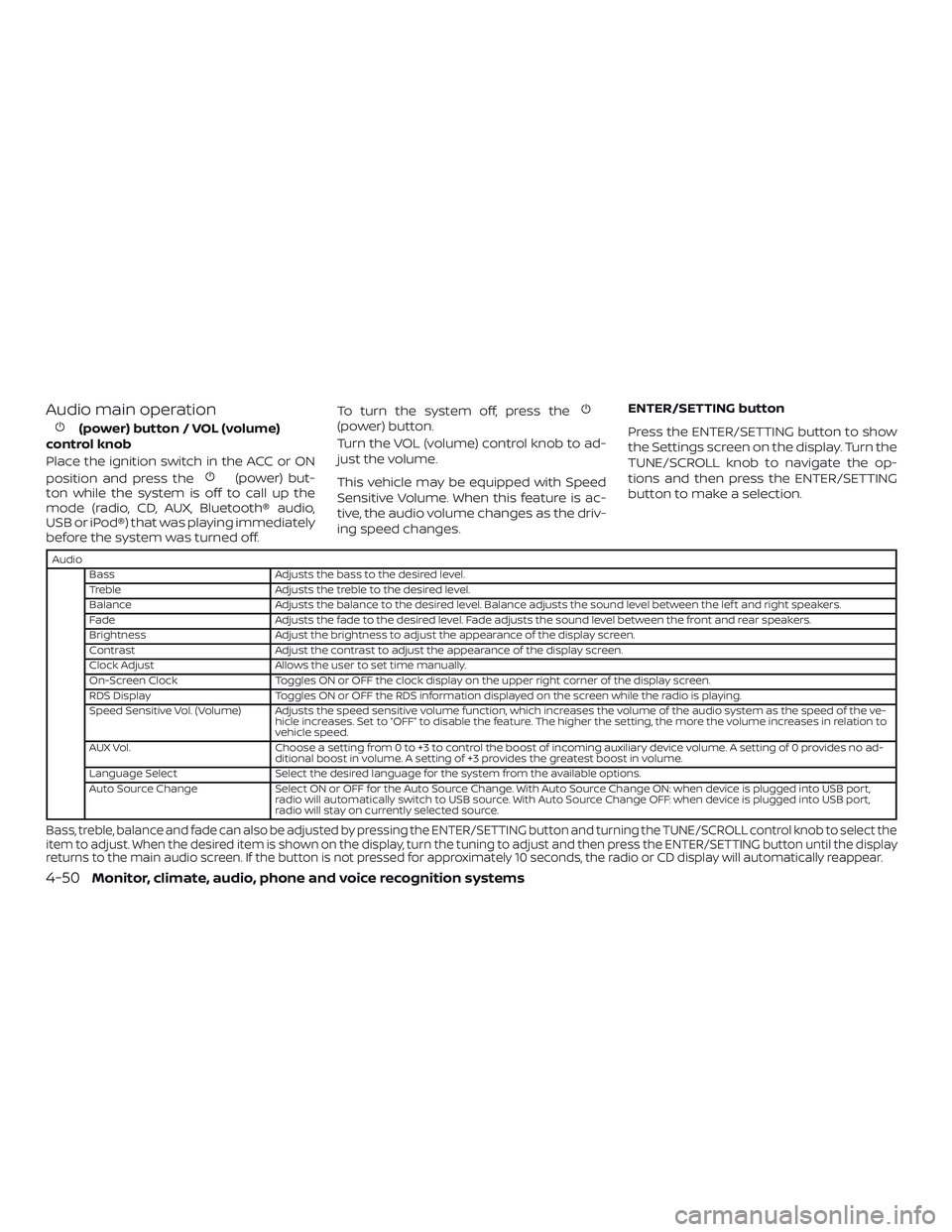
Audio main operation
(power) button / VOL (volume)
control knob
Place the ignition switch in the ACC or ON
position and press the
(power) but-
ton while the system is off to call up the
mode (radio, CD, AUX, Bluetooth® audio,
USB or iPod®) that was playing immediately
before the system was turned off. To turn the system off, press the
(power) button.
Turn the VOL (volume) control knob to ad-
just the volume.
This vehicle may be equipped with Speed
Sensitive Volume. When this feature is ac-
tive, the audio volume changes as the driv-
ing speed changes.
ENTER/SETTING button
Press the ENTER/SETTING button to show
the Settings screen on the display. Turn the
TUNE/SCROLL knob to navigate the op-
tions and then press the ENTER/SETTING
button to make a selection.
Audio
Bass Adjusts the bass to the desired level.
Treble Adjusts the treble to the desired level.
Balance Adjusts the balance to the desired level. Balance adjusts the sound level between the lef t and right speakers.
Fade Adjusts the fade to the desired level. Fade adjusts the sound level between the front and rear speakers.
Brightness Adjust the brightness to adjust the appearance of the display screen.
Contrast Adjust the contrast to adjust the appearance of the display screen.
Clock Adjust Allows the user to set time manually.
On-Screen Clock Toggles ON or OFF the clock display on the upper right corner of the display screen.
RDS Display Toggles ON or OFF the RDS information displayed on the screen while the radio is playing.
Speed Sensitive Vol. (Volume) Adjusts the speed sensitive volume function, which increases the volume of the audio system as the speed of the ve- hicle increases. Set to “OFF” to disable the feature. The higher the setting, the more the volume increases in relation to
vehicle speed.
AUX Vol. Choose a setting from 0 to +3 to control the boost of incoming auxiliary device volume. A setting of 0 provides no ad-
ditional boost in volume. A setting of +3 provides the greatest boost in volume.
Language Select Select the desired language for the system from the available options.
Auto Source Change Select ON or OFF for the Auto Source Change. With Auto Source Change ON: when device is plugged into USB port,
radio will automatically switch to USB source. With Auto Source Change OFF: when device is plugged into USB port,
radio will stay on currently selected source.
Bass, treble, balance and fade can also be adjusted by pressing the ENTER/SETTING button and turning the TUNE/SCROLL control knob to select the
item to adjust. When the desired item is shown on the display, turn the tuning to adjust and then press the ENTER/SETTING button until the display
returns to the main audio screen. If the button is not pressed for approximately 10 seconds, the radio or CD display will automatically reappear.
4-50Monitor, climate, audio, phone and voice recognition systems
Page 213 of 878
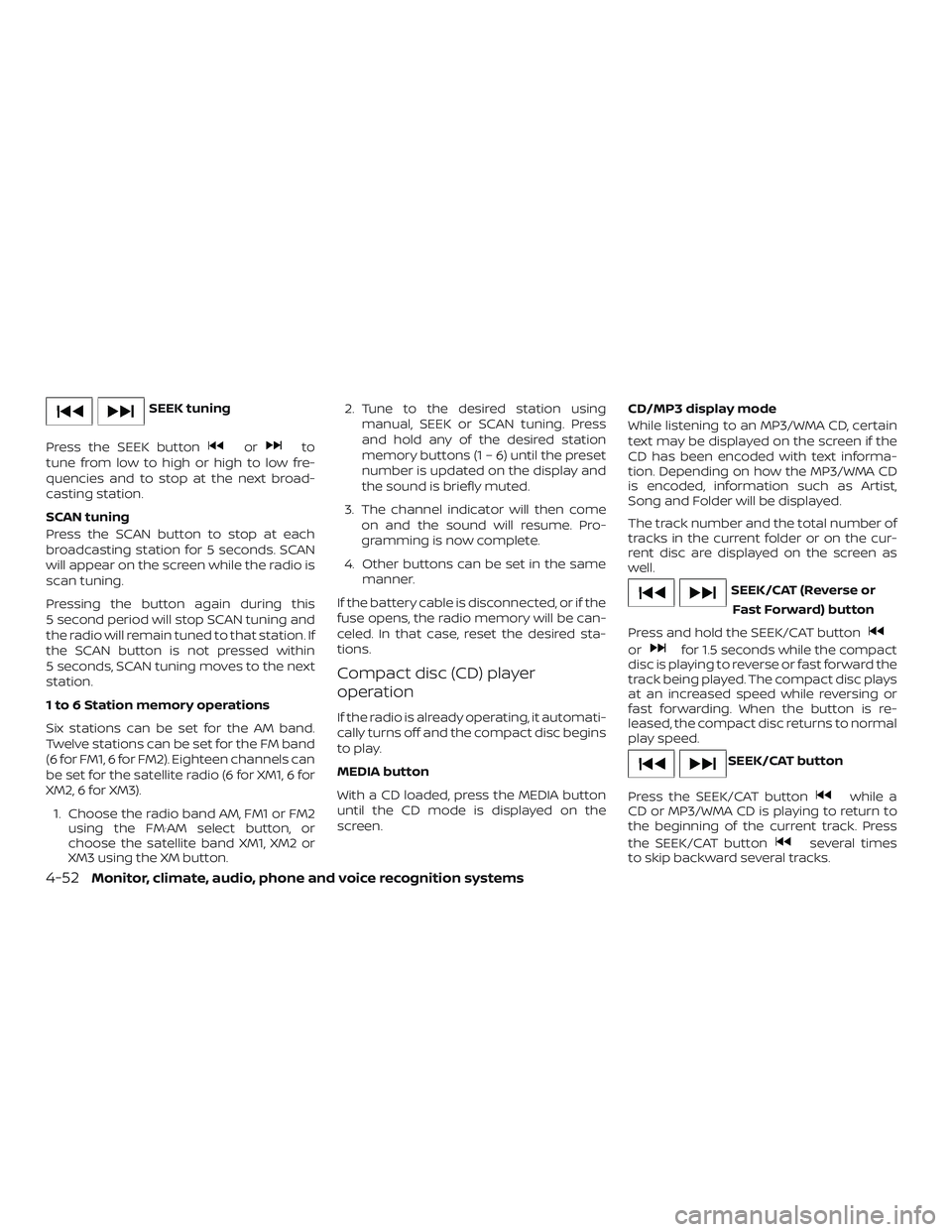
SEEK tuning
Press the SEEK button
orto
tune from low to high or high to low fre-
quencies and to stop at the next broad-
casting station.
SCAN tuning
Press the SCAN button to stop at each
broadcasting station for 5 seconds. SCAN
will appear on the screen while the radio is
scan tuning.
Pressing the button again during this
5 second period will stop SCAN tuning and
the radio will remain tuned to that station. If
the SCAN button is not pressed within
5 seconds, SCAN tuning moves to the next
station.
1 to 6 Station memory operations
Six stations can be set for the AM band.
Twelve stations can be set for the FM band
(6 for FM1, 6 for FM2). Eighteen channels can
be set for the satellite radio (6 for XM1, 6 for
XM2, 6 for XM3).
1. Choose the radio band AM, FM1 or FM2 using the FM·AM select button, or
choose the satellite band XM1, XM2 or
XM3 using the XM button. 2. Tune to the desired station using
manual, SEEK or SCAN tuning. Press
and hold any of the desired station
memory buttons (1 – 6) until the preset
number is updated on the display and
the sound is briefly muted.
3. The channel indicator will then come on and the sound will resume. Pro-
gramming is now complete.
4. Other buttons can be set in the same manner.
If the battery cable is disconnected, or if the
fuse opens, the radio memory will be can-
celed. In that case, reset the desired sta-
tions.
Compact disc (CD) player
operation
If the radio is already operating, it automati-
cally turns off and the compact disc begins
to play.
MEDIA button
With a CD loaded, press the MEDIA button
until the CD mode is displayed on the
screen. CD/MP3 display mode
While listening to an MP3/WMA CD, certain
text may be displayed on the screen if the
CD has been encoded with text informa-
tion. Depending on how the MP3/WMA CD
is encoded, information such as Artist,
Song and Folder will be displayed.
The track number and the total number of
tracks in the current folder or on the cur-
rent disc are displayed on the screen as
well.
SEEK/CAT (Reverse or
Fast Forward) button
Press and hold the SEEK/CAT button
orfor 1.5 seconds while the compact
disc is playing to reverse or fast forward the
track being played. The compact disc plays
at an increased speed while reversing or
fast forwarding. When the button is re-
leased, the compact disc returns to normal
play speed.
SEEK/CAT button
Press the SEEK/CAT button
while a
CD or MP3/WMA CD is playing to return to
the beginning of the current track. Press
the SEEK/CAT button
several times
to skip backward several tracks.
4-52Monitor, climate, audio, phone and voice recognition systems
Page 215 of 878
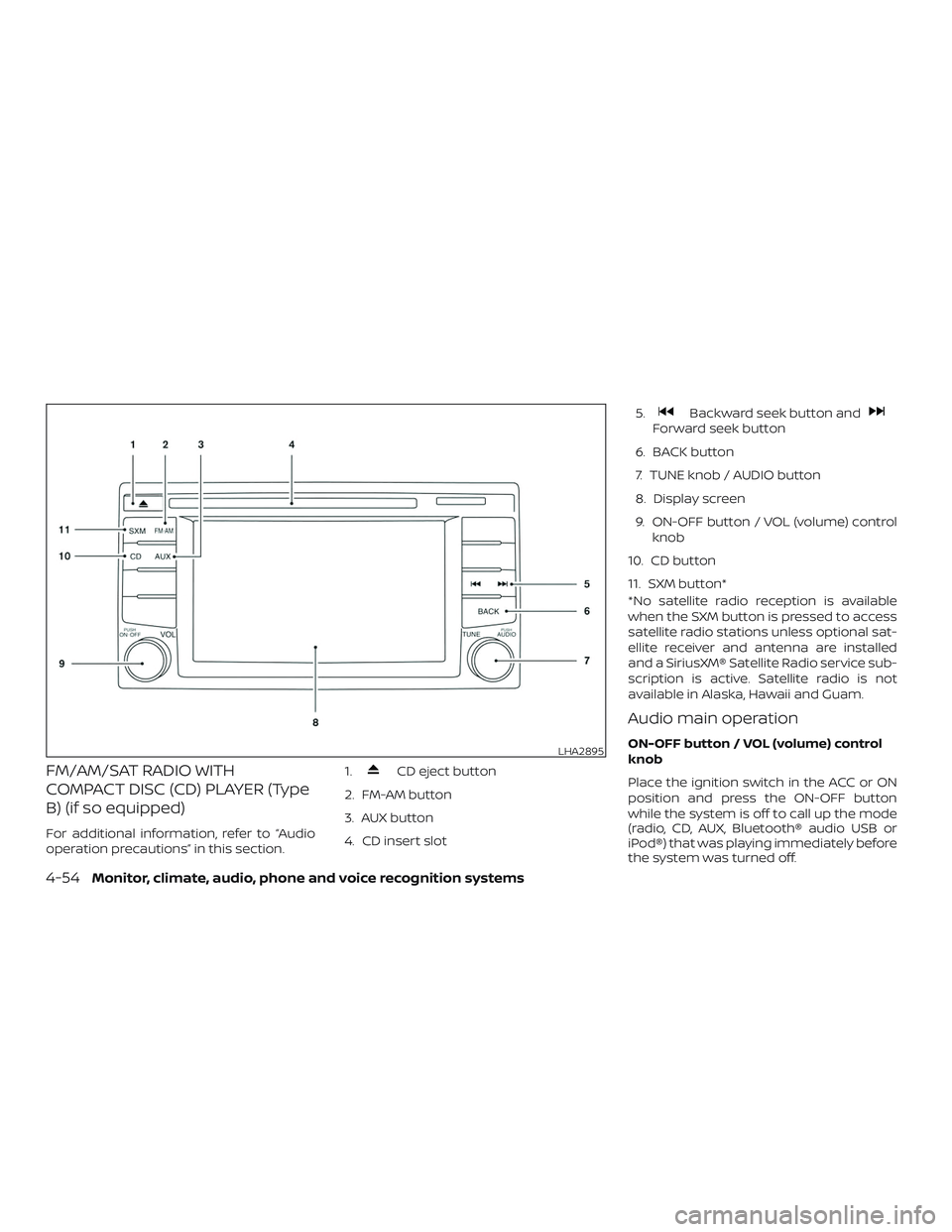
FM/AM/SAT RADIO WITH
COMPACT DISC (CD) PLAYER (Type
B) (if so equipped)
For additional information, refer to “Audio
operation precautions” in this section.1.
CD eject button
2. FM-AM button
3. AUX button
4. CD insert slot 5.
Backward seek button andForward seek button
6. BACK button
7. TUNE knob / AUDIO button
8. Display screen
9. ON-OFF button / VOL (volume) control knob
10. CD button
11. SXM button*
*No satellite radio reception is available
when the SXM button is pressed to access
satellite radio stations unless optional sat-
ellite receiver and antenna are installed
and a SiriusXM® Satellite Radio service sub-
scription is active. Satellite radio is not
available in Alaska, Hawaii and Guam.
Audio main operation
ON-OFF button / VOL (volume) control
knob
Place the ignition switch in the ACC or ON
position and press the ON-OFF button
while the system is off to call up the mode
(radio, CD, AUX, Bluetooth® audio USB or
iPod®) that was playing immediately before
the system was turned off.LHA2895
4-54Monitor, climate, audio, phone and voice recognition systems
Page 223 of 878
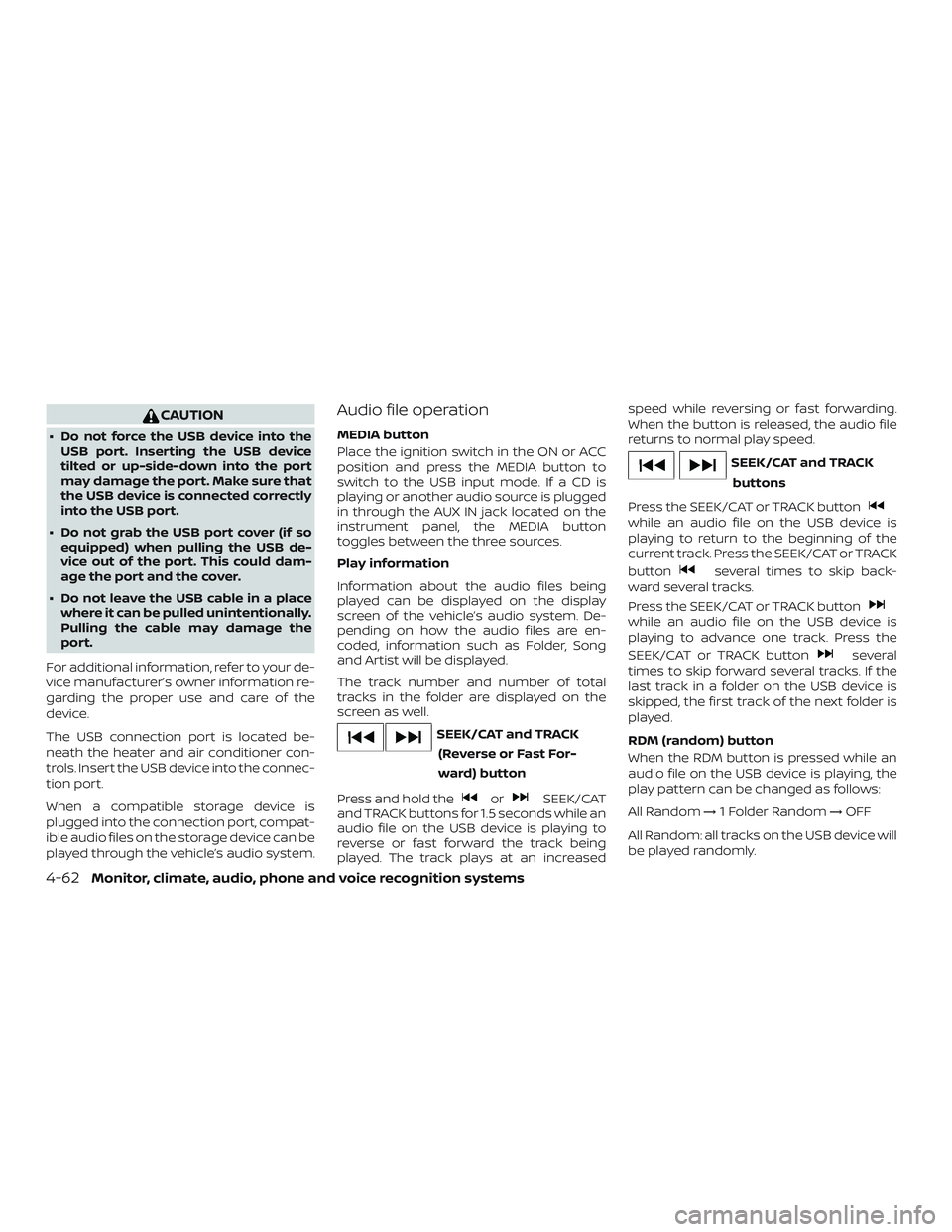
CAUTION
∙ Do not force the USB device into theUSB port. Inserting the USB device
tilted or up-side-down into the port
may damage the port. Make sure that
the USB device is connected correctly
into the USB port.
∙ Do not grab the USB port cover (if so equipped) when pulling the USB de-
vice out of the port. This could dam-
age the port and the cover.
∙ Do not leave the USB cable in a place where it can be pulled unintentionally.
Pulling the cable may damage the
port.
For additional information, refer to your de-
vice manufacturer’s owner information re-
garding the proper use and care of the
device.
The USB connection port is located be-
neath the heater and air conditioner con-
trols. Insert the USB device into the connec-
tion port.
When a compatible storage device is
plugged into the connection port, compat-
ible audio files on the storage device can be
played through the vehicle’s audio system.
Audio file operation
MEDIA button
Place the ignition switch in the ON or ACC
position and press the MEDIA button to
switch to the USB input mode. If a CD is
playing or another audio source is plugged
in through the AUX IN jack located on the
instrument panel, the MEDIA button
toggles between the three sources.
Play information
Information about the audio files being
played can be displayed on the display
screen of the vehicle’s audio system. De-
pending on how the audio files are en-
coded, information such as Folder, Song
and Artist will be displayed.
The track number and number of total
tracks in the folder are displayed on the
screen as well.
SEEK/CAT and TRACK (Reverse or Fast For-
ward) button
Press and hold the
orSEEK/CAT
and TRACK buttons for 1.5 seconds while an
audio file on the USB device is playing to
reverse or fast forward the track being
played. The track plays at an increased speed while reversing or fast forwarding.
When the button is released, the audio file
returns to normal play speed.
SEEK/CAT and TRACK
buttons
Press the SEEK/CAT or TRACK button
while an audio file on the USB device is
playing to return to the beginning of the
current track. Press the SEEK/CAT or TRACK
button
several times to skip back-
ward several tracks.
Press the SEEK/CAT or TRACK button
while an audio file on the USB device is
playing to advance one track. Press the
SEEK/CAT or TRACK button
several
times to skip forward several tracks. If the
last track in a folder on the USB device is
skipped, the first track of the next folder is
played.
RDM (random) button
When the RDM button is pressed while an
audio file on the USB device is playing, the
play pattern can be changed as follows:
All Random →1 Folder Random →OFF
All Random: all tracks on the USB device will
be played randomly.
4-62Monitor, climate, audio, phone and voice recognition systems
Page 227 of 878
charged while connected to the vehicle
with the ignition switch in the ACC or ON
position.
While connected to the vehicle, the iPod®
can only be operated by the vehicle audio
controls.
To disconnect the iPod® from the vehicle,
remove the USB end of the cable from the
USB Connection port on the vehicle, then
remove the cable from the iPod®.
* iPod® is a trademark of Apple Inc., regis-
tered in the U.S. and other countries.
Compatibility
The following models are compatible:∙ iPod® 5th Generation (firmware version 1.3 or later)
∙ iPod® Classic (80GB) (firmware version 1.1.2PC or later)
∙ iPod® Classic (120GB) (firmware version 2.0.1PC or later)
∙ iPod® nano - 1st generation (firmware version 1.3.1 or later)
∙ iPod® nano - 2nd generation (firmware version 1.1.3 or later) ∙ iPod® nano - 3rd generation (firmware
version 1.1.3PC or later)
∙ iPod® nano - 4th generation (firmware version 1.0PC or later)
∙ iPod® nano - 5th generation (8GB) (firm- ware version 1.0.2PC or later)
∙ iPod® nano - 5th generation (16GB) (firmware version 1.0.1PC or later)
∙ iPod® nano - 6th generation (8GB) (firm- ware version 1.2PC or later)
∙ iPod® nano - 6th generation (8GB) (firm- ware version 1.1PC or later)
∙ iPod® Touch - 1st generation (firmware version 2.2.1 or later)
∙ iPod® Touch - 2nd generation (firmware version 2.2.1 or later)
∙ iPod® Touch - 3rd generation (firmware version 3.1.3 or later)
∙ iPod® Touch - 4th generation (firmware version 4.3.5 or later)
∙ iPhone® 3G (firmware version 4.1 or later)
∙ iPhone® 3GS (firmware version 4.3 or later) ∙ iPhone® 4 (firmware version 5.0 or later)
∙ iPhone® 4S (firmware version 5.1 or later)
∙ iPad® (firmware version 4.3.2 or later)
∙ iPad® 2 (firmware version 4.3.3 or later)
Make sure that your iPod® firmware is up-
dated to the version indicated above.
Audio main operation
Place the ignition switch to the ACC or ON
position. Then, press the iPod MENU button
or MEDIA button repeatedly to switch to
the iPod® mode.
If the audio system is turned off while the
iPod® is playing, the iPod® plays when the
audio system is turned back on.
If the audio system is off, pressing the iPod
MENU button or MEDIA button turns the
audio system on and plays the iPod®.
If the audio system is on, the audio system
automatically begins playing tracks from
the iPod® when it is plugged into the con-
nection port.
4-66Monitor, climate, audio, phone and voice recognition systems