window NISSAN VERSA NOTE 2018 Owner´s Manual
[x] Cancel search | Manufacturer: NISSAN, Model Year: 2018, Model line: VERSA NOTE, Model: NISSAN VERSA NOTE 2018Pages: 878, PDF Size: 9.62 MB
Page 200 of 878
CHECK DISC:
∙Confirm that the CD is inserted cor-
rectly (the label side is facing up,
etc.).
∙ Confirm that the CD is not bent or
warped and it is free of scratches.
PRESS EJECT:
This is an error due to excessive tem-
perature inside the player. Remove
the CD by pressing the EJECT button.
Af ter a short time, reinsert the CD.
The CD can be played when the tem-
perature of the player returns to nor-
mal.
UNPLAYABLE:
The file is unplayable in this audio
system (only MP3 or WMA CD).Compact disc with MP3 or WMA
Terms ∙ MP3 — MP3 is short for Moving Pictures Experts Group Audio Layer 3. MP3 is the
most well-known compressed digital
audio file format. This format allows for
near “CD quality” sound, but at a fraction
of the size of normal audio files. MP3
conversion of an audio track from CD-
ROM can reduce the file size by approxi-
mately a 10:1 ratio with virtually no per-
ceptible loss in quality. MP3
compression removes the redundant
and irrelevant parts of a sound signal
that the human ear doesn’t hear.
∙ WMA — Windows Media Audio (WMA)* is a compressed audio format created by
Microsof t as an alternative to MP3. The
WMA codec offers greater file compres-
sion than the MP3 codec, enabling stor-
age of more digital audio tracks in the
same amount of space when com-
pared to MP3s at the same level of qual-
ity. ∙ Bit rate — Bit rate denotes the number
of bits per second used by a digital mu-
sic file. The size and quality of a com-
pressed digital audio file is determined
by the bit rate used when encoding the
file.
∙ Sampling frequency — Sampling fre- quency is the rate at which the samples
of a signal are converted from analog to
digital (A/D conversion) per second.
∙ Multisession — Multisession is one of the methods for writing data to media.
Writing data once to the media is called
a single session, and writing more than
once is called a multisession.
∙ ID3/WMA Tag — The ID3/WMA tag is the part of the encoded MP3 or WMA file
that contains information about the
digital music file such as song title, art-
ist, encoding bit rate, track time dura-
tion, etc. ID3 tag information is displayed
on the Artist/song title line on the dis-
play.
* Windows® and Windows Media® are reg-
istered trademarks and trademarks in the
United States of America and other coun-
tries of Microsof t Corporation of the USA.
Monitor, climate, audio, phone and voice recognition systems4-39
Page 208 of 878
FM/AM radio operation
AM and FM buttons
Press the AM button to change the band to
AM.
If another audio source is playing when the
AM button is pressed, the audio source
playing will automatically be turned off and
the last radio station played will begin play-
ing.
Press the FM button to change the band as
follows:
FM1→FM2 →FM1
If another audio source is playing when the
FM button is pressed, the audio source
playing will automatically be turned off and
the last radio station played will begin play-
ing.
SEEK and TRACK (tuning) buttons
Press the SEEK button
to tune from
low to high frequencies and stop at the
next broadcasting station.
Press the TRACK button
to tune from
high to low frequencies and stop at the
next broadcasting station. Press and hold either button to seek at a
faster speed.
SCAN (tuning) button
Press the SCAN button. SCAN illuminates in
the display window. Scan tuning begins
from low to high frequencies. Scan tuning
stops for 5 seconds at each broadcasting
station that has sufficient signal strength.
When scanning, SCAN blinks in the display.
Pressing the SCAN button again during this
5 second period stops scan tuning and the
radio remains tuned to that station.
1 to 6 Station memory operations
Twelve stations can be set for the FM band
(6 for FM1, 6 for FM2) and six stations can be
set for the AM band.
1. Choose the radio band AM, FM1 or FM2 using the AM or FM button.
2. Tune to the desired station using manual, SEEK or SCAN tuning. Press
and hold any of the desired station
memory buttons (1 – 6) until a beep
sound is heard.
3. The channel indicator will then come on and the sound will resume. Pro-
gramming is now complete. 4. Other buttons can be set in the same
manner.
If the battery cable is disconnected or if the
fuse opens, the radio memory will be can-
celed. In that case, reset the desired sta-
tions.
Compact disc (CD) player
operation
Place the ignition switch in the ACC or ON
position, and carefully insert the compact
disc into the slot with the label side up. The
compact disc is automatically pulled into
the slot and starts to play.
If the radio is already operating, it automati-
cally turns off and the compact disc begins
to play.
CD button
When the CD button is pressed with a com-
pact disc loaded and the radio playing, the
radio turns off and the last used compact
disc starts to play.
Monitor, climate, audio, phone and voice recognition systems4-47
Page 209 of 878
SEEK and TRACK(Fast Forward, Rewind)
buttons
When the SEEK button
or
TRACK
button is pressed while the
compact disc is playing, the compact disc
plays at an increased speed while fast for-
warding or rewinding. When the button is
released, the compact disc returns to nor-
mal play speed.
SEEK and TRACK
buttons
When the SEEKbutton is pressed while
the compact disc is playing, the next track
following the present one starts to play from
the beginning. Press the SEEK
button
several times to skip several tracks. Each
time the button is pressed, the CD advances
one additional track. The track number ap-
pears in the display window. (When the last
track on the compact disc is skipped, the first
track is played.)
When the TRACKbutton is pressed,
the track being played returns to the be-
ginning. Press the TRACK
button sev-
eral times to skip back several tracks. Each
time the button is pressed the CD moves
back one track. RPT (repeat)/RDM (random) button
Press the RPT/RDM button while a com-
pact disc is playing to change the play pat-
tern as follows:
CD:
TRACK REPEAT
→DISC RANDOM →DISC
REPEAT
MP3/WMA CD:
FOLDER REPEAT →TRACK REPEAT →DISC
RANDOM →FOLDER RANDOM →DISC RE-
PEAT
TRACK REPEAT: The track that is currently
playing will be repeated.
DISC RANDOM: The order of the tracks on
the disc will be mixed during play.
DISC REPEAT: The disc currently playing will
be repeated.
FOLDER REPEAT: The tracks in the current
folder will be repeated.
FOLDER RANDOM: The order of the tracks in
the folder will be mixed during play.
SCAN (CDs) button
Press the SCAN button for less than 1.5 sec-
onds to scan all tracks of the current disc for 10 seconds per track. The SCAN icon is
flashed during scan mode.
The scan mode is canceled once it scans
through all tracks on the disc, or if the SCAN
button is pressed during scan mode.
CD EJECT
When the
button is pressed with a
compact disc loaded, the compact disc will
be ejected.
When the
button is pressed while the
compact disc is playing, the compact disc
will eject and the system will turn off.
AUX (Auxiliary) button
The AUX IN jack is located on the CD player.
The AUX IN audio input jack accepts any
standard analog audio input such as from
a portable cassette tape/CD player, MP3
player or laptop computers.
Press the AUX button to play a compatible
device when it is plugged into the AUX IN
jack.
Press the MENU button repeatedly until
“AUX IN Volume” appears on the screen to
control the incoming volume level of the
auxiliary input device. Turn the
TUNE/FOLDER knob to adjust the level be-
tween 0 and +3.
4-48Monitor, climate, audio, phone and voice recognition systems
Page 238 of 878
Apple Siri® Eyes Free personal assistant
can be accessed from the vehicle. Siri Eyes
Free can be accessed in Siri Eyes Free
mode to reduce user distraction. In this
mode, Siri Eyes Free is available for interac-
tion by voice control. Af ter connecting a
compatible Apple device by using
Bluetooth®, Siri Eyes Free can be activated
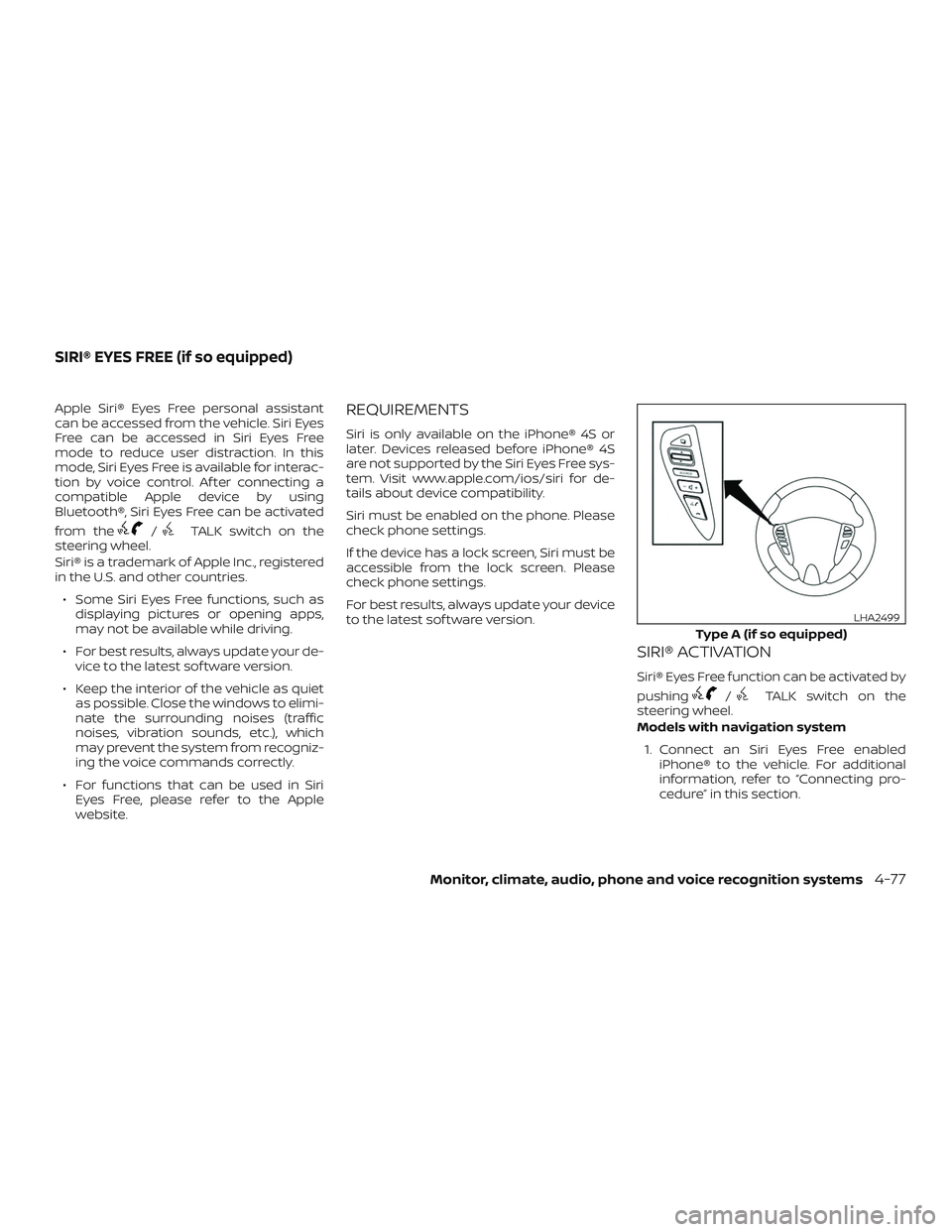
from the
/TALK switch on the
steering wheel.
Siri® is a trademark of Apple Inc., registered
in the U.S. and other countries.
∙ Some Siri Eyes Free functions, such as displaying pictures or opening apps,
may not be available while driving.
∙ For best results, always update your de- vice to the latest sof tware version.
∙ Keep the interior of the vehicle as quiet as possible. Close the windows to elimi-
nate the surrounding noises (traffic
noises, vibration sounds, etc.), which
may prevent the system from recogniz-
ing the voice commands correctly.
∙ For functions that can be used in Siri Eyes Free, please refer to the Apple
website.
REQUIREMENTS
Siri is only available on the iPhone® 4S or
later. Devices released before iPhone® 4S
are not supported by the Siri Eyes Free sys-
tem. Visit www.apple.com/ios/siri for de-
tails about device compatibility.
Siri must be enabled on the phone. Please
check phone settings.
If the device has a lock screen, Siri must be
accessible from the lock screen. Please
check phone settings.
For best results, always update your device
to the latest sof tware version.
SIRI® ACTIVATION
Siri® Eyes Free function can be activated by
pushing
/TALK switch on the
steering wheel.
Models with navigation system
1. Connect an Siri Eyes Free enabled iPhone® to the vehicle. For additional
information, refer to “Connecting pro-
cedure” in this section.
Type A (if so equipped)
LHA2499
SIRI® EYES FREE (if so equipped)
Monitor, climate, audio, phone and voice recognition systems4-77
Page 245 of 878
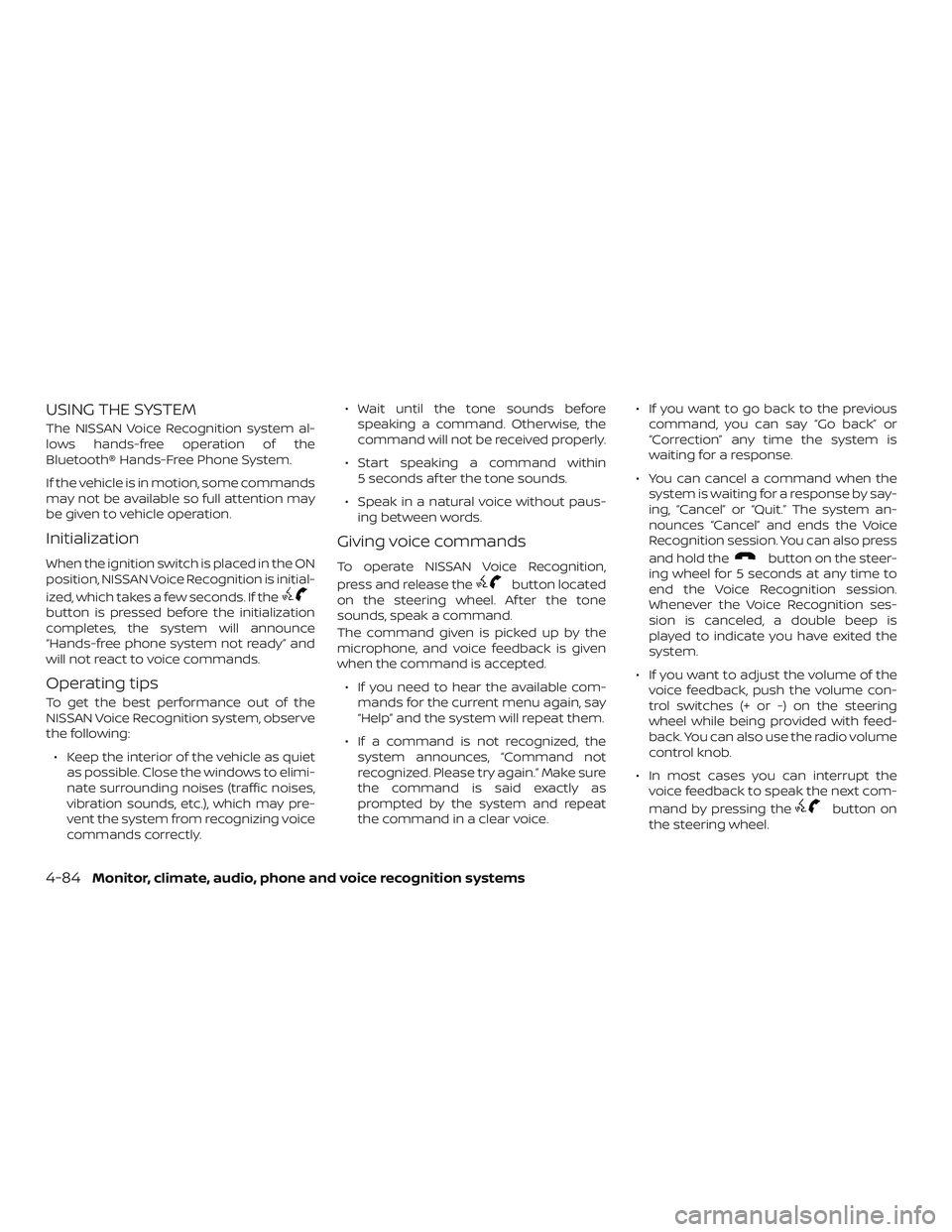
USING THE SYSTEM
The NISSAN Voice Recognition system al-
lows hands-free operation of the
Bluetooth® Hands-Free Phone System.
If the vehicle is in motion, some commands
may not be available so full attention may
be given to vehicle operation.
Initialization
When the ignition switch is placed in the ON
position, NISSAN Voice Recognition is initial-
ized, which takes a few seconds. If the
button is pressed before the initialization
completes, the system will announce
“Hands-free phone system not ready” and
will not react to voice commands.
Operating tips
To get the best performance out of the
NISSAN Voice Recognition system, observe
the following:∙ Keep the interior of the vehicle as quiet as possible. Close the windows to elimi-
nate surrounding noises (traffic noises,
vibration sounds, etc.), which may pre-
vent the system from recognizing voice
commands correctly. ∙ Wait until the tone sounds before
speaking a command. Otherwise, the
command will not be received properly.
∙ Start speaking a command within 5 seconds af ter the tone sounds.
∙ Speak in a natural voice without paus- ing between words.
Giving voice commands
To operate NISSAN Voice Recognition,
press and release the
button located
on the steering wheel. Af ter the tone
sounds, speak a command.
The command given is picked up by the
microphone, and voice feedback is given
when the command is accepted.
∙ If you need to hear the available com- mands for the current menu again, say
“Help” and the system will repeat them.
∙ If a command is not recognized, the system announces, “Command not
recognized. Please try again.” Make sure
the command is said exactly as
prompted by the system and repeat
the command in a clear voice. ∙ If you want to go back to the previous
command, you can say “Go back” or
“Correction” any time the system is
waiting for a response.
∙ You can cancel a command when the system is waiting for a response by say-
ing, “Cancel” or “Quit.” The system an-
nounces “Cancel” and ends the Voice
Recognition session. You can also press
and hold the
button on the steer-
ing wheel for 5 seconds at any time to
end the Voice Recognition session.
Whenever the Voice Recognition ses-
sion is canceled, a double beep is
played to indicate you have exited the
system.
∙ If you want to adjust the volume of the voice feedback, push the volume con-
trol switches (+ or -) on the steering
wheel while being provided with feed-
back. You can also use the radio volume
control knob.
∙ In most cases you can interrupt the voice feedback to speak the next com-
mand by pressing the
button on
the steering wheel.
4-84Monitor, climate, audio, phone and voice recognition systems
Page 256 of 878
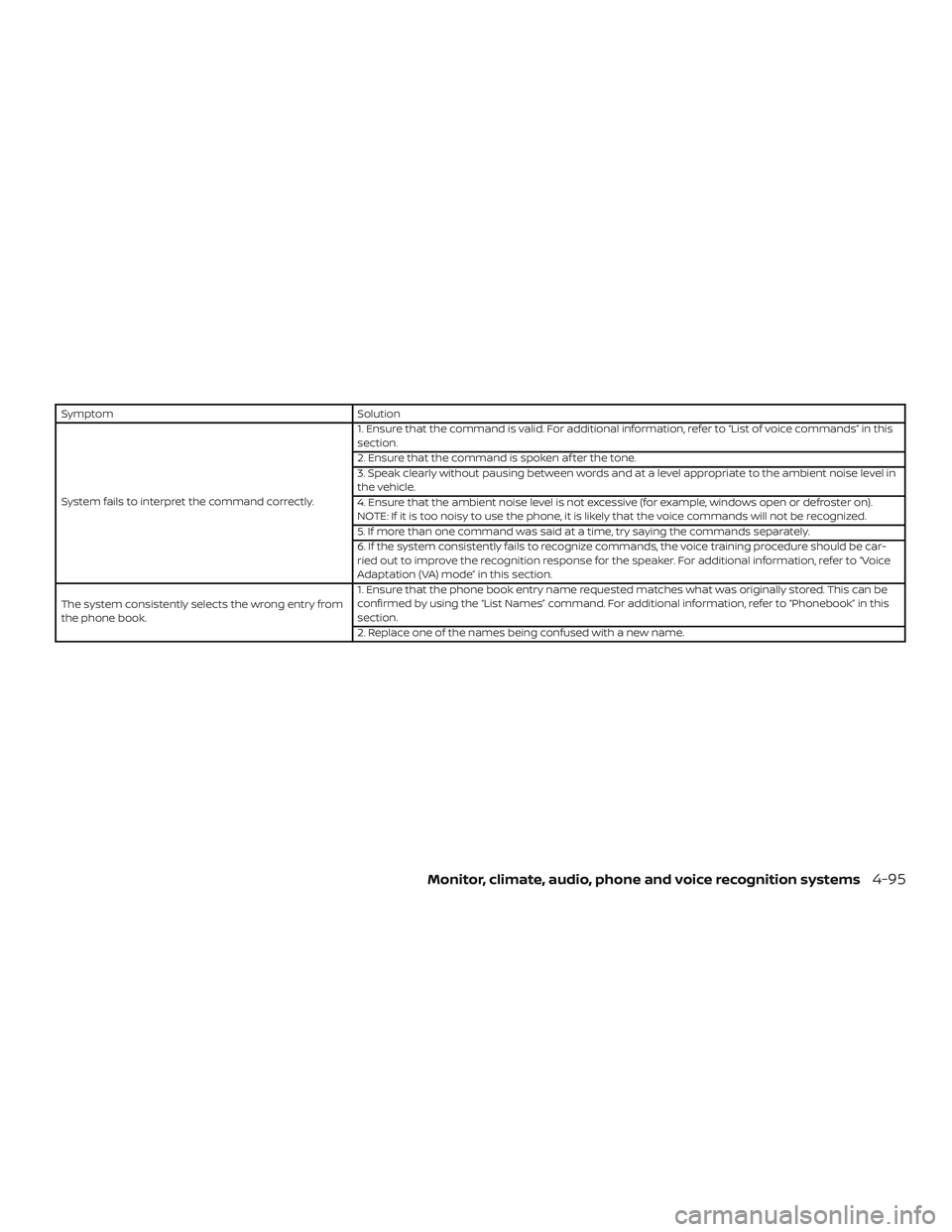
SymptomSolution
System fails to interpret the command correctly. 1. Ensure that the command is valid. For additional information, refer to “List of voice commands” in this
section.
2. Ensure that the command is spoken af ter the tone.
3. Speak clearly without pausing between words and at a level appropriate to the ambient noise level in
the vehicle.
4. Ensure that the ambient noise level is not excessive (for example, windows open or defroster on).
NOTE: If it is too noisy to use the phone, it is likely that the voice commands will not be recognized.
5. If more than one command was said at a time, try saying the commands separately.
6. If the system consistently fails to recognize commands, the voice training procedure should be car-
ried out to improve the recognition response for the speaker. For additional information, refer to “Voice
Adaptation (VA) mode” in this section.
The system consistently selects the wrong entry from
the phone book. 1. Ensure that the phone book entry name requested matches what was originally stored. This can be
confirmed by using the “List Names” command. For additional information, refer to “Phonebook” in this
section.
2. Replace one of the names being confused with a new name.
Monitor, climate, audio, phone and voice recognition systems4-95
Page 259 of 878
REGULATORY INFORMATION
FCC Regulatory information
– CAUTION: To maintain compliance withFCC’s RF exposure guidelines, use only
the supplied antenna. Unauthorized an-
tenna, modification, or attachments
could damage the transmitter and may
violate FCC regulations.
– Operation is subject to the following two conditions:
1. This device may not cause interference and
2. this device must accept any interfer- ence, including interference that may
cause undesired operation of the de-
vice.
IC Regulatory information
– Operation is subject to the following two conditions: (1) this device may not cause
interference, and (2) this device must ac-
cept any interference, including interfer-
ence that may cause undesired opera-
tion of the device. – This Class B digital apparatus meets all
requirements of the Canadian
Interference-Causing Equipment Regu-
lations.
BLUETOOTH® is a
trademark owned
by Bluetooth SIG,
Inc. and licensed
to Visteon.
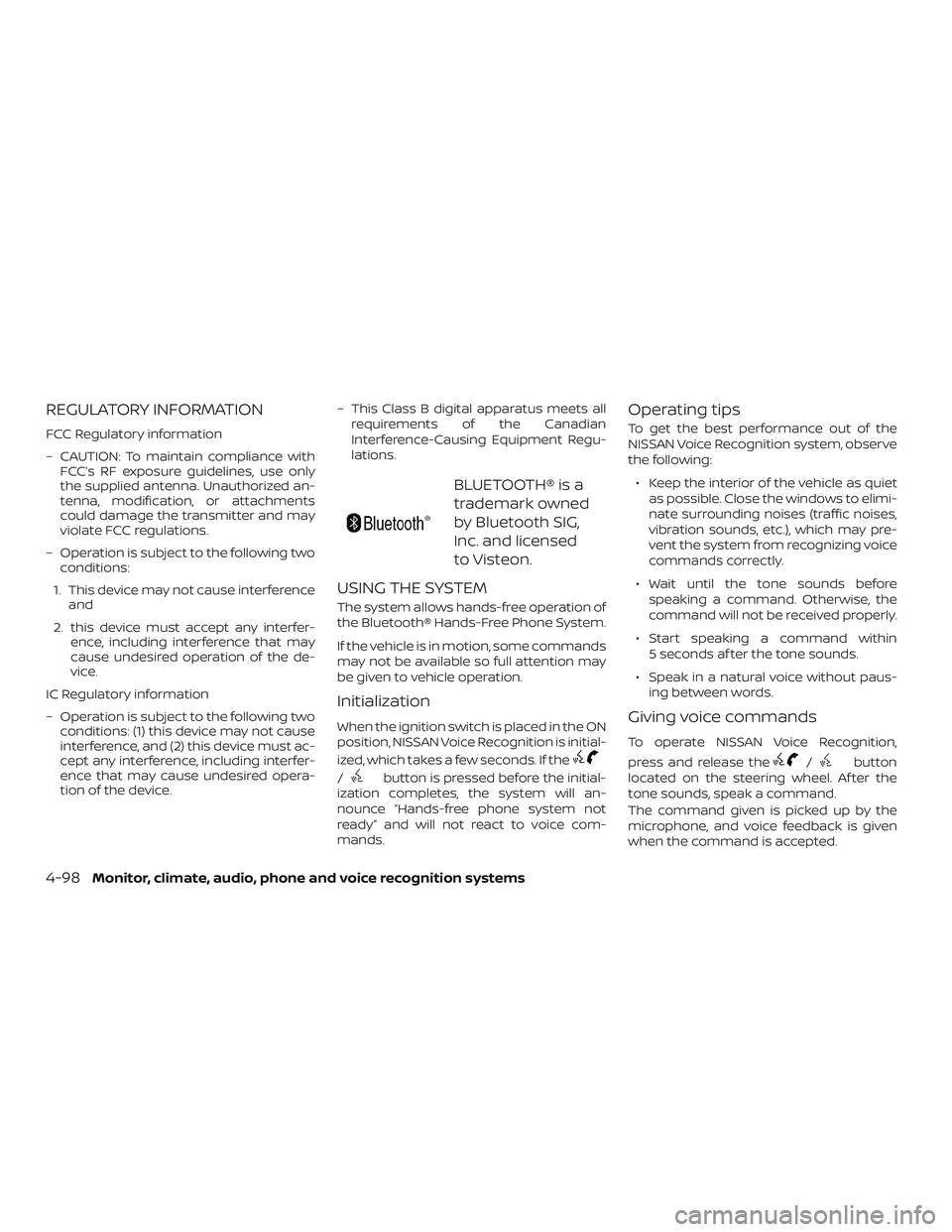
USING THE SYSTEM
The system allows hands-free operation of
the Bluetooth® Hands-Free Phone System.
If the vehicle is in motion, some commands
may not be available so full attention may
be given to vehicle operation.
Initialization
When the ignition switch is placed in the ON
position, NISSAN Voice Recognition is initial-
ized, which takes a few seconds. If the
/button is pressed before the initial-
ization completes, the system will an-
nounce “Hands-free phone system not
ready” and will not react to voice com-
mands.
Operating tips
To get the best performance out of the
NISSAN Voice Recognition system, observe
the following:
∙ Keep the interior of the vehicle as quiet as possible. Close the windows to elimi-
nate surrounding noises (traffic noises,
vibration sounds, etc.), which may pre-
vent the system from recognizing voice
commands correctly.
∙ Wait until the tone sounds before speaking a command. Otherwise, the
command will not be received properly.
∙ Start speaking a command within 5 seconds af ter the tone sounds.
∙ Speak in a natural voice without paus- ing between words.
Giving voice commands
To operate NISSAN Voice Recognition,
press and release the
/button
located on the steering wheel. Af ter the
tone sounds, speak a command.
The command given is picked up by the
microphone, and voice feedback is given
when the command is accepted.
4-98Monitor, climate, audio, phone and voice recognition systems
Page 278 of 878
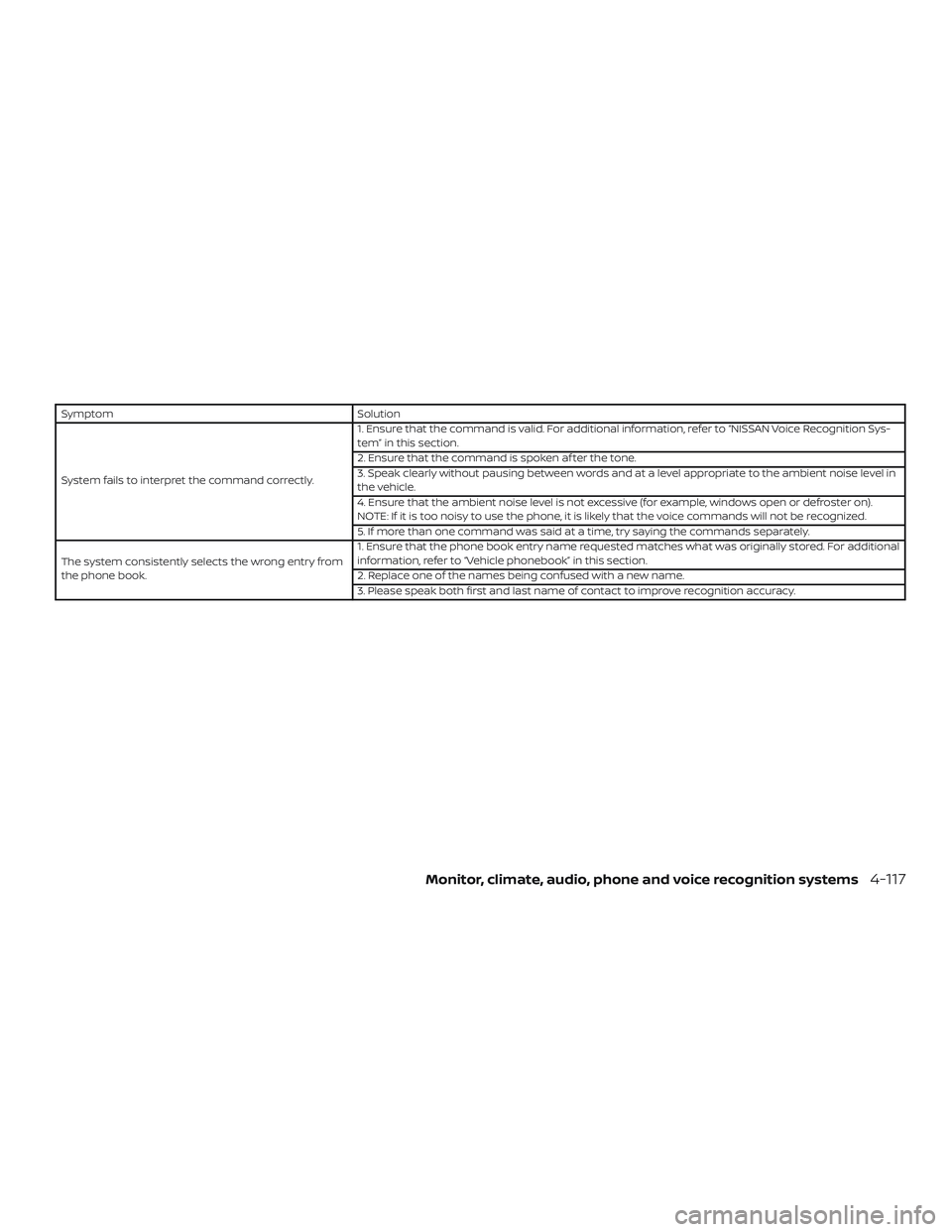
SymptomSolution
System fails to interpret the command correctly. 1. Ensure that the command is valid. For additional information, refer to “NISSAN Voice Recognition Sys-
tem” in this section.
2. Ensure that the command is spoken af ter the tone.
3. Speak clearly without pausing between words and at a level appropriate to the ambient noise level in
the vehicle.
4. Ensure that the ambient noise level is not excessive (for example, windows open or defroster on).
NOTE: If it is too noisy to use the phone, it is likely that the voice commands will not be recognized.
5. If more than one command was said at a time, try saying the commands separately.
The system consistently selects the wrong entry from
the phone book. 1. Ensure that the phone book entry name requested matches what was originally stored. For additional
information, refer to “Vehicle phonebook” in this section.
2. Replace one of the names being confused with a new name.
3. Please speak both first and last name of contact to improve recognition accuracy.
Monitor, climate, audio, phone and voice recognition systems4-117
Page 280 of 878
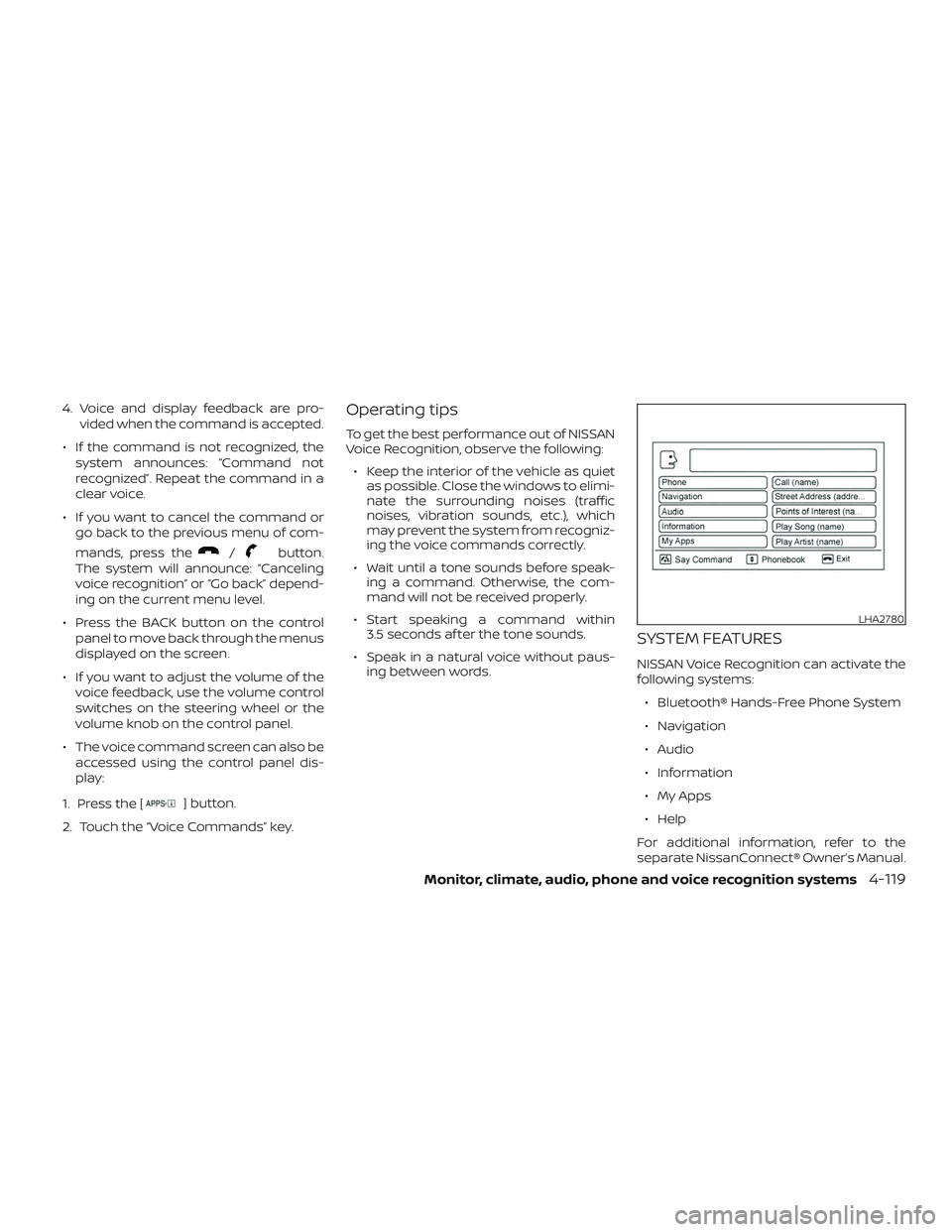
4. Voice and display feedback are pro-vided when the command is accepted.
∙ If the command is not recognized, the system announces: “Command not
recognized”. Repeat the command in a
clear voice.
∙ If you want to cancel the command or go back to the previous menu of com-
mands, press the
/button.
The system will announce: “Canceling
voice recognition” or “Go back” depend-
ing on the current menu level.
∙ Press the BACK button on the control panel to move back through the menus
displayed on the screen.
∙ If you want to adjust the volume of the voice feedback, use the volume control
switches on the steering wheel or the
volume knob on the control panel.
∙ The voice command screen can also be accessed using the control panel dis-
play:
1. Press the [
] button.
2. Touch the “Voice Commands” key.
Operating tips
To get the best performance out of NISSAN
Voice Recognition, observe the following: ∙ Keep the interior of the vehicle as quiet as possible. Close the windows to elimi-
nate the surrounding noises (traffic
noises, vibration sounds, etc.), which
may prevent the system from recogniz-
ing the voice commands correctly.
∙ Wait until a tone sounds before speak- ing a command. Otherwise, the com-
mand will not be received properly.
∙ Start speaking a command within 3.5 seconds af ter the tone sounds.
∙ Speak in a natural voice without paus- ing between words.
SYSTEM FEATURES
NISSAN Voice Recognition can activate the
following systems:
∙ Bluetooth® Hands-Free Phone System
∙ Navigation
∙ Audio
∙ Information
∙ My Apps
∙ Help
For additional information, refer to the
separate NissanConnect® Owner’s Manual.
LHA2780
Monitor, climate, audio, phone and voice recognition systems4-119
Page 284 of 878
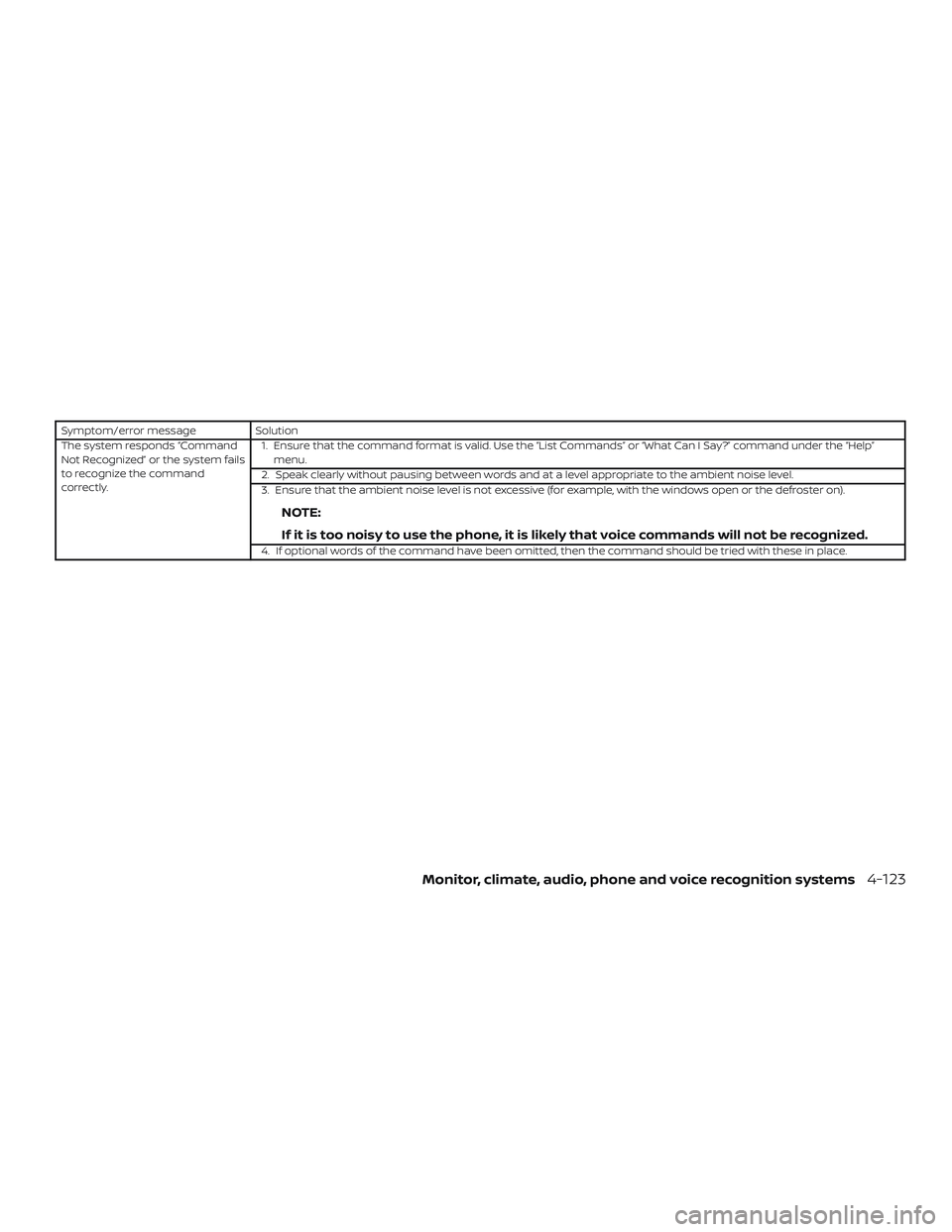
Symptom/error messageSolution
The system responds “Command
Not Recognized” or the system fails
to recognize the command
correctly. 1. Ensure that the command format is valid. Use the “List Commands” or “What Can I Say?” command under the “Help”
menu.
2. Speak clearly without pausing between words and at a level appropriate to the ambient noise level.
3. Ensure that the ambient noise level is not excessive (for example, with the windows open or the defroster on).
NOTE:
If it is too noisy to use the phone, it is likely that voice commands will not be recognized.
4. If optional words of the command have been omitted, then the command should be tried with these in place.
Monitor, climate, audio, phone and voice recognition systems4-123