audio Oldsmobile Silhouette 2004 s User Guide
[x] Cancel search | Manufacturer: OLDSMOBILE, Model Year: 2004, Model line: Silhouette, Model: Oldsmobile Silhouette 2004Pages: 462, PDF Size: 3.1 MB
Page 228 of 462

If you turn off the ignition or radio with a CD in the
player it will stay in the player. When you turn on the
ignition or radio, the CD will start to play where it
stopped, if it was the last selected audio source.
As each new track starts to play, the track number will
appear on the display.
The CD player can play the smaller 8cm single CDs
with an adapter ring. Full-size CDs and the smaller CDs
are loaded in the same manner.
If playing a CD-R the sound quality may be reduced
due to CD-R quality, the method of recording, the quality
of the music that has been recorded, and the way the
CD-R has been handled. You may experience an
increase in skipping, difficulty in ®nding tracks and/or
difficulty in loading and ejecting. If these problems occur
try a known good CD.
Do not add paper labels to CDs, they could get caught
in the CD player.
Do not play 3 inch CDs without a standard adapter CD.
If an error appears on the display, see ªCD Messagesº
later in this section.
1 PREV (Previous):Press this pushbutton to go to the
current track if it has been playing for more than
eight seconds. TRACK and the track number will appear
on the display. If you hold this pushbutton or press it
more than once, the player will continue moving
backward through the CD.2 NEXT:Press this pushbutton to go to the next track.
TRACK and the track number will appear on the
display. If you hold this pushbutton or press it more than
once, the player will continue moving forward through
the CD.
3 REV (Reverse):Press and hold this pushbutton to
reverse quickly within a track. Press and hold this
pushbutton for less than two seconds to reverse at six
times the normal playing speed. Press and hold it
for more than two seconds to reverse at 17 times the
normal playing speed. Release the pushbutton to
play the passage. ET and the elapsed time of the track
will appear on the display.
4 FWD (Forward):Press and hold this pushbutton to
advance quickly within a track. Press and hold this
pushbutton for less than two seconds to advance at six
times the normal playing speed. Press and hold it for
more than two seconds to advance at 17 times the
normal playing speed. Release the pushbutton to play
the passage. ET and the elapsed time of the track
will appear on the display.
6 RDM (Random):Press this pushbutton to hear the
tracks in random, rather than sequential, order. RDM ON
will appear on the display. RDM T and the track
number will appear on the display when each track
starts to play. Press RDM again to turn off random play.
RDM OFF will appear on the display.
3-72
Page 230 of 462
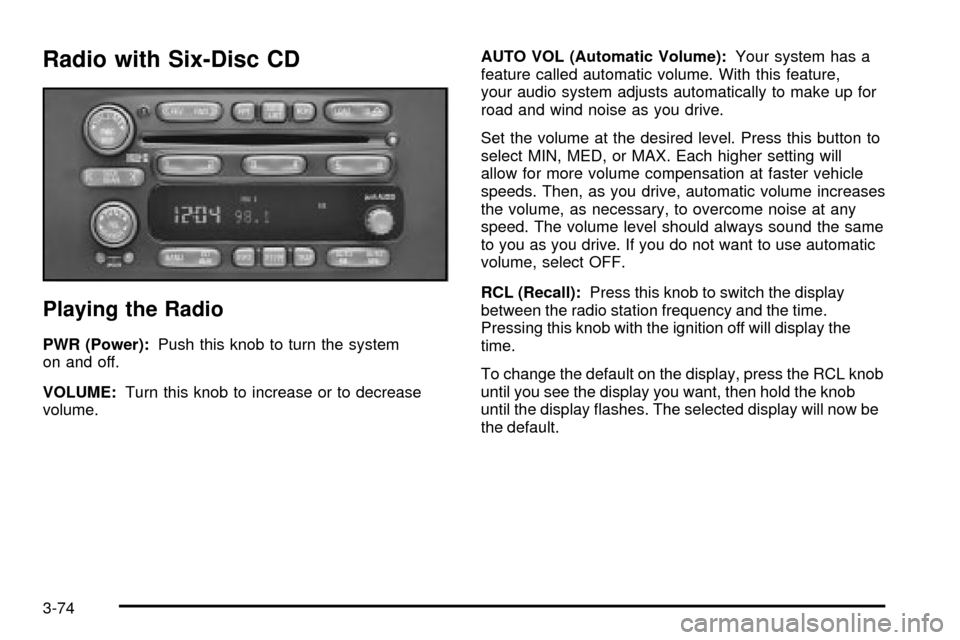
Radio with Six-Disc CD
Playing the Radio
PWR (Power):Push this knob to turn the system
on and off.
VOLUME:Turn this knob to increase or to decrease
volume.AUTO VOL (Automatic Volume):Your system has a
feature called automatic volume. With this feature,
your audio system adjusts automatically to make up for
road and wind noise as you drive.
Set the volume at the desired level. Press this button to
select MIN, MED, or MAX. Each higher setting will
allow for more volume compensation at faster vehicle
speeds. Then, as you drive, automatic volume increases
the volume, as necessary, to overcome noise at any
speed. The volume level should always sound the same
to you as you drive. If you do not want to use automatic
volume, select OFF.
RCL (Recall):Press this knob to switch the display
between the radio station frequency and the time.
Pressing this knob with the ignition off will display the
time.
To change the default on the display, press the RCL knob
until you see the display you want, then hold the knob
until the display ¯ashes. The selected display will now be
the default.
3-74
Page 232 of 462

Setting the Tone (Bass/Treble)
AUDIO:Push the AUDIO knob until BASS, MID, or
TREB appears on the display. Turn the knob to increase
or to decrease. If a station is weak or noisy, you may
want to decrease the treble.
To adjust bass, midrange, or treble to the middle
position, select BASS, MID, or TREB and push and hold
the AUDIO knob. The radio will produce one beep
and adjust the display level to zero.
To adjust all tone and speaker controls to the middle
position, push and hold the AUDIO knob when no tone
or speaker control is displayed. The radio will produce
one beep and CENTERED will appear on the display.
AUTO EQ (Automatic Equalization):Press this button
to select customized bass, midrange, and treble
equalization settings designed for country, jazz, talk,
pop, rock, and classical.
To return to the manual mode (CUSTOM), press the
AUTO EQ button until CUSTOM appears on the display.
Then you will be able to manually adjust the bass,
midrange, and treble using the AUDIO knob.
Adjusting the Speakers (Balance/Fade)
AUDIO:To adjust the balance between the right
and the left speakers, push the AUDIO knob until BAL
appears on the display. Turn the knob to move the
sound toward the right or the left speakers.
To adjust the fade between the front and the rear
speakers, push and hold the AUDIO knob until FAD
appears on the display. Turn the knob to move
the sound toward the front or the rear speakers.
To adjust the balance and the fade to the middle
position, select balance or fade and push and hold the
AUDIO knob. The radio will beep once and will
adjust the display level to the middle position.
To adjust all tone and speaker controls to the middle
position, push and hold the AUDIO knob when no tone
or speaker controls are displayed. The radio will
produce one beep and CENTERED will appear on the
display.
3-76
Page 233 of 462

Radio Data System (RDS)
Your audio system is equipped with a Radio Data
System (RDS). RDS features are available for use only
on FM stations that broadcast RDS information.
With RDS, your radio can do the following:
·Seek to stations broadcasting the selected type of
programming
·Receive announcements concerning local and
national emergencies
·Display messages from radio stations
·Seek to stations with traffic announcements.
This system relies upon receiving speci®c information
from these stations and will only work when the
information is available. In rare cases, a radio station
may broadcast incorrect information that will cause
the radio features to work improperly. If this happens,
contact the radio station.
While you are tuned to an RDS station, the station
name or the call letters will appear on the display instead
of the frequency. RDS stations may also provide the
time of day, a program type (PTY) for current
programming, and the name of the program being
broadcast.
Finding a Program Type (PTY) Station
To select and ®nd a desired PTY perform the
following:
1. Press the P-TYPE button to activate program type
select mode. P-TYPE and the last selected PTY will
appear on the display.
2. Turn the P-TYPE knob to select a PTY.
3. Once the desired PTY is displayed, press either
SEEK arrow to select the PTY and take you to
the PTY's ®rst station.
4. If you want to go to another station within that PTY
and the PTY is displayed, press either SEEK arrow
once. If the PTY is not displayed, press either
SEEK arrow twice to display the PTY and then to
go to another station.
5. Press P-TYPE to exit program type select mode.
If PTY times out and is no longer on the display,
go back to Step 1.
If both P-TYPE and TRAF are on, the radio will search
for stations with the selected PTY and traffic
announcements.
3-77
Page 236 of 462

Radio Messages
CAL ERR (Calibration Error):Your audio system has
been calibrated for your vehicle from the factory. If
CAL ERR appears on the display it means that your
radio has not been con®gured properly for your vehicle
and it must be returned to the dealer for service.
LOCKED:This message is displayed when the
THEFTLOCK
žsystem has locked up. You must return
to the dealer for service.
If any error occurs repeatedly or if an error cannot be
corrected, contact your dealer.
Playing a CD
The CD player can play the smaller 8 cm single CDs
with an adapter ring. Full-size CDs and the smaller CDs
are loaded in the same manner.
If playing a CD-R the sound quality may be reduced
due to CD-R quality, the method of recording, the quality
of the music that has been recorded, and the way the
CD-R has been handled. You may experience an
increase in skipping, difficulty in ®nding tracks, and/or
difficulty in loading and ejecting. If these problems occur
try a known good CD.Do not add paper labels to CDs, they could get caught
in the CD player.
Do not play 3 inch CDs without a standard adapter CD.
If an error appears on the display, see ªCD Messagesº
later in this section.
LOAD CD
Z:Press the LOAD side of this button to
load CDs into the CD player. This CD player will
hold up to six CDs.
To insert one CD, do the following:
1. Turn the ignition on.
2. Press and release the LOAD side of the LOAD CD
button.
3. Wait for the light, located to the right of the slot,
to turn green.
4. Load a CD. Insert the CD partway into the slot,
label side up. The player will pull the CD in.
When a CD is inserted, the CD symbol will be displayed.
If you select an equalization setting for your CD, it will
be activated each time you play a CD.
3-80
Page 241 of 462

CD Messages
CHECK CD:If this message appears on the radio
display, it could be for one of the following reasons:
·It is very hot. When the temperature returns to
normal, the CD should play.
·You are driving on a very rough road. When the
road becomes smoother, the CD should play.
·The CD is dirty, scratched, wet, or upside down.
·The air is very humid. If so, wait about an hour
and try again.
·There may have been a problem while burning
the CD.
·The label may be caught in the CD player.
If the CD is not playing correctly, for any other reason,
try a known good CD.
If any error occurs repeatedly or if an error cannot be
corrected, contact your dealer. If your radio displays an
error message, write it down and provide it to your
dealer when reporting the problem.
Entertainment System
Your vehicle may have an optional Digital Versatile
Disc (DVD) entertainment system. The entertainment
system works with the vehicle's audio system and
includes a DVD player, a video display screen,
headphones and a remote control. The entertainment
system also integrates the rear climate control and rear
seat audio functions.
Before You Drive
The video entertainment system is for passengers in the
second and third row seats only. The driver cannot
safely view the video screen while driving and should
not try to do so.
In severe or extreme weather conditions your
entertainment system will shut down until the temperature
is within the operating range. This protection feature will
keep your video components from being damaged while
the temperature is below-4ÉF (-20ÉC) or above
140ÉF (60ÉC). To resume operation, shut off the
entertainment system, pull down the video screen and
then heat or cool the vehicle until the temperature is
within the operating range.
3-85
Page 242 of 462

Headphones
The entertainment system
includes dual channel,
wireless headphones.
The headphones have
an ON/OFF switch,
a channel A/B switch
and a volume control.
To use the headphones, turn the switch located on the
left side to ON. An indicator light located on the right
side will illuminate. If the light does not illuminate,
the batteries may need to be replaced. See ªBattery
Replacementº later in this section for more information.
Switch the headphones to OFF when not in use.
If you move too far forward, step out of the vehicle or
break the ªline of sightº between the headphones
and the display above the video screen, the sound in
the headphones will be degraded or will cut out entirely.If the system is shut off, or the headphones are out of
the ªline of sightº for more than three minutes,
the headphones will shut off automatically to preserve
battery life.
If the channel switch, located on the right side, is on A,
the headphones will play the DVD or auxiliary device.
See ªStereo RCA Jacksº later in this section for more
information. If the channel switch is on B, the
headphones will play the rear seat audio system.
See
Rear Seat Audio (RSA) (Without Entertainment
System) on page 3-92orRear Seat Audio (RSA)
(With Entertainment System) on page 3-94for more
information.
To adjust the volume on the headphones, use the
volume control located on the right side.
Notice:Do not store the headphones in heat or
direct sunlight. This could damage the headphones
and repairs would not be covered by your warranty.
Keep the headphones stored in a cool, dry place.
3-86
Page 243 of 462

Battery Replacement
To change the batteries, do the following:
1. Slide open the battery door located on the left side
of the headphones.
2. Replace the two AAA batteries in the compartment.
Make sure that they are installed correctly.
3. Slide the battery door shut.
If the headphones are to be stored for a long period of
time, remove the batteries and keep them in a cool,
dry place.
Stereo RCA Jacks
The RCA jacks are located on the faceplate of the DVD
player. They allow you to hook up an auxiliary device
such as a camcorder or a video game unit. You
may require adapter connectors or cables to connect
your auxiliary device to the RCA jacks. Refer to
the manufacturer's instructions for proper usage.
To use the auxiliary function, connect a camcorder or
a video game unit to the RCA jacks and turn on
the auxiliary device. If you want to view a DVD,
insert the DVD into the DVD player. The system
will automatically switch to DVD and start to play.To switch between the auxiliary device and the DVD,
press the SOURCE button on the DVD player or on the
remote control. See ªDVD Playerº and ªRemote
Controlº later in this section for more information.
Audio Speakers
Only one audio source can be heard through the
speakers at one time.
Audio from the radio, cassette or CD player will be
heard through all speakers when the front audio system
is being used and the rear seat audio system is off.
Sound from the DVD player or an auxiliary device can
be heard through all speakers when the front audio
system and rear seat audio are off and a DVD or
auxiliary device is playing.
To hear the DVD, auxiliary device, or rear seat audio
system while the front audio system is on, you must use
the headphones. While the rear seat audio system is
on, the rear speakers will be muted.
3-87
Page 244 of 462

Video Screen
The video screen is located in the overhead console.To use the video screen, do the following:
1. Push forward on the release button and the screen
will fold down.
2. Pull the screen toward you and adjust its position
as desired.
When the video screen is not in use, push it up into its
locked position.
If a DVD is playing and the screen is raised to its locked
position, the screen will shut off, but the DVD will
continue to play through the previously selected audio
source.
Notice:Directly touching the video screen may
damage it. Do not touch the screen. SeeCleaning
the Video Screen on page 3-100for more
information.
3-88
Page 245 of 462
DVD Player
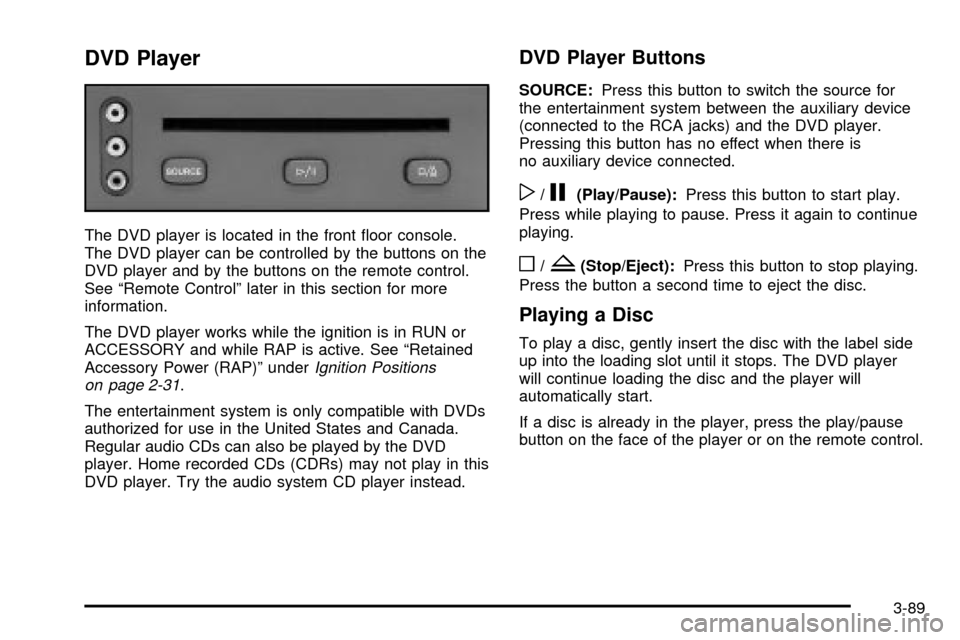
The DVD player is located in the front ¯oor console.
The DVD player can be controlled by the buttons on the
DVD player and by the buttons on the remote control.
See ªRemote Controlº later in this section for more
information.
The DVD player works while the ignition is in RUN or
ACCESSORY and while RAP is active. See ªRetained
Accessory Power (RAP)º under
Ignition Positions
on page 2-31.
The entertainment system is only compatible with DVDs
authorized for use in the United States and Canada.
Regular audio CDs can also be played by the DVD
player. Home recorded CDs (CDRs) may not play in this
DVD player. Try the audio system CD player instead.
DVD Player Buttons
SOURCE:Press this button to switch the source for
the entertainment system between the auxiliary device
(connected to the RCA jacks) and the DVD player.
Pressing this button has no effect when there is
no auxiliary device connected.
w/j(Play/Pause):Press this button to start play.
Press while playing to pause. Press it again to continue
playing.
o/Z(Stop/Eject):Press this button to stop playing.
Press the button a second time to eject the disc.
Playing a Disc
To play a disc, gently insert the disc with the label side
up into the loading slot until it stops. The DVD player
will continue loading the disc and the player will
automatically start.
If a disc is already in the player, press the play/pause
button on the face of the player or on the remote control.
3-89