audio OPEL KARL 2015 User Guide
[x] Cancel search | Manufacturer: OPEL, Model Year: 2015, Model line: KARL, Model: OPEL KARL 2015Pages: 217, PDF Size: 4.16 MB
Page 112 of 217
OPEL Karl Owner Manual (GMK-Localizing-EU RHD-9231168) - 2016 - crc -
5/7/15
Infotainment System 111
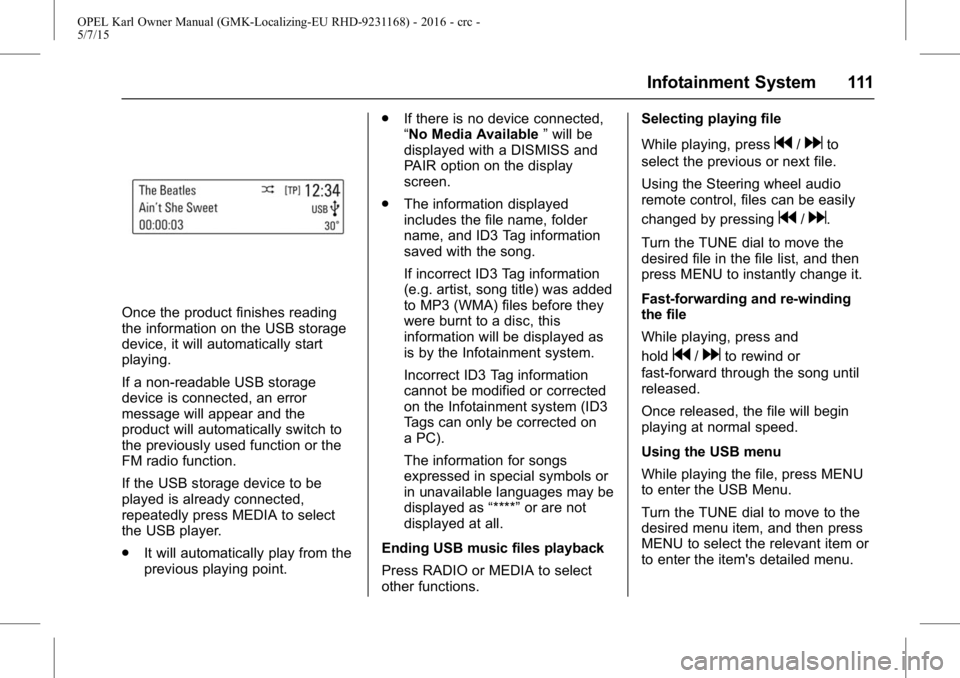
Once the product finishes reading
the information on the USB storage
device, it will automatically start
playing.
If a non-readable USB storage
device is connected, an error
message will appear and the
product will automatically switch to
the previously used function or the
FM radio function.
If the USB storage device to be
played is already connected,
repeatedly press MEDIA to select
the USB player.
.It will automatically play from the
previous playing point. .
If there is no device connected,
“No Media Available ”will be
displayed with a DISMISS and
PAIR option on the display
screen.
. The information displayed
includes the file name, folder
name, and ID3 Tag information
saved with the song.
If incorrect ID3 Tag information
(e.g. artist, song title) was added
to MP3 (WMA) files before they
were burnt to a disc, this
information will be displayed as
is by the Infotainment system.
Incorrect ID3 Tag information
cannot be modified or corrected
on the Infotainment system (ID3
Tags can only be corrected on
a PC).
The information for songs
expressed in special symbols or
in unavailable languages may be
displayed as “****”or are not
displayed at all.
Ending USB music files playback
Press RADIO or MEDIA to select
other functions. Selecting playing file
While playing, press
g/dto
select the previous or next file.
Using the Steering wheel audio
remote control, files can be easily
changed by pressing
g/d.
Turn the TUNE dial to move the
desired file in the file list, and then
press MENU to instantly change it.
Fast-forwarding and re-winding
the file
While playing, press and
hold
g/dto rewind or
fast-forward through the song until
released.
Once released, the file will begin
playing at normal speed.
Using the USB menu
While playing the file, press MENU
to enter the USB Menu.
Turn the TUNE dial to move to the
desired menu item, and then press
MENU to select the relevant item or
to enter the item's detailed menu.
Page 113 of 217
OPEL Karl Owner Manual (GMK-Localizing-EU RHD-9231168) - 2016 - crc -
5/7/15
112 Infotainment System
.Folder View: Enter the Folder
View mode, and move to the
previous or next folder.
. Shuffle: Turn the shuffle feature
on or off.
Browsing/indexing device
. Browsing is not supported until
indexing is completed for the
connected device.
. If the browse function is selected
during the indexing process, a
pop-up “Feature not supported
during Indexing Use folder
view to browse contents ”will
display.
. When a single device with
greater than 6,000 songs is
connected, a pop-up “Media
indexing memory full Use
folder view or remove other
device ”will display.
Remove USB
Remove the USB device from the
USB connection terminal.
If the USB device is removed, the
system will display the No
Connection message for each source on the display screen and
keep the current status until the
device is reconnected.
Using the Media transfer protocol
(MTP) menu
Charge Only: Select the charge
option for the MTP device. The MTP
device will be charged, and the
system will show the pop-up
message, when it is connected.
.
The default setting is
Charge Only.
. When the Charge Only option is
selected in the Media Transfer
Protocol (MTP) Setting Menu,
the audio source is not changed
and the connected device is only
charged.
. If you change to USB mode
while charging the device, a
Charge message with charging
activity indicator is shown on the
display screen. In this case, the
system will not start indexing the
files on the device.
. Charging may not be supported
by some MTP devices. Scan Music Folder Only: Select
the Music Folder Scan option for the
MTP device.
The system can display the Artist
Name/Song Name/Elapsed Time
regarding the current song and
access the playlist on the MTP
device.
Scan All Folder: Select the All
Folder scan option for the MTP
device.
.
The device indexing time takes
longer than the setting of Scan
Music Folder Only. It depends on
the smartphone and the files/
folders on the smartphone.
. With some phones featuring
Media Transfer Protocol (MTP),
music search can take a
long time.
. If the phone screen is locked,
you cannot search for music. To
access music on the phone,
unlock the phone screen.
Page 115 of 217
OPEL Karl Owner Manual (GMK-Localizing-EU RHD-9231168) - 2016 - crc -
5/7/15
114 Infotainment System
Turn the TUNE dial to move the
desired menu item, and then press
MENU to select the relevant item or
to enter the item's detailed menu.
.Browse “Device Name ”:
Selects a list item in the list of
browse names such as Playlists,
Artists, Albums, Tracks, Genres,
Audio Books, and Composers.
. Shuffle: Turn the shuffle feature
on or off.
Remove iPod
Remove the iPod from the USB
connection terminal.
When the iPod is removed, the
system automatically changes to the
previously used function or the FM
radio.AUX input
Connecting an exterior sound
device
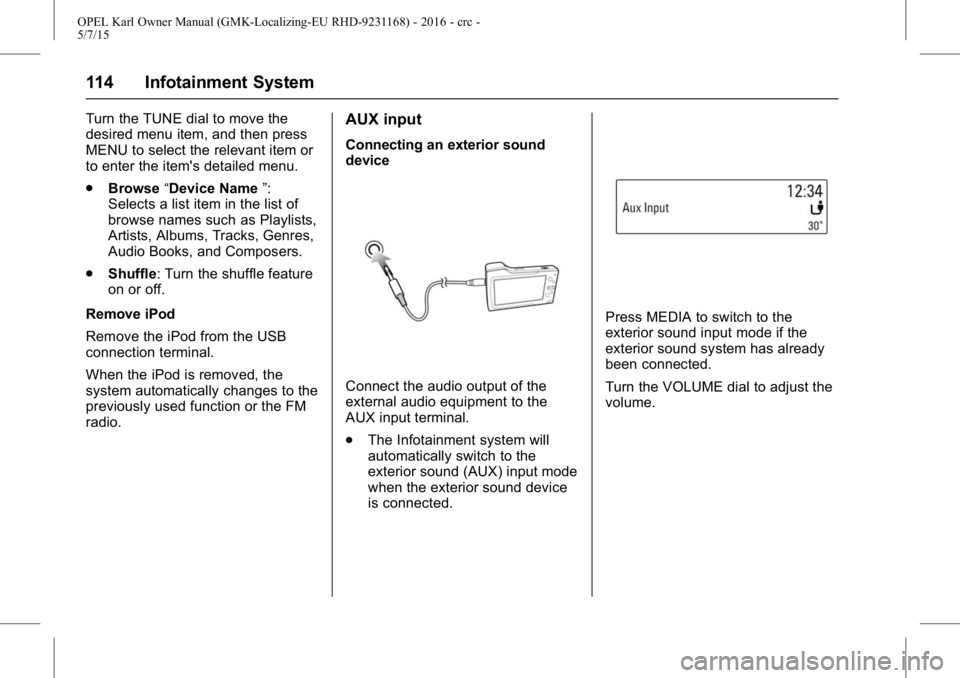
Connect the audio output of the
external audio equipment to the
AUX input terminal.
. The Infotainment system will
automatically switch to the
exterior sound (AUX) input mode
when the exterior sound device
is connected.
Press MEDIA to switch to the
exterior sound input mode if the
exterior sound system has already
been connected.
Turn the VOLUME dial to adjust the
volume.
Page 116 of 217
OPEL Karl Owner Manual (GMK-Localizing-EU RHD-9231168) - 2016 - crc -
5/7/15
Infotainment System 115
Personalisation
How to use the Settings menu for
personalisation
.Settings menus and functions
may differ according to car
model.
. The settings menu comprises a
detailed list for the relevant
setup menu or functioning state.
. If there is another detailed list
from the relevant detailed list,
you can repeat this action.
Select Settings in the Menu > turn
the TUNE dial to move to the
desired menu item > press MENU to
enter the item's detailed menu.
Setting the time and date
Set time : Manually set the hours
and minutes for the current time.
. Press Set Time in the Time and
Date menu.
. Press - to select the Time format
12HR or 24HR.
. Turn the TUNE dial to change
the hour, and then press MENU
to move to the Minute Setting. .
Turn the TUNE dial to change
the minute, and then press
MENU to move to the AM or PM
Setting.
. Turn the TUNE dial to select the
AM or PM, and then press
MENU to finish the Time Setting.
When MENU is pressed, the
Time and Date menu is
automatically displayed.
Set date : Manually set the current
year, month or date.
Press Set Date in the Time and
Date menu.
Press - to select the Date format.
The format shows: DD/MM/YYYY: 15. Oct. 2014
MM/DD/YYYY: Oct. 15. 2014
YYYY/MM/DD: 2014. Oct. 15
. Turn the TUNE dial to change
the Month, and then press
MENU to move to the Day
Setting.
. Turn the TUNE dial to change
the Day, and then press MENU
to move to the Year Setting. .
Turn the TUNE dial to change
the Year, and then press MENU
to finish the Date Setting. When
MENU is pressed, the Time and
Date menu is automatically
displayed.
Set time and date automatically.
Press - to select the Time setting
mode in the Set Time menu.
. Off (Manual): Activates
manual mode.
. On-Cell Network: Set the Cell
Network clock synchronization
feature on or off.
. On-RDS: Set the RDS clock
synchronization feature on or off.
Setting the tone
. For details, see page7.
Setting the auto volume
Auto Volume adjusts the volume of
the audio based on the speed or
ambient noise of the vehicle.
. Off: Auto Volume does not act.
Page 117 of 217
OPEL Karl Owner Manual (GMK-Localizing-EU RHD-9231168) - 2016 - crc -
5/7/15
116 Infotainment System
.Low: A lower range volume
curve is used to adjust audio
volume with changes in vehicle
speed.
. Medium-Low: Medium-Low will
adjust Auto Volume to
approximately the range
between low to medium
respectively.
. Medium: A middle range volume
curve is used to adjust the audio
volume with changes in vehicle
speed.
. Medium-High: Medium-High will
adjust Auto Volume to
approximately the range
between medium to high
respectively.
. High: A more aggressive volume
curve is used to adjust the audio
volume with changes in vehicle
speed.
Setting the maximum start-up
volume
Manually set maximum limit for the
start-up volume. Setting the language
Turn the TUNE dial to select the
Vehicle Settings in the Settings
menu > press MENU > turn the
TUNE dial to select Languages >
press MENU to enter the item's
detailed menu.
Select the desired language for
displaying.
Return factory settings
Turn the TUNE dial to select the
Vehicle Settings in the Settings
menu > press MENU > turn the
TUNE dial to select Return to
Factory Settings > press MENU to
enter the item's detailed menu.
Restore all settings to the default
settings.
Software information
Turn the TUNE dial to select Vehicle
Settings in the Settings menu >
press MENU > turn the TUNE dial
to select Software Information >
press MENU to enter the item's
detailed menu.
Shows the current Software version,
and DAB Software version.Phone
Bluetooth ((Type
A/B only))
About Bluetooth
About Bluetooth wireless
technology
.
Bluetooth
®Wireless Technology
refers to a short-distance
wireless networking technology
which uses a 2.45GHz
frequency to connect various
devices within a certain
distance.
. Supported by PCs, external
devices, Bluetooth
®phones,
PDAs, various electronic
devices, and automotive
environments, Bluetooth
®
Wireless Technology transmits
data at high speed without
having to use a connector cable.
. Bluetooth
®Hands-free refers to
a device which allows the user
to conveniently make phone
Page 119 of 217
OPEL Karl Owner Manual (GMK-Localizing-EU RHD-9231168) - 2016 - crc -
5/7/15
118 Infotainment System
It is recommended to keep the
car windows closed during
hands-free calls for best results.
. This unit uses the following
Bluetooth profiles:
‐Phone Book Access
Profile (PBAP)
‐ Hands Free Profile (HFP)
‐ Advanced Audio Distribution
Profile (A2DP)
‐ Audio Video Remote Control
Profile (AVRCP)
. If the Bluetooth profiles do not
match, the system will display
the “Action not supported by this
device” pop-up on the display
screen (e.g. device is not able to
control the TUNE dial).
Before using Bluetooth
music mode
. Bluetooth Audio mode can be
used only if a Bluetooth Audio
device has been connected.
. If music is not yet playing from
your mobile device after
switching to streaming audio
(Bluetooth Audio) mode or after pressing Play on the mobile
device itself, try to start music
playback by pressing the Play
button again.
. Check whether music from the
Bluetooth device is playing after
converting to streaming audio
mode. The Streaming audio
feature may not be supported by
some mobile phones.
. If the Bluetooth phone is
disconnected while Bluetooth
Audio mode is active, then the
music will also stop.
. Bluetooth streaming audio may
not be supported by some
mobile phones.
. If the Bluetooth indicator is not
displayed, then no Bluetooth
device is connected or the
connection is not of satisfactory
quality.
. This unit can pair up to 5
Bluetooth devices.Connecting Bluetooth
Registering the Bluetooth device
Register the Bluetooth device to be
connected to the Infotainment
system.
Firstly, set up the Bluetooth device
to be connected from the Bluetooth
settings menu to enable other
devices to search for the Bluetooth
device.
Press PHONE to enter the Phone
application mode.
To select Pair, press -. The
information “Name: Device name /
PIN: 0000 ”appears in the display
screen and then the Pairing
progress starts.
. If no phone source is connected,
the status region displays “No
Device Paired ”.
. To change the PIN, press the -
and select New Pin in the Pair
menu. Turn and press MENU to
change the PIN.
From the Bluetooth device, search
for this unit and pair the device.
Page 121 of 217
OPEL Karl Owner Manual (GMK-Localizing-EU RHD-9231168) - 2016 - crc -
5/7/15
120 Infotainment System
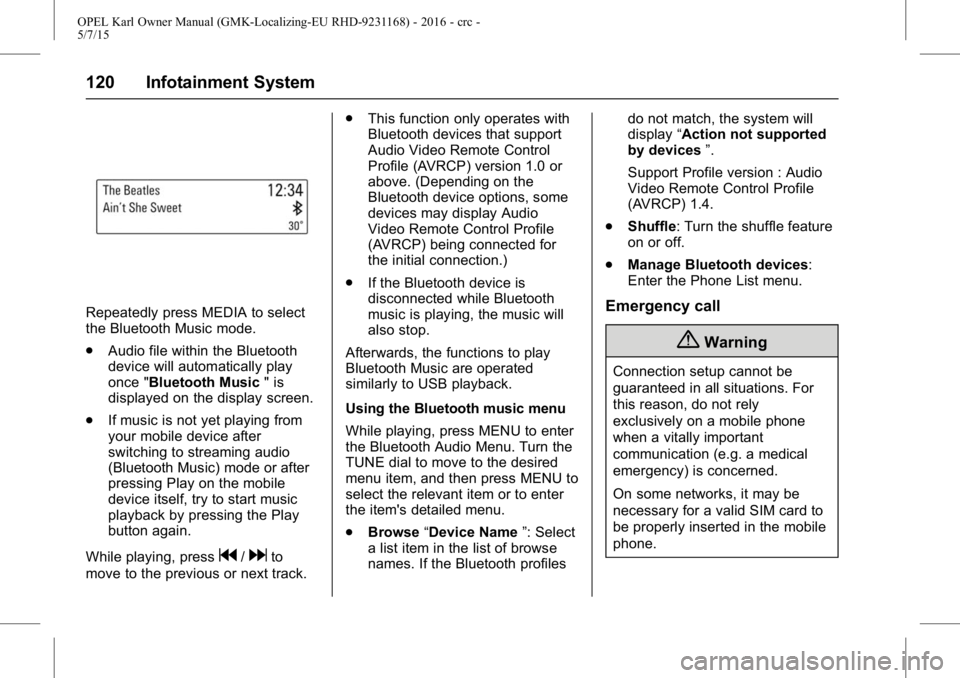
Repeatedly press MEDIA to select
the Bluetooth Music mode.
.Audio file within the Bluetooth
device will automatically play
once "Bluetooth Music " is
displayed on the display screen.
. If music is not yet playing from
your mobile device after
switching to streaming audio
(Bluetooth Music) mode or after
pressing Play on the mobile
device itself, try to start music
playback by pressing the Play
button again.
While playing, press
g/dto
move to the previous or next track. .
This function only operates with
Bluetooth devices that support
Audio Video Remote Control
Profile (AVRCP) version 1.0 or
above. (Depending on the
Bluetooth device options, some
devices may display Audio
Video Remote Control Profile
(AVRCP) being connected for
the initial connection.)
. If the Bluetooth device is
disconnected while Bluetooth
music is playing, the music will
also stop.
Afterwards, the functions to play
Bluetooth Music are operated
similarly to USB playback.
Using the Bluetooth music menu
While playing, press MENU to enter
the Bluetooth Audio Menu. Turn the
TUNE dial to move to the desired
menu item, and then press MENU to
select the relevant item or to enter
the item's detailed menu.
. Browse “Device Name ”: Select
a list item in the list of browse
names. If the Bluetooth profiles do not match, the system will
display
“Action not supported
by devices ”.
Support Profile version : Audio
Video Remote Control Profile
(AVRCP) 1.4.
. Shuffle: Turn the shuffle feature
on or off.
. Manage Bluetooth devices:
Enter the Phone List menu.
Emergency call
{Warning
Connection setup cannot be
guaranteed in all situations. For
this reason, do not rely
exclusively on a mobile phone
when a vitally important
communication (e.g. a medical
emergency) is concerned.
On some networks, it may be
necessary for a valid SIM card to
be properly inserted in the mobile
phone.
Page 122 of 217
OPEL Karl Owner Manual (GMK-Localizing-EU RHD-9231168) - 2016 - crc -
5/7/15
Infotainment System 121
{Warning
Bear in mind that you can make
and receive calls with the mobile
phone, if it is in a service area
with a sufficiently strong signal.
Under certain circumstances
emergency calls cannot be made
on all mobile phone networks; it is
possible that they cannot be
made when certain network
services and/or telephone
functions are active. You can
enquire about this with the local
network operators.
The emergency call number can
differ depending on the region
and country. Please enquire
beforehand about the correct
emergency call number for the
relevant region.
Making an emergency call
Dial the emergency call number
(e.g. 112).
The telephone connection to the
emergency call centre is set up.Answer when the service personnel
questions you about the emergency.
{Warning
Do not end the call until you are
requested to do so by the
emergency call centre.
Operation
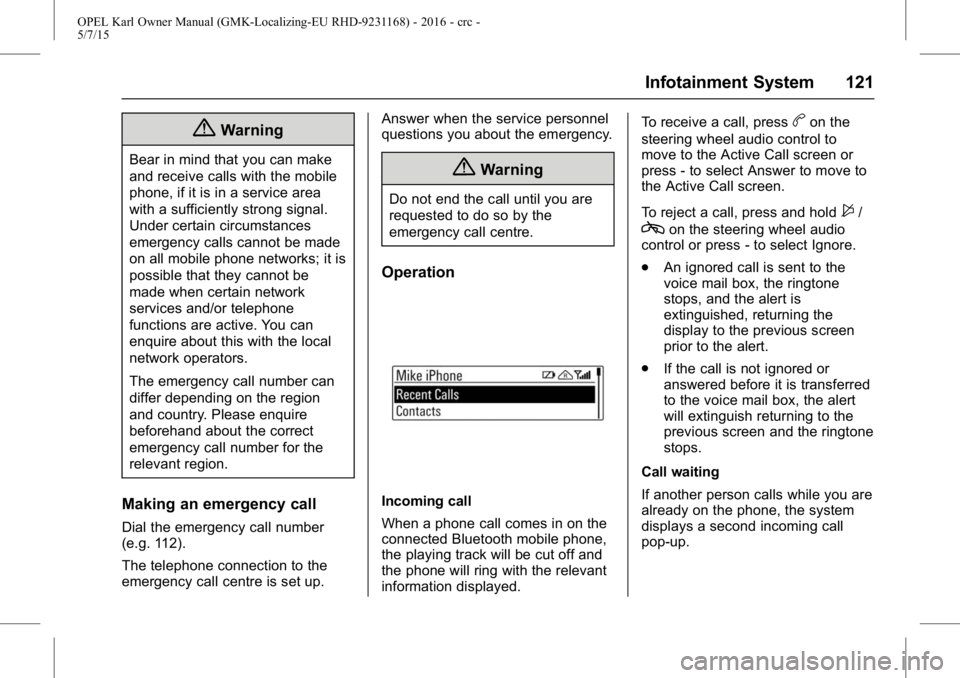
Incoming call
When a phone call comes in on the
connected Bluetooth mobile phone,
the playing track will be cut off and
the phone will ring with the relevant
information displayed.To receive a call, press
bon the
steering wheel audio control to
move to the Active Call screen or
press - to select Answer to move to
the Active Call screen.
To reject a call, press and hold
$/
con the steering wheel audio
control or press - to select Ignore.
. An ignored call is sent to the
voice mail box, the ringtone
stops, and the alert is
extinguished, returning the
display to the previous screen
prior to the alert.
. If the call is not ignored or
answered before it is transferred
to the voice mail box, the alert
will extinguish returning to the
previous screen and the ringtone
stops.
Call waiting
If another person calls while you are
already on the phone, the system
displays a second incoming call
pop-up.
Page 123 of 217
OPEL Karl Owner Manual (GMK-Localizing-EU RHD-9231168) - 2016 - crc -
5/7/15
122 Infotainment System
Press PHONE orbon the steering
wheel audio control to switch
between 1st call and 2nd call.
If two calls are active (call waiting
mode), a call waiting alert is not
displayed.
Phone volume control
Turn the VOLUME dial to adjust the
Phone Volume while in an active
phone call (e.g. through volume
steps 0 ~ 63).
Caution
It is possible to transfer your
ringtone depending on the mobile
phone.
Adjust the ringtone volume of the
mobile phone if the volume is
too low.
You can use the volume control to
adjust the Ring Tone Volume while
the ring tone is given out starting at
a defined minimum volume. The
volume ranges from level 3 to max. During a call
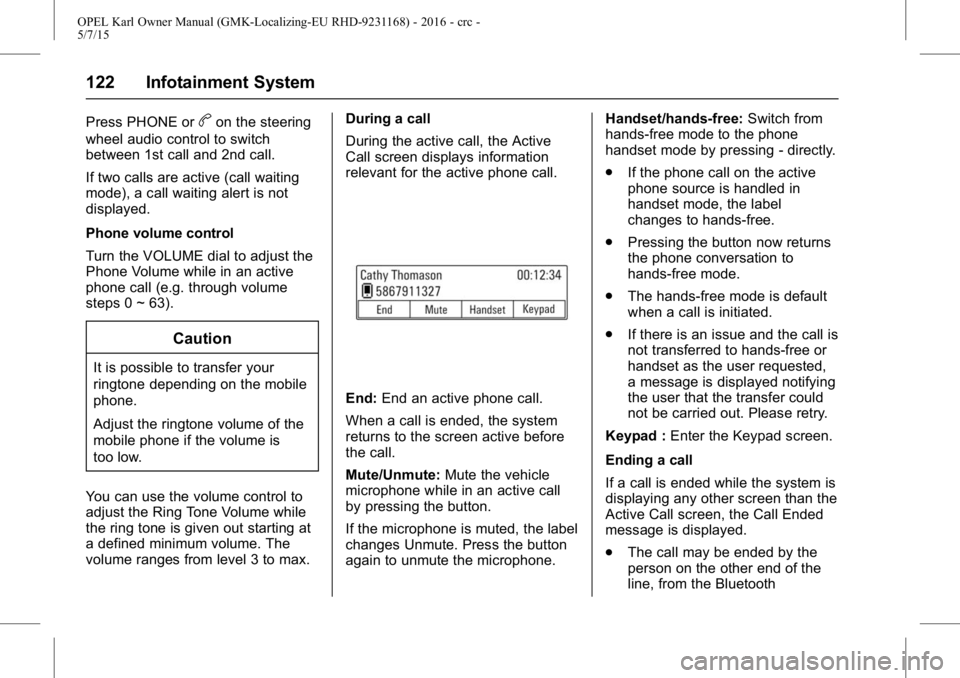
During the active call, the Active
Call screen displays information
relevant for the active phone call.
End:
End an active phone call.
When a call is ended, the system
returns to the screen active before
the call.
Mute/Unmute: Mute the vehicle
microphone while in an active call
by pressing the button.
If the microphone is muted, the label
changes Unmute. Press the button
again to unmute the microphone. Handset/hands-free:
Switch from
hands-free mode to the phone
handset mode by pressing - directly.
. If the phone call on the active
phone source is handled in
handset mode, the label
changes to hands-free.
. Pressing the button now returns
the phone conversation to
hands-free mode.
. The hands-free mode is default
when a call is initiated.
. If there is an issue and the call is
not transferred to hands-free or
handset as the user requested,
a message is displayed notifying
the user that the transfer could
not be carried out. Please retry.
Keypad : Enter the Keypad screen.
Ending a call
If a call is ended while the system is
displaying any other screen than the
Active Call screen, the Call Ended
message is displayed.
. The call may be ended by the
person on the other end of the
line, from the Bluetooth
Page 124 of 217
OPEL Karl Owner Manual (GMK-Localizing-EU RHD-9231168) - 2016 - crc -
5/7/15
Infotainment System 123
handheld device or by pressingcon the steering wheel audio
remote control.
. After 5 seconds, the display
returns to the previous screen.
Re-dialling a call
If the phone call was dropped, you
can re-dial the number before the
time out by pressing - directly below
the display labelled Redial.
Calling a number in the call log
Press PHONE to enter the Phone
List menu > turn the TUNE dial to
select the Recent Calls > press
ENTER > turn the TUNE dial to
select Missed Calls, Received Calls
or Sent Calls, then press ENTER.
The recent calls list displays an
intermediate menu containing
missed calls, received calls, and
sent calls.
Turn the TUNE dial to select a
name or phone number, and press
ENTER to make a call. Calling a number in the
phone book
Press PHONE to enter the Phone
List menu > turn the TUNE dial to
select Contacts > press ENTER >
turn the TUNE dial to select a name
or phone number, and press ENTER
to make a call.
The last outgoing phone source is
retained at the next ignition cycle,
if that phone device is connected,
and it is the outgoing phone source.
Downloading the phone book
If the Bluetooth device supports a
phone book synchronization
function, the phonebook is
downloaded automatically after the
connection has been established.
.
The call history lists can be
downloaded from the connected
Bluetooth device.
. Sorting call histories by time is
not supported.
. It is possible to download the
call history even when
proceeding another action. .
It is not possible to start the
download process when the call
history download feature is
turned off within the Bluetooth
device.
. After Pairing is completed, a
contacts download request is
sent to your mobile phone.
Some phones require additional
confirmation. Please check your
phone and accept the download
request if necessary.
. If a paired phone is deleted, its
call history lists will also be
deleted from the system.
. The system only uses
information coded in UTF-8
format.
Dial a number by keypad
Press PHONE to enter the Phone
List menu > turn the TUNE dial to
select the Keypad and press
ENTER to enter the Keypad screen.
. When users select Keypad from
the Phone Home Screen, a
phone dialler keypad is
displayed.