tow OPEL MOVANO_B 2020 Manual user
[x] Cancel search | Manufacturer: OPEL, Model Year: 2020, Model line: MOVANO_B, Model: OPEL MOVANO_B 2020Pages: 353, PDF Size: 9.4 MB
Page 100 of 353
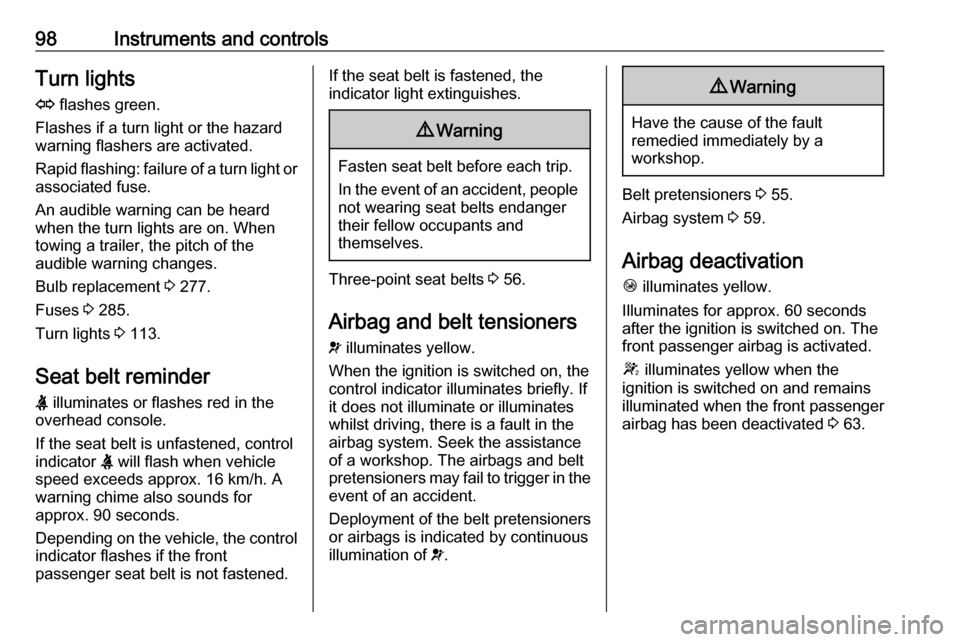
98Instruments and controlsTurn lightsO flashes green.
Flashes if a turn light or the hazard
warning flashers are activated.
Rapid flashing: failure of a turn light or
associated fuse.
An audible warning can be heard
when the turn lights are on. When
towing a trailer, the pitch of the
audible warning changes.
Bulb replacement 3 277.
Fuses 3 285.
Turn lights 3 113.
Seat belt reminder X illuminates or flashes red in the
overhead console.
If the seat belt is unfastened, control
indicator X will flash when vehicle
speed exceeds approx. 16 km/h. A warning chime also sounds for
approx. 90 seconds.
Depending on the vehicle, the control
indicator flashes if the front
passenger seat belt is not fastened.If the seat belt is fastened, the
indicator light extinguishes.9 Warning
Fasten seat belt before each trip.
In the event of an accident, people
not wearing seat belts endanger their fellow occupants and
themselves.
Three-point seat belts 3 56.
Airbag and belt tensioners
v illuminates yellow.
When the ignition is switched on, the control indicator illuminates briefly. If
it does not illuminate or illuminates
whilst driving, there is a fault in the
airbag system. Seek the assistance
of a workshop. The airbags and belt
pretensioners may fail to trigger in the event of an accident.
Deployment of the belt pretensioners
or airbags is indicated by continuous
illumination of v.
9 Warning
Have the cause of the fault
remedied immediately by a
workshop.
Belt pretensioners 3 55.
Airbag system 3 59.
Airbag deactivation Ó illuminates yellow.
Illuminates for approx. 60 seconds
after the ignition is switched on. The
front passenger airbag is activated.
W illuminates yellow when the
ignition is switched on and remains
illuminated when the front passenger
airbag has been deactivated 3 63.
Page 105 of 353

Instruments and controls1039Warning
When the engine is off,
considerably more force is needed
to brake and steer. During an
Autostop the brake servo unit will still be operational.
Do not remove key until vehicle is stationary, otherwise the steeringwheel lock could engage
unexpectedly.
Check engine oil level 3 271.
Keep engine turned off and let the
vehicle be towed to a workshop.
Low fuel Y illuminates yellow.
Illuminates when the ignition is
switched on and extinguishes shortly
after the engine starts.
Illuminates when the engine is
running
Fuel level in the tank is too low. Refuel
immediately.
Never run the tank dry.
Refuelling 3 263.
Catalytic converter 3 234.
Bleeding the diesel fuel system
3 276.
Stop-start system \ illuminates when an Autostop is
inhibited when certain conditions are
not fulfilled.
Ï illuminates during an Autostop.
Ï flashes if the clutch is not released
sufficiently.
Stop-start system 3 228.
Exterior light
F illuminates green.
Illuminated when the side lights are
on 3 110.
Low beam
9 illuminates or flashes green.
Illuminates
Illuminated when the headlights are on 3 110.Flashes
Fault in the lighting.
High beam P illuminates blue.
Illuminated when high beam is on and during headlight flash 3 111.
High beam assist f illuminates when the high beam
assist is activated 3 111.
Front fog lights
> illuminates green.
Illuminated when the front fog lights
are on 3 113.
Rear fog light ø illuminates yellow.
Illuminated when the rear fog light is on 3 114.
Cruise control
U , m illuminate green.
Page 118 of 353
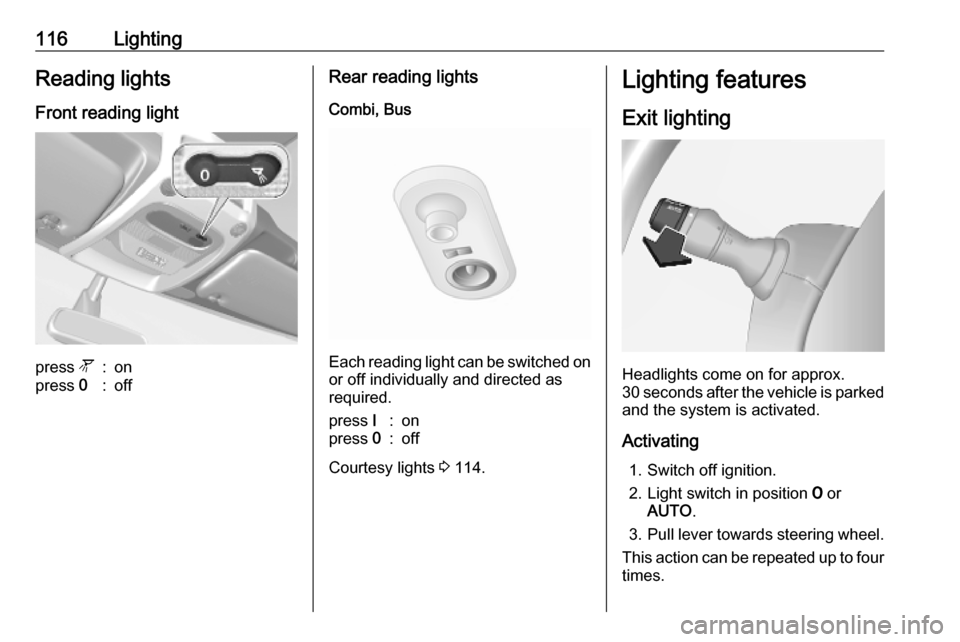
116LightingReading lightsFront reading lightpress l:onpress 0:offRear reading lights
Combi, Bus
Each reading light can be switched on
or off individually and directed as
required.
press I:onpress 0:off
Courtesy lights 3 114.
Lighting features
Exit lighting
Headlights come on for approx.
30 seconds after the vehicle is parked
and the system is activated.
Activating 1. Switch off ignition.
2. Light switch in position 7 or
AUTO .
3. Pull lever towards steering wheel.
This action can be repeated up to four
times.
Page 154 of 353

152Infotainment systemUsage
An audio source that is connected to the AUX input can only be operated
via the controls on the audio source,
i.e. not via the Infotainment system.
Only select a track directly on the
audio source when the vehicle is stationary.Caution
Before connecting or
disconnecting an auxiliary device,
e.g. a portable CD player, switch off the player and the Infotainment system, to avoid sound quality
issues and possible damage to the equipment.
Upon connection via the jack plug, thesystem detects the audio source
automatically. Depending on the
recording volume, there may be a
delay before the audio source is
heard.
The artist or track name are not
shown on the display screen.
Note
Ensure the auxiliary device is
securely stowed during driving.
Vehicle occupants could be injured
by objects being thrown around in
the event of hard braking, a sudden
change in direction or an accident.
Radio 15 USB
Press MEDIA to change the audio
source to AUX mode, then switch on
the auxiliary device. AUX appears on
the display screen.
AUX settings
Press SETUP to access the settings
menu.
Select AUX IN and turn OK until the
desired setting is selected from:
● HI (300 mV)
● MID (600 mV)
● LO (1200 mV)
NAVI 50 IntelliLink
To access the media menu at any
time, touch 7 followed by t/
ü MEDIA .To switch between auxiliary sources,
touch S in top left corner. The
following options are available:
● USB : Refer to
(NAVI 50 IntelliLink) "USB port"
3 153.
● iPod : Refer to
(NAVI 50 IntelliLink) "USB port" 3 153.
● BT: Refer to
(NAVI 50 IntelliLink) "Bluetooth music" 3 156.
● Video : Refer to
(NAVI 50 IntelliLink) "Video"
3 162.
● AUX : Select to change the audio
source to AUX mode, then switch
on the auxiliary device.
NAVI 80 IntelliLink
Change the audio source to AUX
mode to playback content from a
connected auxiliary device.
To access the media menu from the Home page, touch MENU then
Multimedia , followed by Media.
Page 167 of 353

Infotainment system165USB memory stick
(NAVI 50 IntelliLink)
A USB memory stick is required for the navigation system, to contain,
among other things, a digital map of
the towns and roads in your country.
Note
Use a USB memory stick, formatted to FAT32 format, with a minimum
4 GB and maximum 32 GB of
storage capacity.
After driving the first 100 km, it is
possible to check for free digital map
updates within a period of 90 days.
Note
To avoid possible technical issues,
only use a compatible USB memory
stick for operating and updating the
navigation system. Do not insert
USB memory stick in any other
device (e.g. digital camera, mobile
phone, etc.), or in another vehicle.
Software installation
To update the digital maps and to
benefit from exclusive downloadable
services, an account must be createdon the opel.naviextras.com website
and the free software must be
installed.Creating an account
Create your internet account via the
opel.naviextras.com website. Select
e.g., the "Register" option on the web
page and enter the appropriate
details.Installing the software
Install the software on your computer
by downloading from
opel.naviextras.com.
Follow the on-screen instructions to
install the software and launch the
online application.Registering the navigation system
The navigation system must be
registered with your new internet
account.
Insert an empty USB memory stick in the navigation system's USB slot.
Touch 7 then select ýNav , followed
by Options then Map update .To ensure all content is saved in the
navigation system's memory, select Options then Update . Wait for the
update to complete before ejecting the USB memory stick.
Then insert the USB memory stick in
your computer's USB slot while
connected to the Internet. When the
online application is launched and the
USB memory stick is recognised, the
system (or software) name appears in the application window. The
navigation system is registered into
your user profile.
After the initial set-up, the USB
memory stick is automatically
recognised by the navigation system
and by the online application.
Updating the USB memory stick and
navigation system
Updates are issued regularly, e.g. for
map and safety camera revisions.
Note
In certain countries it is illegal to
download and activate the camera
warning option and this could lead to prosecution.
Page 168 of 353

166Infotainment systemThese updates are only available viathe online application catalogue,
which is accessed via the USB
memory stick.
Using the online application, it is
possible to:
● update the navigation system (maps, safety cameras etc.)
● upgrade to premium POI content
● add or delete data
● customise the system
The online application menus guide you through these operations.System update
To get the best from the navigation
system, update it as often as
possible.
To update the system, start the
vehicle and do not switch off the engine while data is loading.
Insert the USB memory stick in the
navigation system's USB slot.
Available updates on the USB
memory stick are recognised by the
navigation system and the 'Update'
screen is displayed automatically.Select Update to begin installing the
updates to the navigation system.
Note
The navigation system may restart
automatically during the update
process.
Note
Touch r to go back to the previous
screen.
Alternatively, touch 7 followed by
ý Nav , Options then Map update .
Then select Options followed by
Update to install updates to the
navigation system.
Wait for the update to complete
before performing any other
operation or ejecting the USB
memory stick.
SD card (NAVI 80 IntelliLink)
An SD card is supplied with the
navigation system and contains, among other things, a digital map of
the towns and roads in the country.
Consult a workshop to purchase a
new SD card with updated digital
map.Note
To avoid possible technical issues,
only use a compatible SD card for
operating the navigation system. Do not insert SD card in any other
device (e.g. digital camera, mobile phone, etc.), or in another vehicle.
Usage
USB memory stick
NAVI 50 IntelliLinkInserting the USB memory stick
Switch off the navigation system and insert the USB memory stick in theUSB slot on the Infotainment system
fascia. The USB memory stick is
fragile; treat it with care.Removing the USB memory stick
Switch off the navigation system and
remove the USB memory stick from the USB slot on the Infotainment
system fascia.
Page 177 of 353

Infotainment system175Turn off, e.g. when towing a vehicle,
or when motorway driving is not
permitted.
Note
Follow the regulations of the country
in which you are driving.
Period charge : To include or exclude
roads which require a special license
to be purchased for certain periods.
Per-use toll : To include or exclude
roads for which a toll must be paid to
use the road once only.
Ferries : To include or exclude the use
of ferries, ships and trains.
Carpool/HOV : To include or exclude
carpool lanes and high-occupancy
vehicle (HOV) lanes.
Unpaved roads : To include or
exclude the use of unpaved roads,
e.g. dirt, gravel roads.Map settings
Select Map settings to access the
following:
● View mode (3D/2D/2D North)
2D North is available depending
on version.
● Viewpoint (Low/Normal/High)●Motorway view (On/Off)
● POI markers
Alternatively, when the map is
displayed (no route guidance is
active), the Map settings menu can be
accessed by touching Options.
Refer to (NAVI 50 IntelliLink)
"Information on the display", "Map
screen" above for further information.
View mode : Select View mode to
change the default map mode
between a 2D top-down view, a 3D
perspective view and a 2D view with
North always facing upwards.
Alternatively, touch the Compass on
the map to switch between map view
modes.
Viewpoint : Select Viewpoint to raise
or lower the map view.
Alternatively, when the map is
displayed (no route guidance is
active), touch ⇧/⇩ to raise or lower the
map view. They are greyed-out when
the maximum position is reached.
Motorway view : Select Motorway
view to switch on/off the motorway
junction view for route guidance.Refer to (NAVI 50 IntelliLink)
"Information on the display", "Map
screen" above for further information.
POI markers : Select l alongside POI
markers to display a list of Points of
Interest (POI) types.
Use this screen to switch on/off (show or hide on map) certain POI type
markers on the map, e.g.
accommodation, airport, café or bar.
Select a POI type to open a list of its
subcategories and switch on/off
(show or hide) individual
subcategories.
Note
POIs are only visible on the map
depending on the zoom level.Voice settings
Select Voice Settings to change voice
guidance language.
Scroll the list of languages by
touching R/S then select a language
and touch OK to confirm selection.
Page 180 of 353

178Infotainment systemThe following menu options are
available for entering a destination:
● Address
Enter an address using the
keyboard.
● Points of Interest
Select Points of Interest (POI),
e.g. petrol station, restaurant, parking.
● History
Select from a list of previous destinations.
● Favourites
Select from a saved list of
favourite destinations.
● Find on map
Select a destination by using the
digital map.
● Coordinate
Enter the co-ordinates of the
destination.
After a destination has been entered,
wait for the ten second countdown to
expire or touch OK to begin route
guidance immediately.Enter an address
Select Address and enter part or all of
an address, e.g.:
● Country
● Town or Postcode
● Street
● Number
● Intersecting street
Note
Full addresses can only be entered
if they are recognised by the
navigation system.
When entering an address for the first
time, touch Country, then use the
keyboard to enter the name of the
country required. Alternatively, use
the drop down menu icon ó and select
from a list of suggested countries.
Note
When entering an address, certain
letters and numbers are unavailable
for selection (greyed-out) based on
the addresses recognised by the
navigation system.
Proceed in the same way to enter
details for Town or Postcode , Street ,
Number and Intersecting street .Note
If a Postcode consists of several
parts, insert a space after the first
part of the postcode.
The address is automatically stored in the memory, available for future
selection.
For keyboard operation, refer to
(NAVI 50 IntelliLink) "Operating
keyboards in the display" in the
"Usage" section 3 166.
Note
Number and Intersecting Street are
only available after a Street has
been entered.
When entering a Street, it is not
necessary to specify the type of road (street, avenue, boulevard etc.).Select Points of Interest (POI)
POIs can be selected as a destination
using the following search options:
● preset POI list
● POI categories
● quick search for POIs via the map
Page 181 of 353

Infotainment system179Preset POI list
Select Points of Interest to choose
from the frequently-used preset
categories list (e.g. petrol station,
parking, restaurant).POI categories
Select Points of Interest followed by
Custom Search to select from the list
of categories and subcategories.
The search for POIs differs
depending on the current situation:
● If route guidance is active, Petrol
station and Restaurant POIs are
searched for along the route, and
Parking POIs are searched for
around the destination.
● If there is no active route guidance, POIs are searched for
around the current position.
● If the current position is not available (i.e. no GPS signal),
POIs are searched for around the last known position.
The following options are available: ● In a Town
To search for a POI within a
selected town (the resulting list isordered by distance from the
town centre).
● Along Route
To search for a POI along the
current route (the resulting list is
ordered by length of the required
detour).
● Around My Position
To search for a POI around the
current position (the resulting list is ordered by distance from this
position).
● Around Destination
To search for a POI around the
destination of the current route
(the resulting list is ordered by
distance from the destination).
When a list of POIs is displayed, they
can be sorted or displayed on the map. Touch Options to display the
following:
● Sort by name
● Sort by distance
● Sort by detour (if route guidance
is active)
● Show all on mapQuick search for POIs
Touch anywhere on the map. The
cursor indicates the current selected
position. To scroll within the map,
drag the cursor in the required
direction.
Touch Options followed by Points of
Interest Around Cursor to show
nearby POI names and their distance
from the selected position on the
map.
Alternatively, touch Find and use the
keyboard to search for a destination
by name.Select from previous destinations list
Select History to access a list of
previously entered destinations.
To sort the list, touch Options to
display the following:
● Sort by name
● Sort by distance
● Delete all
Alternatively, touch Find and use the
keyboard to search for a destination
by name.
Page 183 of 353

Infotainment system181For keyboard operation, refer to
(NAVI 50 IntelliLink) "Operating
keyboards in the display" in the
"Usage" section 3 166.
Delete a favourite
When a favourite has been selected,
touch Options before starting route
guidance followed by Delete
Favourite and confirm deletion.
To delete all favourite destinations,
select the menu Destination then
Favourites followed by Options then
Delete all and confirm deletion.
NAVI 80 IntelliLink
Select a destination
From the Home page, touch MENU
then Navigation followed by Drive
to... .
Select a destination from the
following options on the display:
● Home
● Saved locations
● Address
● Recent destinations
● Local search /TomTom places● Point of Interest
● Point on Map
● Latitude LongitudeHome
Guides to the home address.
To store the home address, from the
Home page, touch MENU then
Navigation , followed by Settings.
Select Set home location and enter
an address.
Refer to (NAVI 80 IntelliLink) "Setting up the navigation system" in the
"Usage" section 3 166.Saved locations
Select from a list of previously saved
destinations.
To delete or rename saved
destinations, from the Home page,
touch MENU then Navigation ,
followed by Settings.
Then select Manage saved locations
and update the selected destination
as required.
Refer to (NAVI 80 IntelliLink) "Setting
up the navigation system" in the
"Usage" section 3 166.Address
Enter part or all of an address using
the keyboard, e.g.:
● Country
● Postcode
● Town/City
● Street
● House number
Note
Full addresses can only be entered
if they are recognised by the
navigation system.
When entering an address for the first
time, the country of the destination
will be requested. Use the keyboard
to enter the name of the country
required.
Suggestions may be shown on the
display during input. Touch to select
a destination shown in the display, or
touch List to access the full list for the
current part of the address.