USB PEUGEOT 107 2012 Owners Manual
[x] Cancel search | Manufacturer: PEUGEOT, Model Year: 2012, Model line: 107, Model: PEUGEOT 107 2012Pages: 140, PDF Size: 4.02 MB
Page 42 of 140
40Fittings
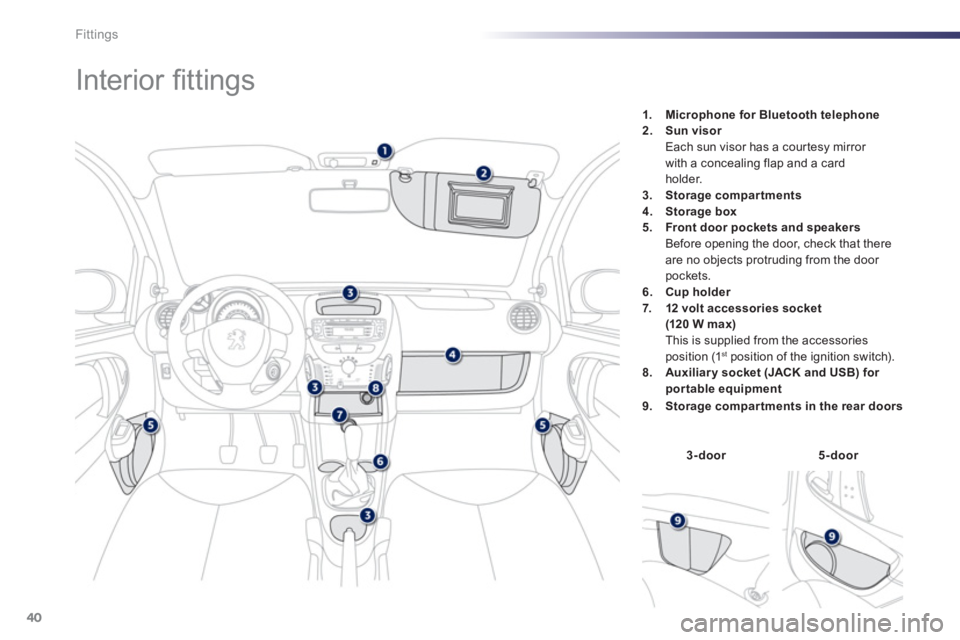
Interior fi ttings
3-door5-door
1. Microphone for Bluetooth telephone2. Sun visor
Each sun visor has a cour tesy mirror
with a concealin
g flap and a card holder. 3. Storage compar tments4. Storage box5. Front door pockets and speakers
Before opening the door, check that thereare no objects protruding from the door pockets.
6. Cup holder
7. 12 volt accessories socket
(120 W max) This is supplied from the accessories position (1st
position of the ignition switch).8. Auxiliar y socket (JACK and USB) for por table equipment
9. Storage compartments in the rear doors
Page 84 of 140

82Practical information
Accessories A wide range of accessories and genuine par ts
is available from the PEUGEOT dealer network.
These accessories and par ts have been tested
and approved for reliability and safety.
The
y are all adapted to your vehicle and
benefit from PEUGEOT's recommendation and
warranty.
Installation of radio communication transmitters
Before installing any after-market radiocommunication transmitter, you can contact
a PEUGEOT dealer for the specification of
transmitters which can be fitted (frequency, maximum power, aerial position, specific
installation requirements), in line with the
Vehicle Electromagnetic CompatibilityDirective (2004/10 4/EC).
*
France only.
"Comfort":front and rear parking sensors,portable ashtray, glove box lid, insulatedmodule, centre armrest, portable reading lamp,
door deflectors, sun blinds, ...
"Transport solutions":boot liner, transverse roof bars, bicycle carrier, ski carrier, rigid and soft roof boxes, boot carpet, boot dividers, boot net, ...
You can obtain "Van" conversion kits to converta private vehicle to a van * .
"Styling":14 inch wheel trims, 14 and 15 inch alloy wheels, spoiler, "aluminium" interior styling kit, aluminium look and carbon fibre lookmirror shells, aluminium look and carbon fibre
look sill finishers chromed exhaust tailpipe,
leather steerin
g wheel, aluminium look and carbon fibre look rear diffuser, styling stickers,
door sill protectors, aluminium gear knob,
"Cristal" rear lamps..."Securit
y and safety":anti-theft alarm,
security wheel bolts, snow chains and wheelnon-skid covers, high visibility vest, warningtriangle, breathalyzer, child seats, first aid kit,fire extinguisher, foglamp kit, seat belt for an
animal, cage for an animal...
"Protection"
: mats, seat covers, front and rear
mudflaps, protective side rubbing strips, boot
sill protector, car cover, translucent front and
rear bumper protectors, rear seat cover, bootcover...
To prevent the mat from becoming caught under the pedals:
- ensure that the mat is positioned andsecured correctly,
- never fit one mat on top of another.
"Multimedia"
: semi-integrated navigation
systems, USB Box, audio systems, speakers,rear parcel shelf with speakers, Bluetooth
hands-free system, hands free kit for smar t
phone, speed camera detector, video pack
(DVD player + 2 screens) auxiliary cable for
audio equipment, iPod dock, Hi-Fi module,
mobile phone charger compatible with iPhone, head-up display, rear mulit-media suppor t,
Wi-Fi on board, ...
Depending on the legislation in force in the country, it may be compulsoryto have a high visibility safety vest, warning triangle and spare bulbs and fuses available in the vehicle. The fitting of electrical equipmentor accessories which are notrecommended by PEUGEOT may result
in a failure of your vehicle's electronic system and excessive electrical consumption.Please note this precaution. Youare advised to contact a PEUGEOT representative to be shown the rangeof recommended equipment andaccessories.
Page 96 of 140
01
VOLMENUSRC/
LIST
ESC
SEEK +
_
MP3
94
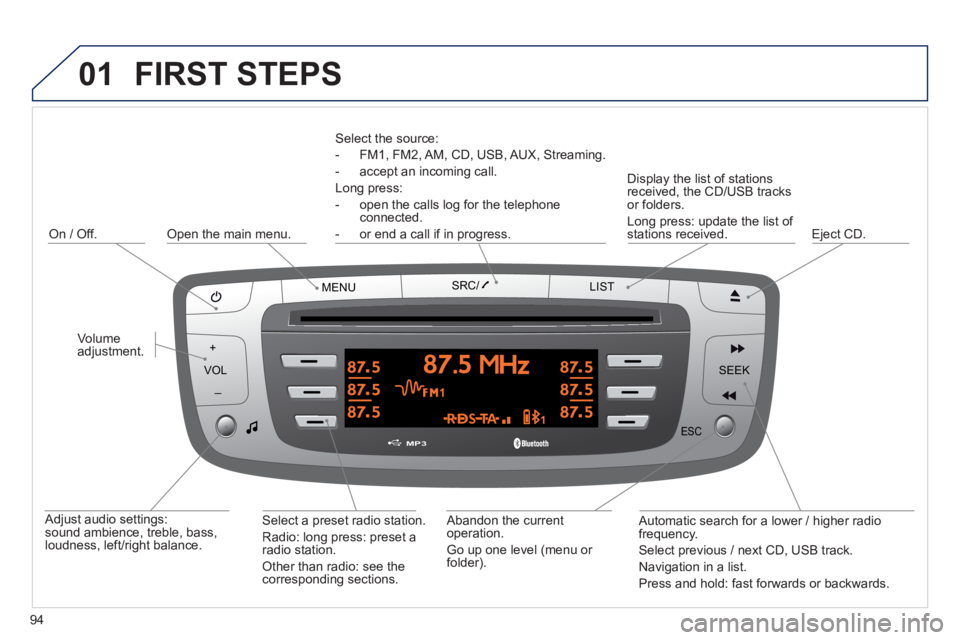
FIRST STEPS
Select the source:
- FM1, FM2, AM, CD, USB, AUX, Streamin
g.
- accept an
incoming call.
Long press:
- open the calls lo
g for the telephone connected.
- or end a call i
f in progress.
Adjust audio settings: sound ambience, treble, bass, loudness, left/right balance.
On / Off.
Abandon the current
operation.
Go up one level (menu or folder).
E
ject CD.
Select a preset radio station.
Radio: long press: preset a
radio station.
Other than radio: see the corresponding sections.
Automatic search for a lower / hi
gher radio
frequency.
Select previous / next CD, USB track.
Navigation in a list.
Press and hold: fast forwards or backwards.
Open the main menu.
Displa
y the list of stationsreceived, the CD/USB tracksor folders.
Lon
g press: update the list of stations received.
Volume adjustment.
Page 99 of 140
02
97
RADIO
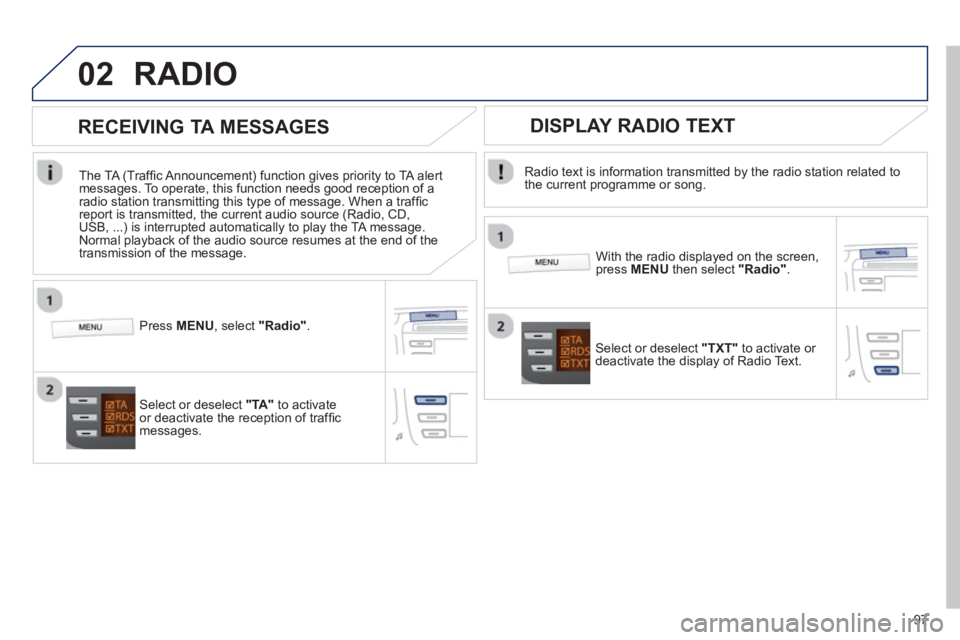
Radio text is information transmitted by the radio station related to
the current programme or song.
With the radio displayed on the screen, press MENUthen select "Radio".
Select or deselect "TXT"
to activate or
deactivate the display of Radio Text.
DISPLAY RADIO TEXT
RECEIVING TA MESSAGES
The TA (Traffi c Announcement) function gives priority to TA alert messages. To operate, this function needs good reception of a
radio station transmitting this type of message. When a traffi c
report is transmitted, the current audio source (Radio, CD,USB, ...) is interrupted automatically to play the TA message.
Normal playback of the audio source resumes at the end of the
transmission of the message.
Press MENU, select "Radio".
Select or deselect "TA "to activateor deactivate the reception of traffi cmessages.
Page 101 of 140
03
99
AUDIO
CD, USB
INFORMATION AND ADVICE
On a single disc, the CD player can read up to 255 MP3 fi les spread
over 8 folder levels with a maximum of 192 folders. However, it is
recommended that this be kept to 2 levels so as to limit the time taken
to access and play the CD.
Durin
g play, the folder structure is not observed.
In order to be able to pla
y a recorded CDR or CDRW, when recordingit is preferable to select standards ISO 9660 level 1.2 or Joliet.
If the disc is recorded in another format, it ma
y not be played correctly.
It is recommended that the same recording standard is always usedfor an individual disc, with as low a speed as possible (4x maximum)for optimum sound quality.
In the particular case o
f a multi-session CD, the Joliet standard is
recommended.
Do not connect a hard disk or U
SB device other than audio players to
the USB port. This may cause damage to your installation.
The audio s
ystem will only play fi les with ".mp3", ".wma" and ".wav" on
a CD and can play fi les with ".ogg" extension only on USB.
A high compression rate can adversely affect sound quality.
The pla
ylists accepted on CD, MP3, iPod and USB connection are
types ".m3u" and ".wpl".
The number of fi les reco
gnised is limited to 5 000 in 500 folders on a maximum of 8 levels.
Page 102 of 140
03
VOLMENUSRC/
LISTESCSEEK +
_MP3
100
CD, USB
AUDIO
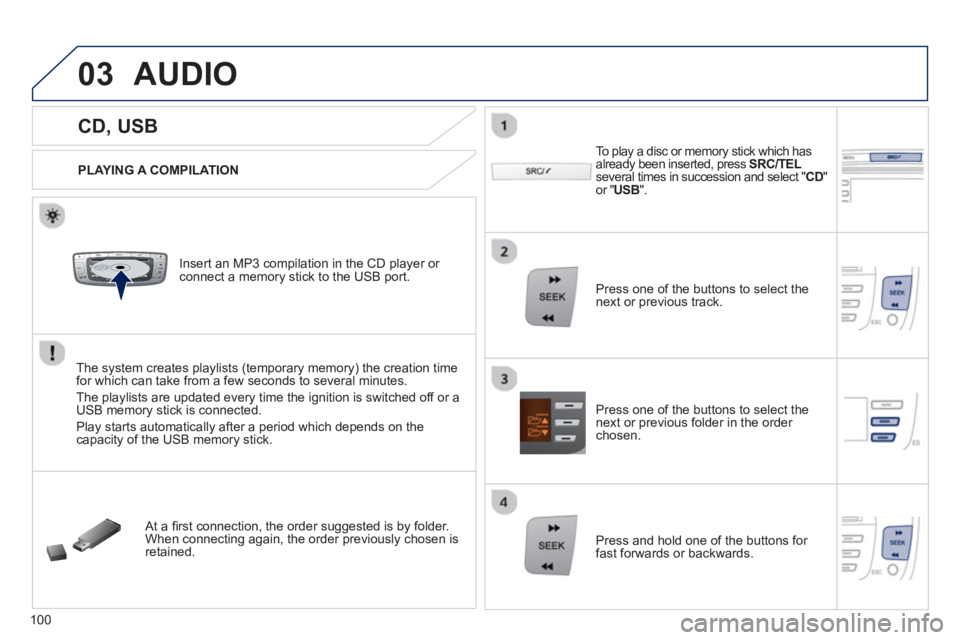
PLAYING A COMPILATION
Insert an MP3 compilation in the CD pla
yer or connect a memory stick to the USB port.
The system creates playlists
(temporary memory) the creation timefor which can take from a few seconds to several minutes.
The pla
ylists are updated every time the ignition is switched off or aUSB memory stick is connected.
Pla
y starts automatically after a period which depends on the capacity of the USB memory stick.
At a fi rst connection, the order suggested is by folder.When connecting again, the order previously chosen is retained.
To pla
y a disc or memory stick which has
already been inserted, press SRC/TELseveral times in succession and select "CD"or "USB".
Press one of the buttons to select the next or previous track.
Pr
ess one of the buttons to select the next or previous folder in the order chosen.
Pr
ess and hold one of the buttons for
fast forwards or backwards.
Page 103 of 140
03
101
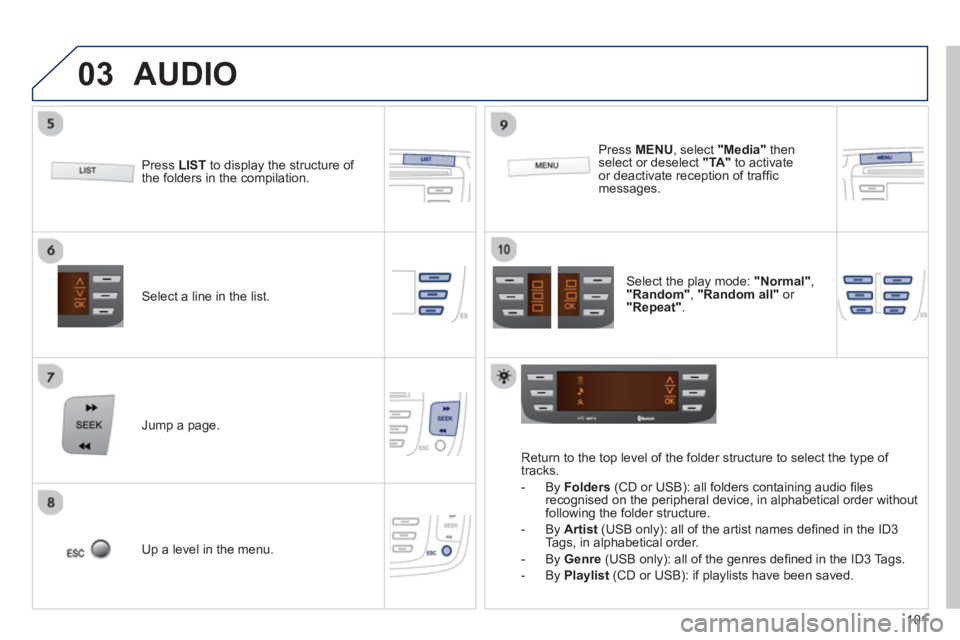
Select a line in the list.
Jump a page.
Pr
ess MENU, select "Media"
thenselect or deselect "TA"
to activate or deactivate reception of traffi c messages.
U
p a level in the menu.
AUDIO
Return to the top level of the folder structure to select the type of
tracks.
-
By Folders
(CD or USB): all folders containing audio fi les recognised on the peripheral device, in alphabetical order withoutfollowing the folder structure.
- B
y Artist(USB only): all of the artist names defi ned in the ID3
Tags, in alphabetical order.
- B
y Genre
(USB only): all of the genres defi ned in the ID3 Tags.
-
By Playlist
(CD or USB): if playlists have been saved.
Pr
ess LISTto display the structure of
the folders in the compilation.
Select the play mode: "Normal" ,"Random" , "Random all"or
"Repeat" .
Page 104 of 140
03
102
AUDIO
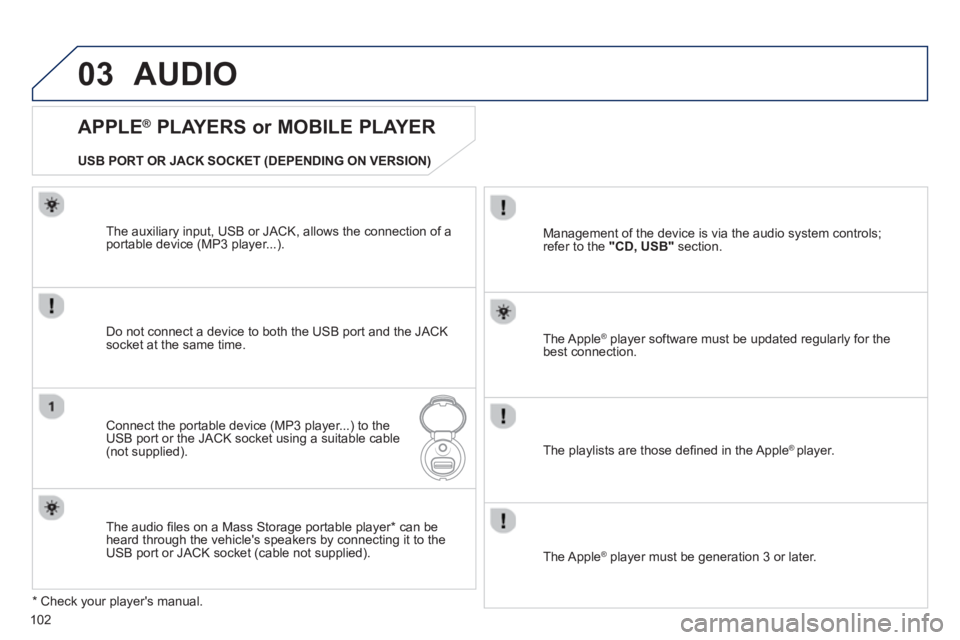
APPLE ®
PLAYERS or MOBILE PLAYER
Do not connect a device to both the USB port and the JACK socket at the same time.
Connect the portable device (MP3 player...) to theUSB port or the JACK socket using a suitable cable(not supplied). The Apple
® player software must be updated regularly for the®
best connection.
The pla
ylists are those defi ned in the Apple ® player.
*
Check your player's manual. The auxiliar
y input, USB or JACK, allows the connection of a
portable device (MP3 player...).
USB PORT OR JACK SOCKET
(DEPENDING ON VERSION)
Mana
gement of the device is via the audio system controls;
refer to the "CD, USB"section.
The audio fi les on a Mass Stora
ge portable player * can be heard through the vehicle's speakers by connecting it to the USB port or JACK socket (cable not supplied).
The Apple ® player must be generation 3 or later.
®
Page 116 of 140
11 4
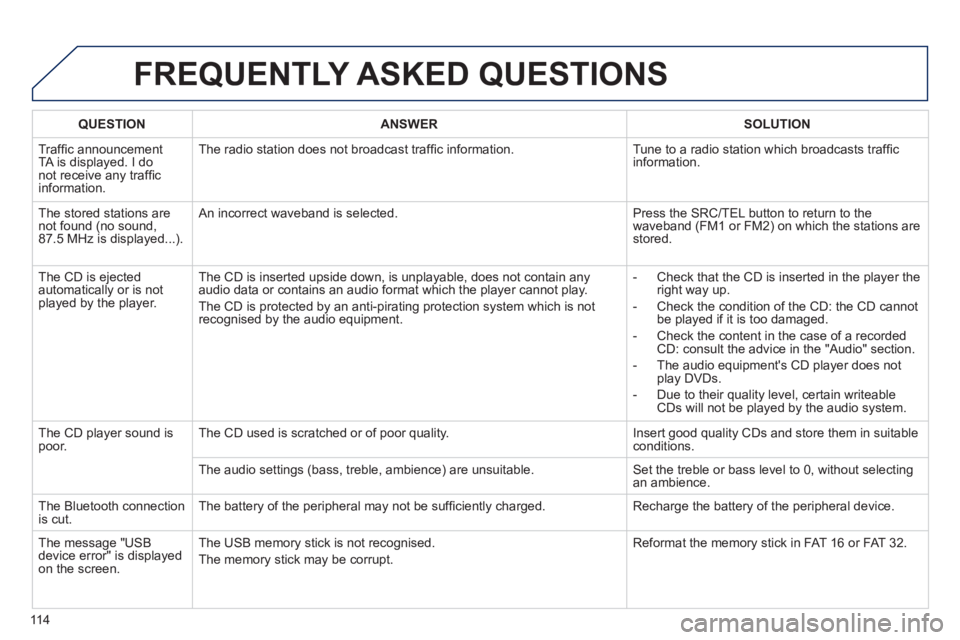
FREQUENTLY ASKED QUESTIONS
QUESTIONANSWERSOLUTION
Traffi c announcementTA is displayed. I donot receive any traffi c
information.Th
e radio station does not broadcast traffi c information. Tune to a radio station which broadcasts traffi c
information.
The stored stations arenot found (no sound, 87.5 MHz is displayed...).
An incorrect waveband is selected. Press the SRC/TEL button to return to the
waveband (FM1 or FM2) on which the stations arestored.
The
CD is ejected
automatically or is not played by the player. The
CD is inserted upside down, is unplayable, does not contain any audio data or contains an audio format which the player cannot play.
The CD is protected b
y an anti-pirating protection system which is not recognised by the audio equipment.
-
Check that the CD is inserted in the player the
right way up.
-
Check the condition of the CD: the CD cannot
be played if it is too damaged.
-
Check the content in the case of a recordedCD: consult the advice in the "Audio" section.
- The audio equipment's
CD player does not
play DVDs.
- Due to their qualit
y level, certain writeableCDs will not be played by the audio system.
The
CD player sound ispoor.The CD used is scratched or of poor quality. Insert good quality CDs and store them in suitable conditions.
The audio settin
gs (bass, treble, ambience) are unsuitable. Set the treble or bass level to 0, without selectingan ambience.
The Bluetooth connection
is cut. The battery of the peripheral may not be suffi ciently charged. Recharge the battery of the peripheral device.
The messa
ge "USB
device error" is displayed
on the screen.The U
SB memory stick is not recognised.
The memory stick may be corrupt. Reformat the memory stick in FAT 16 or FAT 32.
Page 117 of 140
115
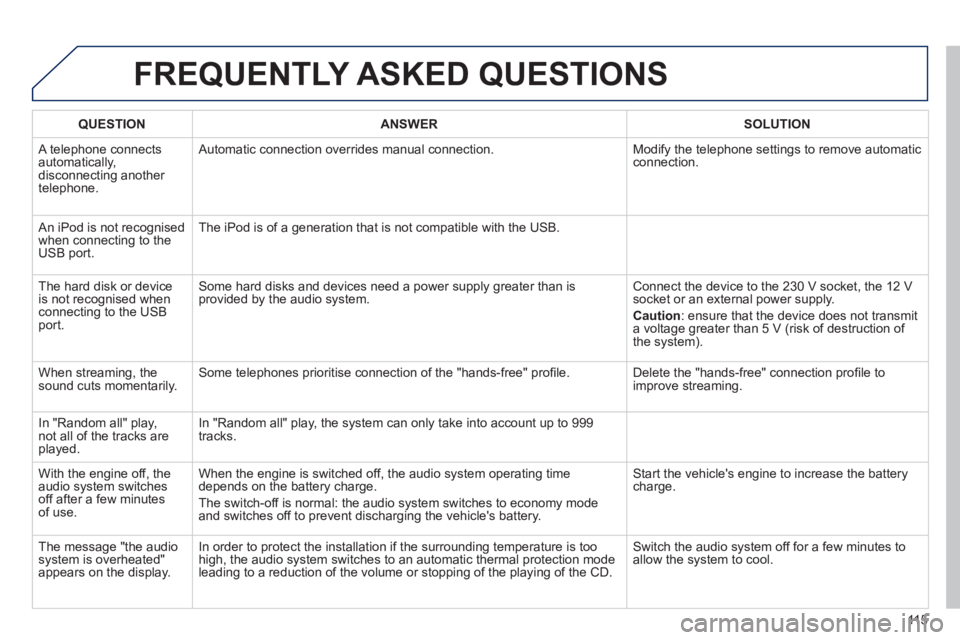
FREQUENTLY ASKED QUESTIONS
QUESTIONANSWERSOLUTION
A telephone connects
automatically,
disconnecting another
telephone. Automatic connection overrides manual connection. Modify the telephone settings to remove automatic connection.
An iPod is not recognisedwhen connecting to the
USB port.The iPod is o
f a generation that is not compatible with the USB.
Th
e hard disk or deviceis not recognised whenconnecting to the USBport.
Some hard disks and devices need a power supply greater than is
provided by the audio system. Connect the device to the 230 V socket, the 12 V socket or an external power supply.
Caution
:
ensure that the device does not transmit
a voltage greater than 5 V (risk of destruction of
the system).
When streamin
g, the sound cuts momentarily. Some telephones prioritise connection of the "hands-free" profi le. Delete the "hands-free" connection profi le to
improve streaming.
In "Random all" pla
y,not all of the tracks areplayed.In "Random all" pla
y, the system can only take into account up to 999
tracks.
With the en
gine off, the
audio system switches off after a few minutes of use. When the en
gine is switched off, the audio system operating timedepends on the battery charge.
The switch-o
ff is normal: the audio system switches to economy mode and switches off to prevent discharging the vehicle's battery.
Start the vehicle's engine to increase the batterycharge.
The messa
ge "the audio system is overheated"
appears on the display. In order to protect the installation if the surroundin
g temperature is too
high, the audio system switches to an automatic thermal protection mode leading to a reduction of the volume or stopping of the playing of the CD. Switch the audio s
ystem off for a few minutes to
allow the system to cool.