audio PEUGEOT 108 2018 User Guide
[x] Cancel search | Manufacturer: PEUGEOT, Model Year: 2018, Model line: 108, Model: PEUGEOT 108 2018Pages: 180, PDF Size: 7.14 MB
Page 132 of 180
2
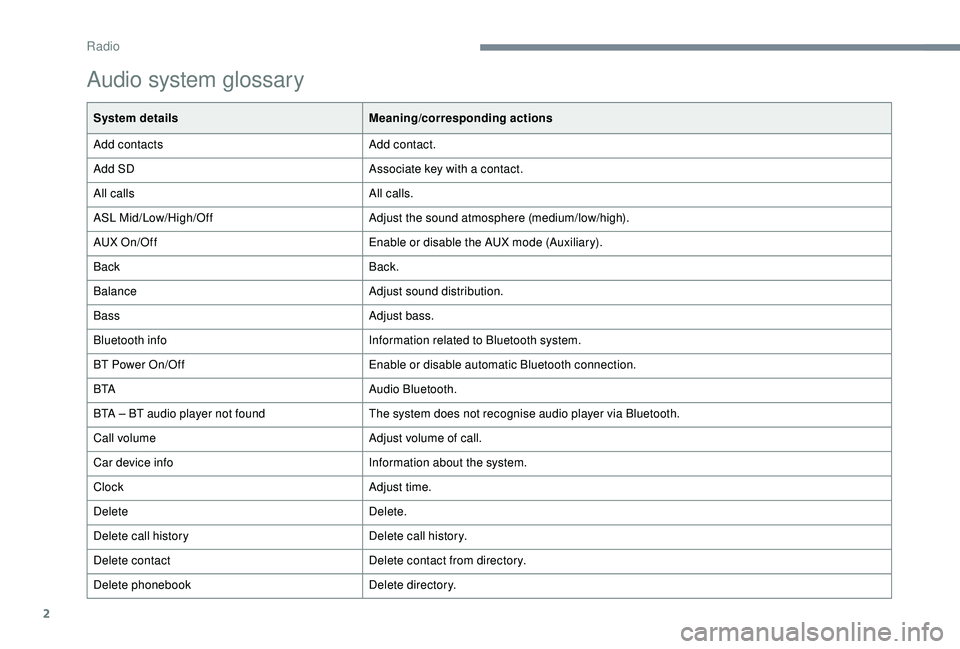
Audio system glossary
System detailsMeaning/corresponding actions
Add contacts Add contact.
Add SD Associate key with a
contact.
All calls All calls.
ASL Mid/Low/High/Off Adjust the sound atmosphere (medium/low/high).
AUX On/Off Enable or disable the AUX mode (Auxiliary).
Back Back.
Balance Adjust sound distribution.
Bass Adjust bass.
Bluetooth info Information related to Bluetooth system.
BT Power On/Off Enable or disable automatic Bluetooth connection.
B TA Audio Bluetooth.
BTA – BT audio player not found The system does not recognise audio player via Bluetooth.
Call volume Adjust volume of call.
Car device info Information about the system.
Clock Adjust time.
Delete Delete.
Delete call history Delete call history.
Delete contact Delete contact from directory.
Delete phonebook Delete directory.
Radio
Page 133 of 180
3
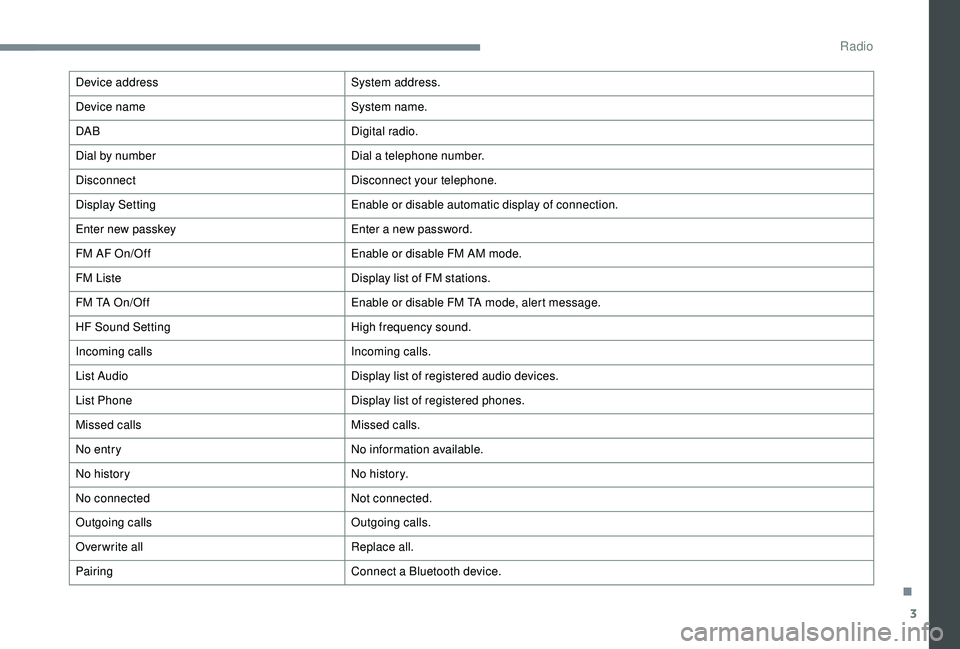
Device addressSystem address.
Device name System name.
DAB Digital radio.
Dial by number Dial a
telephone number.
Disconnect Disconnect your telephone.
Display Setting Enable or disable automatic display of connection.
Enter new passkey Enter a
new password.
FM AF On/Off Enable or disable FM AM mode.
FM Liste Display list of FM stations.
FM TA On/Off Enable or disable FM TA mode, alert message.
HF Sound Setting High frequency sound.
Incoming calls Incoming calls.
List Audio Display list of registered audio devices.
List Phone Display list of registered phones.
Missed calls Missed calls.
No entry No information available.
No history N o h i sto r y.
No connected Not connected.
Outgoing calls Outgoing calls.
Overwrite all Replace all.
Pairing Connect a
Bluetooth device.
.
Radio
Page 135 of 180
5
MODE
MODE
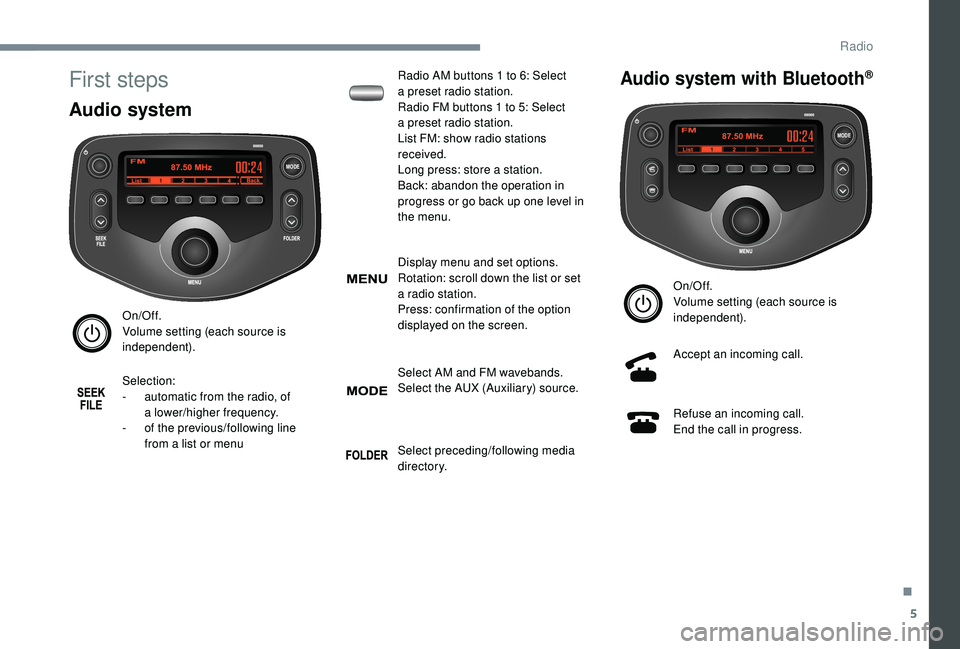
First steps
Audio system
On/Off.
Volume setting (each source is
independent).
Selection:
-
a
utomatic from the radio, of
a
lower/higher frequency.
-
o
f the previous/following line
from a
list or menu Radio AM buttons 1
to 6: Select
a
preset radio station.
Radio FM buttons 1 to 5: Select
a
preset radio station.
List FM: show radio stations
received.
Long press: store a station.
Back: abandon the operation in
progress or go back up one level in
the menu.
Display menu and set options.
Rotation: scroll down the list or set
a
radio station.
Press: confirmation of the option
displayed on the screen.
Select AM and FM wavebands.
Select the AUX (Auxiliary) source.
Select preceding/following media
di r e c to r y.
Audio system with Bluetooth®
On/Off.
Volume setting (each source is
independent).
Accept an incoming call.
Refuse an incoming call.
End the call in progress.
.
Radio
Page 136 of 180
6
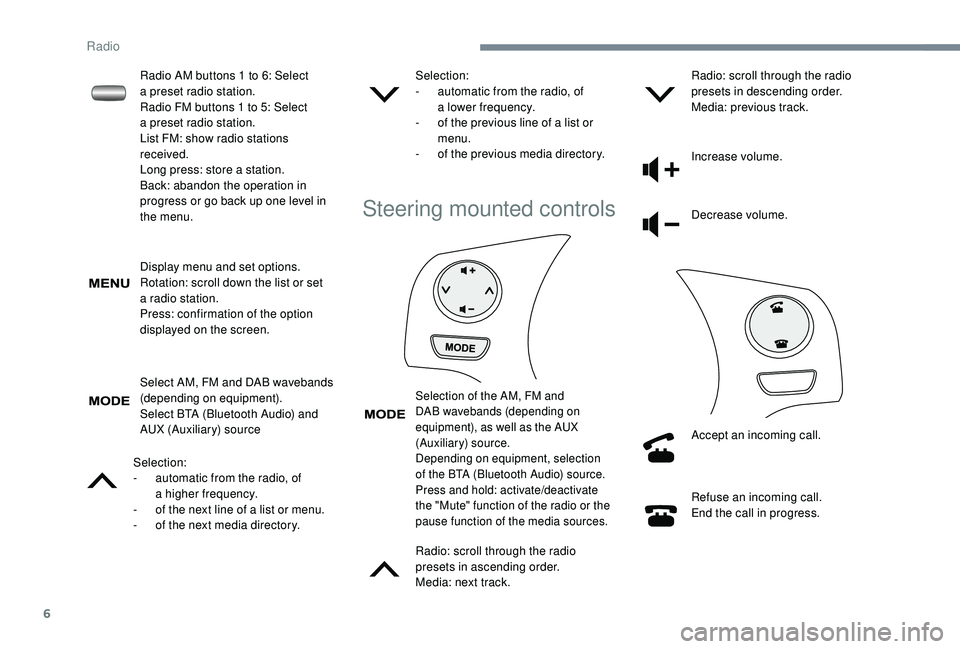
Display menu and set options.
Rotation: scroll down the list or set
a
radio station.
Press: confirmation of the option
displayed on the screen.
Select AM, FM and DAB wavebands
(depending on equipment).
Select BTA (Bluetooth Audio) and
AUX (Auxiliary) source
Selection:
-
a
utomatic from the radio, of
a
higher frequency.
-
o
f the next line of a list or menu.
-
o
f the next media directory. Selection:
-
a
utomatic from the radio, of
a
lower frequency.
-
o
f the previous line of a list or
menu.
-
o
f the previous media directory.
Steering mounted controls
Selection of the AM, FM and
DAB wavebands (depending on
equipment), as well as the AUX
(Auxiliary) source.
Depending on equipment, selection
of the BTA (Bluetooth Audio) source.
Press and hold: activate/deactivate
the "Mute" function of the radio or the
pause function of the media sources.
Radio: scroll through the radio
presets in ascending order.
Media: next track.Radio: scroll through the radio
presets in descending order.
Media: previous track.
Increase volume.
Decrease volume.
Accept an incoming call.
Refuse an incoming call.
End the call in progress.
Radio AM buttons 1
to 6: Select
a
preset radio station.
Radio FM buttons 1
to 5: Select
a
preset radio station.
List FM: show radio stations
received.
Long press: store a
station.
Back: abandon the operation in
progress or go back up one level in
the menu.
Radio
Page 138 of 180
8
Listen to TA messages
The TA (Traffic Announcement) function
gives priority to TA alert messages.
To be active, this function requires
good reception of a radio station that
broadcasts this type of message. As soon
as traffic information is broadcast, the
media playing is interrupted automatically
to issue the TA message. Normal play of
the media is restored after the message
has been issued.
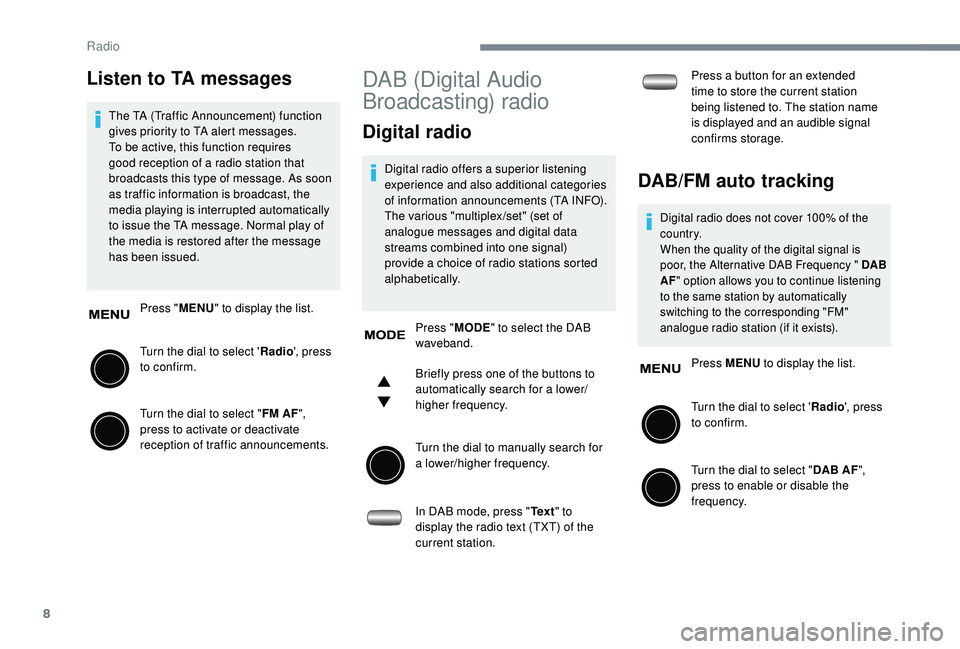
Press " MENU" to display the list.
Turn the dial to select ' Radio', press
to confirm.
Turn the dial to select " FM AF",
press to activate or deactivate
reception of traffic announcements.
DAB (Digital Audio
Broadcasting) radio
Digital radio
Digital radio offers a superior listening
e xperience and also additional categories
of information announcements (TA INFO).
The various "multiplex /set" (set of
analogue messages and digital data
streams combined into one signal)
provide a
choice of radio stations sorted
alphabetically.
Press " MODE" to select the DAB
waveband.
Briefly press one of the buttons to
automatically search for a
lower/
higher frequency.
Turn the dial to manually search for
a
lower/higher frequency.
In DAB mode, press " Te x t" to
display the radio text (TXT) of the
current station. Press a
button for an extended
time to store the current station
being listened to. The station name
is displayed and an audible signal
confirms storage.DAB/FM auto tracking
Digital radio does not cover 100% of the
c o u nt r y.
When the quality of the digital signal is
poor, the Alternative DAB Frequency " DAB
AF " option allows you to continue listening
to the same station by automatically
switching to the corresponding "FM"
analogue radio station (if it exists).
Press MENU to display the list.
Turn the dial to select ' Radio', press
to confirm.
Turn the dial to select " DAB AF",
press to enable or disable the
frequency.
Radio
Page 139 of 180
9
If "DAB AF " tracking is enabled, there
is a lag of a few seconds while the
system switches to "FM" analogue radio,
sometimes with a
change in volume.
Once the digital signal quality becomes
good again, the system automatically
changes back to "DAB".
If the "DAB" station being listened to is
not available, or if the " DAB AF" is not
enabled, the sound is muted when the
quality of the digital signal becomes too
p o o r.
Media
USB USB
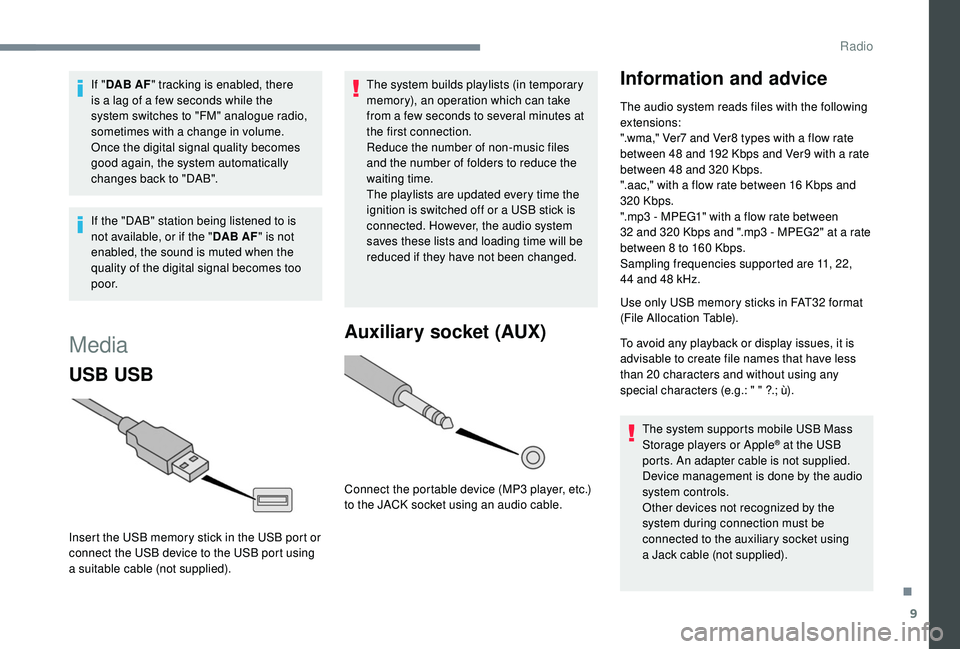
Insert the USB memory stick in the USB port or
connect the USB device to the USB port using
a
suitable cable (not supplied). The system builds playlists (in temporary
memory), an operation which can take
from a
few seconds to several minutes at
the first connection.
Reduce the number of non-music files
and the number of folders to reduce the
waiting time.
The playlists are updated every time the
ignition is switched off or a USB stick is
connected. However, the audio system
saves these lists and loading time will be
reduced if they have not been changed.
Auxiliary socket (AUX)
Connect the portable device (MP3 player, etc.)
t o the JACK socket using an audio cable.
Information and advice
The audio system reads files with the following
extensions:
".wma," Ver7
and Ver8 types with a flow rate
between 48
and 192 Kbps and Ver9 with a rate
between 48
and 320 Kbps.
".aac," with a
flow rate between 16 Kbps and
320
Kbps.
".mp3 - MPEG1" with a
flow rate between
32
and 320 Kbps and ".mp3 - MPEG2" at a rate
between 8
to 160 Kbps.
Sampling frequencies supported are 11, 22,
44
and 48 kHz.
Use only USB memory sticks in FAT32
format
(File Allocation Table).
To avoid any playback or display issues, it is
advisable to create file names that have less
than 20
characters and without using any
special characters (e.g.: " " ?.; ù).
The system supports mobile USB Mass
Storage players or Apple
® at the USB
ports. An adapter cable is not supplied.
Device management is done by the audio
system controls.
Other devices not recognized by the
system during connection must be
connected to the auxiliary socket using
a
Jack cable (not supplied).
.
Radio
Page 140 of 180
10
The system can play audio files alternately
via the Bluetooth® system and the USB
port.
It is recommended that the USB cable for
the mobile device is used.
Audio streaming
Streaming allows music files on the telephone
to be played via the vehicle's loudspeakers.
Connect the telephone: see the " Telephone"
section.
Select "Bluetooth" then " Pairing".
You can also read, activate or deactivate
the parameters of the system linked to the
Bluetooth function. Press "MENU" to display the list.
Turn the dial to select "Bluetooth",
press to view the list. Once connected in streaming mode, the
telephone is considered to be a
media
source.
If playback does not start automatically,
it may be necessary to start the audio
playback from the telephone.Connecting Apple® players
Control is via the audio system. The classifications available are those of
the portable device connected (artists/
albums/genres/tracks/playlists/audio
books/podcasts).
The default classification used is by artist.
To modify the classification used, return
to the first level of the menu then select
the desired classification (playlists for
example) and confirm to go down through
the menu to the desired track.
The version of software in the audio
system may not be compatible with the
generation of your Apple
® p l aye r.
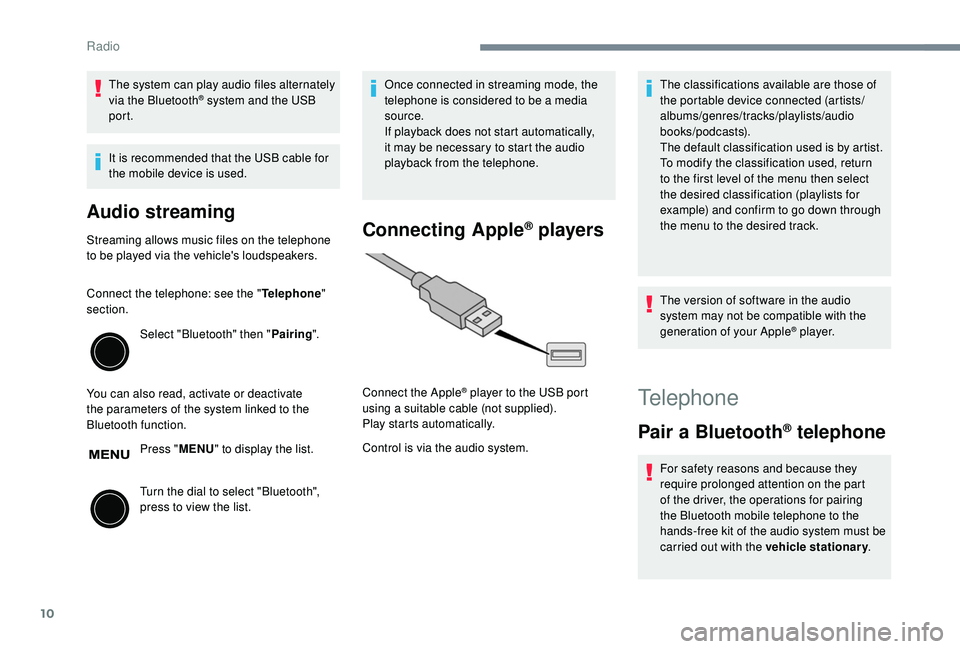
Connect the Apple
® player to the USB port
using a
suitable cable (not supplied).
Play starts automatically.Telephone
Pair a Bluetooth® telephone
For safety reasons and because they
require prolonged attention on the part
of the driver, the operations for pairing
the Bluetooth mobile telephone to the
hands-free kit of the audio system must be
carried out with the vehicle stationary .
Radio
Page 143 of 180
13
Bluetooth®
List of Bluetooth® menus
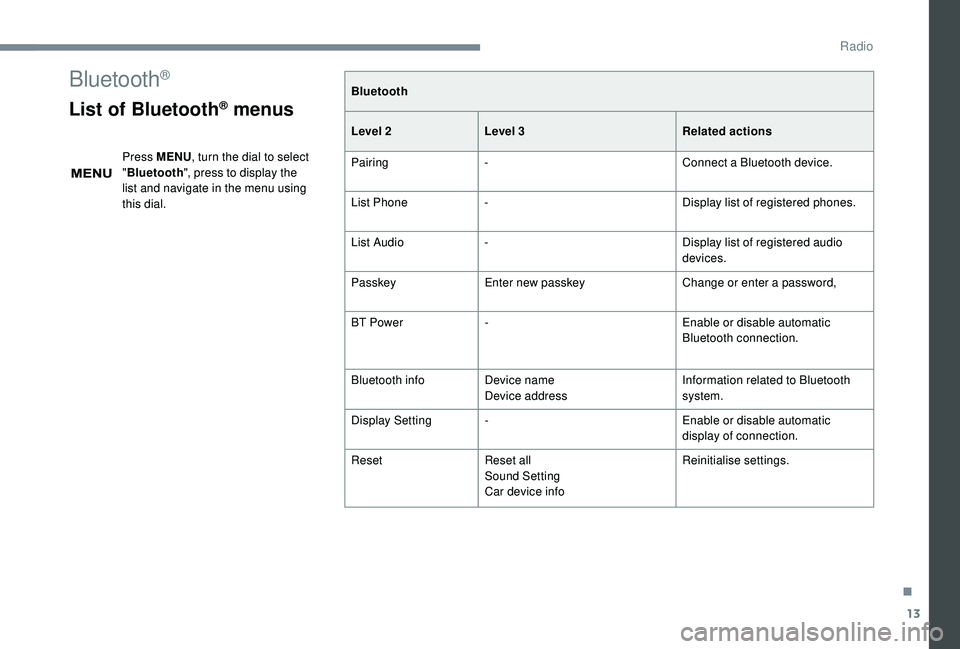
Press MENU, turn the dial to select
" Bluetooth ", press to display the
list and navigate in the menu using
this dial. Bluetooth
Level 2
Level 3 Related actions
Pairing - Connect a
Bluetooth device.
List Phone - Display list of registered phones.
List Audio - Display list of registered audio
devices.
Passkey Enter new passkey Change or enter a
password,
BT Power - Enable or disable automatic
Bluetooth connection.
Bluetooth info Device name
Device address Information related to Bluetooth
system.
Display Setting - Enable or disable automatic
display of connection.
Reset Reset all
Sound Setting
Car device info Reinitialise settings.
.
Radio
Page 144 of 180
14
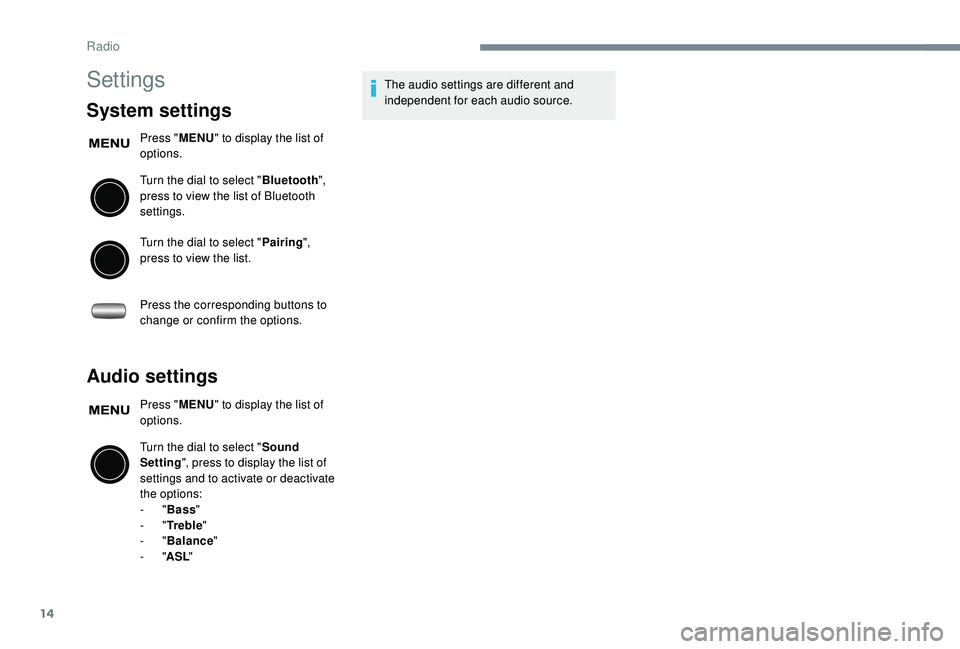
Settings
System settings
Press "MENU" to display the list of
options.
Turn the dial to select " Bluetooth",
press to view the list of Bluetooth
settings.
Turn the dial to select " Pairing",
press to view the list.
Press the corresponding buttons to
change or confirm the options.
Audio settings
Press " MENU" to display the list of
options.
Turn the dial to select " Sound
Setting ", press to display the list of
settings and to activate or deactivate
the options:
-
"Bass "
-
"Tr e b l e "
-
"Balance "
-
"ASL " The audio settings are different and
independent for each audio source.
Radio
Page 145 of 180
15
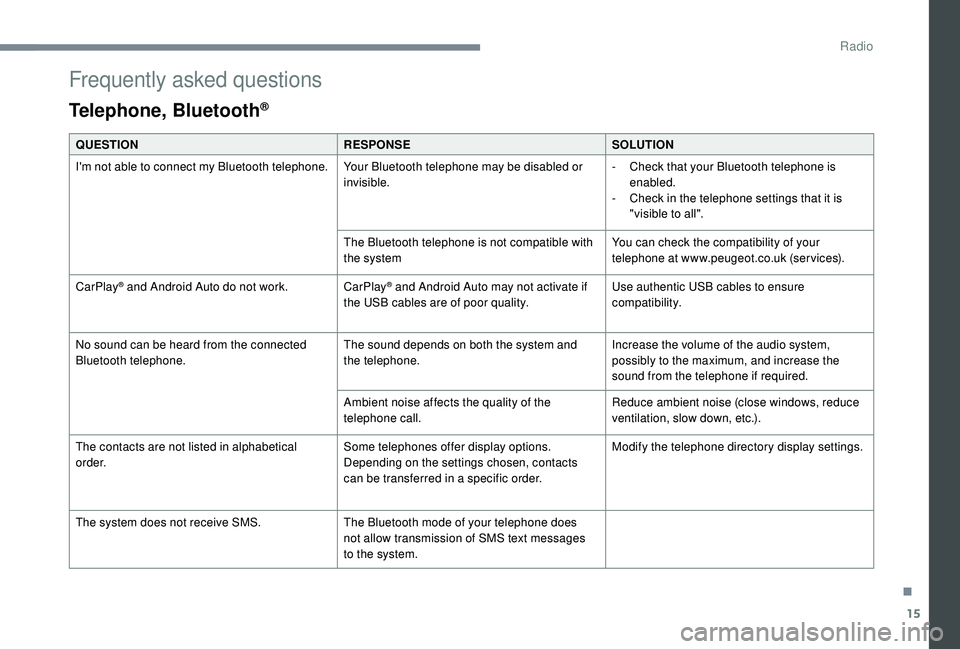
Frequently asked questions
Telephone, Bluetooth®
QUESTIONRESPONSESOLUTION
I'm not able to connect my Bluetooth telephone. Your Bluetooth telephone may be disabled or
invisible.-
C
heck that your Bluetooth telephone is
enabled.
-
C
heck in the telephone settings that it is
"visible to all".
The Bluetooth telephone is not compatible with
the system You can check the compatibility of your
telephone at www.peugeot.co.uk (services).
CarPlay
® and Android Auto do not work. CarPlay® and Android Auto may not activate if
the USB cables are of poor quality. Use authentic USB cables to ensure
compatibility.
No sound can be heard from the connected
Bluetooth telephone. The sound depends on both the system and
the telephone.Increase the volume of the audio system,
possibly to the maximum, and increase the
sound from the telephone if required.
Ambient noise affects the quality of the
telephone call. Reduce ambient noise (close windows, reduce
ventilation, slow down, etc.).
The contacts are not listed in alphabetical
o r d e r. Some telephones offer display options.
Depending on the settings chosen, contacts
can be transferred in a
specific order. Modify the telephone directory display settings.
The system does not receive SMS. The Bluetooth mode of your telephone does
not allow transmission of SMS text messages
to the system.
.
Radio