Page 76 PEUGEOT 108 2018 Owners Manual
[x] Cancel search | Manufacturer: PEUGEOT, Model Year: 2018, Model line: 108, Model: PEUGEOT 108 2018Pages: 180, PDF Size: 7.14 MB
Page 21 of 180
19
Outside temperature
In some situations, it may happen that the
outside temperature is displayed after a delay
or not at all, including:
-
w
hen stationary or moving at a slow speed
(less than about 16
mph (25 km/h),
-
i
n the case of a change that is too high
(entering or leaving a
garage, tunnel, etc.),
-
d
uring very short journeys (less than about
2
minutes).
Lighting dimmer control
When driving at night, this function allows
certain instrument panel displays to be
switched off so as to reduce visual fatigue for
the driver.
It operates only while the sidelamps are on.
F
A
s soon as the "Lighting dimmer" menu is
displayed, keep one of the DISP buttons
pressed to access the settings.
F
T
hen press one of the two DISP buttons
successively to increase or decrease the
brightness. The display flashes to show you
the brightness chosen.
Trip reset
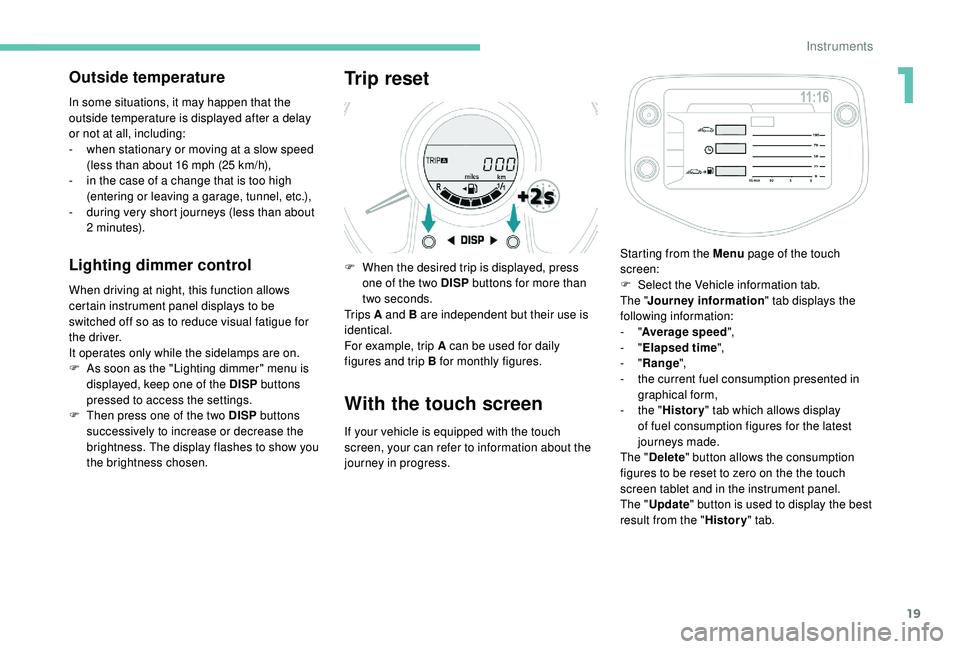
F When the desired trip is displayed, press one of the two DISP buttons for more than
two seconds.
Tr i p s A and B are independent but their use is
identical.
For example, trip A can be used for daily
figures and trip B for monthly figures.
With the touch screen
If your vehicle is equipped with the touch
screen, your can refer to information about the
journey in progress. Starting from the Menu
page of the touch
screen:
F
S
elect the Vehicle information tab.
The " Journey information " tab displays the
following information:
- "
Average speed ",
- "
Elapsed time ",
- "
Range ",
-
t
he current fuel consumption presented in
graphical form,
-
t
he "
History " tab which allows display
of fuel consumption figures for the latest
journeys made.
The " Delete " button allows the consumption
figures to be reset to zero on the the touch
screen tablet and in the instrument panel.
The " Update " button is used to display the best
result from the " History" tab.
1
Instruments
Page 106 of 180
104
Temporary puncture
repair kit
Scan the QR code on page 3 to view
e xplanatory videos.
Comprising a
compressor and a sealant
cartridge, it allows the temporary repair of
a
tyre so that you can drive to the nearest
garage.
It is designed to repair most punctures which
could affect the tyre, located on the tyre tread
or shoulder.
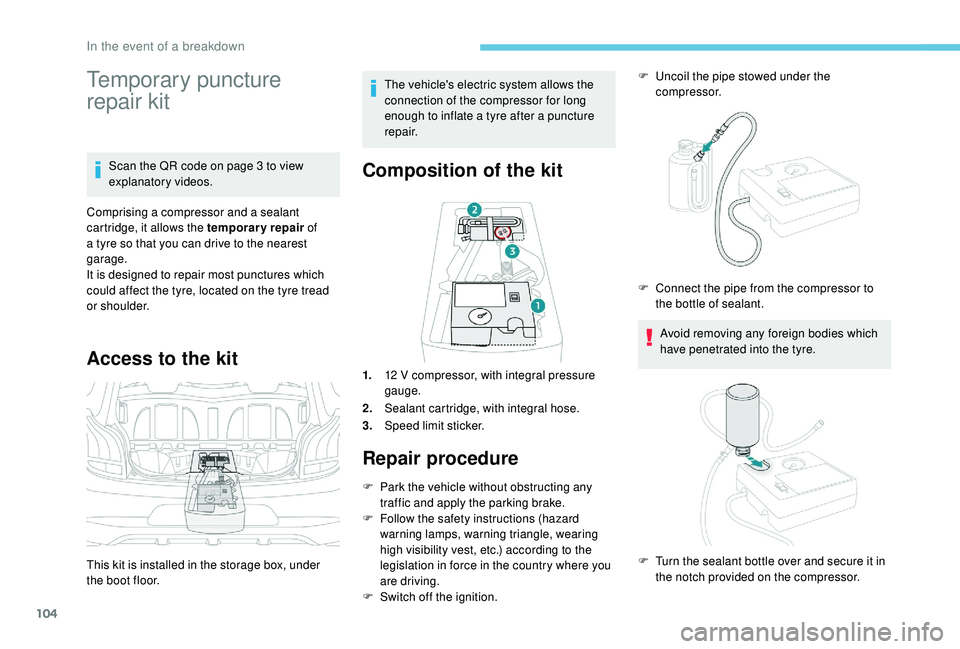
Access to the kit
This kit is installed in the storage box, under
the boot floor. The vehicle's electric system allows the
connection of the compressor for long
enough to inflate a
tyre after a puncture
repair.
Composition of the kit
1. 12 V compressor, with integral pressure
gauge.
2. Sealant cartridge, with integral hose.
3. Speed limit sticker.
Repair procedure
F Park the vehicle without obstructing any
traffic and apply the parking brake.
F
F
ollow the safety instructions (hazard
warning lamps, warning triangle, wearing
high visibility vest, etc.) according to the
legislation in force in the country where you
are driving.
F
S
witch off the ignition. F
U
ncoil the pipe stowed under the
compressor.
Avoid removing any foreign bodies which
have penetrated into the tyre.
F
C
onnect the pipe from the compressor to
the bottle of sealant.
F
T
urn the sealant bottle over and secure it in
the notch provided on the compressor.
In the event of a breakdown
Page 109 of 180
107
If a pressure of 2 bars is not reached after
7 minutes, this indicates that the tyre is not
repairable; contact a
PEUGEOT dealer or
a
qualified workshop for assistance.
F
O
nce the correct pressure is reached, put
the switch to the " O" position.
F
R
emove the kit then stow it. Do not drive more than 120
mph
(200 km/h) with the repaired tyre; see
a PEUGEOT dealer or a qualified
workshop to change the tyre.
Tyre under-inflation detection After a tyre repair, the warning
lamp will remain on until the
system is reset.
For more information on Tyre under-
inflation detection , refer to the
corresponding section.
Should the pressure of one or more tyres
be adjusted, it is necessary to reinitialise
the under-inflation detection system.
For more information on Tyre under-
inflation detection , refer to the
corresponding section.
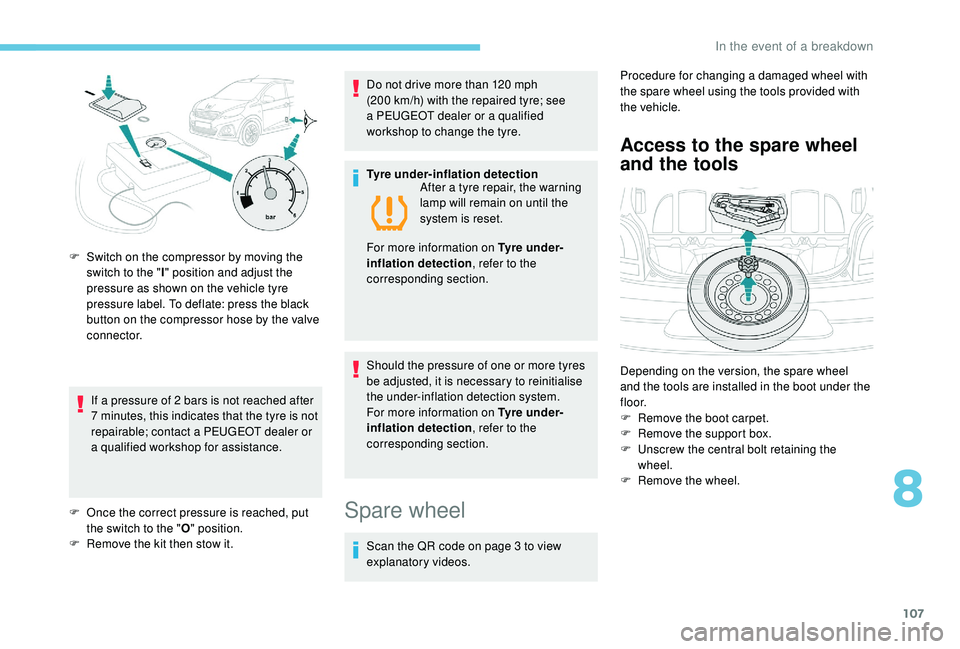
F
S
witch on the compressor by moving the
switch to the " I" position and adjust the
pressure as shown on the vehicle tyre
pressure label. To deflate: press the black
button on the compressor hose by the valve
connector.
Spare wheel
Scan the QR code on page 3 to view
e xplanatory videos. Procedure for changing a
damaged wheel with
the spare wheel using the tools provided with
the vehicle.
Access to the spare wheel
and the tools
Depending on the version, the spare wheel
and the tools are installed in the boot under the
f l o o r.
F
R
emove the boot carpet.
F
R
emove the support box.
F
U
nscrew the central bolt retaining the
wheel.
F
R
emove the wheel.
8
In the event of a breakdown
Page 117 of 180
115
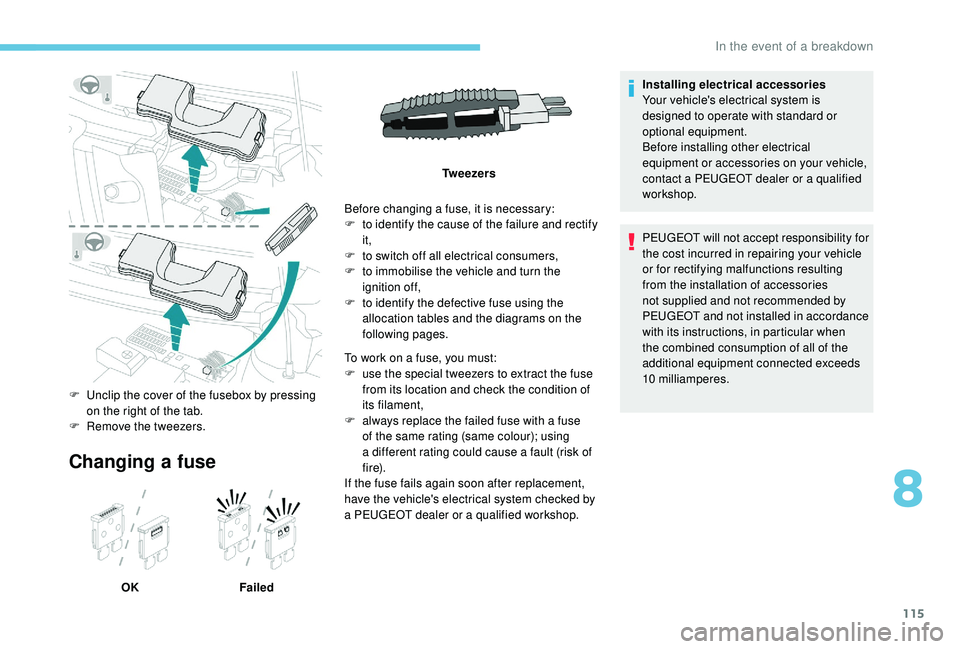
Changing a fuse
OK FailedBefore changing a
fuse, it is necessary:
F
t
o identify the cause of the failure and rectify
it,
F
t
o switch off all electrical consumers,
F
t
o immobilise the vehicle and turn the
ignition off,
F
t
o identify the defective fuse using the
allocation tables and the diagrams on the
following pages.
F
U
nclip the cover of the fusebox by pressing
on the right of the tab.
F
R
emove the tweezers. Tw e e z e r s
To work on a fuse, you must:
F
u
se the special tweezers to extract the fuse
from its location and check the condition of
its filament,
F
a
lways replace the failed fuse with a fuse
of the same rating (same colour); using
a different rating could cause a fault (risk of
f i r e).
If the fuse fails again soon after replacement,
have the vehicle's electrical system checked by
a PEUGEOT dealer or a qualified workshop.Installing electrical accessories
Your vehicle's electrical system is
designed to operate with standard or
optional equipment.
Before installing other electrical
equipment or accessories on your vehicle,
contact a
PEUGEOT dealer or a qualified
workshop.
PEUGEOT will not accept responsibility for
the cost incurred in repairing your vehicle
or for rectifying malfunctions resulting
from the installation of accessories
not supplied and not recommended by
PEUGEOT and not installed in accordance
with its instructions, in particular when
the combined consumption of all of the
additional equipment connected exceeds
10
milliamperes.
8
In the event of a breakdown
Page 154 of 180
6
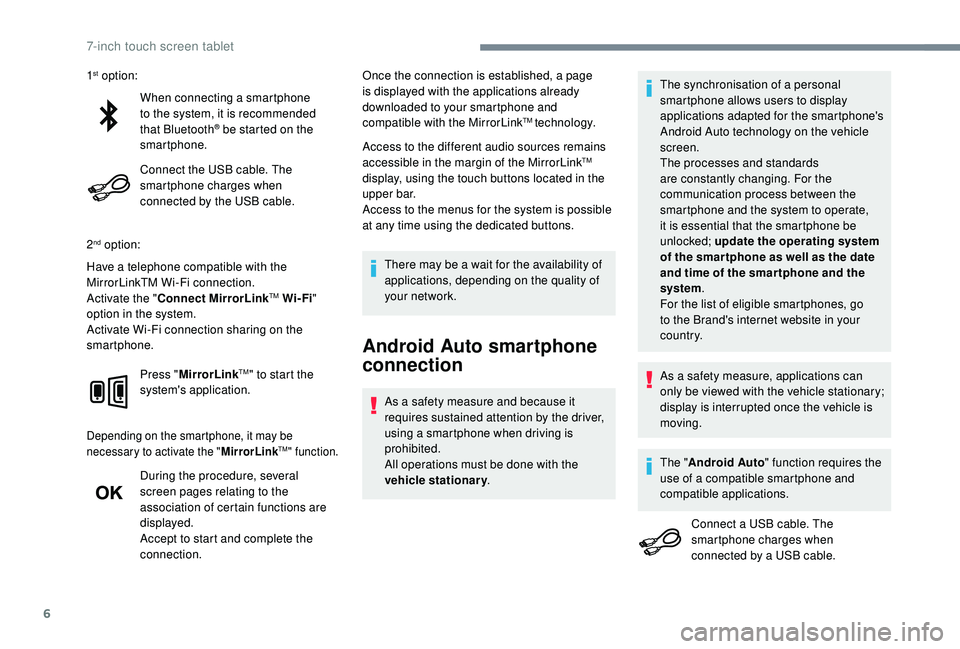
When connecting a smartphone
t o the system, it is recommended
that Bluetooth
® be started on the
smartphone.
Connect the USB cable. The
smartphone charges when
connected by the USB cable.
2
nd option:
Have a telephone compatible with the
MirrorLinkTM Wi-Fi connection.
Activate the " Connect MirrorLink
TM Wi-Fi"
option in the system.
Activate Wi-Fi connection sharing on the
smartphone.
Press "MirrorLink
TM" to start the
system's application.
Depending on the smartphone, it may be
necessary to activate the " MirrorLinkTM" function.
During the procedure, several
screen pages relating to the
association of certain functions are
displayed.
Accept to start and complete the
connection. Once the connection is established, a page
is displayed with the applications already
downloaded to your smartphone and
compatible with the MirrorLink
TM technology.
Access to the different audio sources remains
accessible in the margin of the MirrorLink
TM
display, using the touch buttons located in the
u p p e r b a r.
Access to the menus for the system is possible
at any time using the dedicated buttons.
There may be a
wait for the availability of
applications, depending on the quality of
your network.
Android Auto smartphone
connection
As a safety measure and because it
r equires sustained attention by the driver,
using a
smartphone when driving is
prohibited.
All operations must be done with the
vehicle stationary . The synchronisation of a
personal
smartphone allows users to display
applications adapted for the smartphone's
Android Auto technology on the vehicle
screen.
The processes and standards
are constantly changing. For the
communication process between the
smartphone and the system to operate,
it is essential that the smartphone be
unlocked; update the operating system
of the smar tphone as well as the date
and time of the smar tphone and the
system .
For the list of eligible smartphones, go
to the Brand's internet website in your
c o u nt r y.
1
st option:
As a safety measure, applications can
only be viewed with the vehicle stationary;
display is interrupted once the vehicle is
moving.
The " Android Auto " function requires the
use of a
compatible smartphone and
compatible applications.
Connect a
USB cable. The
smartphone charges when
connected by a
USB cable.
7-inch touch screen tablet
Page 155 of 180
7
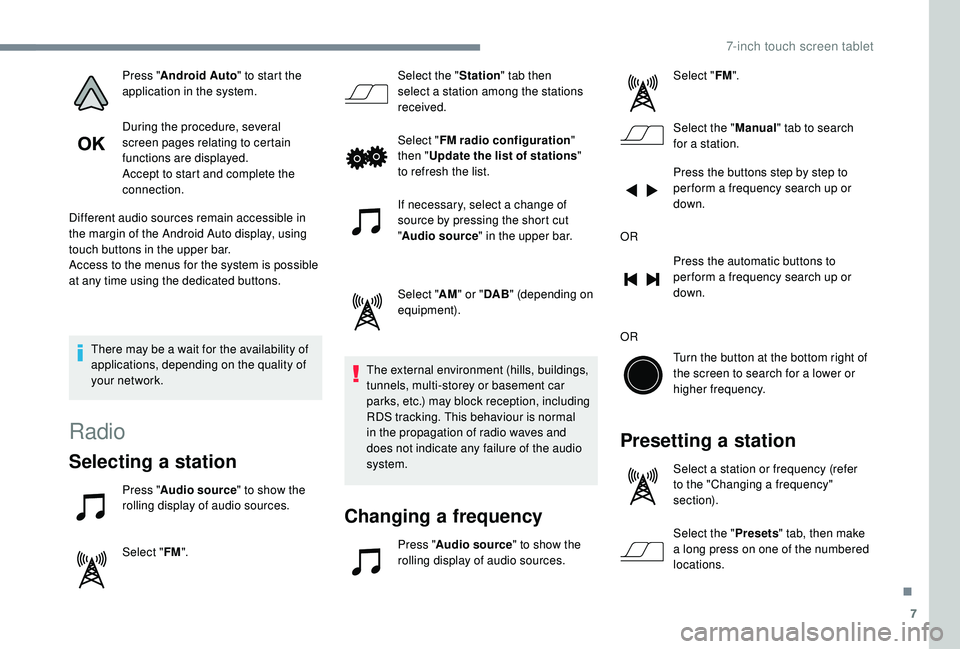
Press "Android Auto " to start the
application in the system.
During the procedure, several
screen pages relating to certain
functions are displayed.
Accept to start and complete the
connection.
Different audio sources remain accessible in
the margin of the Android Auto display, using
touch buttons in the upper bar.
Access to the menus for the system is possible
at any time using the dedicated buttons.
There may be a
wait for the availability of
applications, depending on the quality of
your network.
Radio
Selecting a station
Press " Audio source " to show the
rolling display of audio sources.
Select " FM". Select the "
Station" tab then
select a station among the stations
received.
Select " FM radio configuration "
then " Update the list of stations "
to refresh the list.
If necessary, select a change of
source by pressing the short cut
" Audio source " in the upper bar.
Select " AM" or " DAB" (depending on
equipment).
The external environment (hills, buildings,
tunnels, multi-storey or basement car
parks, etc.) may block reception, including
RDS tracking. This behaviour is normal
in the propagation of radio waves and
does not indicate any failure of the audio
system.
Changing a frequency
Press "Audio source " to show the
rolling display of audio sources. Select "
FM".
Select the " Manual" tab to search
for a
station.
Press the buttons step by step to
per form a frequency search up or
down.
OR Press the automatic buttons to
per form a frequency search up or
down.
OR Turn the button at the bottom right of
the screen to search for a lower or
higher frequency.
Presetting a station
Select a station or frequency (refer
t o the "Changing a frequency"
section).
Select the " Presets" tab, then make
a
long press on one of the numbered
locations.
.
7-inch touch screen tablet
Page 158 of 180
10
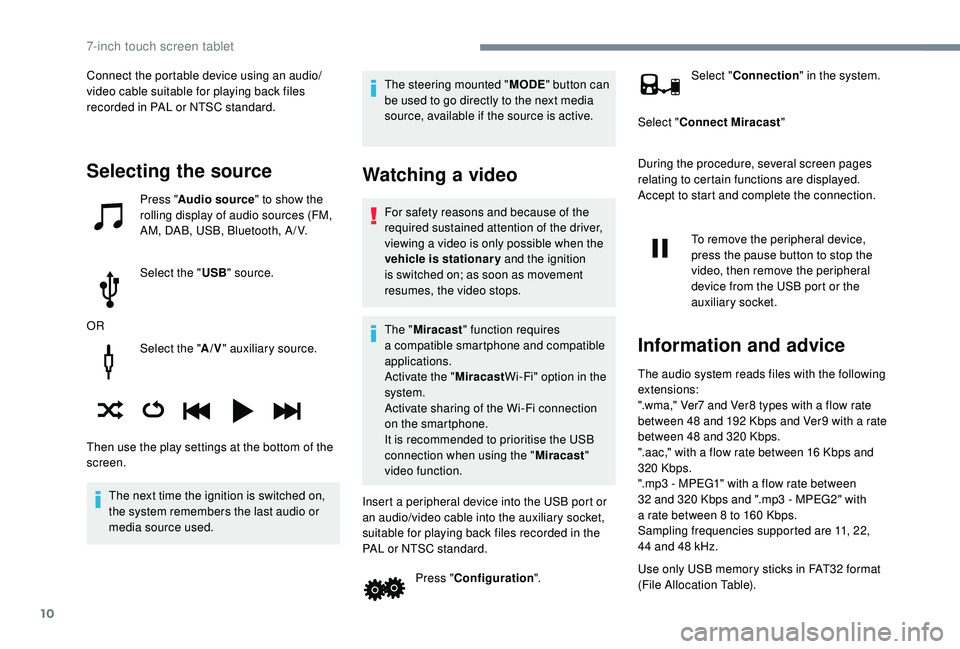
Select the "A/V" auxiliary source.
The next time the ignition is switched on,
the system remembers the last audio or
media source used. The steering mounted "
MODE" button can
be used to go directly to the next media
source, available if the source is active.
Watching a video
For safety reasons and because of the
required sustained attention of the driver,
viewing a
video is only possible when the
vehicle is stationary and the ignition
is switched on; as soon as movement
resumes, the video stops.
The " Miracast " function requires
a
compatible smartphone and compatible
applications.
Activate the " MiracastWi-Fi" option in the
system.
Activate sharing of the Wi-Fi connection
on the smartphone.
It is recommended to prioritise the USB
connection when using the " Miracast"
video function.
Insert a peripheral device into the USB port or
an audio/video cable into the auxiliary socket,
suitable for playing back files recorded in the
PAL or NTSC standard. Press "Configuration ". Select "
Connection " in the system.
Select " Connect Miracast "
During the procedure, several screen pages
relating to certain functions are displayed.
Accept to start and complete the connection.
To remove the peripheral device,
press the pause button to stop the
video, then remove the peripheral
device from the USB port or the
auxiliary socket.
Information and advice
The audio system reads files with the following
extensions:
".wma," Ver7 and Ver8 types with a flow rate
between 48
and 192 Kbps and Ver9 with a rate
between 48
and 320 Kbps.
".aac," with a
flow rate between 16 Kbps and
320
Kbps.
".mp3 - MPEG1" with a
flow rate between
32
and 320 Kbps and ".mp3 - MPEG2" with
a
rate between 8 to 160 Kbps.
Sampling frequencies supported are 11, 22,
44
and 48 kHz.
Use only USB memory sticks in FAT32
format
(File Allocation Table).
Selecting the source
Press " Audio source " to show the
rolling display of audio sources (FM,
AM, DAB, USB, Bluetooth, A / V.
Select the " USB" source.
OR
Then use the play settings at the bottom of the
screen. Connect the portable device using an audio/
video cable suitable for playing back files
recorded in PAL or NTSC standard.
7-inch touch screen tablet
Page 160 of 180
12
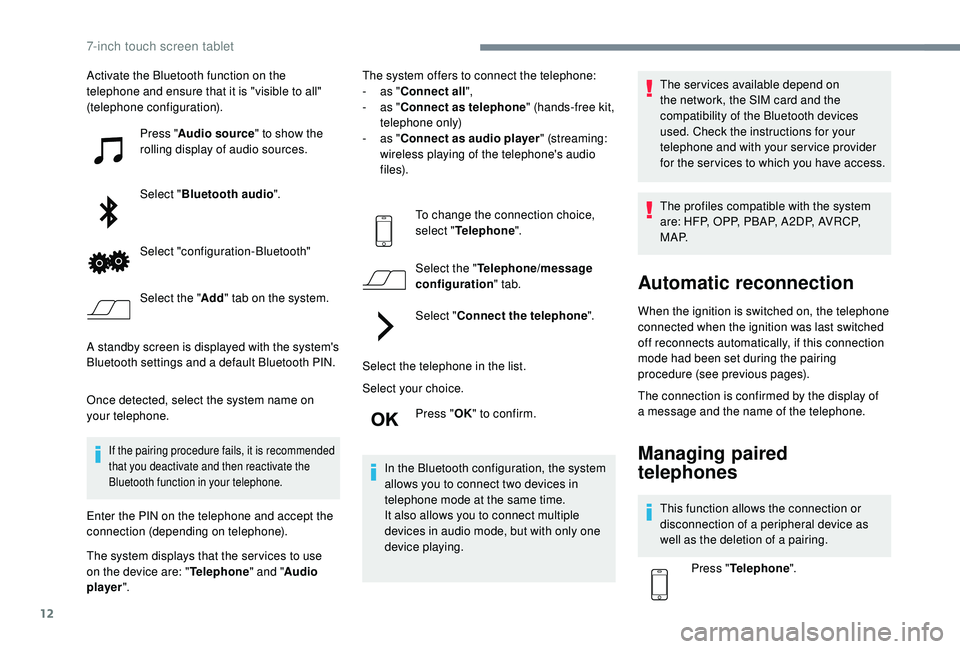
Activate the Bluetooth function on the
telephone and ensure that it is "visible to all"
(telephone configuration).Press "Audio source " to show the
rolling display of audio sources.
Select " Bluetooth audio ".
Select "configuration-Bluetooth"
Select the " Add" tab on the system.
A standby screen is displayed with the system's
Bluetooth settings and a
default Bluetooth PIN.
Once detected, select the system name on
your telephone.
If the pairing procedure fails, it is recommended
that you deactivate and then reactivate the
Bluetooth function in your telephone.
Enter the PIN on the telephone and accept the
connection (depending on telephone).
The system displays that the ser vices to use
on the device are: " Telephone" and "Audio
player ". The system offers to connect the telephone:
-
a
s "
Connect all",
-
a
s "
Connect as telephone " (hands-free kit,
telephone only)
-
a
s "
Connect as audio player " (streaming:
wireless playing of the telephone's audio
f i l e s).
To change the connection choice,
select " Telephone ".
Select the " Telephone/message
configuration " tab.
Select " Connect the telephone ".
Select the telephone in the list.
Select your choice. Press "OK" to confirm.
In the Bluetooth configuration, the system
allows you to connect two devices in
telephone mode at the same time.
It also allows you to connect multiple
devices in audio mode, but with only one
device playing. The services available depend on
the network, the SIM card and the
compatibility of the Bluetooth devices
used. Check the instructions for your
telephone and with your service provider
for the ser vices to which you have access.
The profiles compatible with the system
are: HFP, OPP, PBAP, A 2DP, AVRCP,
M A P.
Automatic reconnection
When the ignition is switched on, the telephone
connected when the ignition was last switched
off reconnects automatically, if this connection
mode had been set during the pairing
procedure (see previous pages).
The connection is confirmed by the display of
a
message and the name of the telephone.
Managing paired
telephones
This function allows the connection or
disconnection of a peripheral device as
well as the deletion of a
pairing.
Press " Telephone ".
7-inch touch screen tablet
Page 164 of 180
16
Installing the update
The download of the update must be
carried out with the engine running,
the vehicle stationary, and the parking
brake applied.
Insert a
USB device in the USB port.Press " Configuration ".
Press " General ".
Press " Software update ".
Press " Update ".
A page is displayed with the old and the new
version of the software for your reference.
Press " Update software ".
Do not remove the USB device or turn off
the system until the update is complete. If
the update is interrupted, start the system
update over again.
Once the update is done, the system restarts
automatically.
Customising the homepage
image
It is advisable to restrict file names to
32 characters, without using special characters
(e.g. : " ?; ù) so as to avoid any reading or
display problems.
Use a
USB device, not a mass storage
device (telephone or media player).
To protect the system, do not use a
USB
hub.
To update the system, you must have a
USB
device meeting the conditions below:
-
T
he USB device must be empty.
-
U
se only USB devices in the FAT32 (File
Allocation Table) format.
-
D
o not lock the USB device and check that
it can save files.
On the USB device create a
folder named
" Startupimage " (with the upper-case letter
" S ").
Copy the photo(s) into the " Startupimage"
f o l d e r.
Insert a
USB device in the USB port.Press " Configuration ". Press "
General ".
Check that the " Animation" option is activated.
Press " Customise startup image" .
A page is displayed with a
menu in which
thumbnails will be added.
Press " Transfer ", then accept over writing the
current images because the system does not
allow adding to old images.
Do not remove the USB device nor turn off
the system until the copying is complete. If
the copying is interrupted, start over.
The system returns to the presentation menu
page with the thumbnails added.
Choose an image and press " OK".
To take this into account, turn the system off
and back on. The image is not displayed in full screen
mode.
7-inch touch screen tablet
Page 167 of 180
19
98765
43210
S
N
N
E
44
009
23
21
21
32
EW
To GPS coordinates
Press "N AV I".
Select " Navigation ".
Select " Go to".
Press the secondary page.
Select " Coordinates ".
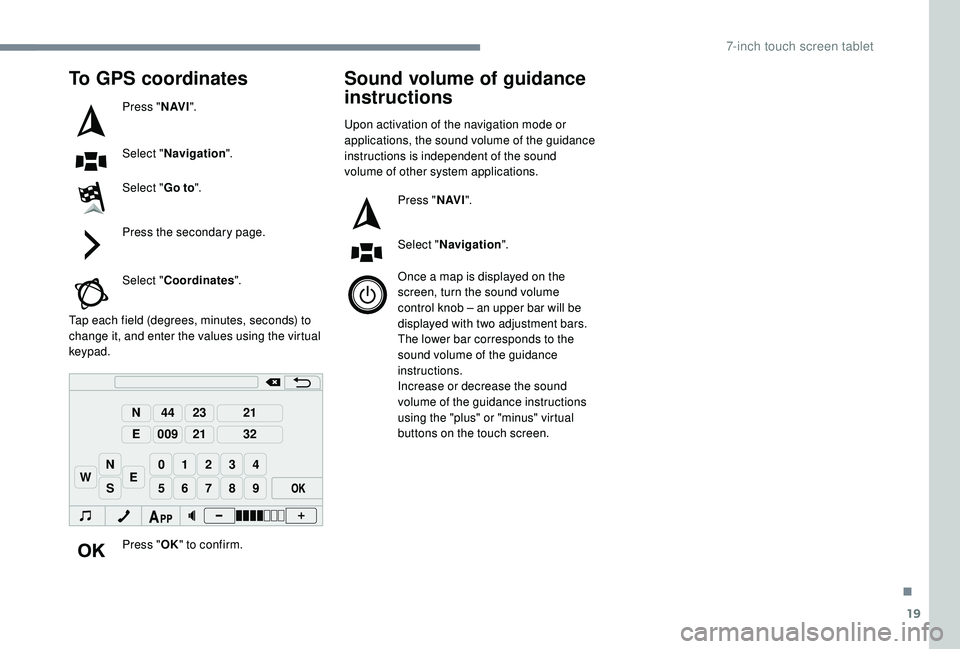
Tap each field (degrees, minutes, seconds) to
change it, and enter the values using the virtual
keypad.
Press "OK" to confirm.
Sound volume of guidance
instructions
Upon activation of the navigation mode or
applications, the sound volume of the guidance
instructions is independent of the sound
volume of other system applications.
Press "N AV I".
Select " Navigation ".
Once a
map is displayed on the
screen, turn the sound volume
control knob – an upper bar will be
displayed with two adjustment bars.
The lower bar corresponds to the
sound volume of the guidance
instructions.
Increase or decrease the sound
volume of the guidance instructions
using the "plus" or "minus" virtual
buttons on the touch screen.
.
7-inch touch screen tablet