audio PEUGEOT 2008 2013 Owner's Manual
[x] Cancel search | Manufacturer: PEUGEOT, Model Year: 2013, Model line: 2008, Model: PEUGEOT 2008 2013Pages: 324, PDF Size: 8.39 MB
Page 245 of 324
06
243
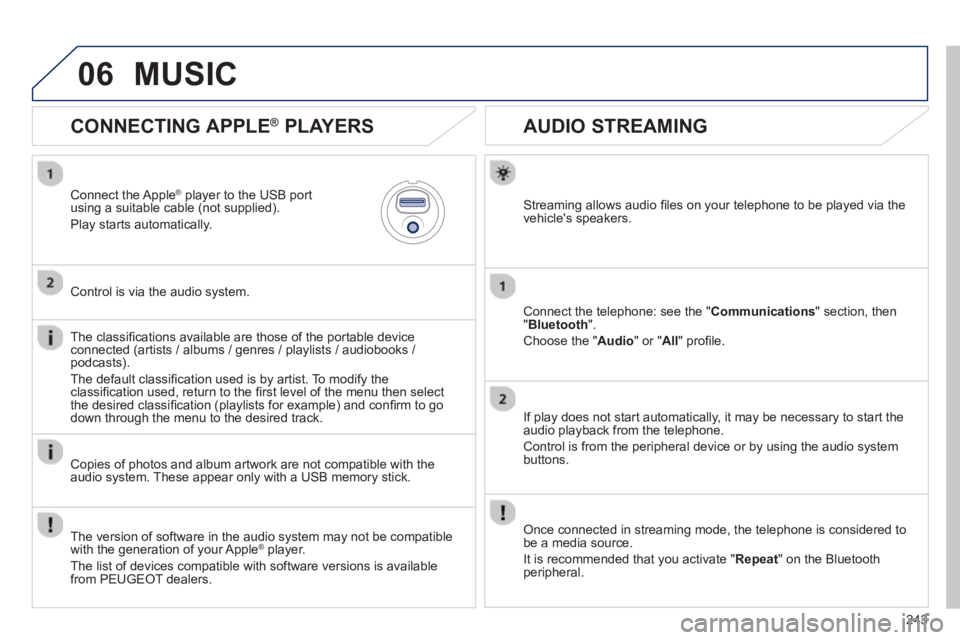
AUDIO STREAMING
Streaming allows audio fi les on your telephone to be played via the
vehicle's speakers.
Connect the telephone: see the "Communications" section, then "Bluetooth
".
Choose the " Audio
" or " All" profi le.
I
f play does not start automatically, it may be necessary to start the audio playback from the telephone.
Control is from the peripheral device or b
y using the audio system buttons.
Once connected in streaming mode, the telephone is considered tobe a media source.
It is recommended that you activate "
Repeat" on the Bluetooth
peripheral.
CONNECTING APPLE ®
PLAYERS
Connect the Apple ®player to the USB port using a suitable cable (not supplied).
Play starts automatically.
Control is via the audio system.
The classifi cations available are those of the
portable deviceconnected (artists / albums / genres / playlists / audiobooks / podcasts).
The de
fault classifi cation used is by artist. To modify theclassifi cation used, return to the fi rst level of the menu then select
the desired classifi cation (playlists for example) and confi rm to go
down through the menu to the desired track.
Copies of photos and album artwork are not compatible with the
audio system. These appear only with a USB memory stick.
MUSIC
The version of software in the audio system may not be compatible
with the generation of your Apple ®player.
The list of devices com
patible with software versions is available
from PEUGEOT dealers.
Page 246 of 324
06
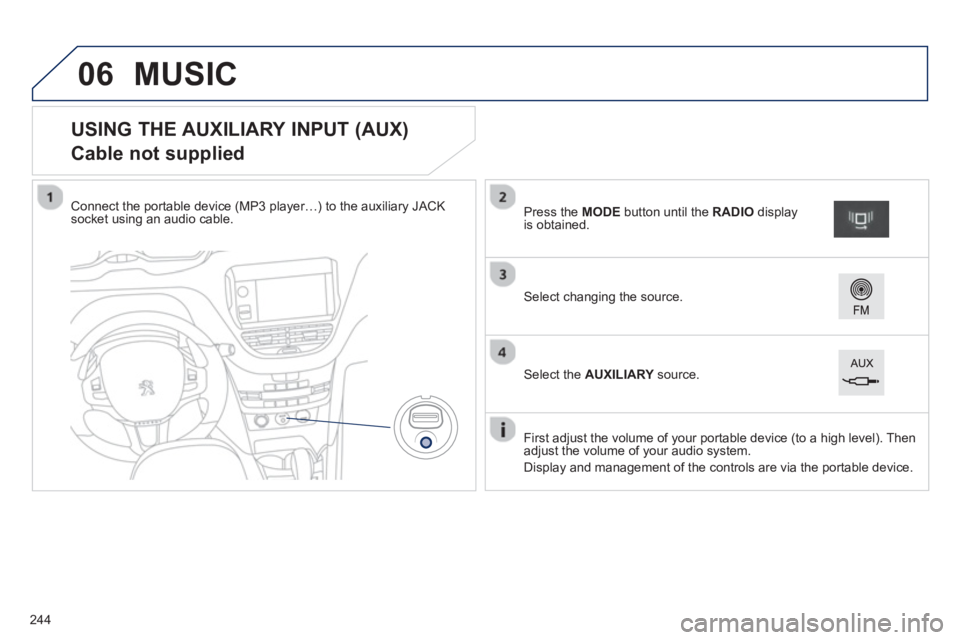
USING THE AUXILIARY INPUT (AUX)
Cable not supplied
Connect the portable device (MP3 player…) to the auxiliary JACK
socket using an audio cable.
First ad
just the volume of your portable device (to a high level). Then
adjust the volume of your audio system.
Displa
y and management of the controls are via the portable device.
Select changing the source.
Press the MODE button until the RADIO
display is obtained.
Select the AUXILIARYsource.Y
MUSIC
244
Page 247 of 324
06
245
- " Ambience" (choice of 6 musical ambiences)
- " Bass"
-"
Treble"
-
"Loudness" (Activate/Deactivate)
-
"Distribution" (" Driver
", "rAll passengers", " Front speakers only
")
The audio settin
gs ( Ambience
, Bass
, Trebleand Loudness) are
different and independent for each sound source.
The settin
gs for distribution and balance are common to all sources.
The distribution
(or spatialisation using the Arkamys© system)©
of sound is an audio process that allows the audio quality to be
adapted to the number of listeners in the vehicle.
On-board audio: Arkamys©
Sound Staging.©
With Sound Staging, the driver and passengers are immersed in an
"audio scene" recreating the natural atmosphere of an auditorium:
truly a part of the scene and its surroundings.
This new sensation is made possible b
y software in the audiosystem which processes the digital signals from the media players (radio, CD, MP3…) without changing the audio settings. This
processing takes account of the characteristics of the passenger compartment to produce optimum results.
The Arkam
ys© software installed in your audio system processes ©
the digital signal from the media players (radio, CD, MP3, ...) and
recreates a natural musical scene, with harmonious placement of
instruments and voices in the space in front of passengers, level with
the windscreen.
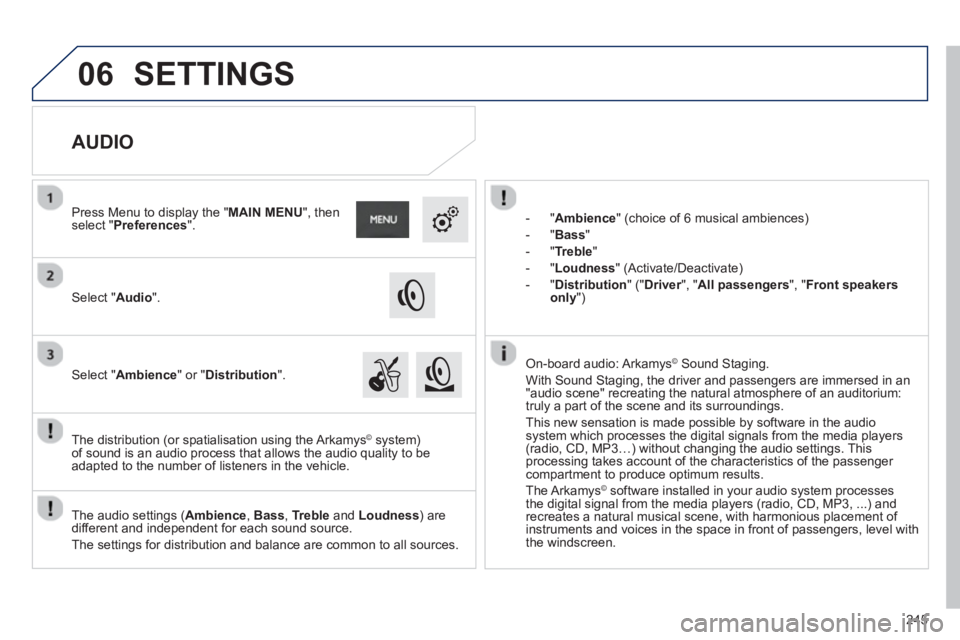
AUDIO
Select "Audio".
Press Menu to display the "MAIN MENU
", then select " Preferences".
Select "Ambience
" or " Distribution".
SETTINGS
Page 251 of 324
249
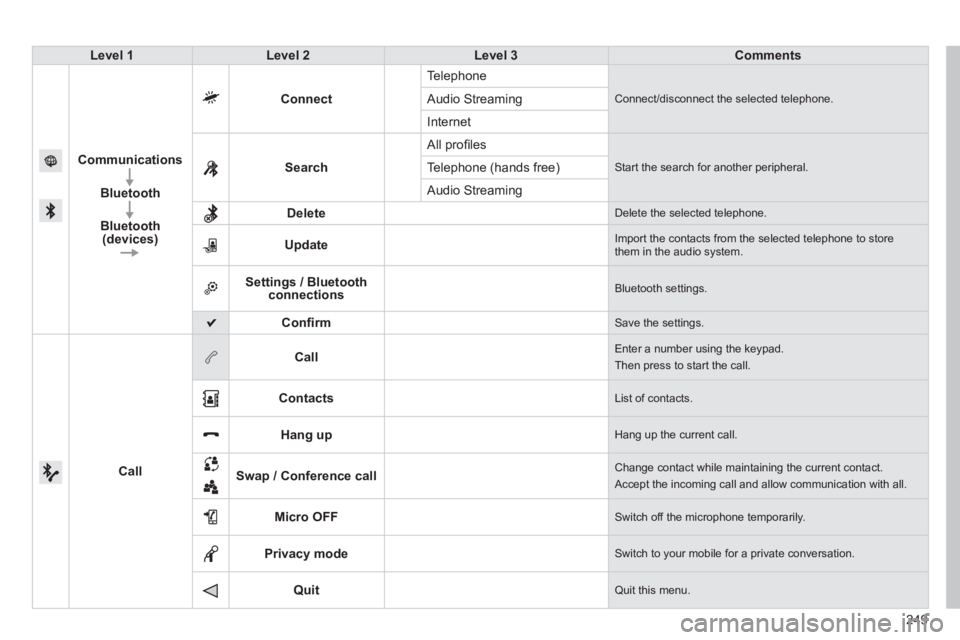
Level 1Level 2Level 3Comments
Communications
Bluetooth
Bluetooth (devices)
Connect
Te l ephone
Connect/disconnect the selected telephone. Audio Streaming
Internet
Search All pro
fi les
Start the search for another peripheral .Telephone (hands free)
Audio Streamin
g
Delete
Delete the selected telephone.
Update
Import the contacts from the selected telephone to storethem in the audio system.
Settings / Bluetooth connections Bluetooth settings.
Confi rm Save the settings.
Call
Call Enter a number using the keypad.
Then press to start the call.
Contacts
List of contacts.
Hang up Hang up the current call.
Swap / Conference call
Change contact while maintaining the current contact.
Accept the incoming call and allow communication with all.
Micro OFF
Switch off the microphone temporarily.
Privacy mode
Switch to your mobile for a private conversation.
Quit Quit this menu.
Page 252 of 324
07
250
The " Hands-free" profi le should be used in preference if "Streaming"
is not desired.
The abilit
y of the system to connect with only one profi le depends on
the telephone. The two profi les may both connect by default.
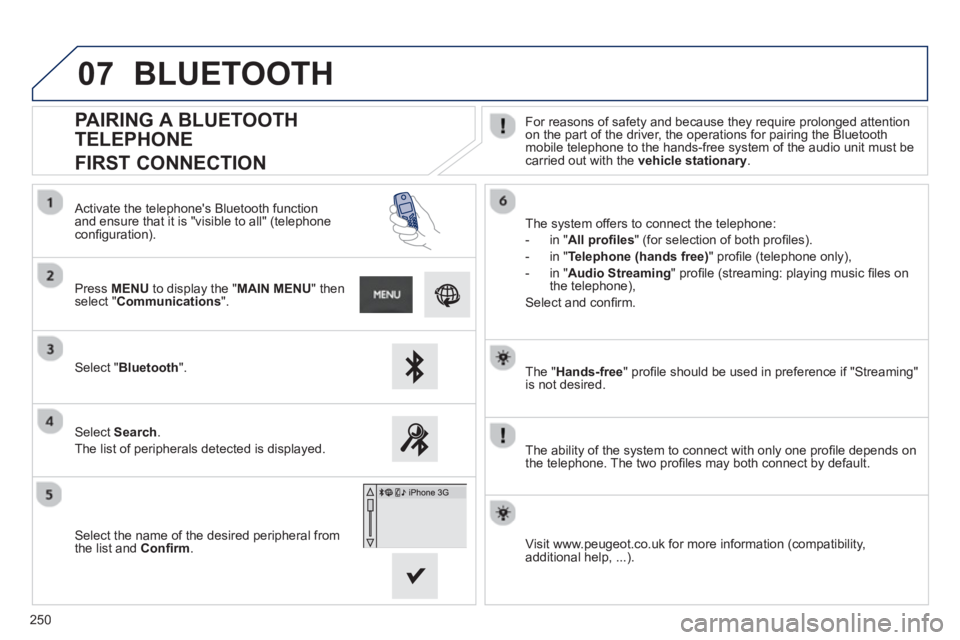
PAIRING A BLUETOOTH
TELEPHONE
FIRST CONNECTION
For reasons of safety and because they require prolonged attention on the part of the driver, the operations for pairing the Bluetooth
mobile telephone to the hands-free system of the audio unit must becarried out with the vehicle stationary
.
Select " Bluetooth".
Press MENU
to display the "MAIN MENU" thenselect "Communications".
Select Search.
The list of peripherals detected is displayed.
Activate the telephone's Bluetooth
function and ensure that it is "visible to all" (telephoneconfi guration).
The system offers to connect the telephone:
-
in"All profi les" (for selection of both profi les).
-
in "Telephone (hands free)" profi le (telephone only),
-
in "Audio Streaming
" profi le (streaming: playing music fi les on
the telephone),
Select and confi rm.
Select the name of the desired peripheral from
t
he list and Confi rm.
Visit www.peugeot.co.uk for more information (compatibility,
additional help, ...).
BLUETOOTH
Page 257 of 324
07
255
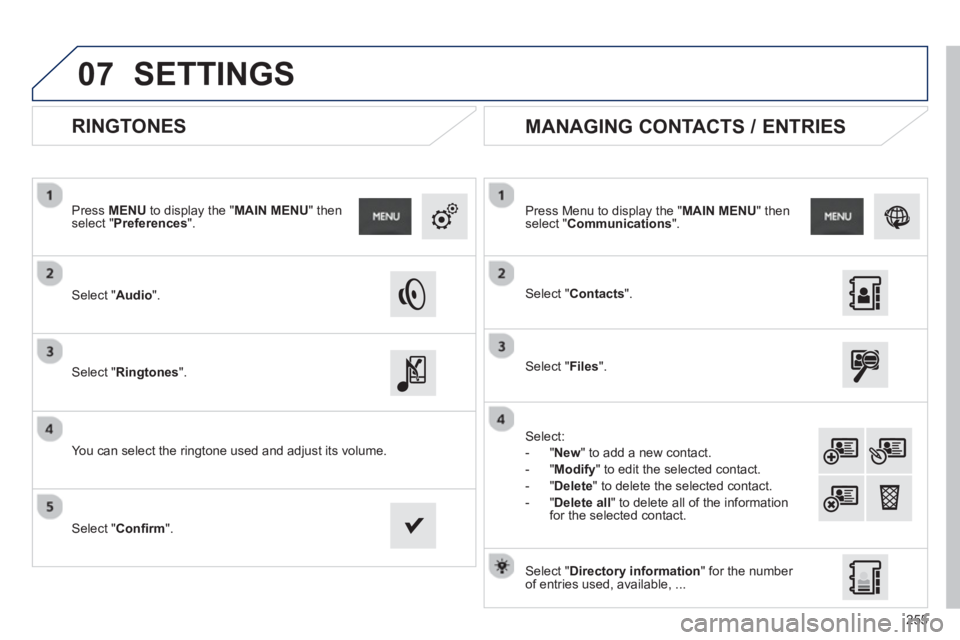
RINGTONES
Select "Audio".
Press MENU
to display the " MAIN MENU " then select " Preferences".
Select "Ringtones".
You can select the ringtone used and adjust its volume.
Select " Contacts".
Press Menu to display the " MAIN MENU
" then select " Communications
".
Select " Files".
Select:
-
"New" to add a new contact.
-
"Modify" to edit the selected contact.
- "
Delete
" to delete the selected contact.
- "
Delete all
" to delete all of the informationfor the selected contact.
Select "Confi rm
".
Select " Directory information
" for the number
of entries used, available, ...
MANAGING CONTACTS / ENTRIES
SETTINGS
Page 260 of 324
08 SETTINGS
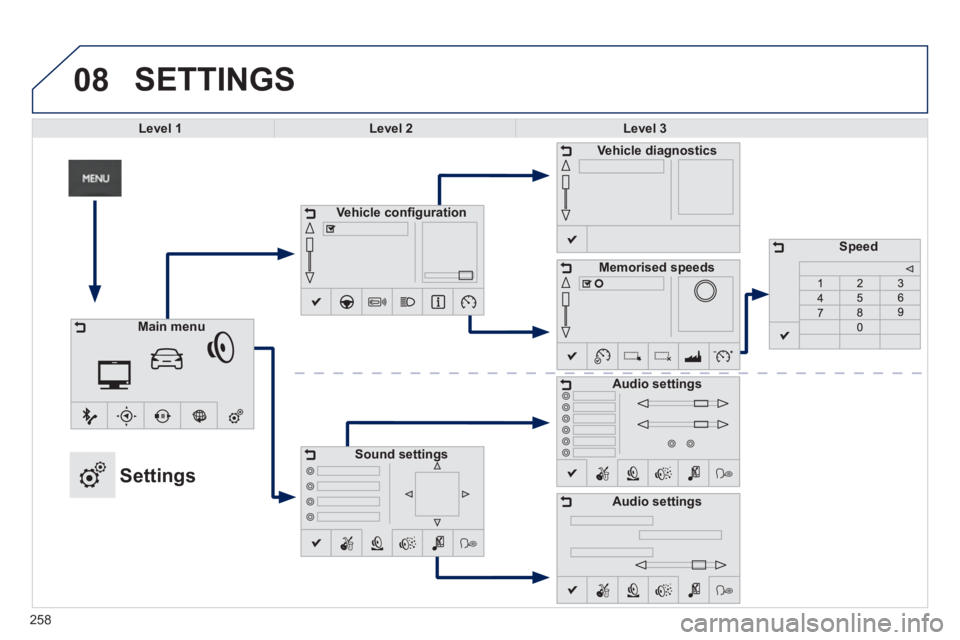
Level 1Level 2Level 3
Vehicle confi guration
Sound settings
Vehicle diagnostics
Memorisedspeeds
Audio settings
Main menu
Settings
Speed
Audio settings
258
Page 261 of 324
259
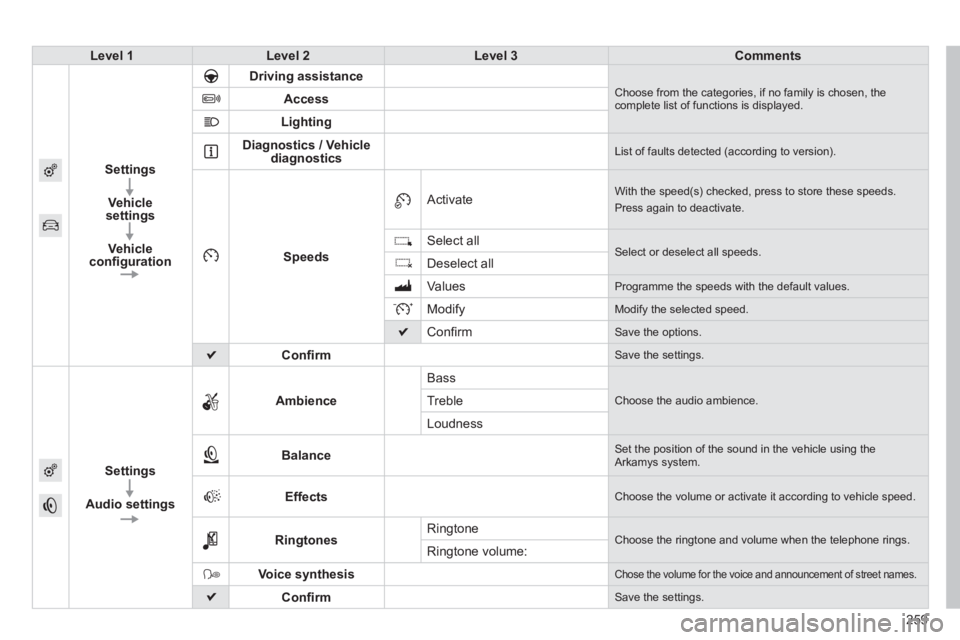
Level 1Level 2Level 3Comments
Settings
Vehicle
settin
gs
Vehicleconfi guration
Driving assistance Choose from the categories, if no family is chosen, thecomplete list of functions is displayed. Access
Lighting
Diagnostics / Vehicle
diagnostics List of faults detected (according to version).
Speeds
Activate With the speed(s) checked, press to store these speeds.
Press again to deactivate.
Select all
Select or deselect all speeds.Deselect all
V
alues Programme the speeds with the default values.
Modify
Modify the selected speed.
Confi rm
Save the options.
Confi rm
Save the settings.
Settings
Audio settin
gsAmbienc
e
Bass
Choose the audio ambience.Treble
Loudness
Balance Set the position of the sound in the vehicle using the Arkamys system.
Effects Choose the volume or activate it according to vehicle speed.
RingtonesRingtone Choose the ringtone and volume when the telephone rings. Ringtone volume:
Voice synthesis Chose the volume for the voice and announcement of street names.
Confi rm Save the settings.
Page 264 of 324
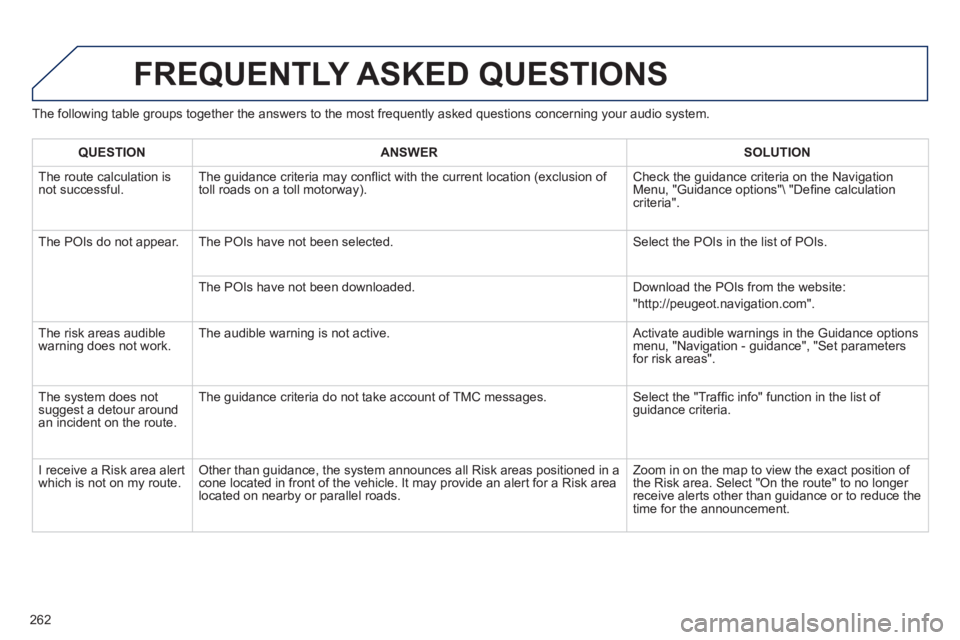
The following table groups together the answers to the most frequently asked questions concerning your audio system.
FREQUENTLY ASKED QUESTIONS
262
QUESTIONANSWER SOLUTION
The route calculation is not successful. The guidance criteria may confl ict with the current location (exclusion of
toll roads on a toll motorway). Check the guidance criteria on the Navigation Menu, "Guidance options"\ "Defi ne calculation criteria".
The P
OIs do not appear. The POIs have not been selected. Select the POIs in the list of POIs.
Th
e POIs have not been downloaded. Download the POIs from the website:
"http://peugeot.navigation.com".
The risk areas audiblewarning does not work. The audible warning is not active. Activate audible warnings in the Guidance options menu, "Navigation - guidance", "Set parameters for risk areas".
The s
ystem does notsuggest a detour around an incident on the route. The
guidance criteria do not take account of TMC messages. Select the "Traffi c info" function in the list of guidance criteria.
I receive a Risk area alert
which is not on my route. Other than guidance, the system announces all Risk areas positioned in a cone located in front of the vehicle. It may provide an alert for a Risk area located on nearby or parallel roads. Zoom in on the map to view the exact position o
f
the Risk area. Select "On the route" to no longer receive alerts other than guidance or to reduce the
time for the announcement.
Page 265 of 324
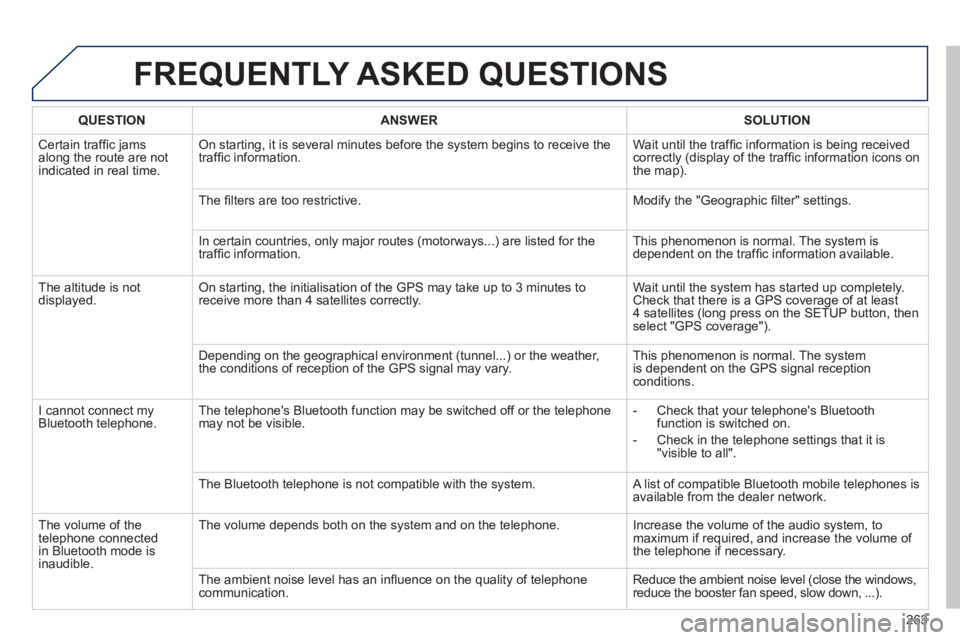
FREQUENTLY ASKED QUESTIONS
263
QUESTIONANSWER SOLUTION
Certain traffi c jams
along the route are notindicated in real time.
On starting, it is several minutes before the system begins to receive the
traffi c information. Wait until the traffi c information is being received correctly (display of the traffi c information icons on
the map).
Th
e fi lters are too restrictive. Modify the "Geographic fi lter" settings.
In certain countries, onl
y major routes (motorways...) are listed for the
traffi c information. This phenomenon is normal. The system is
dependent on the traffi c information available.
Th
e altitude is not
displayed. On starting, the initialisation of the GPS may take up to 3 minutes toreceive more than 4 satellites correctly. Wait until the system has started up completely.
Check that there is a GPS coverage of at least
4 satellites (long press on the SETUP button, then select "GPS coverage").
Dependin
g on the geographical environment (tunnel...) or the weather,
the conditions of reception of the GPS signal may vary. This phenomenon is normal. The system
is dependent on the GPS signal receptionconditions.
I cannot connect m
yBluetooth telephone.The telephone's Bluetooth function may be switched off or the telephone
may not be visible.
- Check that your telephone's Bluetoothfunction is switched on.
- Check in the telephone settin
gs that it is "visible to all".
The Bluetooth telephone is not compatible with the s
ystem. A list of compatible Bluetooth mobile telephones is available from the dealer network.
Th
e volume of thetelephone connected
in Bluetooth mode isinaudible. The volume depends both on the s
ystem and on the telephone. Increase the volume of the audio system, tomaximum if required, and increase the volume of
the telephone if necessary.
The ambient noise level has an infl uence on the qualit
y of telephone communication. Reduce the ambient noise level (close the windows,reduce the booster fan speed, slow down, ...).