audio PEUGEOT 2008 2013 Owner's Guide
[x] Cancel search | Manufacturer: PEUGEOT, Model Year: 2013, Model line: 2008, Model: PEUGEOT 2008 2013Pages: 324, PDF Size: 8.39 MB
Page 266 of 324
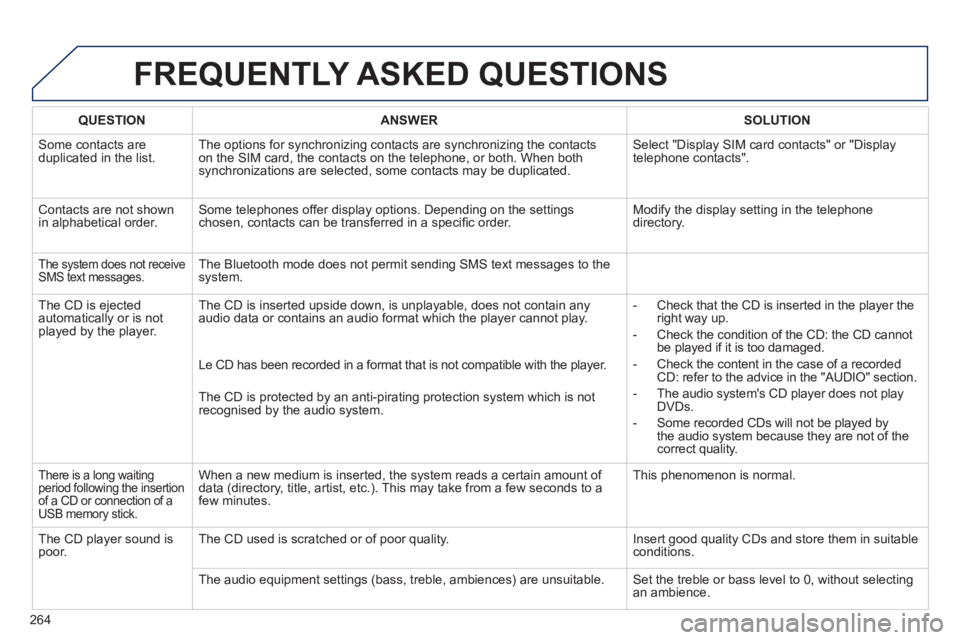
FREQUENTLY ASKED QUESTIONS
264
QUESTIONANSWER SOLUTION
Some contacts areduplicated in the list.The options for synchronizing contacts are synchronizing the contacts
on the SIM card, the contacts on the telephone, or both. When both
synchronizations are selected, some contacts may be duplicated.
Select "Display SIM card contacts" or "Displaytelephone contacts".
Contacts are not shown
in alphabetical order.Some telephones offer display options. Depending on the settingschosen, contacts can be transferred in a specifi c order. Modify the display setting in the telephone
directory.
The system does not receive SMS text messages.The Bluetooth mode does not permit sending SMS text messages to the
system.
The CD is e
jected
automatically or is not played by the player. The CD is inserted upside down, is unpla
yable, does not contain any audio data or contains an audio format which the player cannot play.
- Check that the CD is inserted in the player the
right way up.
-
Check the condition of the CD: the CD cannot
be played if it is too damaged.
-
Check the content in the case of a recordedCD: refer to the advice in the "AUDIO" section.
- The audio s
ystem's CD player does not play
DVDs.
- Some recorded CDs will not be pla
yed bythe audio system because they are not of thecorrect quality. Le
CD has been recorded in a format that is not compatible with the player.
The CD is protected b
y an anti-pirating protection system which is not recognised by the audio system.
There is a long waiting
period following the insertion
of a CD or connection of a USB memory stick.
When a new medium is inserted, the system reads a certain amount of
data (directory, title, artist, etc.). This may take from a few seconds to a
few minutes. This phenomenon is normal.
The
CD player sound ispoor.The CD used is scratched or of poor quality. Insert good quality CDs and store them in suitable conditions.
The audio equipment settin
gs (bass, treble, ambiences) are unsuitable. Set the treble or bass level to 0, without selectingan ambience.
Page 267 of 324
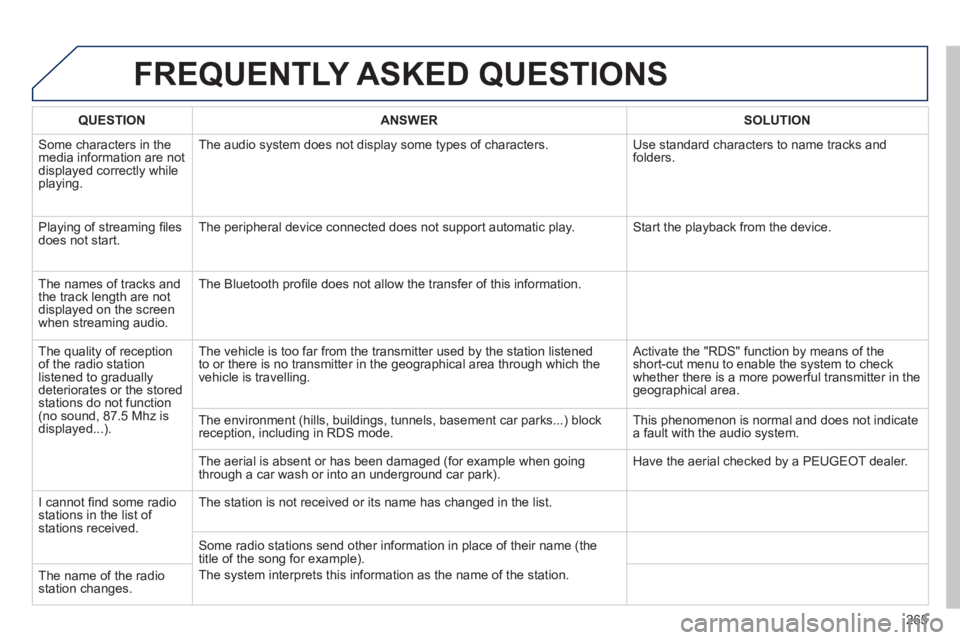
FREQUENTLY ASKED QUESTIONS
265
QUESTIONANSWER SOLUTION
Some characters in themedia information are not displayed correctly while playing. The audio s
ystem does not display some types of characters. Use standard characters to name tracks andfolders.
Pla
ying of streaming fi lesdoes not start. The peripheral device connected does not support automatic play. Start the playback from the device.
Th
e names of tracks and
the track length are notdisplayed on the screen
when streaming audio. The Bluetooth profi le does not allow the transfer of this information.
The quality o
f receptionof the radio station
listened to graduallydeteriorates or the stored stations do not function(no sound, 87.5 Mhz is
displayed...). The vehicle is too
far from the transmitter used by the station listened
to or there is no transmitter in the geographical area through which the
vehicle is travelling.
Activate the "RDS" function by means of theshort-cut menu to enable the system to check
whether there is a more powerful transmitter in thegeographical area.
The environment
(hills, buildings, tunnels, basement car parks...) block reception, including in RDS mode. This phenomenon is normal and does not indicate
a fault with the audio system.
The aerial is absent or has been dama
ged (for example when goingthrough a car wash or into an underground car park). Have the aerial checked by a PEUGEOT dealer.
I
cannot fi nd some radiostations in the list of stations received.The station is not received or its name has chan
ged in the list.
Some radio stations send other information in place of their name (the
title of the song for example).
The s
ystem interprets this information as the name of the station.
The name of the radio station changes.
Page 268 of 324
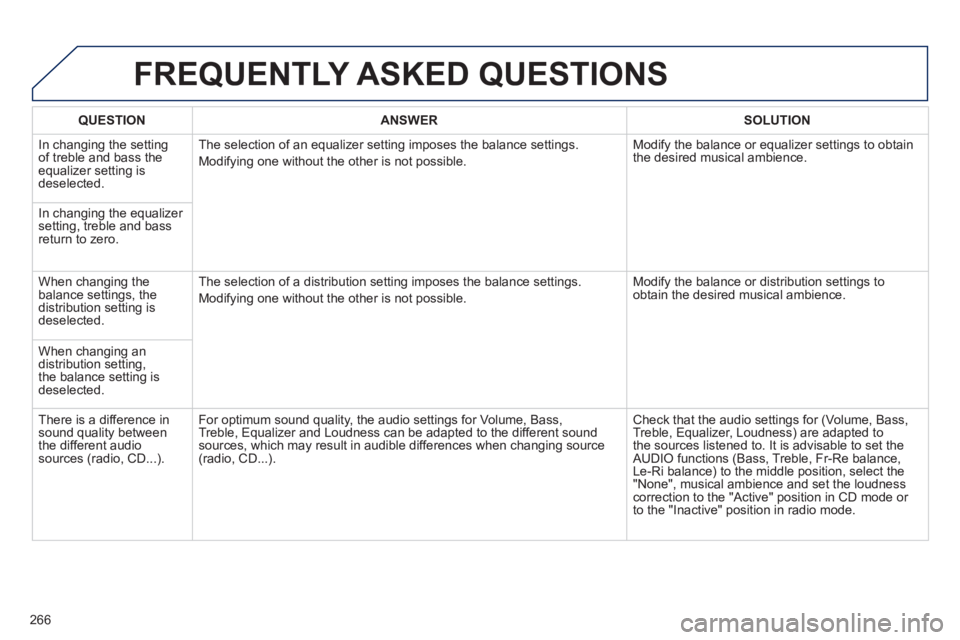
FREQUENTLY ASKED QUESTIONS
266
QUESTIONANSWER SOLUTION
In changing the settingof treble and bass theequalizer setting isdeselected. The selection of an equalizer settin
g imposes the balance settings.
Modif
ying one without the other is not possible. Modif
y the balance or equalizer settings to obtain
the desired musical ambience.
In chan
ging the equalizer setting, treble and bassreturn to zero.
When changing the balance settings, the
distribution setting is
deselected. The selection o
f a distribution setting imposes the balance settings.
Modi
fying one without the other is not possible. Modi
fy the balance or distribution settings to obtain the desired musical ambience.
When changing an distribution setting,
the balance setting is
deselected.
Th
ere is a difference in sound quality between
the different audiosources (radio, CD...). For optimum sound qualit
y, the audio settings for Volume, Bass,
Treble, Equalizer and Loudness can be adapted to the different sound
sources, which may result in audible differences when changing source (radio, CD...). Check that the audio settin
gs for (Volume, Bass,
Treble, Equalizer, Loudness) are adapted to
the sources listened to. It is advisable to set theAUDIO functions (Bass, Treble, Fr-Re balance,
Le-Ri balance) to the middle position, select the "None", musical ambience and set the loudness correction to the "Active" position in CD mode or
to the "Inactive" position in radio mode.
Page 271 of 324
269
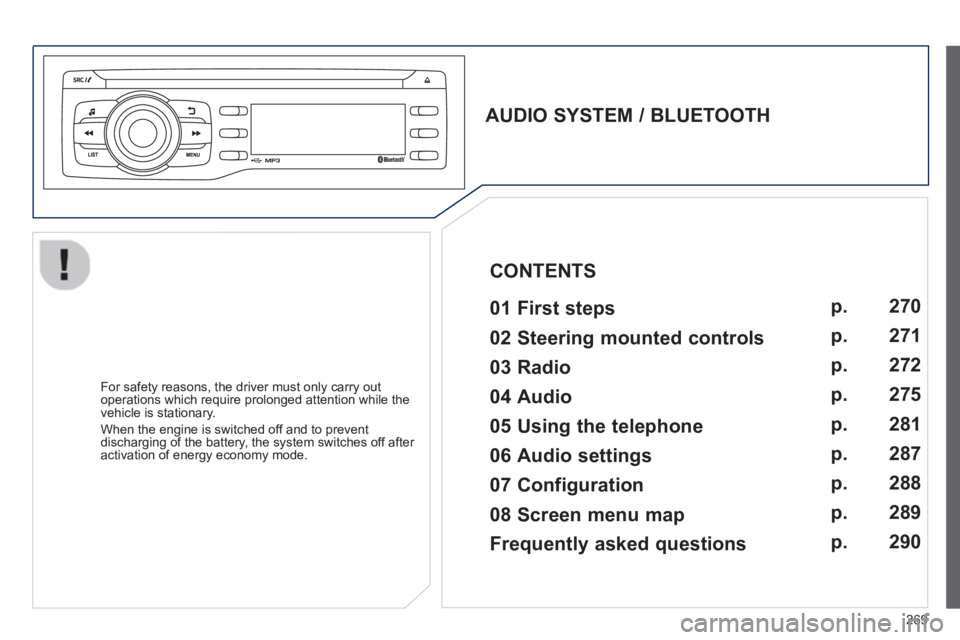
AUDIO SYSTEM / BLUETOOTH
01 First steps
For safety reasons, the driver must only carry out
operations which require prolonged attention while the
vehicle is stationary.
When the en
gine is switched off and to prevent
discharging of the battery, the system switches off after
activation of energy economy mode.
CONTENTS
02 Steering mounted controls
03 Radio
04 Audio
05 Using the telephone
06 Audio settings
07 Configuration
08 Screen menu map p.
p.
p.
p.
p.
p.
p.
p. 270
271
272
275
281
287
288
289
Frequently asked questions p. 290
Page 272 of 324
01
270
FIRST STEPS
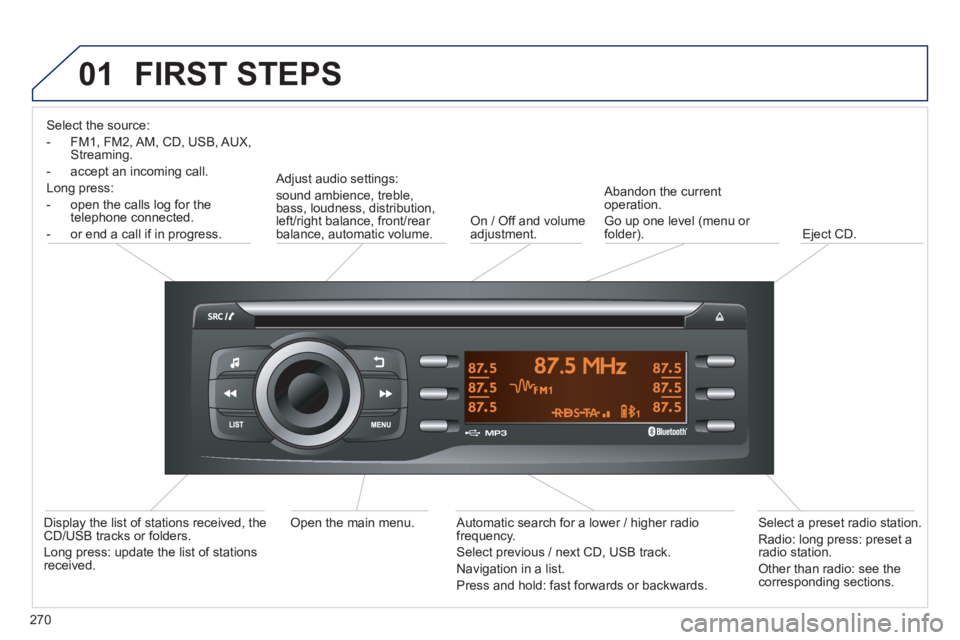
Select the source:
- FM1, FM2, AM, CD, USB, AUX,
Streaming.
- accept an
incoming call.
Long press:
- open the calls lo
g for the
telephone connected.
- or end a call i
f in progress.
Adjust audio settings:
sound ambience, treble,
bass, loudness, distribution,
left/right balance, front/rear balance, automatic volume. On / Off and volume
adjustment.
A
bandon the current
operation.
Go up one level (menu or folder).
Eject CD.
Select a
preset radio station.
Radio: long press: preset a
radio station.
Other than radio: see the corresponding sections.
Automatic search for a lower / higher radio
frequency.
Select previous / next CD, USB track.
Navigation in a list.
Pr
ess and hold: fast forwards or backwards.
Open the main menu.
Display the list of stations received, theCD/USB tracks or folders.
Lon
g press: update the list of stationsreceived.
Page 274 of 324
03
272
RADIO
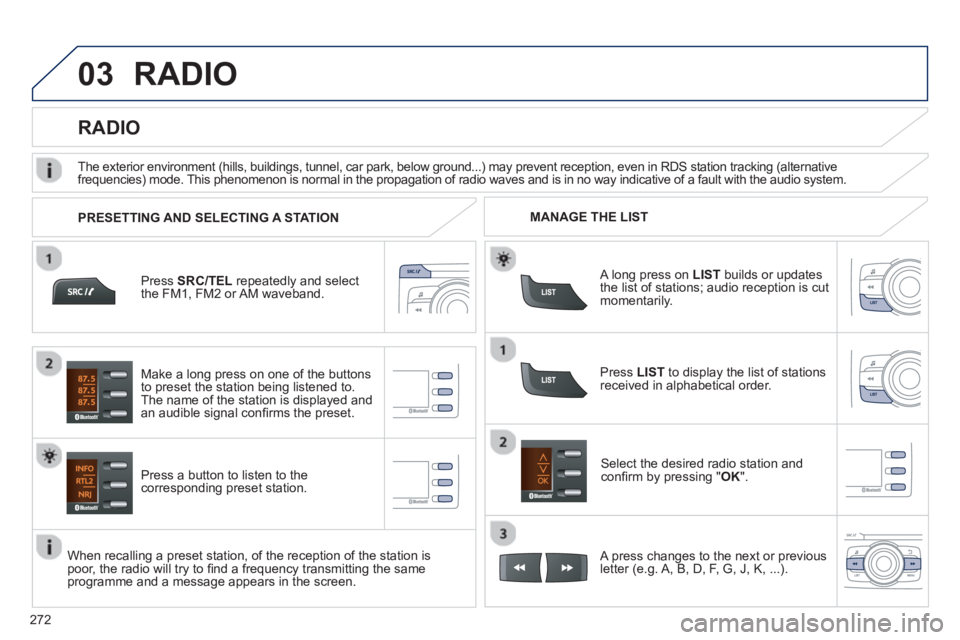
Press SRC/TEL
repeatedly and select
the FM1, FM2 or AM waveband.
Press a button to listen to the corresponding preset station.
Select the desired radio station and confi rm by pressing "OK".
RADIO
Press LIST
to display the list of stations
received in alphabetical order.
The exterior environment
(hills, buildings, tunnel, car park, below ground...) may prevent reception, even in RDS station tracking (alternative
frequencies) mode. This phenomenon is normal in the propagation of radio waves and is in no way indicative of a fault with the audio system.
A long press on LIST
builds or updates
the list of stations; audio reception is cut
momentarily.
Make a lon
g press on one of the buttons
to preset the station being listened to.
The name o
f the station is displayed andan audible signal confi rms the preset.
A press chan
ges to the next or previous
letter (e.g. A, B, D, F, G, J, K, ...). MANAGE THE LIST
PRESETTING AND SELECTING A STATION
When recalling a preset station, of the reception of the station is poor, the radio will try to fi nd a frequency transmitting the same programme and a message appears in the screen.
Page 276 of 324
03
274
RADIO
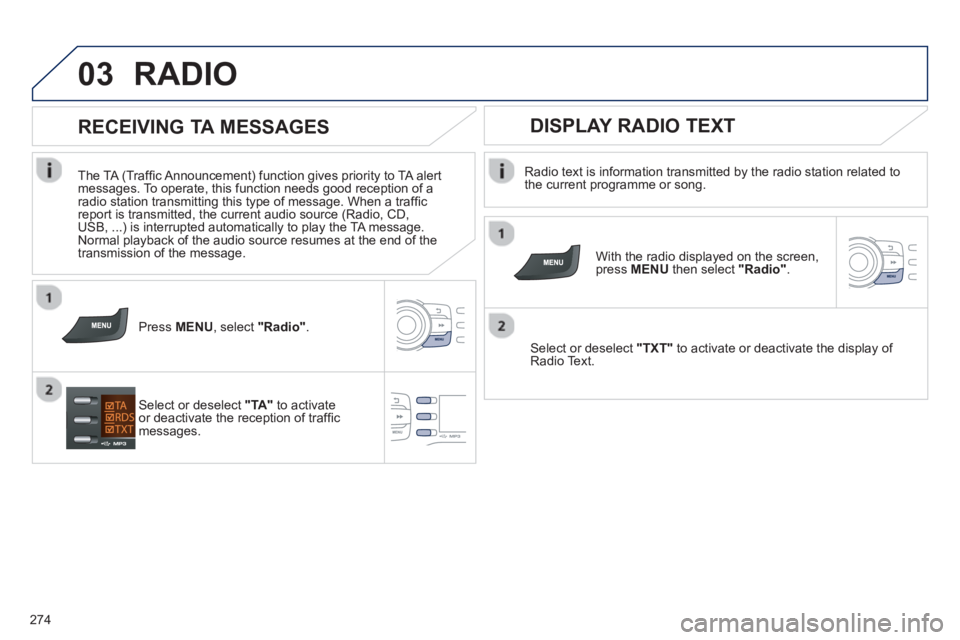
Radio text is information transmitted by the radio station related to
the current programme or song.
With the radio displayed on the screen, press MENUthen select "Radio".
Select or deselect "TXT"to activate or deactivate the display of Radio Text.
DISPLAY RADIO TEXT
RECEIVING TA MESSAGES
The TA (Traffi c Announcement) function gives priority to TA alertmessages. To operate, this function needs good reception of a
radio station transmitting this type of message. When a traffi c
report is transmitted, the current audio source (Radio, CD,USB, ...) is interrupted automatically to play the TA message.
Normal playback of the audio source resumes at the end of the
transmission of the message.
Press MENU, select "Radio".
Select or deselect "TA"to activateor deactivate the reception of traffi cmessages.
Page 277 of 324
04
275
AUDIO
AUDIO CD
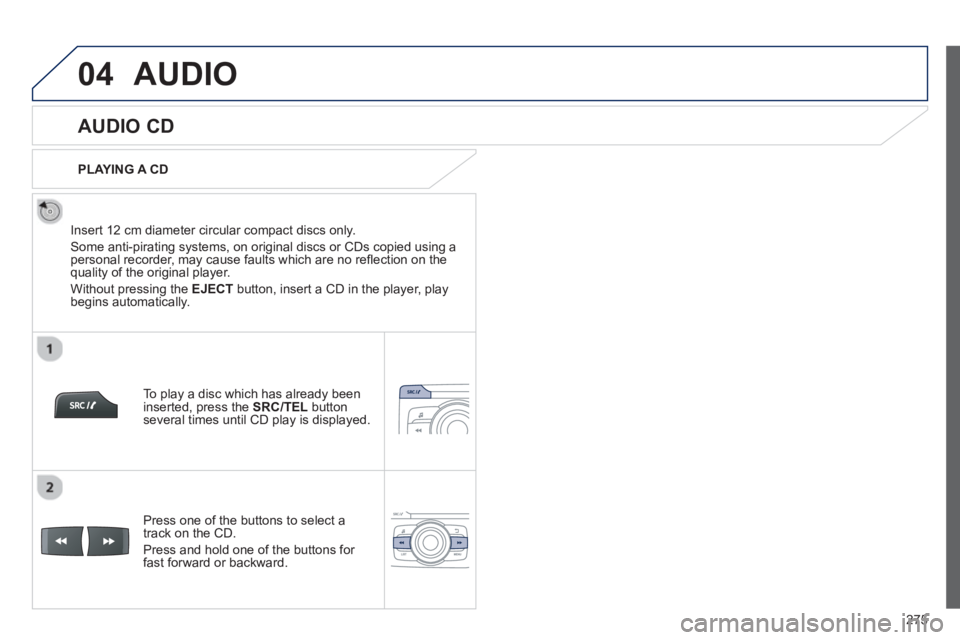
Insert 12 cm diameter circular compact discs only.
Some anti-piratin
g systems, on original discs or CDs copied using apersonal recorder, may cause faults which are no refl ection on thequality of the original player.
Without pressing the EJECT
button, insert a CD in the player, playbegins automatically.
To pla
y a disc which has already been
inserted, press the SRC/TEL
button several times until CD play is displayed.
Pr
ess one of the buttons to select a
track on the CD.
Pr
ess and hold one of the buttons for fast forward or backward.
PLAYING A CD
Page 278 of 324
04
276
AUDIO
CD, USB
INFORMATION AND ADVICE
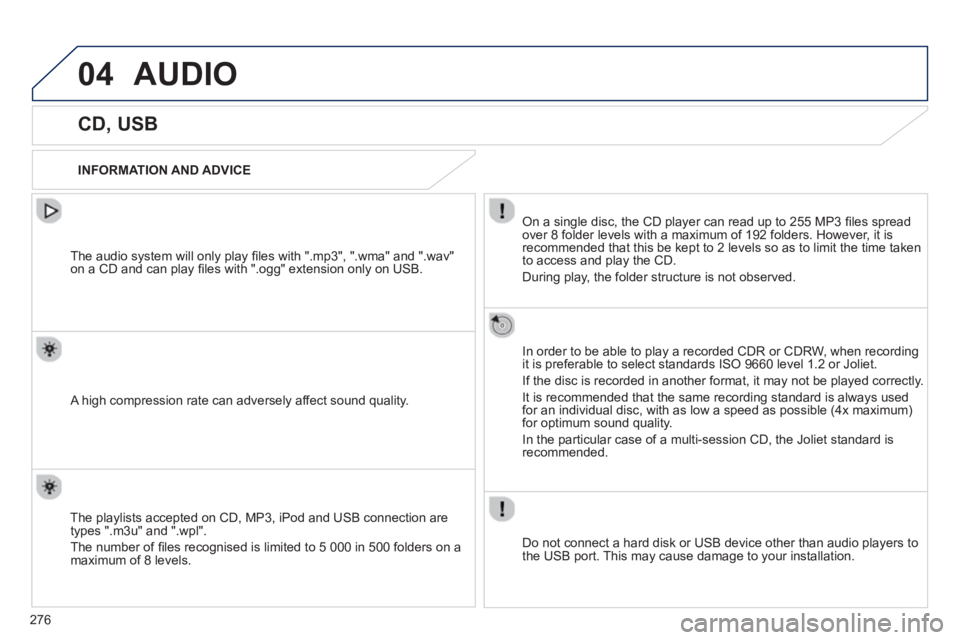
On a single disc, the CD player can read up to 255 MP3 fi les spread
over 8 folder levels with a maximum of 192 folders. However, it is
recommended that this be kept to 2 levels so as to limit the time taken
to access and play the CD.
Durin
g play, the folder structure is not observed.
In order to be able to pla
y a recorded CDR or CDRW, when recordingit is preferable to select standards ISO 9660 level 1.2 or Joliet.
If the disc is recorded in another format, it ma
y not be played correctly.
It is recommended that the same recording standard is always usedfor an individual disc, with as low a speed as possible (4x maximum)for optimum sound quality.
In the particular case o
f a multi-session CD, the Joliet standard is
recommended.
Do not connect a hard disk or U
SB device other than audio players to
the USB port. This may cause damage to your installation.
The audio s
ystem will only play fi les with ".mp3", ".wma" and ".wav"
on a CD and can play fi les with ".ogg" extension only on USB.
A high compression rate can adversely affect sound quality.
The pla
ylists accepted on CD, MP3, iPod and USB connection are
types ".m3u" and ".wpl".
The number of fi les reco
gnised is limited to 5 000 in 500 folders on a maximum of 8 levels.
Page 279 of 324
04
277
CD, USB
AUDIO
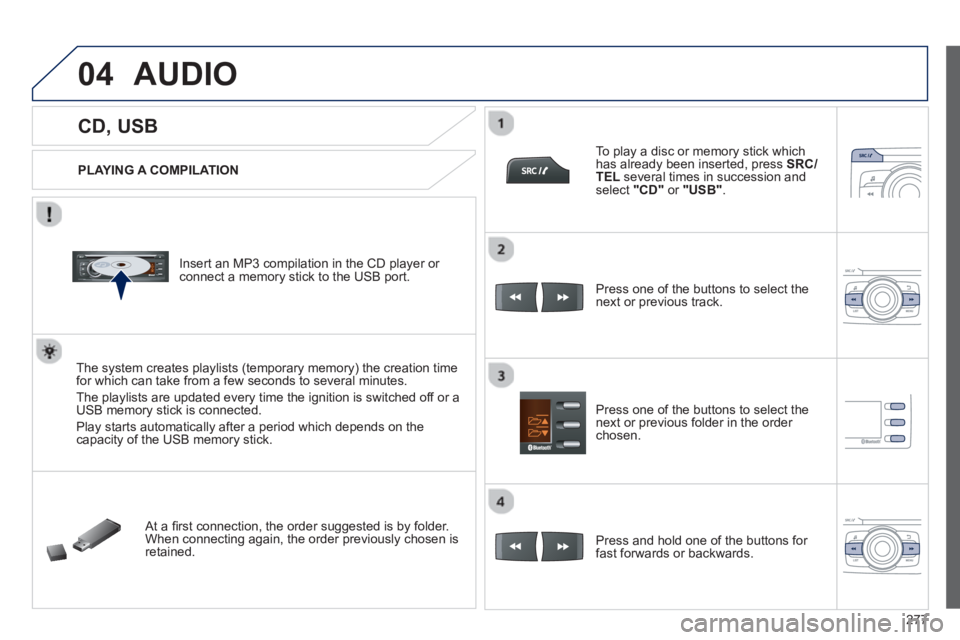
PLAYING A COMPILATION
Insert an MP3 compilation in the CD pla
yer or connect a memory stick to the USB port.
The system creates playlists
(temporary memory) the creation timefor which can take from a few seconds to several minutes.
The pla
ylists are updated every time the ignition is switched off or aUSB memory stick is connected.
Pla
y starts automatically after a period which depends on the capacity of the USB memory stick.
At a fi rst connection, the order suggested is by folder.When connecting again, the order previously chosen is retained.
To pla
y a disc or memory stick whichhas already been inserted, press SRC/TELseveral times in succession and select" CD "or "
USB ".
Press one of the buttons to select the next or previous track.
Pr
ess one of the buttons to select the next or previous folder in the order chosen.
Pr
ess and hold one of the buttons for
fast forwards or backwards.