phone PEUGEOT 2008 2015 Owner's Manual
[x] Cancel search | Manufacturer: PEUGEOT, Model Year: 2015, Model line: 2008, Model: PEUGEOT 2008 2015Pages: 340, PDF Size: 8.4 MB
Page 293 of 340
291
2008_en_Chap12b_SMEGplus_ed01-2015
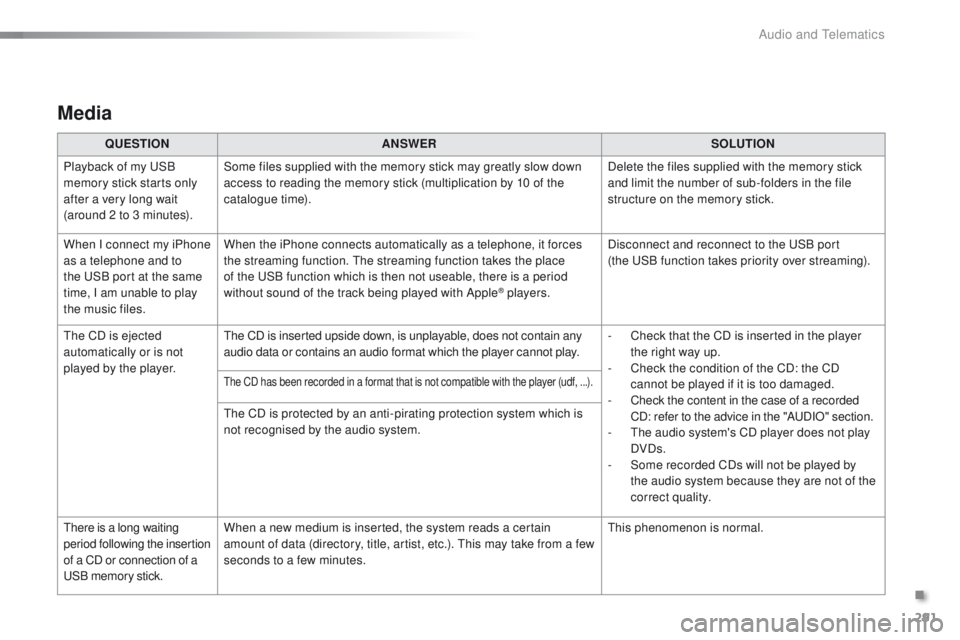
Media
QUESTIONANSWER SOLUTION
Playback of my USB
memory stick starts only
after a very long wait
(around 2 to 3 minutes). Some files supplied with the memory stick may greatly slow down
access to reading the memory stick (multiplication by 10 of the
catalogue time).
Delete the files supplied with the memory stick
and limit the number of sub-folders in the file
structure on the memory stick.
When I connect my iPhone
as a telephone and to
the USB port at the same
time, I am unable to play
the music files. When the iPhone connects automatically as a telephone, it forces
the streaming function. The streaming function takes the place
of the USB function which is then not useable, there is a period
without sound of the track being played with Apple
® players.
Disconnect and reconnect to the USB port
(the
USB function takes priority over streaming).
The CD is ejected
automatically or is not
played by the player. The CD is inserted upside down, is unplayable, does not contain any
audio data or contains an audio format which the player cannot play.
-
C
heck that the CD is inserted in the player
the right way up.
-
C
heck the condition of the CD: the CD
cannot be played if it is too damaged.
-
C
heck the content in the case of a recorded
CD: refer to the advice in the "AUDIO" section.
-
T
he audio system's CD player does not play
DVDs.
-
S
ome recorded CDs will not be played by
the audio system because they are not of the
correct quality.
The CD has been recorded in a format that is not compatible with the player (udf, ...).
The CD is protected by an anti-pirating protection system which is
not recognised by the audio system.
There is a long waiting
period following the insertion
of a CD or connection of a
USB memory stick. When a new medium is inserted, the system reads a certain
amount of data (directory, title, artist, etc.). This may take from a few
seconds to a few minutes.
This phenomenon is normal.
.
Audio and Telematics
Page 297 of 340
295
2008_en_Chap12b_SMEGplus_ed01-2015
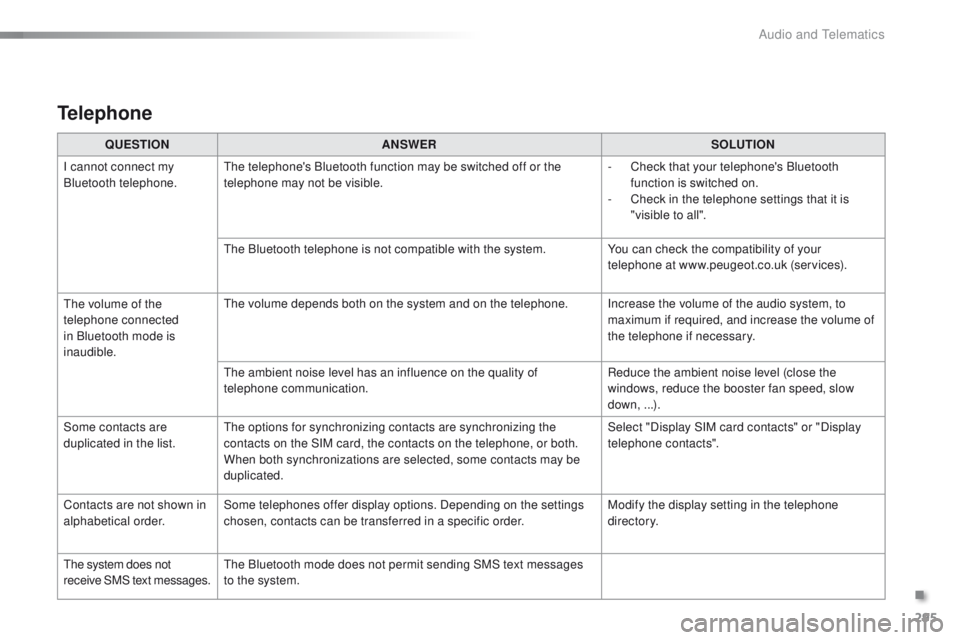
QUESTIONANSWER SOLUTION
I cannot connect my
Bluetooth telephone. The telephone's Bluetooth function may be switched off or the
telephone may not be visible. -
C
heck that your telephone's Bluetooth
function is switched on.
-
C
heck in the telephone settings that it is
"visible to all".
The Bluetooth telephone is not compatible with the system. You can check the compatibility of your
telephone at www.peugeot.co.uk (services).
The volume of the
telephone connected
in Bluetooth mode is
inaudible. The volume depends both on the system and on the telephone. Increase the volume of the audio system, to
maximum if required, and increase the volume of
the telephone if necessary.
The ambient noise level has an influence on the quality of
telephone communication. Reduce the ambient noise level (close the
windows, reduce the booster fan speed, slow
down, ...).
Some contacts are
duplicated in the list. The options for synchronizing contacts are synchronizing the
contacts on the SIM card, the contacts on the telephone, or both.
When both synchronizations are selected, some contacts may be
duplicated. Select "Display SIM card contacts" or "Display
telephone contacts".
Contacts are not shown in
alphabetical order. Some telephones offer display options. Depending on the settings
chosen, contacts can be transferred in a specific order. Modify the display setting in the telephone
di r e c to r y.
The system does not
receive SMS text messages. The Bluetooth mode does not permit sending SMS text messages
to the system.
Telephone
.
Audio and Telematics
Page 299 of 340
297
2008_en_Chap12c_RDE2_ed01-2015
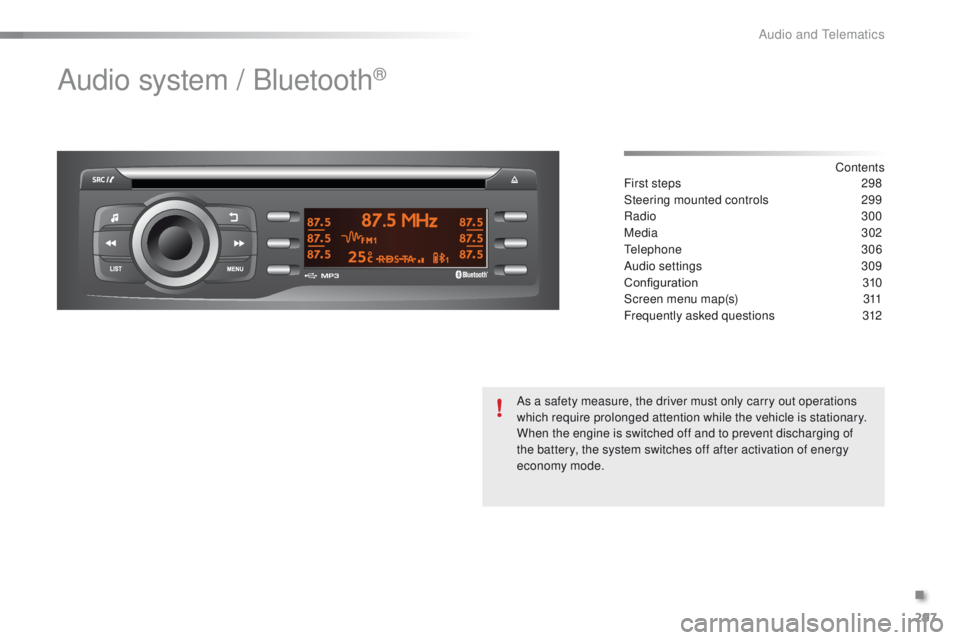
Audio system / Bluetooth®
Contents
First steps
2 98
Steering mounted controls
2
99
Radio
3
00
Media
302
Telephone
3
06
Audio settings
3
09
Configuration
3
10
Screen menu map(s)
3
11
Frequently asked questions
3
12
As a safety measure, the driver must only carry out operations
which require prolonged attention while the vehicle is stationary.
When the engine is switched off and to prevent discharging of
the battery, the system switches off after activation of energy
economy mode.
.
Audio and Telematics
Page 300 of 340
298
2008_en_Chap12c_RDE2_ed01-2015
First steps
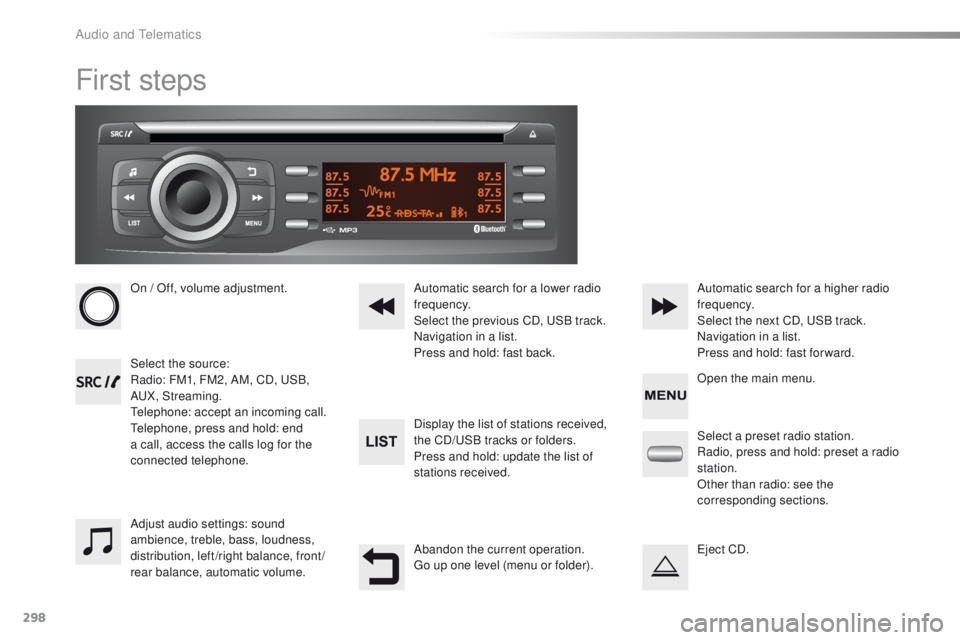
On / Off, volume adjustment.
Select the source:
Radio: FM1, FM2, AM, CD, USB,
AUX, Streaming.
Telephone: accept an incoming call.
Telephone, press and hold: end
a call, access the calls log for the
connected telephone.Display the list of stations received,
the CD/USB tracks or folders.
Press and hold: update the list of
stations received. Automatic search for a lower radio
frequency.
Select the previous CD, USB track.
Navigation in a list.
Press and hold: fast back.Automatic search for a higher radio
frequency.
Select the next CD, USB track.
Navigation in a list.
Press and hold: fast for ward.
Adjust audio settings: sound
ambience, treble, bass, loudness,
distribution, left/right balance, front/
rear balance, automatic volume. Abandon the current operation.
Go up one level (menu or folder).Select a preset radio station.
Radio, press and hold: preset a radio
station.
Other than radio: see the
corresponding sections.
Eject CD. Open the main menu.
Audio and Telematics
Page 301 of 340
299
2008_en_Chap12c_RDE2_ed01-2015
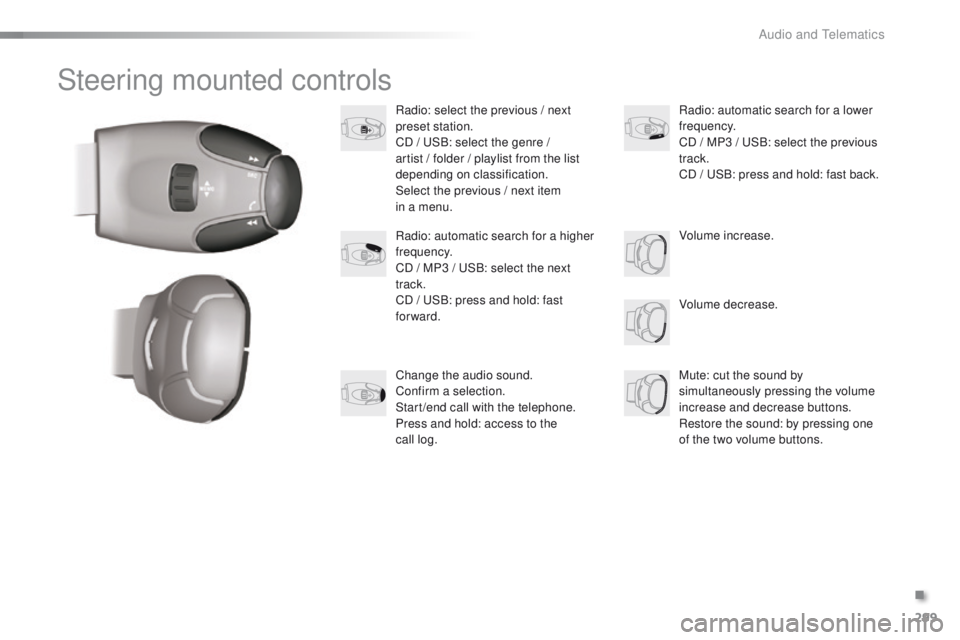
Steering mounted controls
Radio: select the previous / next
preset station.
CD / USB: select the genre /
artist / folder / playlist from the list
depending on classification.
Select the previous / next item
in a menu.Volume decrease.
Radio: automatic search for a higher
frequency.
CD / MP3 / USB: select the next
track.
CD / USB: press and hold: fast
forward.
Mute: cut the sound by
simultaneously pressing the volume
increase and decrease buttons.
Restore the sound: by pressing one
of the two volume buttons. Radio: automatic search for a lower
frequency.
CD / MP3 / USB: select the previous
track.
CD / USB: press and hold: fast back.
Change the audio sound.
Confirm a selection.
Start /end call with the telephone.
Press and hold: access to the
call
log. Volume increase.
.
Audio and Telematics
Page 307 of 340
305
2008_en_Chap12c_RDE2_ed01-2015
Bluetooth® audio streaming
Streaming allows music files on a telephone to
be heard via the vehicle's speakers.
Connect the telephone: see the "Telephone"
section.
In the " Bluetooth : Audio" menu, select the
telephone to connect.
The audio system connects automatically to a
newly paired telephone.
Control of playback is via the audio system. The control
of common tracks is possible via the audio system
control buttons and the steering mounted controls**.
Contextual information can be displayed in the screen.
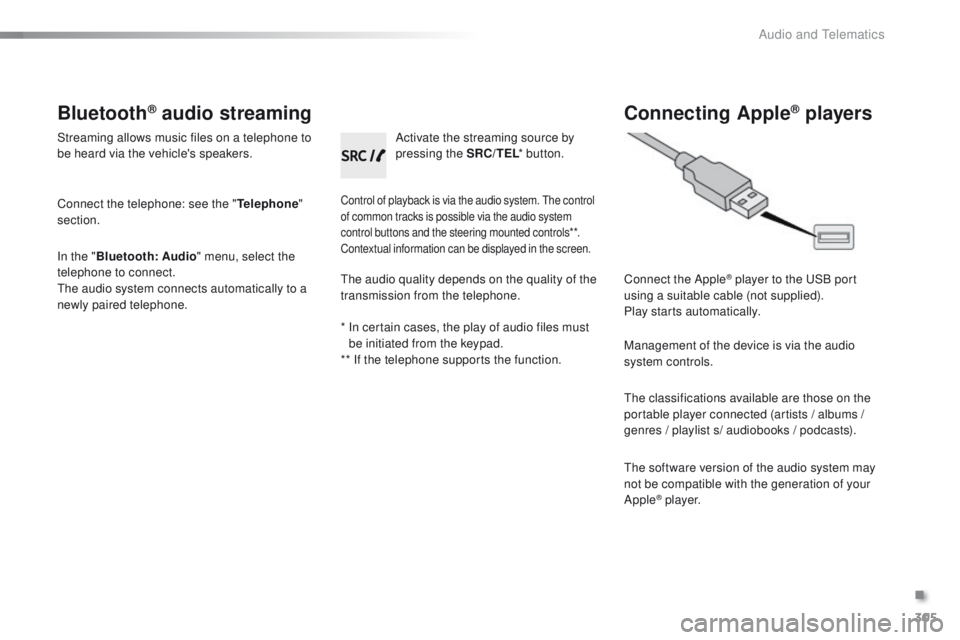
Activate the streaming source by
pressing the SRC/TEL * button.
Connecting Apple® players
Connect the Apple® player to the USB port
using a suitable cable (not supplied).
Play starts automatically.
Management of the device is via the audio
system controls.
The classifications available are those on the
portable player connected (artists / albums /
genres / playlist s/ audiobooks / podcasts).
The software version of the audio system may
not be compatible with the generation of your
Apple
® p l aye r.
The audio quality depends on the quality of the
transmission from the telephone.
*
I
n certain cases, the play of audio files must
be initiated from the keypad.
** If the telephone supports the function.
.
Audio and Telematics
Page 308 of 340
306
2008_en_Chap12c_RDE2_ed01-2015
Telephone
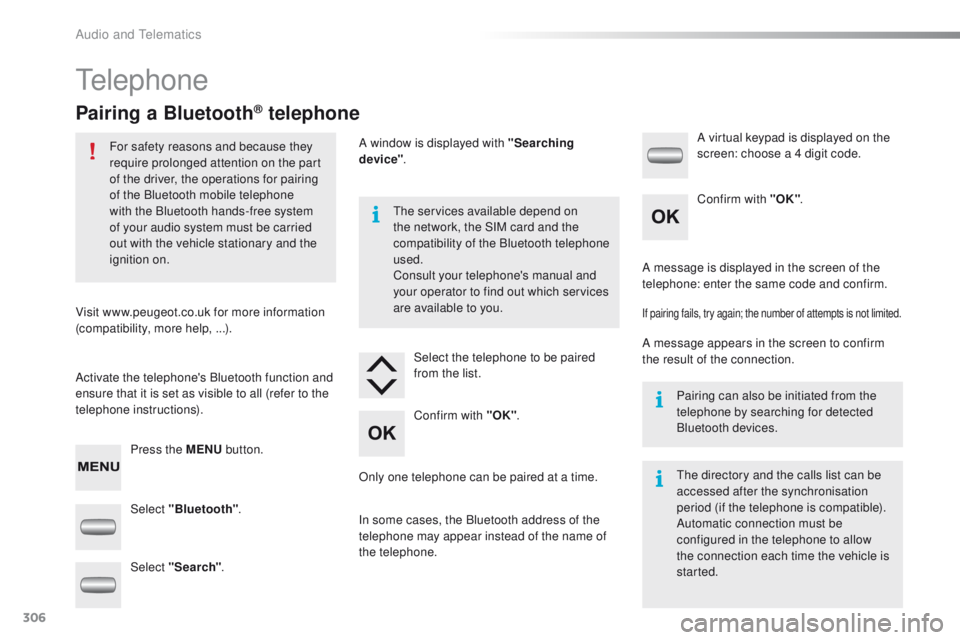
Pairing a Bluetooth® telephone
For safety reasons and because they
require prolonged attention on the part
of the driver, the operations for pairing
of the Bluetooth mobile telephone
with the Bluetooth hands-free system
of your audio system must be carried
out with the vehicle stationary and the
ignition on.
Visit www.peugeot.co.uk for more information
(compatibility, more help, ...).
Activate the telephone's Bluetooth function and
ensure that it is set as visible to all (refer to the
telephone instructions). Press the MENU button. The services available depend on
the network, the SIM card and the
compatibility of the Bluetooth telephone
used.
Consult your telephone's manual and
your operator to find out which services
are available to you.
Only one telephone can be paired at a time. A message is displayed in the screen of the
telephone: enter the same code and confirm.
If pairing fails, try again; the number of attempts is not limited.
A message appears in the screen to confirm
the result of the connection.
Pairing can also be initiated from the
telephone by searching for detected
Bluetooth devices.
The directory and the calls list can be
accessed after the synchronisation
period (if the telephone is compatible).
Automatic connection must be
configured in the telephone to allow
the connection each time the vehicle is
started.
Select "Bluetooth"
. Select the telephone to be paired
from the list. A virtual keypad is displayed on the
screen: choose a 4 digit code.
Select "Search" . A window is displayed with "Searching
device"
.
In some cases, the Bluetooth address of the
telephone may appear instead of the name of
the telephone. Confirm with "OK"
. Confirm with "OK"
.
Audio and Telematics
Page 309 of 340
307
2008_en_Chap12c_RDE2_ed01-2015
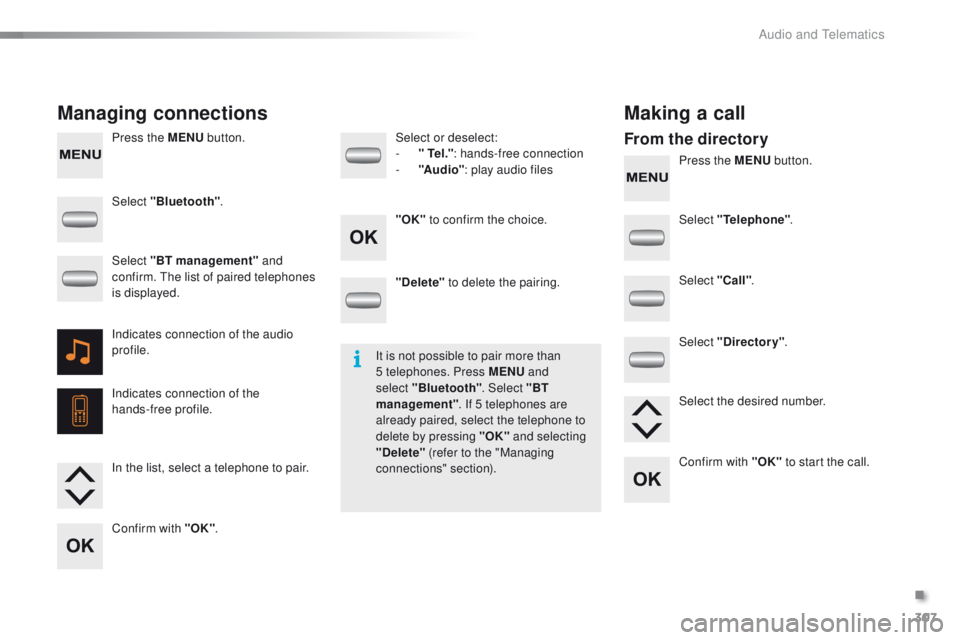
Press the MENU button.
Press the MENU button.
Managing connections Making a call
From the directory
Select "Bluetooth".
Select "Telephone".
Select "Call" .
Select "Directory" .
"Delete"
to delete the pairing.
Select or deselect:
-
"
Te l ."
: hands-free connection
-
"A
u d i o"
: play audio files
Indicates connection of the audio
profile.
Indicates connection of the
hands-free profile. Select "BT management" and
confirm. The list of paired telephones
is displayed.
In the list, select a telephone to pair.
Confirm with "OK" . "OK"
to confirm the choice.
Select the desired number.
Confirm with "OK" to start the call.
It is not possible to pair more than
5 telephones. Press MENU
and
select "Bluetooth" . Select "BT
management" . If 5 telephones are
already paired, select the telephone to
delete by pressing "OK" and selecting
"Delete" (refer to the "Managing
connections" section).
.
Audio and Telematics
Page 310 of 340
308
2008_en_Chap12c_RDE2_ed01-2015
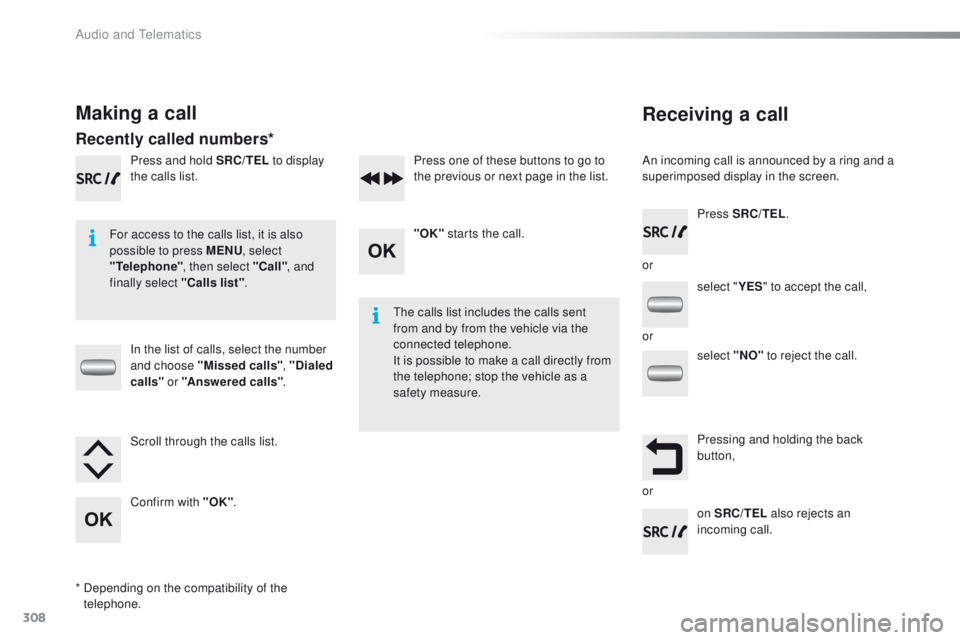
Receiving a call
An incoming call is announced by a ring and a
superimposed display in the screen.
For access to the calls list, it is also
possible to press MENU , select
"Telephone" , then select "Call" , and
finally select "Calls list" .
The calls list includes the calls sent
from and by from the vehicle via the
connected telephone.
It is possible to make a call directly from
the telephone; stop the vehicle as a
safety measure.
Making a call
Recently called numbers*
In the list of calls, select the number
and choose "Missed calls" , "Dialed
calls " or "Answered calls" .
Press and hold SRC/TEL
to display
the calls list.
Press SRC/TEL.
on SRC/TEL also rejects an
incoming call.
or
or
or
Scroll through the calls list.
Confirm with "OK"
. "OK"
starts the call.
Press one of these buttons to go to
the previous or next page in the list.
*
D
epending on the compatibility of the
telephone. select "
YES" to accept the call,
select "NO" to reject the call.
Pressing and holding the back
button,
Audio and Telematics
Page 311 of 340
309
2008_en_Chap12c_RDE2_ed01-2015
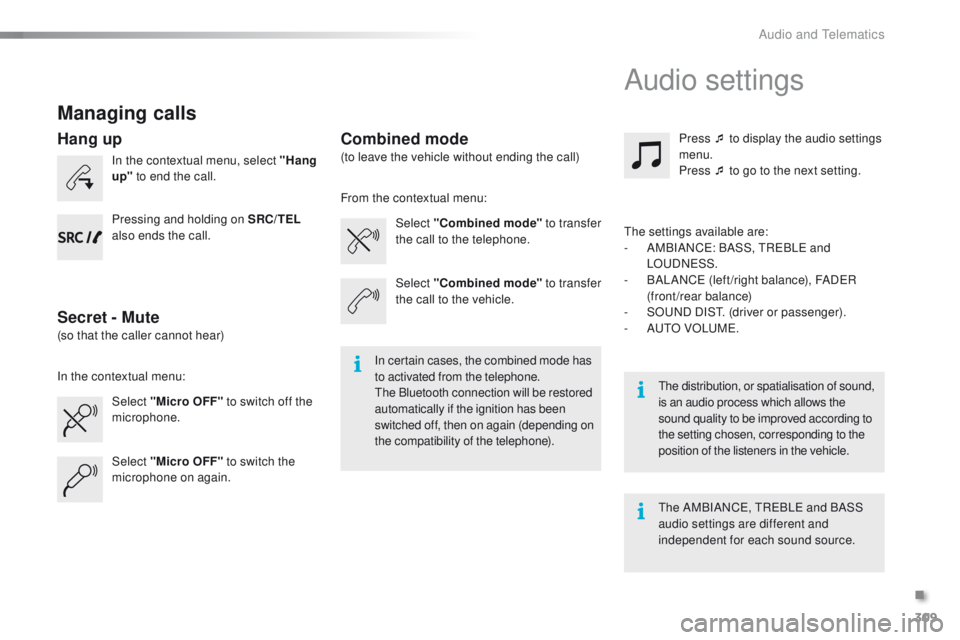
Managing calls
In the contextual menu, select "Hang
up" to end the call.
Select "Micro OFF" to switch off the
microphone. Select
"Combined mode " to transfer
the call to the telephone. Press ¯ to display the audio settings
menu.
Press ¯ to go to the next setting.
Select "Micro OFF" to switch the
microphone on again. Select
"Combined mode"
to transfer
the call to the vehicle.
In the contextual menu: From the contextual menu:
In certain cases, the combined mode has
to activated from the telephone.
The Bluetooth connection will be restored
automatically if the ignition has been
switched off, then on again (depending on
the compatibility of the telephone). The distribution, or spatialisation of sound,
is an audio process which allows the
sound quality to be improved according to
the setting chosen, corresponding to the
position of the listeners in the
vehicle.
Hang up
Secret - MuteCombined mode
Pressing and holding on SRC/TEL
also ends the call.
(so that the caller cannot hear) (to leave the vehicle without ending the call)
The settings available are:
-
A
MBIANCE: BASS, TREBLE and
LOUDNESS.
-
B
ALANCE (left /right balance), FADER
(front/rear balance)
-
S
OUND DIST. (driver or passenger).
-
A
UTO VOLUME.
The AMBIANCE, TREBLE and BASS
audio settings are different and
independent for each sound source.
Audio settings
.
Audio and Telematics