phone PEUGEOT 207 2011 User Guide
[x] Cancel search | Manufacturer: PEUGEOT, Model Year: 2011, Model line: 207, Model: PEUGEOT 207 2011Pages: 248, PDF Size: 8.61 MB
Page 201 of 248
199
08
1
2
3
4
BLUETOOTH TELEPHONE
*
The services available depend on the network, the SIM card and thecompatibility of the Bluetooth telephone used. Check the telephone
manual and with your network provider for details of the servicesavailable to you.
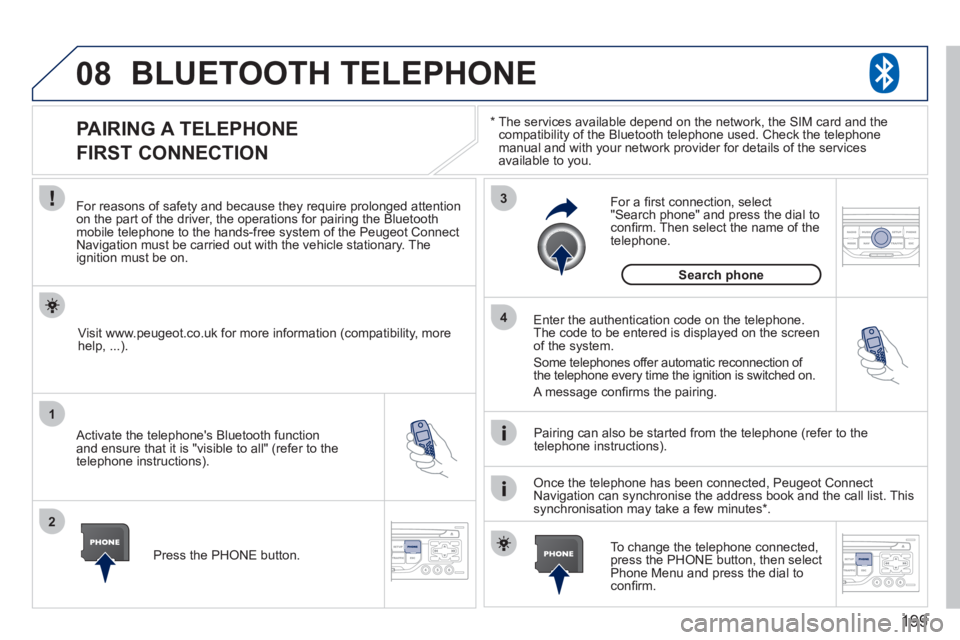
PAIRING A TELEPHONE
FIRST CONNECTION
For reasons of safety and because they require prolonged attentionon the part of the driver, the operations for pairing the Bluetooth mobile telephone to the hands-free system of the Peugeot ConnectNavigation must be carried out with the vehicle stationary. Theignition must be on.
Activate the telephone's Bluetooth
function
and ensure that it is "visible to all" (refer to the
telephone instructions). Enter the authentication code on the tele
phone.
The code to be entered is displayed on the screen
of the system.
Some telephones offer automatic reconnection o
f
the telephone every time the ignition is switched on.
A messa
ge confi rms the pairing.
To change the telephone connected, press the PHONE button, then select Phone Menu and press the dial toconfi rm.
Once the telephone has been connected, Peugeot Connect
Navigation can synchronise the address book and the call list. This
synchronisation may take a few minutes * . Pairin
g can also be started from the telephone (refer to the
telephone instructions). Visit www.peu
geot.co.uk for more information (compatibility, more
help, ...).
Press the PH
ONE button.
For a
fi rst connection, select"Search phone" and press the dial to confi rm. Then select the name of thetelephone.
Search
phone
Page 202 of 248
200
08
1
2
2
1
*
The services available depend on the network, the SIM card and the compatibility of the Bluetooth telephone used. Check the telephone manual and with your network provider for details of the services
available to you.
BLUETOOTH TELEPHONE
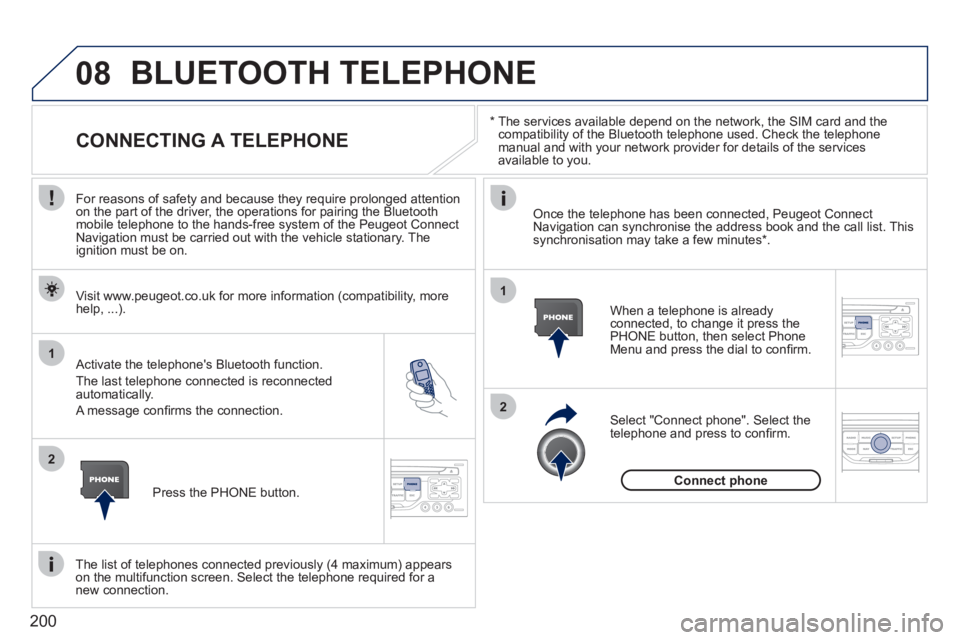
CONNECTING A TELEPHONE
For reasons of safety and because they require prolonged attention
on the part of the driver, the operations for pairing the Bluetooth
mobile telephone to the hands-free system of the Peugeot Connect
Navigation must be carried out with the vehicle stationary. The
ignition must be on.
Activate the tele
phone's Bluetooth function.
The last telephone connected is reconnected
automatically.
A messa
ge confi rms the connection. When a telephone is alread
yconnected, to change it press the
PHONE button, then select PhoneMenu and press the dial to confi rm.
Once the telephone has been connected, Peugeot Connect Navigation can synchronise the address book and the call list. This synchronisation may take a few minutes *
.
The list o
f telephones connected previously (4 maximum) appearson the multifunction screen. Select the telephone required for a
new connection. Visit www.peu
geot.co.uk for more information (compatibility, more
help, ...).
Press the PH
ONE button.Select "Connect
phone". Select the
telephone and press to confi rm.
Connect
phone
Page 203 of 248
201
08
1
3 2
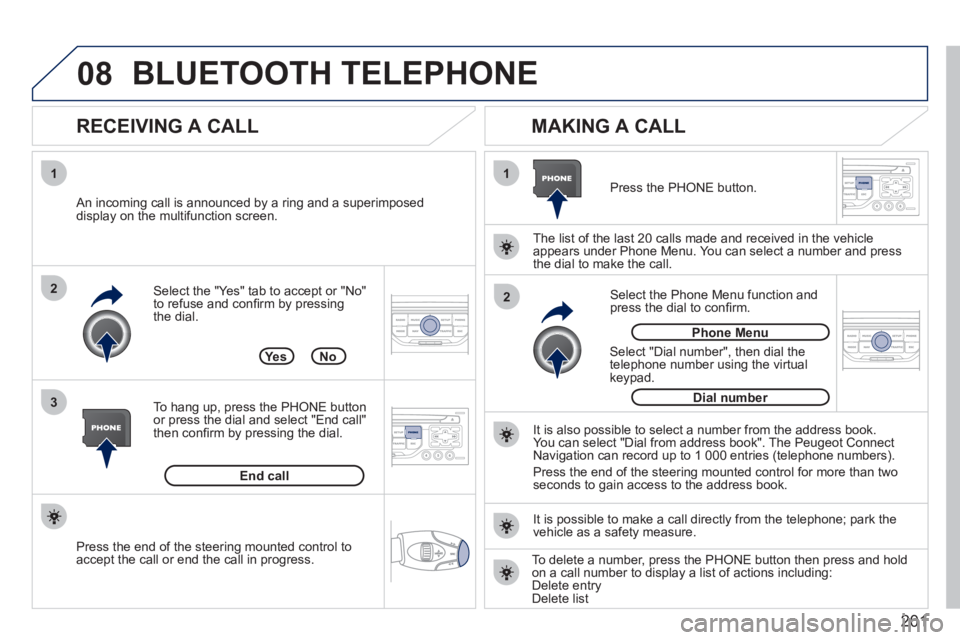
2 1Select the "Yes" tab to accept or "No"
to refuse and confi rm by pressing
the dial.
RECEIVING A CALL
MAKING A CALL
An incoming call is announced by a ring and a superimposed
display on the multifunction screen.
Yes
To han
g up, press the PHONE button
or press the dial and select "End call"then confi rm by pressing the dial.
End callPress the PH
ONE button.
Select "Dial number"
, then dial the
telephone number using the virtualkeypad.
Select the Phone Menu function and
press the dial to confi rm.
The list of the last 2
0 calls made and received in the vehicle
appears under Phone Menu. You can select a number and press
the dial to make the call.
No
It is also possible to select a number from the address book. You can select "Dial from address book". The Peugeot Connect
Navigation can record up to 1 000 entries (telephone numbers).
Press the end o
f the steering mounted control for more than twoseconds to gain access to the address book.
Phone Menu
Dial number
It is possible to make a call directl
y from the telephone; park the
vehicle as a safety measure.
BLUETOOTH TELEPHONE
Press the end of the steering mounted control to
accept the call or end the call in progress.
To delete a number, press the PHONE button then press and hold
on a call number to display a list of actions including:Delete entryDelete list
Page 208 of 248
206
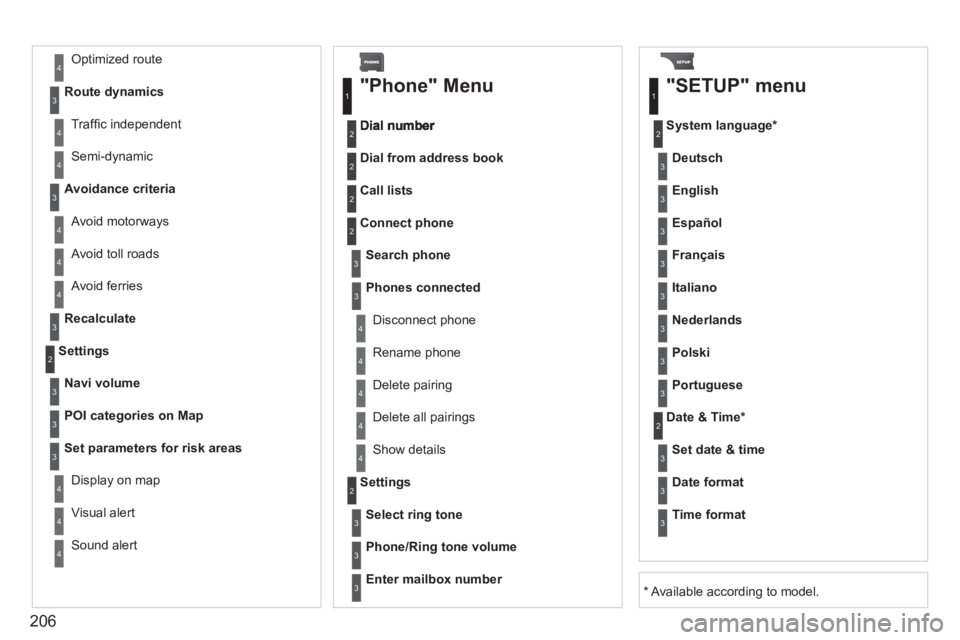
Avoid ferries
Recalculate
Settings
Navi volum
e
POI categories on Map
Set
parameters for risk areas
Displa
y on map
Vi
sual alert
Sound alert
3
2
4
3
3
3
4
4
4
Dial from address book
"Phone" Menu
Search phone
Call lists
Connect
phone
Select rin
g tone
Phone/Ring tone volume
Phones connected
Enter mailbox number
Settin
gs Disconnect phone
Rename phone
Delete pairing
Delete all pairings
Show details
"SETUP" menu
System language *
English
Español
Deutsch
Italiano
Français
Nederlands
Polski
Portuguese
Date & Time *
Set date & tim
e
Date format
Time format
1
2
2
2
2
3
3
4
4
4
4
4
2
3
3
3
1
2
3
3
3
3
3
3
3
3
3
3
3
2
Avoid motorways Route d
ynamics
Traffi c inde
pendent
Semi-d
ynamic
Avoidance criteria
Avoid toll roads
Optimized route
3
3
4
4
4
4
4
*
Available according to model.
Page 213 of 248
211
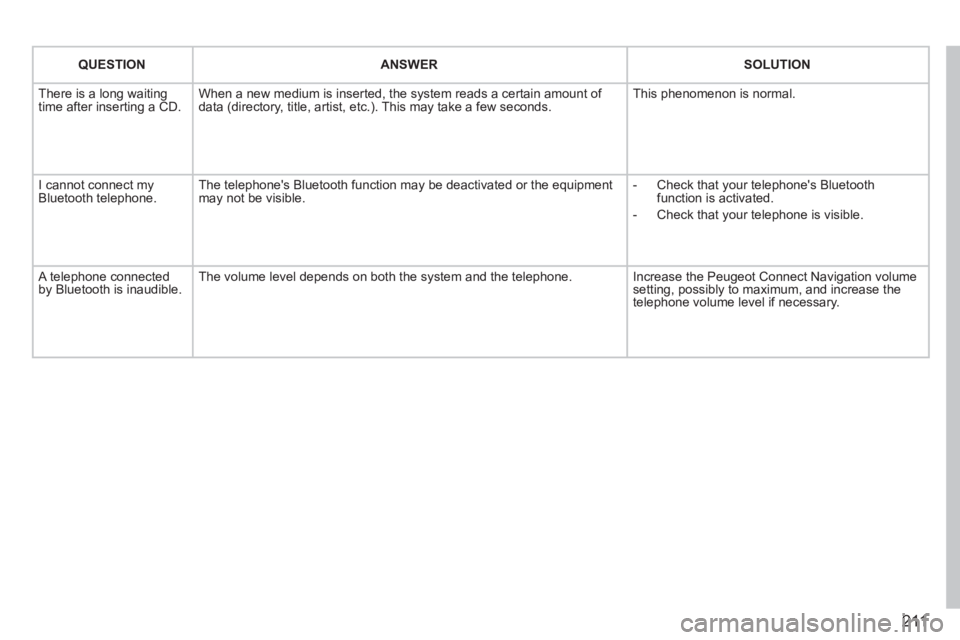
QUESTIONANSWER SOLUTION
There is a long waiting
time after inserting a CD. When a new medium is inserted, the system reads a certain amount of
data (directory, title, artist, etc.). This may take a few seconds. This phenomenon is normal.
I cannot connect m
yBluetooth telephone.The telephone's Bluetooth function may be deactivated or the equipment
may not be visible.
- Check that your telephone's Bluetoothfunction is activated.
-
Check that your telephone is visible.
A telephone connected
by Bluetooth is inaudible.The volume level depends on both the system and the telephone. Increase the Peugeot Connect Navigation volume setting, possibly to maximum, and increase the
telephone volume level if necessary.
Page 216 of 248
214
01
1
22
10101111
133144155
33445566778899
122
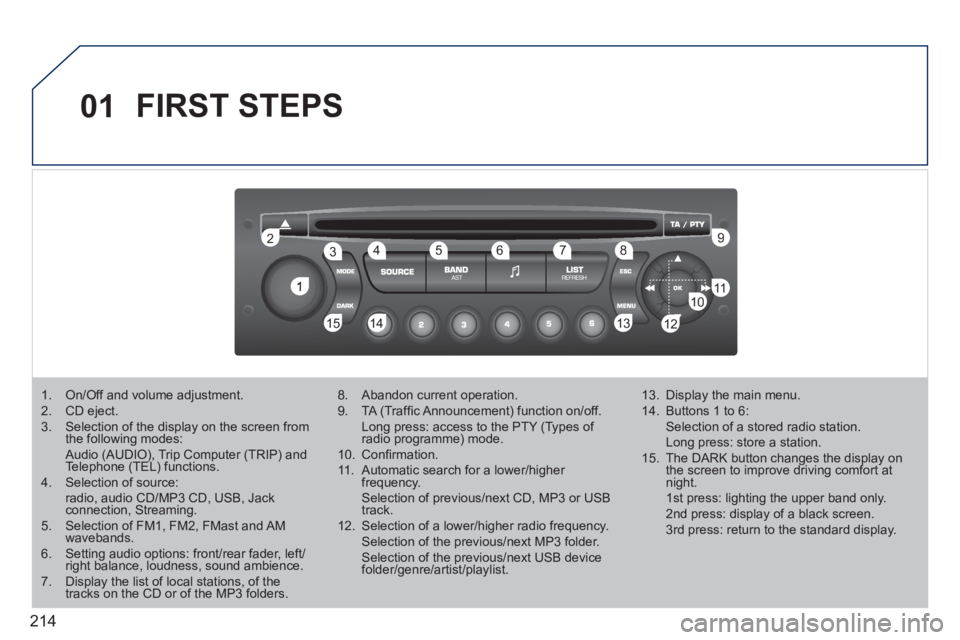
FIRST STEPS
1. On/Off and volume adjustment. 2. CD eject. 3. Selection of the display on the screen from the following modes: Audio (AUDIO), Trip Computer (TRIP) and Telephone (TEL) functions. 4. Selection of source: radio, audio CD/MP3 CD, USB, Jackconnection, Streaming. 5. Selection of FM1, FM2, FMast and AMwavebands.6. Setting audio options: front/rear fader, left/right balance, loudness, sound ambience.7. Display the list of local stations, of thetracks on the CD or of the MP3 folders.
8. Abandon current operation.
9. TA (Traffi c Announcement) function on/off. Long press: access to the PTY (Types of radio programme) mode.g
10. Confi rmation.
11. Automatic search for a lower/higher frequency. Selection of previous/next CD, MP3 or USB track.
12. Selection of a lower/higher radio frequency. Selection of the previous/next MP3 folder. Selection of the previous/next USB devicefolder/genre/artist/playlist.
13. Display the main menu.
14. Buttons 1 to 6: Selection of a stored radio station. Long press: store a station.
15. The DARK button changes the display on the screen to improve driving comfort at night. 1st press: lighting the upper band only. 2nd press: display of a black screen. 3rd press: return to the standard display.
Page 217 of 248
215
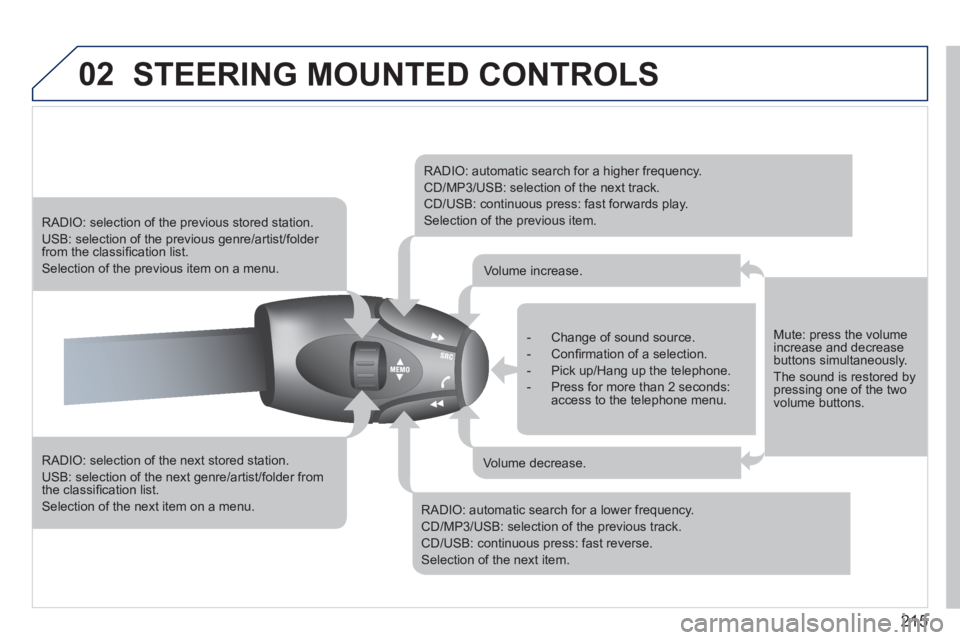
02STEERING MOUNTED CONTROLS
RADIO: selection of the next stored station.
USB: selection of the next genre/artist/folder from the classifi cation list.
Selection of the next item on a menu.
RADIO: selection of the previous stored station.
USB: selection of the previous genre/artist/folder from the classifi cation list.
Selection of the previous item on a menu.
RADIO: automatic search for a higher frequency.
CD/MP3/USB: selection of the next track.
CD/USB: continuous press: fast forwards play.
Selection of the previous item.
RADIO: automatic search for a lower frequency.
CD/MP3/USB: selection of the previous track.
CD/USB: continuous press: fast reverse.
Selection of the next item.
- Change of sound source.
- Confi rmation of a selection.
- Pick up/Hang up the telephone.
- Press for more than 2 seconds:access to the telephone menu.
Volume increase.
Volume decrease.
Mute: press the volumeincrease and decreasebuttons simultaneously.
The sound is restored by pressing one of the two volume buttons.
Page 218 of 248
216
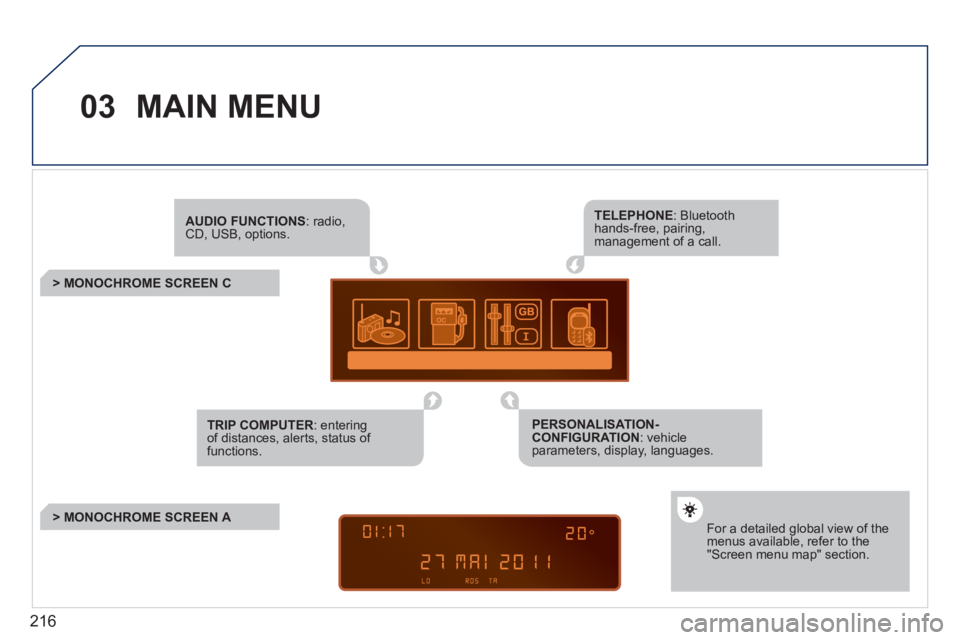
03 MAIN MENU
AUDIO FUNCTIONS: radio,CD, USB, options.
> MONOCHROME SCREEN C
For a detailed global view of the menus available, refer to the"Screen menu map" section.
TELEPHONE: Bluetooth hands-free, pairing, management of a call.
PERSONALISATION-CONFIGURATION: vehicleparameters, display, languages.
TRIP COMPUTER: entering of distances, alerts, status of functions.
> MONOCHROME SCREEN A
Page 225 of 248
223
06
1
2
3
4
5
6
7
8
9
10
BLUETOOTH
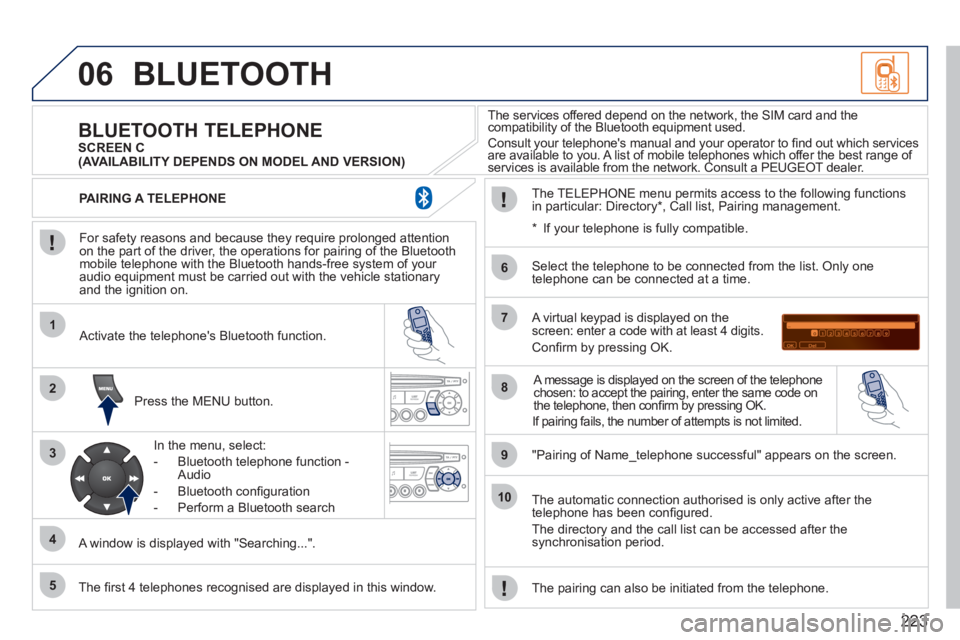
For safety reasons and because they require prolonged attentionon the part of the driver, the operations for pairing of the Bluetooth mobile telephone with the Bluetooth hands-free system of your
audio equipment must be carried out with the vehicle stationary
and the ignition on.
Press the MENU button.
A window is displa
yed with "Searching...".
Activate the telephone's Bluetooth
function.
In the menu, select:
- Bluetooth telephone
function -
Audio
- Bluetooth con
fi guration
- P
erform a Bluetooth search
The services o
ffered depend on the network, the SIM card and thecompatibility of the Bluetooth equipment used.
Consult your telephone's manual and your operator to fi nd out which services are available to you. A list of mobile telephones which offer the best range of
services is available from the network. Consult a PEUGEOT dealer.
BLUETOOTH TELEPHONE SCREEN C
The TELEPH
ONE menu permits access to the following functions
in particular: Directory * , Call list, Pairing management.
The fi rst 4 telephones reco
gnised are displayed in this window.
A virtual keypad is displayed on thescreen: enter a code with at least 4 digits.
Confi rm by pressing OK.
"Pairin
g of Name_telephone successful" appears on the screen.
Select the telephone to be connected from the list.
Only one
telephone can be connected at a time.
A messa
ge is displayed on the screen of the telephone chosen: to accept the pairing, enter the same code on
the telephone, then confi rm by pressing OK.
The automatic connection authorised is onl
y active after the
telephone has been confi gured.
The directory and the call list can be accessed a
fter thesynchronisation period.
PAIRING A TELEPHONE
The pairin
g can also be initiated from the telephone.
(AVAILABILITY DEPENDS ON MODEL AND VERSION)
*
If
your telephone is fully compatible.
If pairin
g fails, the number of attempts is not limited.
Page 226 of 248
224
06
2
1
2
2
3
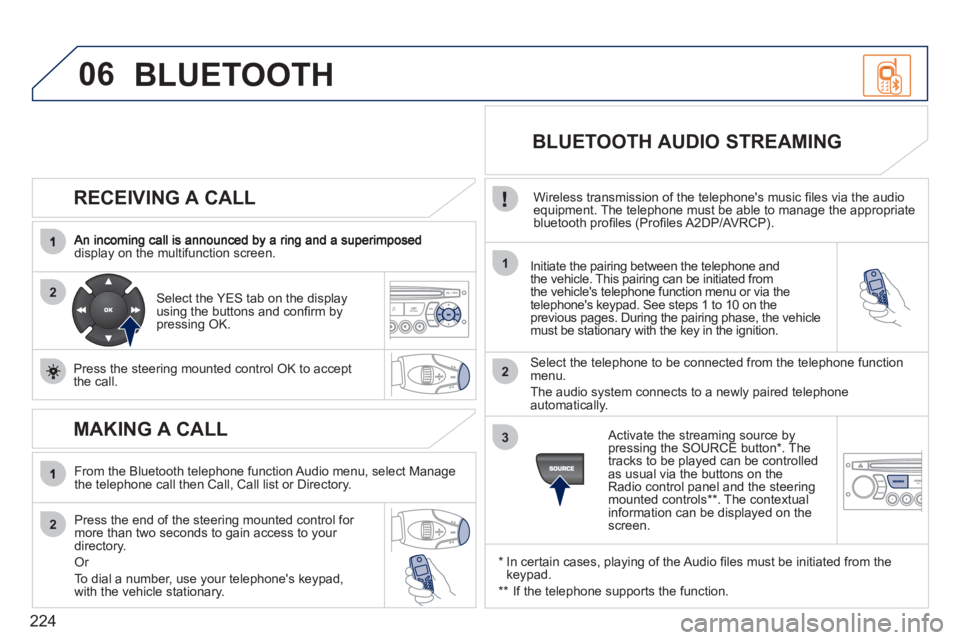
RECEIVING A CALL
display on the multifunction screen.Initiate the pairing between the telephone and
the vehicle. This pairing can be initiated from
the vehicle's telephone function menu or via the
telephone's keypad. See steps 1 to 10 on the
previous pages. During the pairing phase, the vehicle
must be stationary with the key in the ignition.
Select the telephone to be connected from the telephone functionmenu.
The audio system connects to a newly paired telephone
automatically.
Select the YES tab on the display
using the buttons and confi rm bypressing OK.
Press the steerin
g mounted control OK to accept
the call.
BLUETOOTH AUDIO STREAMING
Wireless transmission of the telephone's music fi les via the audio equipment. The telephone must be able to manage the appropriate
bluetooth profi les (Profi les A2DP/AVRCP).
*
In certain cases, playing of the Audio fi les must be initiated from the
keypad.
**
If the tele
phone supports the function.
Activate the streamin
g source by
pressing the SOURCE button * . The
tracks to be played can be controlled as usual via the buttons on theRadio control panel and the steering
mounted controls ** . The contextual
information can be displayed on the screen.
MAKING A CALL
From the Bluetooth telephone function Audio menu, select Manage
the telephone call then Call, Call list or Directory.
Press the end o
f the steering mounted control for more than two seconds to gain access to your
directory.
Or
To dial a number, use
your telephone's keypad,with the vehicle stationary.
BLUETOOTH