audio PEUGEOT 207 2011 Owner's Manual
[x] Cancel search | Manufacturer: PEUGEOT, Model Year: 2011, Model line: 207, Model: PEUGEOT 207 2011Pages: 248, PDF Size: 8.61 MB
Page 210 of 248
208
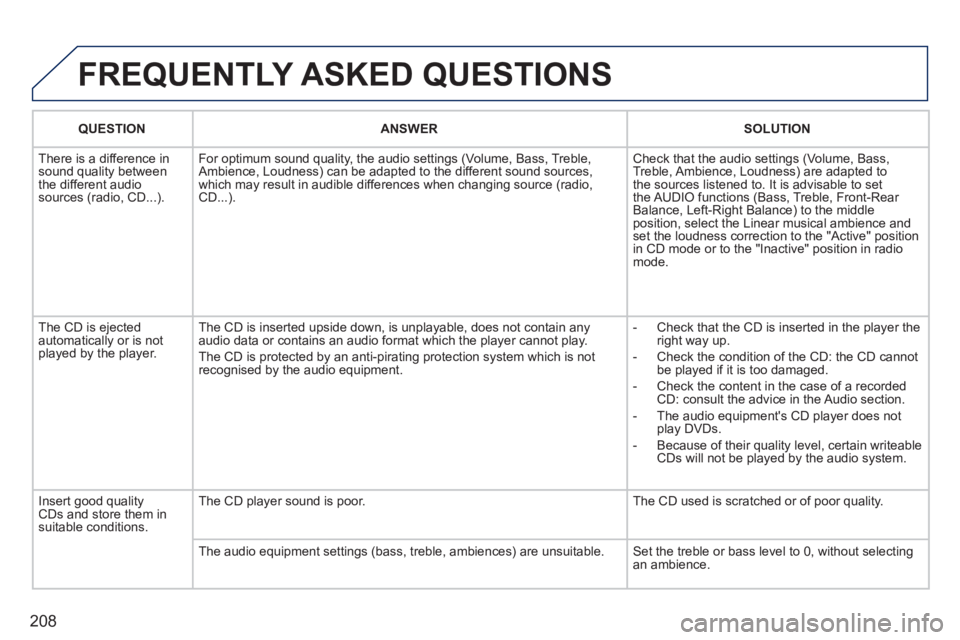
FREQUENTLY ASKED QUESTIONS
QUESTIONANSWER SOLUTION
Th
ere is a difference in sound quality between
the different audiosources (radio, CD...). For optimum sound quality, the audio settings
(Volume, Bass, Treble,
Ambience, Loudness) can be adapted to the different sound sources,
which may result in audible differences when changing source (radio,
CD...).
Check that the audio settings (Volume, Bass,
Treble, Ambience, Loudness) are adapted to
the sources listened to. It is advisable to set
the AUDIO functions (Bass, Treble, Front-Rear
Balance, Left-Right Balance) to the middle position, select the Linear musical ambience andset the loudness correction to the "Active" position
in CD mode or to the "Inactive" position in radio mode.
The
CD is ejected
automatically or is not played by the player. The
CD is inserted upside down, is unplayable, does not contain any audio data or contains an audio format which the player cannot play.
The CD is protected b
y an anti-pirating protection system which is not recognised by the audio equipment.
-
Check that the CD is inserted in the player the
right way up.
-
Check the condition of the CD: the CD cannot
be played if it is too damaged.
-
Check the content in the case of a recordedCD: consult the advice in the Audio section.
- The audio equipment's
CD player does not
play DVDs.
- Because o
f their quality level, certain writeableCDs will not be played by the audio system.
Insert
good qualityCDs and store them insuitable conditions.The
CD player sound is poor. The CD used is scratched or of poor quality.
The audio equipment settin
gs (bass, treble, ambiences) are unsuitable. Set the treble or bass level to 0, without selectingan ambience.
Page 211 of 248
209
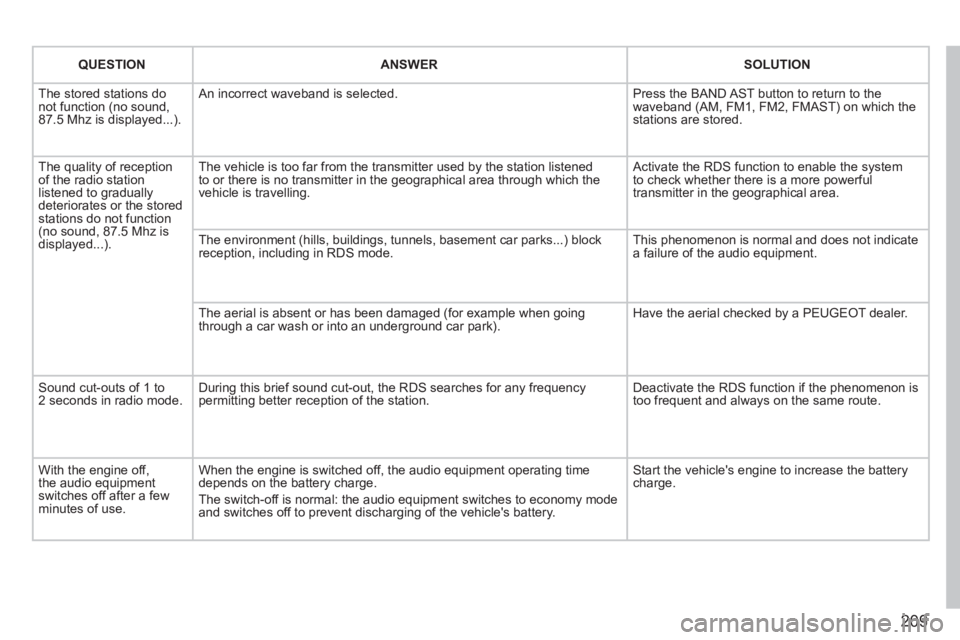
QUESTIONANSWERSOLUTION
The stored stations donot function (no sound, 87.5 Mhz is displayed...).
An incorrect waveband is selected. Press the BAND AST button to return to the waveband (AM, FM1, FM2, FMAST) on which thestations are stored.
The quality of receptionof the radio station listened to graduallydeteriorates or the stored stations do not function(no sound, 87.5 Mhz is displayed...).
The vehicle is too far from the transmitter used by the station listenedto or there is no transmitter in the geographical area through which the vehicle is travelling.
Activate the RDS function to enable the system to check whether there is a more powerful transmitter in the geographical area.
The environment (hills, buildings, tunnels, basement car parks...) block reception, including in RDS mode. This phenomenon is normal and does not indicate a failure of the audio equipment.
The aerial is absent or has been damaged (for example when goingthrough a car wash or into an underground car park).
Have the aerial checked by a PEUGEOT dealer.
Sound cut-outs of 1 to2 seconds in radio mode.During this brief sound cut-out, the RDS searches for any frequency permitting better reception of the station.
Deactivate the RDS function if the phenomenon is too frequent and always on the same route.
With the engine off, the audio equipment switches off after a few minutes of use.
When the engine is switched off, the audio equipment operating timedepends on the battery charge.
The switch-off is normal: the audio equipment switches to economy mode and switches off to prevent discharging of the vehicle's battery.
Start the vehicle's engine to increase the batterycharge.
Page 215 of 248
213
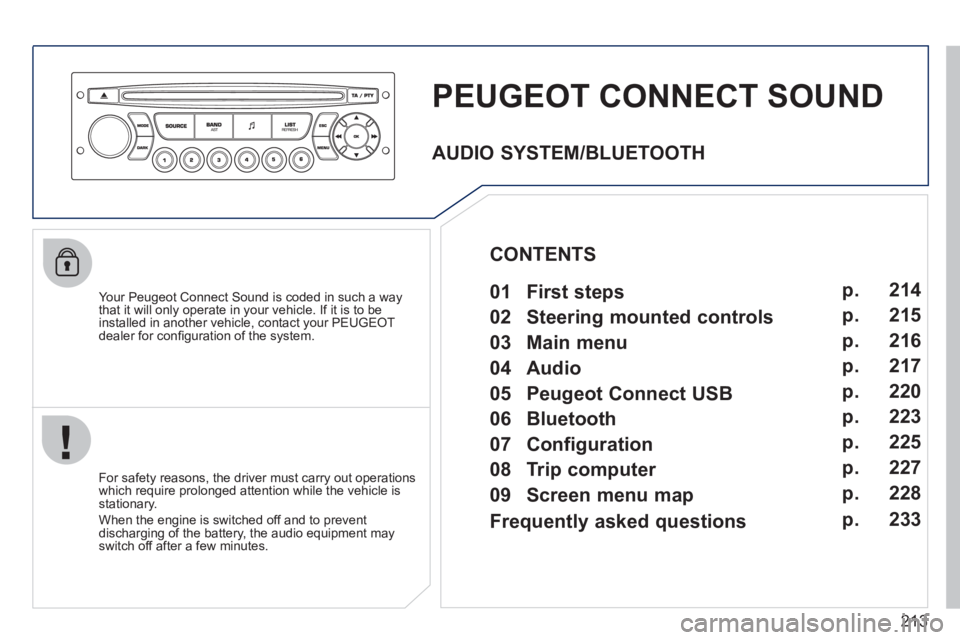
PEUGEOT CONNECT SOUND
Your Peugeot Connect Sound is coded in such a way
that it will only operate in your vehicle. If it is to be
installed in another vehicle, contact your PEUGEOT
dealer for confi guration of the system.
For safet
y reasons, the driver must carry out operations
which require prolonged attention while the vehicle is stationary.
When the en
gine is switched off and to prevent
discharging of the battery, the audio equipment mayswitch off after a few minutes.
AUDIO SYSTEM/BLUETOOTH
01 First steps
02 Steering mounted controls
03 Main menu
04 Audio
05 Peugeot Connect USB
06 Bluetooth
07 Configuration
08 Trip computer
09 Screen menu map p.
p.
p.
p.
p.
p.
p.
p.
p. 214
215
216
217
220
223
225
227
228
CONTENTS
Frequently asked questions p. 233
Page 216 of 248
214
01
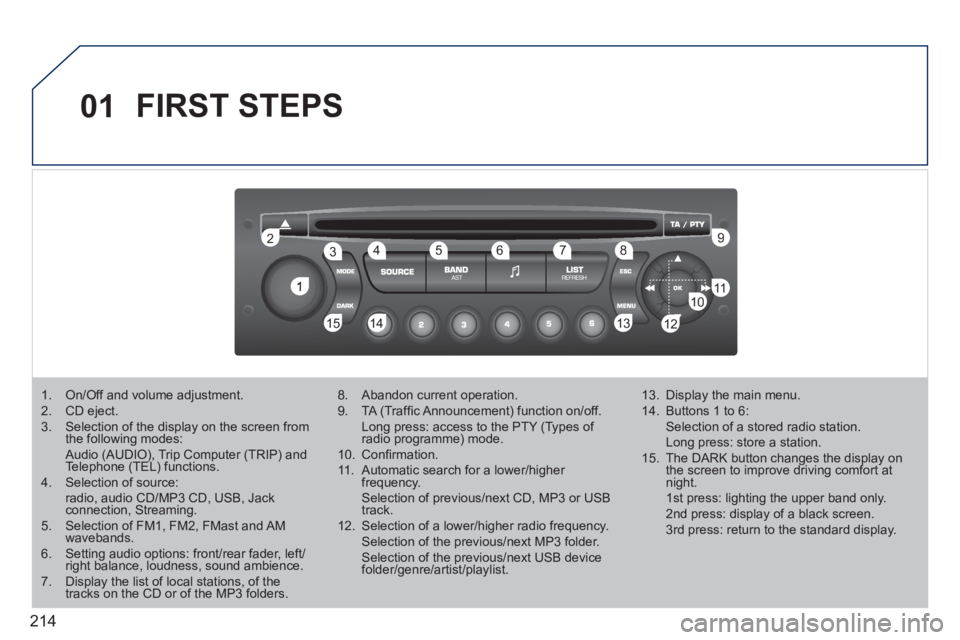
1
22
10101111
133144155
33445566778899
122
FIRST STEPS
1. On/Off and volume adjustment. 2. CD eject. 3. Selection of the display on the screen from the following modes: Audio (AUDIO), Trip Computer (TRIP) and Telephone (TEL) functions. 4. Selection of source: radio, audio CD/MP3 CD, USB, Jackconnection, Streaming. 5. Selection of FM1, FM2, FMast and AMwavebands.6. Setting audio options: front/rear fader, left/right balance, loudness, sound ambience.7. Display the list of local stations, of thetracks on the CD or of the MP3 folders.
8. Abandon current operation.
9. TA (Traffi c Announcement) function on/off. Long press: access to the PTY (Types of radio programme) mode.g
10. Confi rmation.
11. Automatic search for a lower/higher frequency. Selection of previous/next CD, MP3 or USB track.
12. Selection of a lower/higher radio frequency. Selection of the previous/next MP3 folder. Selection of the previous/next USB devicefolder/genre/artist/playlist.
13. Display the main menu.
14. Buttons 1 to 6: Selection of a stored radio station. Long press: store a station.
15. The DARK button changes the display on the screen to improve driving comfort at night. 1st press: lighting the upper band only. 2nd press: display of a black screen. 3rd press: return to the standard display.
Page 218 of 248
216
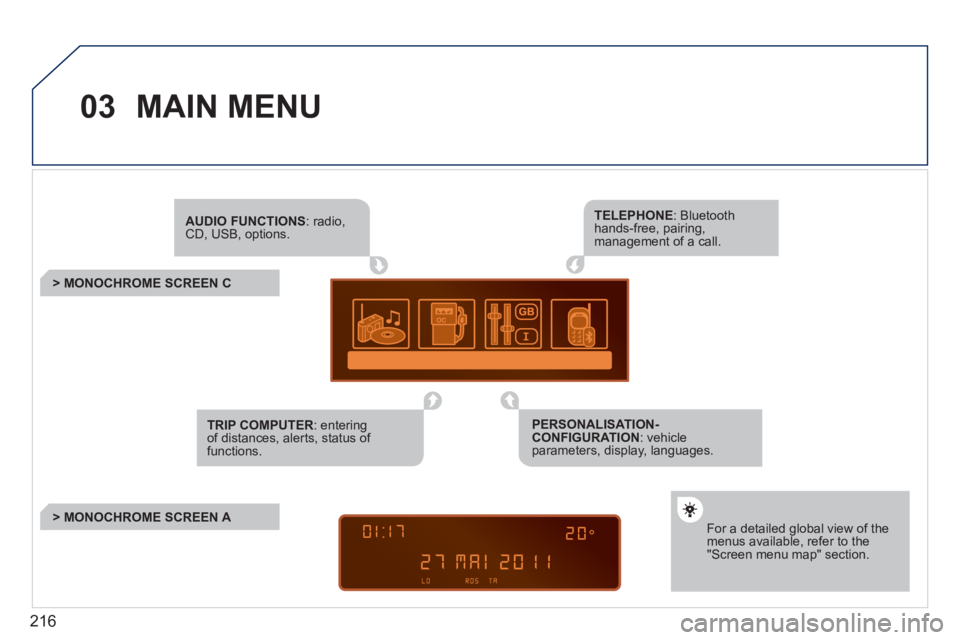
03 MAIN MENU
AUDIO FUNCTIONS: radio,CD, USB, options.
> MONOCHROME SCREEN C
For a detailed global view of the menus available, refer to the"Screen menu map" section.
TELEPHONE: Bluetooth hands-free, pairing, management of a call.
PERSONALISATION-CONFIGURATION: vehicleparameters, display, languages.
TRIP COMPUTER: entering of distances, alerts, status of functions.
> MONOCHROME SCREEN A
Page 219 of 248
217
04
1
2
3
4
1
2
3
4
AUDIO
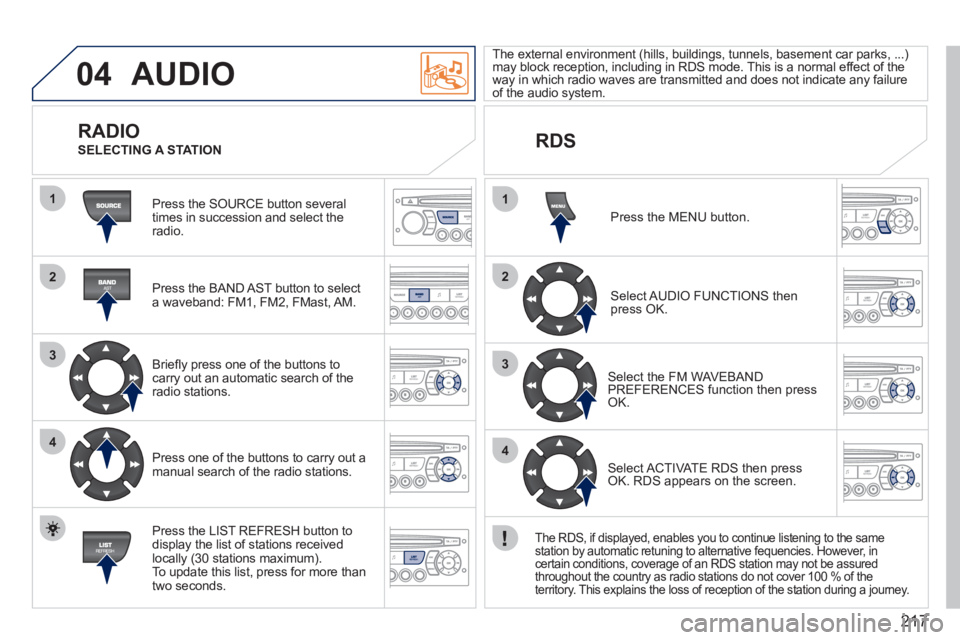
Press the SOURCE button several
times in succession and select theradio.
Press the BAND A
ST button to select
a waveband: FM1, FM2, FMast, AM.
Brie
fl y press one of the buttons to carry out an automatic search of theradio stations.
Press one of the buttons to carr
y out a manual search of the radio stations.
Press the LI
ST REFRESH button to
display the list of stations received
locally (30 stations maximum).
To update this list, press for more than
two seconds. The external environment
(hills, buildings, tunnels, basement car parks, ...) may block reception, including in RDS mode. This is a normal effect of the
way in which radio waves are transmitted and does not indicate any failure of the audio system.
RDS RADIO
SELECTING A STATION
Pr
ess the MENU button.
Select AUDIO FUNCTIONS thenpress OK.
Select the FM WAVEBANDPREFERENCES function then pressOK.
Select ACTIVATE RDS then pressOK. RDS appears on the screen.
The RDS, if displayed, enables you to continue listening to the same station by automatic retuning to alternative fequencies. However, incertain conditions, coverage of an RDS station may not be assured
throughout the country as radio stations do not cover 100 % of the
territory. This explains the loss of reception of the station during a journey.
Page 220 of 248
218
04
1
2
3
AUDIO
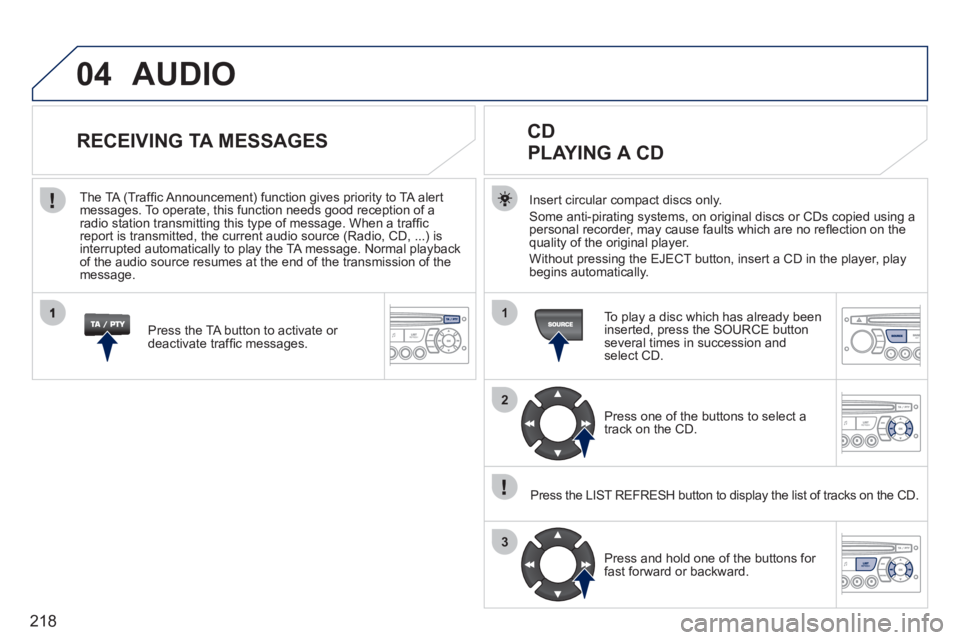
Insert circular compact discs only.
Some anti-pirating systems, on original discs or CDs copied using a
personal recorder, may cause faults which are no refl ection on the quality of the original player.
Without pressin
g the EJECT button, insert a CD in the player, playbegins automatically.
CD
PLAYING A CD
To play a disc which has already been
inserted, press the SOURCE buttonseveral times in succession andselect CD.
Pr
ess one of the buttons to select a
track on the CD.
Press the LIST REFRESH button to displa
y the list of tracks on the CD.
Pr
ess and hold one of the buttons for
fast forward or backward.
RECEIVING TA MESSAGES
Press the TA button to activate or
deactivate traffi c messages.
The TA
(Traffi c Announcement) function gives priority to TA alert messages. To operate, this function needs good reception of a
radio station transmitting this type of message. When a traffi c
report is transmitted, the current audio source (Radio, CD, ...) is
interrupted automatically to play the TA message. Normal playbackof the audio source resumes at the end of the transmission of themessage.
Page 221 of 248
219
04
1
2
3
The MP3 format, an abbreviation of MPEG 1.2 & 2.5 Audio Layer 3,
is an audio compression standard which permits the recording of several tens of music fi les on a single disc.
In order to be able to play a recorded
CDR or CDRW, when recording, the ISO 9660 level 1.2 or Joliet fi le format isrecommended.
If the disc is recorded in another format, it ma
y not be playedcorrectly.
It is recommended that the same recordin
g format is always used for an individual disc, with as low a speed as possible(4x maximum) for optimum sound quality.
In the particular case o
f a multi-session CD, the Joliet format is recommended.
The audio s
ystem will only play fi les with the extension ".mp3" with
a sampling rate of 22.05 KHz or 44.1 KHz. No other type of fi le(.wma, .mp4, .m3u...) can be played.
It is advisable to restrict fi le names to 20 characters without usin
gspecial characters (e.g. " ? ; ù) to avoid any playing or displaying problems.
MP3 CD
INFORMATION AND ADVICE
AUDIO
Empty CDs are not recognised and may damage the system.
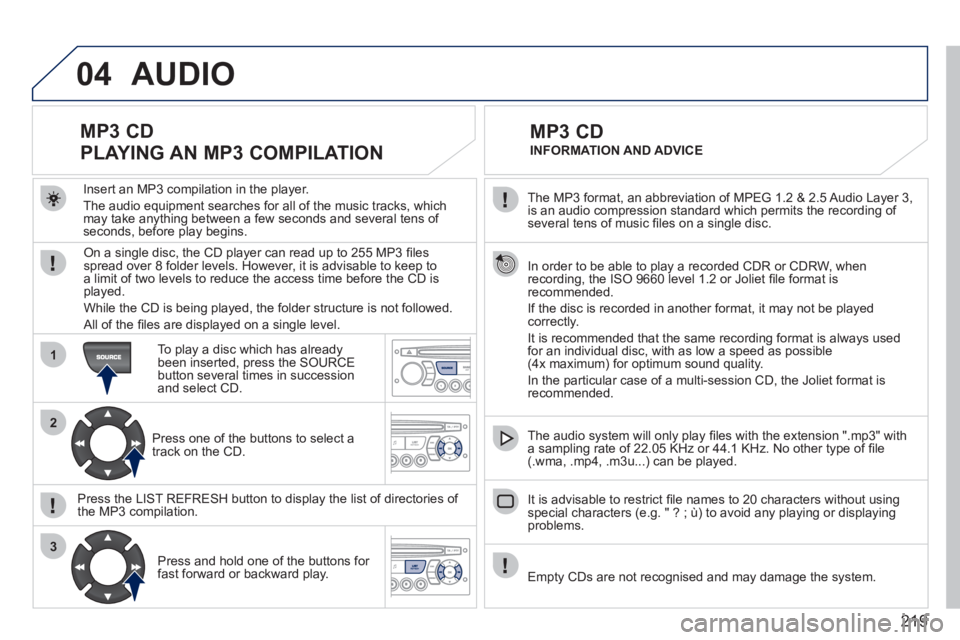
Insert an MP3 compilation in the pla
yer.
The audio equipment searches
for all of the music tracks, which
may take anything between a few seconds and several tens of seconds, before play begins.
MP3 CD
PLAYING AN MP3 COMPILATION
On a single disc, the CD player can read up to 255 MP3 fi lesspread over 8 folder levels. However, it is advisable to keep to
a limit of two levels to reduce the access time before the CD isplayed.
While the CD is bein
g played, the folder structure is not followed.
All of the fi les are displayed on a single level.
To play a disc which has already
been inserted, press the SOURCE button several times in successionand select CD.
Pr
ess one of the buttons to select atrack on the CD.
Press the LI
ST REFRESH button to display the list of directories of
the MP3 compilation.
Pr
ess and hold one of the buttons for fast forward or backward play.
Page 222 of 248
220
05
1
1
2
3
PEUGEOT CONNECT USB
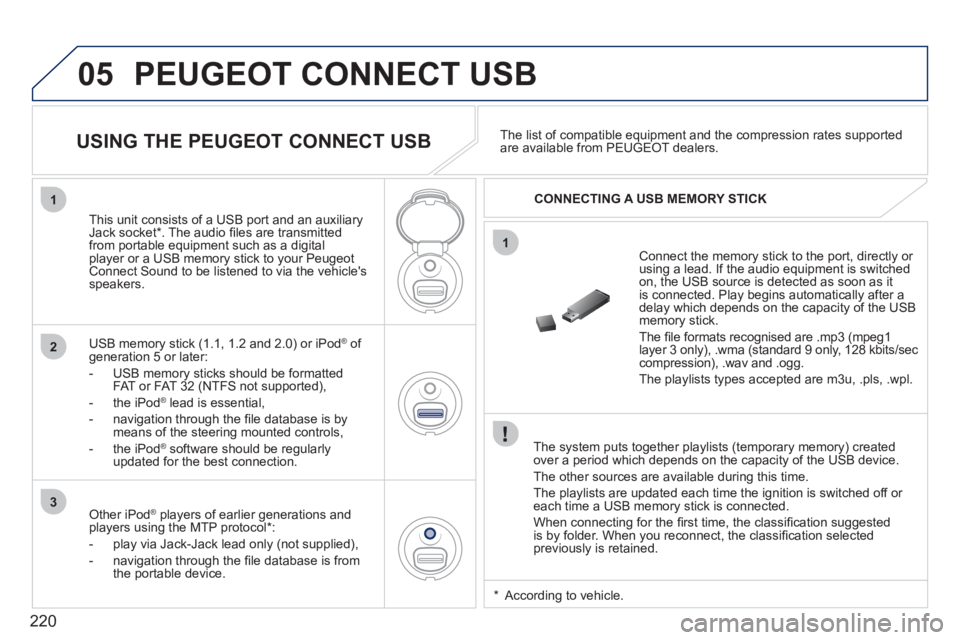
The system puts together playlists (temporary memory) createdover a period which depends on the capacity of the USB device.
The other sources are available durin
g this time.
The pla
ylists are updated each time the ignition is switched off or each time a USB memory stick is connected.
When connectin
g for the fi rst time, the classifi cation suggested
is by folder. When you reconnect, the classifi cation selected
previously is retained.
Connect the memory stick to the port, directly or using a lead. If the audio equipment is switched
on, the USB source is detected as soon as it
is connected. Play begins automatically after a
delay which depends on the capacity of the USB memory stick.
The fi le formats reco
gnised are .mp3 (mpeg1layer 3 only), .wma (standard 9 only, 128 kbits/seccompression), .wav and .ogg.
The playlists types accepted are m
3u, .pls, .wpl.
This unit consists of a USB port and an auxiliar
yJack socket *
. The audio fi les are transmittedfrom portable equipment such as a digitalplayer or a USB memory stick to your PeugeotConnect Sound to be listened to via the vehicle'sspeakers.
U
SB memory stick (1.1, 1.2 and 2.0) or iPod Æof generation 5 or later:
- USB memor
y sticks should be formattedFAT or FAT 32 (NTFS not supported),
- t
he iPodÆ
lead is essential, Æ
- navigation through the fi le database is bymeans of the steering mounted controls,
- th
e iPodÆ
software should be regularlyÆ
updated for the best connection.The list o
f compatible equipment and the compression rates supported are available from PEUGEOT dealers.
USING THE PEUGEOT CONNECT USB
CONNECTING A USB MEMORY STICK
Other iPod®
players of earlier generations and®
players using the MTP protocol * :
- pla
y via Jack-Jack lead only (not supplied),
- navi
gation through the fi le database is from
the portable device.
*
Accordin
g to vehicle.
Page 223 of 248
221
05
42
3
1
5
PEUGEOT CONNECT USB
USING THE PEUGEOT CONNECT USB
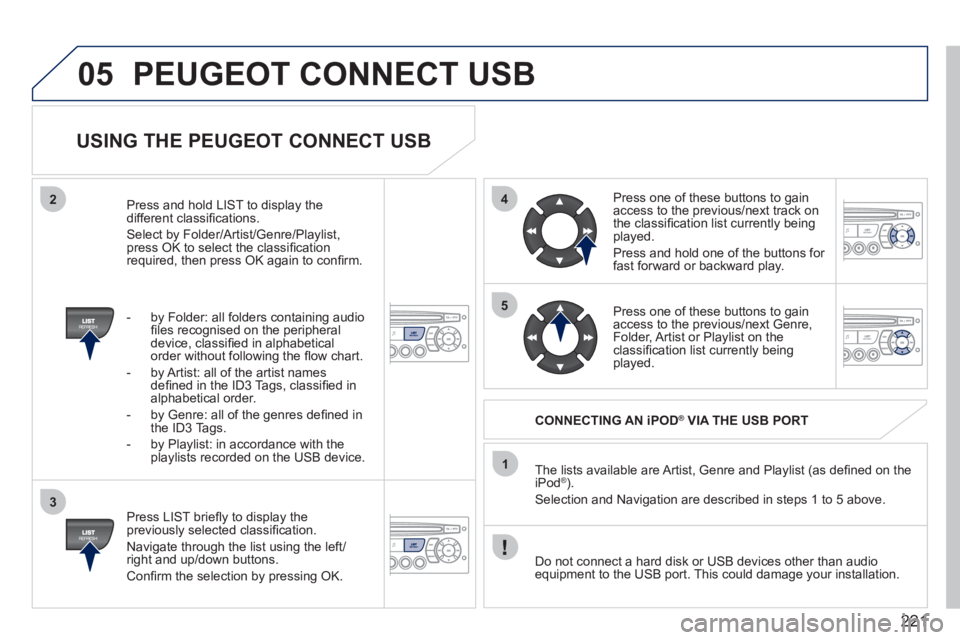
Press LIST briefl y to display thepreviously selected classifi cation.
Navi
gate through the list using the left/right and up/down buttons.
Confi rm the selection by pressing OK. The lists available are Artist, Genre and Pla
ylist (as defi ned on the
iPod® ).®
Selection and Navigation are described in steps 1 to 5 above.
Do not connect a hard disk or U
SB devices other than audioequipment to the USB port. This could damage your installation.
CONNECTING AN iPOD ®
VIA THE USB PORT ®
Press one of these buttons to gain
access to the previous/next track on
the classifi cation list currently beingplayed.
Pr
ess and hold one of the buttons for fast forward or backward play.
Press one of these buttons to
gain
access to the previous/next Genre,
Folder, Artist or Playlist on theclassifi cation list currently being played.
Press and hold LI
ST to display the different classifi cations.
Select b
y Folder/Artist/Genre/Playlist, press OK to select the classifi cation required, then press OK again to confi rm.
- by Folder: all
folders containing audio fi les recognised on the peripheral
device, classifi ed in alphabetical
order without following the fl ow chart.
- b
y Artist: all of the artist names
defi ned in the ID3 Tags, classifi ed in alphabetical order.
- b
y Genre: all of the genres defi ned in
the ID3 Tags.
- b
y Playlist: in accordance with the
playlists recorded on the USB device.