navigation system Peugeot 208 2015 Owner's Manual - RHD (UK, Australia)
[x] Cancel search | Manufacturer: PEUGEOT, Model Year: 2015, Model line: 208, Model: Peugeot 208 2015Pages: 341, PDF Size: 38.75 MB
Page 52 of 341
50
208_en_Chap03_Indicateurs_ed01-2015
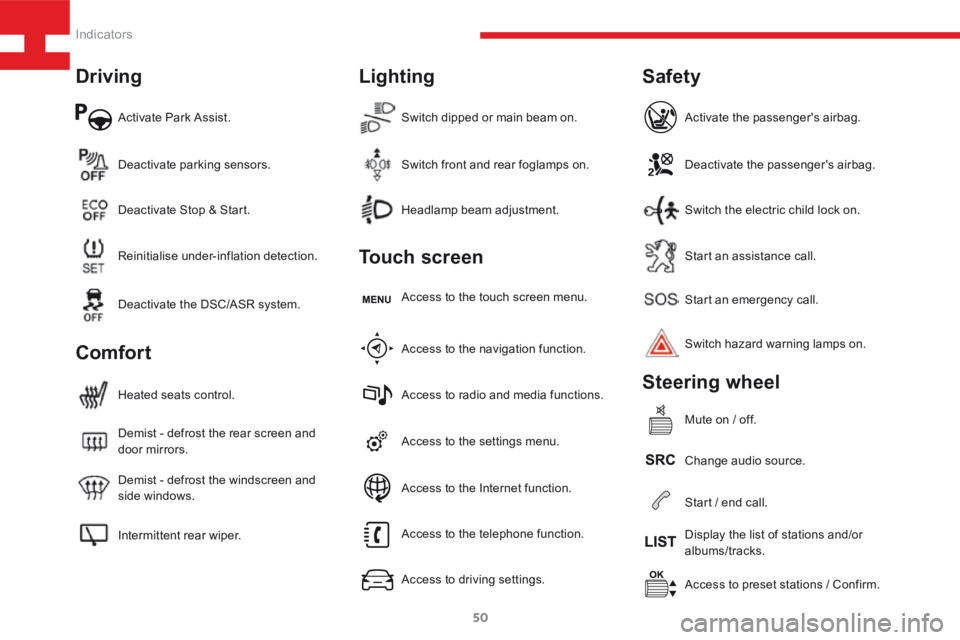
Activate Park Assist.
Intermittent rear wiper. Demist - defrost the windscreen and
side windows. Demist - defrost the rear screen and
door mirrors. Heated seats control.Access to the settings menu.Start an emergency call.
Access to preset stations / Confirm.
Headlamp beam adjustment.
Deactivate parking sensors.
Access to the navigation function. Access to the touch screen menu.Deactivate the passenger's airbag.
Change audio source. Switch hazard warning lamps on. Activate the passenger's airbag.
Mute on / off.
Switch dipped or main beam on.
Reinitialise under-inflation detection. Deactivate Stop & Start.
Access to radio and media functions.Start an assistance call.
Display the list of stations and/or
albums/tracks.
Switch front and rear foglamps on.
Deactivate the DSC/ASR system.
Access to the telephone function.
Access to driving settings.Switch the electric child lock on.
Start / end call.
Access to the Internet function.
Driving
Comfort Lighting
Touch screen
Safety
Steering wheel
Indicators
Page 55 of 341
53
208_en_Chap03_Indicateurs_ed01-2015
Touch screen
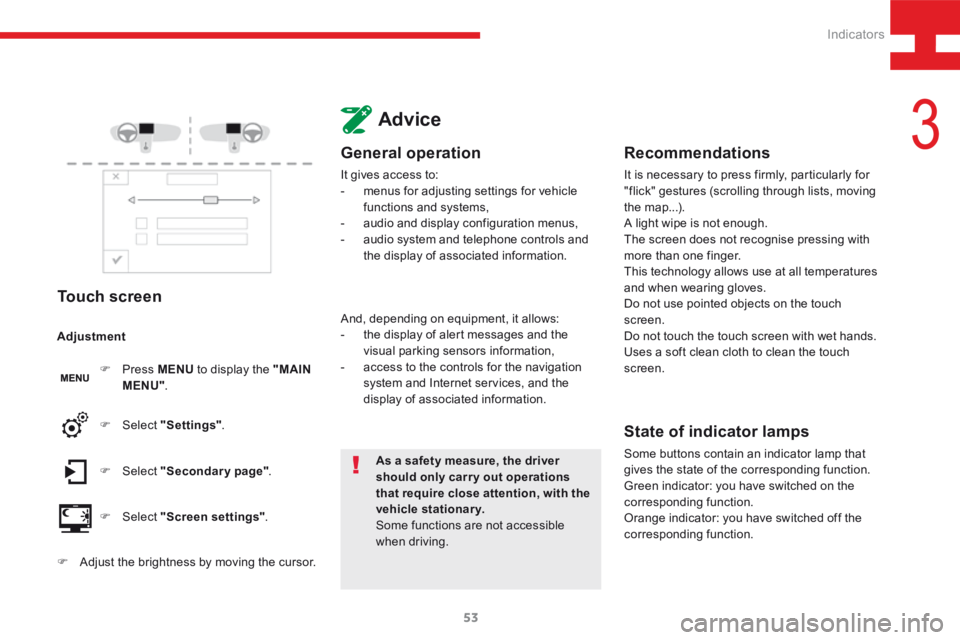
F Press MENU to display the "MAIN
MENU" .
F Select "Secondary page" .
F Select "Screen settings" .
F Select
"Settings" .
Adjustment
F
Adjust the brightness by moving the cursor.
Advice
General operation
It gives access to:
- menus for adjusting settings for vehicle
functions and systems,
- audio and display configuration menus,
- audio system and telephone controls and
the display of associated information.
As a safety measure, the driver
should only carr y out operations
that require close attention, with the
vehicle stationary.
Some functions are not accessible
when driving.
And, depending on equipment, it allows:
-
the display of alert messages and the
visual parking sensors information,
- access to the controls for the navigation
system and Internet services, and the
display of associated information.
Recommendations
It is necessary to press firmly, particularly for
"flick" gestures (scrolling through lists, moving
the map...).
A light wipe is not enough.
The screen does not recognise pressing with
more than one finger.
This technology allows use at all temperatures
and when wearing gloves.
Do not use pointed objects on the touch
screen.
Do not touch the touch screen with wet hands.
Uses a soft clean cloth to clean the touch
screen.
State of indicator lamps
Some buttons contain an indicator lamp that
gives the state of the corresponding function.
Green indicator: you have switched on the
corresponding function.
Orange indicator: you have switched off the
corresponding function.
3
Indicators
Page 172 of 341
170
208_en_Chap07_ Amenagements_ed01-2015
Installation of radio
communication
transmitters
Before installing any after-market radio
communication transmitter, you can
contact a PEUGEOT dealer for the
specification of transmitters which can
be fitted (frequency, maximum power,
aerial position, specific installation
requirements), in line with the Vehicle
Electromagnetic Compatibility
Directive (2004/104/EC). Depending on the legislation in force in
the country, certain safety equipment
may be compulsory: high visibility
safety vests, warning triangles,
breathalyzers, spare bulbs, spare fuses,
fire extinguisher, first aid kit, mud flaps
at the rear of the vehicle.
By visiting a PEUGEOT dealer, you can also
obtain products for cleaning and maintenance
(exterior and interior) - including ecological
products in the "TECHNATURE*" range,
topping up products (screenwash...), touch-up
pens and paint aerosols for the exact colour of
your vehicle, refills (cartridge for the temporary
puncture repair kit...), ...
"Multimedia":
audio systems, portable satellite navigation
systems, semi-integral support for portable
satellite navigation system, hands-free kit, CD
changer, speakers, DVD player (depending on
version), connection kit for MP3 or CD player,
USB Box, Wi-Fi on-board...
* The "TECHNATURE" range comprises
products for the care and maintenance of
your vehicle, recommended and approved by
P E U G E O T.
Fittings
Page 194 of 341
192
208_en_Chap08_Informations-pratiques_ed01-2015
It is advisable to disconnect the battery
if the vehicle is to be left unused for
more than one month.
The batteries contain harmful substances
such as sulphuric acid and lead. They
must be disposed of in accordance
with regulations and must not, in any
circumstances, be discarded with household
waste.
Take used remote control batteries and
vehicle batteries to a special collection point.
Protect your eyes and face before
handling the battery.
All operations on the battery must be
carried out in a well ventilated area and
away from naked flames and sources
of sparks, so as to avoid the risk of
explosion or fire.
Do not try to charge a frozen battery;
the battery must first be thawed out to
avoid the risk of explosion. If the battery
has been frozen, before charging have
it checked by a PEUGEOT dealer or a
qualified workshop who will check that
the internal components have not been
damaged and the casing is not cracked,
which could cause a leak of toxic and
corrosive acid.
Do not reverse the polarity and use only
a 12 V charger.
Do not disconnect the terminals while
the engine is running.
Do not charge the batteries without
disconnecting the terminals first.
Wash your hands afterwards.
Do not push the vehicle to start the
engine if you have an electronic or
automatic gearbox.Before disconnecting the battery
Wait 2 minutes after switching off the ignition
before disconnecting the battery.
Close the windows and the doors before
disconnecting the battery.
Following reconnection
of the battery
Following reconnection of the battery, switch on
the ignition and wait 1 minute before starting to
permit initialisation of the electronic systems.
However, if problems remain following this
operation, contact a PEUGEOT dealer or a
qualified workshop.
Referring to the corresponding section, you
must yourself reinitialise:
- the remote control key,
- the on-board satellite navigation system.
The Stop & Start battery does not have
to be disconnected for charging.
Charging the battery using
a battery charger
F
Disconnect the battery from the vehicle.
F Follow the instructions for use provided by
the manufacturer of the charger.
F Connect the battery starting with the
negative terminal (-).
F Check that the terminals and connectors
are clean. If they are covered with sulphate
(whitish or greenish deposit), remove them
and clean them.
Practical information
Page 225 of 341
223
208_en_Chap9b_SMEGplus_ed01-2015
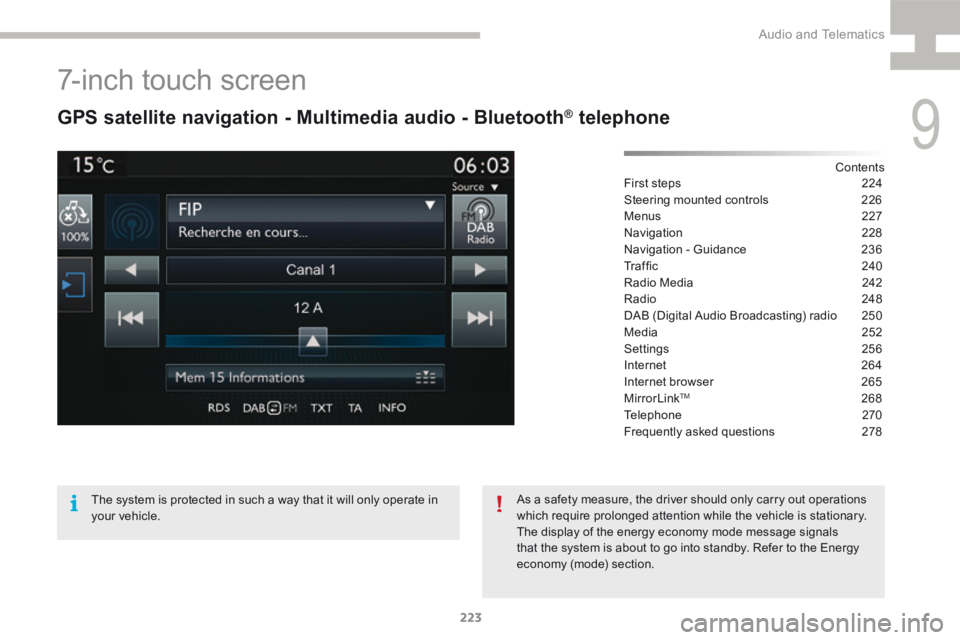
7-inch touch screen
GPS satellite navigation - Multimedia audio - Bluetooth® telephone
Contents
First steps 224
Steering mounted controls 226
Menus 227
Navigation 228
Navigation - Guidance 236
Tr a f fi c 2 4 0
Radio Media 242
Radio 248
DAB (Digital Audio Broadcasting) radio 250
Media 252
Settings 256
Internet 264
Internet browser 265
MirrorLink
TM 268
Telephone 270
Frequently asked questions 278
The system is protected in such a way that it will only operate in
your vehicle. As a safety measure, the driver should only carry out operations
which require prolonged attention while the vehicle is stationary.
The display of the energy economy mode message signals
that the system is about to go into standby. Refer to the Energy
economy (mode) section.
9
Audio and Telematics
Page 227 of 341
225
208_en_Chap9b_SMEGplus_ed01-2015
Volume adjustment (each source is
independent, including traffic announcements
(TA) and navigation instructions).Press on Menu
to display the menu
carrousel.
Press on SRC to display the audio
sources carrousel.
With the engine running, press to
mute the sound.
With the ignition off, press to switch
the system on.
Selecting the audio source (depending on
version):
-
"FM" / "AM" / "DAB"* stations.
- "USB" memory stick.
- CD player (located in the glove box)*.
- Jukebox*, after first copying audio files to
the internal memory of the system.
- Telephone connected by Bluetooth* and
with Bluetooth* audio streaming.
- Media player connected to the auxiliary
socket (jack, cable not supplied).
* Depending on equipment.
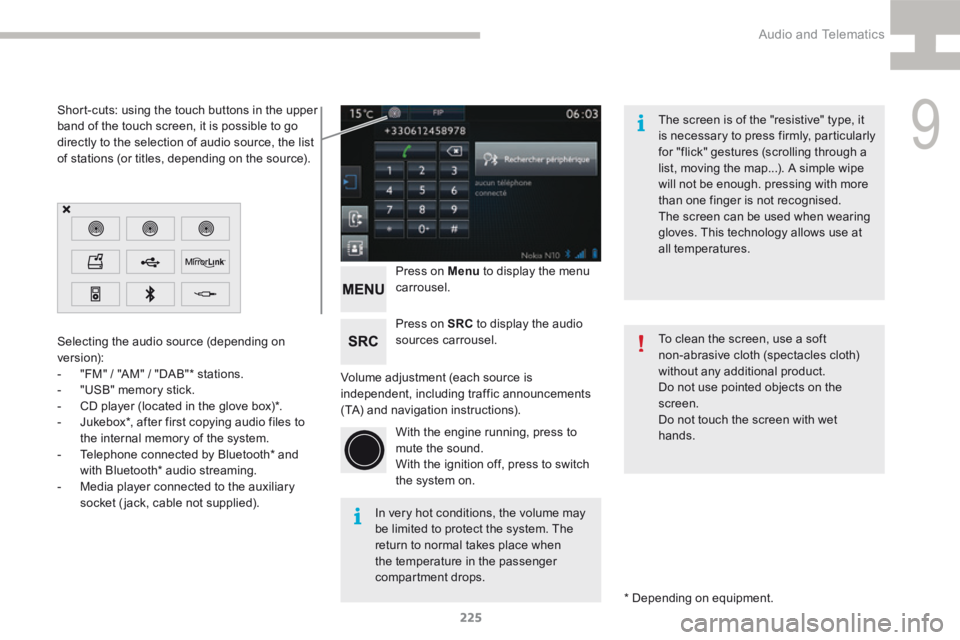
Short-cuts: using the touch buttons in the upper
band of the touch screen, it is possible to go
directly to the selection of audio source, the list
of stations (or titles, depending on the source).
The screen is of the "resistive" type, it
is necessary to press firmly, particularly
for "flick" gestures (scrolling through a
list, moving the map...). A simple wipe
will not be enough. pressing with more
than one finger is not recognised.
The screen can be used when wearing
gloves. This technology allows use at
all temperatures.
In very hot conditions, the volume may
be limited to protect the system. The
return to normal takes place when
the temperature in the passenger
compartment drops. To clean the screen, use a soft
non-abrasive cloth (spectacles cloth)
without any additional product.
Do not use pointed objects on the
screen.
Do not touch the screen with wet
hands.
9
Audio and Telematics
Page 238 of 341
236
208_en_Chap9b_SMEGplus_ed01-2015
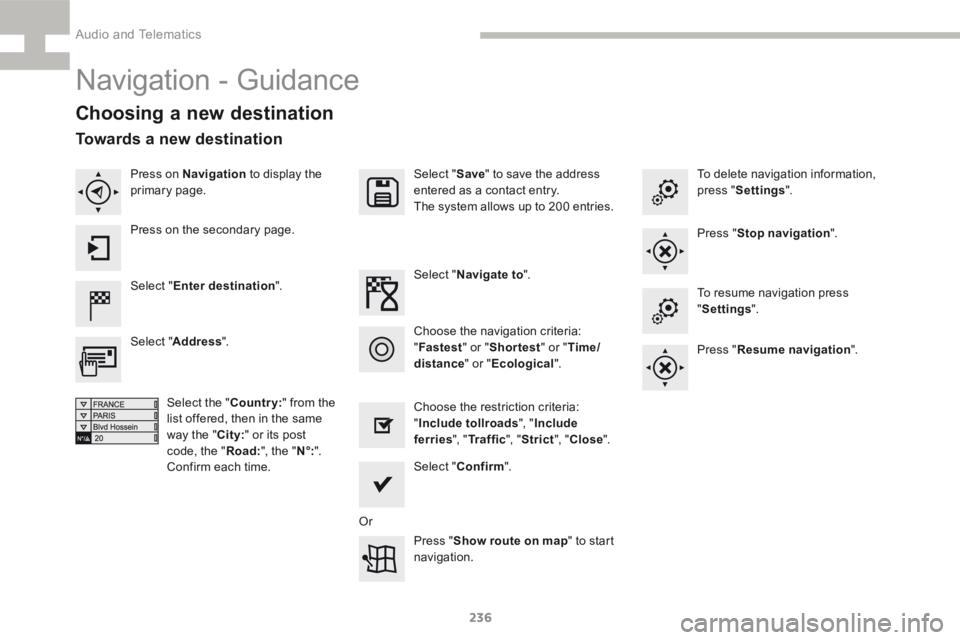
Navigation - Guidance
Choosing a new destination
Select "Enter destination ". Select "
Save" to save the address
entered as a contact entry.
The system allows up to 200 entries.
Select " Confirm ".
Press " Show route on map " to start
navigation.
Select "
Address ".
Select the " Country:" from the
list offered, then in the same
way the " City:" or its post
code, the " Road:", the " N°:".
Confirm each time. Select "
Navigate to ".
Choose the restriction criteria:
" Include tollroads ", "Include
ferries ", "Tr a f f i c ", "Strict ", "Close ".
Choose the navigation criteria:
"
Fastest " or "Shortest " or "Time/
distance " or "Ecological". To delete navigation information,
press "
Settings ".
Press " Stop navigation ".
To resume navigation press
" Settings ".
Press " Resume navigation ".
Press on Navigation
to display the
primary page.
Press on the secondary page.
Towards a new destination
Or
Audio and Telematics
Page 242 of 341
240
208_en_Chap9b_SMEGplus_ed01-2015
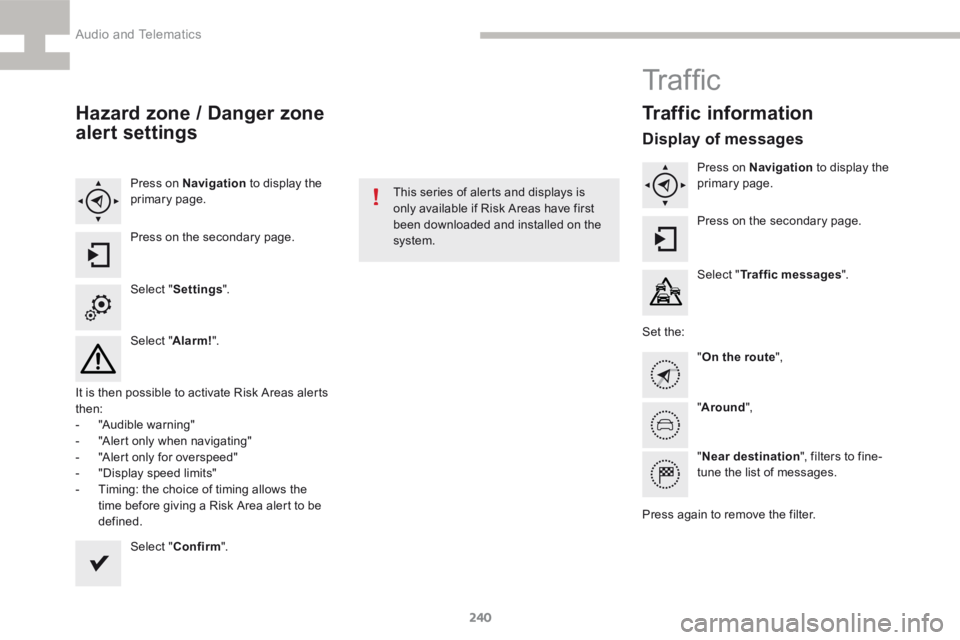
Hazard zone / Danger zone
alert settings
Press on Navigation to display the
primary page.
Press on the secondary page.
Select " Settings ".
Select " Alarm!".
It is then possible to activate Risk Areas alerts
then:
- "Audible warning"
- "Alert only when navigating"
- "Alert only for overspeed"
- "Display speed limits"
- Timing: the choice of timing allows the
time before giving a Risk Area alert to be
defined.
Select " Confirm ". This series of alerts and displays is
only available if Risk Areas have first
been downloaded and installed on the
system.
Tr a f fi c
Traffic information
Display of messages
Press on Navigation
to display the
primary page.
Press on the secondary page.
Select " Traffic messages ".
Set the: "On the route ",
" Around ",
" Near destination ", filters to fine-
tune the list of messages.
Press again to remove the filter.
Audio and Telematics
Page 280 of 341
278
208_en_Chap9b_SMEGplus_ed01-2015
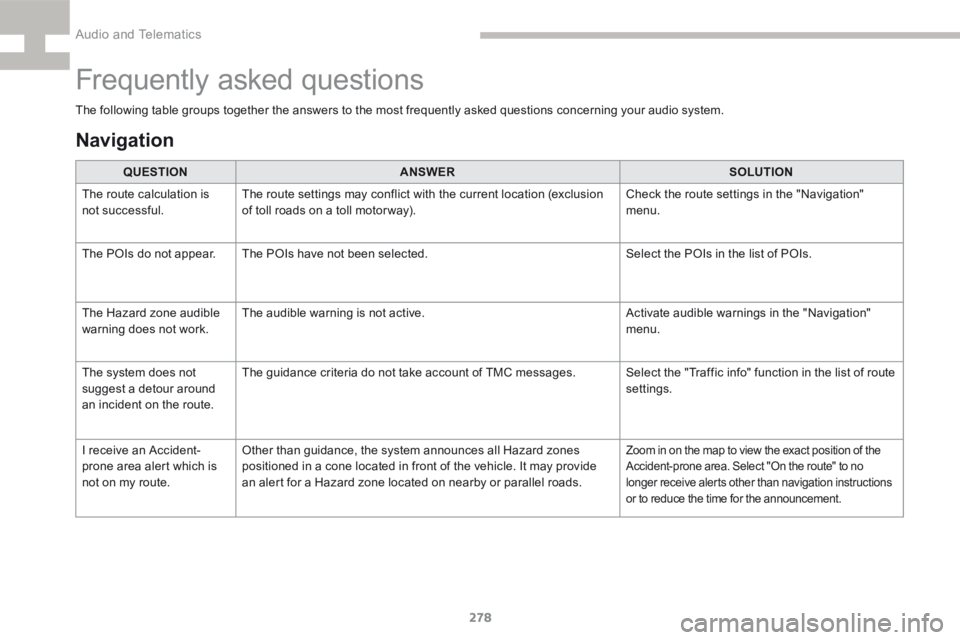
Frequently asked questions
The following table groups together the answers to the most frequently asked questions concerning your audio system.QUESTION ANSWER SOLUTION
The route calculation is
not successful. The route settings may conflict with the current location (exclusion
of toll roads on a toll motor way). Check the route settings in the "Navigation"
menu.
The POIs do not appear. The POIs have not been selected. Select the POIs in the list of POIs.
The Hazard zone audible
warning does not work. The audible warning is not active.
Activate audible warnings in the "Navigation"
menu.
The system does not
suggest a detour around
an incident on the route. The guidance criteria do not take account of TMC messages.
Select the "Traffic info" function in the list of route
settings.
I receive an Accident-
prone area alert which is
not on my route. Other than guidance, the system announces all Hazard zones
positioned in a cone located in front of the vehicle. It may provide
an alert for a Hazard zone located on nearby or parallel roads.
Zoom in on the map to view the exact position of the
Accident-prone area. Select "On the route" to no
longer receive alerts other than navigation instructions
or to reduce the time for the announcement.
Navigation
Audio and Telematics