display PEUGEOT 3008 2013 Owners Manual
[x] Cancel search | Manufacturer: PEUGEOT, Model Year: 2013, Model line: 3008, Model: PEUGEOT 3008 2013Pages: 352, PDF Size: 15.64 MB
Page 325 of 352
323
04
The MP3 format, an abbreviation of MPEG 1.2 & 2.5 Audio Layer 3,
is an audio compression standard which permits the recording of several tens of music fi les on a single disc.
In order to be able to play a recorded
CDR or CDRW, when recording, the ISO 9660 level 1.2 or Joliet fi le format isrecommended.
If the disc is recorded in another format, it ma
y not be playedcorrectly.
It is recommended that the same recordin
g format is alwaysused for an individual disc, with as low a speed as possible (4x maximum) for optimum sound quality.
In the particular case o
f a multi-session CD, the Joliet format is recommended.
The audio s
ystem will only play fi les with the extension ".mp3" with
a sampling rate of 22.05 KHz or 44.1 KHz. No other type of fi le(.wma, .mp4, .m3u...) can be played.
It is advisable to restrict fi le names to 20 characters without usin
gspecial characters (e.g. " ? ; ù) to avoid any playing or displaying problems.
MP3 CD
INFORMATION AND ADVICE
AUDIO
Empty CDs are not recognised and may damage the system.
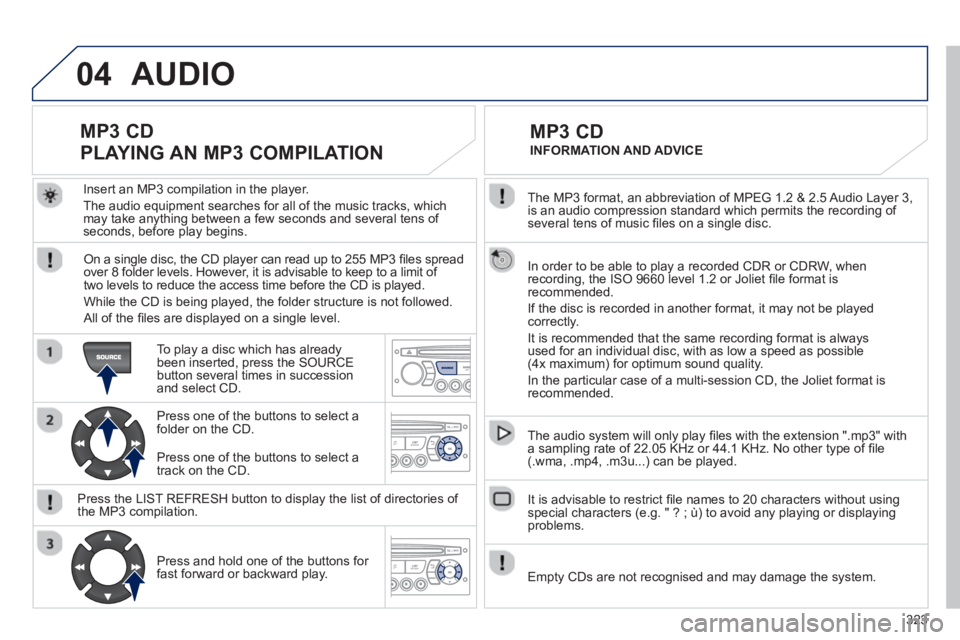
Insert an MP3 compilation in the pla
yer.
The audio equipment searches
for all of the music tracks, which
may take anything between a few seconds and several tens of seconds, before play begins.
MP3 CD
PLAYING AN MP3 COMPILATION
On a single disc, the CD player can read up to 255 MP3 fi les spread
over 8 folder levels. However, it is advisable to keep to a limit of
two levels to reduce the access time before the CD is played.
While the
CD is being played, the folder structure is not followed.
All of the fi les are displayed on a single level.
To play a disc which has already
been inserted, press the SOURCEbutton several times in succession and select CD.
Pr
ess one of the buttons to select afolder on the CD.
Press the LI
ST REFRESH button to display the list of directories of
the MP3 compilation.
Pr
ess and hold one of the buttons for fast forward or backward play. Pr
ess one of the buttons to select atrack on the CD.
Page 327 of 352
325
05
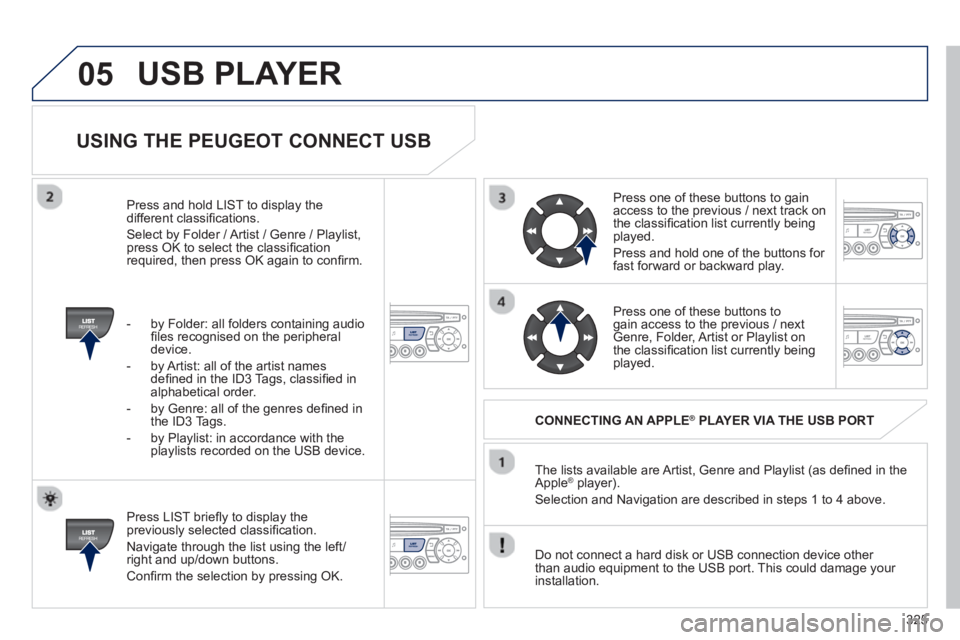
USING THE PEUGEOT CONNECT USB
Press LIST briefl y to display thepreviously selected classifi cation.
Navi
gate through the list using the left/right and up/down buttons.
Confi rm the selection by pressing OK. The lists available are Artist, Genre and Pla
ylist (as defi ned in the
Apple ®player).
Selection and Navigation are described in steps 1 to 4 above.
Do not connect a hard disk or
USB connection device other
than audio equipment to the USB port. This could damage your
installation.
CONNECTING AN APPLE®PLAYER VIA THE USB PORT®
Press one of these buttons to gain
access to the previous / next track on
the classifi cation list currently beingplayed.
Pr
ess and hold one of the buttons for fast forward or backward play.
Pr
ess one of these buttons to gain access to the previous / next
Genre, Folder, Artist or Playlist on
the classifi cation list currently beingplayed.
Press and hold LI
ST to display the different classifi cations.
Select b
y Folder / Artist / Genre / Playlist,press OK to select the classifi cation required, then press OK again to confi rm.
- b
y Folder: all folders containing audio fi les recognised on the peripheraldevice.
- by Artist: all o
f the artist names
defi ned in the ID3 Tags, classifi ed in alphabetical order.
- b
y Genre: all of the genres defi ned in
the ID3 Tags.
- b
y Playlist: in accordance with the
playlists recorded on the USB device.
USB PLAYER
Page 328 of 352
326
05
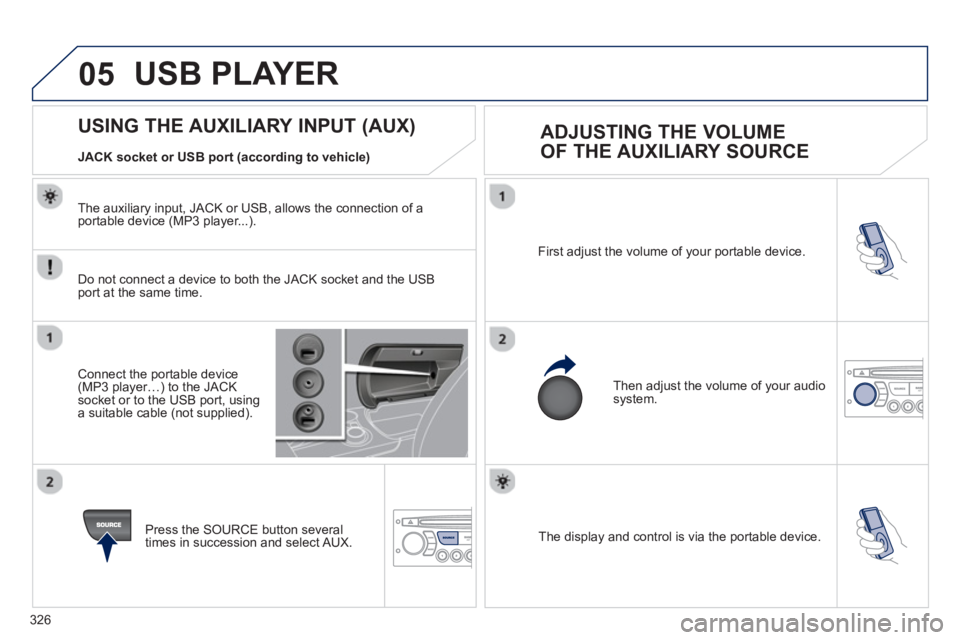
The display and control is via the portable device. First ad
just the volume of your portable device.
Then ad
just the volume of your audio system.
USING THE AUXILIARY INPUT (AUX)
ADJUSTING THE VOLUME
OF THE AUXILIARY SOURCE
JACK socket or USB port (according to vehicle)
USB PLAYER
Do not connect a device to both the JACK socket and the USB port at the same time.
Connect the portable device(MP3 player…) to the JACK socket or to the USB port, using
a suitable cable (not supplied).
Press the
SOURCE button several
times in succession and select AUX.
The auxiliar
y input, JACK or USB, allows the connection of a portable device (MP3 player...).
Page 329 of 352
327
06BLUETOOTH
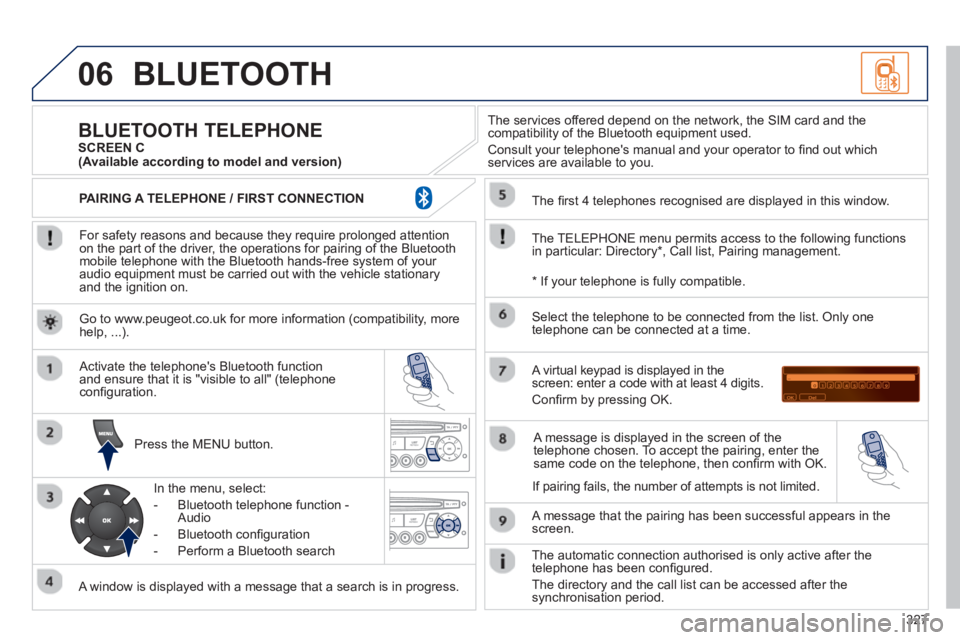
For safety reasons and because they require prolonged attentionon the part of the driver, the operations for pairing of the Bluetooth mobile telephone with the Bluetooth hands-free system of your
audio equipment must be carried out with the vehicle stationary
and the ignition on.
Pr
ess the MENU button.
A window is displayed with a message that a search is in progress.
Activate the telephone's Bluetooth
function
and ensure that it is "visible to all" (telephone confi guration.
In the menu, select:
- Bluetooth telephone
function -
Audio
- Bluetooth confi
guration
- P
erform a Bluetooth search
The services o
ffered depend on the network, the SIM card and thecompatibility of the Bluetooth equipment used.
Consult your telephone's manual and your operator to fi nd out which
services are available to you.
BLUETOOTH TELEPHONE SCREEN C
The TELEPH
ONE menu permits access to the following functions
in particular: Directory * , Call list, Pairing management.
The
fi rst 4 telephones recognised are displayed in this window.
A virtual ke
ypad is displayed in thescreen: enter a code with at least 4 digits.
Confi rm by pressing OK.
A messa
ge that the pairing has been successful appears in thescreen.
Select the telephone to be connected from the list.
Only one
telephone can be connected at a time.
A messa
ge is displayed in the screen of the
telephone chosen. To accept the pairing, enter the same code on the telephone, then confi rm with OK.
The automatic connection authorised is onl
y active after the
telephone has been confi gured.
The directory and the call list can be accessed a
fter thesynchronisation period.
(Available according to model and version)
*
If your telephone is fully compatible.
I
f pairing fails, the number of attempts is not limited. Go to www.peu
geot.co.uk for more information (compatibility, more help, ...).
PAIRING A TELEPHONE / FIR
ST CONNECTION
Page 330 of 352
328
06
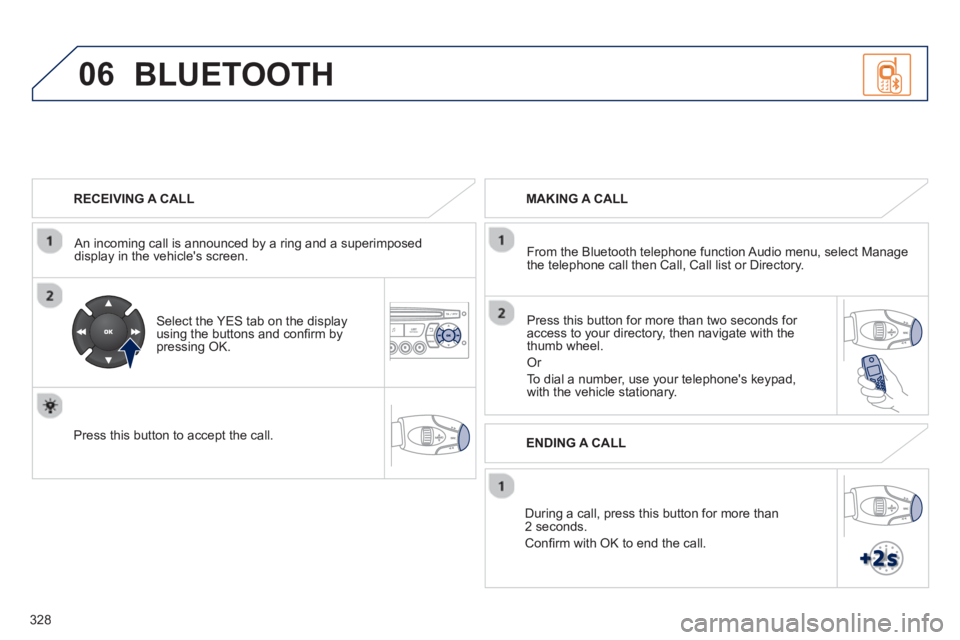
RECEIVING A CALL
An incomin
g call is announced by a ring and a superimposed
display in the vehicle's screen.
Select the YES tab on the display
using the buttons and confi rm bypressing OK.
Press this button to acce
pt the call.
MAKING A CALL
From the Bluetooth telephone
function Audio menu, select Manage
the telephone call then Call, Call list or Directory.
Pr
ess this button for more than two seconds for
access to your directory, then navigate with the
thumb wheel.
Or
To dial a number, use your telephone's keypad,with the vehicle stationary.
Durin
g a call, press this button for more than2 seconds.
Confi rm with OK to end the call.
BLUETOOTH
ENDING A CALL
Page 331 of 352
329
06
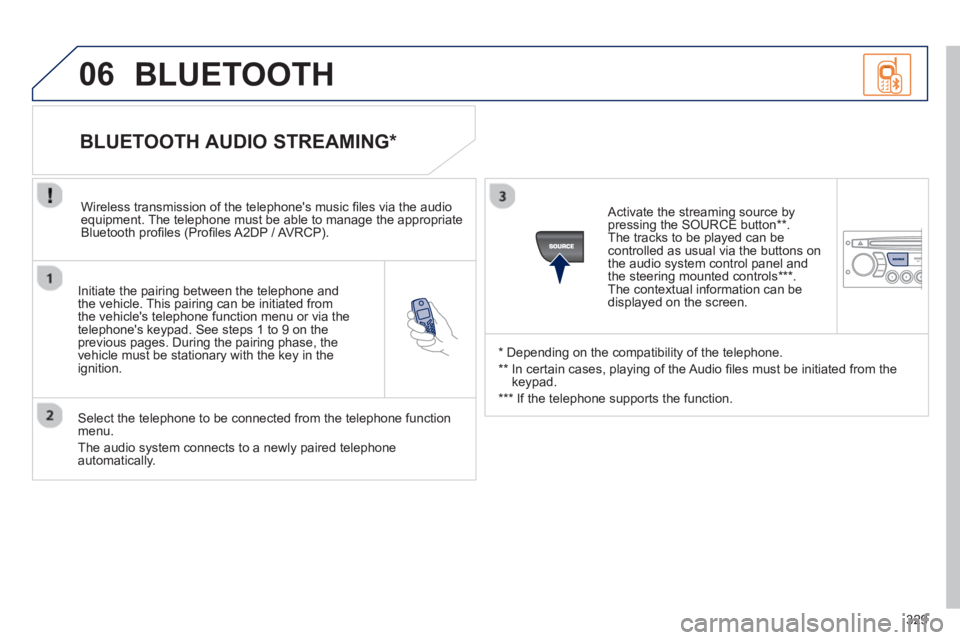
Initiate the pairing between the telephone and
the vehicle. This pairing can be initiated from
the vehicle's telephone function menu or via the
telephone's ke
ypad. See steps 1 to 9 on theprevious pages. During the pairing phase, the
vehicle must be stationary with the key in the
i
gnition.
Select the telephone to be connected from the telephone functionmenu.
The audio s
ystem connects to a newly paired telephone automatically.
BLUETOOTH AUDIO STREAMING *
Wireless transmission of the telephone's music fi les via the audioequipment. The telephone must be able to manage the appropriate
Bluetooth profi les (Profi les A2DP / AVRCP).
*
Depending on the compatibility of the telephone.
**
In certain cases, playing of the Audio fi les must be initiated from the
keypad.
***
If the tele
phone supports the function.
Activate the streaming source by
pressin
g the SOURCE button ** .
The tracks to be played can becontrolled as usual via the buttons on
the audio system control panel and
the steering mounted controls *** .
The contextual information can bedisplayed on the screen.
BLUETOOTH
Page 333 of 352
331
07
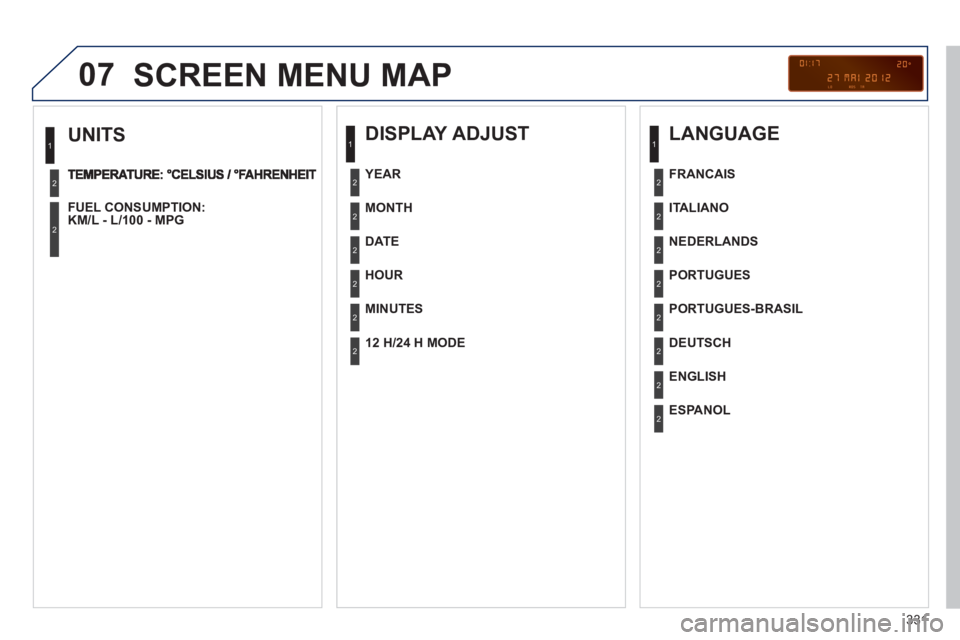
UNITS
FUEL CONSUMPTION:
KM/L - L/100 - MPG
1
2
2
SCREEN MENU MAP
DISPLAY ADJUST
MONTH
DATE
HOUR
MINUTES
YEAR
12 H/24 H MODE
LANGUAGE
ITALIANO
NEDERLANDS
PORTUGUES
PORTUGUES-BRASIL
FRANCAIS
DEUTSCH
ENGLISH
ESPANOL
1
2
2
2
2
2
2
1
2
2
2
2
2
2
2
2
Page 334 of 352
332
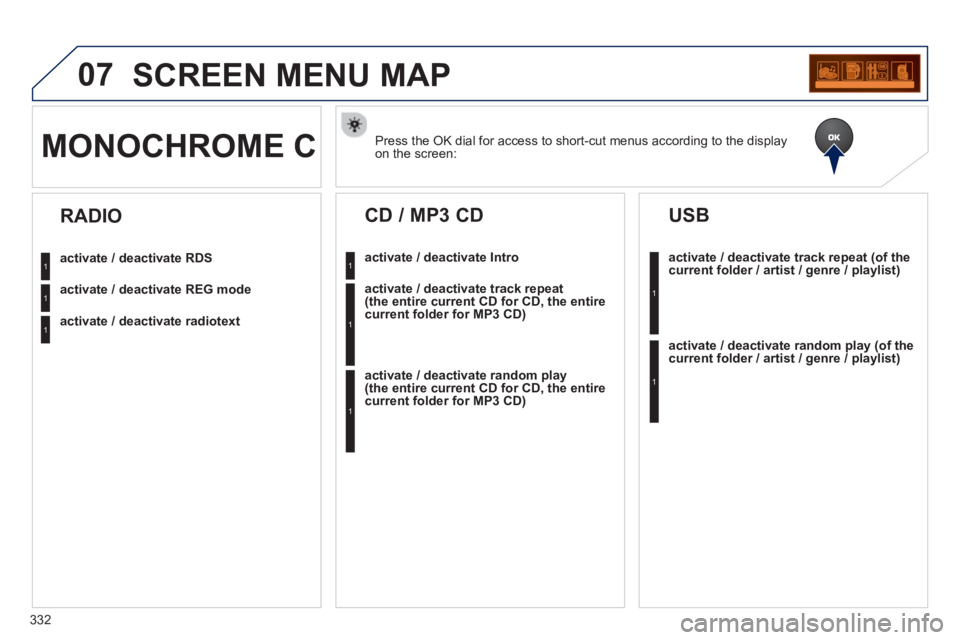
07SCREEN MENU MAP
Press the OK dial for access to short-cut menus according to the displayon the screen: MONOCHROME C
activate / deactivate RDS
activate / deactivate REG mode
activate / deactivate radiotext
RADIO
activate / deactivate Intro
CD / MP3 CD
activate / deactivate track repeat (the entire current CD for CD, the entire current folder for MP3 CD)
activate / deactivate random play (the entire current CD for CD, the entire current folder for MP3 CD)
activate / deactivate track repeat (of the current folder / artist / genre / playlist)
USB
activate / deactivate random play(of thecurrent folder / artist / genre / playlist)
1
1
1
1
1
1
1
1
Page 335 of 352
333
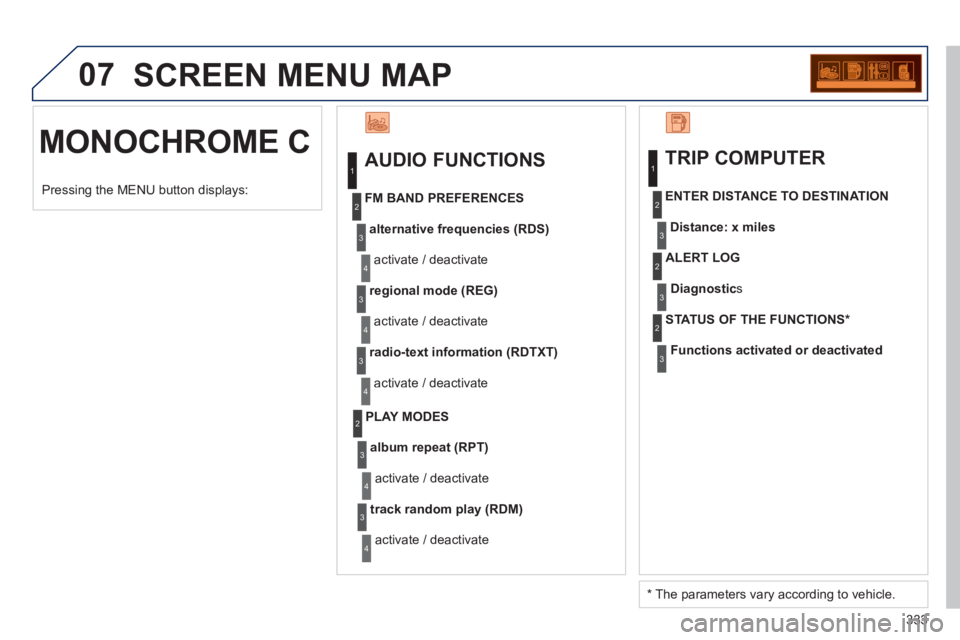
07 SCREEN MENU MAP
MONOCHROME C
AUDIO FUNCTIONS
alternative frequencies (RDS)
activate / deactivate
FM BAND PREFERENCES
regional mode (REG)
activate / deactivate
radio-text information (RDTXT)
activate / deactivate
1
2
3
4
3
4
3
4
PLAY MODES
album repeat (RPT)
activate / deactivate
track random pla
y (RDM)
activate / deactivate
2
3
4
3
4
TRIP COMPUTER
Distance: x miles ENTER DISTANCE TO DESTINATION
Diagnostic s
ALERT LOG
Functions activated or deactivated STATUS OF THE FUNCTIONS *
1
2
3
3
2
3
2
Pressing the MENU button displays:
*
The parameters vary according to vehicle.
Page 336 of 352
334
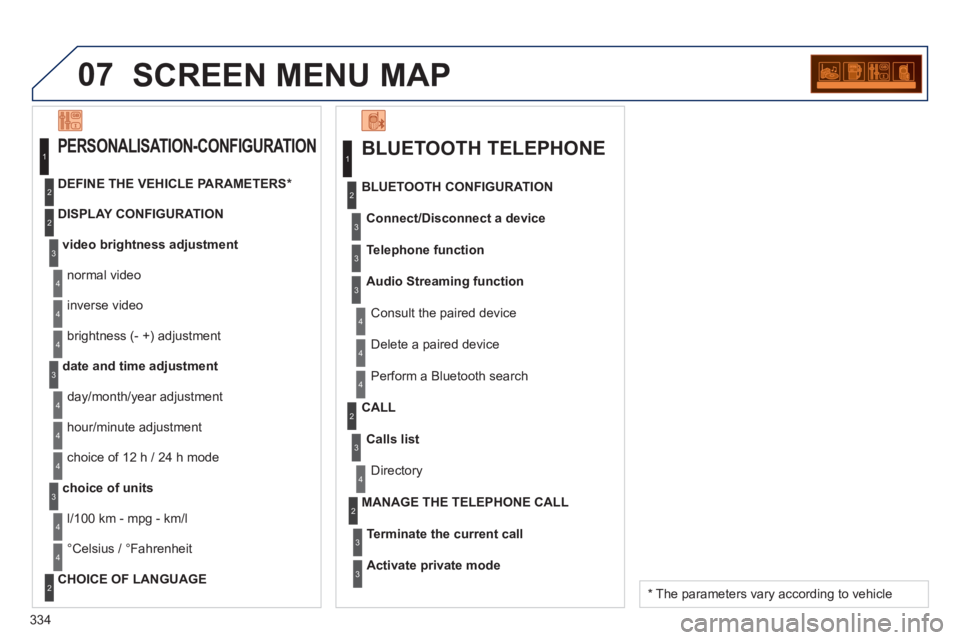
07SCREEN MENU MAP
BLUETOOTH TELEPHONE
Connect/Disconnect a device
Consult the paired device BLUETOOTH CONFIGURATION
Telephone function
Audio Streamin
g function
Delete a paired device
P
erform a Bluetooth search
Calls lis
t
CALL
Directory
Terminate the current call MANAGE THE TELEPHONE CALL
Activate private mod
e
1
2
3
3
3
4
4
4
2
3
4
2
3
3
video brightness adjustment
DISPLAY CONFIGURATION DEFINE THE VEHICLE PARAMETERS *
PERSONALISATION-CONFIGURATION
normal video
inverse video
bri
ghtness (- +) adjustment
date and time adjustment
day/month/year adjustment
hour
/minute adjustment
choice of 12 h / 24 h mode
choice of units
l/100 km - mp
g - km/l
°
Celsius / °Fahrenheit
CHOICE OF LANGUAGE
1
2
4
3
2
4
4
3
4
4
2
3
4
4
4
* The parameters vary according to vehicle