audio Peugeot 307 CC 2003 User Guide
[x] Cancel search | Manufacturer: PEUGEOT, Model Year: 2003, Model line: 307 CC, Model: Peugeot 307 CC 2003Pages: 173, PDF Size: 2.12 MB
Page 51 of 173

22-09-2003
YOUR 307 CC IN DETAIL
52
GENERAL FUNCTIONS On/off With the ignition switch in the accessories position or with the ignition on, press button Ato switch the audio
function of the RT3 audio/telephone on or off. Note: in the absence of an ignition key, press button Ato switch the telematics system on or off.
The RT3 audio/telephone can operate for 30 minutes without switching the vehicle ignition on.
Notes:
Ð the SIM card must be removed only after the audio/telephone has been switched off,
Ð following automatic switching off of the audio/telephone after 30 minutes it is possible to make a telephone call by pres- sing button D,
Ð after the ignition has been switched off, the audio/telephone can be switched on again by pressing buttons D, E , V or by
inserting a CD in the player.
Anti-theft system
The RT3 audio/telephone is coded in such a way that it can operate only on your vehicle. If fitting it to another vehicle, cons ult
your PEUGEOT dealer for configuration of the system. The anti-theft system is automatic and requires no action on your part. ADJUSTING THE VOLUME
Turn button Aclockwise to increase the volume of the audio/telephone or anti-clockwise to decrease it.
Note: the volume setting is specific to each source. It is possible to have different settings for radio, CD or CD changer.
AUDIO SETTINGS Press button Uto access Bass, Treble, Loudness, Fader (front/rear balance), Balance(left/right balance)
and Automatic volume adjustment settings.
Exit from audio mode is automatic after a few seconds without any action, or by pressing the "ESC"button.
Note: bass, treble and loudness settings are specific to each source. It is possible to have different settings
for radio, CD or CD changer.
Page 54 of 173
22-09-2003
YOUR 307 CC IN DETAIL55
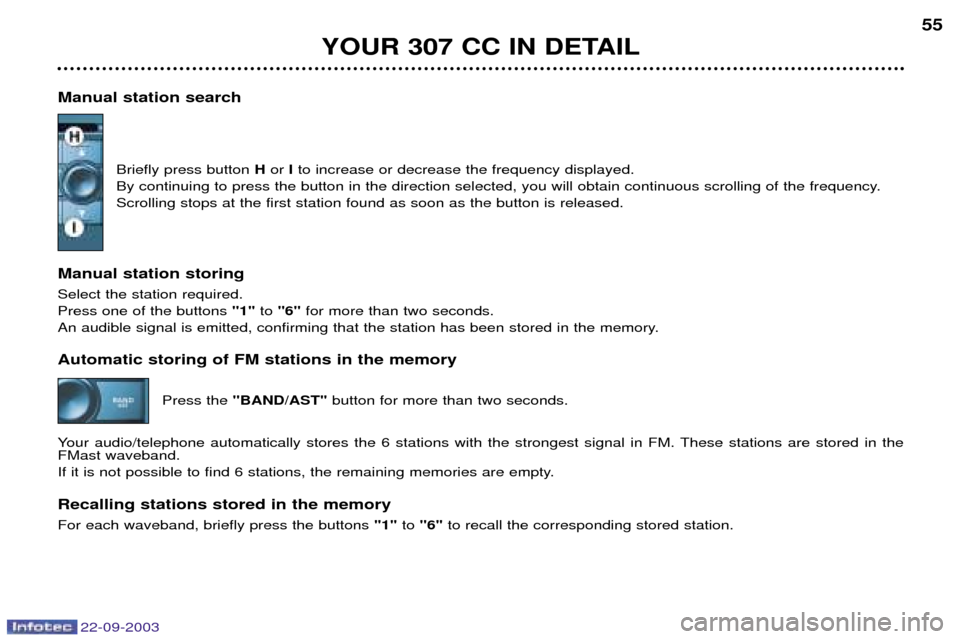
Manual station search Briefly press button Hor Ito increase or decrease the frequency displayed.
By continuing to press the button in the direction selected, you will obtain continuous scrolling of the frequency. Scrolling stops at the first station found as soon as the button is released.
Manual station storing Select the station required. Press one of the buttons "1"to "6" for more than two seconds.
An audible signal is emitted, confirming that the station has been stored in the memory. Automatic storing of FM stations in the memory
Press the "BAND/AST" button for more than two seconds.
Your audio/telephone automatically stores the 6 stations with the strongest signal in FM. These stations are stored in the FMast waveband.
If it is not possible to find 6 stations, the remaining memories are empty. Recalling stations stored in the memory For each waveband, briefly press the buttons "1"to "6" to recall the corresponding stored station.
Page 55 of 173

22-09-2003
YOUR 307 CC IN DETAIL
56
RDS SYSTEM Using the RDS (Radio Data System) function on FM Radio Data System allows you to continue listening to the same station, whatever frequency it is using for the region you are going through. Briefly press the "RDS"button to switch the function on or off.
The multi-function screen will show: Ð RDS if the function is active
Ð RDS crossed out or greyed out if the function is active but not available.
RDS station following
This display indicates the name of the station selected. The audio/telephone continuously searches for the transmitter which
transmits the same programme with the best reception. This search may cause slight interference with the transmission.
Traffic information programme Press the "TA/PTY" button to switch the function on or off.
The multi-function screen will show: Ð TA if the function is selected
Ð TA crossed out or greyed out if the function is selected but not available.
Any traffic information flash will be given priority, whatever source you are listening to (radio, CD or CD changer).If you wish to interrupt the broadcasting of a message, press the "TA/PTY"button.
Note: the volume of the traffic information is independent of the volume of normal radio/telephone listening . You can
adjust it by using the volume button. The setting will be stored and will be used when the next messages are broadcast. Regional following mode (REG) When they are part of a network, certain stations broadcast regional programmes in the various areas they serve. With regio- nal following mode you can keep listening to the same programme.
To do this, press the "RDS"button for more than two seconds to switch the function on or off.
The multi-function screen will show:Ð REG if the function is active,
Ð REG crossed out or greyed out if the function is active but not available.
Page 58 of 173
22-09-2003
YOUR 307 CC IN DETAIL59
COMPACT DISC CHANGER Selecting CD changer mode Press the "SOURCE" button several times.
Selecting a disc Press one of the buttons "1"to "5" on the audio/telephone to select the appropriate disc.
Buttons Hand Iallow you to select respectively the previous or following disc in the changer.
Selecting a track Press button Mto select the following track.
Press button Nto return to the start of the current track or to select the previous track.
Accelerated playPress and hold button Mor Nfor forwards or backwards accelerated play.
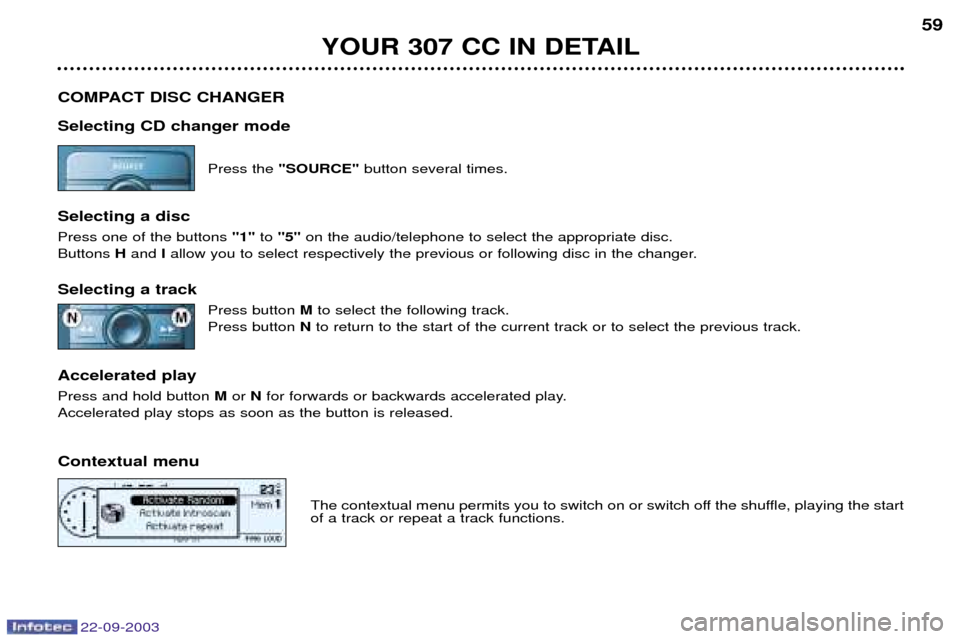
Accelerated play stops as soon as the button is released. Contextual menu
The contextual menu permits you to switch on or switch off the shuffle, playing the start of a track or repeat a track functions.
Page 59 of 173

22-09-2003
YOUR 307 CC IN DETAIL
60
TELEPHONE
This function is a GSM dual-band telephone (900 and 1 800 MHz) incorporated in the RT3 audio system. It is a "hands free" telephone. This function is provided by a microphone located next to the front courtesy light, the spea-
kers and a steering column control which allows access to most of the functions (the audio/telephone control panel buttons allow access to all the functions). Display of the principal "mobile"type functions, as well as consultation of the indexes, is provided by the multi-function
display.This function is active , whatever position the ignition key is in even after thirty minutes, when the message "Economy
mode active" appears on the multi-function display.
Using the menus Press the "MENU"button to display the general menu. Select the telematicsapplication, validate "Telephone functions"
to access the principal telephone functions, then the various menus, in order to reach the one required. This menu allows you to access the following functions:
Ð Network:allows you to select the network search mode and to see the networks avai-
lable.
Ð Duration of calls: allows you to consult the duration recorder of calls made and zero re-
set.
Ð Security: allows you to use or modify the PIN code and to erase the list of calls and
text messages (SMS).
Ð Telephone options: allows you to configure the calls with entering of my number,
automatic answering after X rings, specification of ring options and allows you to
configure the call diversion number.
Within each menu:
Move around and select a function by turning the Gbutton then validate by pressing the button.
Cancel an operation using the "ESC"button.
Page 60 of 173

22-09-2003
YOUR 307 CC IN DETAIL61
Using the alphanumeric keypad For a given button, to input a character in the second or subsequent rows press until you obtain the character required. Installing the SIM card Open flap Lby pressing the point of a pencil on the circular opening above the flap.
Insert your Micro-SIM card as indicated in the graphics, then close the flap. Note: removal or insertion of the SIM card must only be carried out after the RT3 audio/telephone has been switched off.
Buttons Associated characters
[1] 1 or space
[2] 2 or A B C 2 or a b c 2
[3] 3 or D E F 3 or d e f 3
[4] 4 or G H I 4 or g h i 4
[5] 5 or J K L 5 or j k l 5
[6] 6 or M N O 6 or m n o 6
[7] 7 or P Q R S 7 or p q r s 7
[8] 8 or T U V 8 or t u v 8
[9] 9 or W X Y Z 9 or w x y z 9
[0] 0 or + (long press)
[#] # or P (long press)
[*] * or erasing of last character input (long press)
Page 62 of 173
22-09-2003
YOUR 307 CC IN DETAIL63
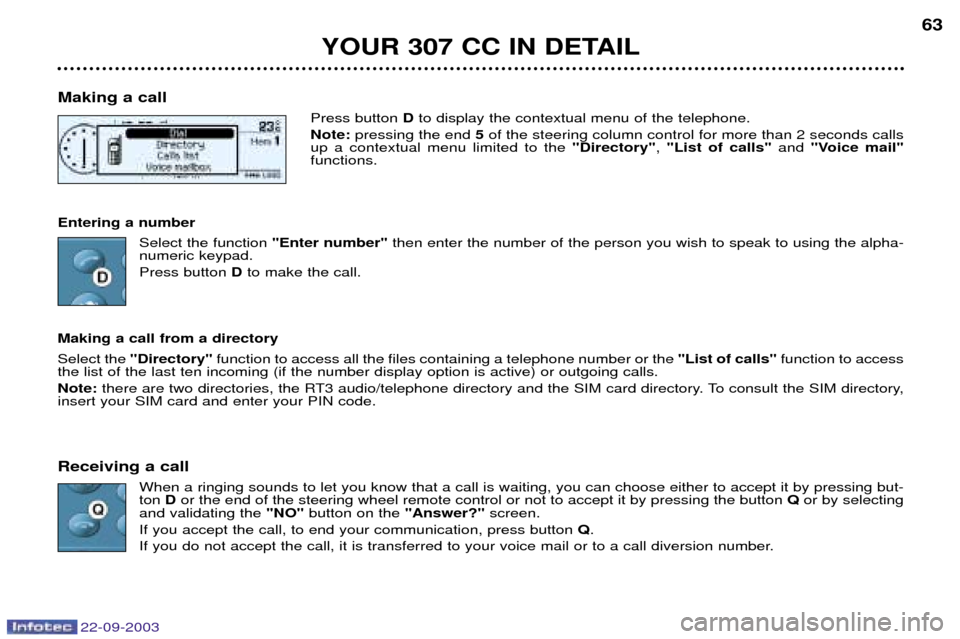
Making a call Press button Dto display the contextual menu of the telephone.
Note: pressing the end 5of the steering column control for more than 2 seconds calls
up a contextual menu limited to the "Directory", "List of calls" and "Voice mail"
functions.
Entering a number Select the function "Enter number"then enter the number of the person you wish to speak to using the alpha-
numeric keypad. Press button Dto make the call.
Making a call from a directory Select the "Directory" function to access all the files containing a telephone number or the "List of calls"function to access
the list of the last ten incoming (if the number display option is active) or outgoing calls. Note: there are two directories, the RT3 audio/telephone directory and the SIM card directory. To consult the SIM directory,
insert your SIM card and enter your PIN code.
Receiving a call When a ringing sounds to let you know that a call is waiting, you can choose either to accept it by pressing but- ton Dor the end of the steering wheel remote control or not to accept it by pressing the button Qor by selecting
and validating the "NO"button on the "Answer?"screen.
If you accept the call, to end your communication, press button Q.
If you do not accept the call, it is transferred to your voice mail or to a call diversion number.
Page 65 of 173

22-09-2003
YOUR 307 CC IN DETAIL
66
Services*
Press button Eto display the "Services"menu and select one of the following services:
¥ "Customer Contact Centre" which enables you to contact the PEUGEOT Customer Contact Centre directly and
access the services offered (this type of call is suspended if an emergency or breakown call is made).
¥ "PEUGEOT Assistance" which enables you to contact the call centre which controls the PEUGEOT breakdown
service directly and receive rapid assistance (you have 6 seconds within which to cancel the call when it is made). During the breakdown call phase it is not possible to make any other calls with the exception of emergency calls.
¥ "Operator services" which gives access to the list of services specific to the operator (e.g.: customer service, consump-
tion monitoring, news, stock market, weather, travel, games, etc) if they are available.
Emergency call*
In an emergency, press button Vuntil a signal is heard and a call validation / deletion screen is displayed (delay of
6 seconds) or enter 11 2directly.
In the absence of a specific service contract, the parameters of the SOSbutton are set so that a call is made to 11 2- unique
number made available by the worldwide GSM network, reserved for emergency calls. Before making a call of this kind, the audio/telephone must detect a cellular network. No security mode is required and, depending on the network, you do not need to insert your SIM card or enter your PIN. If you have signed the specific contract, refer to its general conditions.
"PEUGEOT Assistance"/Emergency call
During a connection to "PEUGEOT Assistance" or an emergency call, it is not possible to send or receive calls or SMS messages; these will be transferred to your voice mail.
In this case, a green diode flashes on the RT3 audio/telephone panel, when the emergency call or "PEUGEOT Assistance" call procedure begins, then lights continuously when the call is taken by the services concerned.
* If option and service available.
Page 66 of 173

22-09-2003
YOUR 307 CC IN DETAIL67
Voice commands The voice commands make it possible to use pre-recorded words or phrases to control a certain number of functions of the
RT3 audio/telephone. Activation of the voice commands Press the button on the end of the lights stalk to activate this function. Example: to recall the radio station stored on button 3, the key words are: "Radio" "Memory" "3" .
To use these key words, you must say the word "Radio", wait for the audible confirmation signal, then say the word
"Memory" , wait for the audible confirmation signal, then end with the word "3", wait for the audible confirmation signal which
will carry out the action requested. Notes: Ð between two key words, a screen indicates the time remaining and the key word recognised,
Ð in the absence of any voice commands, this function will be switched off after approximately five seconds,Ð if a command is not understood, the system transmits "Pardon"and displays "Word not recognised" on the screen.
Saying the phrase "Help"or "What can I say" displays all of the commands available on the screen.
List of commands available
Ð For the radio, say "RADIO", then: "PREVIOUS"/"FOLLOWING"/"MEMORY" + 1...6/"AUTOSTORE"
Ð For the CD, say "CD PLAYER", then: "PREVIOUS TRACK"/"FOLLOWING TRACK"/"TRACK NUMBER" + 1..20/"SHUFFLE"/"SCAN"/"REPEAT"
Ð For the CD changer, say "CHANGER", then: "PREVIOUS TRACK"/"FOLLOWING TRACK"/"TRACK NUMBER" + 1...20/"PREVIOUS DISC"/"FOLLOWING DISC"/
"DISC NUMBER" + 1...5/"SHUFFLE"/"SCAN"/"REPEAT"
Ð For the telephone, say "TELEPHONE", then: "LAST NUMBER"/"DIRECTORY" + DESCRIPTION/"SERVICES"
Ð For navigation, say "NAVIGATION", then: "STOP"/"RE-START"/"DIRECTORY" + DESCRIPTION
Ð To change the permanent application, say "DISPLAY", then: "AUDIO"/"TELEPHONE"/"NAVIGATION"/"TRIP COMPUTER"
Ð To call someone recorded in the directory directly, say "CALL" + DESCRIPTION
Ð To be guided to the address of someone recorded in the directory, say "GUIDE TO" + DESCRIPTION.
Ð Various:
"CANCEL"/"HELP"/"WHAT CAN I SAY"
Page 70 of 173

22-09-2003
YOUR 307 CC IN DETAIL71
Rotation of the dial: This allows you to
move roundthe screen and thus select a function.
It also allows you:
Ð with a "setting" type parameter, after selection, to increase or decreasethe
value,
Ð with a "list"type parameter, to open the list and scroll throughthe values,
Ð with mapguidance, to increase the zoom.
Pressing the dial: This allows: Ð access to the list of controls (contextual menu) of the permanent display, if
there is no other display superimposed.
Ð confirmation of the selected function or the modified value.
Ð selection of a "setting" or "list" type parameter for modification.
"MODE" button:
Ð brief press: modification of permanent display (audio system, navigation/ guidance...),
Ð Press for more than two seconds displays general information.
"ESC" button:
Ð brief press: cancellingof operation in progress or erasingof last superim-
posed display.
Ð pressing for more than two seconds: erasing of all superimposed displays and return to the permanent display.
"MENU" button:Ð Brief press: access to the general menu.
Ð Press for more than two seconds: access to the help menu.
The control pad This lets you select and validate the functions, controls and programmesdisplayed.