navigation Peugeot 307 CC 2003 User Guide
[x] Cancel search | Manufacturer: PEUGEOT, Model Year: 2003, Model line: 307 CC, Model: Peugeot 307 CC 2003Pages: 173, PDF Size: 2.12 MB
Page 72 of 173
22-09-2003
YOUR 307 CC IN DETAIL73
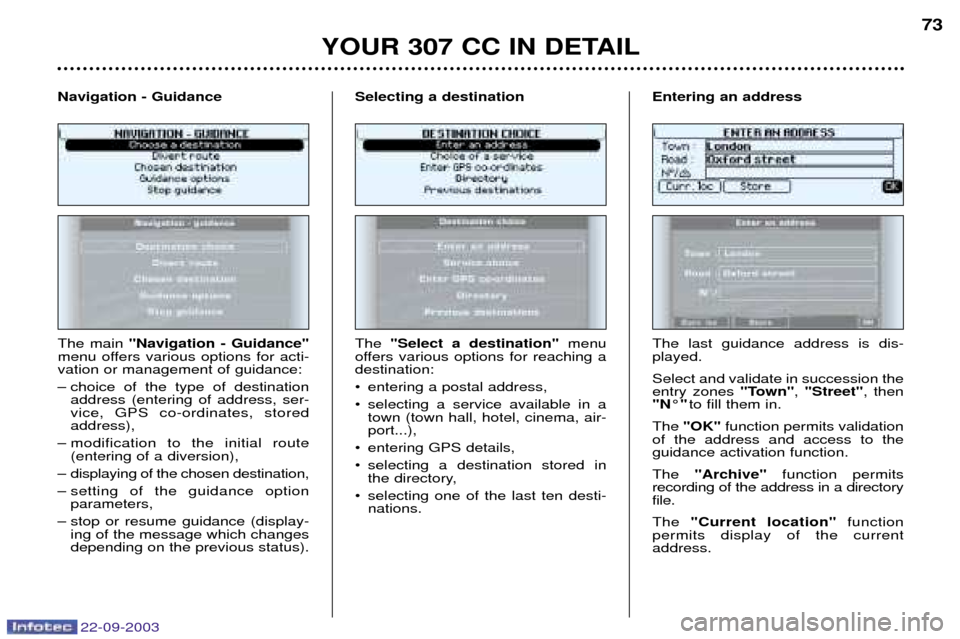
The main
"Navigation - Guidance"
menu offers various options for acti- vation or management of guidance:
Ð choice of the type of destination address (entering of address, ser- vice, GPS co-ordinates, storedaddress),
Ð modification to the initial route (entering of a diversion),
Ð displaying of the chosen destination,
Ð setting of the guidance option parameters,
Ð stop or resume guidance (display- ing of the message which changes depending on the previous status).
Navigation - GuidanceThe
"Select a destination" menu
offers various options for reaching a destination:
¥ entering a postal address,
¥ selecting a service available in a town (town hall, hotel, cinema, air- port...),
¥ entering GPS details,
¥ selecting a destination stored in the directory,
¥ selecting one of the last ten desti- nations.
Selecting a destinationThe last guidance address is dis- played. Select and validate in succession the entry zones
"Town", "Street" , then
"N¡" to fill them in.
The "OK" function permits validation
of the address and access to theguidance activation function. The "Archive" function permits
recording of the address in a directory file. The "Current location" function
permits display of the current address.
Entering an address
Page 76 of 173
22-09-2003
YOUR 307 CC IN DETAIL77
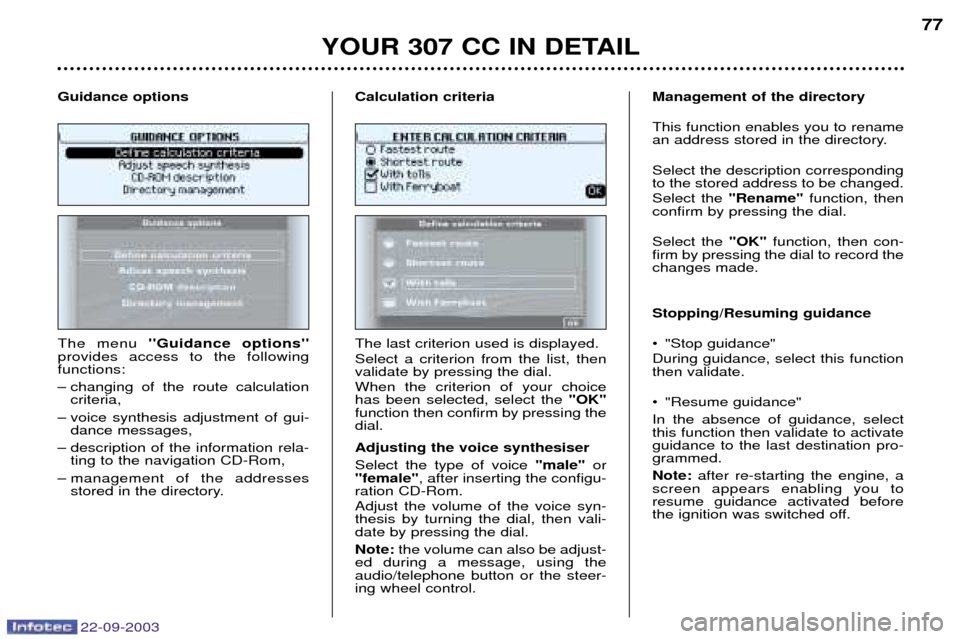
The menu
''Guidance options''
provides access to the following functions:
Ð changing of the route calculation criteria,
Ð voice synthesis adjustment of gui- dance messages,
Ð description of the information rela- ting to the navigation CD-Rom,
Ð management of the addresses stored in the directory.
Guidance optionsThe last criterion used is displayed. Select a criterion from the list, then validate by pressing the dial. When the criterion of your choice has been selected, select the
"OK"
function then confirm by pressing thedial. Adjusting the voice synthesiser Select the type of voice "male" or
"female" , after inserting the configu-
ration CD-Rom. Adjust the volume of the voice syn- thesis by turning the dial, then vali-date by pressing the dial. Note: the volume can also be adjust-
ed during a message, using the audio/telephone button or the steer-ing wheel control. Management of the directory This function enables you to rename
an address stored in the directory. Select the description corresponding to the stored address to be changed. Select the
"Rename" function, then
confirm by pressing the dial. Select the "OK" function, then con-
firm by pressing the dial to record the changes made. Stopping/Resuming guidance
¥ "Stop guidance" During guidance, select this function then validate.
¥ "Resume guidance" In the absence of guidance, select this function then validate to activateguidance to the last destination pro-grammed. Note: after re-starting the engine, a
screen appears enabling you to resume guidance activated before
the ignition was switched off.
Calculation criteria
Page 77 of 173
22-09-2003
YOUR 307 CC IN DETAIL
78
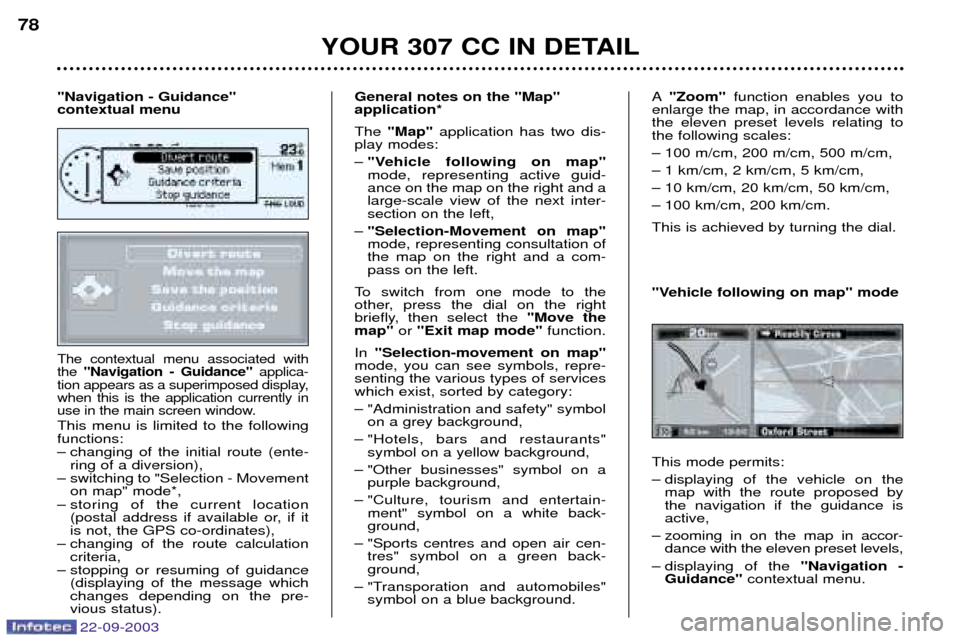
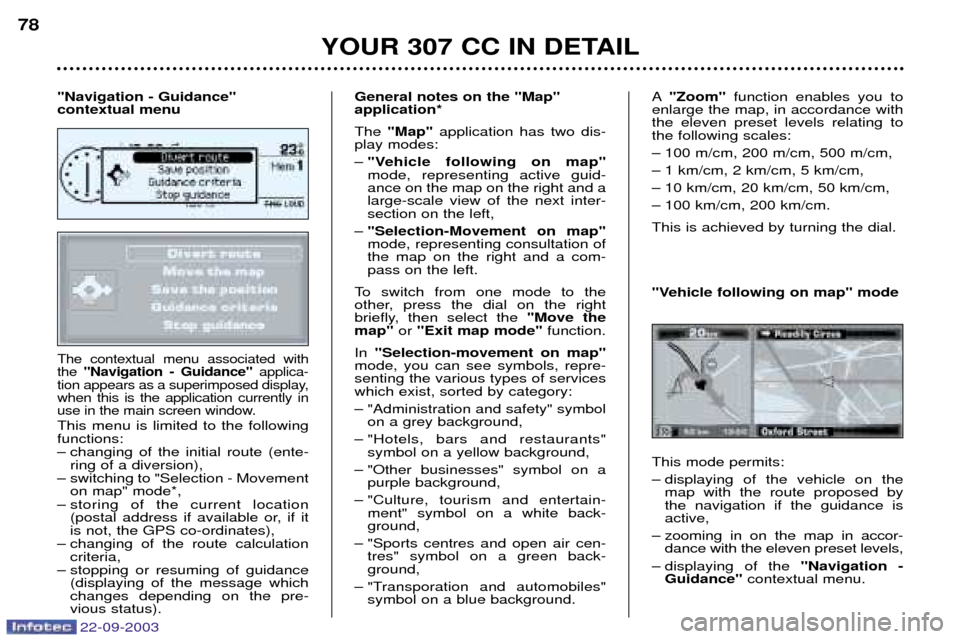
The contextual menu associated with the
"Navigation - Guidance" applica-
tion appears as a superimposed display,when this is the application currently in
use in the main screen window.
This menu is limited to the followingfunctions:
Ð changing of the initial route (ente- ring of a diversion),
Ð switching to "Selection - Movement on map" mode*,
Ð storing of the current location (postal address if available or, if it is not, the GPS co-ordinates),
Ð changing of the route calculation criteria,
Ð stopping or resuming of guidance (displaying of the message whichchanges depending on the pre-vious status). General notes on the "Map" application* The
"Map" application has two dis-
play modes: Ð "Vehicle following on map" mode, representing active guid-ance on the map on the right and alarge-scale view of the next inter-section on the left,
Ð "Selection-Movement on map"mode, representing consultation ofthe map on the right and a com-pass on the left.
To switch from one mode to the
other, press the dial on the right
briefly, then select the "Move the
map" or "Exit map mode" function.
In "Selection-movement on map"
mode, you can see symbols, repre-senting the various types of serviceswhich exist, sorted by category:
Ð "Administration and safety" symbol on a grey background,
Ð "Hotels, bars and restaurants" symbol on a yellow background,
Ð "Other businesses" symbol on a purple background,
Ð "Culture, tourism and entertain- ment" symbol on a white back- ground,
Ð "Sports centres and open air cen- tres" symbol on a green back-ground,
Ð "Transporation and automobiles" symbol on a blue background.
"Navigation - Guidance" contextual menu A
"Zoom" function enables you to
enlarge the map, in accordance withthe eleven preset levels relating tothe following scales:
Ð 100 m/cm, 200 m/cm, 500 m/cm,
Ð 1 km/cm, 2 km/cm, 5 km/cm,
Ð 10 km/cm, 20 km/cm, 50 km/cm,
Ð 100 km/cm, 200 km/cm. This is achieved by turning the dial. This mode permits:
Ð displaying of the vehicle on the map with the route proposed by the navigation if the guidance isactive,
Ð zooming in on the map in accor- dance with the eleven preset levels,
Ð displaying of the "Navigation -
Guidance" contextual menu.
"Vehicle following on map" mode
Page 78 of 173
22-09-2003
YOUR 307 CC IN DETAIL
78
The contextual menu associated with the
"Navigation - Guidance" applica-
tion appears as a superimposed display,when this is the application currently in
use in the main screen window.
This menu is limited to the followingfunctions:
Ð changing of the initial route (ente- ring of a diversion),
Ð switching to "Selection - Movement on map" mode*,
Ð storing of the current location (postal address if available or, if it is not, the GPS co-ordinates),
Ð changing of the route calculation criteria,
Ð stopping or resuming of guidance (displaying of the message whichchanges depending on the pre-vious status). General notes on the "Map" application* The
"Map" application has two dis-
play modes: Ð "Vehicle following on map" mode, representing active guid-ance on the map on the right and alarge-scale view of the next inter-section on the left,
Ð "Selection-Movement on map"mode, representing consultation ofthe map on the right and a com-pass on the left.
To switch from one mode to the
other, press the dial on the right
briefly, then select the "Move the
map" or "Exit map mode" function.
In "Selection-movement on map"
mode, you can see symbols, repre-senting the various types of serviceswhich exist, sorted by category:
Ð "Administration and safety" symbol on a grey background,
Ð "Hotels, bars and restaurants" symbol on a yellow background,
Ð "Other businesses" symbol on a purple background,
Ð "Culture, tourism and entertain- ment" symbol on a white back- ground,
Ð "Sports centres and open air cen- tres" symbol on a green back-ground,
Ð "Transporation and automobiles" symbol on a blue background.
"Navigation - Guidance" contextual menu A
"Zoom" function enables you to
enlarge the map, in accordance withthe eleven preset levels relating tothe following scales:
Ð 100 m/cm, 200 m/cm, 500 m/cm,
Ð 1 km/cm, 2 km/cm, 5 km/cm,
Ð 10 km/cm, 20 km/cm, 50 km/cm,
Ð 100 km/cm, 200 km/cm. This is achieved by turning the dial. This mode permits:
Ð displaying of the vehicle on the map with the route proposed by the navigation if the guidance isactive,
Ð zooming in on the map in accor- dance with the eleven preset levels,
Ð displaying of the "Navigation -
Guidance" contextual menu.
"Vehicle following on map" mode
Page 114 of 173
22-09-2003
YOUR 307 CC IN DETAIL107
Distance remaining to be travelled This is the distance remaining to the destination. It can either be calculat-ed by the navigation if guidance is
activated, or entered by the user,minus the distance covered since thedistance was entered. Note:
if digits are missing, dashes
are displayed in their place.
Average speed This is the average speed calculated since the computer was last set tozero (with the ignition on). The warning log This summarises the active warning messages by displaying them on the
multi-function display. The excess speed warning function* This monitors the maximum speed required. In the event that the pro-grammed speed is exceeded, themessage ''Speed too high'' appears
on the multi-function display, accom-panied by an audible signal. Activation Keep pressing the control until the display indicates "Excess speed
ON" .
* During the year.
Range This shows the distance that can still be covered with the fuel remaining inthe tank. Note:
this figure may increase if
there is a change in the style of dri- ving or the road surface, producing asignificant drop in current consump-tion. If horizontal segments are displayed for long periods instead of digits,
contact a PEUGEOT dealer. Current consumption This is the average quantity of fuel consumed during the last few se-conds. This function is displayed only when the vehicle is travelling at a speedgreater than 20 mph (30 km/h).
Average consumption This is the average fuel consumption since the computer was last set tozero. Distance travelled This indicates the distance travelled since the computer was last set tozero. Programming
Press the control briefly. Accelerate to the desired speed.Keep pressing the control to store in
memory. Switching off Keep pressing the control until the display indicates
"Excess speed
OFF" .
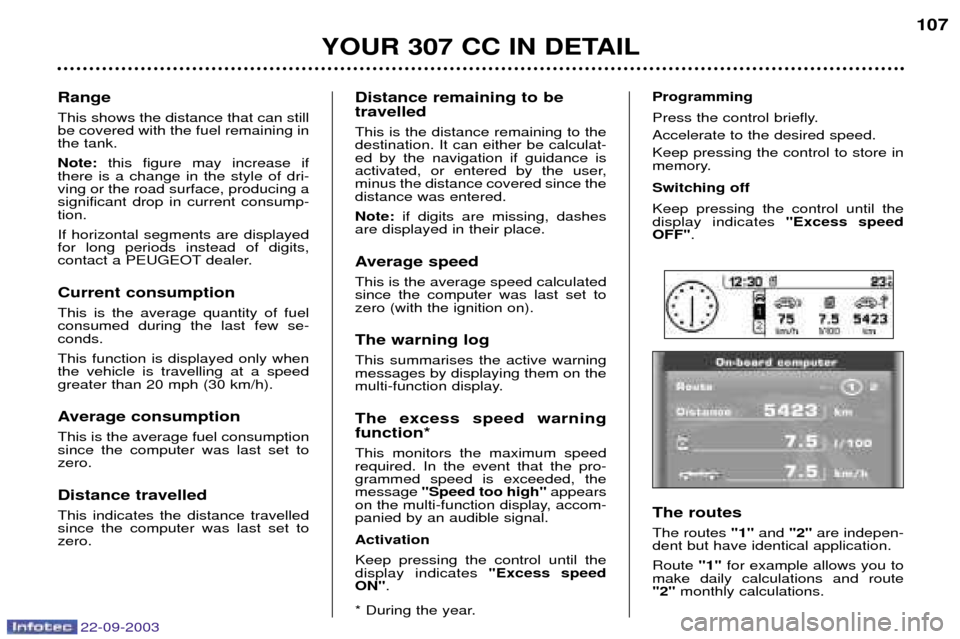
The routes The routes "1"and "2"are indepen-
dent but have identical application.Route "1" for example allows you to
make daily calculations and route "2" monthly calculations.
Page 116 of 173
22-09-2003
YOUR 307 CC IN DETAIL107
Distance remaining to be travelled This is the distance remaining to the destination. It can either be calculat-ed by the navigation if guidance is
activated, or entered by the user,minus the distance covered since thedistance was entered. Note:
if digits are missing, dashes
are displayed in their place.
Average speed This is the average speed calculated since the computer was last set tozero (with the ignition on). The warning log This summarises the active warning messages by displaying them on the
multi-function display. The excess speed warning function* This monitors the maximum speed required. In the event that the pro-grammed speed is exceeded, themessage ''Speed too high'' appears
on the multi-function display, accom-panied by an audible signal. Activation Keep pressing the control until the display indicates "Excess speed
ON" .
* During the year.
Range This shows the distance that can still be covered with the fuel remaining inthe tank. Note:
this figure may increase if
there is a change in the style of dri- ving or the road surface, producing asignificant drop in current consump-tion. If horizontal segments are displayed for long periods instead of digits,
contact a PEUGEOT dealer. Current consumption This is the average quantity of fuel consumed during the last few se-conds. This function is displayed only when the vehicle is travelling at a speedgreater than 20 mph (30 km/h).
Average consumption This is the average fuel consumption since the computer was last set tozero. Distance travelled This indicates the distance travelled since the computer was last set tozero. Programming
Press the control briefly. Accelerate to the desired speed.Keep pressing the control to store in
memory. Switching off Keep pressing the control until the display indicates
"Excess speed
OFF" .
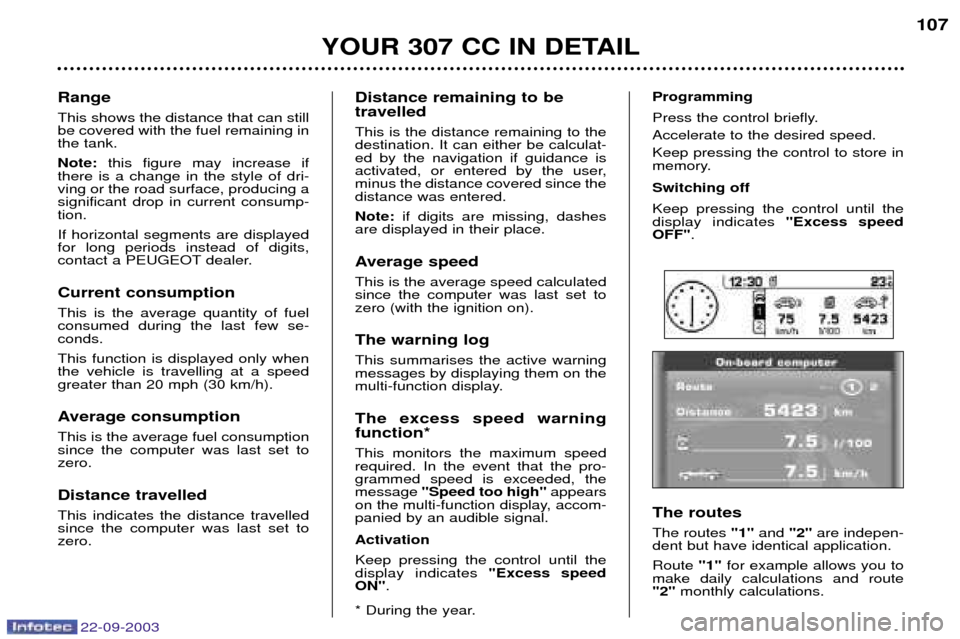
The routes The routes "1"and "2"are indepen-
dent but have identical application.Route "1" for example allows you to
make daily calculations and route "2" monthly calculations.